
Analyzing your prompt, please hold on...
An error occurred while retrieving the results. Please refresh the page and try again.
To edit CSS in HTML using C#, create or load an HTMLDocument, then set inline styles with SetAttribute("style", ...), add internal CSS by creating a <style> element in the document <head>, or link an external .css file. Save the HTML with document.Save() and render to PDF with PdfDevice when you need visual output.
Cascading Style Sheets (CSS) describe how web pages look. CSS can be added to HTML documents as inline styles, internal style rules, or external style sheets. Aspose.HTML for .NET supports CSS processing and lets you update document styles programmatically before saving HTML or rendering it to another format.
This article shows practical CSS editing workflows: setting and updating a style attribute, adding a <style> element to the document <head>, linking an external CSS file, and replacing an existing stylesheet link. For structural DOM changes such as creating elements or updating InnerHTML, see
Edit HTML Document.
Inline CSS is written in the style attribute of an HTML element. Use this approach when a style should apply to one specific element and does not need to be reused across the document.
The following C# example creates an HTML document from a string, finds the <p> element, sets the style attribute, saves the result to edit-inline-css.html, and renders the document to edit-inline-css.pdf.
To set inline CSS in C#:
HTMLDocument from HTML content.GetElementsByTagName("p").First().style attribute with SetAttribute().Save().PdfDevice and call RenderTo(device) when PDF output is required. 1// How to set inline CSS styles in an HTML element using C#
2
3// Create an instance of an HTML document with specified content
4string content = "<p>InlineCSS </p>";
5using (HTMLDocument document = new HTMLDocument(content, "."))
6{
7 // Find the paragraph element to set a style
8 HTMLElement paragraph = (HTMLElement)document.GetElementsByTagName("p").First();
9
10 // Set the style attribute
11 paragraph.SetAttribute("style", "font-size:250%; font-family:verdana; color:#cd66aa");
12
13 // Save the HTML document to a file
14 document.Save(Path.Combine(OutputDir, "edit-inline-css.html"));
15
16 // Create an instance of PDF output device and render the document into this device
17 using (PdfDevice device = new PdfDevice(Path.Combine(OutputDir, "edit-inline-css.pdf")))
18 {
19 // Render HTML to PDF
20 document.RenderTo(device);
21 }
22}In this example, font-size, font-family, and color are applied to the <p> element. The rendered PDF output looks like this:

When an HTML file already contains inline CSS, you can load the document, select the target element, read the current style attribute, and write an updated value. This is useful for small one-off changes, such as highlighting a warning message, changing a callout color, or adjusting a single element before saving or rendering the document.
The following C# example creates a source HTML file, loads it with HTMLDocument, updates the inline style of one paragraph, and saves the edited document.
To update inline CSS in an existing HTML file:
QuerySelector().style attribute with GetAttribute() if you need to preserve existing declarations.value parameter to SetAttribute("style", value).Save(). 1using Aspose.Html;
2using Aspose.Html.Dom;
3using System.IO;
4
5string inputPath = "inline-style-source.html";
6string outputPath = "inline-style-updated.html";
7
8File.WriteAllText(inputPath,
9 "<!DOCTYPE html>" +
10 "<html>" +
11 "<body>" +
12 "<p id='status' style='font-size: 20px;'>Processing completed with warnings.</p>" +
13 "</body>" +
14 "</html>");
15
16using (HTMLDocument document = new HTMLDocument(inputPath))
17{
18 Element status = document.QuerySelector("#status");
19 if (status != null)
20 {
21 string currentStyle = status.GetAttribute("style");
22 string updatedStyle = currentStyle + " color: #b00020; font-weight: 700; background-color: #fff3f3;";
23
24 status.SetAttribute("style", updatedStyle);
25 }
26
27 document.Save(outputPath);
28}The figure below compares the paragraph before and after updating the inline CSS: (a) the original paragraph with only font-size; (b) the same paragraph after adding text color, bold weight, and background color through the style attribute.

Internal CSS is stored in a <style> element, usually inside the document <head>. Use this approach when styles should apply to one HTML document and can be reused by several elements in that document.
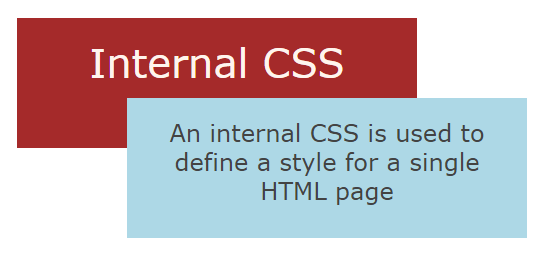
The following C# example creates a <style> element, sets CSS rules for .frame1 and .frame2, appends the style element to <head>, assigns class names to two paragraphs, adds additional style values through the HTMLElement.Style property, saves HTML, and renders the result to PDF.
To add internal CSS in C#:
HTMLDocument from HTML content.<style> element with CreateElement("style").TextContent.<head>. 1// Edit HTML with internal CSS using C#
2
3// Create an instance of an HTML document with specified content
4string content = "<div><p>Internal CSS</p><p>An internal CSS is used to define a style for a single HTML page</p></div>";
5using (HTMLDocument document = new HTMLDocument(content, "."))
6{
7 Element style = document.CreateElement("style");
8 style.TextContent = ".frame1 { margin-top:50px; margin-left:50px; padding:20px; width:360px; height:90px; background-color:#a52a2a; font-family:verdana; color:#FFF5EE;} \r\n" +
9 ".frame2 { margin-top:-90px; margin-left:160px; text-align:center; padding:20px; width:360px; height:100px; background-color:#ADD8E6;}";
10
11 // Find the document header element and append the style element to the header
12 Element head = document.GetElementsByTagName("head").First();
13 head.AppendChild(style);
14
15 // Find the first paragraph element to inspect the styles
16 HTMLElement paragraph = (HTMLElement)document.GetElementsByTagName("p").First();
17 paragraph.ClassName = "frame1";
18
19 // Find the last paragraph element to inspect the styles
20 HTMLElement lastParagraph = (HTMLElement)document.GetElementsByTagName("p").Last();
21 lastParagraph.ClassName = "frame2";
22
23 // Set a color to the first paragraph
24 paragraph.Style.FontSize = "250%";
25 paragraph.Style.TextAlign = "center";
26
27 // Set a font-size to the last paragraph
28 lastParagraph.Style.Color = "#434343";
29 lastParagraph.Style.FontSize= "150%";
30 lastParagraph.Style.FontFamily = "verdana";
31
32 // Save the HTML document to a file
33 document.Save(Path.Combine(OutputDir, "edit-internal-css.html"));
34
35 // Create the instance of the PDF output device and render the document into this device
36 using (PdfDevice device = new PdfDevice(Path.Combine(OutputDir, "edit-internal-css.pdf")))
37 {
38 // Render HTML to PDF
39 document.RenderTo(device);
40 }
41}This example uses internal CSS and also declares additional style properties for individual elements with the
HTMLElement.Style property. The rendered edit-internal-css.pdf output looks like this:
An external style sheet is a standalone .css file linked from the HTML document. Use this approach when the same styles should be shared across multiple pages or when CSS must remain separate from HTML markup.
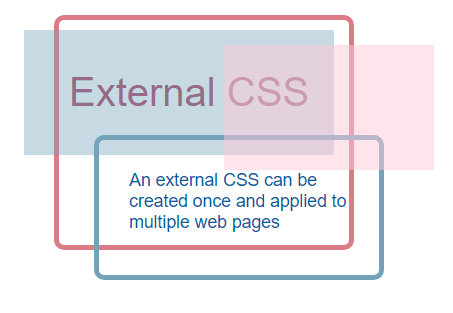
The first external CSS example creates HTML content with a <link rel="stylesheet"> element that points to an external CSS file URL, saves the HTML document to external-css.html, and renders the result to external-css.pdf. The sample stylesheet is available as
external.css.
To link an external CSS file by URL in C#:
<link rel="stylesheet"> element.HTMLDocument from the HTML string.Save().PdfDevice if you need to verify the visual result. 1// How to use an external CSS file in HTML using Aspose.HTML for .NET
2
3// Create an instance of HTML document with specified content
4string htmlContent = "<link rel=\"stylesheet\" href=\"https://docs.aspose.com/html/files/external.css\" type=\"text/css\" />\r\n" +
5 "<div class=\"rect1\" ></div>\r\n" +
6 "<div class=\"rect2\" ></div>\r\n" +
7 "<div class=\"frame\">\r\n" +
8 "<p style=\"font-size:2.5em; color:#ae4566;\"> External CSS </p>\r\n" +
9 "<p class=\"rect3\"> An external CSS can be created once and applied to multiple web pages</p></div>\r\n";
10
11using (HTMLDocument document = new HTMLDocument(htmlContent, "."))
12{
13 // Save the HTML document to a file
14 document.Save(Path.Combine(OutputDir, "external-css.html"));
15
16 // Create the instance of the PDF output device and render the document into this device
17 using (PdfDevice device = new PdfDevice(Path.Combine(OutputDir, "external-css.pdf")))
18 {
19 // Render HTML to PDF
20 document.RenderTo(device);
21 }
22}The rendered result of applying the external CSS file looks like this:
External CSS is often maintained separately from HTML. If an existing document points to an outdated stylesheet, you can update the <link rel="stylesheet"> element instead of rebuilding the whole document. This keeps the HTML structure intact while changing which CSS file controls the final appearance.
The following C# example creates an HTML file and two non-empty CSS files in the same output folder. The source HTML initially links to old-theme.css; the code changes the stylesheet link to new-theme.css and writes the updated HTML markup to a new file. This keeps the example focused on changing the <link> element and avoids creating a resource output folder.
To replace an external CSS link in C#:
<link rel="stylesheet"> element.QuerySelector("link[rel='stylesheet']").SetAttribute("href", "new-theme.css").DocumentElement.OuterHTML to the output HTML file. 1using Aspose.Html;
2using Aspose.Html.Dom;
3using System.IO;
4
5string inputPath = Path.Combine(OutputDir, "external-css-source.html");
6string outputPath = Path.Combine(OutputDir, "external-css-updated.html");
7string oldCssPath = Path.Combine(OutputDir, "old-theme.css");
8string newCssPath = Path.Combine(OutputDir, "new-theme.css");
9
10string oldCss =
11 "body { color: #555; background-color: #ffffff; }" +
12 ".content { padding: 12px; border-left: 4px solid #999; }";
13
14string newCss =
15 "body { color: #1f2937; background-color: #f7fbff; }" +
16 ".content { padding: 12px; border-left: 4px solid #2f80ed; font-weight: 700; }";
17
18File.WriteAllText(oldCssPath, oldCss);
19File.WriteAllText(newCssPath, newCss);
20
21File.WriteAllText(inputPath,
22 "<!DOCTYPE html>" +
23 "<html>" +
24 "<head>" +
25 "<link rel='stylesheet' href='old-theme.css'>" +
26 "</head>" +
27 "<body>" +
28 "<main class='content'>External CSS controls this content block.</main>" +
29 "</body>" +
30 "</html>");
31
32using (HTMLDocument document = new HTMLDocument(inputPath))
33{
34 Element stylesheet = document.QuerySelector("link[rel='stylesheet']");
35 if (stylesheet != null)
36 {
37 stylesheet.SetAttribute("href", "new-theme.css");
38 }
39
40 File.WriteAllText(outputPath, document.DocumentElement.OuterHTML);
41}The figure below shows the visual effect of replacing the external stylesheet: (a) the source HTML rendered with old-theme.css; (b) the same HTML after the <link> element points to new-theme.css.

You can also write CSS content to a local .css file and link it from generated HTML. The following example creates flower.css, references it from the HTML markup, saves the edited document to edit-external-css.html, and shows how CSS can be used to draw simple graphics.
To create and link an external CSS file in C#:
.css file with File.WriteAllText().<link> element that references the CSS file.HTMLDocument from the HTML content.Save(). 1// Edit HTML with external CSS using C#
2
3// Prepare content of a CSS file
4string styleContent = ".flower1 { width:120px; height:40px; border-radius:20px; background:#4387be; margin-top:50px; } \r\n" +
5 ".flower2 { margin-left:0px; margin-top:-40px; background:#4387be; border-radius:20px; width:120px; height:40px; transform:rotate(60deg); } \r\n" +
6 ".flower3 { transform:rotate(-60deg); margin-left:0px; margin-top:-40px; width:120px; height:40px; border-radius:20px; background:#4387be; }\r\n" +
7 ".frame { margin-top:-50px; margin-left:310px; width:160px; height:50px; font-size:2em; font-family:Verdana; color:grey; }\r\n";
8
9// Prepare a linked CSS file
10File.WriteAllText("flower.css", styleContent);
11
12// Create an instance of an HTML document with specified content
13string htmlContent = "<link rel=\"stylesheet\" href=\"flower.css\" type=\"text/css\" /> \r\n" +
14 "<div style=\"margin-top: 80px; margin-left:250px; transform: scale(1.3);\" >\r\n" +
15 "<div class=\"flower1\" ></div>\r\n" +
16 "<div class=\"flower2\" ></div>\r\n" +
17 "<div class=\"flower3\" ></div></div>\r\n" +
18 "<div style = \"margin-top: -90px; margin-left:120px; transform:scale(1);\" >\r\n" +
19 "<div class=\"flower1\" style=\"background: #93cdea;\"></div>\r\n" +
20 "<div class=\"flower2\" style=\"background: #93cdea;\"></div>\r\n" +
21 "<div class=\"flower3\" style=\"background: #93cdea;\"></div></div>\r\n" +
22 "<div style =\"margin-top: -90px; margin-left:-80px; transform: scale(0.7);\" >\r\n" +
23 "<div class=\"flower1\" style=\"background: #d5effc;\"></div>\r\n" +
24 "<div class=\"flower2\" style=\"background: #d5effc;\"></div>\r\n" +
25 "<div class=\"flower3\" style=\"background: #d5effc;\"></div></div>\r\n" +
26 "<p class=\"frame\">External</p>\r\n" +
27 "<p class=\"frame\" style=\"letter-spacing:10px; font-size:2.5em \"> CSS </p>\r\n";
28
29using (HTMLDocument document = new HTMLDocument(htmlContent, "."))
30{
31 // Save the HTML document to a file
32 document.Save(Path.Combine(OutputDir, "edit-external-css.html"));
33}The edit-external-css.html output shows CSS-generated graphics. CSS is commonly used to style web pages, but it can also create simple visual shapes with properties such as border-radius, transform, margins, colors, and sizing.

| Goal | Recommended method |
|---|---|
| Style one specific element | Set the element’s style attribute with SetAttribute(). |
| Update one existing styled element | Select the element and replace or extend its current style attribute. |
| Reuse styles inside one HTML document | Create a <style> element, set its TextContent, and append it to <head>. |
| Share styles across pages | Link an external .css file with <link rel="stylesheet">. |
| Switch an existing page to another stylesheet | Find the stylesheet <link> element and update its href attribute. |
| Generate CSS and HTML together | Write the CSS file with File.WriteAllText() and link it from generated HTML. |
| Verify final appearance | Save HTML and render the document to PDF with PdfDevice. |
| Problem | Cause | Solution |
|---|---|---|
| Inline style is missing in the saved HTML | The selector did not find the expected element, or the style attribute was overwritten with an incomplete value. | Check that QuerySelector() returns a non-null element. When you need to keep existing declarations, read GetAttribute("style"), append the new CSS declarations, and pass the full declaration string as the second argument to SetAttribute("style", value). |
| Inline CSS becomes hard to maintain | Many elements are styled with separate style attributes. | Use inline CSS for one-off changes only. For repeated styles, add a <style> element or an external stylesheet and assign classes to elements. |
| Internal CSS rules are ignored | The <style> element was created but not appended to the document <head>. | Append the style element to the existing <head> before saving or rendering the document. |
| Class styles do not apply | The CSS selector and the element ClassName value do not match. | Use the same class name in the CSS rule and in the element ClassName property. For example, .frame1 must match ClassName = "frame1". |
| External CSS file is not loaded | The href path is relative, but the document does not have the expected base path, or the CSS file is not available at that location. | Keep the CSS file next to the HTML file, pass a valid base path when creating HTMLDocument from a string, or use an absolute URL. |
| Updated external stylesheet is not applied | The document still points to the old stylesheet, or the replacement CSS file was not written before the HTML was loaded or rendered. | Update the <link> element href attribute, make sure the new CSS file exists, and write the updated HTML markup to the output file. |
Select the target HTMLElement, build a string with CSS declarations, and pass it as the value parameter to
SetAttribute(“style”, value).
Create a <style> element with CreateElement("style"), set its TextContent to CSS rules, and append it to the document <head>.
Yes. Select the target element, read or replace its style attribute, and save the document after the update.
Yes. Include a <link rel="stylesheet" href="..."> element in the HTML content and make sure the CSS file or URL is available when the document is loaded or rendered.
Yes. Select the <link rel="stylesheet"> element and update its href attribute with SetAttribute() before saving the document.
Yes. After applying CSS changes, create a PdfDevice and call document.RenderTo(device) to render the styled document to PDF.
The complete C# examples and data files are available in the Aspose.HTML for .NET GitHub repository.

Analyzing your prompt, please hold on...
An error occurred while retrieving the results. Please refresh the page and try again.