
Analyzing your prompt, please hold on...
An error occurred while retrieving the results. Please refresh the page and try again.
This article explains several ways to add images to HTML, from the basic <img> tag to techniques with CSS, JavaScript, Base64, and inline SVG. It also covers performance, accessibility, and SEO best practices, with HTML examples for integrating images into web projects.
If web pages were just text, they would be pretty boring. Images and other types of media play a crucial role in making content visually appealing, engaging, and informative. Adding images to HTML is therefore a fundamental part of web development.
Image formats. Choosing the right image format affects loading speed and quality:
For better performance and SEO, compress images to reduce file size and use descriptive filenames that improve search visibility.
Note: Search engines also read image filenames and consider them for query optimization. Use meaningful names: landscape.jpg is better than img1.jpg.
<img> TagThe simplest way to add an image to an HTML page is to use the <img> tag. This element does not have a closing tag and requires at least one attribute – src, which contains the path to the image you want to embed in the page. However, for better SEO, we recommend using other attributes as well. The key attributes are:
src – specifies a URL pointing to the image you want to embed in the page. It can be a relative URL, an absolute URL, or Base64-encoded data. Without the src attribute, the <img> element has no image to load.alt – provides alternative text for accessibility and SEO. Alt text should explain the image’s intent, purpose, and meaning.width and height – specify the width and height of the image in pixels. If width and height are not specified, the page may shift while the image is loading.If your image is called landscape.jpg and is in the same directory as your HTML page, you can embed it as shown below:
1<img src="landscape.jpg" alt="Summer landscape – a field with windmills." width="400" height="150">Note: Many images on the Internet are copyrighted. Violating copyright is illegal. If you did not create the image and took it from the web, make sure the image is in the public domain or that you have permission to use it.
Images in HTML can be added with local file paths, remote URLs, or data embedded directly with Base64 encoding.
Using local images is often better than using remote images because they load faster, reduce dependency on external servers, and ensure availability even if the Internet connection is slow or the remote server is unavailable. Local images also improve security by preventing potential tracking or unauthorized changes from third-party sources.
If the image is in an images subdirectory in the same directory as the HTML page, you can embed it like this:
1<html>
2	<body>
3		<h1>Adding Images Using img Tag</h1>
4		<img src="images/landscape.png" alt="Summer landscape – a field with windmills." width="400" height="150" >
5		<p>When an image is loaded without specified width and height attributes, the browser initially doesn’t reserve space for it, causing content to shift as the image loads.</p>
6	</body>
7</html>
Image width and height
When an image loads without the width and height attributes, the browser does not reserve space for it at first, which causes content to shift during loading. This negatively affects the user experience because the page appears unstable, especially on slower connections. By specifying width and height, the browser can reserve space for the image before it loads and prevent sudden layout shifts. This practice improves visual stability and core web metrics, helping SEO and overall site performance.
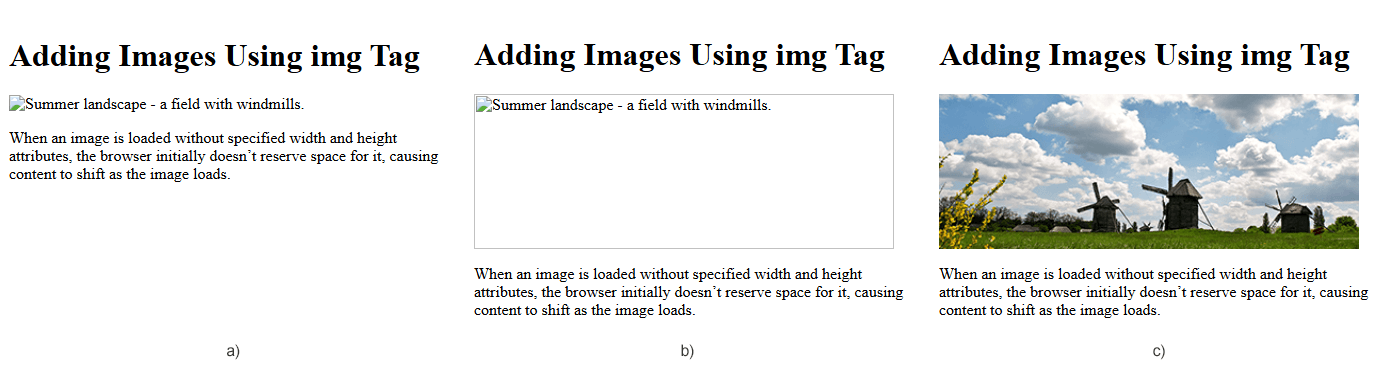
The following figure shows examples of web pages: no space is reserved for an image that has not loaded yet (a); space is reserved because the height and width attributes were specified in the <img> tag (b); and the image is loaded (c).
Note: When a web page loads, the browser retrieves the image from the web server at the path specified in src and inserts it into the page. If the image is missing, the browser shows a broken link icon and the alt text.
An absolute file path is the full path to the image file, starting from the root of the web server or using a full URL. You can also embed an image by using its absolute URL, for example:
1<img src="https://docs.aspose.com/svg/images/api/lioness.jpg" alt="The muzzle of a lioness close-up." width="350" height="200" >However, relying on external absolute URLs is not recommended. Whenever possible, host the images you want to use on your own site. In simple setups, this means storing site images on the same server as the HTML.
Base64 encoding allows images to be embedded directly in HTML as data URIs, without separate image files. This reduces HTTP requests and can improve loading time for small images or icons. However, Base64-encoded images increase the HTML file size, which can affect performance. Use them for embedded graphics such as logos or small UI elements, not for large images.
This code snippet shows how to embed Base64 images in HTML:
1<img src="data:image/svg+xml;base64,PHN2ZyB3aWR0aD0iMzAwIiBoZWlnaHQ..." alt="Red circle" width="300" height="200" >The following HTML code shows how to add an image to an HTML file from three types of sources:
 1<html>
 2    <body>
 3		<h1>Add Image to HTML</h1>
 4		<!-- Adding image to HTML using local path -->
 5		<img src="images/georgia-castle.png" alt="Ananuri fortress complex in Georgia" width="350" height="200" >
 6
 7		<!-- Adding image to HTML using absolute URL -->
 8		<img src="https://docs.aspose.com/svg/images/api/lioness.jpg" alt="The muzzle of a lioness close-up." width="350" height="200" >
 9
10		<!-- Adding image to HTML using Base64 encoded data -->
11		<img src="data:image/svg+xml;base64,PHN2ZyB3aWR0aD0iMzAwIiBoZWlnaHQ9IjIwMCIgeG1sbnM9Imh0dHA6Ly93d3cudzMub3JnLzIwMDAvc3ZnIj4NCiAgICA8Y2lyY2xlIGN4PSIxNTAiIGN5PSIxMDAiIHI9I
12		jgwIiBzdHlsZT0iZmlsbDpyZWQ7IHN0cm9rZS13aWR0aDo1OyBzdHJva2U6dGVhbCIgLz4NCjwvc3ZnPg==" alt="Red circle" width="300" height="200" >
13	</body>
14</html>
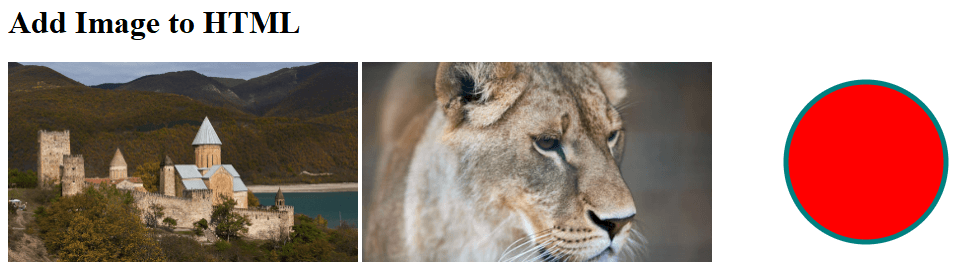
The image illustrates the HTML file above. It shows three images loaded from a local file, a remote URL, and Base64-encoded data.
Summary
<img> tag – add images with the src, alt, width, and height attributes. All of them are important for accessibility and SEO.In addition to displaying images with the <img> tag, you can use CSS to manipulate images in other ways, for example by setting a background image. Background images are mainly used for decorative purposes, such as adding textures, gradients, or patterns to improve a website’s visual appearance. To add a background image to HTML, you can use:
style attribute on the desired HTML element with the background-image property;<style> element with background image information for a document, or part of a document, inside the <head> element.If you want to add a background image to the entire web page, set the CSS background-image property on the <body> element inside the <style> element. By default, a background image repeats if it is smaller than the specified element, in this case, <body>:
 1<html>
 2	<head>
 3		<style>
 4			body {
 5				background-image: url("lioness.png");
 6			}
 7		</style>
 8	</head>
 9	<body>
10		<h1>Background Image for an Entire Page</h1>
11	</body>
12</html>
If you want the background image to cover the entire element, set the background-size property to cover:
1body {
2  background-image: url("lioness.png");
3  background-size: cover;
4}
To avoid repeating the background image, set the background-repeat property to no-repeat:
1body {
2  background-image: url("lioness.png");
3  background-repeat: no-repeat;
4}
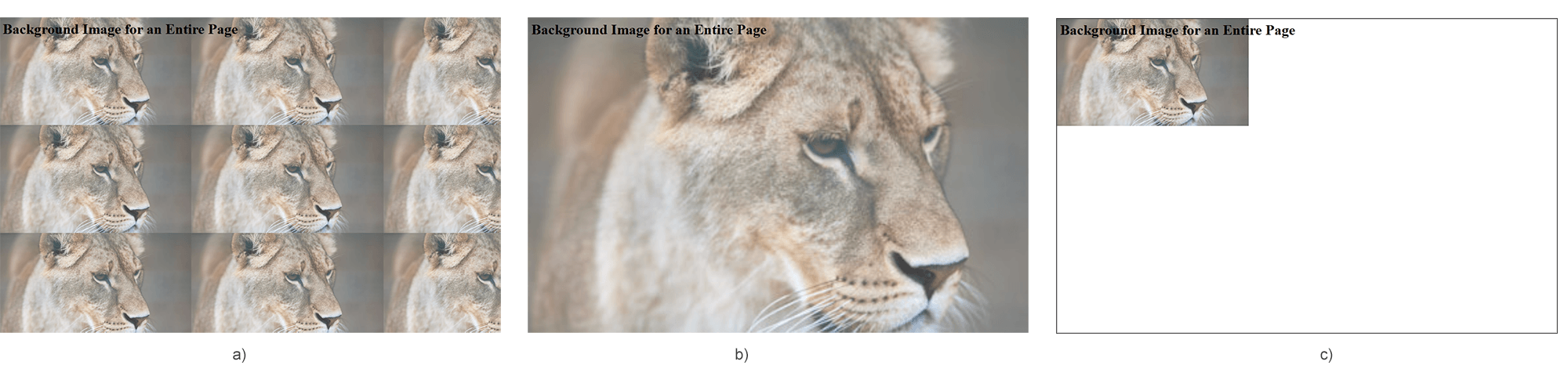
The following figure illustrates three reduced computer screens with background images added through the background-image property with default settings (a), with background-size: cover (b), and with background-repeat: no-repeat (c):
Note:
Background images are purely decorative and do not require attributes such as alt, width, or height, because they are not part of the page’s actual content. Unlike images inserted with <img>, background images do not convey meaningful information to users and are not read by screen readers, so the alt attribute is not needed for accessibility. Their dimensions are controlled with CSS.
A background image for an HTML element is specified with the CSS background-image property, which allows it to be applied to elements such as p, div, body, or section. You can control position with background-position, adjust scaling with background-size, and control repetition with background-repeat.
The following Example 1 shows how to add a background image to a <p> element using the style attribute and the CSS background-image property:
Example 1
1<p style="background-image: url('winter.png'); "> A background image for an HTML element is set using CSS with the background-image property...</p>The following Example 2 shows how to add a background image to a <div> element using the <style> element in the document <head> and the CSS background-image property:
Example 2
 1<html>
 2	<head>
 3		<style>
 4			div {
 5				background-image: url("winter.png");
 6			}
 7		</style>
 8	</head>
 9    <body>
10		<h1>HTML Background Images</h1>
11		<div>
12			<h2>Background Image for an HTML Element</h2>
13			<p> A background image for an HTML element is set using CSS with the background-image property, allowing you to apply images to elements like div, body, or section... </p>
14			<br>
15		</div>
16	</body>
17</html>
The following figure shows the rendered result of Examples 1 and 2: the background image is added to the <p> element with the style attribute (a); the background image is added through the <style> element and applied to the <div> element (b).

Summary
background-image property to add images to elements such as <body>, <div>, or <p>. You can do this inline in the style attribute, in a <style> block, or in an external CSS file.alt attribute is needed. Background images are decorative and are not part of the content, so they do not require alt, width, or height. Accessibility tools do not read them.Although using the <img> tag is simpler for static content, JavaScript is a better choice when images must be added or modified dynamically.
 1<html>
 2	<body>
 3		<h1>Adding Image via JavaScript</h1>
 4		<script>
 5			// Create a new image element
 6			let img = document.createElement("img");
 7
 8			// Set the image source
 9			img.src = "https://docs.aspose.com/svg/images/api/lioness.jpg";
10
11			// Set alternative text, width and height for accessibility and SEO
12			img.alt = "The muzzle of a lioness close-up. The lioness looks away.";
13			img.width = 350;
14			img.height = 200;
15
16			// Append the image to the body
17			document.body.appendChild(img);
18		</script>
19	</body>
20</html>
Although using the <img> tag is simpler for static content, JavaScript is more suitable when images need to be added or modified dynamically. Adding images via JavaScript enables conditional loading and lazy loading, which improves performance and flexibility. Unlike static <img> tags, this approach allows error handling, real-time updates, and better maintainability in interactive applications.
Using inline SVG in HTML allows you to embed scalable vector graphics directly in the document without external image files. Since SVGs are resolution-independent, they remain sharp on all screen sizes, making them ideal for icons, logos, and complex graphics.
 1<html>
 2	<head>
 3		<style>
 4			.page {
 5				width: 160mm;
 6				height: 90mm;
 7				border: 2px solid #026dc5;
 8				text-align: center;
 9			}
10			h1,p {
11				color: #054c87;
12			}
13		</style>
14	</head>
15	<body>
16		<div class="page">
17			<h1>Using Inline SVG as image in HTML</h1>
18			<p>Because SVGs are resolution-independent, they remain crisp on screens of all sizes, making them ideal for icons, logos, and complex graphics...</p>
19			<svg height="140" width="140" viewBox="-40 0 140 140" xmlns="http://www.w3.org/2000/svg">
20				<path d="M 25 78  C -26 28  97 -15  98 91 C 86 34 16 33 25 78" fill="#3993c9"/>
21				<path d="M 25 78  C -26 28  97 -15  98 91 C 86 34 16 33 25 78"  fill="#f3622a" transform= "rotate(90 30 64) translate(5 -14)"/>
22				<path d="M 25 78  C -26 28  97 -15  98 91 C 86 34 16 33 25 78"  fill="#c1af2c" transform= "rotate(180 25 78) translate(-19 9)"/>
23				<path d="M 25 78  C -26 28  97 -15  98 91 C 86 34 16 33 25 78"  fill="#499c43" transform= "rotate(-90 25 78) translate(-5 14)"/>
24				<circle cx="34.5" cy="73.5" r="40"   fill="white" fill-opacity="0.3" />
25			</svg>
26		</div >
27	</body>
28</html>
The following figure illustrates the HTML file above. The file uses an embedded SVG with the Aspose logo:
Use the <img> tag with src for the image path and alt for alternative text. Also add width and height to avoid layout shifts while the image loads.
Use <img> when the image is meaningful content. Use background-image when the image is decorative, such as a texture, pattern, or visual background that does not need alternative text.
Base64 can be useful for icons or small graphics because it avoids extra HTTP requests. For large images, it usually hurts performance because it increases the HTML size.
Use Aspose.HTML for .NET to create or edit HTML documents programmatically. See Add Image to HTML in C# for API examples.

Analyzing your prompt, please hold on...
An error occurred while retrieving the results. Please refresh the page and try again.