
XPSファイル内の画像の操作 | Python
Contents
[
Hide
Show
]ここでは、Python を使用して XPS ファイル内の画像を操作する方法を説明するコードを紹介します。
XPS ドキュメント内に画像を追加する
Aspose.Page for Python via .NET は XpsPath クラスを提供しており、これを使用して XPS ドキュメントに画像を組み込むことができます。これを実現するには、Matrix と ImageBrush を作成し、XpsDocument を保存する必要があります。次のコード スニペットは、XPS ドキュメントに画像を追加するための完全な機能を示しています。
 1from aspose.page.xps import *
 2from aspose.page.xps.xpsmodel import *
 3import aspose.pydrawing
 4from util import Util
 5# The path to the documents directory.
 6data_dir = Util.get_data_dir_working_with_images()
 7# Create a new XPS Document
 8doc = XpsDocument()
 9# Add an Image
10path = doc.add_path(doc.create_path_geometry("M 30,20 l 258.24,0 0,56.64 -258.24,0 Z"))
11# Creating a matrix is optional, it can be used for the proper positioning
12path.render_transform = doc.create_matrix(0.7, 0, 0, 0.7, 0, 20)
13# Create an Image Brush
14path.fill = doc.create_image_brush(data_dir + "QL_logo_color.tif", aspose.pydrawing.RectangleF(0, 0, 258.24, 56.64),
15aspose.pydrawing.RectangleF(50, 20, 193.68, 42.48))
16# Save the resultant XPS document
17doc.save(data_dir + "AddImage_outXPS.xps")このコードを実行した結果は next

タイル画像の追加
Aspose.Page for Python via .NET は XpsPath クラスを提供しており、これを使用して XPS ドキュメントに画像を組み込むことができます。これを実現するには、Matrix と ImageBrush を作成し、タイルモードを set_tile_mode(XpsTileMode.Tile) に設定して、最後に XpsDocument を保存する必要があります。次のコードスニペットは、XPS ドキュメントにタイル画像を追加するための完全な機能を示しています。
 1from aspose.page.xps import *
 2from aspose.page.xps.xpsmodel import *
 3import aspose.pydrawing
 4from util import Util
 5# The path to the documents directory.
 6data_dir = Util.get_data_dir_working_with_images()
 7# Create a new XPS Document
 8doc = XpsDocument()
 9# Tile an image
10# ImageBrush filled rectangle in the right top bellow
11path = doc.add_path(doc.create_path_geometry("M 10,160 L 228,160 228,305 10,305"))
12imageBrush: XpsImageBrush = doc.create_image_brush(data_dir + "R08LN_NN.jpg", aspose.pydrawing.RectangleF(0, 0, 128, 96),
13    aspose.pydrawing.RectangleF(0, 0, 64, 48))
14path.fill = imageBrush
15imageBrush.tile_mode = XpsTileMode.TILE
16path.fill.opacity = 0.5
17# Save the resultant XPS document
18doc.save(data_dir + "AddTiledImage_outXPS.xps")このコードを実行した結果は next
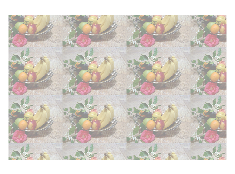
サンプルとデータ ファイルは GitHub からダウンロードできます。