
调整 EPS 大小 | .NET API 解决方案
概述
本文讲解如何使用 C# 调整 EPS 大小。内容涵盖以下主题:
- C# 调整 EPS 大小说明
- C# 调整 EPS 大小,以点为单位设置新大小
- C# 调整 EPS 大小,以英寸为单位设置新大小
- C# 调整 EPS 大小,以毫米为单位设置新大小
- C# 调整 EPS 大小,以百分比为单位设置新大小
C# 调整 EPS 大小说明
调整图像大小的操作会改变图像的宽度和高度中的一个或两个维度。图像内容保持不变,但图像本身可以根据新的宽度和高度值进行缩放。如果宽度和高度按比例增加,EPS 图像的显示效果会放大,否则会缩小。如果宽度和高度变化不成比例,则 EPS 图像的显示效果会在某个方向上被压缩或拉长。由于我们的解决方案不处理内容,而是处理 EPS 文件的标题和设置部分,因此 EPS 文件的体积几乎保持不变。
要设置 EPS 图像显示效果的新尺寸,通常需要知道其现有尺寸并选择指定新尺寸的单位。单位可以是点(1/72 英寸)、英寸、毫米、厘米和百分比。 因此,在 C# 中调整 EPS 图像大小的步骤如下:
- 使用包含 EPS 文件的输入流初始化 PsDocument 对象。
- 使用静态方法 ExtractEpsSize 提取图像的现有尺寸。
- 为生成的 EPS 文件创建输出流。
- 使用静态方法 ResizeEps,以选定的 单位 调整 PsDocument 对象的大小,使其达到新的尺寸。
您可以通过免费在线 Resize EPS 检查 Aspose.Page EPS Resize 的质量并查看结果,然后使用我们的 EPS Viewer 查看生成的 EPS 文件。
在 C# 中以 Points 为单位调整 EPS 图像大小
以下 C# 代码片段中,图像的新大小以 Points(1/72 英寸)为单位设置:
 1// Setting new size of EPS file in points.
 2
 3// Initialize PS document with EPS file
 4PsDocument document = new PsDocument(DataDir + "input.eps");
 5
 6string outputFileName = "output_resize_points.eps";
 7
 8//Get size of EPS image
 9Size oldSize = document.ExtractEpsSize();
10
11//Increase EPS size in 2 times and save to new file
12document.ResizeEps(OutputDir + outputFileName, new SizeF(oldSize.Width * 2, oldSize.Height * 2), Units.Points);对于 Linux、MacOS 和其他非 Windows 操作系统,我们建议使用我们的 Aspose.Page.Drawing Nuget 软件包。它使用 Aspose.Drawing 后端,而不是 System.Drawing 系统库。
因此,请导入 Aspose.Page.Drawing 命名空间,而不是 System.Drawing 命名空间。在以上和以下代码片段中,将使用 Aspose.Page.Drawing.Size 代替 System.Drawing.Size。我们在 GitHub 上的代码示例包含所有必要的替换。
在 C# 中调整 EPS 大小,以英寸为单位设置新尺寸
在以下 C# 代码片段中,图像的新尺寸以英寸为单位设置:
 1// For complete examples and data files, please go to https://github.com/aspose-page/Aspose.Page-for-.NET
 2
 3// The path to the documents directory.
 4string dataDir = GetDataDir();
 5
 6 //Create an input stream for EPS file
 7using (Stream inputEpsStream = new System.IO.FileStream(dataDir + "input.eps", System.IO.FileMode.Open, System.IO.FileAccess.Read))
 8{
 9    //Initialize PsDocument object with input stream
10    PsDocument doc = new PsDocument(inputEpsStream);
11
12    //Get size of EPS image
13    Size oldSize = doc.ExtractEpsSize();
14
15    //Create an output stream for resized EPS
16    using (Stream outputEpsStream = new System.IO.FileStream(dataDir + "output_resize_inches.eps", System.IO.FileMode.Create, System.IO.FileAccess.Write))
17    {
18        //Save EPS to the output stream with new size assigned in inches
19        doc.ResizeEps(outputEpsStream, new SizeF(5.791f, 3.625f), Units.Inches);
20    }
21}
在 C# 中调整 EPS 图像尺寸,以毫米为单位
以下 C# 代码片段中,图像的新尺寸以毫米为单位:
 1// For complete examples and data files, please go to https://github.com/aspose-page/Aspose.Page-for-.NET
 2
 3// The path to the documents directory.
 4string dataDir = GetDataDir();
 5
 6 //Create an input stream for EPS file
 7using (Stream inputEpsStream = new System.IO.FileStream(dataDir + "input.eps", System.IO.FileMode.Open, System.IO.FileAccess.Read))
 8{
 9    //Initialize PsDocument object with input stream
10    PsDocument doc = new PsDocument(inputEpsStream);
11
12    //Get size of EPS image
13    Size oldSize = doc.ExtractEpsSize();
14
15    //Create an output stream for resized EPS
16    using (Stream outputEpsStream = new System.IO.FileStream(dataDir + "output_resize_mms.eps", System.IO.FileMode.Create, System.IO.FileAccess.Write))
17    {
18        //Save EPS to the output stream with new size assigned in millimeters
19        doc.ResizeEps(outputEpsStream, new SizeF(196, 123), Units.Millimeters);
20    }
21}
在 C# 中通过百分比设置 EPS 图像的新尺寸
以下 C# 代码片段中,图像的新尺寸由百分比设置:
 1// For complete examples and data files, please go to https://github.com/aspose-page/Aspose.Page-for-.NET
 2
 3// The path to the documents directory.
 4string dataDir = GetDataDir();
 5
 6 //Create an input stream for EPS file
 7using (Stream inputEpsStream = new System.IO.FileStream(dataDir + "input.eps", System.IO.FileMode.Open, System.IO.FileAccess.Read))
 8{
 9    //Initialize PsDocument object with input stream
10    PsDocument doc = new PsDocument(inputEpsStream);
11
12    //Get size of EPS image
13    Size oldSize = doc.ExtractEpsSize();
14
15    //Create an output stream for resized EPS
16    using (Stream outputEpsStream = new System.IO.FileStream(dataDir + "output_resize_mms.eps", System.IO.FileMode.Create, System.IO.FileAccess.Write))
17    {
18        //Save EPS to the output stream with new size assigned in percents
19        doc.ResizeEps(outputEpsStream, new SizeF(200, 200), Units.Percents);
20    }
21}
初始图像

调整大小的图像
构建 EPS 缩放 AI 代理
构建用于 EPS 缩放的生成式 AI 代理利用了基于文件头的缩放规则。它可以接收用户的多单位空间缩放请求,读取初始参数以确保正确的宽高比,并安全地执行,而无需复杂的栅格化循环。
工程目标是创建一个编排框架,使 AI 能够接收用户的提示,计算目标数学矩阵,并将这些指标安全地传递给程序化布局编译器。此类工具的实现工作流程可能如下所示:
- 缩放意图和单位提取(LLM 分析层)
用户发送 EPS 文件以及简单的文本指令(例如,“将其大小加倍”或“将宽度设置为 120 毫米”)。
LLM 将对话式输入字符串映射到离散变量:数值目标值、尺寸轴约束(宽度/高度)以及与“单位”枚举匹配的显式单位定义。
- 原生尺寸和边界解析
为了在不扭曲或压缩矢量图形的情况下计算比例缩放,代理必须检查资源的当前画布参数。
系统将文件加载到 PsDocument 流中并执行 document.ExtractEpsSize()。这将生成一个包含绝对宽度和高度属性的原生 Size 边界定义数组。
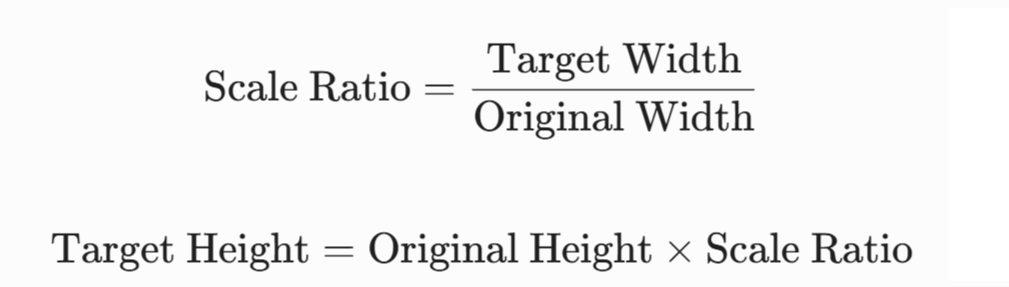
- 比例几何体调整
如果用户意图需要保持严格的宽高比,但只提供了一个维度(例如宽度),代理会动态计算缺失的目标矢量轴。
AI 根据步骤 2 中提取的原始尺寸约束计算比例缩放修改器。
- 缩放和资源序列化(执行节点)
计算出的几何体有效负载将传递给 Aspose,以便快速修补文件元数据,而无需结构化重新渲染循环。
系统运行 document.ResizeEps(outputPath, targetSize, Units.[TargetUnit])。这将更新底层标头配置,并立即向端点画布输出优化的高保真 EPS 文件。
在我们的调整 EPS 大小 Web 应用程序上在线评估调整 EPS 大小。您可以在几秒钟内调整 EPS 文件大小并下载结果。
您可以从 GitHub 下载示例和数据文件。