# C++ を使用してプレゼンテーションにシェイプ効果を適用
> Aspose.Slides for C++ を使用して高度なシェイプ効果で PPT および PPTX ファイルを変換し、数秒で印象的でプロフェッショナルなスライドを作成します。
Source: https://docs.aspose.com/slides/ja/cpp/shape-effect/
Updated: 2025-12-10
PowerPoint のエフェクトはシェイプを際立たせるために使用できますが、[fills](/slides/ja/cpp/shape-formatting/#gradient-fill) やアウトラインとは異なります。PowerPoint エフェクトを使用すると、シェイプにリアルな反射を作成したり、シェイプのグローを広げたりできます。
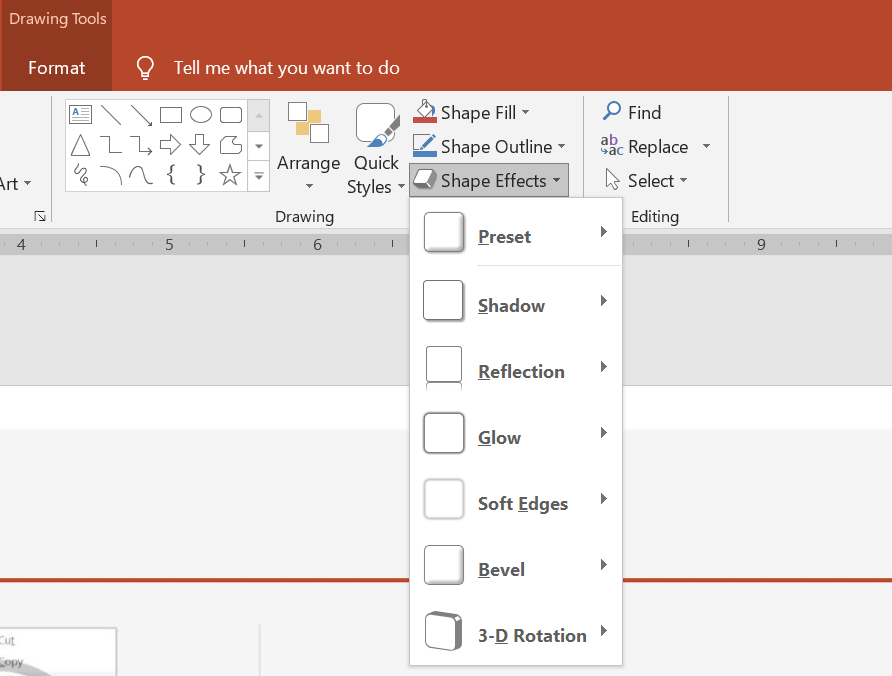 * PowerPoint にはシェイプに適用できる 6 つのエフェクトが用意されています。シェイプに 1 つ以上のエフェクトを適用できます。
* エフェクトの組み合わせの中には、他より見栄えが良いものがあります。そのため、PowerPoint の **Preset** オプションが用意されています。Preset オプションは、実質的に 2 つ以上のエフェクトの見栄えの良い組み合わせです。したがって、プリセットを選択すれば、異なるエフェクトをテストしたり組み合わせて良い組み合わせを見つける時間を無駄にしなくて済みます。
Aspose.Slides は、PowerPoint プレゼンテーションのシェイプに同じエフェクトを適用できるようにする、[EffectFormat](https://reference.aspose.com/slides/cpp/class/aspose.slides.effect_format/) クラスのプロパティとメソッドを提供します。
## **シャドウ エフェクトを適用する**
この C++ コードは、外部シャドウ エフェクト([OuterShadowEffect](https://reference.aspose.com/slides/cpp/class/aspose.slides.effect_format#aea1a48246d3240e29092498f648bc028)) を長方形に適用する方法を示しています:
```c++
auto pres = System::MakeObject();
auto slide = pres->get_Slides()->idx_get(0);
auto shape = slide->get_Shapes()->AddAutoShape(ShapeType::RoundCornerRectangle, 20.0f, 20.0f, 200.0f, 150.0f);
auto effectFormat = shape->get_EffectFormat();
effectFormat->EnableOuterShadowEffect();
auto outerShadowEffect = effectFormat->get_OuterShadowEffect();
outerShadowEffect->get_ShadowColor()->set_Color(System::Drawing::Color::get_DarkGray());
outerShadowEffect->set_Distance(10);
outerShadowEffect->set_Direction(45.0f);
pres->Save(u"output.pptx", SaveFormat::Pptx);
```
## **反射エフェクトを適用する**
この C++ コードは、シェイプに反射エフェクトを適用する方法を示しています:
```c++
auto pres = System::MakeObject();
auto slide = pres->get_Slides()->idx_get(0);
auto shape = slide->get_Shapes()->AddAutoShape(ShapeType::RoundCornerRectangle, 20.0f, 20.0f, 200.0f, 150.0f);
auto effectFormat = shape->get_EffectFormat();
effectFormat->EnableReflectionEffect();
auto reflectionEffect = effectFormat->get_ReflectionEffect();
reflectionEffect->set_RectangleAlign(RectangleAlignment::Bottom);
reflectionEffect->set_Direction(90.0f);
reflectionEffect->set_Distance(55);
reflectionEffect->set_BlurRadius(4);
pres->Save(u"reflection.pptx", SaveFormat::Pptx);
```
## **グロー エフェクトを適用する**
この C++ コードは、シェイプにグロー エフェクトを適用する方法を示しています:
```c++
auto pres = System::MakeObject();
auto slide = pres->get_Slides()->idx_get(0);
auto shape = slide->get_Shapes()->AddAutoShape(ShapeType::RoundCornerRectangle, 20.0f, 20.0f, 200.0f, 150.0f);
auto effectFormat = shape->get_EffectFormat();
effectFormat->EnableGlowEffect();
auto glowEffect = effectFormat->get_GlowEffect();
glowEffect->get_Color()->set_Color(System::Drawing::Color::get_Magenta());
glowEffect->set_Radius(15);
pres->Save(u"glow.pptx", SaveFormat::Pptx);
```
## **ソフトエッジ エフェクトを適用する**
この C++ コードは、シェイプにソフトエッジを適用する方法を示しています:
```c++
auto pres = System::MakeObject();
auto slide = pres->get_Slides()->idx_get(0);
auto shape = slide->get_Shapes()->AddAutoShape(ShapeType::RoundCornerRectangle, 20.0f, 20.0f, 200.0f, 150.0f);
auto effectFormat = shape->get_EffectFormat();
effectFormat->EnableSoftEdgeEffect();
auto softEdgeEffect = effectFormat->get_SoftEdgeEffect();
softEdgeEffect->set_Radius(15);
pres->Save(u"softEdges.pptx", SaveFormat::Pptx);
```
## **FAQ**
**同じシェイプに複数のエフェクトを適用できますか?**
はい、影、反射、グローなどの異なるエフェクトを単一のシェイプに組み合わせて、よりダイナミックな外観にすることができます。
**どのようなシェイプにエフェクトを適用できますか?**
オートシェイプ、チャート、テーブル、画像、SmartArt オブジェクト、OLE オブジェクトなど、さまざまなシェイプにエフェクトを適用できます。
**グループ化されたシェイプにエフェクトを適用できますか?**
はい、グループ化されたシェイプにもエフェクトを適用できます。エフェクトはグループ全体に適用されます。
* PowerPoint にはシェイプに適用できる 6 つのエフェクトが用意されています。シェイプに 1 つ以上のエフェクトを適用できます。
* エフェクトの組み合わせの中には、他より見栄えが良いものがあります。そのため、PowerPoint の **Preset** オプションが用意されています。Preset オプションは、実質的に 2 つ以上のエフェクトの見栄えの良い組み合わせです。したがって、プリセットを選択すれば、異なるエフェクトをテストしたり組み合わせて良い組み合わせを見つける時間を無駄にしなくて済みます。
Aspose.Slides は、PowerPoint プレゼンテーションのシェイプに同じエフェクトを適用できるようにする、[EffectFormat](https://reference.aspose.com/slides/cpp/class/aspose.slides.effect_format/) クラスのプロパティとメソッドを提供します。
## **シャドウ エフェクトを適用する**
この C++ コードは、外部シャドウ エフェクト([OuterShadowEffect](https://reference.aspose.com/slides/cpp/class/aspose.slides.effect_format#aea1a48246d3240e29092498f648bc028)) を長方形に適用する方法を示しています:
```c++
auto pres = System::MakeObject();
auto slide = pres->get_Slides()->idx_get(0);
auto shape = slide->get_Shapes()->AddAutoShape(ShapeType::RoundCornerRectangle, 20.0f, 20.0f, 200.0f, 150.0f);
auto effectFormat = shape->get_EffectFormat();
effectFormat->EnableOuterShadowEffect();
auto outerShadowEffect = effectFormat->get_OuterShadowEffect();
outerShadowEffect->get_ShadowColor()->set_Color(System::Drawing::Color::get_DarkGray());
outerShadowEffect->set_Distance(10);
outerShadowEffect->set_Direction(45.0f);
pres->Save(u"output.pptx", SaveFormat::Pptx);
```
## **反射エフェクトを適用する**
この C++ コードは、シェイプに反射エフェクトを適用する方法を示しています:
```c++
auto pres = System::MakeObject();
auto slide = pres->get_Slides()->idx_get(0);
auto shape = slide->get_Shapes()->AddAutoShape(ShapeType::RoundCornerRectangle, 20.0f, 20.0f, 200.0f, 150.0f);
auto effectFormat = shape->get_EffectFormat();
effectFormat->EnableReflectionEffect();
auto reflectionEffect = effectFormat->get_ReflectionEffect();
reflectionEffect->set_RectangleAlign(RectangleAlignment::Bottom);
reflectionEffect->set_Direction(90.0f);
reflectionEffect->set_Distance(55);
reflectionEffect->set_BlurRadius(4);
pres->Save(u"reflection.pptx", SaveFormat::Pptx);
```
## **グロー エフェクトを適用する**
この C++ コードは、シェイプにグロー エフェクトを適用する方法を示しています:
```c++
auto pres = System::MakeObject();
auto slide = pres->get_Slides()->idx_get(0);
auto shape = slide->get_Shapes()->AddAutoShape(ShapeType::RoundCornerRectangle, 20.0f, 20.0f, 200.0f, 150.0f);
auto effectFormat = shape->get_EffectFormat();
effectFormat->EnableGlowEffect();
auto glowEffect = effectFormat->get_GlowEffect();
glowEffect->get_Color()->set_Color(System::Drawing::Color::get_Magenta());
glowEffect->set_Radius(15);
pres->Save(u"glow.pptx", SaveFormat::Pptx);
```
## **ソフトエッジ エフェクトを適用する**
この C++ コードは、シェイプにソフトエッジを適用する方法を示しています:
```c++
auto pres = System::MakeObject();
auto slide = pres->get_Slides()->idx_get(0);
auto shape = slide->get_Shapes()->AddAutoShape(ShapeType::RoundCornerRectangle, 20.0f, 20.0f, 200.0f, 150.0f);
auto effectFormat = shape->get_EffectFormat();
effectFormat->EnableSoftEdgeEffect();
auto softEdgeEffect = effectFormat->get_SoftEdgeEffect();
softEdgeEffect->set_Radius(15);
pres->Save(u"softEdges.pptx", SaveFormat::Pptx);
```
## **FAQ**
**同じシェイプに複数のエフェクトを適用できますか?**
はい、影、反射、グローなどの異なるエフェクトを単一のシェイプに組み合わせて、よりダイナミックな外観にすることができます。
**どのようなシェイプにエフェクトを適用できますか?**
オートシェイプ、チャート、テーブル、画像、SmartArt オブジェクト、OLE オブジェクトなど、さまざまなシェイプにエフェクトを適用できます。
**グループ化されたシェイプにエフェクトを適用できますか?**
はい、グループ化されたシェイプにもエフェクトを適用できます。エフェクトはグループ全体に適用されます。