# Aspose.Slides for Node.js via .NET
> Complete English documentation. Each page retains its canonical source URL.
# Aspose.Slides for Node.js via .NET
> Start here: install Aspose.Slides for Node.js via .NET, create a first presentation, and find the guides for common tasks, licensing, the API reference and support.
Source: https://docs.aspose.com/slides/nodejs-net/
Updated: 2026-10-27
 Aspose.Slides for Node.js via .NET is a library for creating, reading, editing and converting PowerPoint and OpenDocument presentations in Node.js applications, without Microsoft PowerPoint or Office Automation. It runs Aspose.Slides for .NET through the edge-js bridge, so its JavaScript API mirrors the .NET API, with camelCase member names.
It loads and saves PPT, PPTX, PPS, POT and ODP, including macro-enabled and template variants, and exports to PDF, XPS, HTML, TIFF, Markdown and images.
Explore features and support — browse the library features and open their guides.
------
Get Started
GETTING STARTED
EVALUATE
Build with Slides
COMMON TASKS
Reference & Support
REFERENCE
SUPPORT
------
## **Your first presentation**
You need Node.js 22 or 24 and the .NET SDK 8 or later; Linux also needs a few system packages. [Installation](https://docs.aspose.com/slides/nodejs-net/installation/) lists them and the platforms that were tested. Create a project, add an override that tells npm which edge-js release to install, and install the package:
```sh
mkdir hello-slides
cd hello-slides
npm init -y
npm pkg set overrides.edge-js=26.1.0
npm install aspose.slides.via.net
```
Once per machine, restore the .NET packages that the library depends on. Save the `deps.csproj` file from [Restore the .NET Dependencies](https://docs.aspose.com/slides/nodejs-net/installation/#restore-the-net-dependencies) in a `deps` folder inside the project folder, then run:
```sh
dotnet restore deps/deps.csproj
```
Save this code as *hello.js* in the project folder:
```javascript
const asposeSlides = require("aspose.slides.via.net");
const { Presentation, ShapeType, SaveFormat } = asposeSlides;
// A new presentation contains one empty slide.
const presentation = new Presentation();
try {
const slide = presentation.slides.get(0);
// Position and size are in points (1/72 inch): x, y, width, height.
const rectangle = slide.shapes.addAutoShape(ShapeType.Rectangle, 50, 50, 400, 100);
rectangle.addTextFrame("Hello, World!");
presentation.save("hello.pptx", SaveFormat.Pptx);
console.log("Saved hello.pptx");
} finally {
// Release the .NET object that backs the presentation.
presentation.dispose();
}
```
Run it from the project folder:
```sh
node hello.js
```
The script prints `Saved hello.pptx` and saves *hello.pptx* with one slide holding a rectangle with the text. Without a license, the saved file carries an evaluation watermark — see [Licensing](https://docs.aspose.com/slides/nodejs-net/licensing/). For more ways to create and fill a presentation, see [Create a Presentation](https://docs.aspose.com/slides/nodejs-net/create-presentation/).
## Related articles
- [API Reference](https://docs.aspose.com/slides/nodejs-net/api-reference/)
- [Product Overview](https://docs.aspose.com/slides/nodejs-net/product-overview/)
# API Reference
> Aspose.Slides for Node.js via .NET is documented by the Aspose.Slides for .NET API reference. See how .NET class and member names map to JavaScript.
Source: https://docs.aspose.com/slides/nodejs-net/api-reference/
Updated: 2026-09-27
## **Overview**
Aspose.Slides for Node.js via .NET has no API reference of its own. The package exposes the classes of Aspose.Slides for .NET to JavaScript under the same names, with camelCase member names, so the [Aspose.Slides for .NET API reference](https://reference.aspose.com/slides/net/) documents its classes, members and enumerations.
## **Map .NET Names to JavaScript**
To use a member that you find in the .NET API reference, apply these rules:
- **Classes and enumerations keep their .NET names**, and so do enumeration values: `Presentation`, `ShapeType.Rectangle`, `SaveFormat.Pdf`. Import them from the package: `const { Presentation, SaveFormat } = require("aspose.slides.via.net");`.
- **Properties and methods start with a lower-case letter.** `Presentation.Slides` becomes `presentation.slides`, and `ShapeCollection.AddAutoShape` becomes `shapes.addAutoShape`. Properties stay properties: you read and assign them without parentheses.
- **Collection items are read with `get(index)`**, and the number of items with `count`: `presentation.slides.get(0)` instead of `presentation.Slides[0]`.
- **Some overloads get separate names.** For example, the `Slide.GetImage(Size)` overload is `slide.getImageWithImageSize({ width, height })`. Others share one method with optional trailing arguments: `presentation.save(path, format, options, slides)` covers several `Presentation.Save` overloads, and `new Presentation(null, buffer)` opens a presentation from a `Buffer`. Each class is one file under the package's `lib` folder (for example, `node_modules/aspose.slides.via.net/lib/Slide.js`), where you can look up the exact names.
- **Release presentations with `dispose`** when you are done with them; JavaScript has no `using` statement.
The package does not wrap every .NET member. If a member from the .NET API reference is missing from the class file, it is not available in JavaScript.
## **Example**
The following script uses the rules above. Each comment shows the .NET call that the next line corresponds to. It adds a rectangle with text to the first slide, renders the slide as a 960 × 540 pixel PNG image, and saves the presentation as PDF. Run it from a project folder where the package is installed as described in [Installation](https://docs.aspose.com/slides/nodejs-net/installation/).
```javascript
const asposeSlides = require("aspose.slides.via.net");
const { Presentation, ShapeType, SaveFormat, ImageFormat } = asposeSlides;
const presentation = new Presentation();
try {
// .NET: presentation.Slides[0]
const slide = presentation.slides.get(0);
// .NET: slide.Shapes.AddAutoShape(ShapeType.Rectangle, 50, 50, 400, 100)
const rectangle = slide.shapes.addAutoShape(ShapeType.Rectangle, 50, 50, 400, 100);
// .NET: rectangle.TextFrame.Text = "..."
rectangle.textFrame.text = "Names follow the .NET API in camelCase.";
// .NET: slide.GetImage(new Size(960, 540))
const slideImage = slide.getImageWithImageSize({ width: 960, height: 540 });
slideImage.save("slide.png", ImageFormat.Png);
slideImage.dispose();
// .NET: presentation.Save("slide.pdf", SaveFormat.Pdf)
presentation.save("slide.pdf", SaveFormat.Pdf);
} finally {
presentation.dispose();
}
```
The script writes `slide.png` and `slide.pdf` to the current folder. Both show the rectangle with its text. Without a license, they also show an evaluation watermark; see [Licensing](https://docs.aspose.com/slides/nodejs-net/licensing/).
For details on the members used here, see [Presentation](https://reference.aspose.com/slides/net/aspose.slides/presentation/), [ShapeCollection.AddAutoShape](https://reference.aspose.com/slides/net/aspose.slides/shapecollection/addautoshape/), [TextFrame.Text](https://reference.aspose.com/slides/net/aspose.slides/textframe/text/) and [Slide.GetImage](https://reference.aspose.com/slides/net/aspose.slides/slide/getimage/) in the Aspose.Slides for .NET API reference.
## Related articles
- [Aspose.Slides for Node.js via .NET](https://docs.aspose.com/slides/nodejs-net/)
# Convert PowerPoint to PDF in Node.js via .NET
> Convert PPTX, PPT, and ODP presentations to PDF in JavaScript with Aspose.Slides for Node.js via .NET, and produce archival PDF/A files with PdfOptions.
Source: https://docs.aspose.com/slides/nodejs-net/convert-powerpoint-to-pdf/
Updated: 2026-09-27
## **Overview**
Aspose.Slides for Node.js via .NET converts PowerPoint and OpenDocument presentations to PDF without Microsoft PowerPoint. Each visible slide becomes one PDF page of the same size as the slide, and the text stays selectable and searchable. This article shows the default conversion and a conversion to PDF/A with [PdfOptions](https://reference.aspose.com/slides/net/aspose.slides.export/pdfoptions/).
The examples expect a presentation named `sample.pptx` in the project folder that you set up in [Installation](https://docs.aspose.com/slides/nodejs-net/installation/). Any PowerPoint presentation will do. Save each example as a `.js` file in the project folder and run it from that folder with `node`.
Aspose.Slides for Node.js via .NET has no API reference of its own. It mirrors the Aspose.Slides for .NET API with camelCase names, so the API links in this article lead to the matching classes and members in the [Aspose.Slides for .NET API reference](https://reference.aspose.com/slides/net/).
## **Convert a Presentation to PDF**
To convert a presentation to PDF, follow these steps:
1. Open the presentation by passing its path to the [Presentation](https://reference.aspose.com/slides/net/aspose.slides/presentation/presentation/) constructor. The same code works for PPTX, PPT, and ODP files.
1. Call the [save](https://reference.aspose.com/slides/net/aspose.slides/presentation/save/) method with the output path and `SaveFormat.Pdf`.
1. Call `dispose` in a `finally` block to release the .NET resources that back the presentation.
```javascript
const { Presentation, SaveFormat } = require("aspose.slides.via.net");
const presentation = new Presentation("sample.pptx");
try {
presentation.save("sample.pdf", SaveFormat.Pdf);
console.log("Saved sample.pdf");
} finally {
presentation.dispose();
}
```
The script writes `sample.pdf` to the project folder. The conversion uses default settings: every slide that is not hidden becomes a page, in slide order. Without a license, each page also shows an evaluation watermark; see [Licensing](https://docs.aspose.com/slides/nodejs-net/licensing/).
## **Convert a Presentation to PDF/A**
To control the output, pass a [PdfOptions](https://reference.aspose.com/slides/net/aspose.slides.export/pdfoptions/) object as the third argument of `save`. The following example sets the [compliance](https://reference.aspose.com/slides/net/aspose.slides.export/pdfoptions/compliance/) property to `PdfCompliance.PdfA2b`, which produces a PDF/A-2b file. PDF/A is the ISO standard for long-term archiving: among other rules, it requires every font that the document uses to be embedded in the file.
```javascript
const { Presentation, SaveFormat, PdfOptions, PdfCompliance } = require("aspose.slides.via.net");
const pdfOptions = new PdfOptions();
pdfOptions.compliance = PdfCompliance.PdfA2b;
const presentation = new Presentation("sample.pptx");
try {
presentation.save("sample-pdfa.pdf", SaveFormat.Pdf, pdfOptions);
console.log("Saved sample-pdfa.pdf");
} finally {
presentation.dispose();
}
```
The script writes `sample-pdfa.pdf` with the same pages as the default conversion. To confirm that a file meets the standard, check it with a PDF/A validator such as [veraPDF](https://verapdf.org/). Other [PdfCompliance](https://reference.aspose.com/slides/net/aspose.slides.export/pdfcompliance/) values select other standards, such as `PdfA1b`, `PdfA2a`, or `PdfUa` for accessibility.
## **FAQ**
**How do I include hidden slides in the PDF?**
Hidden slides are skipped by default. Set the [showHiddenSlides](https://reference.aspose.com/slides/net/aspose.slides.export/pdfoptions/showhiddenslides/) property of `PdfOptions` to `true` and pass the options to `save`.
**Can I protect the PDF with a password?**
Yes. Set the [password](https://reference.aspose.com/slides/net/aspose.slides.export/pdfoptions/password/) property of `PdfOptions` before you call `save`. PDF readers then ask for that password before they open the file.
**Can I convert only some of the slides?**
Yes. Pass an array of slide positions as the fourth argument of `save`. Positions start at 1, and the third argument can be `null` if you need no options: `presentation.save("selected.pdf", SaveFormat.Pdf, null, [1, 3])` writes a PDF with the first and third slides.
**Why does the text look different when I convert on Linux?**
Aspose.Slides can only use fonts that are installed on the machine that runs the conversion. When a presentation uses a font that is missing, such as Calibri on a typical Linux server, Aspose.Slides uses an installed font in its place, which can change the look of the text and where lines break. Install the fonts that your presentations use to get the same result as on Windows.
**Can I get the PDF as a Buffer instead of a file?**
Yes. `presentation.saveToBuffer(SaveFormat.Pdf)` returns the PDF as a Node.js `Buffer`, which is convenient when you send the result in an HTTP response. It also accepts `PdfOptions` as its second argument.
# Convert Presentation Slides to Images in Node.js via .NET
> Render slides from PPTX, PPT, and ODP presentations as PNG images in JavaScript with Aspose.Slides for Node.js via .NET, at a scale factor or at an exact size in pixels.
Source: https://docs.aspose.com/slides/nodejs-net/convert-slide/
Updated: 2026-11-08
## **Overview**
Aspose.Slides for Node.js via .NET renders slides from PowerPoint and OpenDocument presentations as images, for example to show slide previews on a web page. This article shows two ways to choose the image size: a scale factor relative to the slide size, and an exact size in pixels. Both examples save PNG files.
The examples expect a presentation named `sample.pptx` in the project folder that you set up in [Installation](https://docs.aspose.com/slides/nodejs-net/installation/). Any PowerPoint presentation will do. Save each example as a `.js` file in the project folder and run it from that folder with `node`.
Aspose.Slides for Node.js via .NET has no API reference of its own. It mirrors the Aspose.Slides for .NET API with camelCase names, so the API links in this article lead to the matching classes and members in the [Aspose.Slides for .NET API reference](https://reference.aspose.com/slides/net/).
To convert a slide to an image, follow these steps:
1. Open the presentation with the [Presentation](https://reference.aspose.com/slides/net/aspose.slides/presentation/presentation/) constructor.
1. Get a slide from the [slides](https://reference.aspose.com/slides/net/aspose.slides/presentation/slides/) collection with `get(index)`. Indexes start at 0.
1. Render the slide with `getImageWithScale` or `getImageWithImageSize`. In the .NET API reference, both are overloads of [Slide.GetImage](https://reference.aspose.com/slides/net/aspose.slides/slide/getimage/). They return an image object that corresponds to [IImage](https://reference.aspose.com/slides/net/aspose.slides/iimage/).
1. Save the image with its [save](https://reference.aspose.com/slides/net/aspose.slides/iimage/save/) method and an [ImageFormat](https://reference.aspose.com/slides/net/aspose.slides/imageformat/) value, and then call its `dispose` method.
## **Convert Every Slide to a PNG Image**
`getImageWithScale` takes a horizontal and a vertical scale factor. At a scale of 1, one point of the slide becomes one pixel of the image. The following example renders every slide at a scale of 2:
```javascript
const { Presentation, ImageFormat } = require("aspose.slides.via.net");
// A scale of 1 renders one pixel per point; 2 doubles the width and the height.
const scaleX = 2;
const scaleY = scaleX;
const presentation = new Presentation("sample.pptx");
try {
const slideCount = presentation.slides.count;
for (let index = 0; index < slideCount; index++) {
const slide = presentation.slides.get(index);
const image = slide.getImageWithScale(scaleX, scaleY);
try {
image.save(`slide_${index + 1}.png`, ImageFormat.Png);
} finally {
image.dispose();
}
}
console.log(`Saved ${slideCount} images`);
} finally {
presentation.dispose();
}
```
The script writes one file per slide, `slide_1.png`, `slide_2.png`, and so on, numbered from 1. For a 16:9 presentation with slides of 960 × 540 points, each image is 1920 × 1080 pixels. Hidden slides are rendered too; to skip them, check the slide's [hidden](https://reference.aspose.com/slides/net/aspose.slides/slide/hidden/) property. Each image is disposed in its own `finally` block, which releases it before the next slide is rendered. Without a license, the images also show an evaluation watermark; see [Licensing](https://docs.aspose.com/slides/nodejs-net/licensing/).
## **Convert a Slide to an Image of a Given Size**
`getImageWithImageSize` takes an object with `width` and `height` in pixels. The following example renders the first slide 1280 pixels wide and calculates the height from the slide size, so that the image keeps the slide's aspect ratio:
```javascript
const { Presentation, ImageFormat } = require("aspose.slides.via.net");
const imageWidth = 1280;
const presentation = new Presentation("sample.pptx");
try {
const slideSize = presentation.slideSize.size;
const imageHeight = Math.round(imageWidth * slideSize.height / slideSize.width);
const slide = presentation.slides.get(0);
const image = slide.getImageWithImageSize({ width: imageWidth, height: imageHeight });
try {
image.save("slide_1_1280px.png", ImageFormat.Png);
} finally {
image.dispose();
}
console.log(`Saved a ${imageWidth} x ${imageHeight} image`);
} finally {
presentation.dispose();
}
```
The [slideSize.size](https://reference.aspose.com/slides/net/aspose.slides/slidesize/size/) property returns the slide width and height in points. For a 16:9 presentation, the script prints `Saved a 1280 x 720 image` and writes `slide_1_1280px.png`; for a 4:3 presentation, the image is 1280 × 960 pixels.
[](https://docs.aspose.com/slides/nodejs-net/convert-slide/visual-convert-slide-488b740de562.svg)
*A 16:9 slide rendered at 2× and at an exact width of 1280 pixels. The exact-size render uses the source aspect ratio to calculate 720 pixels for the height.*
## **FAQ**
**Why is the image from `getImage` without arguments so small?**
Without arguments, `getImage` renders the slide at 20% of its size in points, so a 960 × 540 point slide becomes a 192 × 108 pixel image. Use `getImageWithScale` or `getImageWithImageSize` to choose the size.
**How do I save JPEG or other image formats?**
Pass another `ImageFormat` value to the image's `save` method, for example `image.save("slide_1.jpg", ImageFormat.Jpeg)`. The format comes from the `ImageFormat` value, not from the file extension, so keep the two consistent.
**Why does the text in the images look different on Linux?**
Aspose.Slides can only use fonts that are installed on the machine that renders the slides. When a presentation uses a font that is missing, such as Calibri on a typical Linux server, Aspose.Slides uses an installed font in its place, which can change the look of the text and where lines break. Install the fonts that your presentations use to get the same images as on Windows.
**Why does `getThumbnailWithImageSize` fail with a TypeError?**
The package README uses `getThumbnailWithImageSize`, but the package has no `getThumbnail` methods. Use `getImageWithImageSize` instead; it takes the same `{ width, height }` argument.
# Create Presentations in Node.js via .NET
> Create PowerPoint presentations in JavaScript with Aspose.Slides for Node.js via .NET: add a text box and slides, set a 16:9 slide size, and save the result as PPTX.
Source: https://docs.aspose.com/slides/nodejs-net/create-presentation/
Updated: 2026-09-27
## **Overview**
This article shows how to create a presentation with Aspose.Slides for Node.js via .NET, add a text box to its first slide, and save the result as a PPTX file. It also shows how to add more slides and how to switch the presentation to widescreen (16:9) slides.
The examples need a project set up as described in [Installation](https://docs.aspose.com/slides/nodejs-net/installation/). Save each example as a `.js` file in the project folder and run it from that folder with `node`, for example `node create-presentation.js`.
Aspose.Slides for Node.js via .NET has no API reference of its own. It mirrors the Aspose.Slides for .NET API with camelCase names, so the API links in this article lead to the matching classes and members in the [Aspose.Slides for .NET API reference](https://reference.aspose.com/slides/net/).
## **Create a Presentation with a Text Box**
To create a presentation and put a text box on its first slide, follow these steps:
1. Create an instance of the [Presentation](https://reference.aspose.com/slides/net/aspose.slides/presentation/) class. A new presentation already contains one empty slide.
1. Get that slide from the [slides](https://reference.aspose.com/slides/net/aspose.slides/presentation/slides/) collection. Collections in this package are read with `get(index)`, and indexes start at 0.
1. Add a rectangle with the [addAutoShape](https://reference.aspose.com/slides/net/aspose.slides/shapecollection/addautoshape/) method and set the [text](https://reference.aspose.com/slides/net/aspose.slides/textframe/text/) of its [textFrame](https://reference.aspose.com/slides/net/aspose.slides/autoshape/textframe/).
1. Save the presentation with the [save](https://reference.aspose.com/slides/net/aspose.slides/presentation/save/) method and the `SaveFormat.Pptx` value.
1. Call `dispose` in a `finally` block to release the .NET resources that back the presentation.
```javascript
const { Presentation, ShapeType, SaveFormat } = require("aspose.slides.via.net");
const presentation = new Presentation();
try {
const slide = presentation.slides.get(0);
// The position (x, y) and the size (width, height) are in points.
const textBox = slide.shapes.addAutoShape(ShapeType.Rectangle, 50, 50, 400, 100);
textBox.textFrame.text = "Hello, Aspose.Slides!";
presentation.save("new-presentation.pptx", SaveFormat.Pptx);
console.log("Saved new-presentation.pptx");
} finally {
presentation.dispose();
}
```
The script writes `new-presentation.pptx` to the project folder. The file has one slide with a filled rectangle whose top-left corner is 50 points from the left and top edges of the slide. The rectangle is 400 points wide and 100 points high, and its text is centered. A point is 1/72 inch. Without a license, Aspose.Slides also adds an evaluation watermark to the slide; see [Licensing](https://docs.aspose.com/slides/nodejs-net/licensing/).
## **Add Slides**
A new presentation has one slide. To add more, pass a layout slide to the [addEmptySlide](https://reference.aspose.com/slides/net/aspose.slides/slidecollection/addemptyslide/) method of the `slides` collection. The [getByType](https://reference.aspose.com/slides/net/aspose.slides/layoutslidecollection/getbytype/) method of the [layoutSlides](https://reference.aspose.com/slides/net/aspose.slides/presentation/layoutslides/) collection returns the first layout of a given [SlideLayoutType](https://reference.aspose.com/slides/net/aspose.slides/slidelayouttype/).
The following example adds two slides with the Blank layout:
```javascript
const { Presentation, SlideLayoutType, SaveFormat } = require("aspose.slides.via.net");
const presentation = new Presentation();
try {
const blankLayout = presentation.layoutSlides.getByType(SlideLayoutType.Blank);
presentation.slides.addEmptySlide(blankLayout);
presentation.slides.addEmptySlide(blankLayout);
console.log("Slide count: " + presentation.slides.count);
presentation.save("three-slides.pptx", SaveFormat.Pptx);
} finally {
presentation.dispose();
}
```
The script prints `Slide count: 3` and writes `three-slides.pptx`. The new slides are appended after the first one and contain no shapes. A new presentation always has a Blank layout, but a presentation that you open from a file may not have a layout of the requested type; in that case `getByType` returns `null`, so check the result before you pass it on.
## **Set the Slide Size**
A new presentation uses 4:3 slides that are 720 × 540 points (10 × 7.5 inches). To create widescreen slides instead, call the [setSize](https://reference.aspose.com/slides/net/aspose.slides/slidesize/setsize/) method of the presentation's [slideSize](https://reference.aspose.com/slides/net/aspose.slides/presentation/slidesize/) with a [SlideSizeType](https://reference.aspose.com/slides/net/aspose.slides/slidesizetype/) value and a [SlideSizeScaleType](https://reference.aspose.com/slides/net/aspose.slides/slidesizescaletype/) value. The scale type tells Aspose.Slides what to do with shapes that are already on the slides; `DoNotScale` leaves them as they are, which is the right choice for a presentation that has no content yet.
```javascript
const { Presentation, SlideSizeType, SlideSizeScaleType, SaveFormat } = require("aspose.slides.via.net");
const presentation = new Presentation();
try {
presentation.slideSize.setSize(SlideSizeType.Widescreen, SlideSizeScaleType.DoNotScale);
const slideSize = presentation.slideSize.size;
console.log(`Slide size: ${slideSize.width} x ${slideSize.height} points`);
presentation.save("widescreen.pptx", SaveFormat.Pptx);
} finally {
presentation.dispose();
}
```
The script prints `Slide size: 960 x 540 points`, which is 13.33 × 7.5 inches, and writes `widescreen.pptx`. `SlideSizeType.OnScreen16x9` has the same 16:9 aspect ratio but is smaller: 720 × 405 points.
## **FAQ**
**In what units are positions and sizes measured?**
In points. One inch is 72 points, so the default 4:3 slide is 720 × 540 points, and a 16:9 widescreen slide is 960 × 540 points.
**Which formats can I save a new presentation to?**
Any value of the [SaveFormat](https://reference.aspose.com/slides/net/aspose.slides.export/saveformat/) enumeration, for example `SaveFormat.Ppt` for PowerPoint 97–2003, `SaveFormat.Odp` for OpenDocument, or `SaveFormat.Pdf`. For PDF output, see [Convert PowerPoint to PDF](https://docs.aspose.com/slides/nodejs-net/convert-powerpoint-to-pdf/).
**Why does the saved presentation contain "Evaluation only" text?**
Without a license, Aspose.Slides adds an evaluation watermark to the slides it saves. Apply a license as described in [Licensing](https://docs.aspose.com/slides/nodejs-net/licensing/) to remove it.
**Why should I call `dispose`?**
A `Presentation` object is backed by a .NET object that holds memory and other resources. Calling `dispose` releases them as soon as you no longer need the presentation, and calling it in a `finally` block releases them even when an error occurs.
# Developer Guide
> Task guides for Aspose.Slides for Node.js via .NET: create and open presentations, convert them to PDF and images, and change slide text in JavaScript.
Source: https://docs.aspose.com/slides/nodejs-net/developer-guide/
Updated: 2026-09-27
This **Developer Guide** shows how to do common presentation tasks in JavaScript with Aspose.Slides for Node.js via .NET. Every article contains runnable examples. Before you run them, set up a project as described in [Installation](https://docs.aspose.com/slides/nodejs-net/installation/).
- [**Create Presentation**](https://docs.aspose.com/slides/nodejs-net/create-presentation/) – create a presentation, add a text box and slides, set the slide size, and save the result as PPTX.
- [**Open Presentation**](https://docs.aspose.com/slides/nodejs-net/open-presentation/) – open a presentation from a file or a buffer, read its slide count, and save it in another format.
- [**PowerPoint to PDF**](https://docs.aspose.com/slides/nodejs-net/convert-powerpoint-to-pdf/) – convert a presentation to PDF, including PDF/A for archiving.
- [**Slide to Image**](https://docs.aspose.com/slides/nodejs-net/convert-slide/) – render slides as PNG images at a scale factor or at an exact size in pixels.
- [**Manage Text**](https://docs.aspose.com/slides/nodejs-net/manage-text/) – add a text box, then change its text, font size, and bold style.
# Evaluate Aspose.Slides
> What the evaluation version of Aspose.Slides for Node.js via .NET limits, with a script that shows both limitations and how to remove them with a license.
Source: https://docs.aspose.com/slides/nodejs-net/evaluate-aspose-slides/
Updated: 2026-09-27
## **Overview**
The evaluation version of Aspose.Slides for Node.js via .NET is the same npm package as the licensed version. Without a license, it runs in evaluation mode: every feature works, but saved presentations and most exports carry a watermark, and text that your code reads back is truncated. This article describes both limitations and shows how to remove them.
## **Evaluation Limitations**
**An evaluation watermark on every slide.** When you save a presentation without a license, Aspose.Slides adds a text box to the middle of every slide of the saved file. The text box is locked and reads "Evaluation only." followed by a product line and a copyright line. The watermark goes into the saved file, not into the presentation in memory, and opening a presentation does not add one. A file that was saved in evaluation mode already contains the text box, however, so opening and saving it again adds a second watermark to each slide.
The same watermark is drawn on the output when you export to PDF, XPS or HTML, or render slides as images. If you render a presentation that was already saved in evaluation mode, the image shows both the saved watermark and the rendered one.
**Truncated text when your code reads it.** Text that your code reads through the `text` property of a text frame, paragraph or portion is cut to its first five characters, followed by the notice "... text has been truncated due to evaluation version limitation." Text of five characters or fewer is returned in full. This applies on every slide, and even to text your code has just assigned. Markdown and HTML5 exports are truncated the same way.
The text that your code writes is saved in full: PPTX files, PDF pages and slide images contain the complete text.
## **See the Limitations in a Script**
The following script shows both limitations. It assumes that you have installed the package as described in [Installation](https://docs.aspose.com/slides/nodejs-net/installation/) and that you run it from the project folder. It adds a rectangle with a sentence to the first slide, reads the sentence back, saves the presentation as `evaluation.pptx`, and then reopens the file to count the shapes on the slide.
```javascript
const asposeSlides = require("aspose.slides.via.net");
const { Presentation, ShapeType, SaveFormat } = asposeSlides;
const presentation = new Presentation();
try {
const slide = presentation.slides.get(0);
const rectangle = slide.shapes.addAutoShape(ShapeType.Rectangle, 50, 50, 500, 100);
rectangle.textFrame.text = "Quarterly results are ready for review.";
// Without a license, only the first five characters are returned.
console.log("Text read back:", rectangle.textFrame.text);
// Saving adds the evaluation watermark to every slide of the file.
presentation.save("evaluation.pptx", SaveFormat.Pptx);
} finally {
presentation.dispose();
}
const savedPresentation = new Presentation("evaluation.pptx");
try {
// The slide now holds the rectangle and the watermark text box.
console.log("Shapes on the saved slide:", savedPresentation.slides.get(0).shapes.count);
} finally {
savedPresentation.dispose();
}
```
Without a license, the script prints:
```text
Text read back: Quart... text has been truncated due to evaluation version limitation.
Shapes on the saved slide: 2
```
The second shape is the watermark text box. Open `evaluation.pptx` to see the full sentence in the rectangle and the watermark in the middle of the slide.
## **Remove the Limitations**
To remove both limitations, apply a license before you create any `Presentation` object. [Licensing](https://docs.aspose.com/slides/nodejs-net/licensing/) shows how to apply a license file.
To test Aspose.Slides without the evaluation limitations before you buy, request a free **30-day temporary license**. See [How to get a Temporary License?](https://purchase.aspose.com/temporary-license) for details.
## **FAQ**
**Does evaluation mode limit the number of slides?**
No. Presentations are created, opened and saved with all their slides. The watermark and the text truncation apply to every slide alike.
**Why do my exported slide images show the watermark twice?**
The presentation was saved in evaluation mode before you rendered it, so it already contains a watermark text box, and rendering without a license draws another one on top of it.
**Can I check that my code produces the right text while in evaluation mode?**
Yes. Open the saved file or the exported PDF: they contain the complete text. Only the text that your code reads back, and Markdown or HTML5 output, is truncated.
# Features Overview
>
Source: https://docs.aspose.com/slides/nodejs-net/features-overview/
Updated: 2026-08-31
## **Supported Platforms**
Aspose.Slides for Node.js via .NET is a platform independent API. It can be used on any platform (Windows, Linux, MacOS, etc.) where Node.js 7 or higher is installed. Oracle JDK 8 or higher is another requirement.
## **File Formats and Conversions**
Aspose.Slides for Node.js via .NET supports most PowerPoint document formats. It also lets you export them to the popular file formats organizations use and share among themselves. Go through these details:
|**Feature**|**Description**|
| :- | :- |
|Microsoft PowerPoint (PPT)|Aspose.Slides for Node.js via .NET provides the fastest processing for this presentation document format.|
|PPT to PPTX conversion|Aspose.Slides for Node.js via .NET supports PPT to PPTX conversion|
|Portable Document Format (PDF)|You can export all supported file formats to Adobe Portable Document Format (PDF) documents with a single method.|
|XML Parser Specification (XPS)|You can export all supported file formats to XML Parser Specification (XPS) documents with a single method.|
|Tagged Image File Format (TIFF)|You can export all supported presentation file formats to Tagged Image File Format (TIFF).|
|PPTX To HTML Conversion|Aspose.Slides for Node.js via .NET supports the conversion of PresentationEx to HTML format.|
## **Presentation Rendering**
Aspose.Slides for Node.js via .NET supports high fidelity rendering of slides in presentation to different graphics formats. Go through these details:
|**Feature**|**Description**|
| :- | :- |
|.NET Supported Image Formats|Using Aspose.Slides for Node.js via .NET, you get to render presentation slides and images on slides to all the .NET supported graphics formats such as TIFF, PNG, BMP, JPEG, GIF.|
|SVG Format|Aspose.Slides for Node.js via .NET also provides built-in methods that allow you to export presentation slides to Scalable Vector Graphics (SVG) formats.|
## **Content Features**
Aspose.Slides for Node.js via .NET allows you to access, modify, or create almost all the items or contents of presentation documents. Go through these details:
|**Feature**|**Description**|
| :- | :- |
|Master Slides|The master Slides define the layout of the normal slides. Aspose.Slides for Node.js via .NET allows you to access and modify the Master Slides of presentation documents|
|Normal Slides|With Aspose.Slides for Node.js via .NET, you can create new slides of different types; you also get to access and modify existing slides in the presentations|
|Cloning / Copying Slides|There are built-in methods provided by Aspose.Slides for Node.js via .NET that allow you to clone or copy existing slides within a presentation. You also get to use copied and cloned slides from one presentation to another. Since a slide inherits its layout from the master slide, the built-in cloning methods automatically copy the master on cloning|
|Managing Slides sections|Methods to organize slides in different sections inside a presentation|
|Place Holders and Text Holders|You can access the place holders and text holders in a slide. Moreover, you can create a slide with text holders from scratch using the appropriate method|
|Header and Footers|Aspose.Slides for Node.js via .NET facilitates the handling of headers/footers in slides|
|Notes in Slides|With Aspose.Slides for Node.js via .NET, you can access and modify notes associated with a slide and also add new notes|
|Finding a Shape|You can also find a particular shape from a slide using the alternative text associated with the shape|
|Backgrounds|Aspose.Slides for Node.js via .NET allows you to work with backgrounds associated with a master or normal slide in a presentation|
|Text Boxes|Text boxes can be created from scratch. You can access existing text boxes. You also get to modify their texts without losing the original text format|
|Rectangle Shapes|You can create or modify rectangle shapes with Aspose.Slides for Node.js via .NET|
|Poly Line Shapes|You can create or modify poly line shapes with Aspose.Slides for Node.js via .NET|
|Ellipse Shapes|You can create or modify Ellipse shapes with Aspose.Slides for Node.js via .NET|
|Group Shapes| Aspose.Slides for Node.js via .NET supports group shapes |
|Auto Shapes|Aspose.Slides for Node.js via .NET supports auto shapes|
|SmartArt|Aspose.Slides for Node.js via .NET provides support for SmartArt shapes in MS PowerPoint|
|Charts|Aspose.Slides for Node.js via .NET provides support for MSO Charts in PowerPoint|
|Shapes Serialization| Aspose.Slides for Node.js via .NET supports a large number of shapes. When Aspose.Slides for Node.js via .NET lacks support for a shape, you can use a serialization method through which you get to serialize that shape from an existing slide. This way, you get to use the shape further as per your requirements |
|Picture Frames|You can manage pictures in picture frames with Aspose.Slides for Node.js via .NET|
|Audio Frames|You can link or embed audio files in audio frames on slides with Aspose.Slides for Node.js via .NET|
|Video Frames| You get to handle video files in video frames. Aspose.Slides for Node.js via .NET also provides support for linked and embedded videos |
|OLE Frame|You get to manage OLE Objects in OLE frames with Aspose.Slides for Node.js via .NET|
|Tables|Aspose.Slides for Node.js via .NET supports tables in slides|
|ActiveX Controls|Support for ActiveX controls|
|VBA Macros|Support for managing VBA macros inside presentations.|
|Text Frame|You get to access the text with any shape through the text frame associated with that shape|
|Text Scanning|You get to scan text in a presentation at the presentation or slide level through built-in scanning methods.|
|Animations|You get to apply animations on shapes|
|Slide Shows|Aspose.Slides for Node.js via .NET supports slide shows and slide transitions|
## **Formatting Features**
With Aspose.Slides for Node.js via .NET, you can format texts and shapes on slides in presentations. Go through these details:
|**Feature**|**Description**|
| :- | :- |
|Text Formatting|In Aspose.Slides for Node.js via .NET, you can manage texts through the text frames associated with the shapes. Hence, you get to format texts using the paragraphs and portions associated with the text frames. These text elements can be formatted through Aspose.Slides for Node.js via .NET.
- Font Type
- Font Size
- Font Color
- Font Shades
- Paragraph Alignment
- Paragraph Bulleting
- Paragraph Orientation
|
|Shape Formatting|In Aspose.Slides for Node.js via .NET, the basic element of a slide is a shape. You can format these shape elements with Aspose.Slides for Node.js via .NET:
- Position
- Size
- Line
- Fill (including Pattern, Gradient, Solid)
- Text
- Image
|
# Getting Started
> Use this introduction to Aspose.Slides for Node.js via .NET fundamentals to start realizing the value of Aspose.Slides for your business.
Source: https://docs.aspose.com/slides/nodejs-net/getting-started/
Updated: 2026-10-07
This **Getting Started** page introduces you to Aspose.Slides fundamentals. If you are using Aspose.Slides for the first time, you can review the product's basic requirements and its capabilities quickly from this page.
- [**Product Overview**](https://docs.aspose.com/slides/nodejs-net/product-overview/) – provides general information about the [Aspose.Slides for Node.js via .NET](https://products.aspose.com/slides/nodejs-net/) library
- [**Supported File Formats**](https://docs.aspose.com/slides/nodejs-net/supported-file-formats/) – provides information on supported formats
- [**Features Overview**](https://docs.aspose.com/slides/nodejs-net/features-overview/) – provides information on features that are supported when a document is loaded or saved in a given format
- [**System Requirements**](https://docs.aspose.com/slides/nodejs-net/system-requirements/) – provides information on system and development environment requirements
- [**Licensing and Subscription**](https://docs.aspose.com/slides/nodejs-net/licensing) – provides information on applying a license and using multiple Aspose products
- [**Installation**](https://docs.aspose.com/slides/nodejs-net/installation/) – provides information on installing Aspose.Slides.
# Installation
> Install Aspose.Slides for Node.js via .NET from npm on Windows or Linux: prerequisites, the edge-js override, a one-time NuGet restore, and a first program that creates a presentation.
Source: https://docs.aspose.com/slides/nodejs-net/installation/
Updated: 2026-11-08
## **Overview**
Aspose.Slides for Node.js via .NET is the npm package `aspose.slides.via.net`. It runs the Aspose.Slides .NET library inside Node.js through the [edge-js](https://github.com/agracio/edge-js) bridge, so a working installation needs both Node.js and .NET.
This article takes you from a clean machine to a first program that creates a presentation. There are four steps: create a project with an edge-js override, install the package from npm, restore the package's .NET dependencies once, and run your script from the project folder.
## **Prerequisites**
- **Node.js 22 or 24 LTS**, x64 build, from [nodejs.org](https://nodejs.org/en/download).
- **.NET SDK 8 or later**, from [dotnet.microsoft.com](https://dotnet.microsoft.com/download). The .NET runtime alone is not enough: the restore step below needs the SDK, and so does the bridge when your script runs. Run `dotnet --list-sdks` to check which SDKs are installed.
- **On Linux only**:
- the build tools `python3`, `make` and `g++`, because npm compiles edge-js during installation on Linux;
- the fontconfig library, which the Aspose.Slides native drawing library loads.
On Debian, these are the packages `python3`, `make`, `g++` and `libfontconfig1`.
The steps in this article were tested on these platforms:
| Platform | Result |
|---|---|
| Windows x64 with Node.js 22 or 24 | Works. Tested with the Microsoft Visual C++ Redistributable installed. |
| Linux x64 with Node.js 22 or 24, where the system OpenSSL is from the same release line as the OpenSSL built into Node.js, such as Debian 13 | Works. |
| Linux where the two OpenSSL versions differ, such as Debian 12 | Node.js crashes with a segmentation fault when a presentation is created. |
| macOS | Not verified. |
On Linux, compare the two versions before you start. The first command prints the OpenSSL version built into Node.js; the second prints the system version. Use a system where both start with the same major and minor numbers, for example `3.5`:
```sh
node -p process.versions.openssl
openssl version
```
If the `openssl` command is not found, install the `openssl` package first.
## **Create a Project**
Create a folder for your project, initialize it, and add an override that tells npm which edge-js release to install:
```sh
mkdir hello-slides
cd hello-slides
npm init -y
npm pkg set overrides.edge-js=26.1.0
```
The package asks for an older edge-js release whose prebuilt Windows binaries stop at Node.js 20, so without the override the first script on Windows stops with "The edge module has not been pre-compiled for node.js version". The command writes the override to the `overrides` section of `package.json`; add it before you install the package.
## **Install the Package**
Install Aspose.Slides for Node.js via .NET from npm:
```sh
npm install aspose.slides.via.net
```
During installation, the package copies its native drawing libraries (the files whose names contain `aspose.slides.drawing.capi`) into the project folder, next to `package.json`.
The package is also published as a ZIP archive on [releases.aspose.com](https://releases.aspose.com/slides/nodejs-net/). This article covers installation from npm only.
## **Restore the .NET Dependencies**
The package contains the Aspose.Slides .NET assemblies, but not the 20 NuGet packages that those assemblies depend on. At run time, .NET looks for them in the NuGet package cache: `%USERPROFILE%\.nuget\packages` on Windows, `~/.nuget/packages` on Linux, or the folder set in the `NUGET_PACKAGES` environment variable. If they are missing, the first script stops with "assembly specified in the dependencies manifest was not found".
To fill the cache, create a folder named `deps` in the project folder and save the following file in it as `deps.csproj`. Each `PackageDownload` item downloads one package at the exact version in brackets; nothing is built.
```xml
net8.0
```
Then restore it from the project folder:
```sh
dotnet restore deps/deps.csproj
```
You need this step once per machine, not once per project: the packages stay in the NuGet cache, and later projects on the same machine use them. After the restore, you can delete the `deps` folder.
[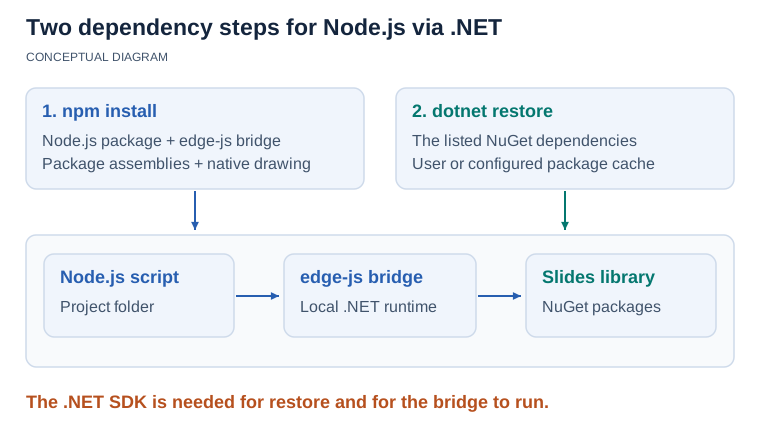](https://docs.aspose.com/slides/nodejs-net/installation/visual-installation-10a0f086e40a.svg)
*The npm package and the NuGet dependency cache are separate parts of the setup. Restore the listed dependencies once for the cache used by the application, then run the script from its project folder.*
## **Run a First Program**
Create a file named `hello.js` in the project folder with the following code. It creates a presentation, adds a rectangle with the text "Hello, World!" to the first slide, and saves the result as `hello.pptx`:
```javascript
const asposeSlides = require("aspose.slides.via.net");
const { Presentation, ShapeType, SaveFormat } = asposeSlides;
// A new presentation contains one empty slide.
const presentation = new Presentation();
try {
const slide = presentation.slides.get(0);
// Position and size are in points (1/72 inch): x, y, width, height.
const rectangle = slide.shapes.addAutoShape(ShapeType.Rectangle, 50, 50, 400, 100);
rectangle.addTextFrame("Hello, World!");
presentation.save("hello.pptx", SaveFormat.Pptx);
console.log("Saved hello.pptx");
} finally {
// Release the .NET object that backs the presentation.
presentation.dispose();
}
```
Run it from the project folder:
```sh
node hello.js
```
The script prints `Saved hello.pptx`. Open `hello.pptx` to see one slide with a filled rectangle that contains the text. Without a license, Aspose.Slides also adds an evaluation watermark; see [Evaluate Aspose.Slides](https://docs.aspose.com/slides/nodejs-net/evaluate-aspose-slides/) and [Licensing](https://docs.aspose.com/slides/nodejs-net/licensing/).
Run your scripts from the project folder, the one that contains `package.json`. Relative paths such as `hello.pptx` are resolved against the current folder, and on some machines a script started from another folder cannot create a presentation.
The JavaScript API mirrors Aspose.Slides for .NET: classes keep their .NET names, properties and methods use camelCase (`Slides` becomes `slides`, `AddAutoShape` becomes `addAutoShape`), and collection items are read with `get(index)`. There is no separate API reference for this package, so use the [Aspose.Slides for .NET API reference](https://reference.aspose.com/slides/net/) for class and member details, for example [Presentation](https://reference.aspose.com/slides/net/aspose.slides/presentation/) and [ShapeCollection.AddAutoShape](https://reference.aspose.com/slides/net/aspose.slides/shapecollection/addautoshape/).
## **FAQ**
**What does "The edge module has not been pre-compiled for node.js version" mean?**
npm installed the older edge-js release that the package asks for. Add the override from [Create a Project](https://docs.aspose.com/slides/nodejs-net/installation/#create-a-project) and run `npm install` again.
**What does "assembly specified in the dependencies manifest was not found" mean?**
The .NET dependencies are not in the NuGet cache. The same run also reports "edge.initializeClrFunc is not a function". Follow [Restore the .NET Dependencies](https://docs.aspose.com/slides/nodejs-net/installation/#restore-the-net-dependencies) once, then run your script again.
**What does "The edge native module is not available" mean on Linux?**
edge-js was not compiled during `npm install`, for example because `python3`, `make` or `g++` was missing. npm does not report this as an error. Install the build tools, then run `npm rebuild edge-js` in the project folder.
**Why does creating a presentation fail with an empty "Error"?**
On Linux, check that the fontconfig library is installed (`libfontconfig1` on Debian); without it, the native drawing library cannot load. On any system, also check that you run the script from the project folder.
**Why does Node.js crash with a segmentation fault on Linux?**
The system OpenSSL and the OpenSSL built into Node.js are from different release lines. Compare them as shown in [Prerequisites](https://docs.aspose.com/slides/nodejs-net/installation/#prerequisites) and use a distribution or Node.js build where they match.
**Do I need to repeat the NuGet restore for every project?**
No. The restore fills the NuGet cache for your user account, and every project on that machine uses the same cache.
## Related features
- [Use Slides from Node.js](https://docs.aspose.com/slides/features/nodejs-api/)
# Licensing
> Apply a license file to Aspose.Slides for Node.js via .NET, see what the evaluation version limits, and get a free 30-day temporary license for testing.
Source: https://docs.aspose.com/slides/nodejs-net/licensing/
Updated: 2026-09-27
## **Overview**
Aspose.Slides for Node.js via .NET is one npm package for both evaluation and production. Without a license, it runs in evaluation mode. After you buy a license, or get a free 30-day temporary license, you apply it with a few lines of code, and the evaluation limitations no longer apply.
General policies on how to evaluate, license and purchase Aspose products are collected in [Purchase Policies and FAQ](https://purchase.aspose.com/policies). Prices are listed on the [Pricing Information](https://purchase.aspose.com/pricing/slides/family) page.
## **Evaluation Version Limitations**
The evaluation version provides the full functionality of the product, with two limitations:
- **Watermark.** Every slide of each presentation that you save gets an evaluation watermark: a locked text box in the middle of the slide that reads "Evaluation only." The same watermark is drawn on PDF, XPS and HTML exports and on slide images.
- **Truncated text.** Text that your code reads back from a text frame, paragraph or portion is cut to its first five characters, followed by the notice "... text has been truncated due to evaluation version limitation." Markdown and HTML5 exports are truncated the same way. The text that your code writes is saved in full.
[Evaluate Aspose.Slides](https://docs.aspose.com/slides/nodejs-net/evaluate-aspose-slides/) describes both limitations in detail and includes a script that shows them.
To test Aspose.Slides without the evaluation limitations, request a free **30-day temporary license**. See [How to get a Temporary License?](https://purchase.aspose.com/temporary-license) for details.
## **About the License**
The license is a plain-text XML file that contains details such as the product name, the number of developers it is licensed to, and the subscription expiry date. The file is digitally signed, so do not modify it: even an extra line break added by mistake invalidates it.
## **Apply a License**
Apply the license with the `setLicense` method of the `License` class. Call it once per process, before you create any `Presentation` object. Calling it again does no harm, but it repeats work that is already done.
The following script applies a license from a file named `Aspose.Slides.lic`. Replace the name with the name or full path of your license file; the file can have any name.
```javascript
const asposeSlides = require("aspose.slides.via.net");
const { License } = asposeSlides;
const license = new License();
try {
license.setLicense("Aspose.Slides.lic");
console.log("License applied.");
} catch (error) {
console.log("License not applied:", error.message);
}
```
A file name or relative path is resolved against the current folder, the one you run `node` from. Keep the license file in your project folder and run your scripts from there, or pass the full path.
If the file cannot be found, or is not a valid license, `setLicense` throws an error, and Aspose.Slides stays in evaluation mode. The script catches the error and prints its message. For a missing file, the message begins with `License "Aspose.Slides.lic" doesn't exist or access is restricted.` and lists every location that was searched.
In this package, a license is applied from a file only. `License` does not accept a stream, and the package does not expose metered licensing. For the class that the package wraps, see [License](https://reference.aspose.com/slides/net/aspose.slides/license/) in the Aspose.Slides for .NET API reference.
## Related articles
- [Evaluate Aspose.Slides](https://docs.aspose.com/slides/nodejs-java/evaluate-aspose-slides/)
# Manage Presentation Text in Node.js via .NET
> Add a text box to a slide, then change its text, font size, and bold style in JavaScript with Aspose.Slides for Node.js via .NET.
Source: https://docs.aspose.com/slides/nodejs-net/manage-text/
Updated: 2026-11-08
## **Overview**
In Aspose.Slides, text on a slide belongs to a shape. An auto shape, such as a rectangle, has a text frame; the text frame contains paragraphs, and each paragraph contains portions, which are runs of text with the same formatting. You change the text through the text frame and the font through the format of a portion.
This article adds a text box to a slide and saves the presentation. It then opens the saved file and changes the text box's text, font size, and bold style.
The examples need a project set up as described in [Installation](https://docs.aspose.com/slides/nodejs-net/installation/). Save each example as a `.js` file in the project folder and run it from that folder with `node`.
Aspose.Slides for Node.js via .NET has no API reference of its own. It mirrors the Aspose.Slides for .NET API with camelCase names, so the API links in this article lead to the matching classes and members in the [Aspose.Slides for .NET API reference](https://reference.aspose.com/slides/net/).
## **Add a Text Box**
To add a text box, add an auto shape to a slide with the [addAutoShape](https://reference.aspose.com/slides/net/aspose.slides/shapecollection/addautoshape/) method and give it text with the [addTextFrame](https://reference.aspose.com/slides/net/aspose.slides/autoshape/addtextframe/) method. The following example adds a rectangle to the first slide of a new presentation and saves the presentation as `text-box.pptx`:
```javascript
const { Presentation, ShapeType, SaveFormat } = require("aspose.slides.via.net");
const presentation = new Presentation();
try {
const slide = presentation.slides.get(0);
// The position (x, y) and the size (width, height) are in points.
const textBox = slide.shapes.addAutoShape(ShapeType.Rectangle, 100, 100, 500, 80);
textBox.addTextFrame("Quarterly report");
presentation.save("text-box.pptx", SaveFormat.Pptx);
console.log("Saved text-box.pptx");
} finally {
presentation.dispose();
}
```
The slide in `text-box.pptx` contains a rectangle, 500 points wide and 80 points high, with the text "Quarterly report" in the default font and size. The next example changes this text box.
## **Change the Text and Its Formatting**
The following example opens `text-box.pptx`, which the previous example created, and gets the first shape on the first slide. Shapes such as pictures and tables have no text frame, so the example checks that the shape is an [AutoShape](https://reference.aspose.com/slides/net/aspose.slides/autoshape/) before it uses the shape's [textFrame](https://reference.aspose.com/slides/net/aspose.slides/autoshape/textframe/). It then does the following:
1. It replaces the text through the [text](https://reference.aspose.com/slides/net/aspose.slides/textframe/text/) property of the text frame. After that, the text frame contains one paragraph with one portion.
1. It gets that portion from the [paragraphs](https://reference.aspose.com/slides/net/aspose.slides/textframe/paragraphs/) and [portions](https://reference.aspose.com/slides/net/aspose.slides/paragraph/portions/) collections and reads its [portionFormat](https://reference.aspose.com/slides/net/aspose.slides/portion/portionformat/).
1. It sets [fontHeight](https://reference.aspose.com/slides/net/aspose.slides/baseportionformat/fontheight/), the font size in points, and [fontBold](https://reference.aspose.com/slides/net/aspose.slides/baseportionformat/fontbold/), which takes a [NullableBool](https://reference.aspose.com/slides/net/aspose.slides/nullablebool/) value.
```javascript
const { Presentation, AutoShape, NullableBool, SaveFormat } = require("aspose.slides.via.net");
const presentation = new Presentation("text-box.pptx");
try {
const shape = presentation.slides.get(0).shapes.get(0);
if (shape instanceof AutoShape) {
const textFrame = shape.textFrame;
textFrame.text = "Quarterly report: third quarter";
const portionFormat = textFrame.paragraphs.get(0).portions.get(0).portionFormat;
portionFormat.fontHeight = 32;
portionFormat.fontBold = NullableBool.True;
presentation.save("text-box-updated.pptx", SaveFormat.Pptx);
console.log("Saved text-box-updated.pptx");
} else {
console.log("The first shape on the first slide is not an AutoShape.");
}
} finally {
presentation.dispose();
}
```
In `text-box-updated.pptx`, the text box shows "Quarterly report: third quarter" in bold 32-point type. Because the new text is a single portion, the two formatting properties apply to all of it. Without a license, every save adds an evaluation watermark. Because `text-box.pptx` was itself saved in evaluation mode, `text-box-updated.pptx` contains two; see [Evaluate Aspose.Slides](https://docs.aspose.com/slides/nodejs-net/evaluate-aspose-slides/).
[](https://docs.aspose.com/slides/nodejs-net/manage-text/visual-manage-text-1ca72074b533.svg)
*Replacing the frame text creates one paragraph with one portion. The size and bold settings apply to that whole portion.*
## **FAQ**
**Why does `fontBold` take a `NullableBool` value instead of `true` or `false`?**
A portion can leave a property undefined and inherit it from the paragraph, the shape, or the slide's layout and master. `NullableBool.NotDefined` means "inherit", while `NullableBool.True` and `NullableBool.False` override the inherited value. Assigning `true` or `false` throws an error. For the same reason, `fontHeight` returns `NaN` when the portion inherits its font size.
**How do I change the text color?**
Set the fill of the portion format: assign `FillType.Solid` to `portionFormat.fillFormat.fillType`, and then assign a color such as `"#FF0000"` to `portionFormat.fillFormat.solidFillColor.color`. Add `FillType` to the names that you import from the package.
**How do I format only part of the text?**
Formatting belongs to portions, so put that part of the text in a portion of its own. Create the portion with `Portion.CreatePortionFromText`, append it to a paragraph with the `add` method of the paragraph's `portions` collection, and then set the new portion's `portionFormat`. Add `Portion` to the names that you import from the package.
**Why does reading text return "... text has been truncated due to evaluation version limitation"?**
Without a license, Aspose.Slides returns only the first five characters of any longer text that you read, such as `textFrame.text`, followed by this notice. Text that you write is saved in full. Apply a license as described in [Licensing](https://docs.aspose.com/slides/nodejs-net/licensing/) to read the complete text.
# Open Presentations in Node.js via .NET
> Open PPTX, PPT, and ODP presentations in JavaScript with Aspose.Slides for Node.js via .NET: load from a file path or a Buffer, read the slide count, and save in another format.
Source: https://docs.aspose.com/slides/nodejs-net/open-presentation/
Updated: 2026-09-27
## **Overview**
Aspose.Slides for Node.js via .NET opens PowerPoint and OpenDocument presentations, such as PPTX, PPT, and ODP files, from a file path or from a Node.js `Buffer`. This article shows both ways, reads the number of slides, and saves an opened presentation in another format.
The examples expect a presentation named `sample.pptx` in the project folder that you set up in [Installation](https://docs.aspose.com/slides/nodejs-net/installation/). Any PowerPoint presentation will do. Save each example as a `.js` file in the project folder and run it from that folder with `node`.
Aspose.Slides for Node.js via .NET has no API reference of its own. It mirrors the Aspose.Slides for .NET API with camelCase names, so the API links in this article lead to the matching classes and members in the [Aspose.Slides for .NET API reference](https://reference.aspose.com/slides/net/).
## **Open a Presentation from a File**
To open a presentation, pass its path to the [Presentation](https://reference.aspose.com/slides/net/aspose.slides/presentation/presentation/) constructor. Aspose.Slides detects the format from the file content rather than from the extension, so the same code opens PPTX, PPT, and ODP files. A relative path is resolved against the current working directory, which is the project folder when you run the script from there.
```javascript
const { Presentation } = require("aspose.slides.via.net");
const presentation = new Presentation("sample.pptx");
try {
console.log("Slide count: " + presentation.slides.count);
} finally {
presentation.dispose();
}
```
The script prints the number of slides in `sample.pptx`, for example `Slide count: 9`. The `count` property of the [slides](https://reference.aspose.com/slides/net/aspose.slides/presentation/slides/) collection includes hidden slides. Call `dispose` in a `finally` block, as shown, so that the .NET resources behind the presentation are released even if your code fails.
## **Open a Presentation from a Buffer**
When a presentation comes from a database, an HTTP upload, or another source that gives you bytes rather than a file path, pass a Node.js `Buffer` as the second constructor argument and `null` as the first. The following example reads `sample.pptx` into a buffer to stand in for such a source:
```javascript
const fs = require("fs");
const { Presentation } = require("aspose.slides.via.net");
const presentationData = fs.readFileSync("sample.pptx");
const presentation = new Presentation(null, presentationData);
try {
console.log("Slide count: " + presentation.slides.count);
} finally {
presentation.dispose();
}
```
The script prints the same slide count as the previous example. The second argument must be a `Buffer`. For any other type, such as a `Uint8Array`, the constructor does not report an error; it creates a new presentation with one empty slide instead. Convert other binary types with `Buffer.from` first.
## **Save a Presentation in Another Format**
To convert a presentation to another presentation format, open it and save it with a different [SaveFormat](https://reference.aspose.com/slides/net/aspose.slides.export/saveformat/) value. The following example prints the format that Aspose.Slides detected, which the [sourceFormat](https://reference.aspose.com/slides/net/aspose.slides/presentation/sourceformat/) property returns, and saves the presentation as an OpenDocument presentation:
```javascript
const { Presentation, SaveFormat } = require("aspose.slides.via.net");
const presentation = new Presentation("sample.pptx");
try {
console.log("Source format: " + presentation.sourceFormat);
presentation.save("sample.odp", SaveFormat.Odp);
} finally {
presentation.dispose();
}
```
The script prints `Source format: Pptx` and writes `sample.odp`, which contains the same slides. `sourceFormat` returns `Ppt`, `Pptx`, or `Odp`. To save as PDF or as images instead, see [Convert PowerPoint to PDF](https://docs.aspose.com/slides/nodejs-net/convert-powerpoint-to-pdf/) and [Convert Slides to Images](https://docs.aspose.com/slides/nodejs-net/convert-slide/).
## **FAQ**
**How do I open a password-protected presentation?**
Create a [LoadOptions](https://reference.aspose.com/slides/net/aspose.slides/loadoptions/) object, set its [password](https://reference.aspose.com/slides/net/aspose.slides/loadoptions/password/) property, and pass the object as the third constructor argument: `new Presentation("protected.pptx", null, loadOptions)`. Without the correct password, the constructor throws an error.
**Why does the constructor throw an `Error` with an empty message?**
When the `Presentation` constructor fails in .NET, for example because the file is missing, is not a presentation, or needs a different password, JavaScript receives an `Error` whose message is empty. Before you open a file, check that it exists relative to the working directory, for example with `fs.existsSync`.
**Which formats can I open?**
PowerPoint and OpenDocument presentation formats, including PPT, PPTX, PPS, POT, POTX, PPTM, ODP, OTP, and FODP.
# Product Overview
>
Source: https://docs.aspose.com/slides/nodejs-net/product-overview/
Updated: 2026-06-03

## **Product Description**
Aspose.Slides for Node.js via .NET is a cross-platform class library that enables your applications to perform a wide variety of document processing tasks without using Microsoft PowerPoint®.
### **Why You Should Use Aspose.Slides for Node.js via .NET**
- Aspose.Slides for Node.js via .NET is the first and only component that provides the functionalities required to manage PowerPoint® documents.
- Aspose.Slides for Node.js via .NET offers a lot of key features such as managing texts, shapes, tables & animations, adding audio and video to slides, previewing slides, exporting slides to SVG, PDF, and other formats, and many more capabilities.
- Aspose.Slides for Node.js via .NET not only lets you open PowerPoint files from different sources but also allows you to save your presentations in a variety of ways. For example, you can save your presentations in PPT; you can also save your slides as images.
- Aspose.Slides for Node.js via .NET gives you almost all the features you may or may not find in Microsoft PowerPoint. Given the versatility of Aspose.Slides for Node.js via .NET, besides tables and different kinds of shapes, you get to use it to add different kinds of frames—text, audio, and video frames—to your slides.
## **Aspose.Slides Features**
Aspose.Slides for Node.js via .NET features can be divided into these groups:
- Presentation Features.
- Slides Features.
- Graphics and Multimedia Features.
- Table Features.
- Text & Paragraph Features
- Advanced Features
### **Presentation Features**
- Opening Microsoft PowerPoint presentations from different sources.
- Saving presentations in different Microsoft PowerPoint formats.
- Creating presentations from scratch.
- Converting presentations to PDF documents without using any other component
- Reading or modifying a presentation's document properties
- Applying protection on presentation
- Exporting presentation to PDF
- Exporting presentation to TIFF
- Exporting presentation to XPS
- Exporting presentation to SWF
- Exporting presentation to PDF Note / Tiff Notes
- Exporting presentation to HTML
### **Slides Features**
- Creating new slides from scratch and adding them to presentations.
- Accessing any slide through its position in a presentation.
- Copying or cloning slides to the same or another presentation.
- Editing and deleting slides.
- Copying masters with slides automatically.
- Previewing slides.
- Getting or setting a slide's name.
- Saving slides as images.
- Exporting slides to SVG format.
- Working with many masters in presentations.
- Filling slides background with any supported style.
- Adding new or managing slide notes.
- Setting new slide masters and styles dynamically.
- Adding or modifying slide show transition.
- Adding Morph Transitions
### **Graphics & Multimedia Features**
- Creating or managing shapes such as lines, rectangles, ellipses, and polylines.
- Managing line styles in shapes.
- Getting a shape's alternative text.
- Rotating flip shapes.
- Filling shapes in different styles—for example, solid, gradient, pattern, texture, and picture.
- Using any of 48 pre-defined patterns and 24 textures.
- Assigning links to shapes.
- Reading, modifying, and adding new animation effects to slides and shapes.
- Adding new pictures to presentations and managing existing ones.
- Adding new picture bullets to presentations and managing existing ones.
- Adding new audio frames to presentations and managing existing ones.
- Adding new video frames to presentations and managing existing ones.
### **Table Features**
- Creating tables from scratch and adding them to slides.
- Resizing and moving tables.
- Accessing any cell in a table.
- Changing the format and borders of any cell.
- Resizing columns and rows.
- Adding and deleting columns and rows.
- Setting border width and color for the whole table.
### **Text & Paragraph Features**
- Getting and setting texts in text placeholders and text frames.
- Getting a placeholder's type.
- Changing the text formatting in a text frame.
- Adding new fonts or managing the fonts already used in a presentation.
- Changing texts and Text Formatting.
- Creating or managing links to the text.
- Supporting tabs and effective tabs.
- Adding new text frames to almost any type of shape.
- Accessing and modifying margins and text wrap settings of text frames.
- Accessing and modifying paragraph indentation.
### **Advanced Features**
- Accessing OLE objects embedded in presentations.
- Locking presentations.
## **Technical support**
Aspose provides unlimited free technical support for all its products. The support is available to all users (including users with evaluation packages). If you need help with Aspose.Slides for Node.js via .NET, consider the following:
- The main avenue for support is the [Aspose Forums](https://forum.aspose.com/). Post your question in the [Aspose.Slides forum](https://forum.aspose.com/c/slides/11)—and it will be answered within a few hours. Aspose.Slides support team directly answers questions posted on the forum.
- Please note that Aspose does not provide technical support over the phone. Phone support is only available for sales and purchase questions.
- When expecting a reply in the forums, please be patient and make evaluations for time zone differences.
If you have an issue with Aspose.Slides for Node.js via .NET, follow these guidelines to resolve it in the most efficient manner:
- Check and confirm that you are using the latest Aspose.Slides for Node.js via .NET version first before reporting the issue. Perhaps, the issue you experienced was already resolved in an update.
See [Aspose.Slides download](https://releases.aspose.com/slides/nodejs-net/) to get information on the latest product version.
- Before reporting an issue, you may want to go through our forums, this documentation, and the API Reference. Perhaps, the answer to your question was provided already.
- When reporting an issue, please include the original document and (if possible) a fragment of your code pertaining to the problem. If you need to attach multiple files, put them in a ZIP package.
You can safely attach your documents in Aspose.Forums because only you and Aspose developers have access to the attached files.
- Create and use one thread for a specific issue. If you experience another issue, you have to create another thread to report it.
This table lists important Aspose.Slides for Node.js via .NET technical resources.
|**Resource**|**Description**|
| :- | :- |
|[Aspose.Slides for Node.js via .NET home page](https://products.aspose.com/slides/nodejs-net/)|Product home page.|
|[Aspose.Slide blog](https://blog.aspose.com/category/slides/)|Check this page regularly for information on new releases and useful tips on Aspose.Slides.|
|[Aspose.Slides for Node.js via .NET download](https://releases.aspose.com/slides/nodejs-net/)|Download the latest version of Aspose.Slides here. We often release new versions.|
|[Aspose.Slides support forum](https://forum.aspose.com/c/slides/11)|Post your questions and issues here for a speedy resolution.|
|[Aspose.Slides for Node.js via .NET product documentation](https://docs.aspose.com/slides/nodejs-net/)|Full online documentation that contains this document and the Aspose.Slides API Reference.|
## Related articles
- [Product Support](https://docs.aspose.com/slides/nodejs-net/product-support/)
- [Aspose.Slides for Node.js via .NET](https://docs.aspose.com/slides/nodejs-net/)
# Product Support
>
Source: https://docs.aspose.com/slides/nodejs-net/product-support/
Updated: 2026-08-13
## **Technical support**
Aspose provides unlimited free technical support for all its products. The support is available to all users (including users with evaluation packages).
When you need help with Aspose.Slides for Node.js via .NET, consider the following:
- The main avenue for support is the [Aspose.Forums](https://forum.aspose.com/c/slides/11). Post your question in the Aspose.Slides forum—and it will be answered within a few hours. Aspose.Slides support team directly answers questions posted on the forum.
- Please note that Aspose does not provide technical support over the phone. Phone support is only available for sales and purchase questions.
- When expecting a reply in the forums, please be patient and make evaluations for time zone differences.
When you experience an issue with Aspose.Slides for Node.js via .NET, follow these guidelines to resolve it in the most efficient manner:
- Check and confirm that you are using the latest Aspose.Slides for Node.js via .NET version before reporting the issue. Perhaps, the issue you experienced was already resolved in an update.
See [Aspose.Slides download](https://releases.aspose.com/slides/nodejs-net/) to get information on the latest version.
- Before reporting an issue, you may want to go through our forums, this documentation, and the API Reference. Perhaps, the answer to your question was provided already.
- When reporting an issue, please include the original document and (if possible) a fragment of your code pertaining to the problem. If you need to attach multiple files, put them in a ZIP package. You can safely attach your documents in Aspose.Forums because **only** you and Aspose developers have access to the attached files.
- Create and use one thread for a specific issue. If you experience another issue, you have to create another thread to report it.
|**Resource**|**Description**|
| :- | :- |
|[Aspose.Slides for Node.js via .NET home page](https://products.aspose.com/slides/nodejs-net/)|Product home page.|
|[Aspose.Slide blog](https://blog.aspose.com/category/slides/)|Check this page regularly for information on new releases and useful tips on Aspose.Slides.|
|[Aspose.Slides for Node.js via .NET download](https://releases.aspose.com/slides/nodejs-net/)|Download the latest version of Aspose.Slides here. We often release new versions.|
|[Aspose.Slides support forum](https://forum.aspose.com/c/slides/11)|Post your questions and issues here for a speedy resolution.|
|[Aspose.Slides for Node.js via .NET product documentation](https://docs.aspose.com/slides/nodejs-net/)|Full online documentation that contains this document and the Aspose.Slides API Reference.|
## Related articles
- [Product Overview](https://docs.aspose.com/slides/nodejs-net/product-overview/)
# Supported File Formats
>
Source: https://docs.aspose.com/slides/nodejs-net/supported-file-formats/
Updated: 2024-10-02
## **Supported Microsoft PowerPoint Versions**
- Microsoft PowerPoint 97
- Microsoft PowerPoint 2000
- Microsoft PowerPoint XP
- Microsoft PowerPoint 2003
- Microsoft PowerPoint 2007
- Microsoft PowerPoint 2010
- Microsoft PowerPoint 2013
- Microsoft PowerPoint 2016
- Microsoft PowerPoint 2019
- Microsoft PowerPoint for MAC
- Office 365
## **Supported File Formats**
This table contains the file formats that Aspose.Slides for Node.js via .NET can load and save:
|**Format**|**Description**|**Load**|**Save**|**Remarks**|
| :- | :- | :- | :- | :- |
|[PPT](https://docs.fileformat.com/presentation/ppt/)|PowerPoint 97-2003 Presentation|✓|✓| |
|[POT](https://docs.fileformat.com/presentation/pot/)|PowerPoint 97-2003 Template|✓|✓| |
|[PPS](https://docs.fileformat.com/presentation/pps/)|PowerPoint 97-2003 Show|✓|✓| |
|[PPTX](https://docs.fileformat.com/presentation/pptx/)|PowerPoint Presentation|✓|✓| |
|[POTX](https://docs.fileformat.com/presentation/potx/)|PowerPoint Template|✓|✓| |
|[PPSX ](https://docs.fileformat.com/presentation/ppsx/)|PowerPoint Show|✓|✓| |
|[PPTM](https://docs.fileformat.com/presentation/pptm/)|PowerPoint Macro-Enabled Presentation|✓|✓| |
|[PPSM](https://docs.fileformat.com/presentation/ppsm/)|PowerPoint Macro-Enabled Show|✓|✓| |
|[POTM](https://docs.fileformat.com/presentation/potm/)|PowerPoint Macro-Enabled Template|✓|✓| |
|[ODP/FODP](https://docs.fileformat.com/presentation/odp/)|OpenDocument Presentation|✓|✓| |
|[OTP](https://docs.fileformat.com/presentation/otp/)|OpenDocument Presentation Template|✓|✓| |
|[TIFF](https://docs.fileformat.com/image/tiff/)|Tag Image File Format| |✓| |
|[EMF](https://docs.fileformat.com/image/emf/)|Enhanced Metafile Format| |✓| |
|[PDF](https://docs.fileformat.com/pdf/)|Portable Document Format|✓|✓| |
|[XPS](https://docs.fileformat.com/page-description-language/xps/)|XML Paper Specification| |✓| |
|[JPEG](https://docs.fileformat.com/image/jpeg/)|Joint Photographic Experts Group| |✓| |
|[PNG](https://docs.fileformat.com/image/png/)|Portable Network Graphics| |✓| |
|[GIF](https://docs.fileformat.com/image/gif/)|Graphics Interchange Format| |✓| |
|[BMP](https://docs.fileformat.com/image/bmp/)|Device Independent Bitmap| |✓| |
|[SVG](https://docs.fileformat.com/page-description-language/svg/)|Scalable Vector Graphics| |✓| |
|[SWF](https://docs.fileformat.com/page-description-language/swf/)|Small Web Format| |✓| |
|[HTML](https://docs.fileformat.com/web/html/)|Hypertext Markup Language|✓|✓| |
|[XAML](https://docs.fileformat.com/web/xaml/)|Extensible Application Markup Language| |✓| |
|[MD](https://docs.fileformat.com/word-processing/md/)|Markdown| |✓| |
|[XML](https://docs.fileformat.com/web/xml/)|PowerPoint XML Presentation| |✓| |
# System Requirements
>
Source: https://docs.aspose.com/slides/nodejs-net/system-requirements/
Updated: 2024-10-02
Aspose.Slides for Node.js via .NET does not require any third party product such as Microsoft PowerPoint to be installed. Aspose.Slides itself is an engine for creating, modifying, converting, and rendering of documents in various formats, including Microsoft PowerPoint presentation formats.
## Supported Operating Systems
Aspose.Slides for .NET supports any 32-bit or 64-bit operating system that runs the .NET runtime including but not limited to:
### **Windows**
- Microsoft Windows 2003 Server ( x64, x86)
- Microsoft Windows 2008 Server ( x64, x86)
- Microsoft Windows 2012 Server ( x64, x86)
- Microsoft Windows 2012 R2 Server ( x64, x86)
- Microsoft Windows 2016 Server ( x64, x86)
- Microsoft Windows 2019 Server ( x64, x86)
- Microsoft Windows Vista ( x64, x86)
- Microsoft Windows XP ( x64, x86)
- Microsoft Windows 7 ( x64, x86)
- Microsoft Windows 8, 8.1 ( x64, x86)
- Microsoft Windows 10 ( x64, x86)
- Microsoft Windows 11 ( x64, x86)
### **Linux**
- Linux (Ubuntu, CentOS and others)
### **Mac**
- Mac OS X