# Optimize Image Management in Presentations Using PHP
> Streamline image management in PowerPoint and OpenDocument with Aspose.Slides for PHP via Java, optimizing performance and automating your workflow.
Source: https://docs.aspose.com/slides/php-java/image/
Updated: 2026-08-07
## **Introduction**
Images make presentations more engaging and visually appealing. In Microsoft PowerPoint, you can insert pictures onto slides from files, the internet, or other sources. Similarly, Aspose.Slides allows you to add images to presentation slides in several ways.
{{% alert title="Tip" color="primary" %}}
Aspose provides free converters—[JPEG to PowerPoint](https://products.aspose.app/slides/import/jpg-to-ppt) and [PNG to PowerPoint](https://products.aspose.app/slides/import/png-to-ppt)—that allow you to quickly create presentations from images.
{{% /alert %}}
{{% alert title="Info" color="info" %}}
If you want to add an image as a picture frame—especially if you plan to resize it, apply effects, or use other standard formatting options—see [Picture Frame](/slides/php-java/picture-frame/).
{{% /alert %}}
{{% alert title="Note" color="warning" %}}
You can convert images from one format to another. See the following pages: convert [image to JPG](https://products.aspose.com/slides/php-java/conversion/image-to-jpg/), [JPG to image](https://products.aspose.com/slides/php-java/conversion/jpg-to-image/), [JPG to PNG](https://products.aspose.com/slides/php-java/conversion/jpg-to-png/), [PNG to JPG](https://products.aspose.com/slides/php-java/conversion/png-to-jpg/), [PNG to SVG](https://products.aspose.com/slides/php-java/conversion/png-to-svg/), and [SVG to PNG](https://products.aspose.com/slides/php-java/conversion/svg-to-png/).
{{% /alert %}}
Aspose.Slides supports images in popular formats such as JPEG, PNG, BMP, GIF, and others.
## **Add Images Stored Locally to Slides**
You can add one or more images stored on your computer to a presentation slide. The following PHP sample code shows how to add an image to a slide:
```php
$pres = new Presentation();
try {
$slide = $pres->getSlides()->get_Item(0);
$picture = null;
$image = Images::fromFile("image.png");
try {
$picture = $pres->getImages()->addImage($image);
} finally {
if (!java_is_null($image)) {
$image->dispose();
}
}
$slide->getShapes()->addPictureFrame(ShapeType::Rectangle, 10, 10, 100, 100, $picture);
$pres->save("pres.pptx", SaveFormat::Pptx);
} finally {
$pres->dispose();
}
```
## **Add Images from the Web to Slides**
If the image you want to add to a slide is not stored on your computer, you can add it directly from the web.
The following PHP sample code shows how to add an image from the web to a slide:
```php
$pres = new Presentation();
try {
$slide = $pres->getSlides()->get_Item(0);
$imageUrl = new Java("java.net.URL", "[REPLACE WITH URL]");
$connection = $imageUrl->openConnection();
$inputStream = $connection->getInputStream();
$outputStream = new Java("java.io.ByteArrayOutputStream");
$Array = new JavaClass("java.lang.reflect.Array");
$Byte = (new JavaClass("java.lang.Byte"))->TYPE;
try {
$buffer = $Array->newInstance($Byte, 1024);
while (($read = java_values($inputStream->read($buffer, 0, $Array->getLength($buffer)))) != -1) {
$outputStream->write($buffer, 0, $read);
}
$outputStream->flush();
$image = $pres->getImages()->addImage($outputStream->toByteArray());
$slide->getShapes()->addPictureFrame(ShapeType::Rectangle, 10, 10, 100, 100, $image);
} finally {
if (!java_is_null($inputStream)) {
$inputStream->close();
}
$outputStream->close();
}
$pres->save("pres.pptx", SaveFormat::Pptx);
} catch (JavaException $e) {
} finally {
$pres->dispose();
}
```
## **Add Images to Slide Masters**
A slide master stores and controls information such as the theme and layout for the slides that use it. When you add an image to a slide master, the image appears on every slide based on that master.
The following PHP sample code shows how to add an image to a slide master:
```php
$pres = new Presentation();
try {
$slide = $pres->getSlides()->get_Item(0);
$masterSlide = $slide->getLayoutSlide()->getMasterSlide();
$picture = null;
$image = Images::fromFile("image.png");
try {
$picture = $pres->getImages()->addImage($image);
} finally {
if (!java_is_null($image)) {
$image->dispose();
}
}
$masterSlide->getShapes()->addPictureFrame(ShapeType::Rectangle, 10, 10, 100, 100, $picture);
$pres->save("pres.pptx", SaveFormat::Pptx);
} finally {
$pres->dispose();
}
```
## **Add Images as Slide Backgrounds**
You can use a picture as the background for one or more slides. For details, see *[Setting Images as Backgrounds for Slides](/slides/php-java/presentation-background/#setting-images-as-background-for-slides)*.
## **Add SVG to Presentations**
SVG content can be added to a presentation using the [SvgImage](https://reference.aspose.com/slides/php-java/aspose.slides/svgimage/) class. The resulting SVG image object can then be added to the presentation image collection and used to create a picture frame.
The following PHP example imports a self-contained SVG string. All images, styles, and other resources used by this SVG are embedded directly in the SVG content.
```php
$svgContent =
"";
$presentation = new Presentation();
try {
$svgImage = new SvgImage($svgContent);
$image = $presentation->getImages()->addImage($svgImage);
$presentation->getSlides()->get_Item(0)->getShapes()->addPictureFrame(
ShapeType::Rectangle,
20,
20,
$image->getWidth(),
$image->getHeight(),
$image
);
$presentation->save("self-contained-svg.pptx", SaveFormat::Pptx);
} finally {
$presentation->dispose();
}
```
## **Import SVG Content with External Resources**
SVG files exported from design tools, diagram editors, icon systems, and web pipelines may reference resources that are stored outside the SVG document. For example, an SVG can contain an image link such as `images/photo.png`, a CSS `url(...)` value, or a font URL.
To import such SVG content, create an [ExternalResourceResolver](https://reference.aspose.com/slides/php-java/aspose.slides/externalresourceresolver/) implementation and pass it, together with a base URI, to an appropriate [SvgImage](https://reference.aspose.com/slides/php-java/aspose.slides/svgimage/) constructor. The base URI identifies the location of the SVG document and is used to resolve relative links.
The SVG image object provides access to information about the imported SVG:
- `getSvgContent()` returns the SVG markup as a string.
- `getSvgData()` returns the SVG content as a byte array.
- `getBaseUri()` returns the base URI used for relative links.
- `getExternalResourceResolver()` returns the resolver assigned to the SVG image.
### **Implement an External Resource Resolver**
The resolver has two methods:
- `resolveUri` combines the base URI and a relative resource link and returns an absolute URI. Return `null` when the link cannot be resolved or is not allowed.
- `getEntity` returns a readable stream for an absolute resource URI. Return `null` when the resource is missing, blocked, or unavailable. A fallback stream can also be returned when appropriate.
The following resolver loads linked resources only from an allowed local directory. Network resources and paths outside the allowed directory are blocked. An optional fallback image is returned for unresolved image links.
```php
class LocalSvgResourceResolver extends ExternalResourceResolver
{
private $allowedRoot;
private $fallbackImageData;
public function __construct($allowedRoot, $fallbackImageData)
{
parent::__construct();
$Paths = new JavaClass("java.nio.file.Paths");
$this->allowedRoot = $Paths->get($allowedRoot)->toAbsolutePath()->normalize();
$this->fallbackImageData = $fallbackImageData;
}
public function resolveUri($baseUri, $relativeUri)
{
if ($baseUri === null || trim(java_values($baseUri)) === "" ||
$relativeUri === null || trim(java_values($relativeUri)) === "") {
return null;
}
try {
$URI = new JavaClass("java.net.URI");
$baseAddress = $URI->create($baseUri);
$absoluteAddress = $baseAddress->resolve($relativeUri);
// This resolver intentionally allows local files only.
if (strcasecmp(java_values($absoluteAddress->getScheme()), "file") !== 0) {
return null;
}
$Paths = new JavaClass("java.nio.file.Paths");
$resourcePath = $Paths->get($absoluteAddress)->toAbsolutePath()->normalize();
if (!$this->isInsideAllowedRoot($resourcePath)) {
return null;
}
return $resourcePath->toUri()->toString();
} catch (JavaException $e) {
return null;
}
}
public function getEntity($absoluteUri)
{
try {
$URI = new JavaClass("java.net.URI");
$resourceUri = $URI->create($absoluteUri);
if (strcasecmp(java_values($resourceUri->getScheme()), "file") !== 0) {
return null;
}
$Paths = new JavaClass("java.nio.file.Paths");
$resourcePath = $Paths->get($resourceUri)->toAbsolutePath()->normalize();
if (!$this->isInsideAllowedRoot($resourcePath)) {
return null;
}
$Files = new JavaClass("java.nio.file.Files");
if (java_values($Files->exists($resourcePath))) {
return $Files->newInputStream($resourcePath);
}
// Use a fallback only for image resources. Returning an image stream
// for a missing font or stylesheet would not be valid.
if ($this->fallbackImageData !== null && $this->isImageFile($resourcePath)) {
return new Java("java.io.ByteArrayInputStream", $this->fallbackImageData);
}
} catch (JavaException $e) {
return null;
}
return null;
}
private function isInsideAllowedRoot($resourcePath)
{
return java_values($resourcePath->normalize()->startsWith($this->allowedRoot));
}
private function isImageFile($path)
{
$fileName = strtolower(java_values($path->getFileName()->toString()));
return str_ends_with($fileName, ".png") ||
str_ends_with($fileName, ".jpg") ||
str_ends_with($fileName, ".jpeg") ||
str_ends_with($fileName, ".gif") ||
str_ends_with($fileName, ".bmp");
}
}
```
### **Resolve Linked Resources During SVG Import**
Assume that `assets/diagram.svg` contains a relative reference such as:
```xml
```
The following PHP example passes the SVG file URI as the base URI and provides a custom resolver. The resolver converts the relative image link into an absolute URI and returns a stream containing the linked resource while Aspose.Slides processes the SVG.
```php
$Paths = new JavaClass("java.nio.file.Paths");
$Files = new JavaClass("java.nio.file.Files");
$StandardCharsets = new JavaClass("java.nio.charset.StandardCharsets");
$svgFilePath = $Paths->get("assets", "diagram.svg")->toAbsolutePath()->normalize();
$assetDirectory = $svgFilePath->getParent();
$svgData = $Files->readAllBytes($svgFilePath);
$svgContent = new Java("java.lang.String", $svgData, $StandardCharsets->UTF_8);
// The base URI represents the location of the SVG document.
$baseUri = $svgFilePath->toUri()->toString();
$fallbackImageData = null;
$fallbackImagePath = $assetDirectory->resolve("fallback.png");
if (java_values($Files->exists($fallbackImagePath))) {
$fallbackImageData = $Files->readAllBytes($fallbackImagePath);
}
$resolver = new LocalSvgResourceResolver(java_values($assetDirectory->toString()), $fallbackImageData);
$svgImage = new SvgImage($svgContent, $resolver, $baseUri);
// The SVG image object exposes the source content, binary data, base URI, and resolver.
$importedContent = $svgImage->getSvgContent();
$importedData = $svgImage->getSvgData();
$importedBaseUri = $svgImage->getBaseUri();
$importedResolver = $svgImage->getExternalResourceResolver();
$presentation = new Presentation();
try {
$image = $presentation->getImages()->addImage($svgImage);
$presentation->getSlides()->get_Item(0)->getShapes()->addPictureFrame(
ShapeType::Rectangle,
20,
20,
$image->getWidth(),
$image->getHeight(),
$image
);
$presentation->save("svg-with-linked-resources.pptx", SaveFormat::Pptx);
} finally {
$presentation->dispose();
}
```
The `SvgImage` class also provides overloads that accept SVG data as a byte array or an input stream, along with an external resource resolver and a base URI.
{{% alert title="Important" color="warning" %}}
The resource resolver makes external resources available while Aspose.Slides processes and renders the SVG. It does not modify the original SVG markup or automatically embed the resolved resources into it.
When an SVG image is added to the presentation image collection, the PPTX file can contain both the original SVG representation and a raster fallback image. A linked resource can appear in the generated fallback image while a relative link such as `images/photo.png` remains unchanged in the stored SVG. An application that renders the native SVG representation may therefore omit the linked content when the original external resource is unavailable.
{{% /alert %}}
### **Create a Portable SVG Picture**
To create an SVG picture that does not depend on external files, make the SVG self-contained before creating the `SvgImage`. For example, replace linked image URLs with `data:` URIs that contain the image data:
```xml
```
After all required resources are embedded in the SVG content, create the `SvgImage`, add it to the presentation image collection, and insert it into a picture frame as shown in the previous example.
### **Handle Missing or Blocked Resources**
Return `null` from `resolveUri` when a resource URI is invalid, prohibited, or cannot be resolved. Return `null` from `getEntity` when the resource cannot be read. Aspose.Slides continues processing the SVG without that resource when possible.
A fallback stream can be returned for a missing resource, but its content must be compatible with the requested resource type. For example, return an image stream only for a missing image, not for a font or stylesheet.
{{% alert title="Security" color="warning" %}}
Do not resolve arbitrary file paths or unrestricted network URLs from untrusted SVG files. Restrict allowed schemes, directories, and hosts. For network resources, also apply connection timeouts, response-size limits, and content validation.
{{% /alert %}}
## **Convert SVG to a Set of Shapes**
Aspose.Slides can convert an SVG into a set of shapes, similar to the corresponding functionality in PowerPoint:
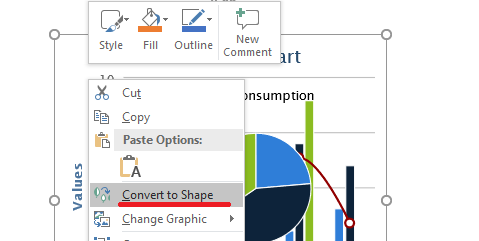
This functionality is provided by an overload of the [addGroupShape](https://reference.aspose.com/slides/php-java/aspose.slides/shapecollection/addgroupshape/) method of the [ShapeCollection](https://reference.aspose.com/slides/php-java/aspose.slides/shapecollection/) class that takes an [SvgImage](https://reference.aspose.com/slides/php-java/aspose.slides/svgimage/) object as its first argument.
The following PHP sample code shows how to use this method to convert an SVG file to a set of shapes:
```php
// Source SVG file name.
$svgFileName = "sample.svg";
// Output presentation file name.
$outPptxPath = "presentation.pptx";
// Create a new presentation.
$presentation = new Presentation();
try {
// Read the SVG file content.
$Array = new JavaClass("java.lang.reflect.Array");
$Byte = (new JavaClass("java.lang.Byte"))->TYPE;
$dis = new Java("java.io.DataInputStream", new Java("java.io.FileInputStream", $svgFileName));
try {
$svgContent = $Array->newInstance($Byte, $dis->available());
$dis->readFully($svgContent);
} finally {
if (!java_is_null($dis)) {
$dis->close();
}
}
// Create an SvgImage object.
$svgImage = new SvgImage($svgContent);
// Get the slide size.
$slideSize = $presentation->getSlideSize()->getSize();
// Convert the SVG image to a group of shapes and scale it to the slide size.
$presentation->getSlides()->get_Item(0)->getShapes()->addGroupShape(
$svgImage,
0.0,
0.0,
$slideSize->getWidth(),
$slideSize->getHeight()
);
// Save the presentation in PPTX format.
$presentation->save($outPptxPath, SaveFormat::Pptx);
} catch (JavaException $e) {
} finally {
$presentation->dispose();
}
```
## **Add Images as EMF to Slides**
Aspose.Slides for PHP via Java allows you to generate EMF images from Excel worksheets with Aspose.Cells and add them to presentation slides.
The following PHP sample code shows how to do this:
```php
$book = new Workbook("chart.xlsx");
$sheet = $book->getWorksheets()->get(0);
$options = new ImageOrPrintOptions();
$options->setHorizontalResolution(200);
$options->setVerticalResolution(200);
$options->setImageType(ImageType::EMF);
// Save the workbook to a stream.
$sr = new SheetRender($sheet, $options);
$pres = new Presentation();
try {
$pres->getSlides()->removeAt(0);
for ($j = 0; $j < java_values($sr->getPageCount()); $j++) {
$emfSheetName = "test" . $sheet->getName() . " Page" . ($j + 1) . ".out.emf";
$sr->toImage($j, $emfSheetName);
// Add the file as-is so the picture stays a vector EMF instead of being rasterized.
$picture = null;
$imageStream = new Java("java.io.FileInputStream", $emfSheetName);
try {
$picture = $pres->getImages()->addImage($imageStream);
} finally {
$imageStream->close();
}
$slide = $pres->getSlides()->addEmptySlide($pres->getLayoutSlides()->getByType(SlideLayoutType::Blank));
$slide->getShapes()->addPictureFrame(
ShapeType::Rectangle,
0,
0,
$pres->getSlideSize()->getSize()->getWidth(),
$pres->getSlideSize()->getSize()->getHeight(),
$picture
);
}
$pres->save("output.pptx", SaveFormat::Pptx);
} catch (JavaException $e) {
} finally {
$pres->dispose();
}
```
## **Replace Images in the Image Collection**
Aspose.Slides lets you replace images stored in a presentation’s image collection, including images used by slide shapes. This section describes several ways to update images in the collection. You can replace an image using raw byte data, an [IImage](https://reference.aspose.com/slides/php-java/aspose.slides/iimage/) instance, or another image that already exists in the collection.
Follow the steps below:
1. Load the presentation file that contains images using the [Presentation](https://reference.aspose.com/slides/php-java/aspose.slides/presentation/) class.
1. Load a new image from a file into a byte array.
1. Replace the target image with the new image using the byte array.
1. In the second approach, load the image into an [IImage](https://reference.aspose.com/slides/php-java/aspose.slides/iimage/) object and replace the target image with that object.
1. In the third approach, replace the target image with an image that already exists in the presentation’s image collection.
1. Write the modified presentation as a PPTX file.
```php
// Instantiate the Presentation class that represents a presentation file.
$presentation = new Presentation("sample.pptx");
try {
// The first way.
$imagePath = (new Java("java.io.File", "image0.jpeg"))->toPath();
$imageData = (new JavaClass("java.nio.file.Files"))->readAllBytes($imagePath);
$oldImage = $presentation->getImages()->get_Item(0);
$oldImage->replaceImage($imageData);
// The second way.
$newImage = Images::fromFile("image1.png");
try {
$oldImage = $presentation->getImages()->get_Item(1);
$oldImage->replaceImage($newImage);
} finally {
if (!java_is_null($newImage)) {
$newImage->dispose();
}
}
// The third way.
$oldImage = $presentation->getImages()->get_Item(2);
$oldImage->replaceImage($presentation->getImages()->get_Item(3));
// Save the presentation to a file.
$presentation->save("output.pptx", SaveFormat::Pptx);
} finally {
$presentation->dispose();
}
```
{{% alert title="Info" color="info" %}}
With Aspose's free [Text to GIF](https://products.aspose.app/slides/text-to-gif) converter, you can easily animate text and create GIFs from text.
{{% /alert %}}
## **FAQ**
**Does the original image resolution remain intact after insertion?**
Yes. The source pixels are preserved, but the final appearance depends on how the [picture](/slides/php-java/picture-frame/) is scaled on the slide and any compression applied on save.
**What’s the best way to replace the same logo across dozens of slides at once?**
Place the logo on the master slide or a layout and replace it in the presentation’s image collection—updates will propagate to all elements that use that resource.
**Can an inserted SVG be converted into editable shapes?**
Yes. You can convert an SVG into a group of shapes, after which individual parts become editable with standard shape properties.
**How can I set a picture as the background for multiple slides at once?**
[Assign the image as the background](/slides/php-java/presentation-background/) on the master slide or the relevant layout—any slides using that master/layout will inherit the background.
**How do I prevent a presentation from becoming too large because of many pictures?**
Reuse a single image resource instead of duplicates, choose reasonable resolutions, apply compression on save, and keep repeated graphics on the master where appropriate.