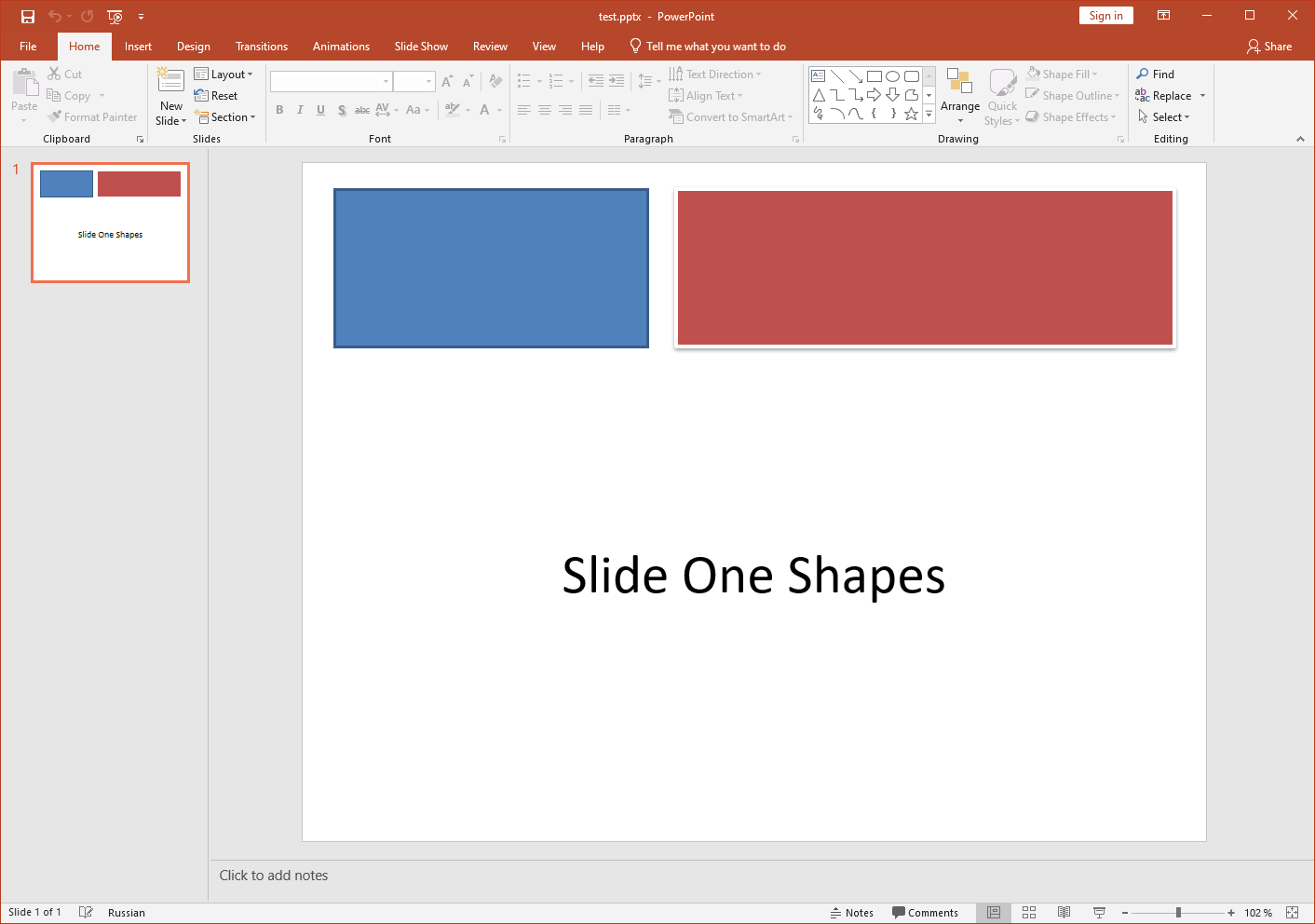
**Input PPT(X):
****
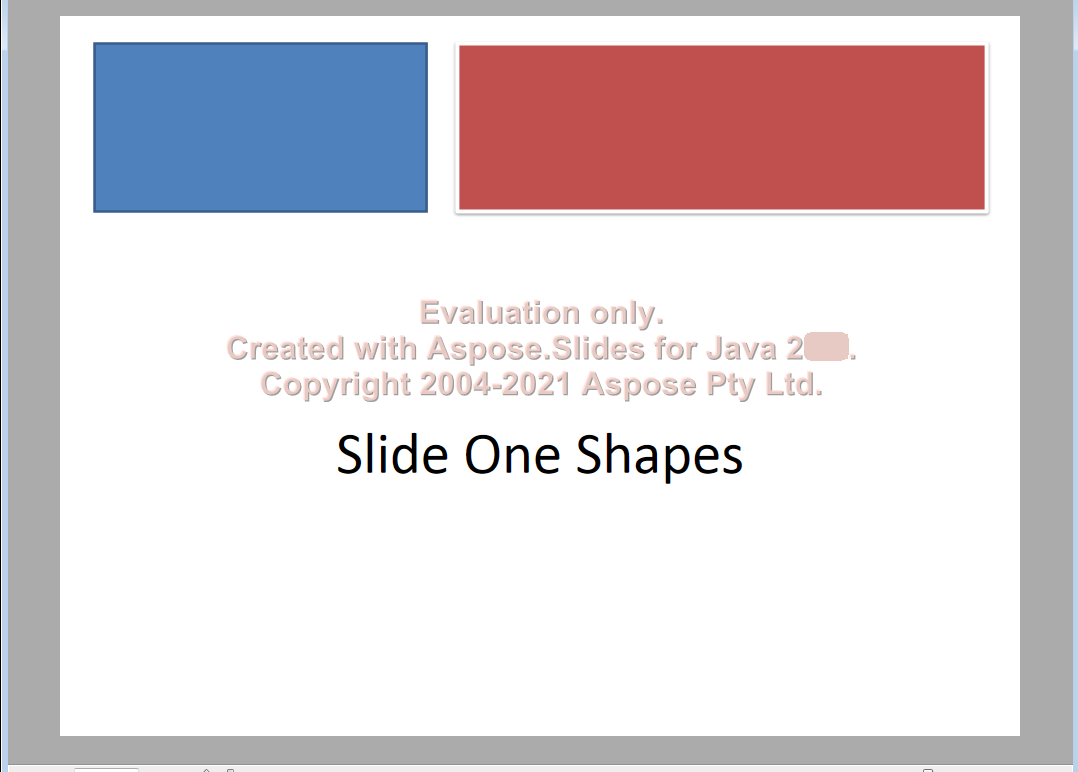
|**Output XPS:
****
| | :- | :- | Microsoft eventually implemented support for printing operations in PDF through the Print to PDF feature in Windows 10. Previously, users were expected to print documents through the XPS format. ## XPS Conversion with Aspose.Slides In [**Aspose.Slides**](https://products.aspose.com/slides/python-net/) for Python via .NET, you can use the [**save**](https://reference.aspose.com/slides/python-net/aspose.slides/presentation/) method exposed by the [Presentation](https://reference.aspose.com/slides/python-net/aspose.slides/presentation/) class to convert the entire presentation into an XPS document. When converting a presentation to XPS, you have to save the presentation using either of these settings: - Default settings (without [**XPSOptions**](https://reference.aspose.com/slides/python-net/aspose.slides.export/xpsoptions/)) - Custom settings (with [**XPSOptions**](https://reference.aspose.com/slides/python-net/aspose.slides.export/xpsoptions/)) ### **Converting Presentations to XPS Using Default Settings** This sample code in Python shows you how to convert a presentation to an XPS document using standard settings: ```py import aspose.slides as slides # Instantiate a Presentation object that represents a presentation file pres = slides.Presentation("Convert_XPS.pptx") # Saving the presentation to XPS document pres.save("XPS_Output_Without_XPSOption_out.xps", slides.export.SaveFormat.XPS) ``` ### **Converting Presentations to XPS Using Custom Settings** This sample code shows you how to convert a presentation to an XPS document using custom settings in Python: ```py import aspose.slides as slides # Instantiate a Presentation object that represents a presentation file pres = slides.Presentation("Convert_XPS_Options.pptx") # Instantiate the XpsOptions class options = slides.export.XpsOptions() # Save MetaFiles as PNG options.save_metafiles_as_png = True # Save the presentation to XPS document pres.save("XPS_With_Options_out.xps", slides.export.SaveFormat.XPS, options) ``` ## **FAQ** ### Can I save to XPS into a stream instead of a file? Yes—Aspose.Slides lets you export directly to a stream, which is ideal for web APIs, server-side pipelines, or any scenario where you want to send the XPS without touching the file system. ### Are hidden slides carried over to XPS, and can I exclude them? By default, only regular (visible) slides are rendered. You can [include or exclude hidden slides](https://reference.aspose.com/slides/python-net/aspose.slides.export/xpsoptions/show_hidden_slides/) through [export settings](https://reference.aspose.com/slides/python-net/aspose.slides.export/xpsoptions/) before saving to XPS, ensuring the output contains exactly the pages you intend.