# Customizing PowerPoint Rendering Extension Caption
>
Source: https://docs.aspose.com/slides/reportingservices/customizing-powerpoint-rendering-extension-caption/
Updated: 2024-11-01
{{% alert color="primary" %}}
This article shows you how to customize Aspose.Slides for Reporting Services rendering options captions.
{{% /alert %}}
## **Example**
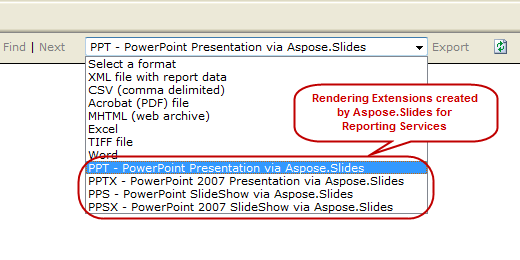
When installing Aspose.Slides for Reporting Services, 4 additional export options are added in the drop-down menu of the export options:
## **How to modify the captions text**
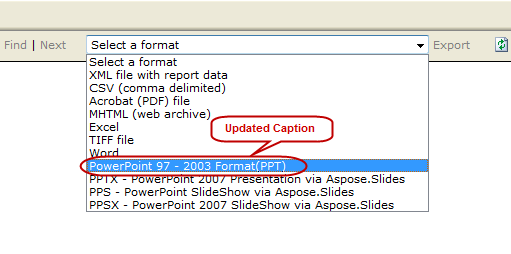
The default captions of these extensions can be changed by overriding the default names. These steps show you how to change the caption from “ **PPT – PowerPoint** **Presentation via** **Aspose.Slides** ” to “ **PowerPoint 97 – 2003 format(PPT)** ”.
**Step 1:** Locate the **rsreportserver.config** file that is usually in this directory:
**OS Root Drive\Program Files\Microsoft SQL Server\MSRS10.MSSQLSERVER\Reporting Services\ReportServer**
**Step** **2:** Find these lines in rsreportserver.config file:
``` xml
```
**Step** **3:** Replace the extension parameter with this:
****
``` xml
PowerPoint 97 - 2003 Format(PPT)
```
The export options will now appear like this: