# แปลงงานนำเสนอเป็น HTML5 ด้วย Python ผ่าน Java
> ส่งออกงานนำเสนอ PowerPoint & OpenDocument เป็น HTML5 แบบตอบสนองด้วย Aspose.Slides สำหรับ Python ผ่าน Java. รักษาการจัดรูปแบบ, เอฟเฟกต์เคลื่อนไหว, และความโต้ตอบ.
Source: https://docs.aspose.com/slides/th/python-java/export-to-html5/
Updated: 2026-09-09
## **ภาพรวม**
บทความนี้อธิบายวิธีแปลงงานนำเสนอ PowerPoint เป็น HTML5 โดยใช้ Aspose.Slides ครอบคลุมการส่งออก HTML5 ขั้นพื้นฐานโดยไม่ต้องใช้ส่วนขยายเว็บเพิ่มเติม รวมถึงตัวเลือกในการควบคุมการเคลื่อนไหวของรูปร่างและการเปลี่ยนสไลด์ บทความยังแสดงกระบวนการส่งออกมาตรฐานจาก PowerPoint เป็น HTML อธิบายวิธีสร้างผลลัพธ์ HTML5 ในโหมดการดูสไลด์ และสาธิตวิธีรวมความคิดเห็นในเอกสารที่ส่งออกโดยกำหนดการจัดวางของมัน
ตัวอย่างต้องใช้ Aspose.Slides for Python via Java และ Java runtime ที่เข้ากันได้ วาง `pres.pptx` (หรือ `sample.pptx` สำหรับตัวอย่างคอมเมนต์) ในไดเรกทรีทำงานปัจจุบัน ตัวอย่างแต่ละอันจะเริ่ม JVM เฉพาะเมื่อตัว JVM ยังไม่มีการทำงาน
## **ส่งออก PowerPoint ไปเป็น HTML5**
Use [Presentation.save](https://reference.aspose.com/slides/th/python-java/aspose.slides/presentation/#save) with [SaveFormat.Html5](https://reference.aspose.com/slides/th/python-java/aspose.slides/saveformat/#Html5) to export a presentation without additional web extensions:
```python
import jpype
import asposeslides
if not jpype.isJVMStarted():
jpype.startJVM()
from asposeslides.api import Presentation, SaveFormat
presentation = Presentation("pres.pptx")
try:
presentation.save("pres.html", SaveFormat.Html5)
finally:
presentation.dispose()
```
{{% alert color="info" title="หมายเหตุ" %}}
โปรแกรมส่งออก HTML5 จะสร้างเนื้อหา HTML สำหรับการดูในเบราว์เซอร์
{{% /alert %}}
Use [Html5Options](https://reference.aspose.com/slides/th/python-java/aspose.slides/html5options/) to configure the export. Call [setAnimateShapes](https://reference.aspose.com/slides/th/python-java/aspose.slides/html5options/#setAnimateShapes) and [setAnimateTransitions](https://reference.aspose.com/slides/th/python-java/aspose.slides/html5options/#setAnimateTransitions) with `False` to disable shape animations and slide transitions:
```python
import jpype
import asposeslides
if not jpype.isJVMStarted():
jpype.startJVM()
from asposeslides.api import Html5Options, Presentation, SaveFormat
presentation = Presentation("pres.pptx")
try:
html5_options = Html5Options()
html5_options.setAnimateShapes(False)
html5_options.setAnimateTransitions(False)
presentation.save("pres5.html", SaveFormat.Html5, html5_options)
finally:
presentation.dispose()
```
## **ส่งออก PowerPoint ไปเป็น HTML**
Use [SaveFormat.Html](https://reference.aspose.com/slides/th/python-java/aspose.slides/saveformat/#Html) for standard HTML export. See [Convert PowerPoint to HTML](/slides/th/python-java/convert-powerpoint-to-html/) for more options:
```python
import jpype
import asposeslides
if not jpype.isJVMStarted():
jpype.startJVM()
from asposeslides.api import Presentation, SaveFormat
presentation = Presentation("pres.pptx")
try:
presentation.save("pres.html", SaveFormat.Html)
finally:
presentation.dispose()
```
In this case, the presentation content is rendered through SVG in a form like this:
```html
```
{{% alert title="คำเตือน" color="warning" %}}
Standard HTML export renders slide content through SVG and does not provide the HTML5 shape-animation and slide-transition options.
{{% /alert %}}
## **ส่งออก PowerPoint ไปเป็นมุมมองสไลด์ HTML5**
**Aspose.Slides** allows you to convert a PowerPoint presentation to an HTML5 document in which the slides are presented in a slide view mode. In this case, when you open the resulting HTML5 file in a browser, you see the presentation in slide view mode on a web page.
This Python code demonstrates the PowerPoint to HTML5 Slide View export process:
```python
import jpype
import asposeslides
if not jpype.isJVMStarted():
jpype.startJVM()
from asposeslides.api import Html5Options, Presentation, SaveFormat
presentation = Presentation("pres.pptx")
try:
html5_options = Html5Options()
html5_options.setAnimateShapes(True)
html5_options.setAnimateTransitions(True)
presentation.save("HTML5-slide-view.html", SaveFormat.Html5, html5_options)
finally:
presentation.dispose()
```
## **แปลงงานนำเสนอเป็นเอกสาร HTML5 พร้อมคอมเมนต์**
Comments in PowerPoint are a tool that allows users to leave notes or feedback on presentation slides. They are especially useful in collaborative projects, where multiple people can add their suggestions or remarks to specific slide elements without altering the main content. Each comment shows the author's name, making it easy to track who left the remark.
Let's say we have the following PowerPoint presentation saved in the "sample.pptx" file.
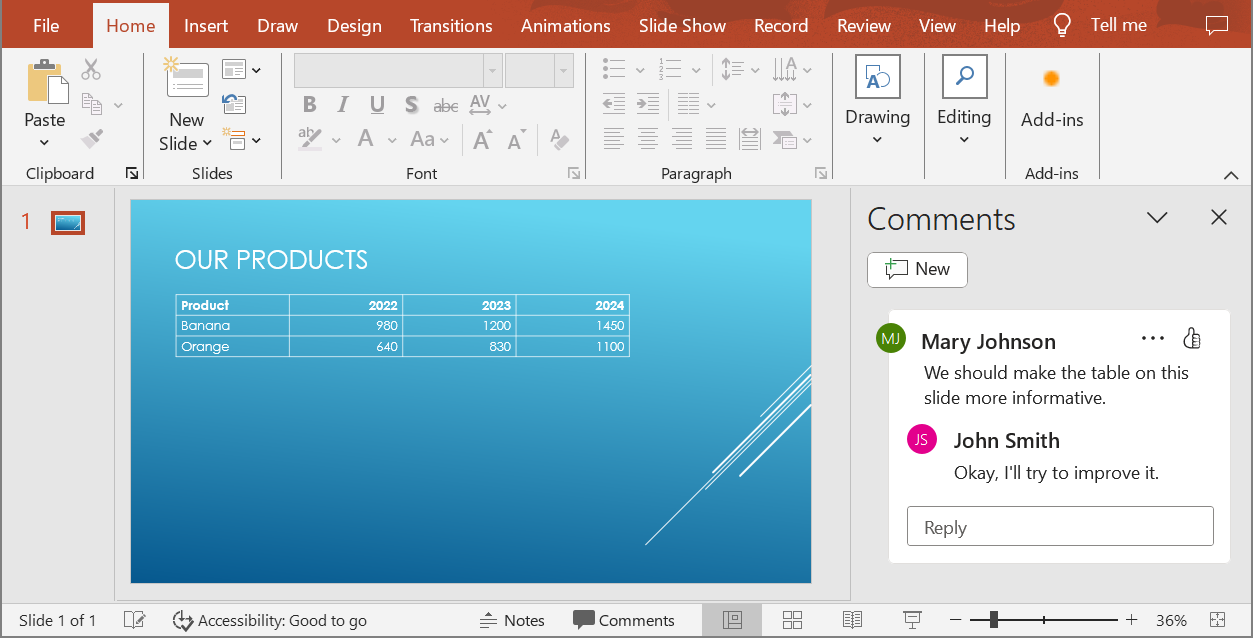
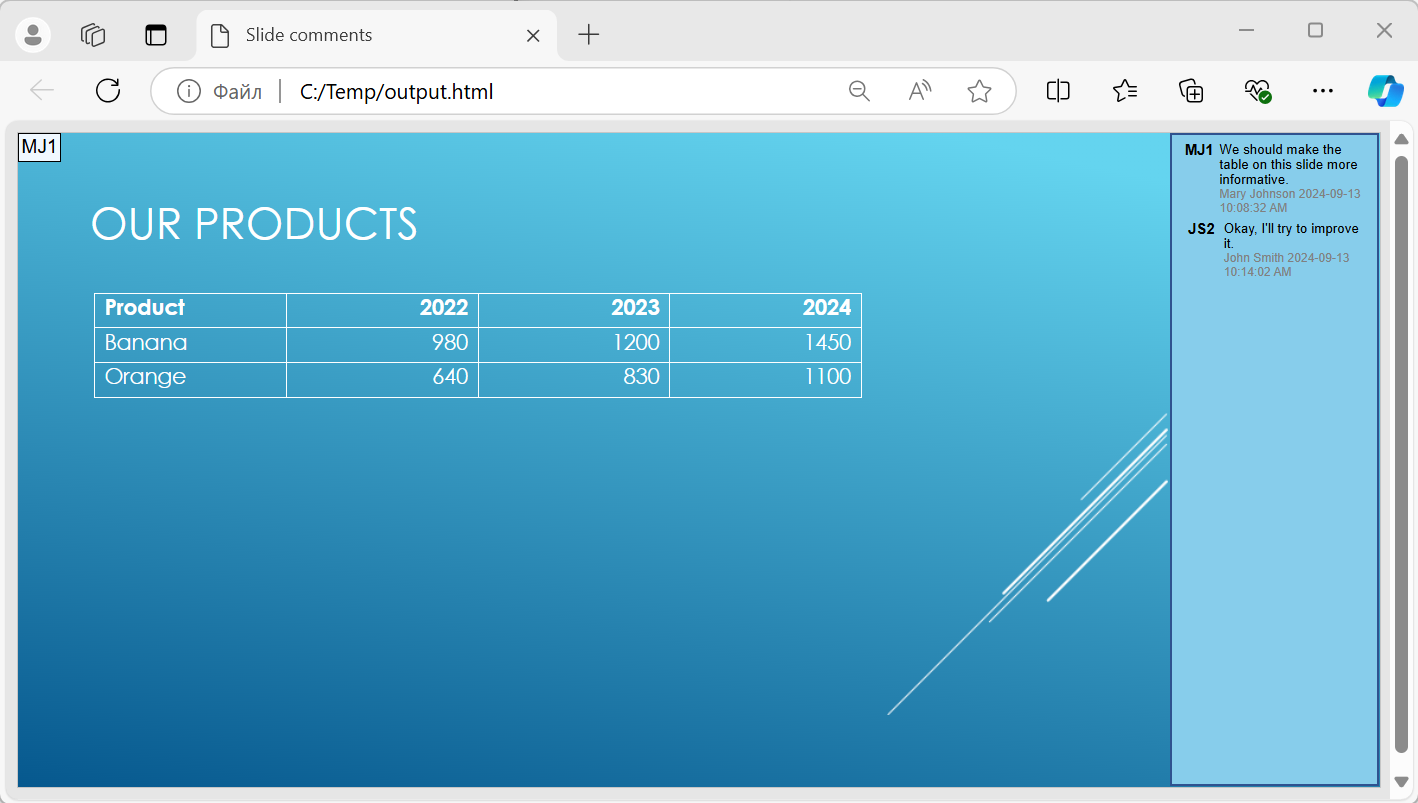
When you convert a PowerPoint presentation to an HTML5 document, you can easily specify whether to include comments from the presentation in the output document. To do this, pass the display parameters for comments to the [setSlidesLayoutOptions](https://reference.aspose.com/slides/th/python-java/aspose.slides/html5options/#setSlidesLayoutOptions) method of the [Html5Options](https://reference.aspose.com/slides/th/python-java/aspose.slides/html5options/) class.
Use [NotesCommentsLayoutingOptions](https://reference.aspose.com/slides/th/python-java/aspose.slides/notescommentslayoutingoptions/) and [setCommentsPosition](https://reference.aspose.com/slides/th/python-java/aspose.slides/notescommentslayoutingoptions/#setCommentsPosition) with [CommentsPositions.Right](https://reference.aspose.com/slides/th/python-java/aspose.slides/commentspositions/#Right). The following code example converts a presentation to an HTML5 document with comments displayed to the right of the slides.
```python
import jpype
import asposeslides
if not jpype.isJVMStarted():
jpype.startJVM()
from asposeslides.api import CommentsPositions, NotesCommentsLayoutingOptions, Html5Options, Presentation, SaveFormat
presentation = Presentation("sample.pptx")
try:
layout_options = NotesCommentsLayoutingOptions()
layout_options.setCommentsPosition(CommentsPositions.Right)
html5_options = Html5Options()
html5_options.setSlidesLayoutOptions(layout_options)
presentation.save("output.html", SaveFormat.Html5, html5_options)
finally:
presentation.dispose()
```
The "output.html" document is shown in the image below.
## **คำถามที่พบบ่อย**
**ฉันสามารถควบคุมได้หรือไม่ว่าการเคลื่อนที่ของวัตถุและการเปลี่ยนสไลด์จะเล่นใน HTML5 หรือไม่?**
Yes, HTML5 provides separate options to enable or disable [shape animations](https://reference.aspose.com/slides/th/python-java/aspose.slides/html5options/#setAnimateShapes) and [slide transitions](https://reference.aspose.com/slides/th/python-java/aspose.slides/html5options/#setAnimateTransitions).
**คอมเมนต์สามารถส่งออกได้หรือไม่ และสามารถวางตำแหน่งสัมพันธ์กับสไลด์ได้อย่างไร?**
Yes, comments can be added in HTML5 and positioned (for example, to the right of the slide) through [layout settings](https://reference.aspose.com/slides/th/python-java/aspose.slides/html5options/#setSlidesLayoutOptions) for notes and comments.
**ฉันสามารถข้ามลิงก์ที่เรียกใช้ JavaScript เพื่อเหตุผลด้านความปลอดภัยหรือ CSP ได้หรือไม่?**
Yes, there is a [setting](https://reference.aspose.com/slides/th/python-java/aspose.slides/saveoptions/#setSkipJavaScriptLinks) that allows you to skip hyperlinks with JavaScript calls during saving. This removes those hyperlinks; it does not by itself guarantee that all generated HTML5 scripts satisfy a site's Content Security Policy.