# 使用 C++ 在簡報中套用形狀效果
> 使用 Aspose.Slides for C++ 以先進的形狀效果轉換您的 PPT 與 PPTX 檔案——在數秒內創建引人注目、專業的投影片。
Source: https://docs.aspose.com/slides/zh-hant/cpp/shape-effect/
## **介紹**
雖然 PowerPoint 中的效果可用於讓形狀突出,但它們與 [fills](/slides/zh-hant/cpp/shape-formatting/#gradient-fill) 或輪廓不同。使用 PowerPoint 效果,您可以在形狀上建立逼真的反射、擴散形狀的發光等。
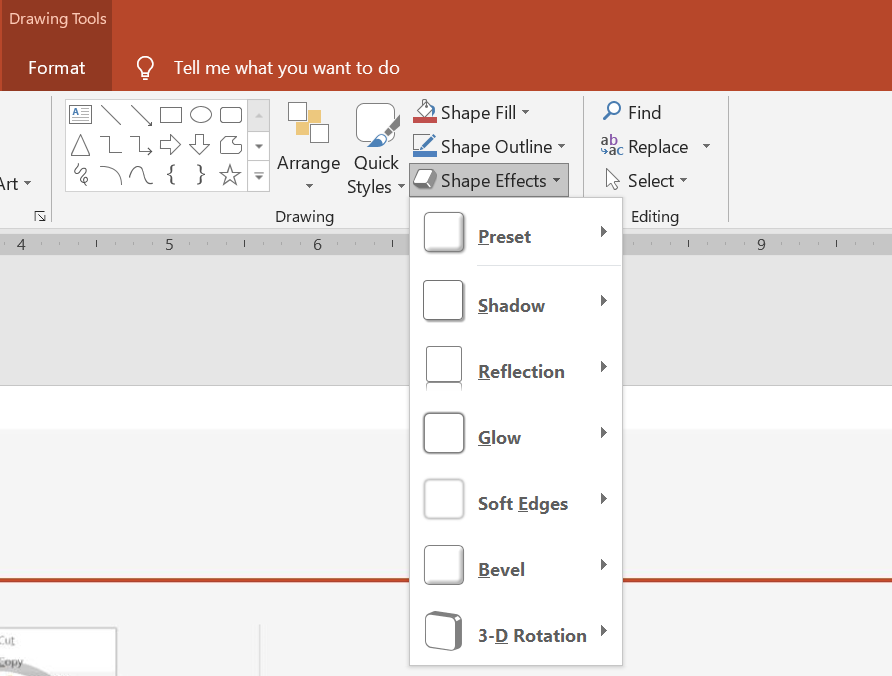 * PowerPoint 提供六種可套用於形狀的效果。您可以對形狀套用一個或多個效果。
* 某些效果的組合比其他組合更好看。基於此原因,PowerPoint 在 **Preset** 下提供選項。預設選項本質上是兩個或多個效果的已知美觀組合。這樣,透過選取預設,您就不必花時間測試或組合不同的效果以找到合適的組合。
Aspose.Slides 在 [EffectFormat](https://reference.aspose.com/slides/zh-hant/cpp/class/aspose.slides.effect_format/) 類別中提供屬性與方法,讓您可以在 PowerPoint 簡報中的形狀套用相同的效果。
## **套用陰影效果**
此 C++ 程式碼示範如何將外部陰影效果 ([OuterShadowEffect](https://reference.aspose.com/slides/zh-hant/cpp/class/aspose.slides.effect_format#aea1a48246d3240e29092498f648bc028)) 套用至矩形:
```c++
auto pres = System::MakeObject();
auto slide = pres->get_Slides()->idx_get(0);
auto shape = slide->get_Shapes()->AddAutoShape(ShapeType::RoundCornerRectangle, 20.0f, 20.0f, 200.0f, 150.0f);
auto effectFormat = shape->get_EffectFormat();
effectFormat->EnableOuterShadowEffect();
auto outerShadowEffect = effectFormat->get_OuterShadowEffect();
outerShadowEffect->get_ShadowColor()->set_Color(System::Drawing::Color::get_DarkGray());
outerShadowEffect->set_Distance(10);
outerShadowEffect->set_Direction(45.0f);
pres->Save(u"output.pptx", SaveFormat::Pptx);
```
## **套用反射效果**
此 C++ 程式碼示範如何將反射效果套用至形狀:
```c++
auto pres = System::MakeObject();
auto slide = pres->get_Slides()->idx_get(0);
auto shape = slide->get_Shapes()->AddAutoShape(ShapeType::RoundCornerRectangle, 20.0f, 20.0f, 200.0f, 150.0f);
auto effectFormat = shape->get_EffectFormat();
effectFormat->EnableReflectionEffect();
auto reflectionEffect = effectFormat->get_ReflectionEffect();
reflectionEffect->set_RectangleAlign(RectangleAlignment::Bottom);
reflectionEffect->set_Direction(90.0f);
reflectionEffect->set_Distance(55);
reflectionEffect->set_BlurRadius(4);
pres->Save(u"reflection.pptx", SaveFormat::Pptx);
```
## **套用發光效果**
此 C++ 程式碼示範如何將發光效果套用至形狀:
```c++
auto pres = System::MakeObject();
auto slide = pres->get_Slides()->idx_get(0);
auto shape = slide->get_Shapes()->AddAutoShape(ShapeType::RoundCornerRectangle, 20.0f, 20.0f, 200.0f, 150.0f);
auto effectFormat = shape->get_EffectFormat();
effectFormat->EnableGlowEffect();
auto glowEffect = effectFormat->get_GlowEffect();
glowEffect->get_Color()->set_Color(System::Drawing::Color::get_Magenta());
glowEffect->set_Radius(15);
pres->Save(u"glow.pptx", SaveFormat::Pptx);
```
## **套用柔化邊緣效果**
此 C++ 程式碼示範如何將柔化邊緣套用至形狀:
```c++
auto pres = System::MakeObject();
auto slide = pres->get_Slides()->idx_get(0);
auto shape = slide->get_Shapes()->AddAutoShape(ShapeType::RoundCornerRectangle, 20.0f, 20.0f, 200.0f, 150.0f);
auto effectFormat = shape->get_EffectFormat();
effectFormat->EnableSoftEdgeEffect();
auto softEdgeEffect = effectFormat->get_SoftEdgeEffect();
softEdgeEffect->set_Radius(15);
pres->Save(u"softEdges.pptx", SaveFormat::Pptx);
```
## **常見問題**
**我可以對同一個形狀套用多個效果嗎?**
是的,您可以在單一形狀上結合不同的效果,例如陰影、反射與發光,以產生更具動態性的外觀。
**我可以對哪些形狀套用效果?**
您可對各種形狀套用效果,包括自動圖案、圖表、表格、圖片、SmartArt 物件、OLE 物件等。
**我可以對群組形狀套用效果嗎?**
是的,您可以對群組形狀套用效果。該效果會套用至整個群組。
* PowerPoint 提供六種可套用於形狀的效果。您可以對形狀套用一個或多個效果。
* 某些效果的組合比其他組合更好看。基於此原因,PowerPoint 在 **Preset** 下提供選項。預設選項本質上是兩個或多個效果的已知美觀組合。這樣,透過選取預設,您就不必花時間測試或組合不同的效果以找到合適的組合。
Aspose.Slides 在 [EffectFormat](https://reference.aspose.com/slides/zh-hant/cpp/class/aspose.slides.effect_format/) 類別中提供屬性與方法,讓您可以在 PowerPoint 簡報中的形狀套用相同的效果。
## **套用陰影效果**
此 C++ 程式碼示範如何將外部陰影效果 ([OuterShadowEffect](https://reference.aspose.com/slides/zh-hant/cpp/class/aspose.slides.effect_format#aea1a48246d3240e29092498f648bc028)) 套用至矩形:
```c++
auto pres = System::MakeObject();
auto slide = pres->get_Slides()->idx_get(0);
auto shape = slide->get_Shapes()->AddAutoShape(ShapeType::RoundCornerRectangle, 20.0f, 20.0f, 200.0f, 150.0f);
auto effectFormat = shape->get_EffectFormat();
effectFormat->EnableOuterShadowEffect();
auto outerShadowEffect = effectFormat->get_OuterShadowEffect();
outerShadowEffect->get_ShadowColor()->set_Color(System::Drawing::Color::get_DarkGray());
outerShadowEffect->set_Distance(10);
outerShadowEffect->set_Direction(45.0f);
pres->Save(u"output.pptx", SaveFormat::Pptx);
```
## **套用反射效果**
此 C++ 程式碼示範如何將反射效果套用至形狀:
```c++
auto pres = System::MakeObject();
auto slide = pres->get_Slides()->idx_get(0);
auto shape = slide->get_Shapes()->AddAutoShape(ShapeType::RoundCornerRectangle, 20.0f, 20.0f, 200.0f, 150.0f);
auto effectFormat = shape->get_EffectFormat();
effectFormat->EnableReflectionEffect();
auto reflectionEffect = effectFormat->get_ReflectionEffect();
reflectionEffect->set_RectangleAlign(RectangleAlignment::Bottom);
reflectionEffect->set_Direction(90.0f);
reflectionEffect->set_Distance(55);
reflectionEffect->set_BlurRadius(4);
pres->Save(u"reflection.pptx", SaveFormat::Pptx);
```
## **套用發光效果**
此 C++ 程式碼示範如何將發光效果套用至形狀:
```c++
auto pres = System::MakeObject();
auto slide = pres->get_Slides()->idx_get(0);
auto shape = slide->get_Shapes()->AddAutoShape(ShapeType::RoundCornerRectangle, 20.0f, 20.0f, 200.0f, 150.0f);
auto effectFormat = shape->get_EffectFormat();
effectFormat->EnableGlowEffect();
auto glowEffect = effectFormat->get_GlowEffect();
glowEffect->get_Color()->set_Color(System::Drawing::Color::get_Magenta());
glowEffect->set_Radius(15);
pres->Save(u"glow.pptx", SaveFormat::Pptx);
```
## **套用柔化邊緣效果**
此 C++ 程式碼示範如何將柔化邊緣套用至形狀:
```c++
auto pres = System::MakeObject();
auto slide = pres->get_Slides()->idx_get(0);
auto shape = slide->get_Shapes()->AddAutoShape(ShapeType::RoundCornerRectangle, 20.0f, 20.0f, 200.0f, 150.0f);
auto effectFormat = shape->get_EffectFormat();
effectFormat->EnableSoftEdgeEffect();
auto softEdgeEffect = effectFormat->get_SoftEdgeEffect();
softEdgeEffect->set_Radius(15);
pres->Save(u"softEdges.pptx", SaveFormat::Pptx);
```
## **常見問題**
**我可以對同一個形狀套用多個效果嗎?**
是的,您可以在單一形狀上結合不同的效果,例如陰影、反射與發光,以產生更具動態性的外觀。
**我可以對哪些形狀套用效果?**
您可對各種形狀套用效果,包括自動圖案、圖表、表格、圖片、SmartArt 物件、OLE 物件等。
**我可以對群組形狀套用效果嗎?**
是的,您可以對群組形狀套用效果。該效果會套用至整個群組。