# 在 Java 中將 PowerPoint 簡報轉換為 HTML
> 在 Java 中將 PowerPoint 簡報轉換為 HTML。使用 Aspose.Slides 匯出 PPT 與 PPTX 檔案、選取的投影片、備註、字型、影像、SVG 以及媒體。
Source: https://docs.aspose.com/slides/zh-hant/java/convert-powerpoint-to-html/
## **概述**
Aspose.Slides for Java 可以在沒有 Microsoft PowerPoint 的情況下將 PowerPoint 簡報儲存為 HTML。基本的轉換只需要載入一個 [Presentation](https://reference.aspose.com/slides/zh-hant/java/com.aspose.slides/presentation/) 並以 `save` 呼叫加上 [SaveFormat](https://reference.aspose.com/slides/zh-hant/java/com.aspose.slides/saveformat/)。當需要控制匯出的版面配置、字型、影像、備註、註解、SVG 輸出或連結資源時,請使用 [HtmlOptions](https://reference.aspose.com/slides/zh-hant/java/com.aspose.slides/htmloptions/)。
本指南聚焦於實用的 HTML 匯出情境:
- 匯出整個簡報或選取的投影片。
- 產生固定版面、回應式或基於 SVG 的 HTML。
- 包含講者備註與註解。
- 控制影像品質與裁剪影像資料。
- 嵌入字型或將字型檔案分別儲存。
- 選擇外部資源與媒體檔案的寫入與參照方式。
預設情況下,HTML 匯出會產生一個自含的 HTML 文件,大多數資源都會內嵌。這對於只需要分享單一檔案很方便,但會增加輸出大小。若為網站發佈,請考慮使用外部資源、降低影像 DPI,僅嵌入目標環境不一定能取得的字型。
## **將簡報轉換為 HTML**
若要將簡報匯出為 HTML,請使用 [Presentation](https://reference.aspose.com/slides/zh-hant/java/com.aspose.slides/presentation/) 載入,然後以 [SaveFormat.Html](https://reference.aspose.com/slides/zh-hant/java/com.aspose.slides/saveformat/) 儲存。
```java
Presentation presentation = new Presentation("presentation.pptx");
try {
presentation.save("presentation.html", SaveFormat.Html);
} finally {
presentation.dispose();
}
```
此範例會寫入一個 HTML 檔案。`finally` 區塊會釋放 `Presentation` 物件,從而在匯出後釋放檔案句柄與渲染資源。
## **使用 HtmlOptions**
[HtmlOptions](https://reference.aspose.com/slides/zh-hant/java/com.aspose.slides/htmloptions/) 是 HTML 匯出的主要設定類別。常見設定包括:
- `SlidesLayoutOptions`:加入備註、註解、講義或其他版面資訊。
- `HtmlFormatter`:變更 HTML 文件結構或將格式化委託給控制項。
- `SlideImageFormat`:變更投影片的呈現方式,例如以 SVG。
- `PicturesCompression`:控制影像 DPI 與輸出大小。
- `DeletePicturesCroppedAreas`:保留或移除裁剪過的影像資料。
- `SvgResponsiveLayout`:使匯出的 SVG 內容能適應其容器。
- `ShowHiddenSlides`:在需要時包含隱藏投影片。
以下章節分別說明最常用的選項,讓您只結合工作流程需要的部分。
## **將選取的投影片轉換為 HTML**
接受投影片編號的 `Presentation.save` 多載使用基於 1 的投影片位置。下方迴圈會將每張投影片儲存為單獨的 HTML 檔案。
```java
Presentation presentation = new Presentation("presentation.pptx");
try {
int slideCount = presentation.getSlides().size();
for (int slideIndex = 0; slideIndex < slideCount; slideIndex++) {
int slideNumber = slideIndex + 1;
int[] slideNumbers = { slideNumber };
String htmlFileName = "slide-" + slideNumber + ".html";
presentation.save(htmlFileName, slideNumbers, SaveFormat.Html);
}
} finally {
presentation.dispose();
}
```
當網站或應用程式需要每張投影片對應一個 HTML 頁面時,請使用此模式。若每張投影片需要相同版面,請建立一個 [HtmlOptions](https://reference.aspose.com/slides/zh-hant/java/com.aspose.slides/htmloptions/) 實例,並在每次 `save` 呼叫時傳入。
## **建立回應式 HTML**
[ResponsiveHtmlController](https://reference.aspose.com/slides/zh-hant/java/com.aspose.slides/responsivehtmlcontroller/) 透過 [HtmlFormatter](https://reference.aspose.com/slides/zh-hant/java/com.aspose.slides/htmlformatter/) 提供回應式 HTML 輸出。當匯出的頁面需要更好地適應瀏覽器寬度時,請使用它。
```java
Presentation presentation = new Presentation("presentation.pptx");
try {
ResponsiveHtmlController controller = new ResponsiveHtmlController();
HtmlFormatter formatter = HtmlFormatter.createCustomFormatter(controller);
HtmlOptions htmlOptions = new HtmlOptions();
htmlOptions.setHtmlFormatter(formatter);
presentation.save("presentation-responsive.html", SaveFormat.Html, htmlOptions);
} finally {
presentation.dispose();
}
```
若要使用基於 SVG 的回應式版面,請在 [HtmlOptions](https://reference.aspose.com/slides/zh-hant/java/com.aspose.slides/htmloptions/) 上設定 `SvgResponsiveLayout`。這在投影片內容以可縮放 SVG 標記匯出時特別有用。
```java
Presentation presentation = new Presentation("presentation.pptx");
try {
HtmlOptions htmlOptions = new HtmlOptions();
htmlOptions.setSvgResponsiveLayout(true);
presentation.save("presentation-svg-responsive.html", SaveFormat.Html, htmlOptions);
} finally {
presentation.dispose();
}
```
## **包含講者備註與註解**
透過 `HtmlOptions.setSlidesLayoutOptions` 使用 [NotesCommentsLayoutingOptions](https://reference.aspose.com/slides/zh-hant/java/com.aspose.slides/notescommentslayoutingoptions/) 可將講者備註或註解納入匯出。預設情況下備註與註解是隱藏的,除非您指定它們的位置。
假設來源簡報包含講者備註:
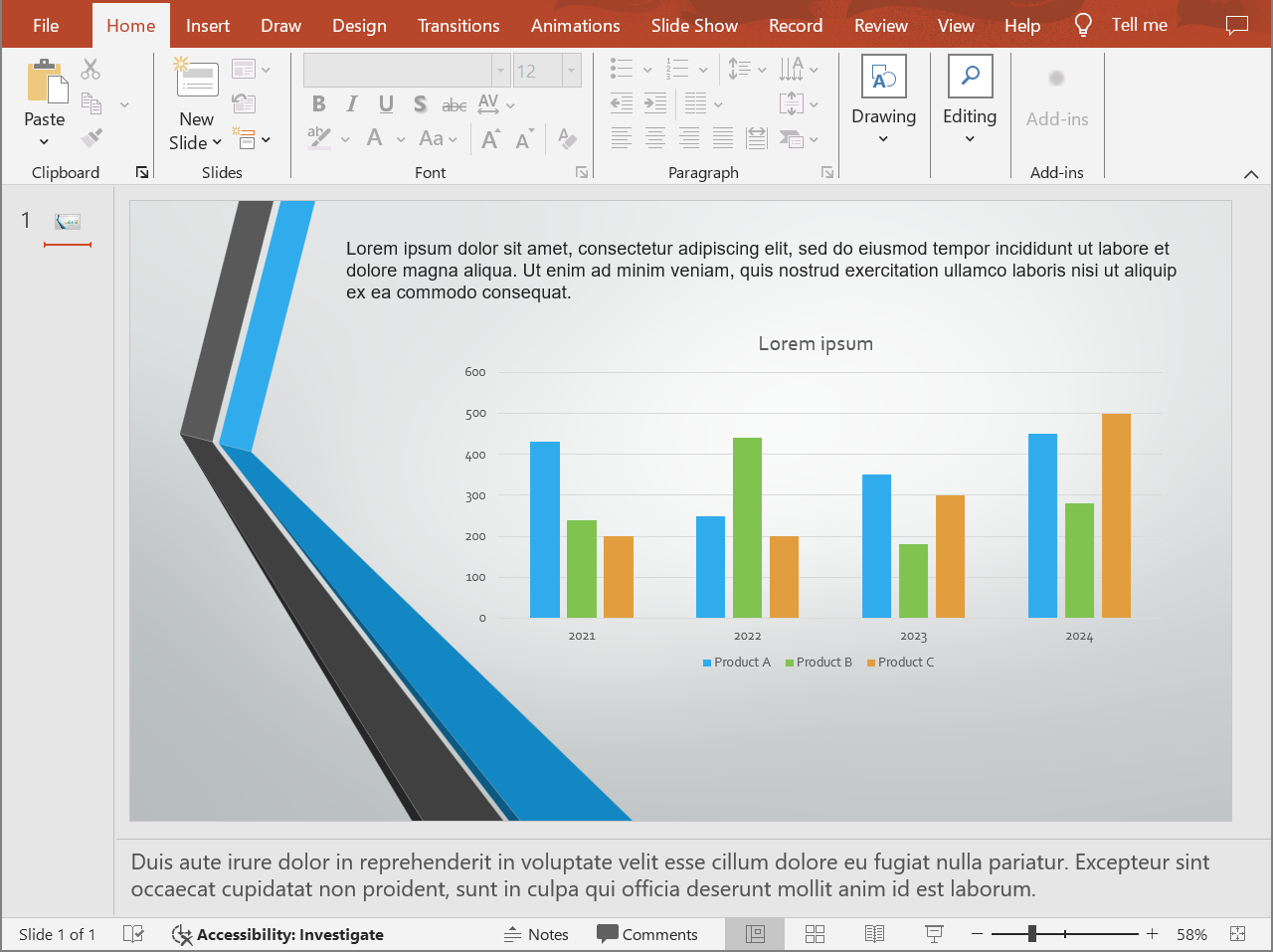
以下程式碼會在投影片下方匯出備註區域。
```java
Presentation presentation = new Presentation("presentation.pptx");
try {
NotesCommentsLayoutingOptions layoutOptions = new NotesCommentsLayoutingOptions();
layoutOptions.setNotesPosition(NotesPositions.BottomFull);
HtmlOptions htmlOptions = new HtmlOptions();
htmlOptions.setSlidesLayoutOptions(layoutOptions);
presentation.save("presentation-with-notes.html", SaveFormat.Html, htmlOptions);
} finally {
presentation.dispose();
}
```
匯出的 HTML 會包含備註區域:
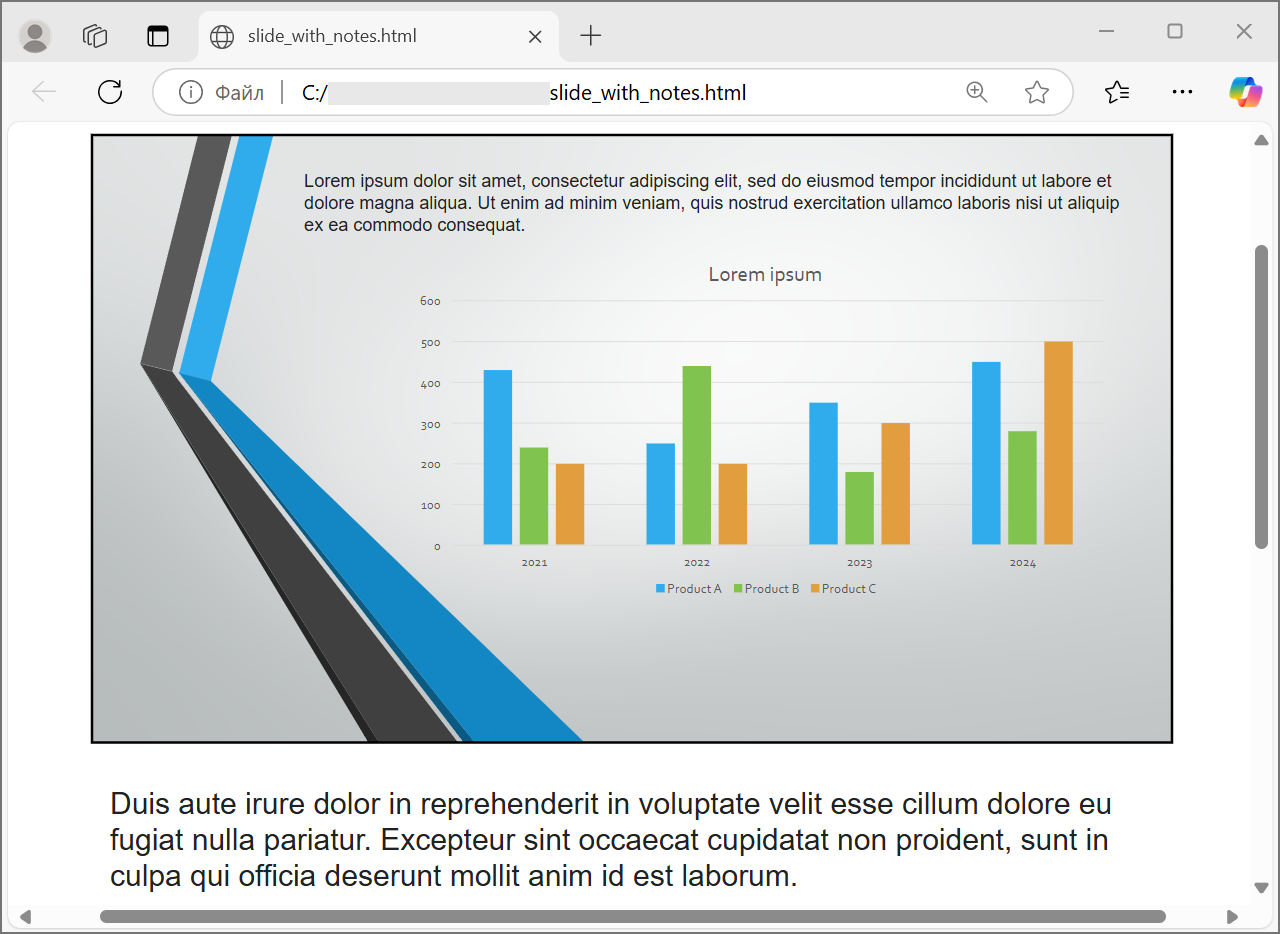
若要匯出註解,請設定 `CommentsPosition`,例如 `CommentsPositions.Right` 或 `CommentsPositions.Bottom`。若僅需要註解,請省略 `NotesPosition`。若同時需要備註與註解,則同時設定兩個屬性。
## **控制影像品質與裁剪區域**
HTML 匯出可以壓縮投影片影像以減少輸出大小。當需要較高影像品質時,請將 `PicturesCompression` 設為來自 [PicturesCompression](https://reference.aspose.com/slides/zh-hant/java/com.aspose.slides/picturescompression/) 的值。
```java
Presentation presentation = new Presentation("presentation.pptx");
try {
HtmlOptions htmlOptions = new HtmlOptions();
htmlOptions.setPicturesCompression(PicturesCompression.Dpi150);
presentation.save("presentation-dpi-150.html", SaveFormat.Html, htmlOptions);
} finally {
presentation.dispose();
}
```
預設情況下,影像的裁剪區域可能會從匯出結果中移除。僅在使用者必須能夠還原或檢查這些隱藏影像部分時才保留裁剪資料。保留它會增加 HTML 大小。
```java
Presentation presentation = new Presentation("presentation.pptx");
try {
HtmlOptions htmlOptions = new HtmlOptions();
htmlOptions.setDeletePicturesCroppedAreas(false);
presentation.save("presentation-with-cropped-areas.html", SaveFormat.Html, htmlOptions);
} finally {
presentation.dispose();
}
```
## **加入 CSS**
若需簡單樣式,可將 CSS 字串傳遞給 `HtmlFormatter.createDocumentFormatter`。這會變更外層 HTML 文件,同時 Aspose.Slides 繼續渲染投影片內容。
```java
Presentation presentation = new Presentation("presentation.pptx");
try {
String cssRules = "body { margin: 0; background: #f7f7f7; } .slide { margin: 24px auto; }";
HtmlFormatter formatter = HtmlFormatter.createDocumentFormatter(cssRules, true);
HtmlOptions htmlOptions = new HtmlOptions();
htmlOptions.setHtmlFormatter(formatter);
presentation.save("presentation-styled.html", SaveFormat.Html, htmlOptions);
} finally {
presentation.dispose();
}
```
若需要自訂文件標頭、連結的 CSS 檔案,或在投影片與圖形周圍加上自訂標記,請實作 [IHtmlFormattingController](https://reference.aspose.com/slides/zh-hant/java/com.aspose.slides/ihtmlformattingcontroller/) 並以 `createCustomFormatter` 傳遞給 [HtmlFormatter](https://reference.aspose.com/slides/zh-hant/java/com.aspose.slides/htmlformatter/)。
## **嵌入字型**
如果目標環境可能沒有安裝簡報使用的字型,請使用 [EmbedAllFontsHtmlController](https://reference.aspose.com/slides/zh-hant/java/com.aspose.slides/embedallfontshtmlcontroller/) 在 HTML 中嵌入字型。嵌入可提升視覺相似度,但會增加輸出大小。
```java
Presentation presentation = new Presentation("presentation.pptx");
try {
String[] fontNamesToExclude = { "Arial" };
EmbedAllFontsHtmlController fontController = new EmbedAllFontsHtmlController(fontNamesToExclude);
HtmlFormatter formatter = HtmlFormatter.createCustomFormatter(fontController);
HtmlOptions htmlOptions = new HtmlOptions();
htmlOptions.setHtmlFormatter(formatter);
presentation.save("presentation-embedded-fonts.html", SaveFormat.Html, htmlOptions);
} finally {
presentation.dispose();
}
```
僅在確信目標瀏覽器或系統已提供字型時才排除字型。對於品牌字型或較不常見的字型,嵌入通常較安全。
## **連結字型檔案而非嵌入**
為了減少 HTML 檔案大小,您可以將字型資料寫入獨立的 WOFF 檔案,並在 HTML 中加入 `@font-face` 規則。下面的輔助程式擴充了 [EmbedAllFontsHtmlController](https://reference.aspose.com/slides/zh-hant/java/com.aspose.slides/embedallfontshtmlcontroller/) 並覆寫 `writeFont`。
```java
class LinkedFontsHtmlController extends EmbedAllFontsHtmlController {
private final java.nio.file.Path fontOutputDirectory;
private final String fontUrlPrefix;
LinkedFontsHtmlController(
java.nio.file.Path fontOutputDirectory,
String fontUrlPrefix) throws java.io.IOException {
super(new String[0]);
this.fontOutputDirectory = fontOutputDirectory;
this.fontUrlPrefix = fontUrlPrefix.endsWith("/") ? fontUrlPrefix : fontUrlPrefix + "/";
java.nio.file.Files.createDirectories(fontOutputDirectory);
}
@Override
public void writeFont(
IHtmlGenerator generator,
IFontData originalFont,
IFontData substitutedFont,
String fontStyle,
String fontWeight,
byte[] fontData) {
try {
IFontData font = substitutedFont == null ? originalFont : substitutedFont;
String safeFontName = makeSafeFileName(font.getFontName());
String safeFontStyle = fontStyle == null || fontStyle.trim().isEmpty() ? "normal" : fontStyle;
String safeFontWeight = fontWeight == null || fontWeight.trim().isEmpty() ? "normal" : fontWeight;
String fontFileName = safeFontName + "-" + safeFontStyle + "-" + safeFontWeight + ".woff";
java.nio.file.Path fontFilePath = fontOutputDirectory.resolve(fontFileName);
java.nio.file.Files.write(fontFilePath, fontData);
String encodedFontFileName = java.net.URLEncoder.encode(fontFileName, "UTF-8");
String fontUrl = fontUrlPrefix + encodedFontFileName.replace("+", "%20");
String escapedBackslashes = font.getFontName().replace("\\", "\\\\");
String fontFamily = escapedBackslashes.replace("'", "\\'");
generator.addHtml("");
} catch (java.io.IOException exception) {
throw new RuntimeException("Unable to write an exported font.", exception);
}
}
private String makeSafeFileName(String fileName) {
String invalidCharacters = "\\/:*?\"<>|";
char[] safeCharacters = fileName.toCharArray();
for (int characterIndex = 0; characterIndex < safeCharacters.length; characterIndex++) {
if (invalidCharacters.indexOf(safeCharacters[characterIndex]) >= 0) {
safeCharacters[characterIndex] = '_';
}
}
return new String(safeCharacters);
}
}
java.nio.file.Path outputDirectory = java.nio.file.Paths.get(System.getProperty("user.dir"), "html-output");
java.nio.file.Path fontsDirectory = outputDirectory.resolve("fonts");
java.nio.file.Files.createDirectories(outputDirectory);
Presentation presentation = new Presentation("presentation.pptx");
try {
LinkedFontsHtmlController fontController = new LinkedFontsHtmlController(fontsDirectory, "fonts");
HtmlFormatter formatter = HtmlFormatter.createCustomFormatter(fontController);
HtmlOptions htmlOptions = new HtmlOptions();
htmlOptions.setHtmlFormatter(formatter);
java.nio.file.Path htmlFilePath = outputDirectory.resolve("presentation.html");
presentation.save(htmlFilePath.toString(), SaveFormat.Html, htmlOptions);
} finally {
presentation.dispose();
}
```
此範例會將字型檔案儲存至 `html-output/fonts`,HTML 會以 `fonts/BrandFont-normal-400.woff` 等 URL 參照它們。如果 HTML 檔案與字型部署到其他位置,請設定 `fontUrlPrefix` 以符合部署後的 URL 路徑。
## **外部儲存資源**
自含的 HTML 易於搬移,但內嵌的 Base64 資源會使檔案變大。如果您的應用程式需要外部影像檔案,請實作 [ILinkEmbedController](https://reference.aspose.com/slides/zh-hant/java/com.aspose.slides/ilinkembedcontroller/) 並將其傳遞給 [HtmlOptions](https://reference.aspose.com/slides/zh-hant/java/com.aspose.slides/htmloptions/) 建構函式。
外部化資源時,請務必分別指定兩條路徑:
- 檔案系統的輸出路徑,您的應用程式在此寫入產生的影像、字型、音訊或視訊。
- URL 路徑,瀏覽器從 HTML 文件載入這些檔案時使用的路徑。
## **匯出媒體檔案**
[VideoPlayerHtmlController](https://reference.aspose.com/slides/zh-hant/java/com.aspose.slides/videoplayerhtmlcontroller/) 會匯出影片與音訊檔案,並產生可在瀏覽器播放的 HTML。其建構函式接受:
- `path`:產生的媒體檔案將寫入的目錄。
- `fileName`:正在產生的 HTML 檔名。
- `baseUri`:HTML 中指向媒體檔案的絕對 URI 前綴。
若 HTML 檔案為 `html-output/presentation.html`,媒體檔案儲存在 `html-output/media`,則 `path` 應指向磁碟上的 media 目錄,而 `baseUri` 應指向瀏覽器觀點下的同一目錄。本機預覽時可從 media 目錄建構 `file:///` URI;部署時則使用已發佈 media 目錄的絕對 URL。
```java
java.nio.file.Path outputDirectory = java.nio.file.Paths.get(System.getProperty("user.dir"), "html-output");
java.nio.file.Path mediaDirectory = outputDirectory.resolve("media");
java.nio.file.Files.createDirectories(outputDirectory);
java.nio.file.Files.createDirectories(mediaDirectory);
String htmlFileName = "presentation.html";
String mediaBaseUri = mediaDirectory.toUri().toString();
Presentation presentation = new Presentation();
try {
java.nio.file.Path videoFilePath = java.nio.file.Paths.get("intro.mp4");
byte[] videoData = java.nio.file.Files.readAllBytes(videoFilePath);
IVideo video = presentation.getVideos().addVideo(videoData);
ISlide slide = presentation.getSlides().get_Item(0);
slide.getShapes().addVideoFrame(20, 20, 480, 270, video);
String mediaDirectoryPath = mediaDirectory.toString();
VideoPlayerHtmlController controller = new VideoPlayerHtmlController(mediaDirectoryPath, htmlFileName, mediaBaseUri);
HtmlFormatter formatter = HtmlFormatter.createCustomFormatter(controller);
SVGOptions svgOptions = new SVGOptions(controller);
SlideImageFormat slideImageFormat = SlideImageFormat.svg(svgOptions);
HtmlOptions htmlOptions = new HtmlOptions(controller);
htmlOptions.setHtmlFormatter(formatter);
htmlOptions.setSlideImageFormat(slideImageFormat);
java.nio.file.Path htmlFilePath = outputDirectory.resolve(htmlFileName);
presentation.save(htmlFilePath.toString(), SaveFormat.Html, htmlOptions);
} finally {
presentation.dispose();
}
```
請為每次匯出作業使用唯一的輸出目錄,特別是在伺服器應用程式中。共用輸出路徑可能導致不同轉換的檔案互相覆寫。
## **效能與資源管理**
HTML 轉換屬於渲染操作,處理時間與記憶體使用量取決於投影片數量、影像解析度、字型、效果、圖表與嵌入的媒體。較高的 `PicturesCompression` DPI 值、嵌入字型、SVG 輸出與保留裁剪影像區域雖可提升保真度,但通常會增加輸出大小。
批次轉換時:
- 及時釋放每個 [Presentation](https://reference.aspose.com/slides/zh-hant/java/com.aspose.slides/presentation/) 執行個體。
- 為不同工作使用獨立的輸出目錄。
- 除非需要高保真,否則避免嵌入常見字型。
- 當 HTML 用於預覽或縮圖時降低影像 DPI。
- 在部署路徑最終確定前,保留來源簡報、產生的 HTML 與外部資源在同一位置。
## **常見問題**
**HTML 輸出中會保留超連結嗎?**
會。簡報中的超連結會匯出至 HTML,且在目標 URL 有效時仍可點擊。
**我可以平行將簡報轉換為 HTML 嗎?**
可以,但請勿在多執行緒之間共用同一個 [Presentation](https://reference.aspose.com/slides/zh-hant/java/com.aspose.slides/presentation/) 實例。對不同檔案使用獨立的簡報實例、獨立的串流與獨立的輸出目錄。詳情請參閱 [multithreading guidance](/slides/zh-hant/java/multithreading/)。
**Presentation 物件是執行緒安全的嗎?**
不是。單一的 [Presentation](https://reference.aspose.com/slides/zh-hant/java/com.aspose.slides/presentation/) 實例應在同一執行緒上載入、修改、儲存與釋放。若要平行工作,請為每個執行緒或程序建立獨立的實例。
**為什麼產生的 HTML 檔案很大?**
預設匯出會直接在 HTML 中內嵌資源。內嵌字型、高 DPI 影像、媒體、SVG 內容以及保留裁剪影像區域都會增加大小。使用外部資源、排除常見字型的內嵌,並在較不需最高保真度時降低 `PicturesCompression`,即可減小輸出。
**為什麼 PowerPoint 中的字型大小 24 pt 會在 HTML 中顯示為 17.999819 pt?**
這是因為 PowerPoint 與 HTML 使用不同的 DPI 模型。PowerPoint 以 72 DPI 的排版點儲存文字尺寸,而 HTML 版面則基於 96 DPI 的 CSS 像素。Aspose.Slides 在匯出時會在兩種系統之間進行換算,換算過程中可能產生細微的四捨五入差異。
這些數值並不表示實際的視覺字型大小變化,只是文字度量在 PowerPoint 與 HTML 之間轉換的數學副作用。
**應該如何為媒體匯出選擇 baseUri?**
應從瀏覽器的觀點選擇 `baseUri`,並以絕對 URI 形式傳入。若為本機預覽,可從輸出目錄使用 `mediaDirectory.toUri().toString()` 取得。部署時,請使用已發佈媒體目錄的絕對 URL。檔案系統的 `path` 與瀏覽器的 `baseUri` 不必是相同字串,但必須指向同一資源位置。
**我可以包含隱藏投影片嗎?**
可以。當必須匯出隱藏投影片時,請在 [HtmlOptions](https://reference.aspose.com/slides/zh-hant/java/com.aspose.slides/htmloptions/) 上將 `ShowHiddenSlides` 設為 `true`。