```php
```
{{% alert title="Note" color="warning" %}}
When you use this method to export PowerPoint to HTML, due to the SVG rendering, you will not be to apply styles or animate specific elements.
{{% /alert %}}
## **Export PowerPoint to HTML5 Slide View**
**Aspose.Slides** allows you to convert a PowerPoint presentation to an HTML5 document in which the slides are presented in a slide view mode. In this case, when you open the resulting HTML5 file in a browser, you see the presentation in slide view mode on a web page.
This PHP code demonstrates the PowerPoint to HTML5 Slide View export process:
```php
$pres = new Presentation("pres.pptx");
try {
$html5Options = new Html5Options();
$html5Options->setAnimateShapes(true);
$html5Options->setAnimateTransitions(true);
$pres->save("HTML5-slide-view.html", SaveFormat::Html5, $html5Options);
} finally {
if (!java_is_null($pres)) {
$pres->dispose();
}
}
```
## **Convert Presentations to HTML5 Documents with Comments**
Comments in PowerPoint are a tool that allows users to leave notes or feedback on presentation slides. They are especially useful in collaborative projects, where multiple people can add their suggestions or remarks to specific slide elements without altering the main content. Each comment shows the author's name, making it easy to track who left the remark.
Let's say we have the following PowerPoint presentation saved in the "sample.pptx" file.
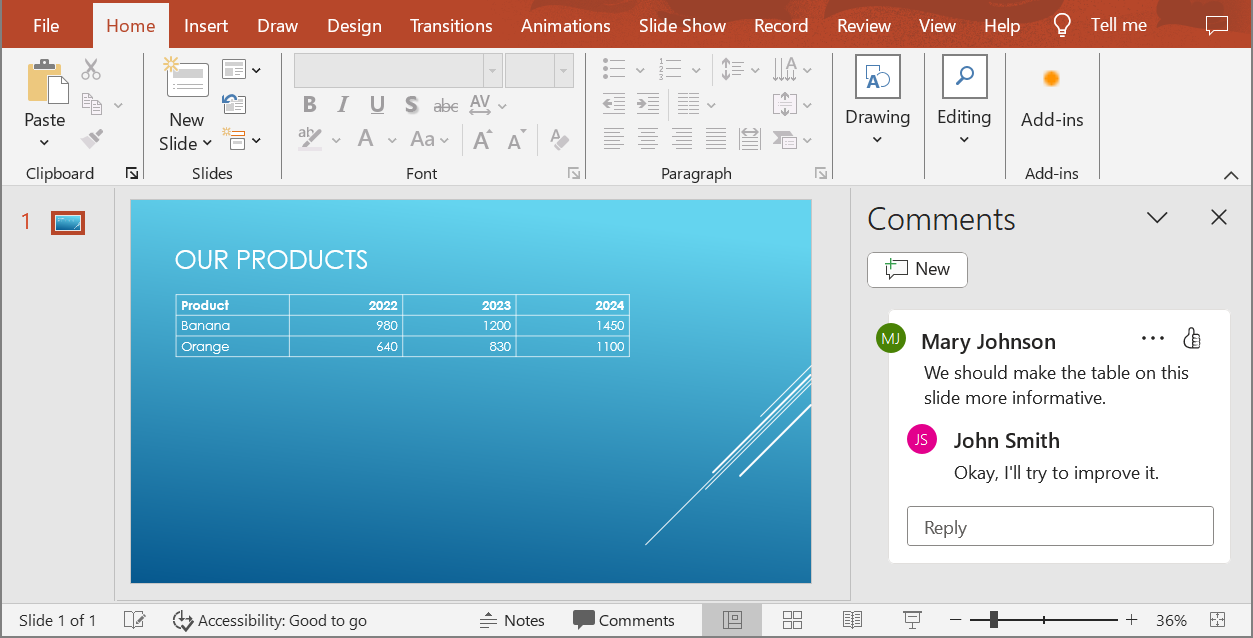
When you convert a PowerPoint presentation to an HTML5 document, you can easily specify whether to include comments from the presentation in the output document. To do this, you need to specify the display parameters for comments in the `getNotesCommentsLayouting` method of the `Html5Options` class.
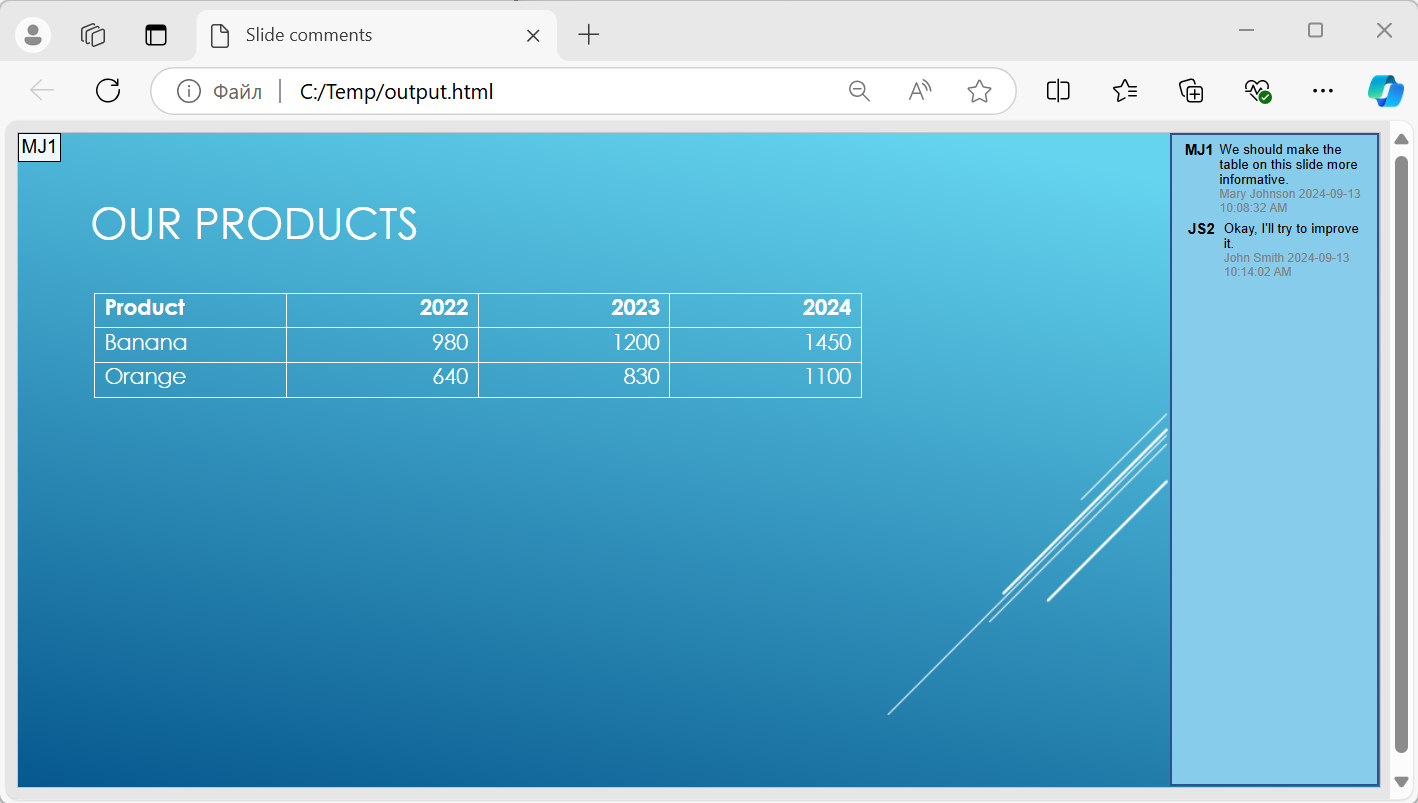
The following code example converts a presentation to an HTML5 document with comments displayed to the right of the slides.
```php
$html5Options = new Html5Options();
$html5Options->getNotesCommentsLayouting()->setCommentsPosition(CommentsPositions::Right);
$presentation = new Presentation("sample.pptx");
$presentation->save("output.html", SaveFormat::Html5, $html5Options);
$presentation->dispose();
以下圖示顯示了「output.html」文件的畫面:
## **常見問題**
**我可以控制物件動畫與投影片轉場是否在 HTML5 中播放嗎?**
可以,HTML5 提供獨立的選項來啟用或停用 [形狀動畫](https://reference.aspose.com/slides/zh-hant/php-java/aspose.slides/html5options/setanimateshapes/) 與 [投影片轉場](https://reference.aspose.com/slides/zh-hant/php-java/aspose.slides/html5options/setanimatetransitions/)。
**是否支援輸出評論?它們可以相對於投影片放置在哪裡?**
可以,透過 [版面配置設定](https://reference.aspose.com/slides/zh-hant/php-java/aspose.slides/html5options/#setSlidesLayoutOptions) 可在 HTML5 中加入評論,並將其定位(例如放在投影片右側)。
**我可以為了安全性或 CSP 考量跳過包含 JavaScript 的連結嗎?**
可以,存在一個 [設定](https://reference.aspose.com/slides/zh-hant/php-java/aspose.slides/saveoptions/#setSkipJavaScriptLinks) 讓您在儲存時略過帶有 JavaScript 呼叫的超連結,協助符合嚴格的安全政策。