


Analyzing your prompt, please hold on...
An error occurred while retrieving the results. Please refresh the page and try again.
Aspose.SVG for .NET edita SVG como un documento vectorial estructurado. Cargue un archivo SVG en un
SVGDocument, busque o cree elementos SVG mediante las API DOM, cambie su geometría, atributos, texto, estilos o datos de ruta y guarde el archivo editado sin rasterizarlo.
Un flujo de edición SVG habitual es:
SVGDocument.CreateElementNS().Save().El siguiente ejemplo carga un archivo SVG, agrega un círculo azul a su elemento raíz <svg> y guarda el documento modificado:
 1using System.IO;
 2using Aspose.Svg;
 3
 4string inputPath = Path.Combine(DataDir, "shapes.svg");
 5string outputPath = Path.Combine(OutputDir, "shapes-with-circle.svg");
 6const string SvgNamespace = "http://www.w3.org/2000/svg";
 7
 8using (SVGDocument document = new SVGDocument(inputPath))
 9{
10    // Access the root <svg> element, which is present in an SVG document.
11    SVGSVGElement svgElement = document.RootElement;
12
13    // Create a circle and define its geometry and appearance.
14    SVGCircleElement circle = (SVGCircleElement)document.CreateElementNS(SvgNamespace, "circle");
15    circle.Cx.BaseVal.Value = 50;
16    circle.Cy.BaseVal.Value = 50;
17    circle.R.BaseVal.Value = 40;
18    circle.SetAttribute("fill", "#3A86FF");
19
20    // Add the circle to the document tree and save the edited SVG file.
21    svgElement.AppendChild(circle);
22    document.Save(outputPath);
23}
Si todavía no conoce la ubicación del elemento que debe editar, consulte Inspeccionar y navegar SVG para ver ejemplos con selectores CSS y XPath. Para las opciones de carga, consulte Crear y cargar documentos SVG.
La propiedad
RootElement devuelve el elemento raíz <svg>. Los nuevos elementos SVG deben crearse en el espacio de nombres SVG; después puede agregarlos a un contenedor o insertarlos en una posición determinada del árbol del documento.
Este fragmento crea un elemento <g> y lo inserta como primer hijo del elemento raíz:
 1const string SvgNamespace = "http://www.w3.org/2000/svg";
 2
 3SVGSVGElement svgElement = document.RootElement;
 4SVGGElement groupElement = (SVGGElement)document.CreateElementNS(SvgNamespace, "g");
 5
 6// Apply common styles to every graphic element later added to the group.
 7groupElement.SetAttribute("fill", "#8A8D8F");
 8groupElement.SetAttribute("stroke", "magenta");
 9groupElement.SetAttribute("stroke-width", "4");
10
11svgElement.InsertBefore(groupElement, svgElement.FirstChild);
Utilice
SetAttribute() para establecer o actualizar atributos SVG como fill, stroke, transform, class o d en elementos creados o existentes.
Puede administrar los valores de atributos con los métodos
SetAttribute(name, value),
GetAttribute(name),
HasAttribute(name) y
RemoveAttribute(name) de la clase
Element.
Aspose.SVG for .NET proporciona clases DOM tipadas para formas SVG estándar, incluidas
SVGCircleElement,
SVGEllipseElement,
SVGRectElement,
SVGLineElement,
SVGPolylineElement,
SVGPolygonElement y
SVGPathElement. Sus propiedades tipadas permiten editar la geometría directamente; por ejemplo, Cx.BaseVal.Value, Cy.BaseVal.Value y R.BaseVal.Value definen un círculo, mientras el contenido sigue siendo vectorial y editable.
Un círculo se controla mediante sus propiedades tipadas Cx, Cy y R. El siguiente ejemplo completo agrega un círculo a un documento SVG existente:
1using Aspose.Svg;
2using System.IO;
3using Aspose.Svg.Dom; 1// Add a circle element to an existing SVG document in C#
2
3// Set the SVG namespace URI
4string SvgNamespace = "http://www.w3.org/2000/svg";
5
6// Load an SVG document from a file
7using (SVGDocument document = new SVGDocument(Path.Combine(DataDir, "basic-shapes.svg")))
8{
9 // Get the root <svg> element of the document
10 SVGSVGElement svgElement = document.RootElement;
11
12 // Create a <circle> element
13 SVGCircleElement circleElement = (SVGCircleElement)document.CreateElementNS(SvgNamespace, "circle");
14 circleElement.Cx.BaseVal.Value = 100F;
15 circleElement.Cy.BaseVal.Value = 100F;
16 circleElement.R.BaseVal.Value = 50F;
17 circleElement.SetAttribute("fill", "Salmon");
18
19 // Add the <circle> element as the first child to <svg> element
20 svgElement.InsertBefore(circleElement, svgElement.FirstChild);
21
22 // Work with the document here...
23 // Add a polyline and change stroke attributes for all circle and ellipse elements (see later)
24
25 // Save the document
26 document.Save(Path.Combine(OutputDir, "basic-shapes_add-circle.svg"));
27}La elipse (Cx, Cy, Rx, Ry), el rectángulo (X, Y, Width, Height, Rx, Ry) y la línea (X1, Y1, X2, Y2) tienen atributos propios que pueden establecerse de manera similar.
El elemento SVG <polyline> almacena las coordenadas de sus vértices en el atributo points. En Aspose.SVG, la lista SVGPolylineElement.Points proporciona acceso tipado a esas coordenadas. Con
CreateSVGPoint() puede agregar puntos sin construir manualmente la cadena del atributo:
 1const string SvgNamespace = "http://www.w3.org/2000/svg";
 2
 3SVGSVGElement svgElement = document.RootElement;
 4SVGPolylineElement polylineElement = (SVGPolylineElement)document.CreateElementNS(SvgNamespace, "polyline");
 5
 6SVGPoint point1 = svgElement.CreateSVGPoint();
 7point1.X = 270;
 8point1.Y = 240;
 9SVGPoint point2 = svgElement.CreateSVGPoint();
10point2.X = 290;
11point2.Y = 220;
12SVGPoint point3 = svgElement.CreateSVGPoint();
13point3.X = 310;
14point3.Y = 240;
15
16polylineElement.Points.AppendItem(point1);
17polylineElement.Points.AppendItem(point2);
18polylineElement.Points.AppendItem(point3);
19polylineElement.SetAttribute("stroke", "grey");
20polylineElement.SetAttribute("stroke-width", "5");
21polylineElement.SetAttribute("fill", "none");
22
23// Add the new polyline to the SVG root element
24svgElement.AppendChild(polylineElement);
25
26// Update strokes of circle and ellipse elements already in the SVG document
27foreach (Element element in svgElement.Children)
28{
29    if (element is SVGCircleElement || element is SVGEllipseElement)
30    {
31        element.SetAttribute("stroke-width", "6");
32        element.SetAttribute("stroke", "#C8102E");
33    }
34}
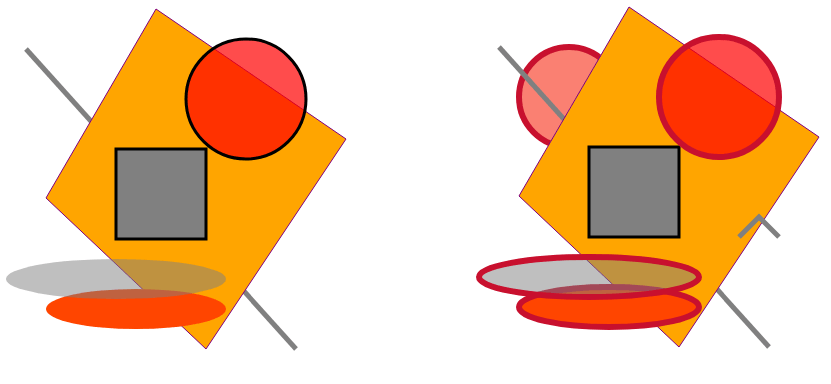
La imagen muestra el archivo original basic-shapes.svg y el resultado después de agregar formas y cambiar los atributos de trazo.
La geometría de un elemento <path> se almacena en su atributo d. Cree un
SVGPathElement tipado, actualice sus datos de ruta y agréguelo al documento SVG como cualquier otro elemento:
 1const string SvgNamespace = "http://www.w3.org/2000/svg";
 2
 3SVGPathElement pathElement =
 4    (SVGPathElement)document.CreateElementNS(SvgNamespace, "path");
 5
 6// Set the path geometry and its visible style.
 7pathElement.SetAttribute("d", "M 10 200 Q 25 210 180 200 T 300 250 T 420 250 T 490 150");
 8pathElement.SetAttribute("stroke", "magenta");
 9pathElement.SetAttribute("fill", "none");
10pathElement.SetAttribute("stroke-width", "4");
11
12document.RootElement.InsertBefore(pathElement, document.RootElement.FirstChild);
Si su código crea o ajusta comandos de ruta segmento a segmento, SVGPathElement también expone operaciones para segmentos de ruta. El siguiente ejemplo crea una ruta y cambia las coordenadas de comandos seleccionados en un archivo SVG existente:
1using Aspose.Svg;
2using System.IO;
3using Aspose.Svg.Paths; 1// Edit SVG path data programmatically in C#
2
3// Set the SVG namespace URI
4string SvgNamespace = "http://www.w3.org/2000/svg";
5
6using (SVGDocument document = new SVGDocument())
7{
8 SVGSVGElement svgElement = document.RootElement;
9
10 // Create a <path> element
11 SVGPathElement pathElement = (SVGPathElement)document.CreateElementNS(SvgNamespace, "path");
12
13 // Set d attribute parameters – SVG path data
14 pathElement.SetAttribute("d", "M 10 200 Q 25 110 180 200 T 300 250 T 420 250 T 490 150");
15
16 // Edit SVG path
17 foreach (SVGPathSeg pathSeg in pathElement.PathSegList)
18 {
19 // Editing T commands parameters
20 if (pathSeg is SVGPathSegCurvetoQuadraticSmoothAbs)
21 {
22 SVGPathSegCurvetoQuadraticSmoothAbs pathSegCurvetoQuadraticSmoothAbs = pathSeg as SVGPathSegCurvetoQuadraticSmoothAbs;
23
24 pathSegCurvetoQuadraticSmoothAbs.X -= 60;
25 pathSegCurvetoQuadraticSmoothAbs.Y -= 65;
26 }
27
28 // Editing M command parameters
29 if (pathSeg is SVGPathSegMovetoAbs)
30 {
31 SVGPathSegMovetoAbs pathSegMovetoAbs = pathSeg as SVGPathSegMovetoAbs;
32
33 pathSegMovetoAbs.X = 200;
34 pathSegMovetoAbs.Y = 100;
35 }
36 }
37 // Set fill and stroke attributes
38 pathElement.SetAttribute("stroke", "red");
39 pathElement.SetAttribute("fill", "none");
40 pathElement.SetAttribute("stroke-width", "4");
41
42 // Add the <path> element as the first child to the <svg> element
43 svgElement.InsertBefore(pathElement, svgElement.FirstChild);
44
45 // Save the document
46 document.Save(Path.Combine(OutputDir, "edit-svg-path-data.svg"));
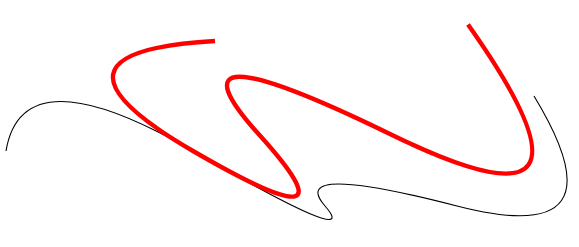
47}La figura compara la ruta original en negro y la ruta editada en rojo. También puede abrir el archivo de ejemplo editado: edit-svg-path-data.svg.
Para obtener información sobre la sintaxis de comandos de ruta y su dibujo, consulte Datos de rutas SVG.
Un documento SVG puede hacer referencia a una imagen ráster mediante un elemento <image> y colocar sobre ella texto vectorial o formas editables. Esto no altera los píxeles del mapa de bits; la imagen de fondo y la superposición SVG continúan siendo partes separadas del documento vectorial.
Esta técnica resulta útil cuando una foto, un escaneo u otro recurso ráster necesita etiquetas, marcadores, insignias o gráficos decorativos que aún puedan editarse como SVG. En SVG, el orden de pintado sigue el orden de los elementos: si <image> se agrega primero y el texto o las formas después, los elementos vectoriales aparecen sobre el fondo ráster.
1<svg xmlns="http://www.w3.org/2000/svg">
2    <image href="/svg/images/api/seaside.jpg" height="480" width="640" x="20" y="20"/>
3    <text style="font-size: 1.4em;" x="420" y="280" fill="gold">The beach is beautiful...</text>
4    <circle cx="520" cy="120" r="60" stroke="gold" stroke-width="70" fill="none" stroke-dasharray="2,14"/>
5</svg>
Para crear esta composición con Aspose.SVG for .NET:
SVGDocument y acceda al elemento raíz <svg> mediante
RootElement.SVGImageElement con
CreateElementNS(), establezca la referencia de imagen, posición y tamaño, y agréguelo a la raíz como fondo.SVGTextElement, especifique texto, posición, estilo de fuente y color de relleno, y agréguelo después de la imagen.SVGCircleElement, defina posición, radio y atributos de trazo, y agréguelo después de la imagen de fondo. En este ejemplo, un trazo discontinuo grueso produce un efecto decorativo similar al sol.Save() para escribir el documento SVG. El archivo guardado conserva el mapa de bits referenciado, el texto y el círculo como elementos SVG editables.El siguiente ejemplo realiza estos pasos y guarda la salida SVG:
1using Aspose.Svg;
2using System.IO;
3using Aspose.Svg.Paths; 1// Draw SVG shapes and text on an existing bitmap in C#
2
3// Set the SVG namespace URI
4string SvgNamespace = "http://www.w3.org/2000/svg";
5
6using (SVGDocument document = new SVGDocument())
7{
8 SVGSVGElement svgElement = document.RootElement;
9
10 // Create an <image> element and add it into svgElement
11 SVGImageElement imageElement = (SVGImageElement)document.CreateElementNS(SvgNamespace, "image");
12 imageElement.Href.BaseVal = "http://docs.aspose.com/svg/images/api/seaside.jpg";
13 imageElement.Height.BaseVal.ConvertToSpecifiedUnits(SVGLength.SVG_LENGTHTYPE_PX);
14 imageElement.Width.BaseVal.ConvertToSpecifiedUnits(SVGLength.SVG_LENGTHTYPE_PX);
15 imageElement.Height.BaseVal.Value = 480;
16 imageElement.Width.BaseVal.Value = 640;
17 imageElement.X.BaseVal.Value = 20;
18 imageElement.Y.BaseVal.Value = 20;
19 svgElement.AppendChild(imageElement);
20
21 // Create a <text> element, set its attributes, and add it to the <svg> element
22 SVGTextElement textElement = (SVGTextElement)document.CreateElementNS(SvgNamespace, "text");
23 textElement.Style.FontSize = "1.4em";
24 textElement.SetAttribute("x", "420px");
25 textElement.SetAttribute("fill", "gold");
26 textElement.SetAttribute("y", "280px");
27 textElement.TextContent = "The beach is beautiful...";
28 svgElement.AppendChild(textElement);
29
30 // Create a <circle> element, set its attributes, and add it to the <svg> element
31 SVGCircleElement circleElement = (SVGCircleElement)document.CreateElementNS(SvgNamespace, "circle");
32 circleElement.Cx.BaseVal.Value = 520;
33 circleElement.Cy.BaseVal.Value = 120;
34 circleElement.R.BaseVal.Value = 60;
35 circleElement.SetAttribute("stroke", "gold");
36 circleElement.SetAttribute("stroke-width", "70");
37 circleElement.SetAttribute("fill", "none");
38 circleElement.SetAttribute("stroke-dasharray", "2,14");
39 svgElement.AppendChild(circleElement);
40
41 // Save the document
42 document.Save(Path.Combine(OutputDir, "svg-drawing-on-bitmap.svg"));
43}Para obtener más información sobre el ancho de trazo, los patrones discontinuos y otros atributos visuales de SVG, consulte Rellenos y trazos en SVG.

1. ¿Editar un archivo SVG con Aspose.SVG lo convierte en un mapa de bits?
No. La edición mediante SVGDocument modifica elementos, atributos y datos de ruta SVG mientras el documento sigue siendo contenido vectorial. La salida ráster solo se produce al convertir o renderizar explícitamente SVG a un formato de imagen como PNG, JPEG o WebP.
2. ¿Cómo edito un elemento SVG existente en lugar de agregar uno nuevo?
Localice el elemento necesario con un selector CSS o una consulta XPath y cambie sus atributos o propiedades SVG tipadas. Por ejemplo, tras seleccionar un <circle>, el código puede actualizar radio, posición, relleno o trazo. Consulte
Inspeccionar y navegar SVG y
Cómo cambiar el color SVG.
3. ¿Puedo editar un documento SVG y convertir el resultado modificado en el mismo flujo?
Sí. Cargue el origen en SVGDocument, realice los cambios, cree opciones de guardado para el formato de destino y llame a Converter.ConvertSVG(document, options, outputPath). Por ejemplo, utilice PdfSaveOptions para PDF o ImageSaveOptions para PNG, JPEG, TIFF, GIF, BMP o WebP. Consulte
Convertir archivos SVG en C# para ver ejemplos completos.
4. ¿Puedo reemplazar una forma SVG existente por un elemento diferente?
Sí. Busque el elemento existente mediante un selector o una consulta XPath, cree el sustituto con CreateElementNS(), inserte el elemento nuevo en el mismo nodo padre y elimine el nodo anterior. Por ejemplo, puede sustituir marcadores circulares por rectángulos sin cambiar el resto del documento SVG. Consulte
Inspeccionar y navegar SVG para ver un ejemplo.

Analyzing your prompt, please hold on...
An error occurred while retrieving the results. Please refresh the page and try again.