
Analyzing your prompt, please hold on...
An error occurred while retrieving the results. Please refresh the page and try again.
Quick Answer: Utilisez
SVGDocument pour charger SVG, créez
ImageSaveOptions, définissez le format image et appelez
Converter.convert_svg(document, options, output_path). ImageSaveOptions contrôle fond, taille, marges et résolution.
Aspose.SVG for Python via .NET peut convertir des documents SVG en formats raster comme JPG, BMP, TIFF, GIF et PNG. Utilisez JPG sans transparence, PNG pour la transparence, TIFF pour la publication et le traitement d’image, BMP pour une sortie bitmap simple et GIF pour une sortie légère.
Pour des tutoriels ciblés, consultez Convertir SVG en PNG en Python et Convertir SVG en JPG en Python. Cet article couvre le flux SVG-to-image général et le choix du format.
Avant d’exécuter les exemples, installez Aspose.SVG for Python via .NET dans votre environnement Python.
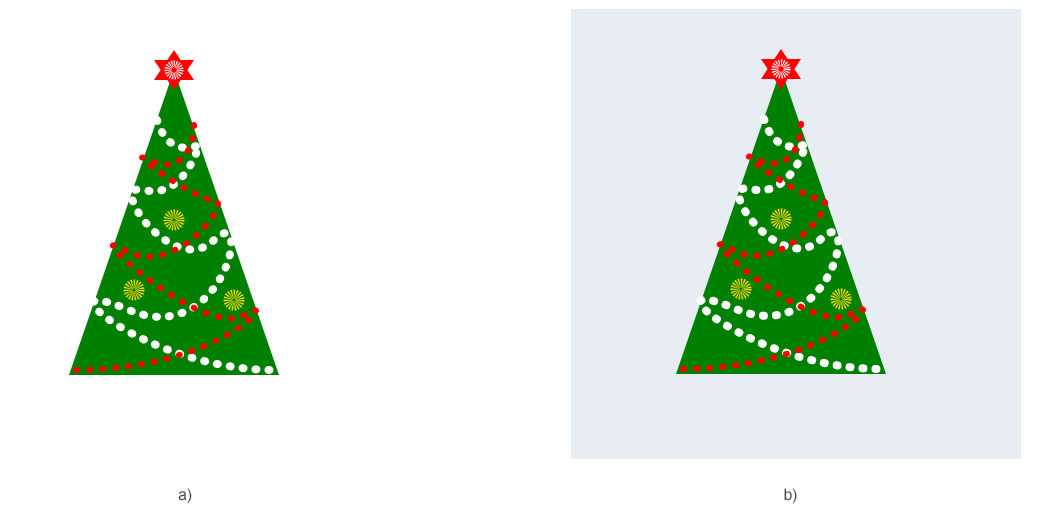
L’exemple utilise SVGDocument, ImageSaveOptions et Converter.convert_svg() pour convertir SVG en JPG et définir fond, taille, marges et résolution. JPG ne prend pas en charge la transparence, donc un fond explicite est souvent important.
 1import os
 2from aspose.svg import SVGDocument
 3from aspose.svg.converters import Converter
 4from aspose.svg.drawing import Margin, Page, Resolution, Size
 5from aspose.svg.rendering.image import ImageFormat
 6from aspose.svg.saving import ImageSaveOptions
 7from aspose.pydrawing import Color
 8
 9# Convert SVG to JPG with custom background, page size, and resolution
10input_folder = "data/"
11output_folder = "output/"
12input_path = os.path.join(input_folder, "christmas-tree.svg")
13output_path = os.path.join(output_folder, "christmas-tree.jpg")
14os.makedirs(output_folder, exist_ok=True)
15
16options = ImageSaveOptions()
17options.format = ImageFormat.JPEG
18options.background_color = Color.from_argb(233, 255, 241)
19options.page_setup.any_page = Page(Size(450, 450), Margin(20, 20, 20, 20))
20options.horizontal_resolution = Resolution.from_dots_per_inch(96.0)
21options.vertical_resolution = Resolution.from_dots_per_inch(96.0)
22
23with SVGDocument(input_path) as document:
24    Converter.convert_svg(document, options, output_path)
L’image suivante montre le SVG source et le JPG converti avec fond personnalisé.
Pour enregistrer SVG dans un autre format image, définissez
ImageSaveOptions.format et utilisez l’extension correspondante. Par exemple, utilisez
ImageFormat avec ImageFormat.GIF, ImageFormat.BMP ou ImageFormat.TIFF.
1options.format = ImageFormat.GIF
2output_path = os.path.join(output_folder, "image.gif")| Propriété | Rôle |
|---|---|
| format | Format cible comme JPG, PNG, BMP, TIFF ou GIF |
| background_color | Fond des zones SVG transparentes |
| page_setup | Taille d’image, marges et mise en page |
| horizontal_resolution | Résolution horizontale en pixels par pouce |
| vertical_resolution | Résolution verticale en pixels par pouce |
| smoothing_mode | Qualité de rendu des formes et bords |
| compression | Paramètres de compression TIFF |
ImageSaveOptions hérite des paramètres de rendu image de
ImageRenderingOptions, donc de nombreuses propriétés sont partagées.
La méthode
render_to() envoie le contenu SVG vers un
ImageDevice. Elle est utile si votre application utilise déjà des périphériques de rendu.
 1import os
 2from aspose.svg import SVGDocument
 3from aspose.svg.drawing import Margin, Page, Resolution, Size
 4from aspose.svg.rendering.image import ImageDevice, ImageFormat, ImageRenderingOptions
 5
 6# Render SVG to JPG through an ImageDevice
 7input_folder = "data/"
 8output_folder = "output/"
 9input_path = os.path.join(input_folder, "image.svg")
10output_path = os.path.join(output_folder, "image.jpg")
11os.makedirs(output_folder, exist_ok=True)
12
13options = ImageRenderingOptions()
14options.format = ImageFormat.JPEG
15options.horizontal_resolution = Resolution.from_dots_per_inch(96.0)
16options.vertical_resolution = Resolution.from_dots_per_inch(96.0)
17options.page_setup.any_page = Page(Size(600, 600), Margin(10, 10, 10, 10))
18
19with SVGDocument(input_path) as document:
20    with ImageDevice(options, output_path) as device:
21 document.render_to(device)| Problème | Cause probable | Solution |
|---|---|---|
| Fond JPG noir ou inattendu | JPG ne prend pas en charge la transparence | Définissez options.background_color avant conversion |
| Image rognée ou trop grande | La page ne correspond pas au viewport ou à la taille voulue | Configurez page_setup.any_page avec Page, Size et Margin |
| Image floue | Résolution ou taille trop basse | Augmentez horizontal_resolution, vertical_resolution ou les dimensions |
| Mauvais format produit | Format et extension ne correspondent pas | Définissez options.format et l’extension de sortie explicitement |
| Images externes ou CSS manquent | Les ressources relatives ne sont pas résolues | Gardez les ressources près du SVG ou utilisez des chemins absolus corrects |
Utilisez le SVG to JPG Converter ou le SVG Converter général pour tester la conversion avant Python.

Chargez SVG avec SVGDocument, définissez ImageSaveOptions.format sur ImageFormat.JPEG et appelez Converter.convert_svg(document, options, output_path).
Oui. Modifiez options.format vers la valeur ImageFormat souhaitée et utilisez l’extension correspondante.
JPG ne prend pas en charge la transparence. Une couleur de fond rend les zones transparentes prévisibles.
Oui. Configurez options.page_setup.any_page avec Page, Size et Margin, et définissez la résolution si nécessaire.
Utilisez Converter.convert_svg() pour la conversion de fichiers. Utilisez render_to() si vous avez besoin d’un flux avec ImageDevice.

Analyzing your prompt, please hold on...
An error occurred while retrieving the results. Please refresh the page and try again.