

Analyzing your prompt, please hold on...
An error occurred while retrieving the results. Please refresh the page and try again.
The <path> element draws the outline of any shape by combining lines, arcs, and Bézier curves. It is the most flexible SVG element for creating both simple and complex open or closed paths. A path is defined by a single d attribute that contains a series of commands.
| Command Group | Commands | Description |
|---|---|---|
| Moveto | M, m | Sets the starting point of a new sub-path. |
| Lineto | L, l, H, h, V, v | Draws straight lines horizontally, vertically, or to any coordinate. |
| Closepath | Z, z | Closes the current sub-path by linking back to its start point. |
| Cubic Bézier | C, c, S, s | Draws cubic Bézier curves with two control points. |
| Quadratic Bézier | Q, q, T, t | Draws quadratic Bézier curves with one control point. |
| Elliptical Arc | A, a | Draws elliptical arcs using radii, rotation, and flag parameters. |
Upper-case commands use absolute coordinates; lower-case commands use relative coordinates. All coordinates are unit-less and are interpreted in the user coordinate system (usually pixels). The path is described by the position of the current point – a “virtual pen”. The “pen” moves from the start point through each command, leaving the current point at the end of the command.
The path is described by the position of the current point – a “virtual pen”. The “pen” moves along the path sections from the starting to the endpoint. These points are the key parameters for all drawing commands. For the official specification, see the W3C SVG 1.1 Path Data specification.
M, m)Any SVG path begins with the moveto M x,y command. x and y coordinates indicate the current point where the path should start.
M x y (absolute) or m dx dy (relative).L, l, H, h, V, v)Three lineto commands draw straight lines from the current point to the new one:
| Command | Parameters | Description |
|---|---|---|
L / l | x y | Draw a line to the specified point. |
H / h | x | Draw a horizontal line; y remains unchanged. |
V / v | y | Draw a vertical line; x remains unchanged. |
After doing any command, the “virtual pen” point will be located at the endpoint of that drawing command. The next drawing command will start from this point.
Z, z)Closepath Z closes the current sub-path by drawing a straight line back to its starting point. No parameters are required.
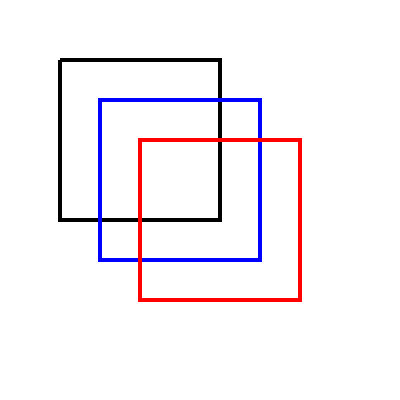
Let’s draw a square using the lineto commands ( lineto.svg):
1<svg height="400" width="400" viewBox="0 0 200 200" xmlns="http://www.w3.org/2000/svg">
2    <path d="M 30 30 L 110 30 L 110 110 L 30 110 L 30 30" fill="transparent" stroke-width="2" stroke="black" />
3    <path d="M 50 50 H 130 V 130 H 50 Z" fill="transparent" stroke-width="2" stroke="blue" />
4    <path d="M 70 70 h 80 v 80 h -80 Z" fill="transparent" stroke-width="2" stroke="red" />
5</svg>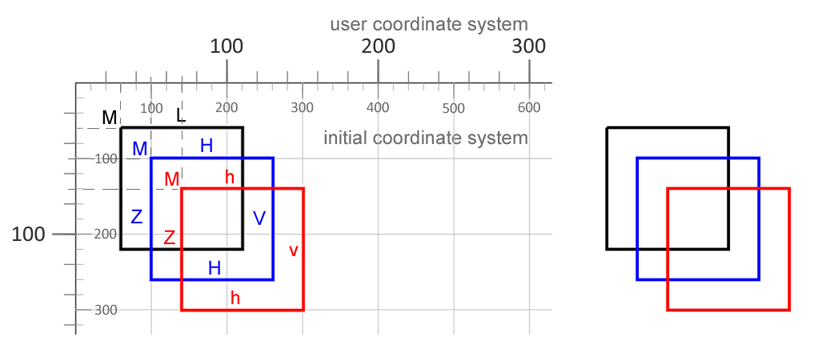
L command for each side.H and V for a more compact path, ending with Z.h and v commands.The figure on the left shows all the extra notes. The rendered SVG graphics are on the right.
How to add elements, including SVG paths, to an SVG Document and edit them using the Aspose.SVG API can be found in the article Edit SVG File.
Please visit the Path Builder article to learn how to use SVG Path Builder to programmatically create SVG paths, a group of commands for drawing various outlines or shapes by combining SVG lines, SVG arcs, and Bezier curves.
Arcs draw sections of circles or ellipses. The A command needs six parameters that decide which of the four possible arcs between two points will be rendered.
Note: You should take into account different possible paths along the arc between two points: the “pen’s” moving in a “positive-angle” direction or the opposite; the “pen’s” moving along the “large-arc” or the “small-arc”.
Syntax: A rx ry x-axis-rotation large-arc-flag sweep-flag x y
| Parameter | Meaning |
|---|---|
rx, ry | Radii of the ellipse. |
x-axis-rotation | Rotation of the ellipse’s x-axis (degrees). |
large-arc-flag | 0 = small arc, 1 = large arc. |
sweep-flag | 0 = counter-clockwise, 1 = clockwise. |
x y | Absolute coordinates of the arc’s endpoint. |
The lowercase a works the same way but treats the endpoint as relative to the current point.
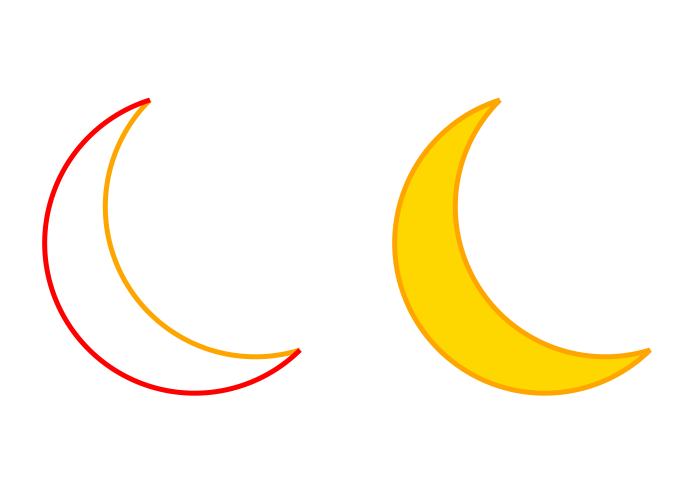
1<svg height="500" width="700" viewBox="0 0 100 100" xmlns="http://www.w3.org/2000/svg">
2    <path d="M10,20 A 30,30 0 0,0 40,70" style="stroke:#FFA500; stroke-width:1; fill:none" />
3    <path d="M10,20 A 30,30 0 1 0 40,70" style="stroke: #FF0000; stroke-width:1; fill:none" />
4    <path d="M10,20 A 30,30 0 0 0 40,70 A 30,30 0 1 1 10,20" style="stroke: #FFA500; stroke-width:1; fill:#FFD700" transform="translate(70,0)" />
5</svg>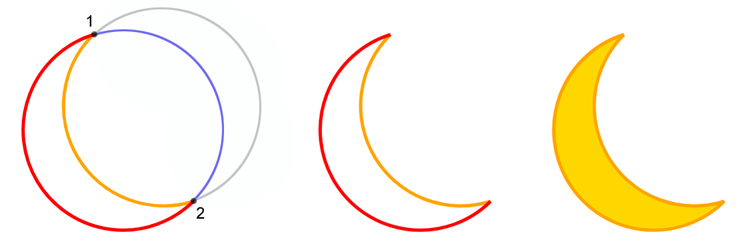
Consider the path written in line 2 of code sample: d="M10,20 A 30,30 0 0,0 40,70".
Bezier curves are an important tool for computer graphics programs. There are two types of the Bezier curves are available in SVG <path> elements: a cubic one (C) and a quadratic one (Q). The curve has a start point, an endpoint, and control points. A quadratic curve has one control point, and a cubic one has two. The position of the control points determines the form of the curve.
Any Bezier curve as the current (starting) point takes the pen’s location after the executing of the previous command. The Q command of the quadratic curve is specified by only two points: the control point (x1, y1) and the endpoint of the curve (x, y). The q command is also given by two points, the coordinates of which are relative to the current point.
Q, q, T, t)Quadratic Bézier curves use a single control point.
Q x1 y1 x y – absolute coordinates.q dx1 dy1 dx dy – relative coordinates.T x y – smooth continuation; the control point is inferred as the reflection of the previous one.t dx dy – relative version of T.Let’s consider an example:
1<svg width="600" height="600" viewBox="0 0 200 200" xmlns="http://www.w3.org/2000/svg">
2    <path d="M 10 100 Q 25 10 180 100" stroke="black" stroke-width="1" fill="transparent" />
3</svg>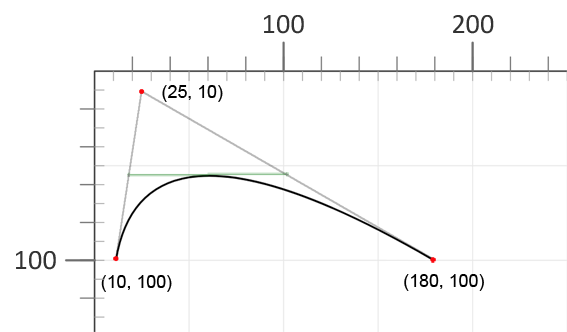
If you connect the control point to the start and endpoints of the curve with segments, the line connecting the centers of the segments will be tangent to the curve vertex.
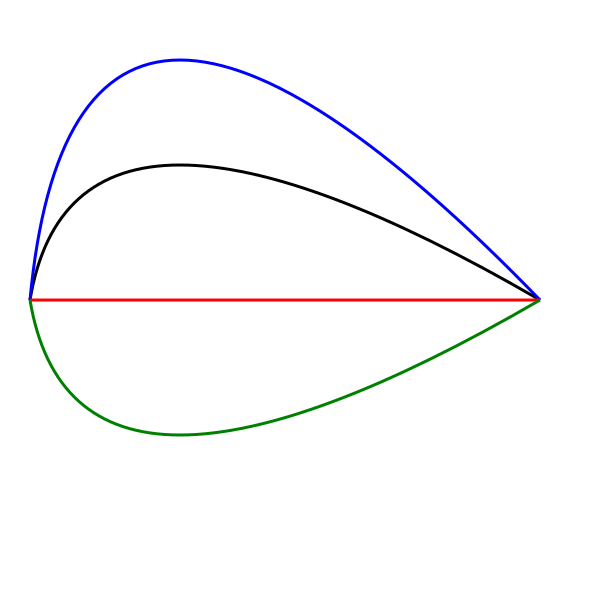
How does the position of the control point affect the curve view? Let us show this with examples. Let’s change the value of y1 at the control point for the previous curve ( bezier-curve2.svg):
1<svg width="600" height="600" viewBox="0 0 200 200" xmlns="http://www.w3.org/2000/svg">
2    <g stroke-width="1" fill="none">
3        <path d="M 10 100 Q 25 10 180 100" stroke="black" />
4        <path d="M 10 100 Q 25 -60 180 100" stroke="blue" />
5        <path d="M 10 100 Q 25 100 180 100" stroke="red" />
6        <path d="M 10 100 Q 25 190 180 100" stroke="green" />
7    </g>
8</svg>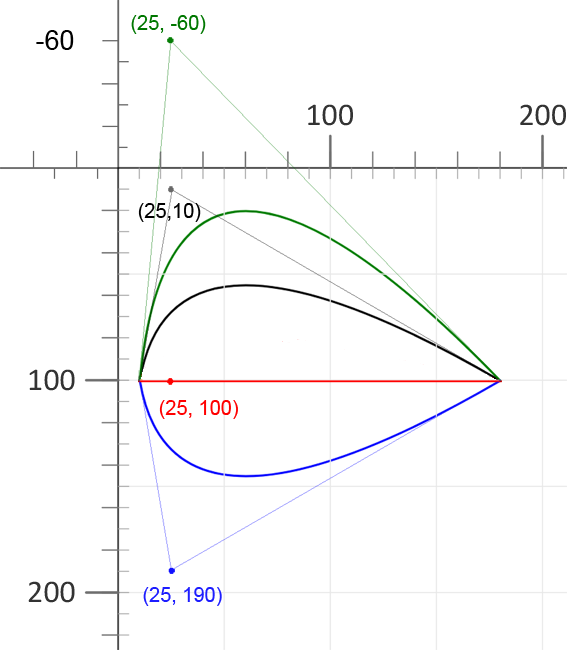
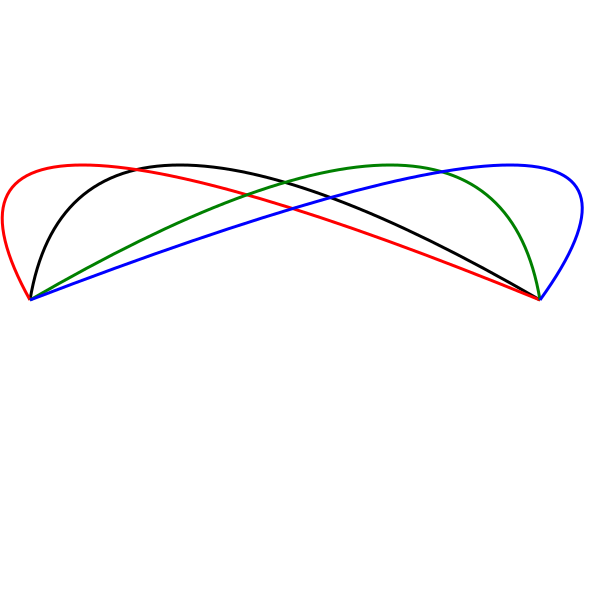
Let’s take the black curve as a basis and change the control point x1 value ( bezier-curve3.svg):
1<svg width="600" height="600" viewBox="0 0 200 200" xmlns="http://www.w3.org/2000/svg">
2    <g stroke-width="1" fill="none">
3        <path d="M 10 100 Q 25 10 180 100" stroke="black" />
4        <path d="M 10 100 Q -40 10 180 100" stroke="red" />
5        <path d="M 10 100 Q 165 10 180 100" stroke="green" />
6        <path d="M 10 100 Q 245 10 180 100" stroke="blue" />
7    </g>
8</svg>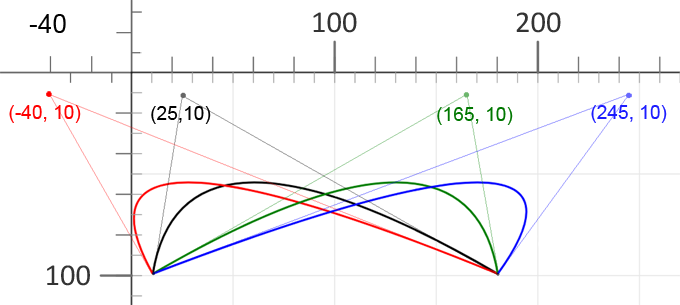
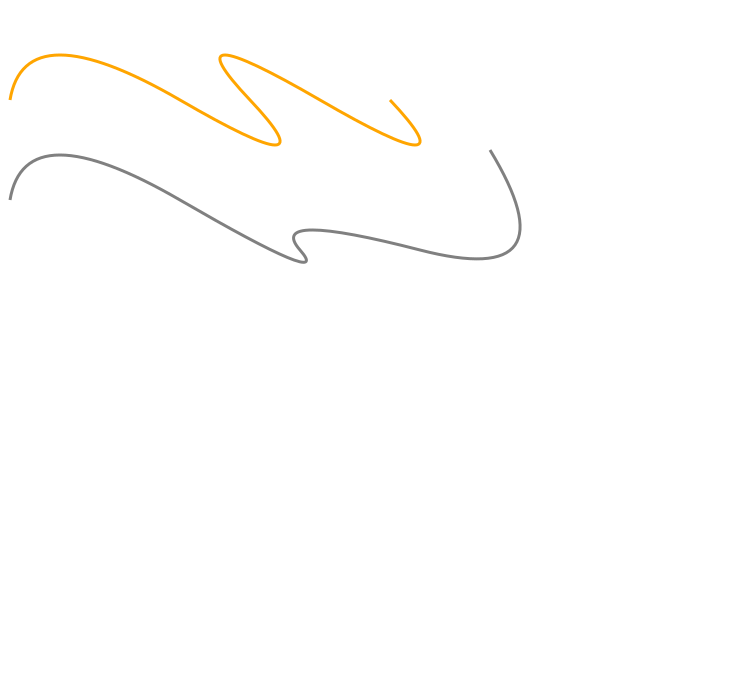
T1<svg width="700" height="600" xmlns="http://www.w3.org/2000/svg">
2 <path d="M 10 100 Q 25 10 180 100 T 250 100 T 320 100 T 390 100" stroke="orange" stroke-width="3" fill="none" />
3 <path d="M 10 200 Q 25 110 180 200 T 300 250 T 420 250 T 490 150" stroke="grey" stroke-width="3" fill="none" />
4</svg>Several Q commands can be used sequentially for extended curves stringing, but the resulting curve may not be smooth. You can combine multiple quadratic Béziers without losing smoothness with the help of T command.
The T command draws the quadratic Bézier curve from the current point to endpoint (x,y). The command’s parameters are only the endpoint coordinates (x,y). The T command outputs the new control point using the coordinates of the previous one. This works if the last command was a Q or a T. At the end of the T command, the final (x,y) coordinate pair becomes the new current point used in the polybézier. Below is an example of a curve created using the T command. Here, the x coordinates of the curve segments are equidistant, y coordinate does not change.
1<svg width="700" height="600" xmlns="http://www.w3.org/2000/svg">
2    <path d="M 10 100 Q 25 10 180 100 T 350 100 T 520 100 T 690 100" stroke="black" stroke-width="3" fill="none" />
3</svg>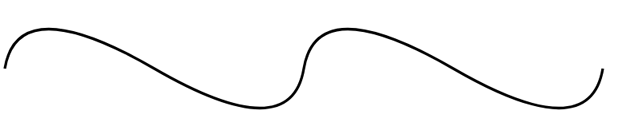
If you try to vary the endpoint (x,y) coordinates of T command, you can obtain a wide variety of curves ( bezier-curve5.svg).
1<svg height="700" width="750" xmlns="http://www.w3.org/2000/svg">
2    <path d="M 10 100 Q 25 10 180 100 T 250 100 T 320 100 T 390 100" stroke="#FFA500" stroke-width="3" fill="none" />
3    <path d="M 10 200 Q 25 110 180 200 T 300 250 T 420 250 T 490 150" stroke="grey" stroke-width="3" fill="none" />
4</svg>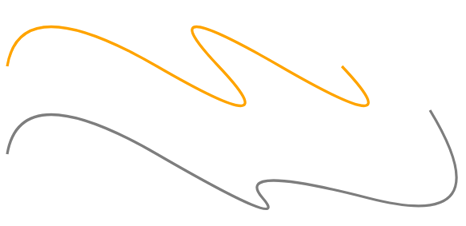
C, c, S, s)Cubic Bézier curves require two control points. To create a cubic Bezier curve, you need to specify three sets of coordinates in the C command: the coordinates of two control points (x1 y1, x2 y2) and the endpoint of the curve (x y): C x1 y1, x2 y2, x y.
C x1 y1 x2 y2 x y – absolute coordinates.c dx1 dy1 dx2 dy2 dx dy – relative coordinates.The control points position determines the slope of the tangent line at the start and endpoint. The Bézier function creates a smooth curve that paths from the slope set at the beginning of the line to the slope at the curve end. You can specify several C commands in the one <path> element; they will be realized sequentially. The endpoint of the first C command becomes the starting point for the new C command.
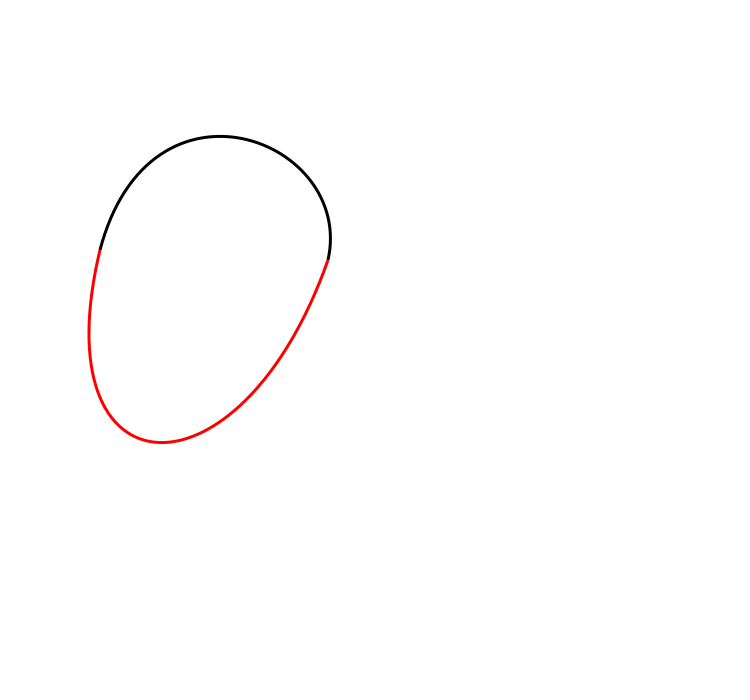
The following code example makes a shape using two paths ( cubic-bezier-curves.svg):
1<svg height="700" width="750" xmlns="http://www.w3.org/2000/svg">
2    <!--shape two paths-->
3    <path d="M 100 250 C 150 60 355 140 328 260 " stroke="black" stroke-width="3" fill="none" />
4    <path d="M 100 250 C 40 500 240 510 328 260" stroke="red" stroke-width="3" fill="none" />
5</svg>
On the figure, different paths are shown in black and red.
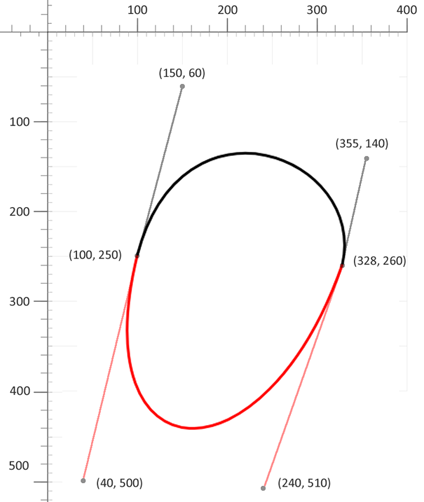
The following code example makes the same shape using one path:
1<svg height="700" width="750" xmlns="http://www.w3.org/2000/svg">
2   <!--shape 1 path-->
3   <path d="M 100 250 C 150 60 355 140 328 260 C 240 510 40 500 100 250" stroke="black" stroke-width="3" fill="none" />
4</svg>
In the sample above we have connected in the one path two curves with the help of C commands. The curves binding in this way may result in a loss of smoothness at the connection points.
SFor smooth long curves creating you may use a shortcut version of the cubic Bézier, designated by the S x2 y2, x y command. What does S command do? It allows to string together multiple cubic Béziers similar to the T command for the quadratic Béziers. For the S command, the first control point is considered a reflection of the previous one, that is necessary for a constant slope and smooth connection of the curves. The second control point (x2 y2) and the endpoint (x y) coordinates must be specified.
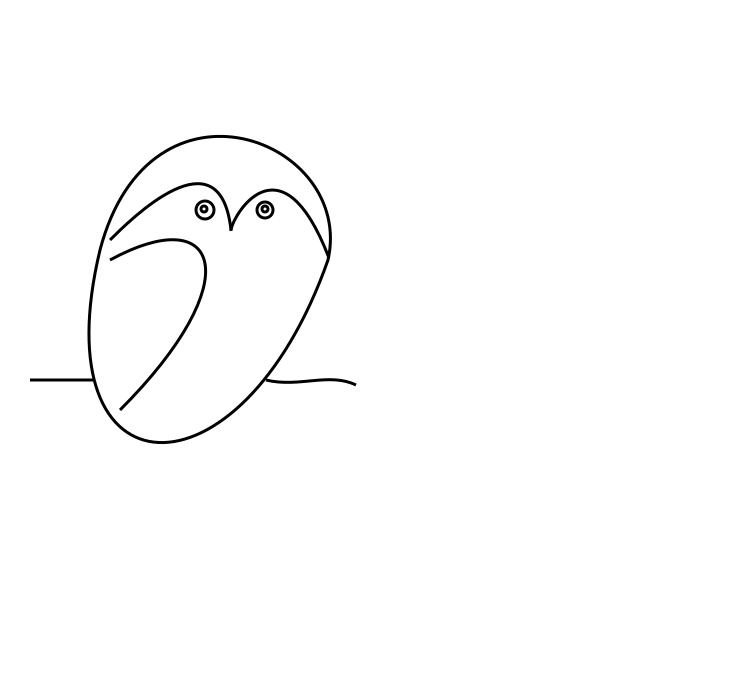
S x2 y2 x y – smooth cubic; the first control point is reflected from the previous segment.s dx2 dy2 dx dy – relative version of S.Using Bezier curves, you can make a simple drawing in the primitivism style. We have drawn the picture similar “Owl” Picasso ( owl.svg):
 1<svg height="700" width="750" xmlns="http://www.w3.org/2000/svg">
 2    <g stroke="black" stroke-width="3" fill="none">
 3        <!--body 1 path-->
 4        <path d="M 100 250 C 150 60 355 140 328 260 C 240 510 40 500 100 250" />
 5        <!--wing-->
 6        <path d="M 110 260 C 220 200, 250 280, 120 410" />
 7        <!--1 eyebrow-->
 8        <path d="M 110 240 C 130 220, 220 130, 231 230" />
 9        <!--2 eyebrow-->
10        <path d="M 231 231 C 230 220, 280 130, 329 258" />
11        <!--line-->
12        <path d="M 30 380 l 63 0" />
13        <path d="M 266 380 c 33 8 63 -8 90 5" />
14        <!--eyes-->
15        <circle cx="204" cy="209" r="3" />
16        <circle cx="205" cy="210" r="9" />
17        <circle cx="265" cy="209" r="3" />
18        <circle cx="265" cy="210" r="8" />
19    </g>
20</svg>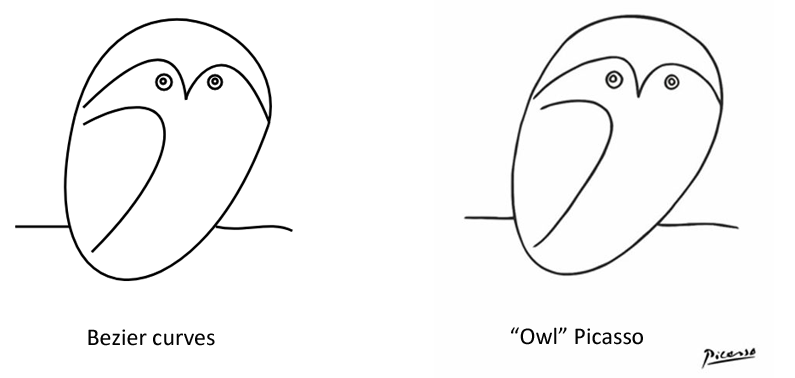
| Problem | Cause | Fix |
|---|---|---|
| The path is not rendered | The path data does not start with a M command | Always begin the d attribute with M x y to define the starting point |
| The shape is not closed | The Z command is missing | Add Z at the end of the path to close the sub-path |
| The arc is drawn in an unexpected direction | Incorrect large-arc-flag or sweep-flag values | Toggle one flag at a time (0 or 1) and visually verify the result |
The T command does not produce a smooth curve | The previous command was not Q or T | Use T only after a Q or another T command |
| Sharp corners appear between cubic Bézier segments | Consecutive C commands are used | Use the S command to create smooth cubic Bézier chains |
| The path shifts unexpectedly | Absolute and relative commands are mixed unintentionally | Check command case: uppercase for absolute, lowercase for relative |
| The shape is not filled | The path is open or fill="none" is set | Close the path with Z and verify the fill attribute |
| Task | SVG Path Example |
|---|---|
| Draw a rectangle | <path d="M10 10 H110 V110 H10 Z" fill="none" stroke="black" /> |
| Close an open path | Append Z to the end of the d attribute |
| Draw a simple arc | <path d="M10 50 A30 30 0 0 1 90 50" fill="none" stroke="orange" /> |
| Draw a full circle using arcs | <path d="M50 10 A40 40 0 1 1 49.9 10 Z" /> |
| Draw a quadratic Bézier curve | <path d="M10 80 Q95 10 180 80" fill="none" stroke="black" /> |
| Create a smooth quadratic chain | <path d="M10 80 Q60 10 110 80 T210 80" /> |
| Draw a cubic Bézier curve | <path d="M10 80 C40 10 140 10 170 80" /> |
| Create a smooth cubic chain | <path d="M10 80 C40 10 140 10 170 80 S300 150 330 80" /> |
Related Resources
Aspose.SVG offers SVG Free Web Applications for converting SVG or image files, merging SVG files, image vectorizing, SVG sprite generating, SVG to base64 data encoding, and text vectorizing. These online Apps work on any operating system with a web browser and don’t require additional software installation. It’s a fast and easy way to efficiently and effectively solve your SVG-related tasks!

Analyzing your prompt, please hold on...
An error occurred while retrieving the results. Please refresh the page and try again.