

Analyzing your prompt, please hold on...
An error occurred while retrieving the results. Please refresh the page and try again.
CSS selectors are a practical way to target specific SVG elements before editing them. With Aspose.SVG for .NET, C# code can use
QuerySelector() and
QuerySelectorAll() to find elements by tag name, hierarchy, attributes, or position in the SVG tree, then update attributes, replace nodes, or change path data.
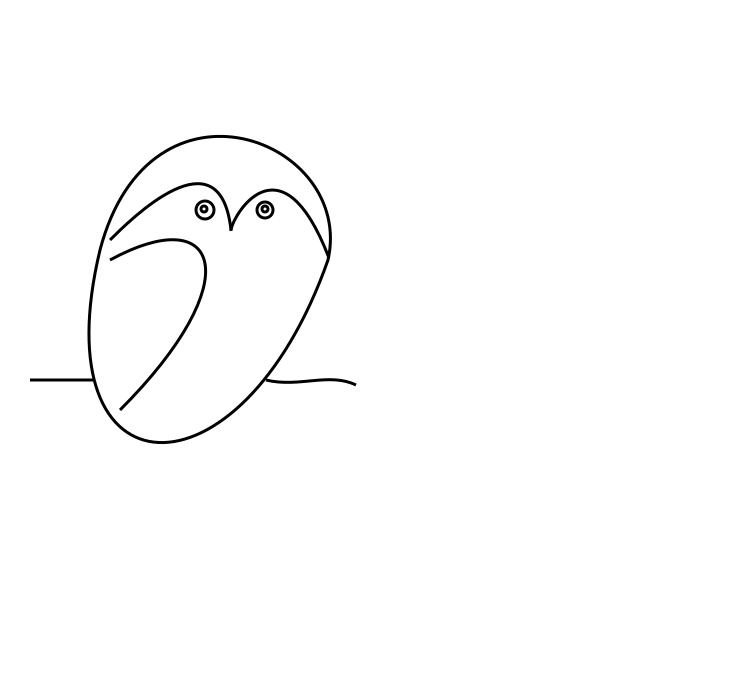
This article uses the sample owl.svg illustration. The examples select circles and paths in the SVG DOM and produce edited versions of the original vector image.
A selector-based editing workflow usually has four steps:
SVGDocument.QuerySelector() for one element or QuerySelectorAll() for a list of elements.For a shorter introduction to DOM navigation, XPath, and node filters, see Inspect and Navigate SVG in C#.
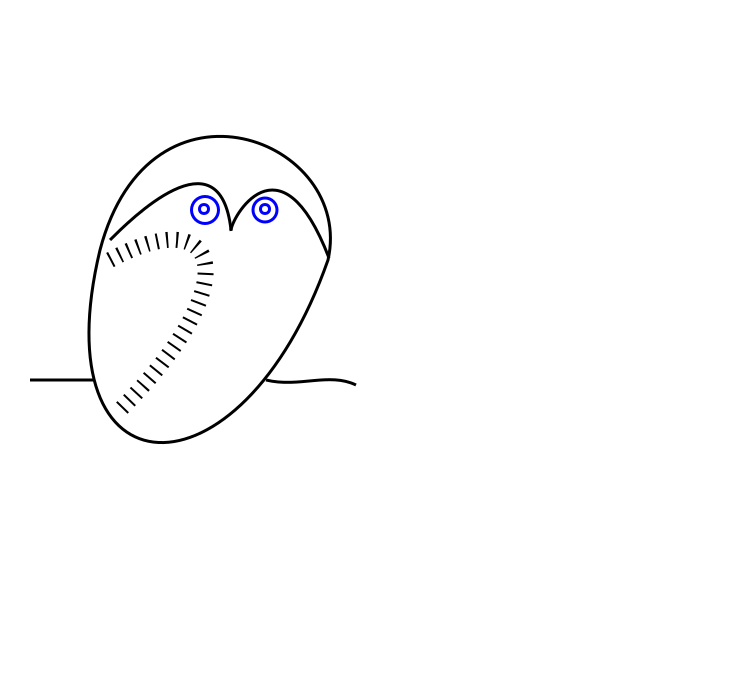
The first example edits the source owl.svg file. The owl illustration is built from path and circle elements. The code uses CSS selectors to:
1using Aspose.Svg;
2using System.IO;
3using Aspose.Svg.Dom;
4using Aspose.Svg.Collections; 1// Edit SVG elements with CSS selectors in C#
2
3// Load an SVG document
4using (SVGDocument document = new SVGDocument(new Url("https://docs.aspose.com/svg/files/owl.svg")))
5{
6 // Get the root <svg> element of the document
7 SVGSVGElement svgElement = document.RootElement;
8
9 // Find the first element that matches the specified in selector
10 SVGGElement gElement = svgElement.QuerySelector("g") as SVGGElement;
11
12 // Find all <circle> elements in a <g> element
13 NodeList circleNodes = gElement.QuerySelectorAll("circle");
14
15 // Make big blue eyes
16 foreach (Node circleNode in circleNodes)
17 {
18 SVGCircleElement circleElement = circleNode as SVGCircleElement;
19 circleElement.R.BaseVal.Value *= 1.5F;
20 circleElement.SetAttribute("stroke", "blue");
21 }
22
23 // Get a path for the owl's wing
24 SVGPathElement wingPath = gElement.QuerySelector("path:nth-child(2)") as SVGPathElement;
25
26 // Apply style attributes to the wing
27 wingPath.SetAttribute("stroke-width", "16");
28 wingPath.SetAttribute("stroke-dasharray", "2 8");
29
30 document.Save(Path.Combine(OutputDir, "owl-edited1.svg"));
31}You can open the edited SVG file here: owl-edited1.svg.
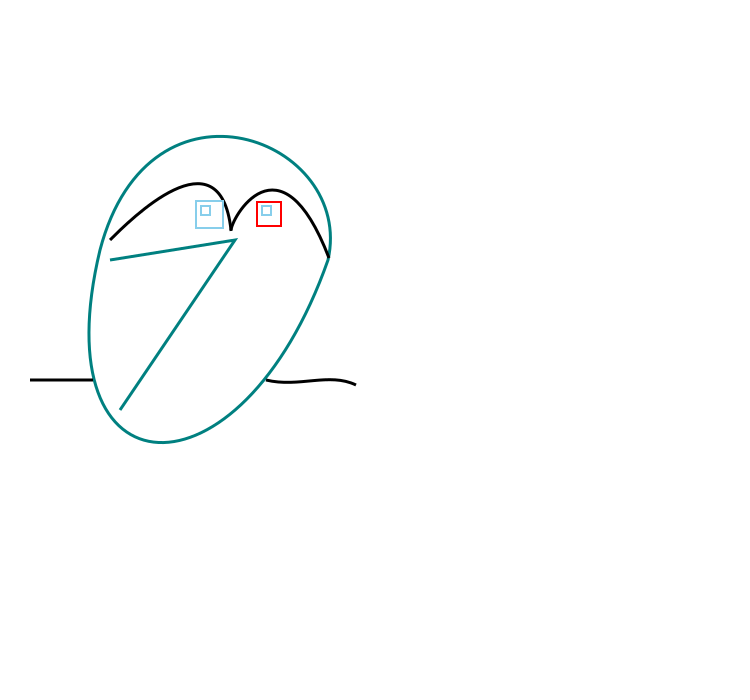
The second example continues with the same owl.svg source file. It selects the original round eyes and replaces them with square eyes:
<g> element for the replacement rectangles.QuerySelectorAll("g:first-child > circle") to select circles in the first group.<rect> elements with the required size and style attributes.<circle> elements from the document.1using Aspose.Svg;
2using System.IO;
3using Aspose.Svg.Dom;
4using Aspose.Svg.Collections; 1// Replace SVG circles with rectangles using CSS selectors in C#
2
3// Load an SVG document
4using (SVGDocument document = new SVGDocument(new Url("https://docs.aspose.com/svg/files/owl.svg")))
5{
6 // Get the root <svg> element of the document
7 SVGSVGElement svgElement = document.RootElement;
8
9 // Create a new <g> element with style attributes and append it as the last child of the <svg> element
10 SVGGElement gElement = (SVGGElement)document.CreateElementNS(SvgNamespace, "g");
11 gElement.SetAttribute("fill", "none");
12 gElement.SetAttribute("stroke-width", "2");
13 svgElement.AppendChild(gElement);
14
15 // Find all <circle> elements from the first <g> element
16 NodeList circleNodes = svgElement.QuerySelectorAll("g:first-child > circle");
17
18 // Make square sky-blue eyes
19 foreach (Node circleNode in circleNodes)
20 {
21 SVGCircleElement circleElement = circleNode as SVGCircleElement;
22
23 float cx = circleElement.Cx.BaseVal.Value;
24 float cy = circleElement.Cy.BaseVal.Value;
25 float r = circleElement.R.BaseVal.Value;
26
27 SVGRectElement rectElement = (SVGRectElement)document.CreateElementNS(SvgNamespace, "rect");
28 rectElement.X.BaseVal.Value = cx - r;
29 rectElement.Y.BaseVal.Value = cy - r;
30 rectElement.Width.BaseVal.Value = 3 * r;
31 rectElement.Height.BaseVal.Value = 3 * r;
32 rectElement.SetAttribute("stroke", "SkyBlue");
33
34 // Add a <rectangle> element into the second (new) <g> element and remove <circle> elements
35 gElement.AppendChild(rectElement);
36 circleElement.Remove();
37 }
38 // Recolor last rectangle in the second (new) <g> element
39 Element lastRect = gElement.LastElementChild;
40 lastRect.SetAttribute("stroke", "red");
41
42 document.Save(Path.Combine(OutputDir, "owl-svg-eyes.svg"));
43}The final part changes the owl wing from a curve to a polyline and recolors it. The example selects the path element, updates path-related data, and saves the result:
1using Aspose.Svg;
2using System.IO;
3using Aspose.Svg.Dom;
4using Aspose.Svg.Collections; 1// Modify SVG path data selected with CSS selectors in C#
2
3// Load an SVG document
4using (SVGDocument document = new SVGDocument(Path.Combine(DataDir, "owl-svg-eyes.svg")))
5{
6 SVGSVGElement svgElement = document.RootElement;
7
8 // Get a path for owl's body from the first <g> element
9 Element bodyPath = (svgElement.QuerySelector("g:first-child") as SVGGElement).FirstElementChild;
10 bodyPath.SetAttribute("stroke", "Teal");
11
12 // Get a path for the owl's wing from the first <g> element
13 SVGPathElement wingPath = svgElement.QuerySelector("g:first-child > path:nth-child(2)") as SVGPathElement;
14
15 // Form new wing path data based on the old
16 string d = "";
17 foreach (SVGPathSeg pathSeg in wingPath.PathSegList)
18 {
19 if (pathSeg is SVGPathSegMovetoAbs)
20 {
21 SVGPathSegMovetoAbs pathSegMovetoAbs = pathSeg as SVGPathSegMovetoAbs;
22
23 d += string.Format(" M {0} {1}", pathSegMovetoAbs.X, pathSegMovetoAbs.Y);
24 }
25 if (pathSeg is SVGPathSegCurvetoCubicAbs)
26 {
27 SVGPathSegCurvetoCubicAbs pathSegCurvetoCubicAbs = pathSeg as SVGPathSegCurvetoCubicAbs;
28
29 d += string.Format(
30 " L {0} {1} L {2} {3}",
31 (pathSegCurvetoCubicAbs.X1 + pathSegCurvetoCubicAbs.X2) / 2F,
32 (pathSegCurvetoCubicAbs.Y1 + pathSegCurvetoCubicAbs.Y2) / 2F,
33 pathSegCurvetoCubicAbs.X,
34 pathSegCurvetoCubicAbs.Y
35 );
36 }
37 }
38 // Set d attribute - new path data formation
39 wingPath.SetAttribute("d", d.Trim());
40 wingPath.SetAttribute("stroke", "Teal");
41
42 document.Save(Path.Combine(OutputDir, "owl-edited2.svg"));
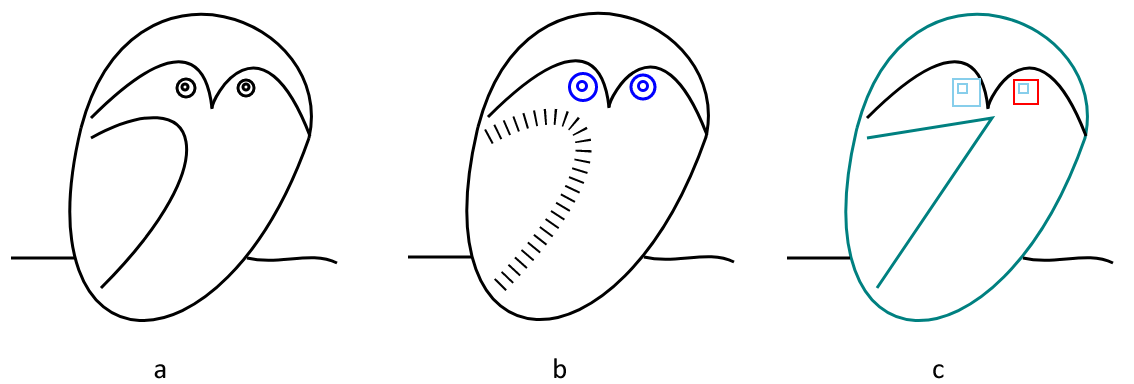
43}The image compares the original owl image and two edited versions.
You can open the second edited SVG file here: owl-edited2.svg.
1. When should I use QuerySelector() instead of QuerySelectorAll()?
Use QuerySelector() when only the first matching element is needed. Use QuerySelectorAll() when all matching elements should be inspected or edited, for example all circles in a group.
2. Can CSS selectors change SVG elements by themselves?
No. Selectors only find elements. After an element is selected, use DOM methods and properties such as SetAttribute(), AppendChild(), RemoveChild(), or typed SVG properties to make changes.
3. Can selector-based edits be converted to PDF or images?
Yes. After editing the SVGDocument, call Converter.ConvertSVG(document, options, outputPath) with suitable save options, or save the SVG file first and convert it later.

Analyzing your prompt, please hold on...
An error occurred while retrieving the results. Please refresh the page and try again.