

Analyzing your prompt, please hold on...
An error occurred while retrieving the results. Please refresh the page and try again.
Aspose.SVG for .NET lets you open or create, edit an SVG document and make changes to its content. You can modify the document, including applying the many available filters to get the desired result. The
Aspose.Svg.Filters namespace contains classes and interfaces related to filter effects in SVG specification. The
SVGFEGaussianBlurElement class corresponds to a <feGaussianBlur> element to implement the Gaussian Blur effect.
In SVG, a filter defines by <filter> element, which sets within a <defs> element. It is never rendered itself and is conceptually described as the element that includes its children – filter primitives. The <filter> element has a set of attributes. Required attributes for filter primitive are x, y, width, height, and id. They set the area of the picture to which the filter will be applied. And the attribute id gives a unique identifier to an SVG element and identifies an element within an SVG document.
In this article, you will learn how to write SVG code to create a Gaussian Blur filter and consider detailed C# examples of using the SVGFEGaussianBlurElement class to apply the Gaussian Blur effect to SVG elements and bitmaps.
Gaussian blur SVG filter is a type of filter that applies a blur effect to the content of an SVG element using a Gaussian distribution. This is one of the most used filters in SVG to create soft, smooth, and visually appealing effects. The <feGaussianBlur> filter creates a soft blur effect. The StdDeviation attribute specifies the number that characterizes the standard deviation for the blur operation. If two numbers are provided, the first number represents a standard deviation value along the x-axis of the coordinate system, and the second one – on the y-axis. Each filter requires a source image to process. Otherwise, the filter will have nothing to render and so not work. The input data of the filter primitive is specified in the in attribute. The default is in="SourceGraphic".
Here’s an example of applying a Gaussian blur SVG filter with various values of stdDeviation attribute to an SVG rectangle element:
 1<svg height="150" width="750" xmlns="http://www.w3.org/2000/svg">
 2    <defs>
 3        <filter id="f1" x="-20" y="-20" height="100" width="100">
 4            <feGaussianBlur in="SourceGraphic" stdDeviation="10" />
 5        </filter>
 6        <filter id="f2" x="-20" y="-20" height="100" width="100">
 7            <feGaussianBlur in="SourceGraphic" stdDeviation="10, 0" />
 8        </filter>
 9        <filter id="f3" x="-20" y="-20" height="100" width="100">
10            <feGaussianBlur in="SourceGraphic" stdDeviation="0,10" />
11        </filter>
12		<filter id="f4" x="-20" y="-20" height="100" width="100">
13            <feGaussianBlur in="SourceGraphic" stdDeviation="20" />
14        </filter>
15		<filter id="f5" x="-20" y="-20" height="100" width="100">
16            <feGaussianBlur in="SourceGraphic" stdDeviation="5" />
17        </filter>
18    </defs>
19    <g fill="#ffa500">
20        <rect x="40" y="40" width="60" height="60" />
21        <rect x="40" y="40" width="60" height="60" transform="translate(120)" filter="url(#f1)" />
22        <rect x="40" y="40" width="60" height="60" transform="translate(240)" filter="url(#f2)" />
23        <rect x="40" y="40" width="60" height="60" transform="translate(360)" filter="url(#f3)" />
24		<rect x="40" y="40" width="60" height="60" transform="translate(480)" filter="url(#f4)" />
25		<rect x="40" y="40" width="60" height="60" transform="translate(600)" filter="url(#f5)" />
26    </g>
27</svg>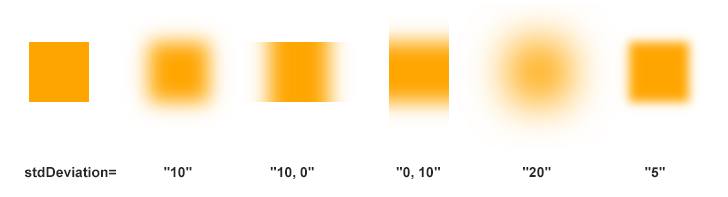
As you see, the stdDeviation value controls the spread of the Gaussian distribution. A larger stdDeviation value results in more blur, while a smaller value creates a softer effect.
Note: The blur, added around a shape, often makes the output picture larger than the source one. We need to use negative numbers for x and y to avoid clipping the graphics added by the filter. In the example above, we use x="-20" and y="-20".
In the previous SVG code example, we discussed in detail how to create a Gaussian blur filter, and now we know what elements and attributes to use. Let’s create the C# code to implement such a filter using Aspose.SVG for .NET API.
According to SVG syntax, the <filter> element should be located in a <defs> element, and the <feGaussianBlur> filter primitive is only inside the <filter> element. Therefore, to program SVG filters, you must create and nest the required elements correctly.
RootElement property of the SVGDocument class points to the document’s root <svg> element.<rect> element, set the required attributes, and add it to the <svg> element.namespaceURI, qualifiedName) method of the SVGDocument class to create an instance of the
SVGRectElement.name, value) method. Another way is to take SVG DOM dot-accessor methods using properties of the
SVGAnimatedLength type, the static data for which can be set or read through the construction: element.X.BaseVal.Value.<rect> element to the <svg> element.<defs> element and add it to the <svg> element.<filter> element, use the same algorithm: Use the CreateElementNS() method to create an instance of the
SVGFilterElement. Remember to set x, y, height, width, and id attributes using SetAttribute() method and add the <filter> to the <defs> element.<feGaussianBlur> element and set in and stdDeviation attributes. Then add it to the <filter> element.In1 attribute, use the property of the SVGAnimatedLength type, the static data for which can be set or read through the construction feGaussianBlurElement.In1.BaseVal = "SourceGraphic".<feGaussianBlur> to the <filter> element.1using Aspose.Svg;
2using System.IO;
3using Aspose.Svg.Filters; 1// Apply Gaussian blur filter to a <rect> element in SVG programmatically
2
3// Set SVG Namespace Url
4string SvgNamespace = "http://www.w3.org/2000/svg";
5
6// Initialize an SVG document
7using (SVGDocument document = new SVGDocument())
8{
9 SVGSVGElement svgElement = document.RootElement;
10
11 // Create a <rect> element and set the "fill" and "filter" attributes
12 SVGRectElement rectElement = (SVGRectElement)document.CreateElementNS(SvgNamespace, "rect");
13 rectElement.X.BaseVal.Value = 40;
14 rectElement.Y.BaseVal.Value = 40;
15 rectElement.Width.BaseVal.Value = 60;
16 rectElement.Height.BaseVal.Value = 60;
17 rectElement.SetAttribute("fill", "#ffa500");
18 rectElement.SetAttribute("filter", "url(#GaussianBlur)");
19 svgElement.AppendChild(rectElement);
20
21 // Create a <defs> element and add it to the <svg> element
22 SVGDefsElement defsElement = (SVGDefsElement)document.CreateElementNS(SvgNamespace, "defs");
23 svgElement.AppendChild(defsElement);
24
25 // Create a <filter> element and add it to the <defs> element
26 SVGFilterElement filterElement = (SVGFilterElement)document.CreateElementNS(SvgNamespace, "filter");
27 filterElement.SetAttribute("x", "-20px");
28 filterElement.SetAttribute("y", "-20px");
29 filterElement.SetAttribute("height", "100px");
30 filterElement.SetAttribute("width", "100px");
31 filterElement.Id = "GaussianBlur";
32 defsElement.AppendChild(filterElement);
33
34 // Create a feGaussianBlur element and add it to the <filter> element
35 SVGFEGaussianBlurElement feGaussianBlurElement = (SVGFEGaussianBlurElement)document.CreateElementNS(SvgNamespace, "feGaussianBlur");
36 feGaussianBlurElement.In1.BaseVal = "SourceGraphic";
37 feGaussianBlurElement.StdDeviationX.BaseVal = 10;
38 feGaussianBlurElement.StdDeviationY.BaseVal = 10;
39 filterElement.AppendChild(feGaussianBlurElement);
40
41 // Save the document
42 document.Save(Path.Combine(OutputDir, "gaussian-blur-rect.svg"));
43}If you render the result file, you will see a blurred orange rectangle exactly like the one in the previous figure, second in order with stdDeviation=“10”.
To use the Gaussian blur SVG filter for background blur, you can apply the filter to an SVG element that acts as a background behind the main content. It may be, for example, any bitmap. The blur filter allows you to create a visually appealing background blur effect while keeping the foreground content sharp and in focus.
To achieve background image blur with SVG, follow these few steps. They are similar to the steps described in the previous C# example:
RootElement property of the SVGDocument class points to the document’s root <svg> element.namespaceURI, qualifiedName) method of the SVGDocument class to create instances of the
SVGImageElement,
SVGDefsElement,
SVGFilterElement, and
SVGFEGaussianBlurElement classes.imageElement to svgElement, you can use the
AppendChild() method. Using a filter attribute of imageElement referring to the url name of filterElement (in id attribute) allows applying the SVG filter effect to the image.filterElement.Id for <filter> element, it can be applied to the image.Here is an example that illustrates blur background image implementation:
1using Aspose.Svg;
2using System.IO;
3using Aspose.Svg.Filters; 1// Blur background image using SVG filters in C#
2
3// Set SVG Namespace Url
4string SvgNamespace = "http://www.w3.org/2000/svg";
5
6// Initialize an SVG document
7using (SVGDocument document = new SVGDocument())
8{
9 SVGSVGElement svgElement = document.RootElement;
10
11 // Create an <image> element and add to the svgElement
12 SVGImageElement imageElement = (SVGImageElement)document.CreateElementNS(SvgNamespace, "image");
13 imageElement.Href.BaseVal = "http://docs.aspose.com/svg/images/api/seaside.jpg";
14 imageElement.Height.BaseVal.ConvertToSpecifiedUnits(SVGLength.SVG_LENGTHTYPE_PX);
15 imageElement.Width.BaseVal.ConvertToSpecifiedUnits(SVGLength.SVG_LENGTHTYPE_PX);
16 imageElement.Height.BaseVal.Value = 480;
17 imageElement.Width.BaseVal.Value = 640;
18 imageElement.X.BaseVal.Value = 20;
19 imageElement.Y.BaseVal.Value = 20;
20 imageElement.SetAttribute("filter", "url(#F1)");
21 svgElement.AppendChild(imageElement);
22
23 // Create a <defs> element and add it to the <svg> element
24 SVGDefsElement defsElement = (SVGDefsElement)document.CreateElementNS(SvgNamespace, "defs");
25 svgElement.AppendChild(defsElement);
26
27 // Create a <filter> element and add it to the defsElement
28 SVGFilterElement filterElement = (SVGFilterElement)document.CreateElementNS(SvgNamespace, "filter");
29 filterElement.Id = "F1";
30 defsElement.AppendChild(filterElement);
31
32 // Create a <feGaussianBlur> element and add it to the filterElement
33 SVGFEGaussianBlurElement feGaussianBlurElement = (SVGFEGaussianBlurElement)document.CreateElementNS(SvgNamespace, "feGaussianBlur");
34 feGaussianBlurElement.In1.BaseVal = "SourceGraphic";
35 feGaussianBlurElement.StdDeviationX.BaseVal = 5;
36 feGaussianBlurElement.StdDeviationY.BaseVal = 5;
37 filterElement.AppendChild(feGaussianBlurElement);
38
39 // Save the document
40 document.Save(Path.Combine(OutputDir, "blur-background-image.svg"));
41}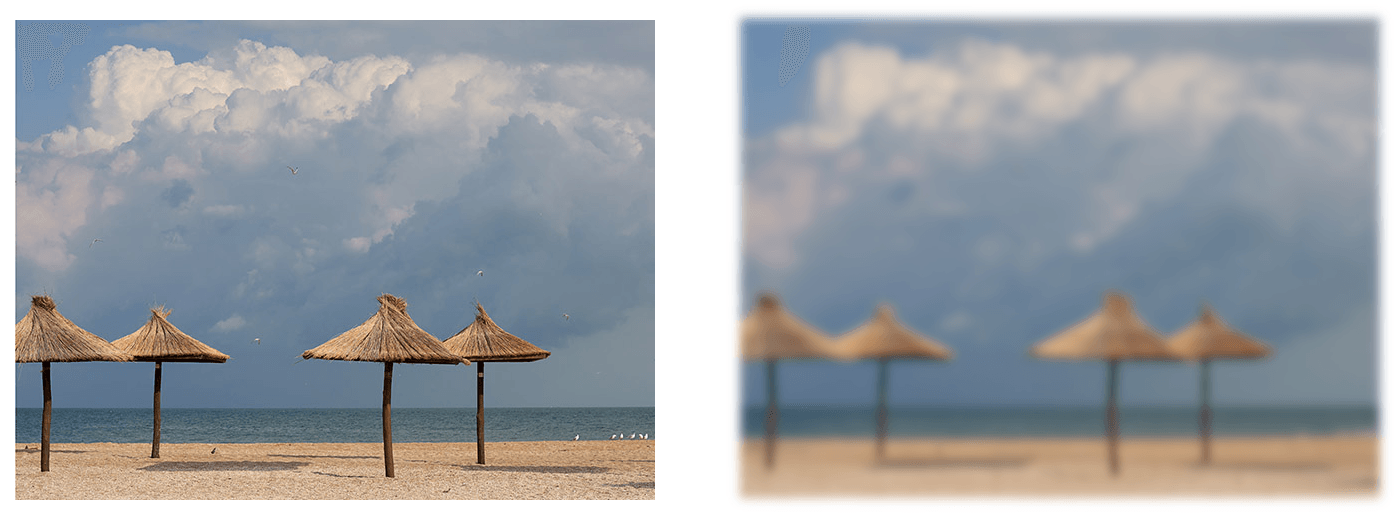
Aspose.SVG Builder API is designed for streamlined creation and updating of SVG elements in C#. Let’s look at a С# example for implementing background blur (exactly the same example as in the previous paragraph) using SVG Builder API. This code showcases the use of a fluent builder pattern to create concise and readable SVG documents, leveraging the capabilities of Aspose.SVG library:
1using Aspose.Svg.Builder;
2using System.IO; 1// Blur background image using SVG Builder API in C#
2
3string svgContent = "<svg xmlns=\"http://www.w3.org/2000/svg\"></svg>";
4using (SVGDocument document = new SVGDocument(svgContent, "."))
5{
6 // Create an instance of SVGSVGElementBuilder to facilitate the construction of the <svg> element and its child elements using a fluent builder pattern
7 SVGSVGElement svg = new SVGSVGElementBuilder()
8 .AddDefs(d => d
9 .AddFilter(f => f.Id("gaussian-blur")
10 .AddFeGaussianBlur(g => g
11 .StdDeviation(5, 5)
12 )
13 )
14 )
15 .AddImage(i => i
16 .X(20).Y(20).Height(480).Width(640)
17 .Href("http://docs.aspose.com/svg/images/api/seaside.jpg")
18 .Filter(fl => fl
19 .FilterId("gaussian-blur")
20 )
21 )
22 // Call the Build() method on the SVGSVGElementBuilder to construct the <svg> element with its child elements
23 .Build(document.FirstChild as SVGSVGElement);
24 document.Save(Path.Combine(OutputDir, "gaussian-blur-builder.svg"));
25}The fluent builder pattern allows you to create SVG elements and apply filters more concisely and readablely. Each method call clearly indicates its purpose, allowing you to understand the structure of the SVG document at a glance. This example demonstrates a more expressive approach to creating SVG documents using SVG Builder, providing improved readability, maintainability, and flexibility compared to the manual approach of creating elements shown in the previous example.
See also

Analyzing your prompt, please hold on...
An error occurred while retrieving the results. Please refresh the page and try again.