

Analyzing your prompt, please hold on...
An error occurred while retrieving the results. Please refresh the page and try again.
SVG patterns offer a versatile way to fill shapes and elements in SVG documents. Patterns allow you to create complex textures, backgrounds, and repeating patterns, enhancing the visual appeal of SVG graphics.
SVG patterns are reusable graphic elements that can be applied to fill shapes, text, and paths in an SVG document. They define a graphic pattern that can be repeated or placed throughout an area, providing flexibility in creating different visual effects. SVG patterns are defined using the <pattern> element, which contains the graphical elements (shapes, images, or gradients) and attributes that define the pattern.
Aspose.SVG Builder API offers the
SVGPatternElementBuilder, which is a builder class for constructing an SVG <pattern> element. This class provides methods to set various attributes specific to the <pattern> element and to build its content. Also, the SVG Builder API introduces syntax sugar to further refine the process of SVG creation and manipulation. This includes nested builders for various SVG elements, providing a more intuitive and efficient way to define complex SVG structures.
This article concerns the
PaintBuilder, a builder class for creating paint values for SVG elements. This class is used to specify the value of the stroke or fill attributes for various SVG shapes and elements when filling them with any paint, pattern, or gradient.
The
PaintBuilder is used to specify the value of the stroke or fill that are used for various SVG shapes and elements when filling them with a pattern, gradient, or any paint. In the following example, the
PaintServerId() method of the PaintBuilder class sets the color fill for the paint server by Id.
1using Aspose.Svg.Builder;
2using System.Drawing;
3using System.IO; 1// Create SVG pattern with polygons and apply as fill to rectangle using C# Builder API
2
3using (SVGDocument document = new SVGDocument())
4{
5 SVGSVGElement svg = new SVGSVGElementBuilder()
6 .Width(100, LengthType.Percentage).Height(100, LengthType.Percentage)
7 .ViewBox(0, 0, 400, 400)
8 .AddG(g => g
9 .AddPattern(p => p.Id("stars")
10 .ViewBox(0, 0, 20, 20)
11 .Width(5, LengthType.Percentage)
12 .Height(5, LengthType.Percentage)
13 .PatternUnits(CoordinateUnits.UserSpaceOnUse)
14 .AddPolygon(points: new double[] { 5, 0, 7, 3, 10, 5, 7, 7, 5, 10, 3, 7, 0, 5, 3, 3 }, fill: Color.Teal)
15 .AddPolygon(points: new double[] { 15, 0, 17, 3, 20, 5, 17, 7, 15, 10, 13, 7, 10, 5, 13, 3 }, fill: Color.DarkRed)
16 .AddPolygon(points: new double[] { 15, 10, 17, 13, 20, 15, 17, 17, 15, 20, 13, 17, 10, 15, 13, 13 }, fill: Color.DarkBlue)
17 )
18 .AddRect(r => r.Rect(20, 40, 440, 80).Fill(pt => pt.PaintServerId("stars")))
19 )
20 .Build(document.FirstChild as SVGSVGElement);
21 document.Save(Path.Combine(OutputDir, "pattern-stars.svg"));
22}In this example, a pattern is first defined using
AddPattern(), where various colored polygons are combined to create a complex fill pattern. The AddPattern() method adds a <pattern> element configuration to the builder. The pattern is given an identifier stars. Subsequently, this pattern is applied to a rectangle element using the Fill() method with PaintServerId("stars"), which references the previously defined pattern.
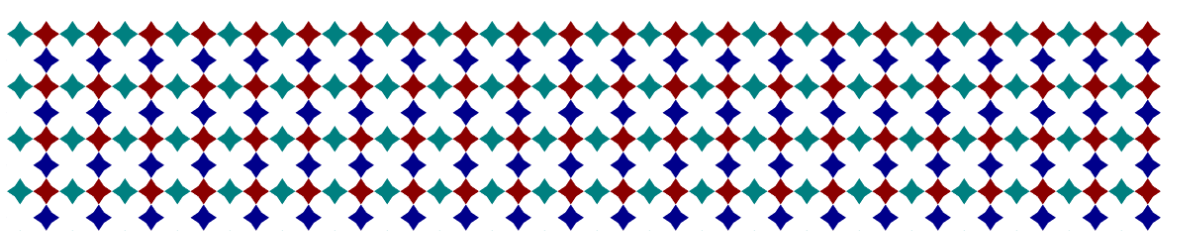
The following C# code example demonstrates how to create SVG patterns and apply them to shapes within the document. The code showcases the “builder within a builder” approach, which uses multiple builder classes, where one builder is nested within another to facilitate the construction of complex objects or structures and provide a modular and structured approach to SVG document creation:
1using Aspose.Svg.Builder;
2using System.Drawing;
3using System.IO; 1// Create SVG patterns with reusable elements and apply them to circles using C# Builder API
2
3using (SVGDocument document = new SVGDocument())
4{
5 SVGSVGElement svg = new SVGSVGElementBuilder()
6 .Width(100, LengthType.Percentage).Height(100, LengthType.Percentage)
7 .ViewBox(0, 0, 600, 600)
8 .AddG(g => g
9 .FontFamily("Arial")
10 .FontSize(10)
11 .AddPattern(p => p.Id("Pat3a")
12 .Rect(0, 0, 20, 20)
13 .PatternUnits(CoordinateUnits.UserSpaceOnUse)
14 .AddRect(r => r.Rect(0, 0, 10, 10).Fill(Color.LightSlateGray))
15 .AddRect(r => r.Rect(10, 0, 10, 10).Fill(Color.Teal))
16 .AddRect(r => r.Rect(0, 10, 10, 10).Fill(Color.DarkRed))
17 .AddRect(r => r.Rect(10, 10, 10, 10).Fill(Color.Gold))
18 )
19 .AddPattern(p => p.Id("Pat3b")
20 .Href("#Pat3a")
21 .Width(23).Height(23)
22 )
23 .AddPattern(p => p.Id("Pat3c")
24 .Href("#Pat3a")
25 .Width(15).Height(15)
26 )
27 .AddCircle(circle => circle.Cx(90).Cy(130).R(70).Fill(pt => pt.PaintServerId("Pat3a")))
28 .AddText(t => t.X(55).Y(50)
29 .AddContent("Pattern #Pat3a")
30 )
31 .AddCircle(circle => circle.Cx(240).Cy(130).R(70).Fill(pt => pt.PaintServerId("Pat3b")))
32 .AddText(t => t.X(205).Y(50)
33 .AddContent("Pattern #Pat3b")
34 )
35 .AddCircle(circle => circle.Cx(390).Cy(130).R(70).Fill(pt => pt.PaintServerId("Pat3c")))
36 .AddText(t => t.X(355).Y(50)
37 .AddContent("Pattern #Pat3c")
38 )
39 )
40 .Build(document.FirstChild as SVGSVGElement);
41 document.Save(Path.Combine(OutputDir, "patterns.svg"));
42}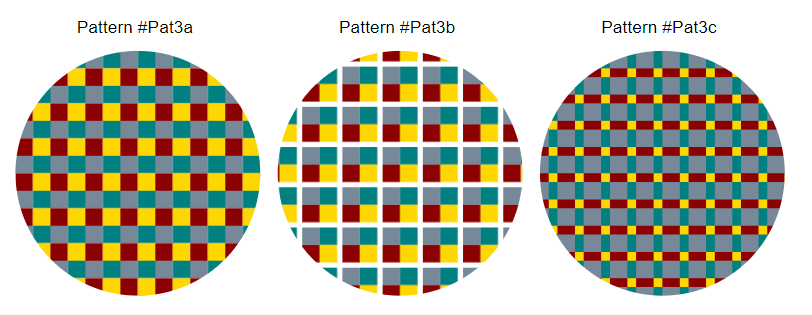
In the example, three different patterns, named Pat3a, Pat3b, and Pat3c, are added to the SVG document.
The height and width of a tile in a pattern element define the size of the repeated pattern unit in the SVG document. This size determines how the pattern will look when applied to shapes or elements in the document. In pattern Pat3b, increasing the height and width of the tile enlarges the pattern unit, resulting in unfilled (transparent) areas. In the pattern Pat3c, reducing the height and width of the tile makes the pattern appear denser, creating a different visual effect.
So, adjusting the height and width of the tile in an SVG <pattern> element allows you to control the density and repetition of the pattern within the SVG document and enables the creation of diverse visual effects.
See also

Analyzing your prompt, please hold on...
An error occurred while retrieving the results. Please refresh the page and try again.