
Analyzing your prompt, please hold on...
An error occurred while retrieving the results. Please refresh the page and try again.
Quick Answer: To draw SVG text in Python, create a <text> element with
create_element_ns(), set the x, y, font-family, font-size, fill, and text-anchor attributes with
set_attribute(), set text_content, append the text to the SVG root, and save the document.
1from aspose.svg import SVGDocument
2
3with SVGDocument() as document:
4    text = document.create_element_ns("http://www.w3.org/2000/svg", "text")
5    text.set_attribute("x", "20")
6    text.set_attribute("y", "40")
7    text.text_content = "Hello SVG"
8    document.root_element.append_child(text)
9    document.save("text.svg")
In this article, you will learn how to:
<text> elements in Python;x and y coordinates;font-family, font-size, fill, and text-anchor attributes;<tspan> elements.SVG text remains real text in the SVG markup. It can be selected, searched, localized, styled, and edited later. If you need to convert text into vector outlines for final artwork or font-independent rendering, use text vectorization instead. For broader SVG markup background, see the SVG Text guide.
| Attribute or element | Use |
|---|---|
x, y | Position the text baseline |
font-family | Choose the requested font family |
font-size | Set text size in SVG units |
fill | Set the text color |
text-anchor | Align text relative to the x coordinate |
<tspan> | Add positioned fragments or simple multi-line text |
Use this workflow when generated SVG artwork needs labels, captions, badges, or text inside diagrams:
SVGDocument.width, height, and viewBox if you are creating a new document.<text> element with
create_element_ns().x, y, font-size, font-family, fill, and text-anchor with
set_attribute().text_content or append <tspan> children.append_child() and save the document with
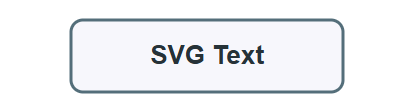
document.save().The following example creates a small SVG label with a background rectangle and centered text. Use text-anchor="middle" when the x coordinate should represent the horizontal center of the text.
 1import os
 2from aspose.svg import SVGDocument
 3
 4namespace_uri = "http://www.w3.org/2000/svg"
 5
 6output_folder = "output/"
 7output_path = os.path.join(output_folder, "svg-text-label.svg")
 8os.makedirs(output_folder, exist_ok=True)
 9
10with SVGDocument() as document:
11    svg = document.root_element
12    svg.set_attribute("width", "320")
13    svg.set_attribute("height", "120")
14    svg.set_attribute("viewBox", "0 0 320 120")
15
16    background = document.create_element_ns(namespace_uri, "rect")
17    background.set_attribute("x", "24")
18    background.set_attribute("y", "24")
19    background.set_attribute("width", "272")
20    background.set_attribute("height", "72")
21    background.set_attribute("rx", "12")
22    background.set_attribute("fill", "#f7f7fb")
23    background.set_attribute("stroke", "#546e7a")
24    background.set_attribute("stroke-width", "3")
25    svg.append_child(background)
26
27    label = document.create_element_ns(namespace_uri, "text")
28    label.set_attribute("x", "160")
29    label.set_attribute("y", "68")
30    label.set_attribute("text-anchor", "middle")
31    label.set_attribute("font-family", "Arial, sans-serif")
32    label.set_attribute("font-size", "26")
33    label.set_attribute("font-weight", "700")
34    label.set_attribute("fill", "#263238")
35    label.text_content = "SVG Text"
36    svg.append_child(label)
37
38    document.save(output_path)
The text baseline is controlled by y, not by the top edge of the letters. If vertical positioning needs exact visual centering, adjust the y value or use font metrics in your own layout logic.
The illustration shows the result of running the example: a rounded rectangle acts as a simple label background, and text-anchor="middle" aligns the SVG Text caption around the center x-coordinate.
<tspan>Use <tspan> when one text block needs multiple lines or independently positioned fragments. The next example creates one <text> element and appends two <tspan> children with different y positions.
 1import os
 2from aspose.svg import SVGDocument
 3
 4namespace_uri = "http://www.w3.org/2000/svg"
 5
 6output_folder = "output/"
 7output_path = os.path.join(output_folder, "svg-multiline-text.svg")
 8os.makedirs(output_folder, exist_ok=True)
 9
10with SVGDocument() as document:
11    svg = document.root_element
12    svg.set_attribute("width", "400")
13    svg.set_attribute("height", "120")
14    svg.set_attribute("viewBox", "0 0 400 120")
15
16    text = document.create_element_ns(namespace_uri, "text")
17    text.set_attribute("x", "200")
18    text.set_attribute("y", "48")
19    text.set_attribute("font-family", "Arial, sans-serif")
20    text.set_attribute("font-size", "22")
21    text.set_attribute("text-anchor", "middle")
22    text.set_attribute("fill", "#263238")
23
24    first_line = document.create_element_ns(namespace_uri, "tspan")
25    first_line.set_attribute("x", "200")
26    first_line.set_attribute("y", "48")
27    first_line.text_content = "Generated SVG Text"
28    text.append_child(first_line)
29
30    second_line = document.create_element_ns(namespace_uri, "tspan")
31    second_line.set_attribute("x", "200")
32    second_line.set_attribute("y", "84")
33    second_line.set_attribute("fill", "#2e86de")
34    second_line.text_content = "with Aspose.SVG for Python via .NET"
35    text.append_child(second_line)
36
37    svg.append_child(text)
38    document.save(output_path)
Both lines belong to the same <text> element, but each <tspan> has its own position and can override style attributes such as fill.
The illustration shows the two-line SVG text output. The first <tspan> draws the dark title, and the second <tspan> uses a separate y position and blue fill value for the subtitle.

| Problem | Fix |
|---|---|
| Text is not visible | Set fill, check x and y, and make sure the text is inside the viewBox |
| Text appears too high or low | Remember that y positions the text baseline, not the top edge |
| Center alignment does not work | Set text-anchor="middle" and use the desired center as the x value |
| Multi-line text overlaps | Give each <tspan> a separate y value or use dy spacing carefully |
| Text renders differently on another machine | Use common fonts or convert final artwork to vector paths when font independence matters |
Create a <text> element with create_element_ns(), set the x, y, font-family, font-size, and fill attributes, set text_content, append it to the SVG root, and save the SVG.
Set text-anchor="middle" and set x to the desired horizontal center. Adjust y for the baseline position.
Yes. Use one <text> element with multiple <tspan> children. Give each <tspan> its own x and y values or use controlled dy spacing.
Draw regular SVG text when the text should remain editable, searchable, or localizable. Vectorize text only for final artwork that must preserve exact glyph outlines without depending on installed fonts.
Analyzing your prompt, please hold on...
An error occurred while retrieving the results. Please refresh the page and try again.