
Analyzing your prompt, please hold on...
An error occurred while retrieving the results. Please refresh the page and try again.
Quick Answer: To edit SVG elements with CSS selectors in Python, load the file with
SVGDocument, find one editable target with
Element.query_selector() or multiple nodes with
Element.query_selector_all(), update attributes on a single matched element or node-level content such as text_content on multiple matches, and save the SVG.
1from aspose.svg import SVGDocument
2
3with SVGDocument("document.svg") as document:
4    element = document.root_element.query_selector("#target")
5    if element is not None:
6        element.set_attribute("fill", "#2e86de")
7    document.save("edited.svg")
CSS selectors are useful when an SVG file has meaningful IDs, classes, attributes, or nested groups. The idea is simple: write a selector that points to the SVG element you want to edit, update that element, and save the document.
In this article, you will learn how to:
query_selector();query_selector_all();This article focuses on selector-based editing workflows. For broader document inspection, tree traversal, and XPath examples, see Navigate SVG in Python.
This article uses the sample file
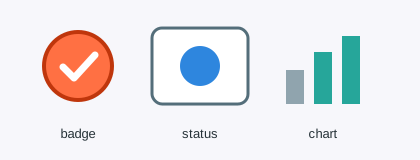
css-selectors-edit.svg. You can save it as data/css-selectors-edit.svg before running the examples. The sample SVG contains three small editable groups: #badge, #status-card, and #chart. The examples below use these groups to show how selectors point to real SVG parts before the code changes them.
#badge-bg finds one circle by its ID..label finds all text labels with the same class.#status-card circle[fill] finds the status dot, and #chart .bar[data-level='high'] finds the high chart bar.Use this workflow when an SVG file has stable IDs, classes, attributes, or nested groups:
SVGDocument.#id, .class, tag[attribute], or a scoped selector inside a group.query_selector() for one editable element when you need set_attribute().query_selector_all() only for safe node-level edits across many matches, such as text_content.An ID selector is the simplest and safest option when the target element is unique. The following example finds the circle with id="badge-bg", changes its fill and outline, and saves the edited SVG as css-selector-edit-by-id.svg. Use this pattern for template SVG files where important objects have stable IDs.
 1import os
 2from aspose.svg import SVGDocument
 3
 4input_folder = "data/"
 5output_folder = "output/"
 6input_path = os.path.join(input_folder, "css-selectors-edit.svg")
 7output_path = os.path.join(output_folder, "css-selector-edit-by-id.svg")
 8os.makedirs(output_folder, exist_ok=True)
 9
10with SVGDocument(input_path) as document:
11    badge_background = document.root_element.query_selector("#badge-bg")
12
13    if badge_background is not None:
14        badge_background.set_attribute("fill", "#2e86de")
15        badge_background.set_attribute("stroke", "#0d47a1")
16        badge_background.set_attribute("stroke-width", "5")
17
18    document.save(output_path)
The image below compares the source SVG (a) with css-selector-edit-by-id.svg (b). Only the circle selected by #badge-bg changes color and outline; the status card, chart, and labels remain untouched.

Use query_selector_all() when the same node-level edit should apply to every match. The sample SVG uses class="label" on all text labels. The following example finds all labels and updates their text content.
 1import os
 2from aspose.svg import SVGDocument
 3
 4input_folder = "data/"
 5output_folder = "output/"
 6input_path = os.path.join(input_folder, "css-selectors-edit.svg")
 7output_path = os.path.join(output_folder, "css-selector-edit-labels.svg")
 8os.makedirs(output_folder, exist_ok=True)
 9
10with SVGDocument(input_path) as document:
11    labels = document.root_element.query_selector_all(".label")
12
13    for label in labels:
14        label.text_content = label.text_content.upper()
15
16    document.save(output_path)
The output changes the text of every SVG text node with class label. This is the main multi-node example in the article: it uses query_selector_all() for the selector workflow and avoids calling Element.set_attribute() on NodeList items.
The image below compares the source SVG (a) with the result saved as css-selector-edit-labels.svg (b). All label text is uppercased, while the shapes, fills, strokes, and chart bars stay the same. This keeps the visual focus on the class-based text edit.

Scoped attribute selectors are useful when a broad selector would match too much. The following example edits two different targets in one workflow: the status dot selected by #status-card circle[fill], and the high chart bar selected by #chart .bar[data-level='high'].
 1import os
 2from aspose.svg import SVGDocument
 3
 4input_folder = "data/"
 5output_folder = "output/"
 6input_path = os.path.join(input_folder, "css-selectors-edit.svg")
 7output_path = os.path.join(output_folder, "css-selector-edit-scoped-attributes.svg")
 8os.makedirs(output_folder, exist_ok=True)
 9
10with SVGDocument(input_path) as document:
11    warning_dot = document.root_element.query_selector("#status-card circle[fill]")
12    high_bar = document.root_element.query_selector("#chart .bar[data-level='high']")
13
14    if warning_dot is not None:
15        warning_dot.set_attribute("fill", "#d32f2f")
16        warning_dot.set_attribute("stroke", "#8b0000")
17        warning_dot.set_attribute("stroke-width", "4")
18
19    if high_bar is not None:
20        high_bar.set_attribute("fill", "#455a64")
21        high_bar.set_attribute("opacity", "1")
22
23    document.save(output_path)
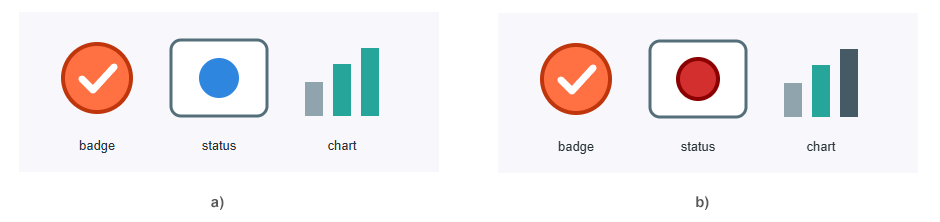
The first selector finds a circle only inside #status-card and only if that circle has a fill attribute. The second selector finds the chart bar whose data-level value is high. The output should show a red status dot and a dark high bar.
The image below compares the source SVG (a) with the css-selector-edit-scoped-attributes.svg (b). The scoped selectors update two separate targets without changing the badge or the lower chart bars, which is the main advantage of combining group, class, tag, and attribute conditions.
For attribute updates, prefer query_selector() with a selector that points to one editable element. For repeated text or node-level changes, use query_selector_all() and process each returned node. Keep selectors stable: IDs are best for unique template parts, classes are useful for repeated labels, and scoped selectors help avoid changing similar elements in other groups.
| Problem | Fix |
|---|---|
| Only one target changes | query_selector() returns only the first match. Use query_selector_all() for multi-node edits such as changing text_content; use query_selector() when the code must call set_attribute(). |
set_attribute() fails inside a query_selector_all() loop | NodeList items may not expose Element.set_attribute(). Use node-level edits such as text_content, or use query_selector() when you need to set attributes. |
| Selector returns nothing | Inspect the SVG source and verify the actual ID, class, tag name, and attribute values. |
| Attribute selector does not match | Start with an attribute-presence selector such as circle[fill], then add value filters only after the simple selector works. |
| A broad class selector changes too much | Add context, such as #chart .bar[data-level='high'], to limit the edit to one group. |
| Output file is unchanged | Save the edited document and open the output path, not the original input file. |
Yes. Load the SVG with SVGDocument, find one editable target with query_selector() and update it with set_attribute(). Use query_selector_all() when you need to process all matching nodes with a node-level edit such as changing text_content.
query_selector() returns the first matching element and is the right choice when the code must call set_attribute(). query_selector_all() returns a NodeList of all matches and is useful for node-level edits such as changing text_content on every matched text node.
Yes. Use a class selector such as .label. For multiple text nodes, query_selector_all(".label") can update text_content for every match. For setting attributes, use a scoped selector with query_selector().
Yes. Attribute selectors such as circle[fill] or .bar[data-level='high'] can target SVG elements by existing attributes. Scope them with a group ID when the same pattern appears in several places.
Use CSS selectors for IDs, classes, attributes, and simple group-scoped edits. Use XPath when the query depends on more complex document structure or relationships between nodes.

Analyzing your prompt, please hold on...
An error occurred while retrieving the results. Please refresh the page and try again.