
Analyzing your prompt, please hold on...
An error occurred while retrieving the results. Please refresh the page and try again.
Quick Answer: To work with SVG paths in Python, load the file with
SVGDocument, find a <path> element with
Element.query_selector(), replace its d attribute with
set_attribute(), and save the edited SVG.
1from aspose.svg import SVGDocument
2
3with SVGDocument("document.svg") as document:
4    path = document.root_element.query_selector("#wave-path")
5    if path is not None:
6        path.set_attribute("d", "M40 125 C90 65 150 65 200 125 S310 185 370 95")
7    document.save("edited.svg")
In this article, you will learn how to:
d attribute of an SVG <path>;transform attribute instead.SVG path data is stored in the d attribute of a <path> element. It contains drawing commands such as M for move, L for line, C for cubic Bezier curve, Q for quadratic curve, and Z for close path. Editing this value changes the actual geometry of the path, not only its rendered position.
Use path data editing when you need to change the outline itself. If you only need to move, rotate, or scale an existing shape, use the transform attribute instead. See
Move, Rotate, and Scale SVG Elements in Python for transform workflows.
The safest workflow is to replace the whole d value with a known valid path string. This is useful for icons, generated diagrams, simple marks, and template SVG files where the path has a stable ID.
| Task | Edit this | Use when |
|---|---|---|
| Change the path outline | d attribute | The shape geometry must change |
| Move or scale the same outline | transform attribute | The shape should keep its original coordinates |
| Generate path from shape parameters | d attribute built from coordinates, sizes, or points | User input is easier as shape values than as path commands |
| Recolor or restyle the path | fill, stroke, style | Only the appearance changes |
Use this short workflow when an existing SVG contains a <path> element and you need to change its geometry:
SVGDocument.<path> by ID, tag name, or another stable selector, for example with
query_selector().d value. You can write the full path string, build it from shape parameters such as coordinates, sizes, or points, or append a known segment in a controlled template.set_attribute(), for example set_attribute("d", path_data).document.save() and open the output file to verify the new geometry.
The examples below follow these same steps with different sources for the new d value.The code examples use
python-edit-svg-path-data.svg as the input file. In the first workflow, the code finds #wave-path, replaces its d attribute with a new curve, and saves the result as path-data-replaced.svg.
 1import os
 2from aspose.svg import SVGDocument
 3
 4input_folder = "data/"
 5output_folder = "output/"
 6input_path = os.path.join(input_folder, "python-edit-svg-path-data.svg")
 7output_path = os.path.join(output_folder, "path-data-replaced.svg")
 8os.makedirs(output_folder, exist_ok=True)
 9
10new_path_data = "M30 140 C85 60 155 80 220 120 S320 180 380 90"
11
12with SVGDocument(input_path) as document:
13    wave_path = document.root_element.query_selector("#wave-path")
14
15    if wave_path is not None:
16        wave_path.set_attribute("d", new_path_data)
17
18    document.save(output_path)
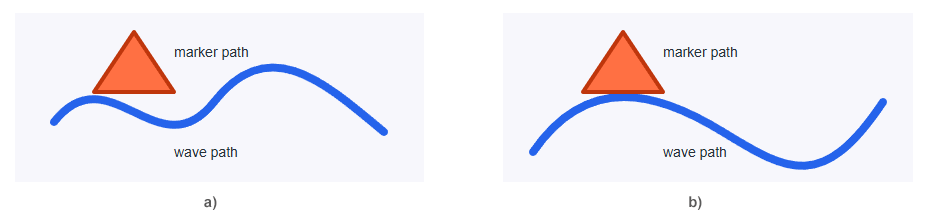
The code changes the geometry of the wave path. It does not change stroke or fill, so the visual style stays the same while the curve shape changes. The image below compares the source SVG (a) with path-data-replaced.svg (b).
Writing the d attribute by hand is inconvenient when the input comes from a form, database, chart layout, or another part of an application. Users and application data usually describe a rectangle as x, y, width, and height, not as SVG path commands.
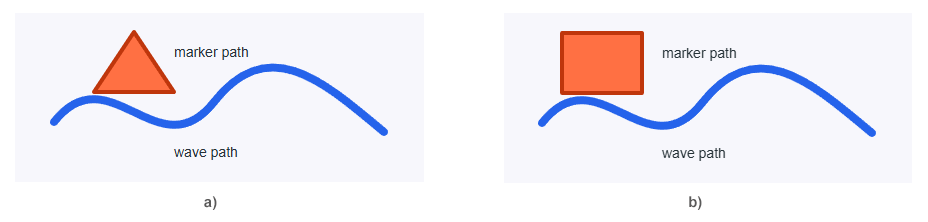
The next example keeps that user-friendly input model. It takes rectangle coordinates, converts them to path commands, writes those commands to the existing #marker-path, and saves the result as path-data-from-rectangle.svg. The source marker is a triangle, but the new geometry is intentionally generated as a rectangle. This is useful when a template must keep a <path> element while the application or user interface collects simple rectangle values. Icon sets, masks, and reusable templates often expect paths even when the input data is easier to describe as a box.
 1import os
 2from aspose.svg import SVGDocument
 3
 4input_folder = "data/"
 5output_folder = "output/"
 6input_path = os.path.join(input_folder, "python-edit-svg-path-data.svg")
 7output_path = os.path.join(output_folder, "path-data-from-rectangle.svg")
 8os.makedirs(output_folder, exist_ok=True)
 9
10rect_x = 60
11rect_y = 20
12rect_width = 80
13rect_height = 60
14
15rect_path_data = (
16    f"M{rect_x} {rect_y} "
17    f"H{rect_x + rect_width} "
18    f"V{rect_y + rect_height} "
19    f"H{rect_x} Z"
20)
21
22with SVGDocument(input_path) as document:
23    marker_path = document.root_element.query_selector("#marker-path")
24
25    if marker_path is not None:
26        marker_path.set_attribute("d", rect_path_data)
27
28    document.save(output_path)
The code does not ask the user to write M, H, V, or Z commands. It accepts ordinary rectangle values and generates valid SVG path data from them. The existing <path> keeps its fill, stroke, and other attributes, while only the geometry stored in d changes.
The image below compares the source SVG (a) with path-data-from-rectangle.svg (b).
You can append commands to existing path data when the input path is a controlled template and you know where the current path ends. The example below reads the current d value of #wave-path, appends one line segment, and saves path-data-extended.svg.
 1import os
 2from aspose.svg import SVGDocument
 3
 4input_folder = "data/"
 5output_folder = "output/"
 6input_path = os.path.join(input_folder, "python-edit-svg-path-data.svg")
 7output_path = os.path.join(output_folder, "path-data-extended.svg")
 8os.makedirs(output_folder, exist_ok=True)
 9
10with SVGDocument(input_path) as document:
11    wave_path = document.root_element.query_selector("#wave-path")
12
13    if wave_path is not None:
14        current_path_data = wave_path.get_attribute("d").strip()
15        wave_path.set_attribute("d", current_path_data + " L395 95")
16
17    document.save(output_path)
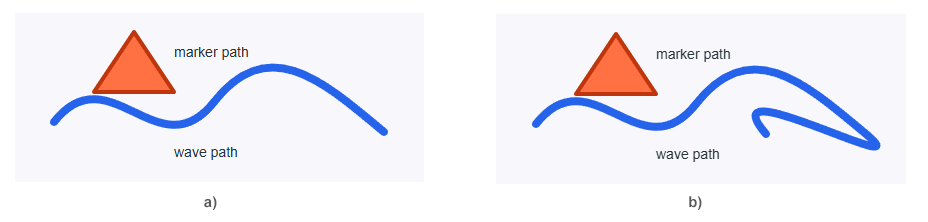
Use this approach only when the source path is predictable. For arbitrary SVG files, path data may contain relative commands, multiple subpaths, shorthand commands, or closed shapes. In those cases, replacing the full d value or using a dedicated SVG path parser is safer than editing command text by assumption.
The image below compares the source SVG (a) and the path-data-extended.svg (b). The added line segment continues from the end of the original wave path, which is why this technique should be used only when the endpoint and command context are known.
| Problem | Fix |
|---|---|
| The path disappears | Check that the new d value is valid SVG path data and starts with a move command such as M |
| The path moves but the shape does not change | You edited transform instead of d; edit d when the geometry itself must change |
| The output file is unchanged | Save the document after editing and open the output path, not the input SVG |
| Appended commands create a strange shape | Append only when you know the path’s current endpoint and command type; otherwise replace the whole d value |
| Rectangle output appears in the wrong place | Check x, y, width, and height values before building the d string |
| Curves look different than expected | Verify whether the path uses cubic C, quadratic Q, smooth S or T, or relative lowercase commands |
Load the SVG with SVGDocument, find the target <path> element, and call set_attribute("d", new_path_data). Save the document after updating the d attribute.
The d attribute stores path commands that define the geometry of a <path> element. Commands such as M, L, C, Q, and Z describe moves, lines, curves, and closed paths.
Edit d when the actual outline must change. Use transform when you only need to move, rotate, or scale the existing outline without rewriting its coordinates.
Yes, but only for controlled input where you know the current endpoint and command context. For arbitrary SVG files, replace the full d value or parse the path data before modifying it.
No, not for the set_attribute("d", ...) workflow shown in this article. In Aspose.SVG for Python via .NET, items returned by query_selector_all() may be Node objects that do not expose set_attribute(). To update the d attribute on many paths, use document.get_elements_by_tag_name("path"), iterate through the returned elements, and call set_attribute() on each one.
transform instead of rewriting path data.fill, stroke, and style colors.
Analyzing your prompt, please hold on...
An error occurred while retrieving the results. Please refresh the page and try again.