
Analyzing your prompt, please hold on...
An error occurred while retrieving the results. Please refresh the page and try again.
Quick Answer: Load an SVG file with SVGDocument, inspect the root element with document.document_element, iterate elements with get_elements_by_tag_name(), find nodes with query_selector() or query_selector_all(), and use document.evaluate() for XPath queries.
| API | Purpose |
|---|---|
| SVGDocument | Loads SVG content and exposes the SVG DOM |
| outer_html | Returns markup for an element and its children |
| get_elements_by_tag_name() | Returns elements with a specified tag name |
| Element.query_selector() | Finds the first element matching a CSS selector |
| Element.query_selector_all() | Finds all elements matching a CSS selector |
| Document.evaluate() | Evaluates XPath expressions |
SVG files are XML-based documents, so many editing and extraction tasks start with navigation: reading markup, traversing elements, checking attributes, and finding nodes by tag name, CSS selector, or XPath. Aspose.SVG for Python via .NET exposes these operations through the SVG DOM API.
Choose the navigation method according to the question you need to answer. If you only need to see the document structure, print the root markup. If you know the element type, use tag-name search. If you need to find an element the same way you would target it in CSS, use CSS selectors. If the condition depends on hierarchy, attributes, or a more structural rule, XPath is often more expressive.
| Task | Recommended approach |
|---|---|
| View the full SVG markup | document.document_element.outer_html |
| Find all elements of one SVG type | get_elements_by_tag_name() |
| Move through parent and child elements | Element traversal properties such as first_element_child and last_element_child |
| Find elements by ID, class, attribute, or CSS-like pattern | query_selector() or query_selector_all() |
| Find elements by structural conditions | document.evaluate() with XPath |
Before running the examples, install Aspose.SVG for Python via .NET in your Python environment.
The outer_html property returns the markup of an element and its children. Use it when you need to quickly inspect the full root <svg> element.
This is a useful first diagnostic step before writing selectors. It lets you verify actual tag names, IDs, classes, inline styles, namespaces, and attribute values in the source document. After checking the markup, you can decide whether a tag-name search, CSS selector, or XPath expression is the cleanest way to reach the target node.
1import os
2from aspose.svg import SVGDocument
3
4# Load an SVG file and print the root markup
5input_folder = "data/"
6input_path = os.path.join(input_folder, "document.svg")
7
8with SVGDocument(input_path) as document:
9    print(document.document_element.outer_html)
The output is the serialized root <svg> element. For large SVG files, printing the full markup can be noisy, so use it mainly while debugging or when you need to inspect a small generated SVG.
Use get_elements_by_tag_name() when you need all elements with a specific tag name. The following example prints every <rect> element and its attributes.
This approach is simple and reliable when the SVG structure is known. For example, it works well when you need to audit all rectangles in a diagram, collect all paths in an icon set, or check whether certain shapes carry expected IDs and styling attributes. The attributes collection helps you distinguish geometry attributes such as x, y, and width from styling stored in style, fill, stroke, or class attributes.
 1import os
 2from aspose.svg import SVGDocument
 3
 4# Find all <rect> elements and print their attributes
 5input_folder = "data/"
 6input_path = os.path.join(input_folder, "shapes.svg")
 7
 8with SVGDocument(input_path) as document:
 9    for element in document.get_elements_by_tag_name("rect"):
10        print(f"Element: {element.tag_name}, ID: {element.id}")
11
12        attributes = element.attributes
13        for i in range(attributes.length):
14            attr = attributes[i]
15            if attr is not None:
16                print(f" Attribute: {attr.name} = {attr.value}")
Expected output:
 1Element: rect, ID: first-rect
 2 Attribute: id = first-rect
 3 Attribute: x = 50
 4 Attribute: y = 90
 5 Attribute: width = 100
 6 Attribute: height = 90
 7 Attribute: style = stroke-width:5; stroke:FireBrick
 8Element: rect, ID: second-rect
 9 Attribute: id = second-rect
10 Attribute: x = 120
11 Attribute: y = 150
12 Attribute: width = 120
13 Attribute: height = 120
14 Attribute: style = stroke-width:10; stroke:DarkCyan
15Element: rect, ID: third-rect
16 Attribute: id = third-rect
17 Attribute: x = 170
18 Attribute: y = 220
19 Attribute: width = 90
20 Attribute: height = 90
21 Attribute: style = stroke-width:5; stroke:FireBrick
Once you know which attributes are present, you can safely update them with set_attribute() or use the same values to build a selector. For example, if a rectangle has id="second-rect", a CSS selector such as #second-rect may be clearer than iterating all <rect> elements.
Element traversal properties let you move through the SVG hierarchy. The following example starts at the root <svg> element, moves to its last child element, and then to the first child of that group.
Traversal is useful when the relative position of nodes matters. In SVG, document order is also painting order: elements later in the DOM are usually drawn above earlier elements. Understanding parent-child relationships helps when you add a background before existing artwork, place overlays after shapes, or inspect grouped elements inside <g> containers.
 1import os
 2from aspose.svg import SVGDocument
 3
 4# Navigate through the SVG element tree
 5input_folder = "data/"
 6input_path = os.path.join(input_folder, "shapes.svg")
 7
 8with SVGDocument(input_path) as document:
 9    element = document.document_element
10    print(element.tag_name)
11
12    element = element.last_element_child
13    print(element.tag_name)
14
15    element = element.first_element_child
16    print(element.tag_name)
For the sample shapes.svg, this prints the tag names along the selected path through the DOM tree. In real documents, check that each traversal step returns an element before accessing the next child, because not every SVG has the same grouping structure.
Use query_selector() to find the first matching element. Use query_selector_all() when you need to inspect all matching nodes or apply node-level edits such as changing text content.
CSS selectors are a good fit when the target can be described by an ID, class, element name, or attribute condition. For example, circle, #logo, .highlight, and rect[fill] are selector patterns that are familiar from CSS authoring. Use query_selector() for a single editable target; use query_selector_all() when your workflow can work with the returned NodeList.
The following example finds the first <circle> element, changes its stroke color, and saves the edited SVG.
 1import os
 2from aspose.svg import SVGDocument
 3
 4# Find a circle with a CSS selector, edit it, and save the SVG
 5input_folder = "data/"
 6output_folder = "output/"
 7input_path = os.path.join(input_folder, "shapes.svg")
 8output_path = os.path.join(output_folder, "circle-color.svg")
 9os.makedirs(output_folder, exist_ok=True)
10
11with SVGDocument(input_path) as document:
12    svg_element = document.root_element
13    circle = svg_element.query_selector("circle")
14
15    if circle is not None:
16        circle.set_attribute("stroke", "DarkCyan")
17        document.save(output_path)
The image below shows the original SVG and the edited result.
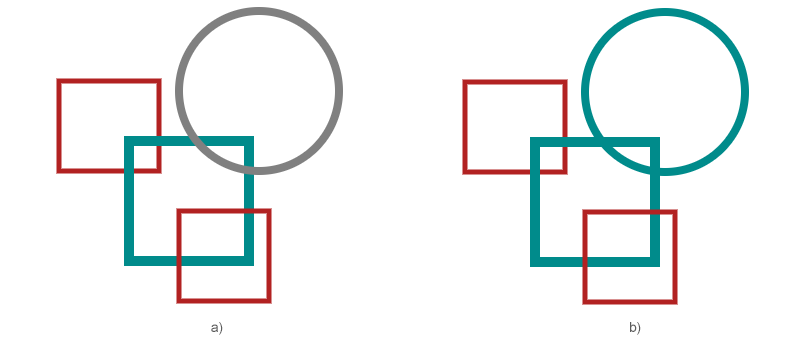
The if circle is not None check is intentional. Real SVG files often vary by source, generator, or design revision, so selector-based editing should handle missing elements gracefully. If many elements need attribute updates, use a workflow that returns editable elements, such as tag-name search or XPath; use query_selector_all() only for edits supported by the returned nodes.
Use XPath when a structural query is clearer than a CSS selector. The document.evaluate() method evaluates an XPath expression and returns a result of the requested type.
XPath is especially useful for queries that depend on attribute values, document hierarchy, or relationships between nodes. In the example below, the expression //rect[@x='120'] means “find any <rect> element with the x attribute equal to 120.” Similar expressions can target nested groups, elements with a specific attribute combination, or nodes in a particular part of the document tree.
 1import os
 2from aspose.svg import SVGDocument
 3from aspose.svg.dom.xpath import XPathResultType
 4
 5# Find a rectangle with XPath and print its parent element
 6input_folder = "data/"
 7input_path = os.path.join(input_folder, "shapes.svg")
 8
 9with SVGDocument(input_path) as document:
10    xpath_expression = "//rect[@x='120']"
11    xpath_result = document.evaluate(xpath_expression, document, None, XPathResultType.ANY, None)
12
13    node = xpath_result.iterate_next()
14    if node is not None:
15        print(node.parent_element.tag_name)
Use XPath when a CSS selector becomes hard to read or when the query is naturally structural. For simple ID, class, and attribute lookups, CSS selectors are usually shorter. For conditions involving hierarchy or repeated traversal, XPath can be easier to maintain.
| Problem | Likely cause | Fix |
|---|---|---|
| CSS selector returns nothing | The selector does not match the actual SVG markup | Inspect outer_html or use simpler selectors first |
| Attribute value is empty | The element does not have that attribute or the value is set through style | Check element.attributes and inspect inline style declarations |
| XPath query returns no node | The expression does not match the document structure or namespace assumptions | Test the query on a small SVG and verify tag names and attributes |
| Edited SVG is not saved | The code updates a node but does not call document.save() | Save the document after making changes |
| Only the first matching element changes | query_selector() returns one element | Use a multi-node workflow that supports the needed edit; for attribute updates, prefer tag-name search or XPath |
Load the SVG with SVGDocument and print document.document_element.outer_html.
Use document.get_elements_by_tag_name("rect"), replacing rect with the SVG tag you need.
Yes. Use query_selector() to find the first matching element or query_selector_all() to find all matching elements.
Yes. Use document.evaluate() with an XPath expression and an XPathResultType value.
For a single matched Element, call set_attribute() and save the SVG document with document.save().

Analyzing your prompt, please hold on...
An error occurred while retrieving the results. Please refresh the page and try again.