
Analyzing your prompt, please hold on...
An error occurred while retrieving the results. Please refresh the page and try again.
All SVG content is drawn inside SVG viewports. Every SVG viewport defines a drawing region characterized by size (width, height), and an origin, measured in abstract user units. ( W3C)
The canvas is the infinite space where SVG elements are placed. The visible portion of that canvas, limited by the screen or container, is called the viewport. Understanding the relationship between canvas, viewport, and viewBox is essential for precise SVG layout and responsive scaling.
What this article explains
width and height.(0,0) in the top-left corner.The canvas is an abstract, limitless plane that can contain any coordinates, both positive and negative. All SVG content must be displayed inside the viewport that defines an area on the canvas, characterized by size and a point of origin. The default origin is (0,0). Scope of the viewport sets using the width and height attributes on the outermost <svg> element.
1    <svg width="900" height="500" xmlns="http://www.w3.org/2000/svg">
2    </svg>
The above code shows how to set the width and height of the SVG viewport. The picture can be seen through the 900×500 pixels “window”. Such a viewport is named the initial viewport.
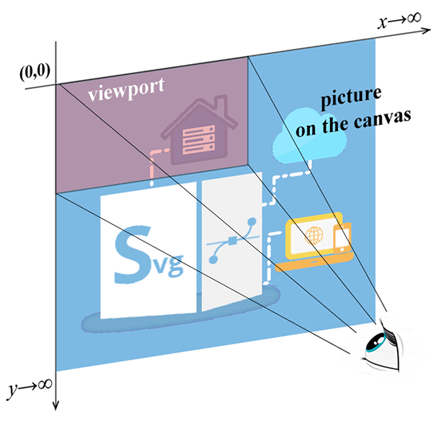
Let’s examine how SVG represents the positions and sizes of objects for drawing.
The default coordinate system in SVG is much the same as in HTML. It works like a two-dimensional x-y plane. The initial SVG coordinate system sets in the initial SVG viewport with the point of origin (0,0) in the top left corner. The positive x-direction being to the right, and the positive y-direction being to the bottom. For specifying (x, y) coordinates, width and height values, you can use cm, mm, in, em, ex, pt, pc, and px. The default SVG units are pixels.
We have to differentiate the initial SVG coordinate system and the user SVG coordinate system of the viewport. The main outermost <svg> element has a viewBox attribute. If this attribute is not given, then the user coordinate system is the same as the initial coordinate system.
The viewBox attribute sets a user coordinate system, which may not be the same as the initial one. The viewBox takes four parameters:
Attribute values must be placed inside quotes: viewBox= "min-x min-y width height".
The viewport is like a window you look through to see an SVG’s content. The viewBox is also similar to the viewport, and it can be used for zooming. Consider an example:
1    <svg width="900" height="500" viewBox="220 125 450 250" xmlns="http://www.w3.org/2000/svg">
2    </svg>
According to a code snippet, viewBox defines a specific canvas area, covering a rectangular with the origin point (220,125), the width=450 and the height=250. Then the SVG image is cropped to that area and scaled up to fill the entire viewport.
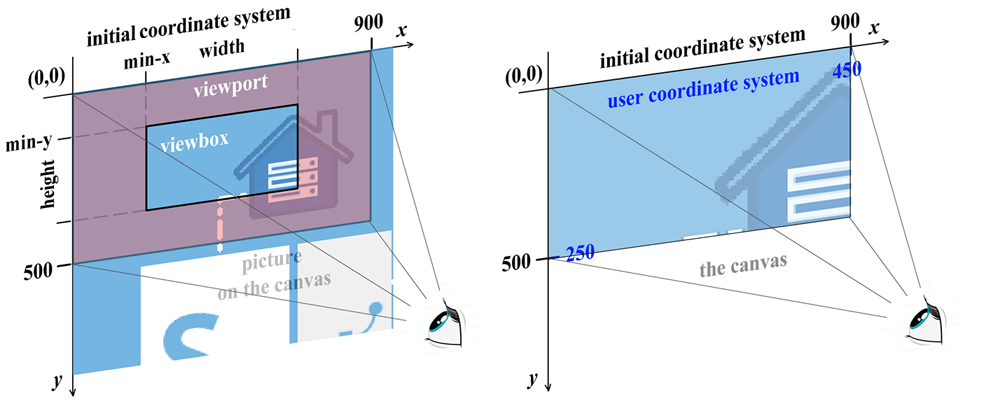
The figure on the left shows the infinite SVG document canvas, initial SVG viewport and user viewBox. The figure on the right illustrates the result of the viewBox attribute applying.
As a result of the viewBox attribute using, the user coordinate system unit became equal to two units of the initial viewport. The scaling took place. Changing the parameters of the viewBox attribute allows you to scale, fragment, and move the original image along the coordinate axes. In addition, the SVG coordinate system can be rotated, skewed, and flipped.
<svg> element and check its width and height.(0,0) as the top-left corner of the initial viewport.x values as movement to the right and y values as movement downward.viewBox is present, because it can remap user coordinates to the viewport.x, y, cx, cy, points, or path commands, to place content.| Problem | Cause | Fix |
|---|---|---|
| SVG content is clipped | The viewBox defines a smaller area than the drawn content | Increase viewBox width and height or adjust min-x / min-y values |
| SVG appears stretched | viewBox aspect ratio does not match the viewport | Keep proportional viewBox dimensions or control scaling with preserveAspectRatio |
| Objects appear too large or too small | User coordinate system scale is misunderstood | Recalculate viewBox units relative to the viewport size |
| Content is shifted unexpectedly | Incorrect min-x or min-y values in viewBox | Adjust the origin values to align the desired content area |
| Nothing changes after modifying viewBox | The SVG has no visible content inside the defined area | Verify that drawn elements fall within the viewBox bounds |
| Task | SVG Example |
|---|---|
| Define a fixed viewport | <svg width="400" height="200"></svg> |
| Make SVG scalable | <svg width="400" height="200" viewBox="0 0 400 200"></svg> |
| Zoom into a specific area | <svg width="400" height="200" viewBox="100 50 200 100"></svg> |
The viewport is the visible output area, usually defined by width, height, CSS, or the layout container. The viewBox defines which coordinate rectangle is mapped into that viewport.
The initial SVG coordinate system starts at (0,0) in the top-left corner. Positive x values move to the right, and positive y values move downward, similar to many screen coordinate systems.
User units are the coordinate units used inside the SVG drawing. Without a viewBox, one user unit usually corresponds to one CSS pixel; with a viewBox, user units are scaled to fit the viewport.
SVG scales the viewBox rectangle to fill the viewport. A smaller viewBox shows fewer user units and makes the content look larger; a larger viewBox shows more user units and makes the content look smaller.
viewBox attribute section explains how SVG maps a user coordinate rectangle to a viewport.transform attribute.M, L, H, V, C, Q, and A.
Analyzing your prompt, please hold on...
An error occurred while retrieving the results. Please refresh the page and try again.