
Analyzing your prompt, please hold on...
An error occurred while retrieving the results. Please refresh the page and try again.
SVG color controls how shapes, paths, lines, and text are painted. You can set colors with fill, stroke, opacity attributes, CSS styles, named colors, HEX, RGB, HSL, gradients, and patterns. This tutorial explains the core SVG color rules and shows how the same color values behave on common SVG elements.
Quick Answer: In SVG, use fill for the inside of shapes, paths, and text, use stroke for outlines and lines, and use opacity, fill-opacity, or stroke-opacity for transparency. Color values can be named colors, HEX, RGB/RGBA, HSL/HSLA, or url(#id) references to gradients and patterns.
1<circle cx="50" cy="50" r="40" fill="#3498db" stroke="#1f4f72" stroke-width="4" />In this article, you will learn to: set SVG colors with fill and stroke, choose color code formats, color shapes, paths, and text, and avoid common SVG color mistakes.
In SVG, coloring an element is called painting. Paint determines how an element is rendered by applying a fill, a stroke, or both. These properties control the interior and outline of shapes, paths, and text.
SVG supports two common ways of defining colors:
fill="red" or stroke="#00ff00", which are written directly on the element.style attribute, for example style="fill:#ff0000; stroke:green; stroke-width:2", which follows standard CSS syntax.Both approaches participate in CSS cascade and inheritance rules, but they do not have the same priority. A presentation attribute such as fill="red" is easy to read and edit, while an inline style declaration usually overrides the same property written as a presentation attribute. For a deeper C# and SVG styling guide, see
SVG CSS vs Inline Styles vs Presentation Attributes.
SVG uses two core properties to apply color:
| Property | What it affects | Default behavior |
|---|---|---|
fill | The interior area of a shape or closed path | Defaults to black |
stroke | The outline of a shape, line, or text | Not rendered by default |
A shape can use either property independently or combine both. For example, a circle may have a colored fill and a visible stroke, while a line element (<line>) can only be painted using a stroke. Closed shapes such as <circle>, <rect>, and <polygon> support both fill and stroke.
SVG applies a few important rules when interpreting color values:
fill property is not specified, the shape is filled with black by default.fill="none" or fill="transparent" makes the interior fully transparent.stroke property is omitted, no outline is drawn, even if stroke-width is defined.fill and stroke accept multiple color formats, including named colors, HEX, RGB/RGBA, and HSL/HSLA values.fill or stroke values. The examples below include a gradient fill on text, while the related resources section links to the dedicated gradient tutorial.Quick summary
You can express a color in several ways. The best format depends on whether the color should be readable, compact, easy to generate in code, or partially transparent.
| Color format | Best for | Example |
|---|---|---|
| Named color | Simple readable examples and prototypes | fill="green" |
| HEX | Compact, stable colors in icons and illustrations | fill="#00FF00" |
| RGB | Programmatic color values from red, green, and blue channels | fill="rgb(0,255,0)" |
| RGBA | Color plus transparency in one value | fill="rgba(0,255,0,0.6)" |
| HSL | Design-friendly color adjustments by hue, saturation, and lightness | fill="hsl(120,100%,50%)" |
| HSLA | HSL color plus transparency | fill="hsla(120,100%,50%,0.6)" |
url(#id) | Gradients and patterns defined in <defs> | fill="url(#grad1)" |
The examples below use the same circle so you can compare only the color syntax. Each line sets a green fill and a red stroke in a different color format.
1<circle cx="50" cy="50" r="40" fill="green" stroke="red" />
2<circle cx="50" cy="50" r="40" fill="#00FF00" stroke="#FF0000" />
3<circle cx="50" cy="50" r="40" fill="rgb(0,255,0)" stroke="rgb(255,0,0)" />
4<circle cx="50" cy="50" r="40" fill="rgba(0,255,0,0.6)" stroke="rgba(255,0,0,0.8)" />
5<circle cx="50" cy="50" r="40" fill="hsl(120,100%,50%)" stroke="hsl(0,100%,50%)" />
6<circle cx="50" cy="50" r="40" fill="hsla(120,100%,50%,0.6)" stroke="hsla(0,100%,50%,0.8)" />
Tip:
fill-opacity and stroke-opacity attributes.<circle>, <path>, <line>, <polygon>, or <text>.fill for the interior color of closed shapes, paths, and text.stroke and stroke-width for outlines and line color.url(#id) for gradients and patterns.fill-opacity, stroke-opacity, RGBA, or HSLA when transparency is needed.fill becomes black, and missing stroke means no outline is drawn.Use the online color converter when you need an exact color value before placing it in an SVG fill, stroke, style, or gradient stop. For example, you can convert a brand RGB color to HEX for compact SVG markup, or convert HEX to HSL when you want to adjust hue, saturation, or lightness more predictably. The converter does not edit the SVG file directly; copy the converted value into the required SVG attribute or CSS declaration.
A circle is one of the simplest SVG shapes, making it ideal for demonstrating color. By changing the fill and stroke properties, you can control the color of the circle’s interior, its outline, or both.
The example below shows several circles drawn with various color configurations, from the standard version to fully customizable fill and stroke combinations.
1<svg height="200" width="700" xmlns="http://www.w3.org/2000/svg">
2  <circle cx="70"  cy="70" r="50" />
3  <circle cx="200" cy="70" r="50" fill="#79C99E" />
4  <circle cx="330" cy="70" r="50" fill="#79C99E" stroke="#508484" stroke-width="10" />
5  <circle cx="460" cy="70" r="50" fill="#79C99E" stroke-width="10" />
6  <circle cx="590" cy="70" r="50" fill="none" stroke="#508484" stroke-width="10" />
7</svg>
In this example:
fill color.fill with a visible stroke.stroke-width, but no stroke color, so the outline remains invisible.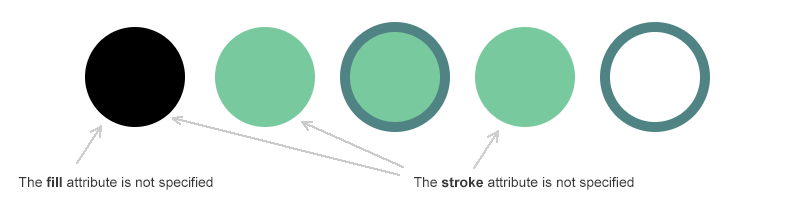
Unlike closed shapes, lines and polylines in SVG are defined primarily by their outlines. This makes them particularly useful for demonstrating how the stroke property controls color, thickness, and visibility.
The example below compares simple <line> elements with <polyline> elements to demonstrate how stroke color, stroke weight, and fill behave in different scenarios.
1<svg height="400" width="700" xmlns="http://www.w3.org/2000/svg">
2    <line x1="30" y1="30" x2="30" y2="300" style="stroke:#4387be; stroke-width:10" />
3    <line x1="55" y1="27" x2="130" y2="300" style="stroke:#c4456d; stroke-width:10" />
4    <line x1="80" y1="20" x2="250" y2="300" style="stroke:#77bec1; stroke-width:10" />
5    <polyline points="300,100 360,50 420,100 480,50 540,100 600,50 660,100" style="fill:none; stroke:#fb6796; stroke-width:5" />
6    <polyline points="300,200 360,150 420,200 480,150 540,200 600,150 660,200" style="fill:#c9d7e1; stroke:#fb6796; stroke-width:5" />
7    <polyline points="300,300 360,250 420,300 480,250 540,300 600,250 660,300" style="stroke:#fb6796; stroke-width:5" />
8</svg>
In this example:
<line> elements use different stroke colors but rely entirely on stroke for visibility, as lines don’t support fill.fill="none", ensuring that only the outline is visible.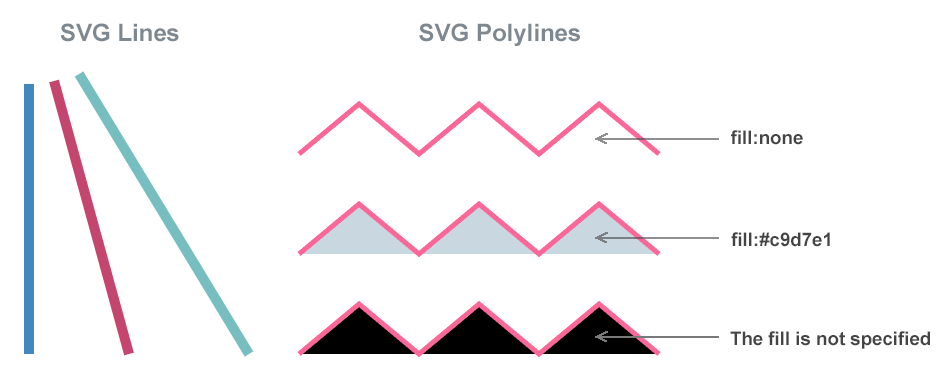
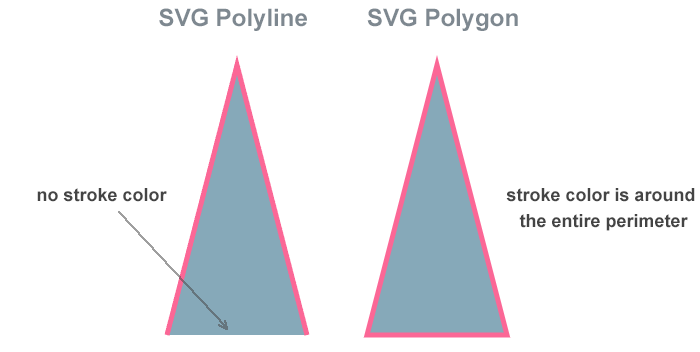
At first glance, polylines and polygons may appear similar, but they behave differently when colored. The key difference is that a polyline is an open shape, while a polygon is always closed.
The example below uses the same fill and stroke values to clearly demonstrate how SVG handles color for open and closed shapes.
1<svg height="400" width="500" xmlns="http://www.w3.org/2000/svg">
2    <polyline points="60,290 130,20 200,290" style="fill:#86a9b9; stroke-width:5; stroke:#fb6796" />
3    <polygon points="260,290 330,20 400,290" style="fill:#86a9b9; stroke-width:5; stroke:#fb6796" />
4</svg>
Both shapes use the same fill and stroke values, making the difference in their behavior easy to see:
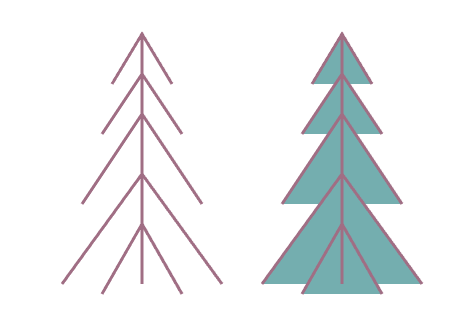
Paths are the most flexible elements in SVG, capable of describing both open and closed shapes. Therefore, their color scheme depends on whether the path forms a closed area or remains open.
In the example below, the same path data is used twice to demonstrate how the fill property affects a path when it is explicitly disabled and when it is applied.
 1<svg height="400" width="600" xmlns="http://www.w3.org/2000/svg">
 2  <!-- Unfilled path -->
 3  <path d="M150,50 L150,300 M120,100 L150,50 L180,100
 4           M110,150 L150,90 L190,150 M90,220 L150,130 L210,220
 5           M70,300 L150,190 L230,300 M110,310 L150,240 L190,310"
 6        stroke="#a06e84" stroke-width="3" fill="none" />
 7  <!-- Filled path -->
 8  <path d="M150,50 L150,300 M120,100 L150,50 L180,100
 9           M110,150 L150,90 L190,150 M90,220 L150,130 L210,220
10           M70,300 L150,190 L230,300 M110,310 L150,240 L190,310"
11        stroke="#a06e84" stroke-width="3" fill="#74aeaf" transform="translate(200)" />
12</svg>
The figure below illustrates how the values fill = "none" and fill="#74aeaf" are displayed:
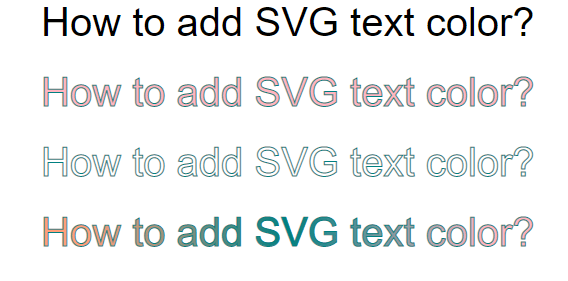
Like other SVG shapes, text can have both a stroke and fill set on it. In this code example, we will look at how you can set the fill color and stroke color of text and use a gradient as a fill. As with all SVG shapes, if the fill attribute is not specified, the text will be displayed in black by default:
 1<svg height="300" width="600" xmlns="http://www.w3.org/2000/svg">
 2    <defs>
 3		<linearGradient id="grad1" x1="0%" y1="0%" x2="100%" y2="0%">
 4			<stop offset="10%" style="stop-color:lightsalmon" />
 5			<stop offset="50%" style="stop-color:teal" />
 6			<stop offset="90%" style="stop-color:lightpink" />
 7		</linearGradient>
 8    </defs>
 9    <text x="50" y="50" font-family="arial" font-size="40" >How to add SVG text color?</text>
10    <text x="50" y="130" font-family="arial" font-size="40" fill="lightpink" stroke="teal" stroke-width="1" >How to add SVG text color?</text>
11    <text x="50" y="210" font-family="arial" font-size="40" fill="none" stroke="teal" stroke-width="1" >How to add SVG text color?</text>
12    <text x="50" y="290" font-family="arial" font-size="40" fill="url(#grad1)" stroke="teal" stroke-width="1" >How to add SVG text color?</text>
13</svg>
The figure shows the different cases of fill and stroke applying to add text color:
You may read more about how to style the text in articles Fills and Strokes in SVG and SVG Gradients.
Opacity determines how transparent an SVG element appears and how it visually blends with elements behind it. In SVG, transparency can be defined either directly in a color value or using special transparency properties. The example below compares three common approaches to applying transparency, showing how each method affects the final display.
 1<svg height="200" width="1250" xmlns="http://www.w3.org/2000/svg">
 2  <!-- RGBA opacity -->
 3  <rect x="310" y="30" width="100" height="100" fill="rgba(0,50,255,0.8)" />
 4  <rect x="250" y="50" width="110" height="100" fill="rgba(0,50,255,0.7)" />
 5  <rect x="170" y="90" width="110" height="100" fill="rgba(0,50,255,0.6)" />
 6  <rect x="100" y="50" width="110" height="100" fill="rgba(0,50,255,0.4)" />
 7  <rect x="50"  y="30" width="110" height="100" fill="rgba(0,50,255,0.2)" />
 8
 9  <!-- HSLA opacity -->
10  <rect x="710" y="30" width="100" height="100" fill="hsla(0,100%,50%,0.8)" />
11  <rect x="650" y="50" width="110" height="100" fill="hsla(0,100%,50%,0.7)" />
12  <rect x="570" y="90" width="110" height="100" fill="hsla(0,100%,50%,0.6)" />
13  <rect x="500" y="50" width="110" height="100" fill="hsla(0,100%,50%,0.4)" />
14  <rect x="450" y="30" width="110" height="100" fill="hsla(0,100%,50%,0.2)" />
15
16  <!-- HEX + fill-opacity -->
17  <rect x="1110" y="30" width="100" height="100" fill="#C1B900" fill-opacity="0.8" />
18  <rect x="1050" y="50" width="110" height="100" fill="#C1B900" fill-opacity="0.7" />
19  <rect x="970"  y="90" width="110" height="100" fill="#C1B900" fill-opacity="0.6" />
20  <rect x="900"  y="50" width="110" height="100" fill="#C1B900" fill-opacity="0.4" />
21  <rect x="850"  y="30" width="110" height="100" fill="#C1B900" fill-opacity="0.2" />
22</svg>
In this example:
fill-opacity property, keeping color and opacity defined independently.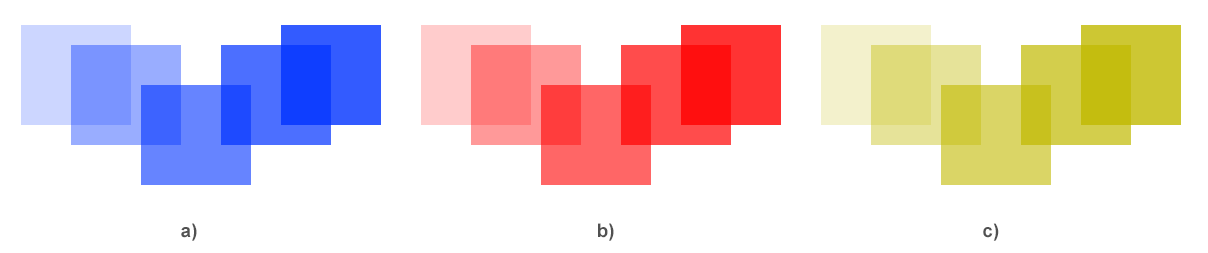
The following issues are among the most common causes of unexpected coloring behavior in SVG.
| Problem | Cause | Fix |
|---|---|---|
| Stroke is not visible | stroke-width is set, but stroke color is missing | Add a stroke value, for example stroke="#d80539" stroke-width="4" |
| Shape appears black instead of transparent | fill is omitted and SVG uses the default black fill | Use fill="none" when only the outline should be visible |
| Color value is ignored | The color string is malformed or unsupported | Use a valid named color, 3- or 6-digit HEX, RGB/RGBA, or HSL/HSLA value |
| Opacity has no effect | HEX color does not include transparency | Use RGBA, HSLA, fill-opacity, or stroke-opacity |
| CSS color does not apply | Inline style or a more specific CSS rule overrides it | Inspect computed styles and remove or update the competing style, fill, stroke, or CSS rule |
Tip: If colors do not render as expected, open the SVG in your browser’s developer tools. Missing namespaces (xmlns) or small syntax errors often prevent colors from rendering correctly.
| Goal | Code Snippet |
|---|---|
| Color a shape | <circle cx="50" cy="50" r="40" fill="#E74C3C" /> |
| Make a shape semi-transparent | <rect width="100" height="100" fill="rgba(0,155,0,0.5)" /> |
| Fill + stroke together | <polygon points="30,90 90,90 60,20" fill="#3498DB" stroke="#1B4F72" stroke-width="4" /> |
| Apply only a stroke | <line x1="0" y1="0" x2="100" y2="0" stroke="#ff6600" stroke-width="2" /> |
Use HEX for compact static artwork, RGB/RGBA when values come from code or need alpha transparency, and HSL/HSLA when you want to adjust hue, saturation, or lightness. Named colors are useful for simple examples, but HEX or RGB values are usually clearer in production SVG files.
Use rgba() or hsla() color values, or keep the color separate and add fill-opacity or stroke-opacity. Use opacity only when the whole element should become transparent.
Yes. You can apply SVG colors with inline styles, style blocks, or external CSS using fill, stroke, and related properties. Inline style and presentation attributes can override broader CSS rules.
If fill is not specified, SVG fills closed shapes with black by default. Add fill="none" for an outline-only shape or set a specific fill color.
Yes. SVG accepts named colors, HEX values, RGB/RGBA, HSL/HSLA, and paint references such as url(#gradient-id). Use RGBA, HSLA, or opacity attributes when the color must be transparent.
A <line> element has no interior area, so fill does not make it visible. Use stroke for SVG lines, polylines, outlines, and open paths.
Yes. Use fill="url(#gradient-id)" or stroke="url(#gradient-id)" to apply a gradient defined in the SVG <defs> section.
Use an SVG DOM workflow: load the file, select the target element, update fill, stroke, style, or gradient stop values, and save the document. See
How to Change SVG Color for focused color examples, or
Modify SVG Styles Programmatically in C# when the color is controlled by inline styles, CSS rules, or broader style normalization. For Python via .NET, see
Change SVG Colors in Python.
red, green, or DarkCyan.stroke and fill values programmatically.fill, stroke, inline styles, and gradient stops.Use the free online Color Mixer when you need to mix two colors and preview the result visually.

Analyzing your prompt, please hold on...
An error occurred while retrieving the results. Please refresh the page and try again.