
Analyzing your prompt, please hold on...
An error occurred while retrieving the results. Please refresh the page and try again.
SVG can render three main kinds of graphic content: vector shapes, images, and text. SVG text is not just plain lettering on a canvas. It can be positioned with coordinates, styled with CSS or presentation attributes, transformed, clipped, and placed along a path. This article explains how text is written and arranged in SVG markup.
In this article, you will learn to:
<text> to place SVG text at a specific baseline position.<tspan> for multiline SVG text and inline styling.<textPath> to make text follow a path curve.textLength, and glyph spacing.Glyph – the visual representation of a character inside a font. A glyph is defined by one or more shapes, often paths, and optional rendering hints.
Font – a collection of glyphs that share a common design. Vector fonts store glyph outlines as scalable geometry, so text can be enlarged without losing sharpness.
Character – the abstract code point (e.g., Unicode) that a program maps to a glyph in a font. Characters are arranged along an imaginary baseline, which can be horizontal or vertical depending on the script.
Understanding the relationship between characters, glyphs, and fonts is essential when you need precise control over SVG text rendering.
SVG defines three content elements that generate visible text:
| Element | Purpose |
|---|---|
<text> | Defines a block of text. |
<tspan> | Provides fine‑grained positioning and styling inside <text>. |
<textPath> | Aligns text along a <path> curve. |
<text> element inside the <svg> document.x and y attributes to position the text baseline.font-family, font-size, fill, or stroke.<tspan> elements when one text block needs multiple lines or mixed styling.<textPath> when the text must follow a path instead of a straight baseline.<text> ElementThe <text> element creates a text run. The x and y attributes position the start of the text baseline, not the top-left corner of a text box. Because the baseline sits near the bottom of the letters, a small y value can place part of the text above the viewport. In practice, set y large enough for the chosen font-size.
The following example shows why baseline position matters. The first text uses a very small y value, so the letters are clipped. The second text moves the baseline down and becomes fully visible (
svg-text-position.svg).
1<svg height="100" width="200" xmlns="http://www.w3.org/2000/svg">
2    <text x="10" y="6" fill="red">The text is not fully visible </text>
3    <text x="10" y="30" fill="green">The text is fully visible </text>
4</svg>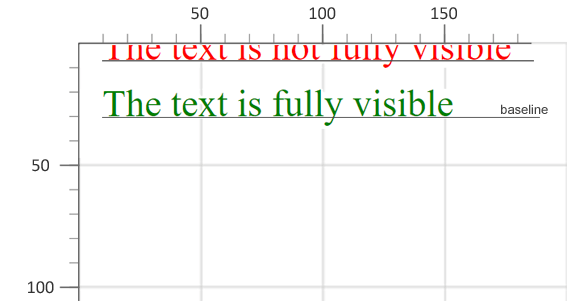
The attributes of <text> and <tspan> control writing direction, alignment, font, spacing, and character positioning. The most common attributes are:
x, y – absolute coordinates of the baseline start.dx, dy – relative shifts for individual characters.rotate – rotation angle applied to each character.textLength – forces the rendered text to occupy a specific length.lengthAdjust – controls how spacing and glyph scaling adapt to textLength (spacing, spacingAndGlyphs).text-anchor – alignment of the text relative to the x coordinate (start, middle, end).writing-mode – sets the text flow direction (lr, rl, tb, bt).These attributes can be combined to create complex layouts, such as stretched text, right‑to‑left scripts, or vertical writing.
1<svg height="300" width="400" xmlns="http://www.w3.org/2000/svg">
2    <text x="180" y="30" fill="red">Aspose.SVG</text>
3    <text x="180" y="60" fill="blue" textLength="140">Aspose.SVG</text>
4    <text x="180" y="90" fill="grey" textLength="160" lengthAdjust="spacingAndGlyphs"
5          style="direction: rtl; unicode-bidi: bidi-override">Aspose.SVG</text>
6    <text x="180" y="120" fill="green" style="text-anchor: middle">Aspose.SVG</text>
7    <text x="260" y="90" style="writing-mode: tb">Aspose.SVG</text>
8</svg>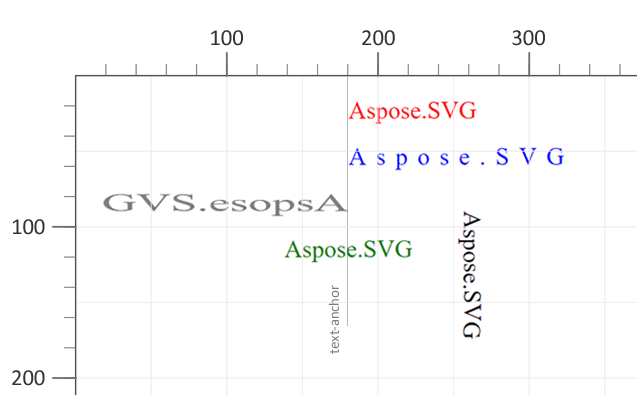
text-anchor:start.text-anchor:middle.direction:rtl.textLength and lengthAdjust stretch the glyphs.writing-mode:tb (top‑to‑bottom).<tspan> – Inline Styling and Line Breaks<tspan> can be nested inside <text> or another <tspan>. Being a child element, <tspan> serves several important functions in text displaying and formatting:
<tspan> elements to create separate lines and give each line its own position.<tspan> when only part of a text block needs a different style, position, color, font size, or font weight.1<svg height="300" width="600" xmlns="http://www.w3.org/2000/svg">
2 <text x="20" y="60" style="font-family:arial">
3 <tspan style="font-weight:bold; font-size:55px">ASPOSE</tspan>
4 <tspan x="50" y="90" style="font-size:20px; fill:grey">Your File Format APIs </tspan>
5 </text>
6</svg>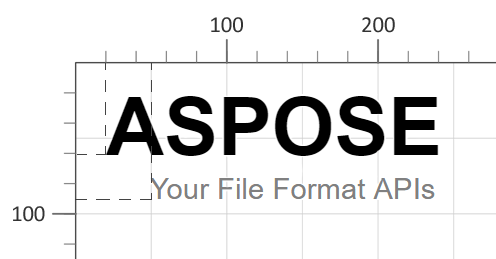
x and y on a <tspan> start a new line at the specified coordinates.style properties, such as font-weight, font-size, and fill, affect only that <tspan>.<textPath> – Text Along a Curve<textPath> attaches text to a <path> element, allowing characters to follow any vector curve. The path can be referenced in two ways:
href or xlink:href – points to a <path> by its id.path – provides the SVG path data directly inside the attribute. 1<svg height="300" width="800" xmlns="http://www.w3.org/2000/svg">
2 <path id="my_path1" d="M 50 100 Q 25 10 180 100 T 350 100 T 520 100 T 690 100"
3 fill="transparent" />
4 <path id="my_path2" d="M 50 100 Q 25 10 180 100 T 350 100"
5 transform="translate(0,75)" fill="transparent" />
6 <text>
7 <textPath href="#my_path1">
8 Aspose.SVG for .NET is a flexible library for SVG file processing and is fully compatible with its specifications.
9 </textPath>
10 <textPath href="#my_path2">
11 Aspose.SVG for .NET is a flexible library for SVG file processing and is fully compatible with its specifications.
12 </textPath>
13 </text>
14</svg>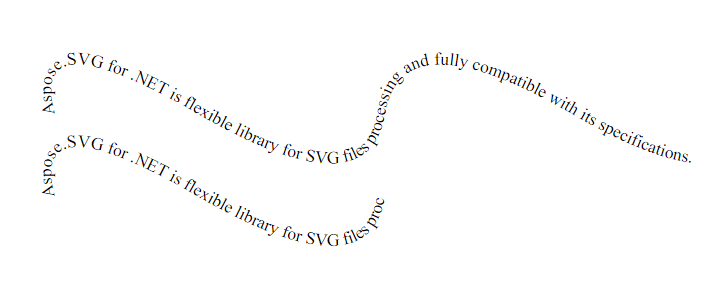
If the path is shorter than the text, the overflow is clipped at the path’s end. Styling works the same way as with regular text: CSS properties such as font-weight, font-style, text-decoration, and text-transform can be applied.
The illustration shows two text strings attached to two different paths. The first line follows a long wave-like path, while the second line stops sooner because its referenced path is shorter.
| Problem | Cause | Solution |
|---|---|---|
| Text is cut off at the top of the viewport | y value is smaller than the font size | Set y larger than the font size (e.g., y="30" for 24 px text) |
| Text does not follow the curve as expected | href points to a non‑existent <path> ID | Verify the <path> id and ensure the href value matches exactly |
| Glyphs appear distorted | lengthAdjust set to spacing while using textLength | Use lengthAdjust="spacingAndGlyphs" to scale both spacing and glyphs |
| Right‑to‑left text still displays left‑to‑right | Missing unicode-bidi:bidi-override | Add style="direction: rtl; unicode-bidi: bidi-override" to the <text> or <tspan> |
| Text does not wrap to a new line | Relying on automatic wrapping | Insert a new <tspan> with its own x/y coordinates for each line |
| Goal | SVG Snippet (copy‑paste) |
|---|---|
| Center text horizontally | <text x="50%" y="50%" text-anchor="middle" dominant-baseline="middle">Centered</text> |
| Vertical text (top‑to‑bottom) | <text x="20" y="20" writing-mode="tb">Vertical</text> |
| Stretch text to exact width | <text x="10" y="40" textLength="200" lengthAdjust="spacingAndGlyphs">Stretch me</text> |
| Place text on a curve | <path id="curve" d="M10,80 C40,10 65,10 95,80" fill="none"/> <text><textPath href="#curve">On a curve</textPath></text> |
| Apply underline and overline | <text x="10" y="40" style="text-decoration: underline overline;">Styled</text> |
Set the x and y attributes on a <text> element. The y value positions the baseline, so it usually needs to be larger than the font size to avoid clipping at the top of the viewport.
Use multiple <tspan> elements inside one <text> element. Give each line its own x and y values, or use dy to shift each line relative to the previous one.
Yes. Define a <path> with an id, then reference it from <textPath href="#path-id">. The text follows the path geometry and can still be styled with text-related CSS properties.
Yes. Text can be converted to vector paths when you need font-independent output. See Text Vectorization & Text Security – .NET and Convert SVG Text to Vector in Python.
<text>, <tspan>, and <textPath> behavior.<textPath>.<text> elements and style SVG text programmatically.
Analyzing your prompt, please hold on...
An error occurred while retrieving the results. Please refresh the page and try again.