
Analyzing your prompt, please hold on...
An error occurred while retrieving the results. Please refresh the page and try again.
viewBoxThe viewBox attribute tells SVG which coordinate rectangle should be fitted into the visible viewport. By changing its four values, you can scale artwork, crop it, shift the visible area, or make the same SVG respond cleanly to different display sizes.
This article is the practical viewBox guide. It assumes you already know what the SVG canvas, viewport, and coordinate system are. If those terms are still unclear, start with
SVG Coordinate Systems and Units.
In this article, you will learn to:
viewBox="min-x min-y width height" syntax.viewBox width and height.min-x and min-y.viewBox with preserveAspectRatio for responsive SVG output.viewBox WorksThe SVG specification defines
viewBox as an attribute that establishes a user coordinate system for the SVG viewport. It has four whitespace-separated values:
1viewBox="min-x min-y width height"| Value | Meaning |
|---|---|
min-x | X-coordinate where the visible rectangle starts |
min-y | Y-coordinate where the visible rectangle starts |
width | Width of the visible coordinate rectangle |
height | Height of the visible coordinate rectangle |
The viewport is the output area defined by width, height, CSS, or the surrounding layout. The viewBox is the coordinate rectangle that SVG maps into that output area. If the viewBox is smaller than the viewport, the selected coordinate area is enlarged. If it is larger than the viewport, the artwork appears smaller because more coordinate space is fitted into the same visible area.
1<svg width="250" height="250" viewBox="0 0 250 250" xmlns="http://www.w3.org/2000/svg">
2    ...
3</svg>min-x or min-y moves the visible coordinate rectangle.width or height changes the scale.Note: In the illustrations below, the viewport is shown in green and the viewBox region is shown in blue.
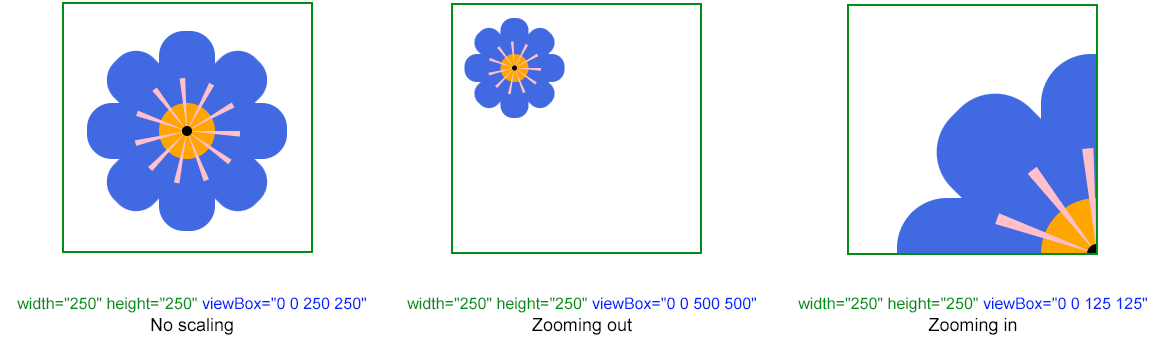
The examples below use the same simple flower-like SVG drawing. Only the viewBox value changes, so you can see how the coordinate rectangle affects the rendered result.
 1<svg width="250" height="250" viewBox="0 0 250 250" xmlns="http://www.w3.org/2000/svg">
 2  <g fill="RoyalBlue">
 3    <rect x="25" y="100" rx="25" ry="25" width="200" height="56" />
 4    <rect x="25" y="100" rx="25" ry="25" width="200" height="56" transform="rotate(90 125 128)" />
 5    <rect x="25" y="100" rx="25" ry="25" width="200" height="56" transform="rotate(-45 125 128)" />
 6    <rect x="25" y="100" rx="25" ry="25" width="200" height="56" transform="rotate(45 125 128)" />
 7  </g>
 8  <circle cx="125" cy="128" r="28" stroke="pink" stroke-width="50" stroke-dasharray="3 13" fill="Orange" />
 9  <circle cx="125" cy="128" r="5" />
10</svg>viewBoxScaling with viewBox is controlled by the last two values: width and height. They define how much coordinate space should be fitted into the viewport.
When the viewBox width and height are larger than the viewport dimensions, SVG fits a larger coordinate area into the same output size. The result looks smaller because more of the canvas is visible at once.
1<svg width="250" height="250" viewBox="0 0 500 500" xmlns="http://www.w3.org/2000/svg">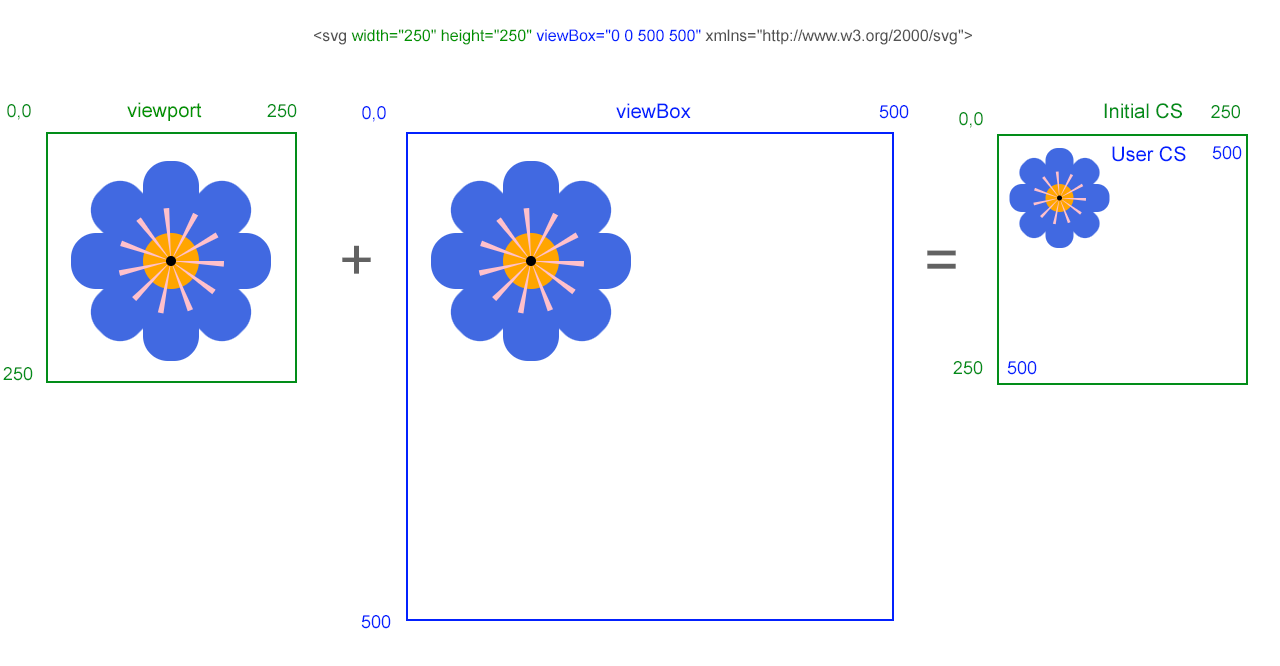
When the viewBox width and height are smaller than the viewport dimensions, SVG enlarges that smaller coordinate area to fill the viewport. The result looks zoomed in, and content outside the selected rectangle can be clipped.
1<svg width="250" height="250" viewBox="0 0 125 125" xmlns="http://www.w3.org/2000/svg">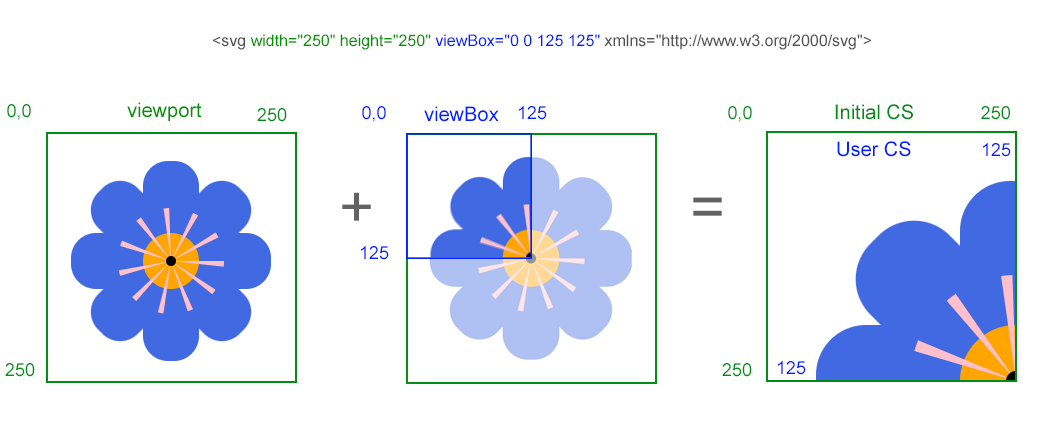
viewBoxCropping and repositioning are controlled by the first two viewBox values: min-x and min-y. These values move the start of the visible coordinate rectangle.
A negative min-x moves the selected coordinate rectangle to the left. In this example, the visible rectangle covers x-coordinates from -100 to 150, so content to the right is clipped.
1<svg width="250" height="250" viewBox="-100 0 250 250" xmlns="http://www.w3.org/2000/svg">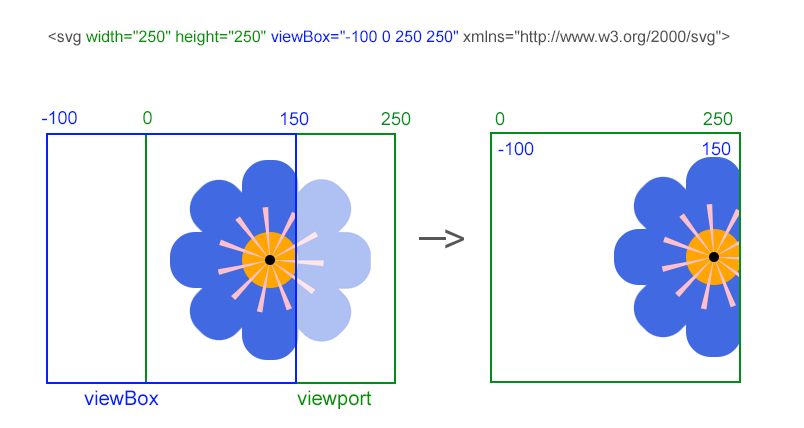
A positive min-x moves the selected coordinate rectangle to the right. In this example, the visible rectangle starts at x-coordinate 100, so the left part of the artwork is no longer visible.
1<svg width="250" height="250" viewBox="100 0 250 250" xmlns="http://www.w3.org/2000/svg">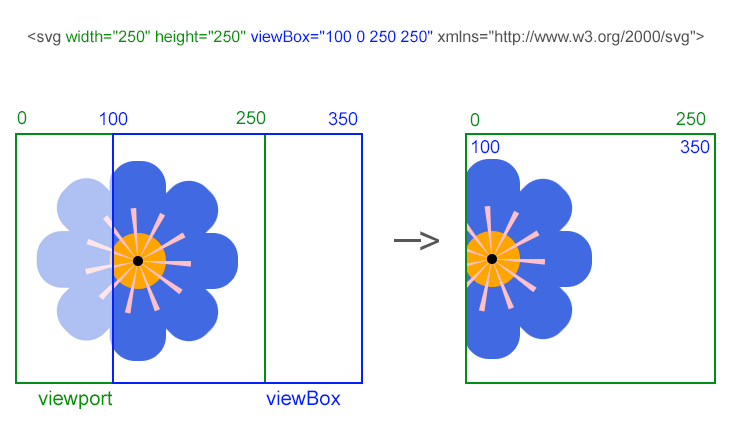
preserveAspectRatioFor responsive SVG, keep viewBox and let CSS or the container control the display size:
1<svg viewBox="0 0 250 250" width="100%" height="auto" xmlns="http://www.w3.org/2000/svg">By default, SVG preserves the aspect ratio of the viewBox. If the viewport and viewBox have different proportions, the
preserveAspectRatio attribute controls alignment and fitting behavior.
1<svg width="400" height="250" viewBox="0 0 250 250" preserveAspectRatio="xMidYMid meet">Use meet when the whole image must remain visible. Use slice when the viewport must be fully covered and cropping is acceptable.
width, height, CSS, or layout.viewBox="min-x min-y width height".viewBox width and height to zoom in or zoom out.min-x and min-y to crop or reposition the visible area.preserveAspectRatio when the viewport and viewBox proportions differ.| Problem | Cause | Solution |
|---|---|---|
| SVG appears stretched or squashed | The viewport and viewBox have different aspect ratios, and fitting behavior is not controlled | Add preserveAspectRatio="xMidYMid meet" or choose another appropriate value |
| Artwork is unexpectedly clipped | The viewBox rectangle does not cover the intended coordinate area | Check min-x, min-y, width, and height against the artwork coordinates |
| SVG does not scale responsively | The SVG has fixed display dimensions but no viewBox | Keep viewBox and control display size with CSS or container layout |
| Changing CSS size does not change the crop | CSS changes the viewport size, not the selected coordinate rectangle | Change the viewBox values when you need a different crop or zoom area |
viewBox is ignored | The attribute has missing quotes, commas used incorrectly, or the wrong number of values | Use exactly four whitespace-separated values: viewBox="min-x min-y width height" |
| Task | SVG Example |
|---|---|
| Keep the whole SVG scalable | <svg viewBox="0 0 250 250" width="100%" height="auto"> |
| Zoom in 2x | <svg width="250" height="250" viewBox="0 0 125 125"> |
| Zoom out 2x | <svg width="250" height="250" viewBox="0 0 500 500"> |
| Shift the visible area right | <svg width="250" height="250" viewBox="100 0 250 250"> |
| Preserve full image visibility | <svg width="400" height="250" viewBox="0 0 250 250" preserveAspectRatio="xMidYMid meet"> |
| Fill the viewport even if cropped | <svg width="400" height="250" viewBox="0 0 250 250" preserveAspectRatio="xMidYMid slice"> |
The viewBox attribute defines which coordinate rectangle of the SVG canvas is mapped to the viewport. It controls scaling, cropping, and visible positioning without changing the actual shapes.
width and height define the output viewport size. viewBox defines the coordinate area that is fitted into that viewport. Changing width and height changes display size; changing viewBox changes what coordinate space is shown and how it is scaled.
Usually, yes. A viewBox gives the SVG a stable internal coordinate system, while CSS or container sizing can change the displayed size. This is the most reliable pattern for responsive SVG graphics.
Yes. Change min-x, min-y, width, and height so the viewBox covers only the part of the canvas you want to show. Anything outside that selected coordinate rectangle is clipped by the viewport.
No. viewBox changes how existing coordinates are mapped to the viewport. It does not rewrite d, x, y, cx, cy, or other geometry attributes.
viewBox attribute defines how a user coordinate rectangle is mapped to the viewport.preserveAspectRatio attribute section explains how SVG aligns and scales viewBox content when aspect ratios differ.viewBox.transform attribute.viewBox changes their display scale.
Analyzing your prompt, please hold on...
An error occurred while retrieving the results. Please refresh the page and try again.