

Analyzing your prompt, please hold on...
An error occurred while retrieving the results. Please refresh the page and try again.
CSS 选择器是在编辑前定位特定 SVG 元素的实用方式。使用 Aspose.SVG for .NET,C# 代码可以通过
QuerySelector() 和
QuerySelectorAll() 按标签名、层级、属性或 SVG 树中的位置查找元素,然后更新属性、替换节点或修改路径数据。
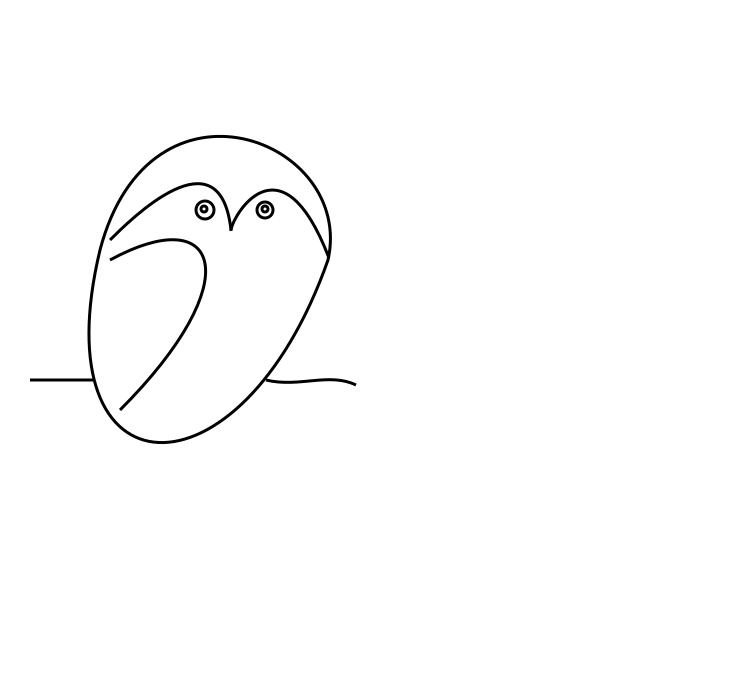
本文使用示例插图 owl.svg。示例在 SVG DOM 中选择圆形和路径,并生成原始矢量图像的编辑版本。
基于选择器的编辑流程通常有四个步骤:
SVGDocument。QuerySelector(),或对元素列表使用 QuerySelectorAll()。有关 DOM 导航、XPath 和节点过滤器的简短介绍,请参阅 在 C# 中检查和导航 SVG。
第一个示例编辑源文件
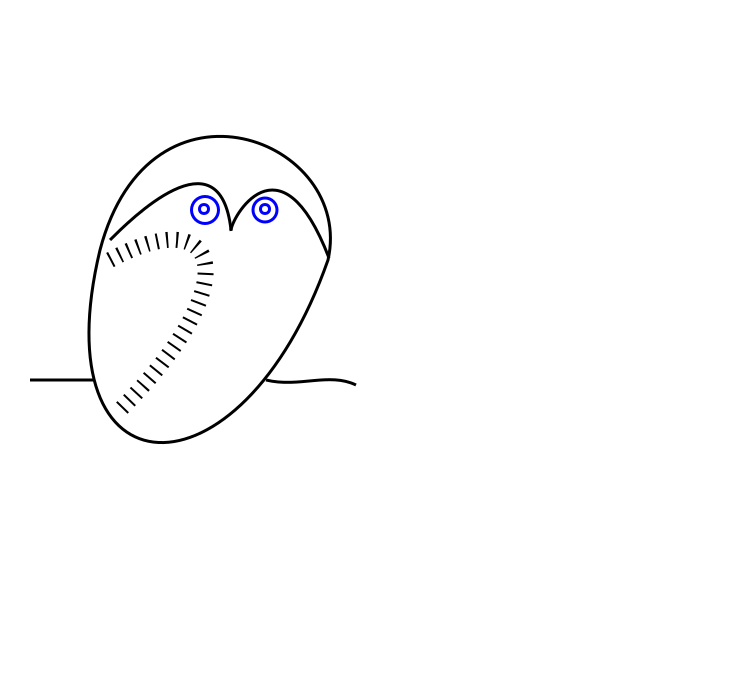
owl.svg。猫头鹰插图由 path 和 circle 元素构成。代码使用 CSS 选择器来:
circle 元素并更改其属性,使眼睛更大并变为蓝色;path 元素并更改其外观。1using Aspose.Svg;
2using System.IO;
3using Aspose.Svg.Dom;
4using Aspose.Svg.Collections; 1// Edit SVG elements with CSS selectors in C#
2
3// Load an SVG document
4using (SVGDocument document = new SVGDocument(new Url("https://docs.aspose.com/svg/files/owl.svg")))
5{
6 // Get the root <svg> element of the document
7 SVGSVGElement svgElement = document.RootElement;
8
9 // Find the first element that matches the specified in selector
10 SVGGElement gElement = svgElement.QuerySelector("g") as SVGGElement;
11
12 // Find all <circle> elements in a <g> element
13 NodeList circleNodes = gElement.QuerySelectorAll("circle");
14
15 // Make big blue eyes
16 foreach (Node circleNode in circleNodes)
17 {
18 SVGCircleElement circleElement = circleNode as SVGCircleElement;
19 circleElement.R.BaseVal.Value *= 1.5F;
20 circleElement.SetAttribute("stroke", "blue");
21 }
22
23 // Get a path for the owl's wing
24 SVGPathElement wingPath = gElement.QuerySelector("path:nth-child(2)") as SVGPathElement;
25
26 // Apply style attributes to the wing
27 wingPath.SetAttribute("stroke-width", "16");
28 wingPath.SetAttribute("stroke-dasharray", "2 8");
29
30 document.Save(Path.Combine(OutputDir, "owl-edited1.svg"));
31}您可以在此处打开编辑后的 SVG 文件: owl-edited1.svg。
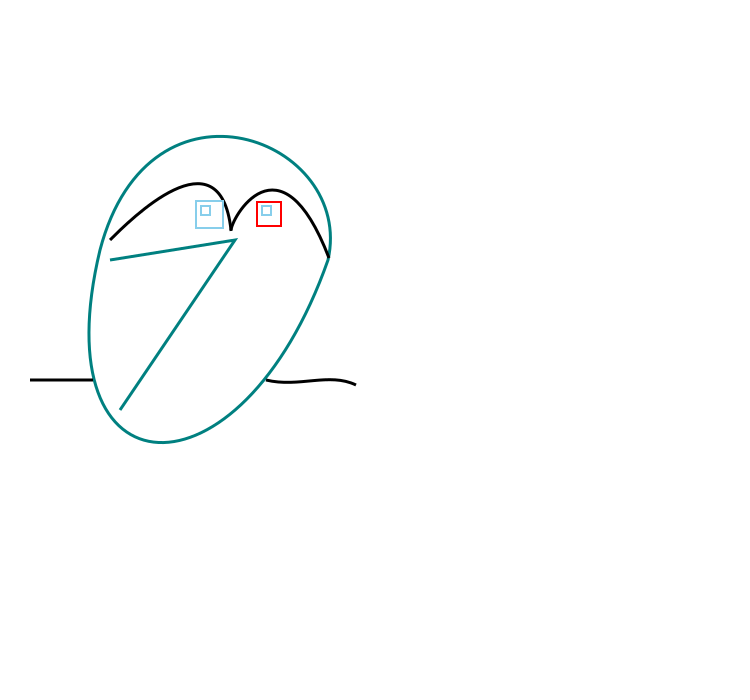
第二个示例继续使用同一个源文件 owl.svg。它选择原来的圆形眼睛,并将其替换为方形眼睛:
<g> 元素。QuerySelectorAll("g:first-child > circle") 选择第一组中的圆形。<rect> 元素。<circle> 元素。1using Aspose.Svg;
2using System.IO;
3using Aspose.Svg.Dom;
4using Aspose.Svg.Collections; 1// Replace SVG circles with rectangles using CSS selectors in C#
2
3// Load an SVG document
4using (SVGDocument document = new SVGDocument(new Url("https://docs.aspose.com/svg/files/owl.svg")))
5{
6 // Get the root <svg> element of the document
7 SVGSVGElement svgElement = document.RootElement;
8
9 // Create a new <g> element with style attributes and append it as the last child of the <svg> element
10 SVGGElement gElement = (SVGGElement)document.CreateElementNS(SvgNamespace, "g");
11 gElement.SetAttribute("fill", "none");
12 gElement.SetAttribute("stroke-width", "2");
13 svgElement.AppendChild(gElement);
14
15 // Find all <circle> elements from the first <g> element
16 NodeList circleNodes = svgElement.QuerySelectorAll("g:first-child > circle");
17
18 // Make square sky-blue eyes
19 foreach (Node circleNode in circleNodes)
20 {
21 SVGCircleElement circleElement = circleNode as SVGCircleElement;
22
23 float cx = circleElement.Cx.BaseVal.Value;
24 float cy = circleElement.Cy.BaseVal.Value;
25 float r = circleElement.R.BaseVal.Value;
26
27 SVGRectElement rectElement = (SVGRectElement)document.CreateElementNS(SvgNamespace, "rect");
28 rectElement.X.BaseVal.Value = cx - r;
29 rectElement.Y.BaseVal.Value = cy - r;
30 rectElement.Width.BaseVal.Value = 3 * r;
31 rectElement.Height.BaseVal.Value = 3 * r;
32 rectElement.SetAttribute("stroke", "SkyBlue");
33
34 // Add a <rectangle> element into the second (new) <g> element and remove <circle> elements
35 gElement.AppendChild(rectElement);
36 circleElement.Remove();
37 }
38 // Recolor last rectangle in the second (new) <g> element
39 Element lastRect = gElement.LastElementChild;
40 lastRect.SetAttribute("stroke", "red");
41
42 document.Save(Path.Combine(OutputDir, "owl-svg-eyes.svg"));
43}最后一部分将猫头鹰的翅膀从曲线改为折线并重新着色。示例选择 path 元素,更新路径相关数据,并保存结果:
1using Aspose.Svg;
2using System.IO;
3using Aspose.Svg.Dom;
4using Aspose.Svg.Collections; 1// Modify SVG path data selected with CSS selectors in C#
2
3// Load an SVG document
4using (SVGDocument document = new SVGDocument(Path.Combine(DataDir, "owl-svg-eyes.svg")))
5{
6 SVGSVGElement svgElement = document.RootElement;
7
8 // Get a path for owl's body from the first <g> element
9 Element bodyPath = (svgElement.QuerySelector("g:first-child") as SVGGElement).FirstElementChild;
10 bodyPath.SetAttribute("stroke", "Teal");
11
12 // Get a path for the owl's wing from the first <g> element
13 SVGPathElement wingPath = svgElement.QuerySelector("g:first-child > path:nth-child(2)") as SVGPathElement;
14
15 // Form new wing path data based on the old
16 string d = "";
17 foreach (SVGPathSeg pathSeg in wingPath.PathSegList)
18 {
19 if (pathSeg is SVGPathSegMovetoAbs)
20 {
21 SVGPathSegMovetoAbs pathSegMovetoAbs = pathSeg as SVGPathSegMovetoAbs;
22
23 d += string.Format(" M {0} {1}", pathSegMovetoAbs.X, pathSegMovetoAbs.Y);
24 }
25 if (pathSeg is SVGPathSegCurvetoCubicAbs)
26 {
27 SVGPathSegCurvetoCubicAbs pathSegCurvetoCubicAbs = pathSeg as SVGPathSegCurvetoCubicAbs;
28
29 d += string.Format(
30 " L {0} {1} L {2} {3}",
31 (pathSegCurvetoCubicAbs.X1 + pathSegCurvetoCubicAbs.X2) / 2F,
32 (pathSegCurvetoCubicAbs.Y1 + pathSegCurvetoCubicAbs.Y2) / 2F,
33 pathSegCurvetoCubicAbs.X,
34 pathSegCurvetoCubicAbs.Y
35 );
36 }
37 }
38 // Set d attribute - new path data formation
39 wingPath.SetAttribute("d", d.Trim());
40 wingPath.SetAttribute("stroke", "Teal");
41
42 document.Save(Path.Combine(OutputDir, "owl-edited2.svg"));
43}下图比较了原始猫头鹰图像和两个编辑后的版本。
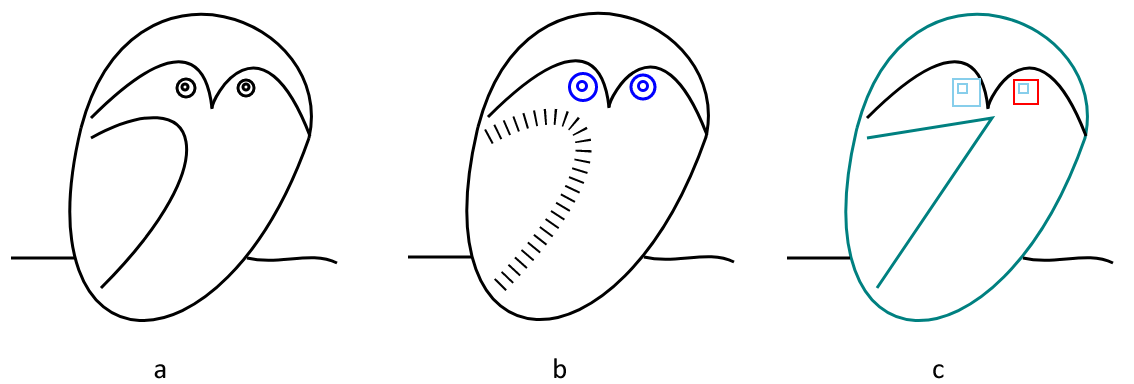
您可以在此处打开第二个编辑后的 SVG 文件: owl-edited2.svg。
1. 什么时候使用 QuerySelector() 而不是 QuerySelectorAll()?
当只需要第一个匹配元素时,请使用 QuerySelector()。当需要检查或编辑所有匹配元素时,请使用 QuerySelectorAll(),例如组中的所有圆形。
2. CSS 选择器能直接更改 SVG 元素吗?
不能。选择器只负责查找元素。选中元素后,请使用 SetAttribute()、AppendChild()、RemoveChild() 等 DOM 方法和属性,或使用类型化 SVG 属性来进行更改。
3. 基于选择器的编辑可以转换为 PDF 或图像吗?
可以。编辑 SVGDocument 后,使用合适的保存选项调用 Converter.ConvertSVG(document, options, outputPath),也可以先保存 SVG 文件,再稍后转换。

Analyzing your prompt, please hold on...
An error occurred while retrieving the results. Please refresh the page and try again.