
Analyzing your prompt, please hold on...
An error occurred while retrieving the results. Please refresh the page and try again.
简单矢量形状是徽标、图表、图标、统计图以及许多 SVG 图形的基础。在 SVG 文件中,每个基本形状都由一个元素表示,元素属性定义它的位置、尺寸和视觉样式。你可以自定义填充颜色、不透明度、圆角、描边宽度等。
本文将学习:
fill、stroke、不透明度和圆角。<rect> – 矩形元素<rect> 元素创建矩形和圆角矩形。矩形由左上角定位,并通过 width 和 height 设置尺寸。
| 属性 | 说明 | 默认值 |
|---|---|---|
x | 左上角的 x 坐标 | 0 |
y | 左上角的 y 坐标 | 0 |
width | 矩形宽度 | – |
height | 矩形高度 | – |
rx | 圆角的水平半径 | 0 |
ry | 圆角的垂直半径 | 0 |
你可以用 presentation attributes 或 style 属性设置矩形样式。下面的示例使用 fill、stroke、不透明度和圆角半径值,展示几何和绘制如何配合。
1<svg width="500" height="550" xmlns="http://www.w3.org/2000/svg">
2    <rect x="60" y="100" width="70" height="40" rx="10" ry="10" style="fill:#778899; stroke:#FF4500; stroke-width:5; fill-opacity:0.7; stroke-opacity:0.6" />
3</svg>
第一个示例创建一个左上角位于 (60, 100) 的矩形。它宽 70 个单位,高 40 个单位,带圆角和橙色描边。第二个示例移除圆角,并使用更大的近似正方形矩形,因此更容易看出 rx/ry 与普通直角的区别。
1<svg width="500" height="550" xmlns="http://www.w3.org/2000/svg">
2    <rect x="120" y="140" width="90" height="90" style="fill:grey; stroke-width:3; stroke:rgb(0,0,0)" />
3</svg>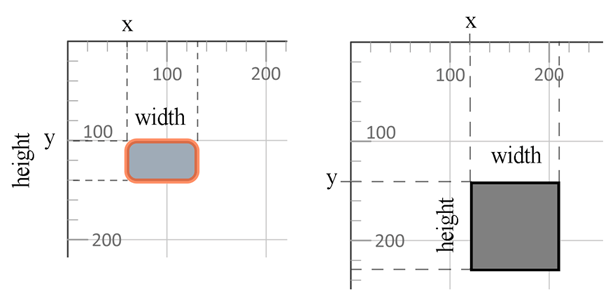
fill – 矩形填充颜色fill-opacity – 填充透明度(0 表示完全透明,1 表示不透明)stroke – 边框颜色stroke-width – 边框粗细stroke-opacity – 边框透明度颜色可以这样指定:
fill:blue。fill:rgb(0,0,255)。fill:#0000ff。<circle> – 圆元素<circle> 元素绘制一个正圆。它的位置由中心坐标 cx 和 cy 定义,尺寸由半径 r 定义。
| 属性 | 说明 | 默认值 |
|---|---|---|
cx | 圆心的 x 坐标 | 0 |
cy | 圆心的 y 坐标 | 0 |
r | 圆半径 | – |
1<svg width="300" height="550" xmlns="http://www.w3.org/2000/svg">
2    <circle cx="250" cy="100" r="60" style="fill:red; stroke-width:3; stroke:rgb(0,0,0); fill-opacity:0.7" />
3</svg>
下面的代码用 cx 和 cy 设置圆心,用 r 设置半径。由于圆同时使用 fill 和 stroke,输出也展示了形状几何和绘制属性如何组合。
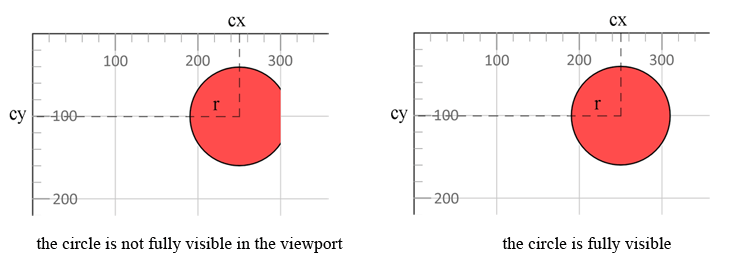
圆会超出 300 px 的 viewport 宽度;要完整显示,宽度至少需要 310 px(cx + r)。
<ellipse> – 椭圆元素<ellipse> 元素创建椭圆形。它同样使用中心点,但有两个半径:rx 表示水平方向尺寸,ry 表示垂直方向尺寸。
| 属性 | 说明 | 默认值 |
|---|---|---|
cx | 椭圆中心的 x 坐标 | 0 |
cy | 椭圆中心的 y 坐标 | 0 |
rx | 水平半径,也就是宽度的一半 | – |
ry | 垂直半径,也就是高度的一半 | – |
1<svg width="500" height="550" xmlns="http://www.w3.org/2000/svg">
2    <ellipse cx="140" cy="310" rx="90" ry="20" style="fill:OrangeRed" />
3    <ellipse cx="120" cy="280" rx="110" ry="20" style="fill:grey; fill-opacity:0.5" />
4</svg>
示例绘制两个具有不同半径和不透明度的椭圆。第二个椭圆(灰色,50% opacity)渲染在第一个上方,因为 SVG 按源代码顺序绘制元素:后出现的元素位于先出现元素之上。
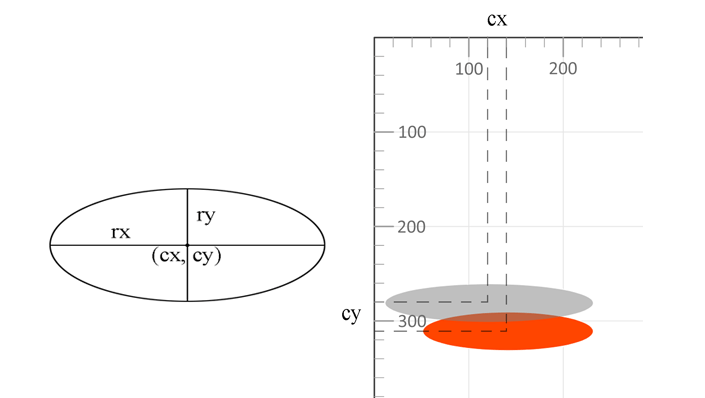
<line> – 直线元素<line> 元素在两个坐标点之间绘制一条直线段。它没有填充区域,因此可见线条通常需要 stroke 和 stroke-width。
| 属性 | 说明 | 默认值 |
|---|---|---|
x1 | 起点的 x 坐标 | – |
y1 | 起点的 y 坐标 | – |
x2 | 终点的 x 坐标 | – |
y2 | 终点的 y 坐标 | – |
style (stroke, stroke-width) | 线条视觉样式 | – |
1<svg width="500" height="550" xmlns="http://www.w3.org/2000/svg">
2    <line x1="30" y1="30" x2="350" y2="290" style="stroke:rgb(255,0,0); stroke-width:3" />
3    <line x1="30" y1="50" x2="300" y2="350" style="stroke:grey; stroke-width:5" />
4    <line x1="20" y1="80" x2="100" y2="200" style="stroke:orangered; stroke-width:8" />
5</svg>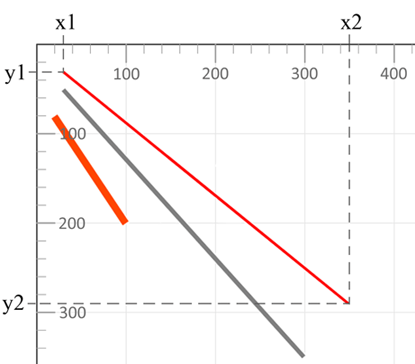
示例中每条线都有不同起点、终点、颜色和粗细。stroke property 定义线条颜色,stroke-width 设置线条粗细。
<polyline> – 折线元素<polyline> 元素绘制一系列相连的直线段。它常用于折线、图表线、简单轮廓和开放角形。
| 属性 | 说明 | 默认值 |
|---|---|---|
points | 定义折线顶点的 x,y 坐标对列表 | – |
style (fill, stroke, stroke-width) | 形状视觉样式 | – |
1<svg width="500" height="550" xmlns="http://www.w3.org/2000/svg">
2    <polyline points="280,290 300,220 320,290" style="fill:grey; stroke:grey; stroke-width:2; fill-opacity:0.5" />
3    <polyline points="220,200 240,180 260,200 280,180 300,200 320,180 340,200" style="fill:none; stroke:red; stroke-width:6" />
4</svg>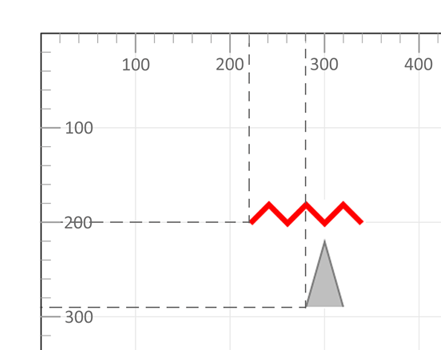
第一个 polyline 使用三个点,视觉上形成类似三角形的形状。第二个 polyline 是开放 zig-zag 线,设置了 fill="none",当 polyline 应表现为线条而不是填充形状时,这通常最清晰。
有关 SVG 样式的更多信息,请参见 SVG 中的填充和描边。
<polygon> – 多边形元素<polygon> 元素定义由一系列连接点组成的闭合形状。SVG 会自动把最后一个点连接回第一个点。
| 属性 | 说明 | 默认值 |
|---|---|---|
points | 每个顶点的 x,y 坐标对列表,至少包含三个点 | – |
style (fill, stroke, stroke-width) | 多边形视觉样式 | – |
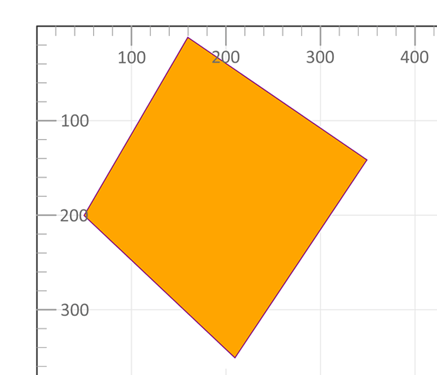
1<svg width="500" height="550" xmlns="http://www.w3.org/2000/svg">
2    <polygon points="160,10 350,140 210,350 50,199" style="fill:orange;stroke:purple;stroke-width:1" />
3</svg>
polygon 示例在 points 属性中使用四个坐标对。由于 <polygon> 始终闭合,紫色描边会自动从最后一个点返回第一个点。
<svg> 元素,并设置 width、height 和 xmlns。<rect>、<circle>、<ellipse>、<line>、<polyline> 或 <polygon>。fill、stroke、stroke-width 或 opacity。一个最小 SVG 文档可以把所有基本形状组合成一幅图。这在用简单 primitives 构建图表、徽章、图标或生成图形时很有用。
 1<svg width="500" height="550" xmlns="http://www.w3.org/2000/svg">
 2    <line x1="30" y1="30" x2="350" y2="290" style="stroke:rgb(255,0,0); stroke-width:3" />
 3    <line x1="30" y1="50" x2="300" y2="350" style="stroke:grey; stroke-width:5" />
 4    <rect x="60" y="100" width="70" height="40" rx="10" ry="10" style="fill:#778899; stroke:#FF4500; stroke-width:5; fill-opacity:0.7; stroke-opacity:0.6" />
 5    <polygon points="160,10 350,140 210,350 50,199" style="fill:orange; stroke:purple; stroke-width:1; fill-opacity:1" />
 6    <rect x="120" y="150" width="90" height="90" style="fill:grey; stroke-width:3; stroke:rgb(0,0,0)" />
 7    <circle cx="250" cy="100" r="60" style="fill:red; stroke:black; stroke-width:3; fill-opacity:0.7" />
 8    <ellipse cx="140" cy="310" rx="90" ry="20" style="fill:OrangeRed" />
 9    <ellipse cx="120" cy="280" rx="110" ry="20" style="fill:grey; fill-opacity:0.5" />
10    <polyline points="220,200 240,180 260,200 280,180 300,200 320,180 340,200" style="fill:none; stroke:red; stroke-width:6" />
11    <line x1="20" y1="80" x2="100" y2="200" style="stroke:orangered; stroke-width:8" />
12    <polyline points="280,290 300,220 320,290" style="fill:grey; stroke:grey; stroke-width:2; fill-opacity:0.5" />
13</svg>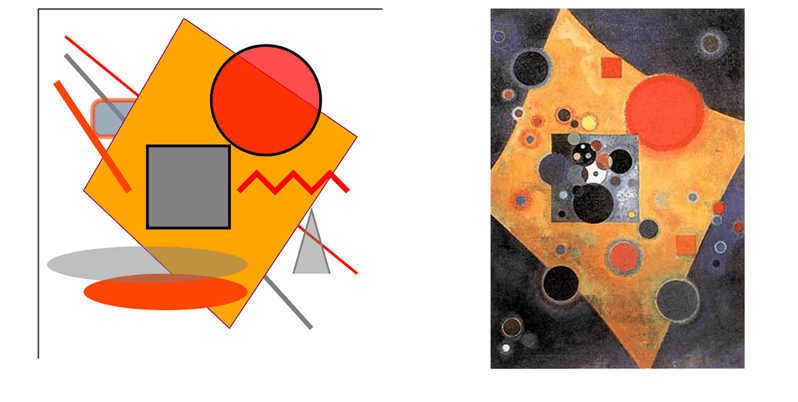
“SVG Basic Shapes” 插图包含上文描述的所有图形:直线、矩形、圆、椭圆、折线和多边形。旁边是 Wassily Kandinsky 的著名作品 “Pink Accent”,它说明简单几何形状也可以形成更具表现力的构图。
| 问题 | 可能原因 | 修复方法 |
|---|---|---|
| 形状不可见 | SVG viewport 小于形状范围 | 增大 width / height 或调整 viewBox |
| 形状被裁剪 | 坐标超出 viewport 边界 | 重新计算坐标或扩大 SVG canvas |
| Fill 颜色不显示 | 设置了 fill="none" 或 fill-opacity="0" | 设置有效 fill 值和 opacity |
| Stroke 不可见 | stroke-width="0" 或缺少 stroke | 同时定义 stroke 和正数 stroke-width |
| 圆角不起作用 | rx / ry 缺失或为零 | 设置非零 rx 和 ry 属性 |
| 元素意外重叠 | SVG 按源代码顺序渲染元素 | 调整标记中的元素顺序,或使用 grouping |
| 任务 | 示例 |
|---|---|
| 纯色填充 | fill="blue" |
| 半透明填充 | fill="red" fill-opacity="0.5" |
| 透明填充并显示轮廓 | fill="none" stroke="black" |
| 半透明描边 | stroke="black" stroke-opacity="0.4" |
| 粗彩色轮廓 | stroke="orange" stroke-width="6" |
| 虚线轮廓 | stroke-dasharray="5,3" |
高级 SVG 样式技术请参见 SVG 中的填充和描边。
矩形使用 <rect>,等半径圆形使用 <circle>,椭圆使用 <ellipse>,单条直线使用 <line>,开放线段链使用 <polyline>,由点组成的闭合形状使用 <polygon>。
<polyline> 绘制相连点,但保持开放,除非你手动重复第一个点。<polygon> 会自动把最后一个点连接回第一个点,从而闭合形状。
可以。大多数 SVG 形状可以同时使用 fill 和 stroke。fill 绘制形状内部,stroke 和 stroke-width 绘制轮廓。
可以,当图形只是简单矩形、圆、椭圆、直线、折线或多边形时,基本形状更清晰。需要曲线、圆弧、自定义轮廓或单个复杂轮廓时,请使用 SVG Path Data。
<rect>、<circle>、<ellipse>、<line>、<polyline> 和 <polygon>。
Analyzing your prompt, please hold on...
An error occurred while retrieving the results. Please refresh the page and try again.