---
title: "Insert Checkboxes, Text Input or Images during Mail Merge"
---
The merge engine takes a document as input, looks for `MERGEFIELD` fields in it, and replaces them with the data obtained from the data source. Typically, plain text and HTML are inserted, but Aspose.Words users can also generate a document that handles more unusual scenarios for Mail Merge fields.
Powerful Aspose.Words functionality allows you to extend the Mail Merge process:
- insert checkboxes and text input form fields into the document during a mail merge
- insert images from any custom storage (files, BLOB fields, etc.)
## Insert Checkboxes and Text Input during Mail Merge
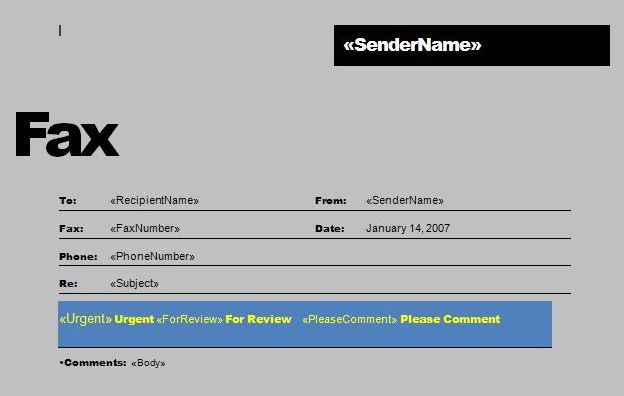
Sometimes it is necessary to perform a Mail Merge operation so that not text is substituted in the merge field, but a checkbox or text input field. Even though this is not the most common scenario, it is very handy for some tasks.
The following screenshot of a Word document shows a template with merge fields:
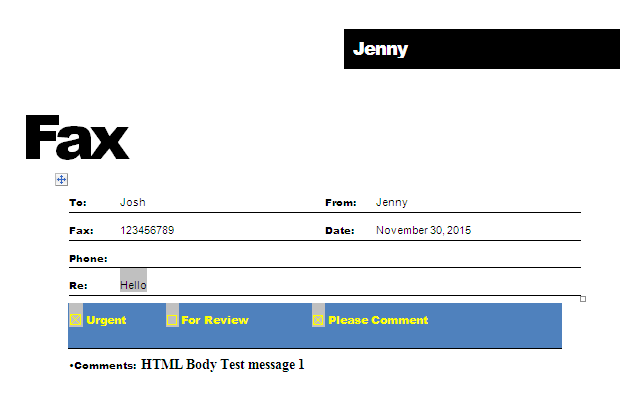
 This screenshot of the Word document below shows the already generated document:
 {{% alert color="primary" %}}
Note that some fields were replaced with plain text, some fields were replaced with checkbox form fields, and the `Subject` field was replaced with a text input field.
{{% /alert %}}
The following code example shows how to insert checkboxes and input text fields into a document during a mail merge:
{{< gist "aspose-words-gists" "d55d8631947d283b1f0da99afa06c492" "cpp-Mail-Merge-MailMergeFormFields-MailMergeFormFields.cpp" >}}
{{< gist "aspose-words-gists" "d55d8631947d283b1f0da99afa06c492" "cpp-Mail-Merge-MailMergeFormFields-HandleMergeField.cpp" >}}
## Insert Images during Mail Merge
When performing a Mail Merge operation, you can insert images from the database into the document using special image Mail Merge fields. The image Mail Merge field is a merge field named Image:MyFieldName.
### Insert Images from a Database
During a mail merge, when an image Mail Merge field is encountered in a document, the [FieldMergingCallback](https://reference.aspose.com/words/cpp/aspose.words.mailmerging/mailmerge/get_fieldmergingcallback/) event is fired. You can respond to this event to return a filename, stream, or image object to the Mail Merge engine so it can be inserted into the document.
The following code example shows how to insert images stored in a database BLOB field into a report:
{{< gist "aspose-words-gists" "d55d8631947d283b1f0da99afa06c492" "cpp-Mail-Merge-MailMergeImageField-MailMergeImageInsert.cpp" >}}
### Set Image Properties during Mail Merge
While merging an image merge field, you may sometimes need to control various image properties, such as [WrapType](https://reference.aspose.com/words/cpp/aspose.words.drawing/wraptype/).
Currently, using [ImageFieldMergingArgs](https://reference.aspose.com/words/cpp/class/aspose.words.mail_merging.image_field_merging_args) you can only set image width or height properties, respectively. To overcome this issue, Aspose.Words provides the [Shape](https://reference.aspose.com/words/cpp/aspose.words.mailmerging/imagefieldmergingargs/get_shape/) property, which facilitates to get full control over the inserted image or any other shape.
The following code example shows how to set various image properties:
{{< gist "aspose-words-gists" "d55d8631947d283b1f0da99afa06c492" "cpp-Mail-Merge-MailMergeImageField-MailMergeImageField.cpp" >}}
{{< gist "aspose-words-gists" "d55d8631947d283b1f0da99afa06c492" "cpp-Mail-Merge-MailMergeImageField-ImageFieldMergingHandler.cpp" >}}
{{< gist "aspose-words-gists" "d55d8631947d283b1f0da99afa06c492" "cpp-Mail-Merge-MailMergeImageField-DataSourceRoot.cpp" >}}
------
## FAQ
1. **Q:** How do I insert a checkbox form field during a mail merge in C++?
**A:** Implement a custom class that inherits from `Aspose::Words::MailMerging::IFieldMergingCallback`. In the `FieldMerging` method, detect the merge field name and replace it with a `FormField` of type `CheckBox`. Use `DocumentBuilder` to insert the checkbox at the field’s position and then remove the original merge field.
2. **Q:** How can I insert a text input form field during a mail merge?
**A:** In the same `IFieldMergingCallback` implementation, when the merge field name matches a text input placeholder, create a `FormField` of type `TextInput`. Set its `Name` and optionally its default text, then replace the merge field node with this form field.
3. **Q:** How do I insert images from a database using mail merge?
**A:** Use an image merge field named `Image:FieldName`. In the `FieldMerging` callback, retrieve the image bytes from the database, create a `System::IO::MemoryStream` (or `std::istream`) and assign it to `ImageFieldMergingArgs::set_ImageStream`. The engine will insert the image automatically.
4. **Q:** How can I control image size or wrap type when inserting images via mail merge?
**A:** Inside the `FieldMerging` method, obtain the `Shape` object from `ImageFieldMergingArgs::get_Shape()`. Set properties such as `Shape::set_Width`, `Shape::set_Height`, and `Shape::set_WrapType` to adjust size and text wrapping.
5. **Q:** How do I apply an Aspose.Words license in a C++ application to avoid evaluation limitations?
**A:** Create an instance of `Aspose::Words::License`, then call `SetLicense` with the path to your `.lic` file, e.g., `Aspose::Words::License license; license.SetLicense(u"Licenses/Aspose.Words.CPP.lic");`. Place this code before any document processing to ensure the license is active.
{{% alert color="primary" %}}
Note that some fields were replaced with plain text, some fields were replaced with checkbox form fields, and the `Subject` field was replaced with a text input field.
{{% /alert %}}
The following code example shows how to insert checkboxes and input text fields into a document during a mail merge:
{{< gist "aspose-words-gists" "d55d8631947d283b1f0da99afa06c492" "cpp-Mail-Merge-MailMergeFormFields-MailMergeFormFields.cpp" >}}
{{< gist "aspose-words-gists" "d55d8631947d283b1f0da99afa06c492" "cpp-Mail-Merge-MailMergeFormFields-HandleMergeField.cpp" >}}
## Insert Images during Mail Merge
When performing a Mail Merge operation, you can insert images from the database into the document using special image Mail Merge fields. The image Mail Merge field is a merge field named Image:MyFieldName.
### Insert Images from a Database
During a mail merge, when an image Mail Merge field is encountered in a document, the [FieldMergingCallback](https://reference.aspose.com/words/cpp/aspose.words.mailmerging/mailmerge/get_fieldmergingcallback/) event is fired. You can respond to this event to return a filename, stream, or image object to the Mail Merge engine so it can be inserted into the document.
The following code example shows how to insert images stored in a database BLOB field into a report:
{{< gist "aspose-words-gists" "d55d8631947d283b1f0da99afa06c492" "cpp-Mail-Merge-MailMergeImageField-MailMergeImageInsert.cpp" >}}
### Set Image Properties during Mail Merge
While merging an image merge field, you may sometimes need to control various image properties, such as [WrapType](https://reference.aspose.com/words/cpp/aspose.words.drawing/wraptype/).
Currently, using [ImageFieldMergingArgs](https://reference.aspose.com/words/cpp/class/aspose.words.mail_merging.image_field_merging_args) you can only set image width or height properties, respectively. To overcome this issue, Aspose.Words provides the [Shape](https://reference.aspose.com/words/cpp/aspose.words.mailmerging/imagefieldmergingargs/get_shape/) property, which facilitates to get full control over the inserted image or any other shape.
The following code example shows how to set various image properties:
{{< gist "aspose-words-gists" "d55d8631947d283b1f0da99afa06c492" "cpp-Mail-Merge-MailMergeImageField-MailMergeImageField.cpp" >}}
{{< gist "aspose-words-gists" "d55d8631947d283b1f0da99afa06c492" "cpp-Mail-Merge-MailMergeImageField-ImageFieldMergingHandler.cpp" >}}
{{< gist "aspose-words-gists" "d55d8631947d283b1f0da99afa06c492" "cpp-Mail-Merge-MailMergeImageField-DataSourceRoot.cpp" >}}
------
## FAQ
1. **Q:** How do I insert a checkbox form field during a mail merge in C++?
**A:** Implement a custom class that inherits from `Aspose::Words::MailMerging::IFieldMergingCallback`. In the `FieldMerging` method, detect the merge field name and replace it with a `FormField` of type `CheckBox`. Use `DocumentBuilder` to insert the checkbox at the field’s position and then remove the original merge field.
2. **Q:** How can I insert a text input form field during a mail merge?
**A:** In the same `IFieldMergingCallback` implementation, when the merge field name matches a text input placeholder, create a `FormField` of type `TextInput`. Set its `Name` and optionally its default text, then replace the merge field node with this form field.
3. **Q:** How do I insert images from a database using mail merge?
**A:** Use an image merge field named `Image:FieldName`. In the `FieldMerging` callback, retrieve the image bytes from the database, create a `System::IO::MemoryStream` (or `std::istream`) and assign it to `ImageFieldMergingArgs::set_ImageStream`. The engine will insert the image automatically.
4. **Q:** How can I control image size or wrap type when inserting images via mail merge?
**A:** Inside the `FieldMerging` method, obtain the `Shape` object from `ImageFieldMergingArgs::get_Shape()`. Set properties such as `Shape::set_Width`, `Shape::set_Height`, and `Shape::set_WrapType` to adjust size and text wrapping.
5. **Q:** How do I apply an Aspose.Words license in a C++ application to avoid evaluation limitations?
**A:** Create an instance of `Aspose::Words::License`, then call `SetLicense` with the path to your `.lic` file, e.g., `Aspose::Words::License license; license.SetLicense(u"Licenses/Aspose.Words.CPP.lic");`. Place this code before any document processing to ensure the license is active.