---
title: "Working with SmartArt Cold Rendering in Java"
---
{{% alert color="grey" %}}
## Purpose Summary
This page explains how SmartArt cold rendering works when converting documents.
{{% /alert %}}
SmartArt graphics are used to quickly and easily create a visual representation of information. You simply choose from a large number of layouts that best suits your situation. This ease of use makes SmartArt graphics quite popular for some purposes.
Microsoft Word generates and saves the pre-rendered drawing along with the `SmartArt` object. In most cases, the pre-rendered drawing is rendered well by Aspose.Words and no additional actions are required. However, if the document is saved by other applications, the pre-rendered SmartArt drawing may be missing or incorrect. In this case, the `SmartArt` object itself should be laid-out and rendered using Aspose.Words. We call this process the `SmartArt` Cold Rendering.
## Using SmartArt Cold Rendering
Aspose.Words allows you to use a pre-rendered drawing or perform cold rendering:
* If a pre-rendered drawing is available, Aspose.Words uses it to render the `SmartArt` object.
* If pre-rendered drawing is missing, Aspose.Words implicitly performs cold rendering to render the `SmartArt` object.
* If a pre-rendered drawing is present but is incorrect, it is required to perform SmartArt cold rendering explicitly by calling [UpdateSmartArtDrawing](https://reference.aspose.com/words/java/com.aspose.words/shape/#updateSmartArtDrawing) method.
The following code example shows how to update drawings for all diagrams in the document:
{{< gist "aspose-words-gists" "69fffe75454d325c814eefbe9a99e8d7" "update-smart-art-drawing.java" >}}
## Support for Standard SmartArt Layouts
Currently, only a limited number of standard Microsoft Word SmartArt layouts are supported. Also, some of these layouts are supported partially, meaning that significant nodes and shapes of the diagram are rendered, but there may be differences between the Microsoft Word and Aspose.Words diagram layout.
The table below lists the fully and partially supported layouts:
| SmartArt Layouts Group | Fully supported layouts | Partially supported layouts |
| ---------------------- | ------------------------------------------------------------ | ------------------------------------------------------------ |
| `List` | - Basic Block List
- Alternating Hexagons
- Vertical Bullet List
- Vertical Box List
- Varying Width List
- Horizontal Bullet List
- Grouped List
- Vertical Block List
- Vertical Chevron List
- Vertical Arrow List
- Trapezoid List
- Table List
- Pyramid List
- Target List
| - Lined List
- Vertical Bracket List
- Tab List
- Stacked List
- Vertical Accent List
- Vertical Circle List
|
| `Process` | - Basic Process
- Accent Process
- Continuous Block Process
- Increasing Arrow Process
- Converging Text
- Basic Timeline
- Basic Chevron Process
- Chevron Accent Process
- Closed Chevron Process
- Chevron List
- Vertical Process
- Staggered Process
- Process List
- Basic Bending Process
- Repeating Bending Process
- Detailed Process
- Upward Arrow
- Descending Process
- Circular Bending Process
| - Step Up Process
- Step Down Process
- Alternating Flow
- Increasing Circle Process
- Pie Process
- Interconnected Block Process
- Process Arrows
- Circle Accent Timeline
- Circle Process
- Sub Step Process
- Phased Process
- Random to Result Process
- Circle Arrow Process
|
| `Cycle` | – | - Segmented Cycle
- Hexagon Radial
|
| `Hierarchy` | – | - Table Hierarchy
- Architecture Layout
|
| `Relationship` | - Balance
- Funnel
- Gear
- Plus And Minus
- Arrow Ribbon
- Counterbalance Arrows
- Opposing Arrows
- Nested Target
- Basic Target
- Basic Pie
- Basic Venn
- Stacked Venn
- Interconnected Ring
| - Circle Relationship
- Opposing Ideas
- Equation
- Vertical Equation
- Linear Venn
|
| `Matrix` | - Basic Matrix
- Titled Matrix
- Grid Matrix
- Cycle Matrix
| – |
| `Pyramid` | – | |
## Comparison of SmartArt Rendering in Aspose.Words and Microsoft
The table below shows example pictures of Aspose.Words Cold Rendering of some standard layouts compared to Microsoft Word output:
| | **Aspose.Words** | **Microsoft Word** |
| ----------------------------- | ------------------------------------------------------------ | ------------------------------------------------------------ |
| **Basic Process** | 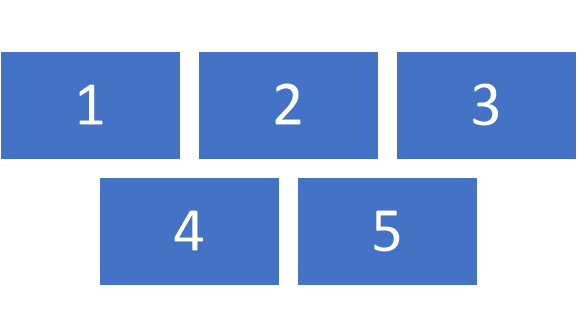 |
| 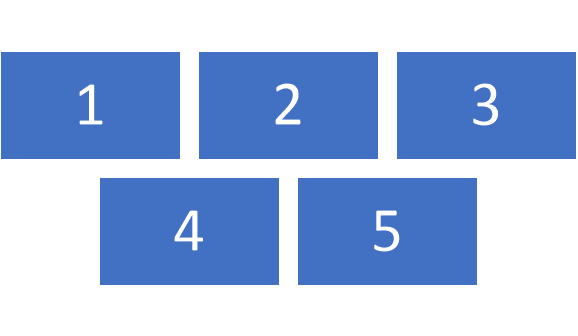 |
| **Circular Bending Process** |
|
| **Circular Bending Process** | 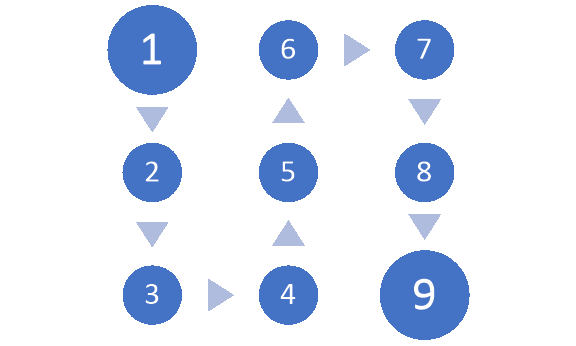 |
| 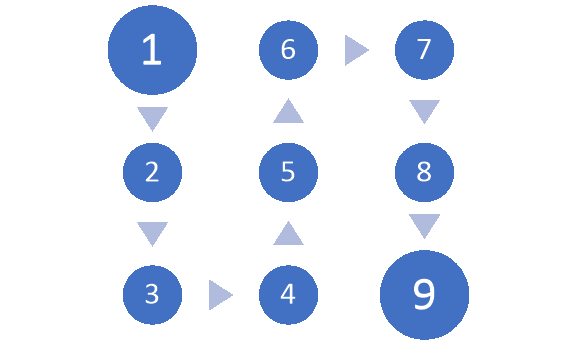 |
| **Repeating Bending Process** |
|
| **Repeating Bending Process** | 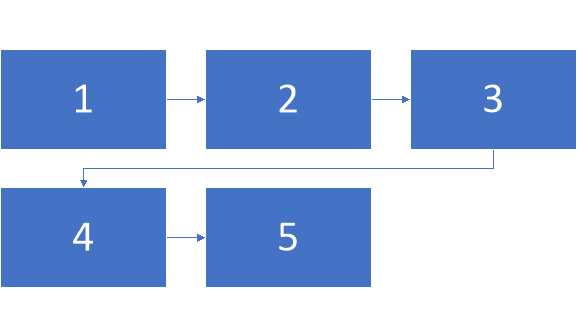 |
| 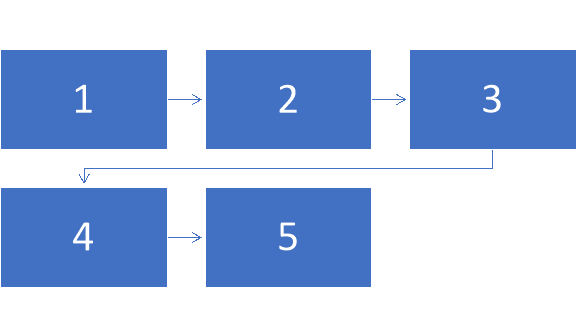 |
| **Trapezoid List** |
|
| **Trapezoid List** | 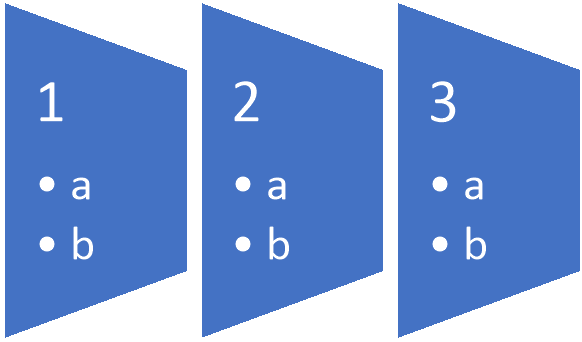 |
| 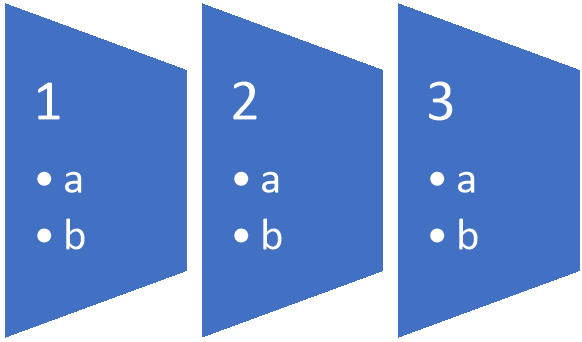 |
## FAQ
1. **Q:** How can I force Aspose.Words to perform cold rendering when the pre‑rendered SmartArt drawing is incorrect?
**A:** Call the `Shape.updateSmartArtDrawing()` method on each `Shape` that contains a SmartArt object. This forces Aspose.Words to discard the existing drawing and lay out the SmartArt anew.
2. **Q:** Is cold rendering performed automatically if the pre‑rendered drawing is missing?
**A:** Yes. When Aspose.Words loads a document and detects that a SmartArt object has no associated drawing, it automatically performs cold rendering without any additional code.
3. **Q:** Which SmartArt layout groups are fully supported by Aspose.Words for Java?
**A:** The fully supported groups are **List**, **Process**, **Relationship**, and **Matrix**. The documentation table lists the exact layouts within each group.
4. **Q:** How do I update the drawings for all SmartArt objects in a document with a single call?
**A:** Iterate through all `Shape` nodes, check `shape.isSmartArt()`, and invoke `shape.updateSmartArtDrawing()`. The sample code in the article demonstrates this pattern.
5. **Q:** Can I determine programmatically whether a SmartArt object already has a pre‑rendered drawing?
**A:** Yes. Use `shape.getSmartArt().hasSmartArtDrawing()` (or the equivalent property in the Java API) to check if the drawing exists before deciding whether to call `updateSmartArtDrawing()`.
|
## FAQ
1. **Q:** How can I force Aspose.Words to perform cold rendering when the pre‑rendered SmartArt drawing is incorrect?
**A:** Call the `Shape.updateSmartArtDrawing()` method on each `Shape` that contains a SmartArt object. This forces Aspose.Words to discard the existing drawing and lay out the SmartArt anew.
2. **Q:** Is cold rendering performed automatically if the pre‑rendered drawing is missing?
**A:** Yes. When Aspose.Words loads a document and detects that a SmartArt object has no associated drawing, it automatically performs cold rendering without any additional code.
3. **Q:** Which SmartArt layout groups are fully supported by Aspose.Words for Java?
**A:** The fully supported groups are **List**, **Process**, **Relationship**, and **Matrix**. The documentation table lists the exact layouts within each group.
4. **Q:** How do I update the drawings for all SmartArt objects in a document with a single call?
**A:** Iterate through all `Shape` nodes, check `shape.isSmartArt()`, and invoke `shape.updateSmartArtDrawing()`. The sample code in the article demonstrates this pattern.
5. **Q:** Can I determine programmatically whether a SmartArt object already has a pre‑rendered drawing?
**A:** Yes. Use `shape.getSmartArt().hasSmartArtDrawing()` (or the equivalent property in the Java API) to check if the drawing exists before deciding whether to call `updateSmartArtDrawing()`.