---
title: "转换为PDF时指定渲染选项"
---
PDF格式是一种固定页面格式,在用户中非常流行,并受到各种应用程序的广泛支持,因为PDF文档在任何设备上看起来都是一样的。 因此,转换为PDF是Aspose.Words的一个重要特性。
PDF是一种复杂的格式。 在将文档转换为PDF的过程中需要几个阶段的计算,包括布局计算。 由于这些阶段包括复杂的计算,因此它们非常耗时。 此外,PDF格式本身相当复杂。 它具有特定的文件结构,图形模型和字体嵌入。 此外,它还具有一些复杂的输出功能,如文档结构标签,加密,数字签名和可编辑表单。
Aspose.Words布局引擎模仿Microsoft Word的页面布局引擎的工作方式。 因此,Aspose.Words使PDF输出文档看起来尽可能接近您在Microsoft Word中看到的内容。 有时需要指定其他选项,这可能会影响将文档保存为PDF格式的结果。 这些选项可以通过使用[PdfSaveOptions](https://reference.aspose.com/words/cpp/class/aspose.words.saving.pdf_save_options-members)类来指定,其中包含确定如何显示PDF输出的属性。
下面提供了使用**PdfSaveOptions**的一些示例。
{{% alert color="primary" %}}
目前,您可以保存到PDF 1.7, PDF 2.0, PDF/A-1a,PDF/A-1b,PDF/A-2a,PDF/A-2u和PDF/UA-1格式。 使用[PdfCompliance](https://reference.aspose.com/words/cpp/aspose.words.saving/pdfcompliance/)枚举设置PDF标准符合性级别。 请注意,使用PDF/A格式时,输出文件大小大于常规PDF文件大小。
[PdfCompliance.PdfA1a](https://reference.aspose.com/words/cpp/aspose.words.saving/pdfcompliance/)和[PdfCompliance.PdfA1b](https://reference.aspose.com/words/cpp/aspose.words.saving/pdfcompliance/)被标记为过时。
有关PDF/A的详细信息,请参阅下一篇文章"了解转换为PDF/A的功能"。
{{% /alert %}}
## 使用可填写表单创建PDF文档
还可以将可填写表单从Microsoft Word文档导出到输出PDF中,该输出具有可填写表单而不是纯文本。 使用[PreserveFormFields](https://reference.aspose.com/words/cpp/aspose.words.saving/pdfsaveoptions/get_preserveformfields/)属性将文档另存为PDF,其中包含可填写的表单。
请注意,与Microsoft Word相反,PDF格式的可编辑表单选项数量有限,例如textbox、combobox和checkbox。 Microsoft Word有更多类型的表单,例如日历日期选择器。 通常,不可能在PDF中完全模仿Microsoft Word行为。 因此,在某些复杂情况下,PDF输出可能与您在Microsoft Word中看到的不同。
下面的代码示例演示如何使用指定的Jpeg压缩和质量的可填充表单将文档保存为PDF:
{{< gist "aspose-words-gists" "d55d8631947d283b1f0da99afa06c492" "Examples-DocsExamples-source-File Formats and Conversions-Save Options-Working with PdfSaveOptions-PdfImageComppression.h" >}}
## 导出文档结构和自定义属性
[ExportDocumentStructure](https://reference.aspose.com/words/cpp/aspose.words.saving/pdfsaveoptions/set_exportdocumentstructure/)属性使您能够将文档结构导出到PDF输出。
PDF逻辑结构设施提供了一种机制,用于将有关文档内容结构的信息合并到PDF文件中。 Aspose.Words保留Microsoft Word文档中有关结构的信息,例如段落,列表,表格,脚注/尾注等。
下面的示例演示如何将文档保存为PDF格式,并保留文档结构:
{{< gist "aspose-words-gists" "d55d8631947d283b1f0da99afa06c492" "cpp-Rendering-Printing-WorkingWithPdfSaveOptions-ExportDocumentStructure.cpp" >}}
Aspose.Words还允许您将文档自定义属性导出到PDF,下面的示例演示了这一点:
{{< gist "aspose-words-gists" "d55d8631947d283b1f0da99afa06c492" "cpp-Rendering-Printing-WorkingWithPdfSaveOptions-CustomPropertiesExport.cpp" >}}
## 从输出PDF中的书签和标题导出大纲
如果要在输出PDF中将书签导出为大纲,则可以使用[DefaultBookmarksOutlineLevel](https://reference.aspose.com/words/cpp/aspose.words.saving/outlineoptions/get_defaultbookmarksoutlinelevel/)属性。 此属性指定文档大纲中的默认级别,其中显示Microsoft Word书签。 如果文档在文档的页眉/页脚中包含书签,则可以将[HeaderFooterBookmarksExportMode](https://reference.aspose.com/words/cpp/aspose.words.saving/pdfsaveoptions/get_headerfooterbookmarksexportmode/)属性设置为[First](https://reference.aspose.com/words/cpp/aspose.words.saving/headerfooterbookmarksexportmode/)或[All](https://reference.aspose.com/words/cpp/aspose.words.saving/headerfooterbookmarksexportmode/),以便指定它们在输出PDF中的导出方式。 当**HeaderFooterBookmarksExportMode**的值为[None](https://reference.aspose.com/words/cpp/aspose.words.saving/headerfooterbookmarksexportmode/)时,不会导出页眉/页脚中的书签。
下面的代码示例演示如何从节的第一个页眉/页脚导出书签:
{{< gist "aspose-words-gists" "d55d8631947d283b1f0da99afa06c492" "cpp-Rendering-Printing-WorkingWithPdfSaveOptions-ExportHeaderFooterBookmarks.cpp" >}}
此示例的输出PDF如下所示:
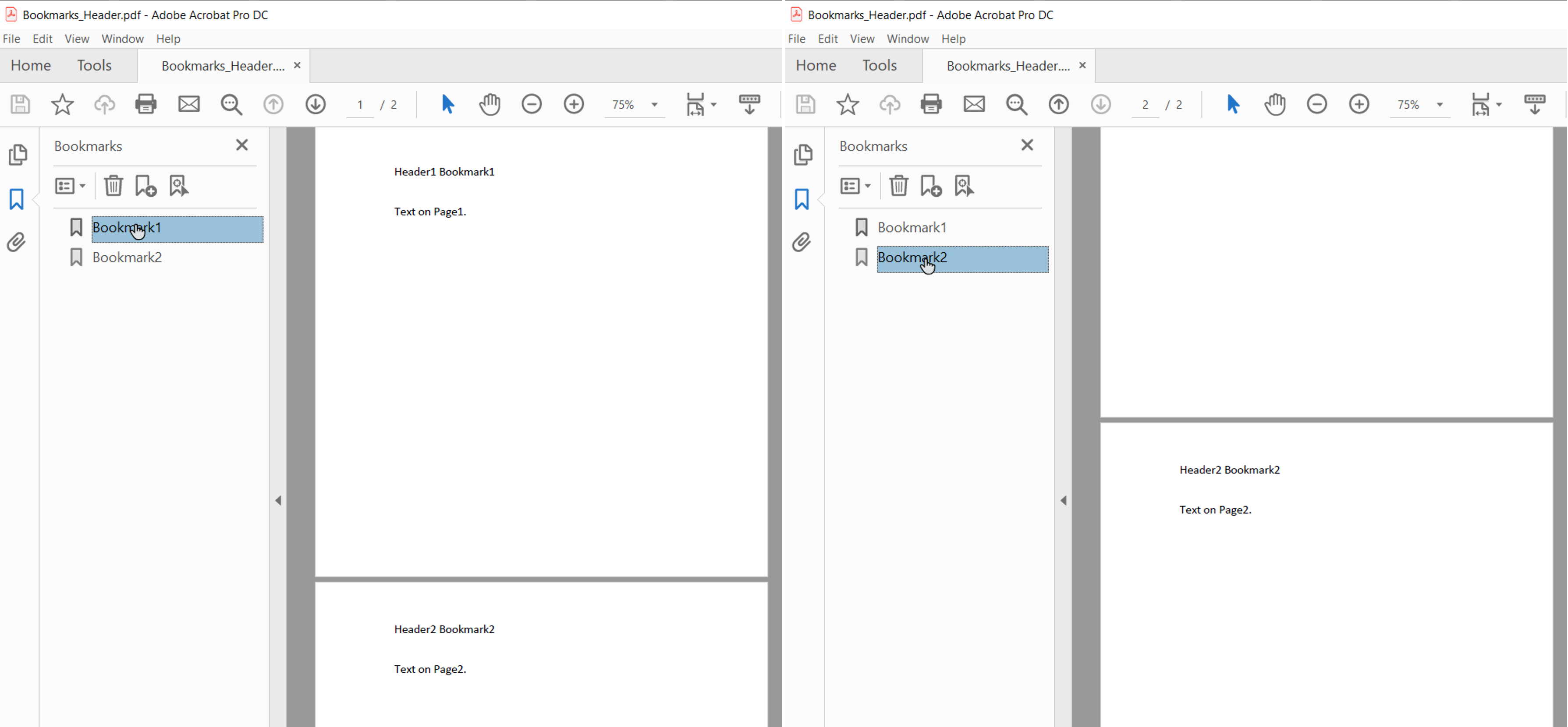
当**HeaderFooterBookmarksExportMode**设置为First并且文档具有偶数和奇数页眉/页脚或不同的首页页眉/页脚时,将为节中的第一个唯一页眉/页脚导出书签。
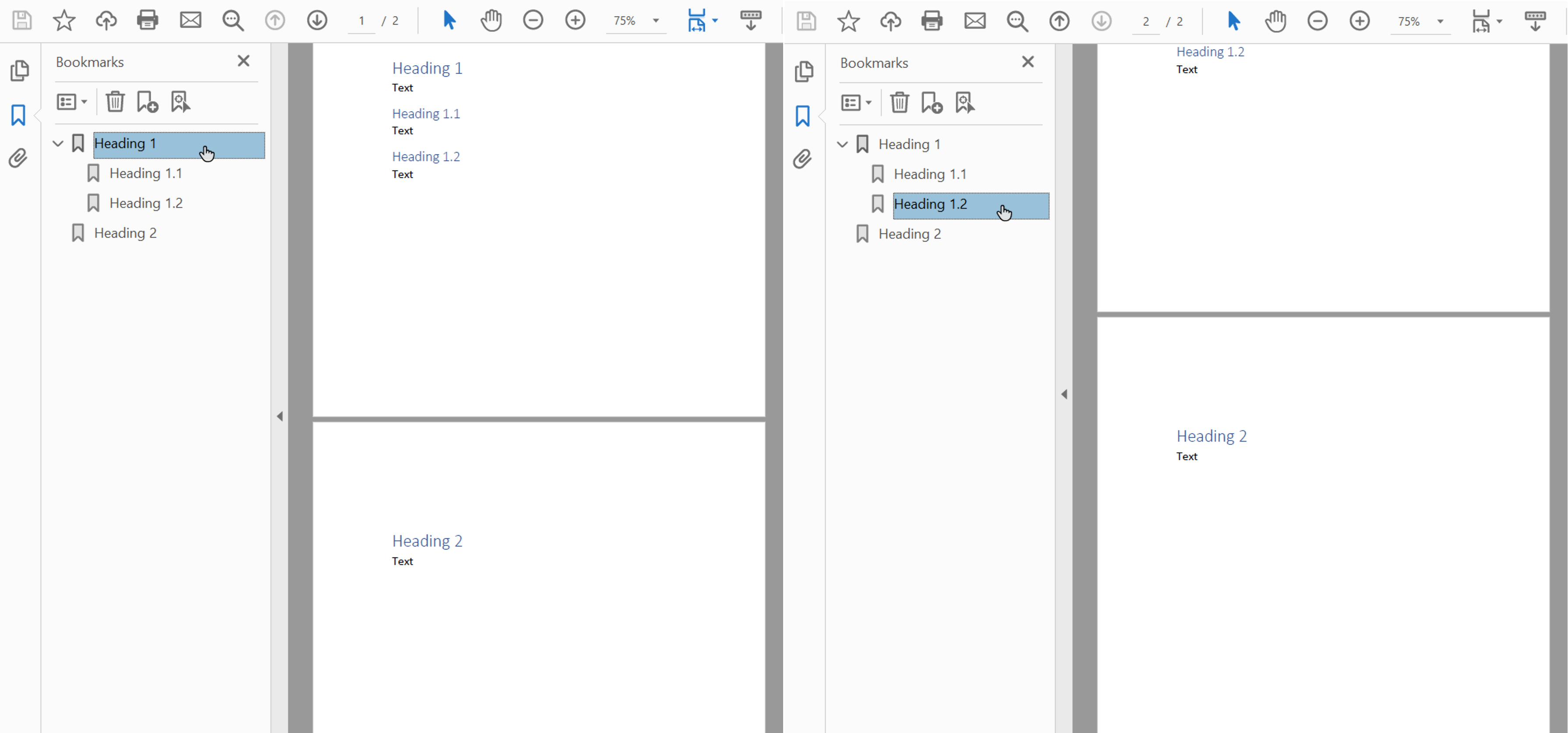
您还可以使用[HeadingsOutlineLevels](https://reference.aspose.com/words/cpp/aspose.words.saving/outlineoptions/get_headingsoutlinelevels/)属性导出输出PDF中的标题。 此属性指定文档大纲中包含多少级别的标题。
下面的代码示例演示如何导出具有三个级别的标题:
{{< gist "aspose-words-gists" "d55d8631947d283b1f0da99afa06c492" "cpp-Rendering-Printing-WorkingWithPdfSaveOptions-SaveToPdfWithOutline.cpp" >}}
此示例的输出PDF如下所示:
{{% alert color="primary" %}}
书签或标题导航在各种PDF查看器中可能具有不同的外观。 此外,在某些应用程序中,书签和标题导航在UI中不可用。
{{% /alert %}}
## 对图像进行下采样以减小文档大小
Aspose.Words提供了使用[DownsampleOptions](https://reference.aspose.com/words/cpp/aspose.words.saving/pdfsaveoptions/get_downsampleoptions/)属性对图像进行下采样以减小输出PDF大小的功能。 默认情况下,在[DownsampleImages](https://reference.aspose.com/words/cpp/aspose.words.saving/downsampleoptions/get_downsampleimages/)属性中启用下采样。
请注意,也可以在[Resolution](https://reference.aspose.com/words/cpp/aspose.words.saving/downsampleoptions/get_resolution/)属性中设置特定分辨率,或在[ResolutionThreshold](https://reference.aspose.com/words/cpp/aspose.words.saving/downsampleoptions/get_resolutionthreshold/)属性中设置分辨率阈值。 在第二种情况下,如果图像分辨率小于阈值,那么下采样将不适用。
下面的代码示例显示如何更改输出PDF文档中图像的分辨率:
{{< gist "aspose-words-gists" "d55d8631947d283b1f0da99afa06c492" "cpp-Rendering-Printing-WorkingWithPdfSaveOptions-DownsamplingImages.cpp" >}}
分辨率根据页面上的真实图像大小计算。
## 以AdobePDF格式嵌入字体
Aspose.Words还使您能够控制字体如何嵌入到生成的PDF文档中。 字体需要嵌入到任何AdobePDF文档中,以确保文档可以在任何机器上正确呈现(请参阅有关字体呈现的更多详细信息部分 [使用TrueType字体](/words/zh/cpp/using-truetype-fonts/)). 默认情况下,Aspose.Words将文档中使用的字体子集嵌入到生成的PDF中。 在这种情况下,只有文档中使用的字形(字符)被保存到PDF。
### 何时使用完整字体以及何时使用子集
有一种方法可以指定Aspose.Words嵌入完整字体的选项。 下表中描述了每种设置的进一步细节以及一些优点和缺点。
| 嵌入字体模式 | 优势 | 缺点 |
| :- | :- | :- |
| `Full` | 当您希望稍后通过添加或修改文本来编辑生成的PDF时,非常有用。 所有字体都包括在内,因此所有字形都存在。 | 由于某些字体很大(几兆字节),因此在没有子集的情况下嵌入它们可能会导致大的输出文件。 |
| `Subset` | 如果要使输出文件大小保持较小,则子集很有用。 | 用户无法使用输出PDF文档中的子集字体完全添加或编辑文本。 这是因为并非字体的所有字形都存在。
如果多个PDFs用子集字体保存并组装在一起,那么组合的PDF文档可能具有包含许多不必要子集的字体。
|
### 在PDF中嵌入完整字体
[EmbedFullFonts](https://reference.aspose.com/words/cpp/aspose.words.saving/pdfsaveoptions/get_embedfullfonts/)属性使您能够指定Aspose.Words如何将字体嵌入到输出PDF文档中。
- 要将完整字体嵌入到输出PDF文档中,请将**EmbedFullFonts**设置为true
- 要在保存为PDF时子集字体,请将**EmbedFullFonts**设置为false
下面的示例演示如何在输出PDF文档中嵌入完整字体:
{{< gist "aspose-words-gists" "d55d8631947d283b1f0da99afa06c492" "cpp-Rendering-Printing-EmbeddedFontsInPDF-EmbeddAllFonts.cpp" >}}
下面的示例演示如何将Aspose.Words设置为输出PDF中的子集字体:
{{< gist "aspose-words-gists" "d55d8631947d283b1f0da99afa06c492" "cpp-Rendering-Printing-EmbeddedFontsInPDF-EmbeddSubsetFonts.cpp" >}}
{{% alert color="primary" %}}
您可以从以下位置下载这些示例的模板文件 [Aspose.Words GitHub](https://github.com/aspose-words/Aspose.Words-for-C/tree/master/Examples).
{{% /alert %}}
## 如何控制嵌入核心字体和Windows标准字体
核心字体和Windows标准字体是"标准"字体集,它们通常存在于目标计算机上或由文档阅读器提供,因此它们不需要嵌入到输出PDF中。 通过不嵌入这些字体,您可以减小呈现的PDF文档的大小,同时保持可移植性。
Aspose.Words提供了选择如何将字体导出到PDF的选项。 您可以选择将核心和标准字体嵌入到输出PDF中,也可以选择跳过嵌入它们,而是在目标计算机上使用标准核心PDF字体或系统字体。 使用这些选项中的任何一个通常会显着减少Aspose.Words生成的PDF文档的文件大小。
- 由于这些选项是相互排斥的,您应该一次只选择一个。
- 符合PDF/A-1保存时,所有使用的字体都必须嵌入到PDF文档中。 在符合此要求的情况下保存时,必须将[UseCoreFonts](https://reference.aspose.com/words/cpp/aspose.words.saving/pdfsaveoptions/get_usecorefonts/)属性设置为false,将[FontEmbeddingMode](https://reference.aspose.com/words/cpp/aspose.words.saving/pdfsaveoptions/set_fontembeddingmode/)属性设置为[EmbedAll](https://reference.aspose.com/words/cpp/aspose.words.saving/pdffontembeddingmode/)[.](https://reference.aspose.com/words/net/aspose.words.saving/pdfsaveoptions/usecorefonts/)
### 嵌入核心字体
可以使用`UseCoreFonts`属性启用或禁用嵌入核心字体的选项。 当它设置为true时,以下最流行的"True Type"字体(Base14字体)不会嵌入到输出PDF文档中:
`Arial`
`Times New Roman`
`Courier New`
`Symbol`
这些字体被替换为相应的核心类型1字体,这些字体由读取器在打开PDF时提供。
下面提供的示例演示如何设置Aspose.Words以避免嵌入核心字体,并让读者用PDF类型1字体替换它们:
{{< gist "aspose-words-gists" "d55d8631947d283b1f0da99afa06c492" "cpp-Rendering-Printing-EmbeddingWindowsStandardFonts-AvoidEmbeddingCoreFonts.cpp" >}}
{{% alert color="primary" %}}
您可以从以下位置下载此示例的模板文件 [Aspose.Words GitHub](https://github.com/aspose-words/Aspose.Words-for-C/tree/master/Examples).
{{% /alert %}}
由于PDF查看器在任何受支持的平台上提供核心字体,因此当需要更大的文档可移植性时,此选项也很有用。 但是,核心字体可能看起来与系统字体不同。
{{% alert color="primary" %}}
此设置仅适用于ANSI(Windows-1252)编码文本。 将非ANSI文本写入PDF将始终需要嵌入相应的字体。
{{% /alert %}}
### 嵌入系统字体
可以使用[FontEmbeddingMode](https://reference.aspose.com/words/cpp/aspose.words.saving/pdfsaveoptions/get_fontembeddingmode/)属性启用或禁用此选项。 当此属性设置为[EmbedNonstandard](https://reference.aspose.com/words/cpp/aspose.words.saving/pdffontembeddingmode/)时,"Arial"和"Times New Roman"true type字体不会嵌入到PDF文档中。 在这种情况下,客户端查看器依赖于客户端操作系统上安装的字体。 当**FontEmbeddingMode**属性设置为[EmbedNone](https://reference.aspose.com/words/cpp/aspose.words.saving/pdffontembeddingmode/)时,Aspose.Words不嵌入任何字体。
下面的示例演示如何设置Aspose.Words以跳过将Arial和Times New Roman字体嵌入到PDF文档中:
{{< gist "aspose-words-gists" "d55d8631947d283b1f0da99afa06c492" "cpp-Rendering-Printing-EmbeddedFontsInPDF-SetFontEmbeddingMode.cpp" >}}
当您希望在同一平台上查看文档时,此模式最有用,可以保留输出PDF中字体的确切外观。
{{% alert color="primary" %}}
此设置仅适用于ANSI(Windows-1252)编码文本。 将非ANSI文本写入PDF需要嵌入相应的字体。
{{% /alert %}}