---
title: "C# 中的表格格式"
---
表格的每个元素都可以应用不同的格式。例如,表格格式设置将应用于整个表格,行格式设置将仅应用于特定行,单元格格式设置将仅应用于某些单元格。
Aspose.Words 提供丰富的 API 来检索表格格式并将其应用到表格。您可以使用 [Table](https://reference.aspose.com/words/zh/net/aspose.words.tables/table/)、[RowFormat](https://reference.aspose.com/words/zh/net/aspose.words.tables/rowformat/) 和 [CellFormat](https://reference.aspose.com/words/zh/net/aspose.words.tables/cellformat/) 节点来设置格式。
在本文中,我们将讨论如何将格式应用于不同的表节点以及 Aspose.Words 支持哪些表格式设置。
## 将格式应用于不同的节点
在本节中,我们将研究如何将格式应用于各种表节点。
### 表级格式化
要将格式应用于表,您可以使用 [Table](https://reference.aspose.com/words/zh/net/aspose.words.tables/table/)、[PreferredWidth](https://reference.aspose.com/words/zh/net/aspose.words.tables/preferredwidth/) 和 [TableCollection](https://reference.aspose.com/words/zh/net/aspose.words.tables/tablecollection/) 类的相应 **Table** 节点上可用的属性。
{{% alert color="primary" %}}
请注意,在应用表属性之前,表必须至少有一行。这意味着,当使用 [DocumentBuilder](https://reference.aspose.com/words/zh/net/aspose.words/documentbuilder/) 构建表时,必须在第一次调用 [InsertCell](https://reference.aspose.com/words/zh/net/aspose.words/documentbuilder/insertcell/) 之后、或者将第一行添加到表中之后、或者将节点直接插入到 DOM 中时完成此格式化。
{{% /alert %}}
下图显示了 Microsoft Word 中的 **Table** 格式功能及其在 Aspose.Words 中的相应属性。
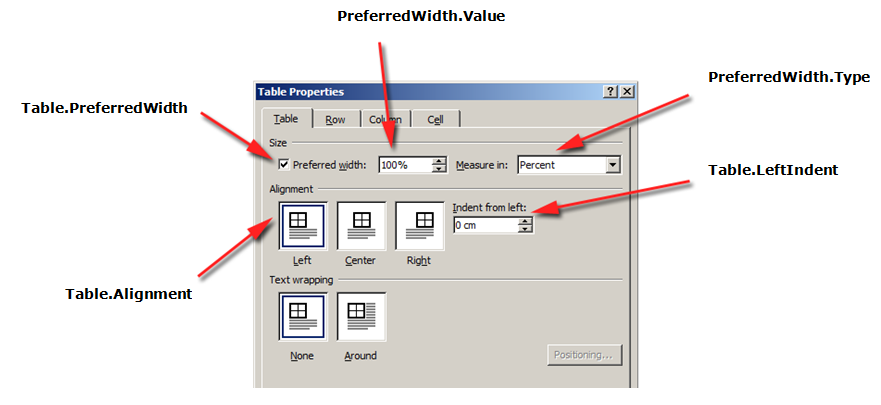
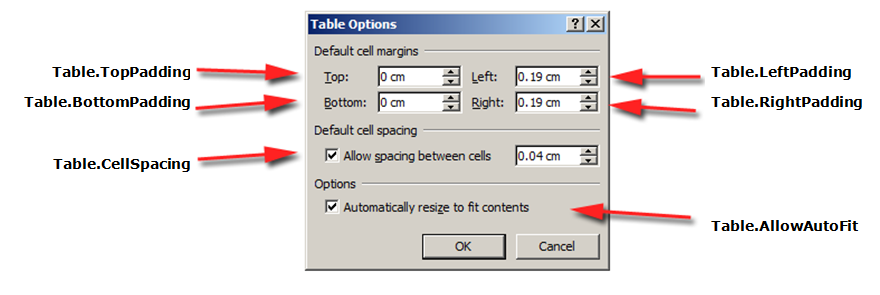
以下代码示例演示如何将轮廓边框应用于表格:
{{< gist "aspose-words-gists" "770bf20bd617f3cb80031a74cc6c9b73" "apply-outline-border.cs" >}}
{{% alert color="primary" %}}
您可以从 [Aspose.Words GitHub](https://github.com/aspose-words/Aspose.Words-for-.NET/blob/master/Examples/Data/Tables.docx) 下载本示例的示例文件。
{{% /alert %}}
以下代码示例显示如何构建启用所有边框的表格(网格):
{{< gist "aspose-words-gists" "770bf20bd617f3cb80031a74cc6c9b73" "build-table-with-borders.cs" >}}
{{% alert color="primary" %}}
您可以从 [Aspose.Words GitHub](https://github.com/aspose-words/Aspose.Words-for-.NET/blob/master/Examples/Data/Tables.docx) 下载本示例的示例文件。
{{% /alert %}}
### 行级格式化
**行级** 格式可以使用 [Row](https://reference.aspose.com/words/zh/net/aspose.words.tables/row/)、[RowFormat](https://reference.aspose.com/words/zh/net/aspose.words.tables/rowformat/) 和 [RowCollection](https://reference.aspose.com/words/zh/net/aspose.words.tables/rowcollection/) 类进行控制。
{{% alert color="primary" %}}
请注意,**Row** 只能是 **Table** 的子节点。同时,**Row** 中必须至少有一个 **Cell**,以便可以对其应用格式。
{{% /alert %}}
下图显示了 Microsoft Word 中的 **Row** 格式化功能及其在 Aspose.Words 中的相应属性。
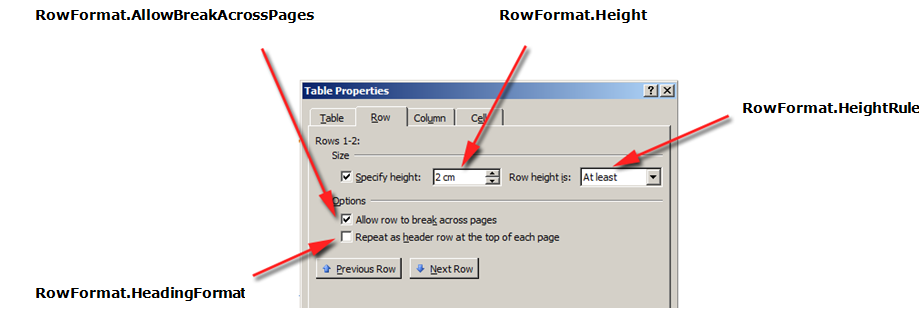
以下代码示例显示如何修改表行格式:
{{< gist "aspose-words-gists" "770bf20bd617f3cb80031a74cc6c9b73" "modify-row-formatting.cs" >}}
{{% alert color="primary" %}}
您可以从 [Aspose.Words GitHub](https://github.com/aspose-words/Aspose.Words-for-.NET/blob/master/Examples/Data/Tables.docx) 下载本示例的示例文件。
{{% /alert %}}
### 单元格级别格式化
单元格级格式由 [Cell](https://reference.aspose.com/words/zh/net/aspose.words.tables/cell/)、[CellFormat](https://reference.aspose.com/words/zh/net/aspose.words.tables/cellformat/) 和 [CellCollection](https://reference.aspose.com/words/zh/net/aspose.words.tables/cellcollection/) 类控制。
{{% alert color="primary" %}}
请注意,**Cell** 只能是 **Row** 的子节点。同时,**Cell** 中必须至少有一个 [Paragraph](https://reference.aspose.com/words/zh/net/aspose.words/paragraph/),以便可以对其应用格式。
除了 **Paragraph** 之外,您还可以将 **Table** 插入 **Cell** 中。
{{% /alert %}}
下图显示了 Microsoft Word 中的 **Cell** 格式功能及其在 Aspose.Words 中的相应属性。
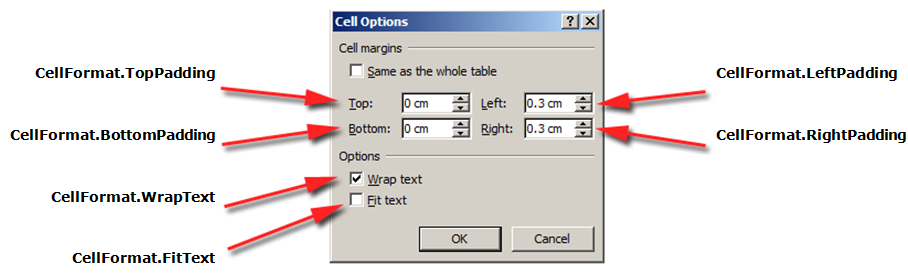
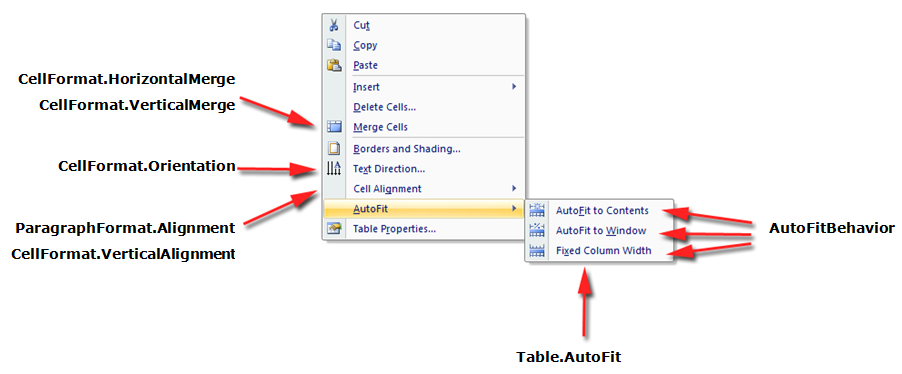
以下代码示例显示如何修改表格单元格的格式:
{{< gist "aspose-words-gists" "770bf20bd617f3cb80031a74cc6c9b73" "modify-cell-formatting.cs" >}}
{{% alert color="primary" %}}
您可以从 [Aspose.Words GitHub](https://github.com/aspose-words/Aspose.Words-for-.NET/blob/master/Examples/Data/Tables.docx) 下载本示例的示例文件。
{{% /alert %}}
以下代码示例演示如何设置添加到单元格内容的左侧/顶部/右侧/底部的空间量(以磅为单位):
{{< gist "aspose-words-gists" "770bf20bd617f3cb80031a74cc6c9b73" "cell-padding.cs" >}}
## 指定行高
设置行高的最简单方法是使用 **DocumentBuilder**。使用适当的 **RowFormat** 属性,您可以设置默认高度设置或为表中的每一行应用不同的高度。
在 Aspose.Words 中,表格行高由以下因素控制:
- 行高属性 – [Height](https://reference.aspose.com/words/zh/net/aspose.words.tables/rowformat/height/)
- 给定行的高度规则属性 – [HeightRule](https://reference.aspose.com/words/zh/net/aspose.words.tables/rowformat/heightrule/)
同时,可以为每行设置不同的高度 - 这使您可以广泛控制表格设置。
{{% alert color="primary" %}}
可以使用 [HeightRule](https://reference.aspose.com/words/zh/net/aspose.words/heightrule/) 枚举设置用于指定对象高度的规则选项。
{{% /alert %}}
以下代码示例演示如何创建包含单个单元格的表格并应用行格式:
{{< gist "aspose-words-gists" "770bf20bd617f3cb80031a74cc6c9b73" "apply-row-formatting.cs" >}}
## 指定表格和单元格宽度
Microsoft Word 文档中的表格提供了几种不同的方法来调整表格和单个单元格的大小。这些属性允许对表的外观和行为进行大量控制,以便 Aspose.Words 支持表的行为,如 Microsoft Word 中一样。
重要的是要知道表格元素呈现几个不同的属性,这些属性可能会影响整个表格以及单个单元格的宽度的计算方式:
- 桌子上的首选宽度
- 单个单元格的首选宽度
- 允许在桌子上自动调整
本文详细介绍了各种表格宽度计算属性的工作原理以及如何完全控制表格宽度计算。这是
在表格布局未按预期显示的情况下了解这一点尤其有用。
{{% alert color="primary" %}}
在大多数情况下,建议使用首选单元格而不是表格宽度。优选的单元格宽度更符合DOCX格式规范以及Aspose.Words模型。
单元格宽度实际上是 DOCX 格式的计算值。实际的单元宽度可能取决于很多因素。例如,更改页边距或首选表格宽度可能会影响实际的单元格宽度。
首选单元格宽度是存储在文档中的单元格属性。它不依赖于任何东西,并且当您更改表格或单元格的其他属性时不会更改。
{{% /alert %}}
{{% alert color="primary" %}}
本文中描述的所有属性和方法都与表在 Microsoft Word 中的工作方式相关。因此,在大多数情况下,如果您以编程方式构建表,但发现很难创建所需的表,则可以首先尝试在 Microsoft Word 中直观地创建它,然后只需将格式化值复制到您的应用程序中。
{{% /alert %}}
### 如何使用首选宽度
表格或单个单元格的所需宽度是通过首选宽度属性定义的,该属性是元素努力适应的大小。也就是说,可以为整个表格或单个单元格指定首选宽度。在某些情况下,可能无法完全适合该宽度,但大多数情况下实际宽度会接近该值。
使用 [PreferredWidth](https://reference.aspose.com/words/zh/net/aspose.words.tables/preferredwidth/) 类的方法设置适当的首选宽度类型和值:
* [Auto](https://reference.aspose.com/words/zh/net/aspose.words.tables/preferredwidth/auto/) 方法指定自动或"无首选宽度"
* [FromPercent](https://reference.aspose.com/words/zh/net/aspose.words.tables/preferredwidth/frompercent/)方法指定百分比宽度
* [FromPoints](https://reference.aspose.com/words/zh/net/aspose.words.tables/preferredwidth/frompoints/) 方法指定宽度(以磅为单位)
下图显示了 Microsoft Word 中的*首选宽度设置功能*及其在 Aspose.Words 中的相应属性。
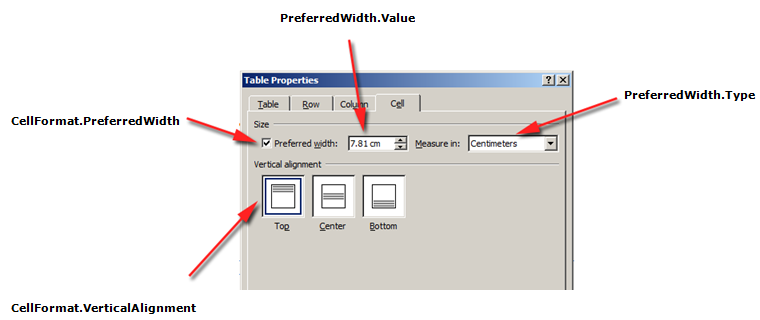
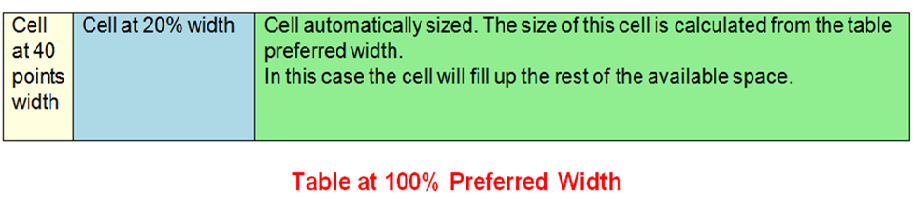
下图显示了如何将这些选项应用于文档中的真实表格的示例。
{{% alert color="primary" %}}
在表中使用首选宽度之前,必须确保该表至少包含一行。这是因为 Microsoft Word 文档或以 Aspose.Words 创建的文档中的此类表格格式存储在表格的行中。
{{% /alert %}}
#### 指定首选表格或单元格宽度
在 Aspose.Words 中,表格和单元格宽度是使用 [Table.PreferredWidth](https://reference.aspose.com/words/zh/net/aspose.words.tables/table/preferredwidth/) 属性和 [CellFormat.PreferredWidth](https://reference.aspose.com/words/zh/net/aspose.words.tables/cellformat/preferredwidth/) 属性设置的,并在 [PreferredWidthType](https://reference.aspose.com/words/zh/net/aspose.words.tables/preferredwidthtype/) 枚举中提供可用选项:
- **Auto**,相当于没有设置首选宽度
- **Percent**,使元素相对于窗口或容器中的可用空间大小进行拟合,并在可用宽度发生变化时重新计算该值
- **Points**,对应于以点为单位的指定宽度的元素
{{% alert color="primary" %}}
默认情况下,表格可以描述为适合页面上 100% 的可用空间。在这种情况下,这意味着表格将尝试占据左右页边距之间的空间。
{{% /alert %}}
使用 [Table.PreferredWidth](https://reference.aspose.com/words/zh/net/aspose.words.tables/table/preferredwidth/) 属性将调整其相对于其容器的首选宽度:页面、文本列或外部表格单元格(如果它是嵌套表格)。
以下代码示例演示如何将表格设置为自动适应页面宽度的 50%:
{{< gist "aspose-words-gists" "770bf20bd617f3cb80031a74cc6c9b73" "auto-fit-page-width.cs" >}}
在给定单元格上使用 [CellFormat.PreferredWidth](https://reference.aspose.com/words/zh/net/aspose.words.tables/cellformat/preferredwidth/) 属性将调整其首选宽度。
以下代码示例显示如何设置不同的首选宽度设置:
{{< gist "aspose-words-gists" "770bf20bd617f3cb80031a74cc6c9b73" "preferred-width-settings.cs" >}}
#### 查找首选宽度类型和值
您可以使用 [Type](https://reference.aspose.com/words/zh/net/aspose.words.tables/preferredwidth/type/) 和 [Value](https://reference.aspose.com/words/zh/net/aspose.words.tables/preferredwidth/value/) 属性来查找所需表格或单元格的首选宽度详细信息。
以下代码示例显示如何检索表格单元格的首选宽度类型:
{{< gist "aspose-words-gists" "770bf20bd617f3cb80031a74cc6c9b73" "retrieve-preferred-width-type.cs" >}}
{{% alert color="primary" %}}
您可以从 [Aspose.Words GitHub](https://github.com/aspose-words/Aspose.Words-for-.NET/blob/master/Examples/Data/Tables.docx) 下载本示例的示例文件。
{{% /alert %}}
### 如何设置自动调整
[AllowAutoFit](https://reference.aspose.com/words/zh/net/aspose.words.tables/table/allowautofit/) 属性允许表中的单元格根据选定的标准增大和缩小。例如,您可以使用 **自动适应窗口** 选项使表格适合页面的宽度,并使用 **自动适应内容** 选项允许每个单元格根据其内容增大或缩小。
{{% alert color="primary" %}}
此外,**AllowAutoFit** 属性可以与首选单元格宽度结合使用,以格式化自动适合其内容的单元格,但也具有初始宽度。如果需要,单元宽度可以增长到超过该宽度。
{{% /alert %}}
默认情况下,Aspose.Words 使用 **自动适应窗口** 插入新表。表格的大小将根据可用的页面宽度进行调整。要调整表的大小,您可以调用 [AutoFit](https://reference.aspose.com/words/zh/net/aspose.words.tables/table/autofit/) 方法。此方法接受 [AutoFitBehavior](https://reference.aspose.com/words/zh/net/aspose.words.tables/autofitbehavior/) 枚举,该枚举指定对表应用什么类型的自动调整。
重要的是要知道 autofit 方法实际上是一种同时将不同属性应用于表的快捷方式。这些属性实际上为表提供了观察到的行为。我们将讨论每个自动调整选项的这些属性。
以下代码示例显示如何设置表格以根据其内容缩小或增大每个单元格:
{{< gist "aspose-words-gists" "770bf20bd617f3cb80031a74cc6c9b73" "allow-auto-fit.cs" >}}
#### 自动调整表格到窗口
当自动适应窗口应用于表时,实际上在幕后执行以下操作:
1. 启用 **Table.AllowAutoFit** 属性以自动调整列大小以适应可用内容,使用 **Table.PreferredWidth** 值 100%
2. **CellFormat.PreferredWidth**从所有表格单元中删除
{{% alert color="primary" %}}
请注意,这与 Microsoft Word 行为略有不同,其中每个单元格的首选宽度根据其当前大小和内容设置为适当的值。 Aspose.Words 不会更新首选宽度,因此它们只是被清除。
{{% /alert %}}
3. 针对当前表格内容重新计算列宽 – 最终结果是表格占据整个可用宽度
4.表格中的列宽会随着用户编辑文本而自动改变
以下代码示例演示如何使表格自动适应页面宽度:
{{< gist "aspose-words-gists" "770bf20bd617f3cb80031a74cc6c9b73" "auto-fit-table-to-page-width.cs" >}}
{{% alert color="primary" %}}
您可以从 [Aspose.Words GitHub](https://github.com/aspose-words/Aspose.Words-for-.NET/blob/master/Examples/Data/Tables.docx) 下载本示例的示例文件。
{{% /alert %}}
#### 自动调整表格以适应内容
当表格自动调整内容时,实际上在幕后执行以下步骤:
1.启用**Table.AllowAutoFit**属性,根据其内容自动调整每个单元格的大小
2.从**Table.PreferredWidth**中删除首选表格宽度,为每个表格单元格删除**CellFormat.PreferredWidth**
{{% alert color="primary" %}}
请注意,此自动调整选项会从单元格中删除首选宽度,就像在 Microsoft Word 中一样。如果要保持列大小并增加或减少列以适合内容,则应将 **Table.AllowAutoFit** 属性单独设置为 **True**,而不是使用自动调整快捷方式。{{% /alert %}}
3. 针对当前表格内容重新计算列宽 – 最终结果是一个表格,其中列宽和整个表格的宽度会在用户编辑文本时自动调整大小以最适合内容
以下代码示例演示如何自动调整表格以适应其内容:
{{< gist "aspose-words-gists" "770bf20bd617f3cb80031a74cc6c9b73" "auto-fit-table-to-contents.cs" >}}
{{% alert color="primary" %}}
您可以从 [Aspose.Words GitHub](https://github.com/aspose-words/Aspose.Words-for-.NET/blob/master/Examples/Data/Tables.docx) 下载本示例的示例文件。
{{% /alert %}}
#### 禁用表格中的自动调整并使用固定列宽
如果表禁用了自动调整并使用固定列宽,则执行以下步骤:
1. **Table.AllowAutoFit** 属性被禁用,因此列不会根据其内容增大或缩小
2.从**Table.PreferredWidth**中删除整个表格的首选宽度,从所有表格单元格中删除**CellFormat.PreferredWidth**
3. 最终结果是一个表格,其列宽由 [CellFormat.Width](https://reference.aspose.com/words/zh/net/aspose.words.tables/cellformat/width/) 属性确定,并且当用户输入文本或调整页面大小时,其列不会自动调整大小
{{% alert color="primary" %}}
请注意,如果没有为 **CellFormat.Width** 指定宽度,则使用默认值 1 英寸(72 点)。
{{% /alert %}}
以下代码示例显示如何禁用自动调整并为指定表格启用固定宽度:
{{< gist "aspose-words-gists" "770bf20bd617f3cb80031a74cc6c9b73" "auto-fit-table-to-fixed-column-widths.cs" >}}
{{% alert color="primary" %}}
您可以从 [Aspose.Words GitHub](https://github.com/aspose-words/Aspose.Words-for-.NET/blob/master/Examples/Data/Tables.docx) 下载本示例的示例文件。
{{% /alert %}}
### 计算单元格宽度时的优先顺序
Aspose.Words 允许用户通过多个对象(包括 [CellFormat](https://reference.aspose.com/words/zh/net/aspose.words.tables/cellformat/))定义表格或单元格的宽度 - 它的 [Width](https://reference.aspose.com/words/zh/net/aspose.words.tables/cellformat/width/) 属性大部分是以前版本遗留下来的,但是,它对于简化单元格宽度的设置仍然很有用。
重要的是要知道 **CellFormat.Width** 属性的工作方式有所不同,具体取决于表中已存在的其他宽度属性。
Aspose.Words 使用以下顺序来计算单元格宽度:
| 命令 | 财产 | 描述 |
| ----- | ------------------------------------------------------------ | ------------------------------------------------------------ |
| 1 | [AllowAutoFit](https://reference.aspose.com/words/zh/net/aspose.words.tables/table/allowautofit/)确定 | 如果 **AutoFit** 已启用:
- 表格可能会增长超过首选宽度以容纳内容 - 它通常不会缩小到首选宽度以下
- 对 **CellFormat.Width** 值的任何更改都会被忽略,单元格将适合其内容 |
| 2 | 值为 **Points** 或 **Percent** 的 [PreferredWidthType](https://reference.aspose.com/words/zh/net/aspose.words.tables/preferredwidthtype/) | **CellFormat.Width** 被忽略 |
| 3 | [PreferredWidthType](https://reference.aspose.com/words/zh/net/aspose.words.tables/preferredwidthtype/) 值为 **Auto** | **CellFormat.Width** 中的值被复制并成为单元格的首选宽度(以磅为单位) |
{{% alert color="primary" %}}
对宽度属性的任何更改都不会在首选宽度中更新,而是必须应用于首选宽度。
{{% /alert %}}
{{% alert color="primary" %}}
创建固定表格布局时,指定单元格宽度。没有宽度的单元格无法保存为 DOC 格式。除 DOC 之外的文档格式(例如 DOCX)原则上允许在固定表格布局中保存没有宽度的单元格。
{{% /alert %}}
## 允许单元格之间有间距
您可以获取或设置表格单元格之间的任何附加空间,类似于 Microsoft Word 中的"Cell 间距"选项。这可以使用 [AllowCellSpacing](https://reference.aspose.com/words/zh/net/aspose.words.tables/table/allowcellspacing/) 属性来完成。
下图显示了如何将这些选项应用于文档中的真实表格的示例。
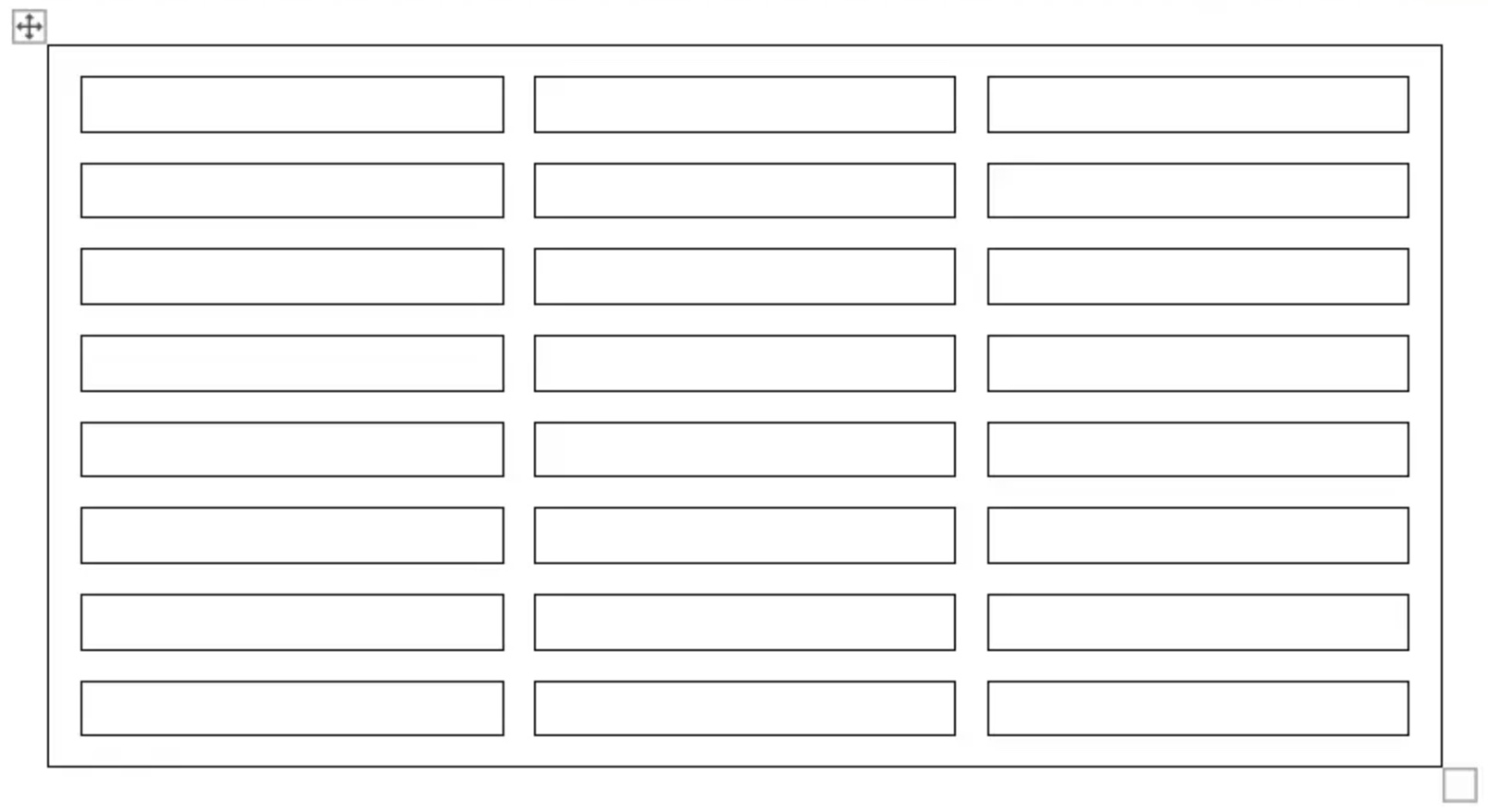 以下代码示例展示了如何设置单元格之间的间距:
{{< gist "aspose-words-gists" "770bf20bd617f3cb80031a74cc6c9b73" "allow-cell-spacing.cs" >}}
## 应用边框和底纹
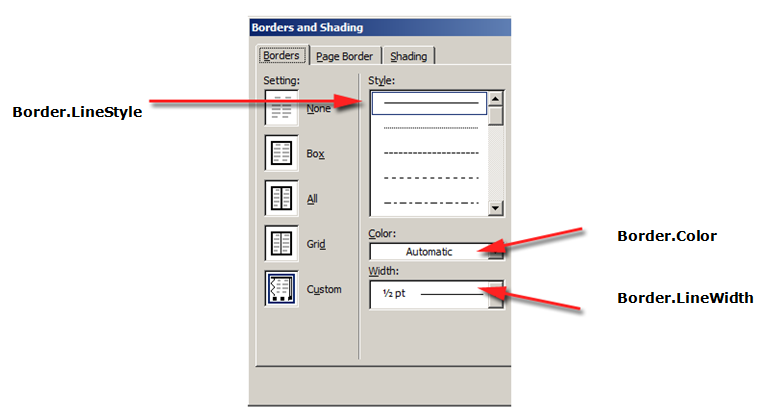
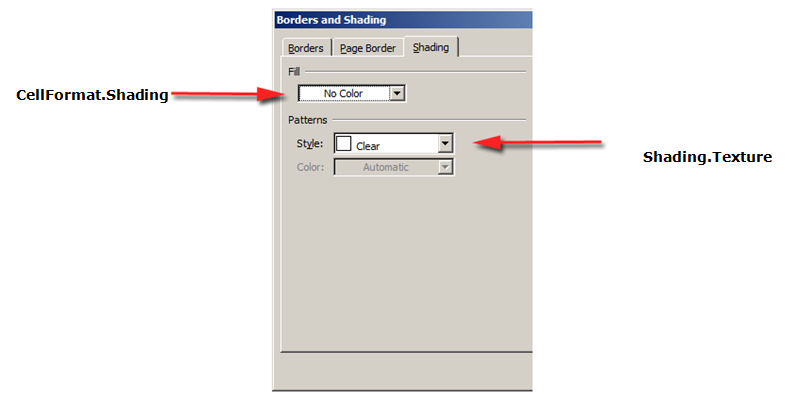
边框和底纹可以使用 [Table.SetBorder](https://reference.aspose.com/words/zh/net/aspose.words.tables/table/setborder/)、[Table.SetBorders](https://reference.aspose.com/words/zh/net/aspose.words.tables/table/setborders/) 和 [Table.SetShading](https://reference.aspose.com/words/zh/net/aspose.words.tables/table/setshading/) 应用于整个表格,也可以使用 [CellFormat.Borders](https://reference.aspose.com/words/zh/net/aspose.words.tables/cellformat/borders/) 和 [CellFormat.Shading](https://reference.aspose.com/words/zh/net/aspose.words.tables/cellformat/shading/) 仅应用于特定单元格。此外,可以使用 [RowFormat.Borders](https://reference.aspose.com/words/zh/net/aspose.words.tables/rowformat/borders/) 设置行边框,但不能以这种方式应用阴影。
下图显示了 Microsoft Word 中的边框和阴影设置以及 Aspose.Words 中相应的属性。
以下代码示例演示如何设置具有不同边框和底纹的表格和单元格的格式:
{{< gist "aspose-words-gists" "770bf20bd617f3cb80031a74cc6c9b73" "format-table-and-cell-with-different-borders.cs" >}}
以下代码示例展示了如何设置单元格之间的间距:
{{< gist "aspose-words-gists" "770bf20bd617f3cb80031a74cc6c9b73" "allow-cell-spacing.cs" >}}
## 应用边框和底纹
边框和底纹可以使用 [Table.SetBorder](https://reference.aspose.com/words/zh/net/aspose.words.tables/table/setborder/)、[Table.SetBorders](https://reference.aspose.com/words/zh/net/aspose.words.tables/table/setborders/) 和 [Table.SetShading](https://reference.aspose.com/words/zh/net/aspose.words.tables/table/setshading/) 应用于整个表格,也可以使用 [CellFormat.Borders](https://reference.aspose.com/words/zh/net/aspose.words.tables/cellformat/borders/) 和 [CellFormat.Shading](https://reference.aspose.com/words/zh/net/aspose.words.tables/cellformat/shading/) 仅应用于特定单元格。此外,可以使用 [RowFormat.Borders](https://reference.aspose.com/words/zh/net/aspose.words.tables/rowformat/borders/) 设置行边框,但不能以这种方式应用阴影。
下图显示了 Microsoft Word 中的边框和阴影设置以及 Aspose.Words 中相应的属性。


以下代码示例演示如何设置具有不同边框和底纹的表格和单元格的格式:
{{< gist "aspose-words-gists" "770bf20bd617f3cb80031a74cc6c9b73" "format-table-and-cell-with-different-borders.cs" >}}