---
title: "转换为 PDF 时的选项"
---
PDF格式是一种固定页面格式,在用户中非常流行,并受到各种应用程序的广泛支持,因为PDF文档在任何设备上看起来都是一样的。因此,转换为 PDF 是 Aspose.Words 的一个重要功能。
PDF 是一种复杂的格式。将文档转换为 PDF 的过程中需要几个阶段的计算,包括布局计算。由于这些阶段包括复杂的计算,因此非常耗时。此外,PDF 格式本身相当复杂。它具有特定的文件结构、图形模型和字体嵌入。此外,它还具有一些复杂的输出功能,例如文档结构标签、加密、数字签名和可编辑表单。
Aspose.Words 布局引擎模仿 Microsoft Word 页面布局引擎的工作方式。因此,Aspose.Words 使 PDF 输出文档看起来尽可能接近您在 Microsoft Word 中看到的内容。有时需要指定其他选项,这可能会影响将文档保存为 PDF 格式的结果。这些选项可以通过使用 [PdfSaveOptions](https://reference.aspose.com/words/python-net/aspose.words.saving/pdfsaveoptions/) 类来指定,其中包含确定 PDF 输出如何显示的属性。
下面提供了一些使用 [PdfSaveOptions](https://reference.aspose.com/words/python-net/aspose.words.saving/pdfsaveoptions/) 的示例。
{{% alert color="primary" %}}
目前,您还可以保存为 PDF/A-1 和 PDF/A-2 格式。请注意,对于 PDF/A 格式,输出文件大小大于常规 PDF 文件大小。
[PdfCompliance.PDF_A1A](https://reference.aspose.com/words/python-net/aspose.words.saving/pdfcompliance/#pdf_a1a) 和 [PdfCompliance.PDF_A1B](https://reference.aspose.com/words/python-net/aspose.words.saving/pdfcompliance/#pdf_a1b) 被标记为已过时。
有关 PDF/A 的更多信息,请参阅下一篇文章"了解转换为 PDF/A 的功能"。
{{% /alert %}}
## 创建带有可填写表格的 PDF 文档
还可以将可填写的表单从 Microsoft Word 文档导出到输出 PDF,其中包含可填写的表单而不是纯文本。使用 [preserve_form_fields](https://reference.aspose.com/words/python-net/aspose.words.saving/pdfsaveoptions/preserve_form_fields/) 属性将文档另存为具有可填写表单的 PDF。
请注意,与 Microsoft Word 相比,PDF 格式的可编辑表单选项数量有限,例如文本框、组合框和复选框。 Microsoft Word有更多类型的表单,例如日历日期选择器。一般来说,完全模仿 PDF 中的 Microsoft Word 行为是不可能的。因此,在某些复杂的情况下,PDF 输出可能与您在 Microsoft Word 中看到的不同。
下面的代码示例展示了如何将文档另存为 PDF,其中包含具有指定 Jpeg 压缩和质量的可填写表单:
{{< gist "aspose-words-gists" "e9d8f984dac599756ccb4a64b8c79768" "Examples-DocsExamples-DocsExamples-File Formats and Conversions-Save Options-working_with_pdf_save_options-PdfImageComppression.py" >}}
## 导出文档结构和自定义属性
[export_document_structure](https://reference.aspose.com/words/python-net/aspose.words.saving/pdfsaveoptions/export_document_structure/) 属性使您能够将文档结构导出为 PDF 输出。
PDF 逻辑结构工具提供了一种将有关文档内容结构的信息合并到 PDF 文件中的机制。 Aspose.Words 保留有关 Microsoft Word 文档结构的信息,例如段落、列表、表格、脚注/尾注等。
以下示例演示如何将文档保存为 PDF 格式,并保留文档结构:
{{< gist "aspose-words-gists" "e9d8f984dac599756ccb4a64b8c79768" "Examples-DocsExamples-DocsExamples-File Formats and Conversions-Save Options-working_with_pdf_save_options-ExportDocumentStructure.py" >}}
Aspose.Words 还允许您将文档自定义属性导出到 PDF,如以下示例所示:
{{< gist "aspose-words-gists" "e9d8f984dac599756ccb4a64b8c79768" "Examples-DocsExamples-DocsExamples-File Formats and Conversions-Save Options-working_with_pdf_save_options-CustomPropertiesExport.py" >}}
## 从输出 PDF 中的书签和标题导出大纲
如果要将书签导出为输出 PDF 中的轮廓,可以使用 [default_bookmarks_outline_level](https://reference.aspose.com/words/python-net/aspose.words.saving/outlineoptions/default_bookmarks_outline_level/) 属性。此属性指定文档大纲中显示 Microsoft Word 书签的默认级别。如果文档的页眉/页脚中包含书签,您可以将 [header_footer_bookmarks_export_mode](https://reference.aspose.com/words/python-net/aspose.words.saving/pdfsaveoptions/header_footer_bookmarks_export_mode/) 属性设置为 [HeaderFooterBookmarksExportMode.FIRST](https://reference.aspose.com/words/python-net/aspose.words.saving/headerfooterbookmarksexportmode/#first) 或 [HeaderFooterBookmarksExportMode.ALL](https://reference.aspose.com/words/python-net/aspose.words.saving/headerfooterbookmarksexportmode/#all),以指定它们在输出 PDF 中的导出方式。当 [header_footer_bookmarks_export_mode](https://reference.aspose.com/words/python-net/aspose.words.saving/pdfsaveoptions/header_footer_bookmarks_export_mode/) 的值为 [HeaderFooterBookmarksExportMode.NONE](https://reference.aspose.com/words/python-net/aspose.words.saving/headerfooterbookmarksexportmode/#none) 时,不会导出页眉/页脚中的书签。
下面的代码示例显示了如何从节的第一个页眉/页脚导出书签:
{{< gist "aspose-words-gists" "e9d8f984dac599756ccb4a64b8c79768" "Examples-DocsExamples-DocsExamples-File Formats and Conversions-Save Options-working_with_pdf_save_options-ExportHeaderFooterBookmarks.py" >}}
本例的输出PDF如下所示:
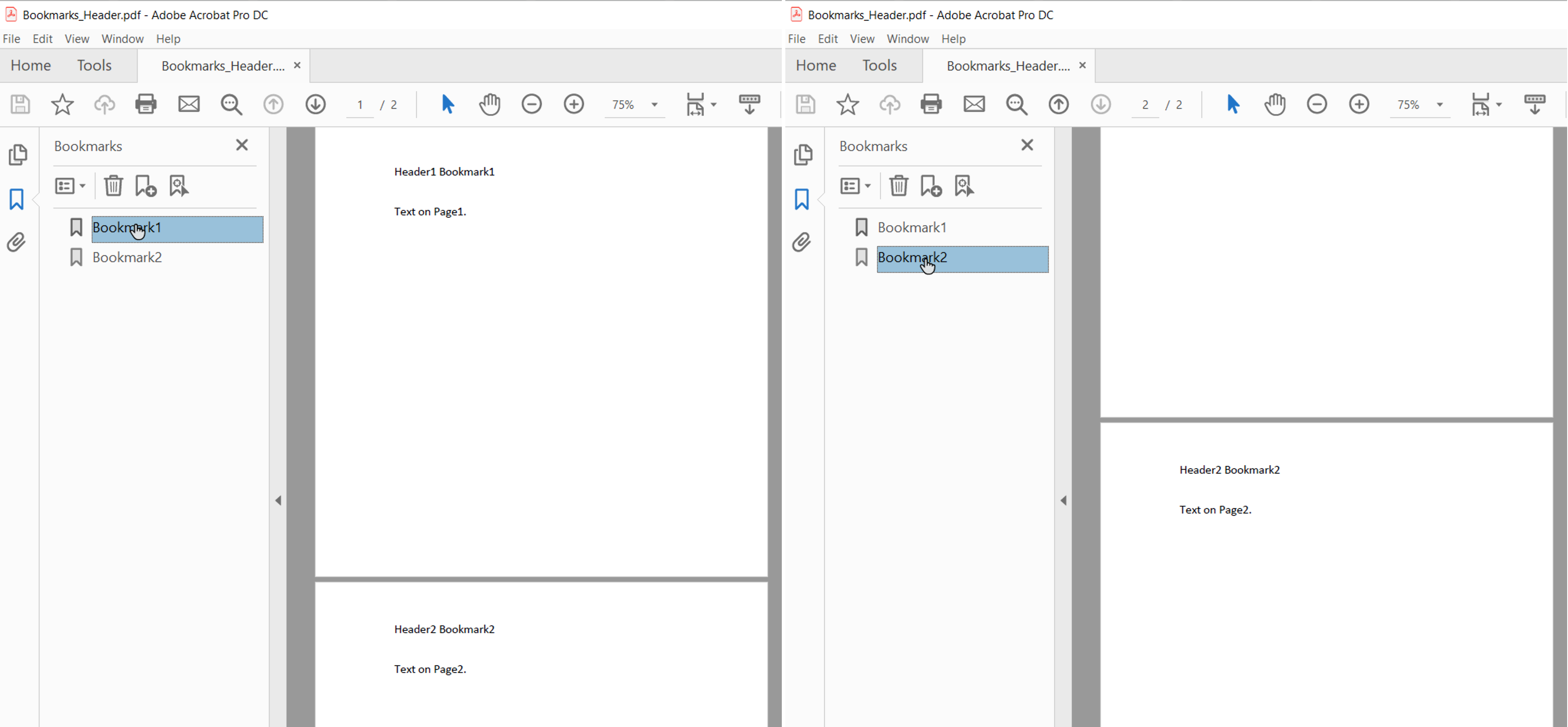
当 [header_footer_bookmarks_export_mode](https://reference.aspose.com/words/python-net/aspose.words.saving/pdfsaveoptions/header_footer_bookmarks_export_mode/) 设置为 [HeaderFooterBookmarksExportMode.FIRST](https://reference.aspose.com/words/python-net/aspose.words.saving/headerfooterbookmarksexportmode/#first) 并且文档具有偶数和奇数页眉/页脚或不同的首页页眉/页脚时,将为节中的第一个唯一页眉/页脚导出书签。
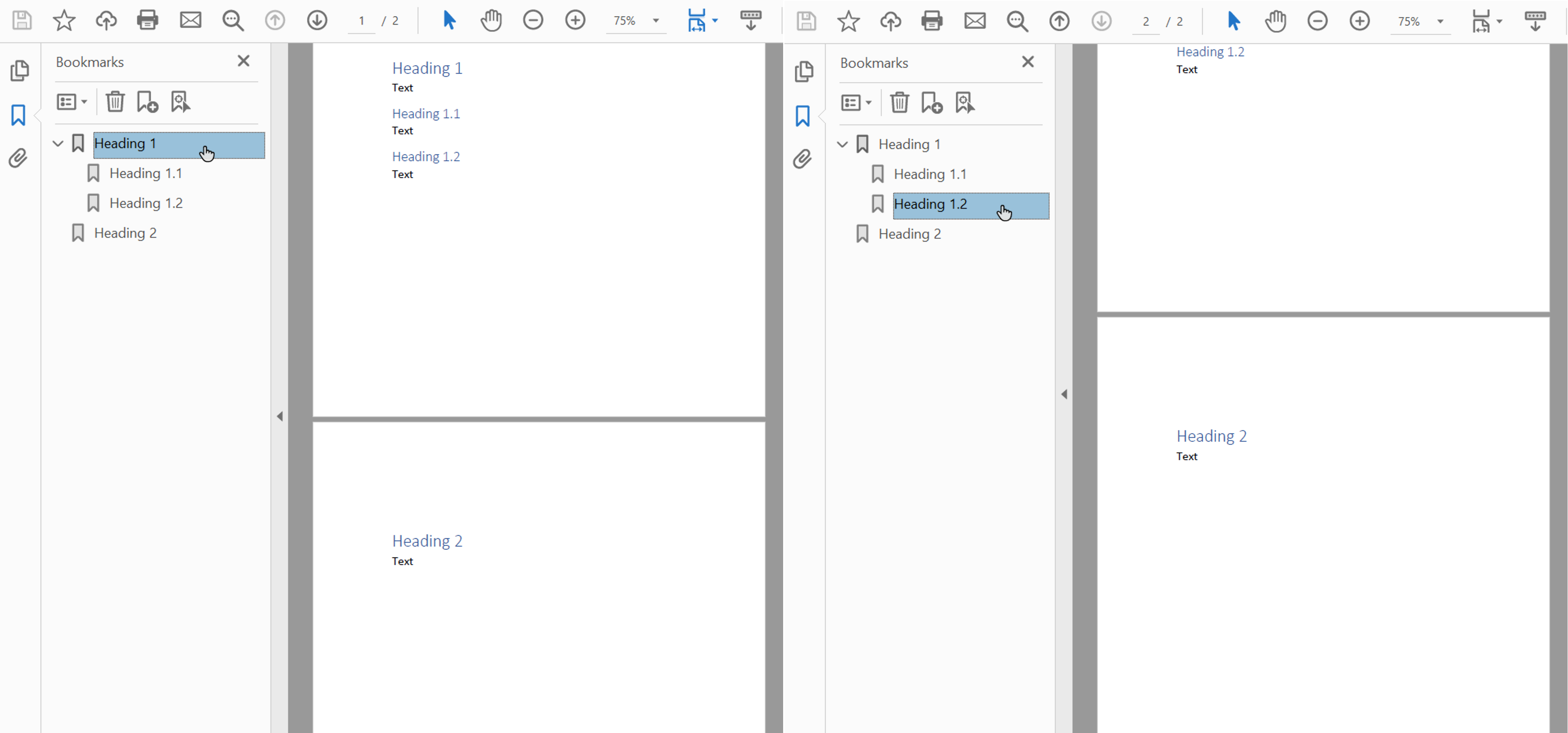
您还可以使用 [headings_outline_levels](https://reference.aspose.com/words/python-net/aspose.words.saving/outlineoptions/headings_outline_levels/) 属性导出输出 PDF 中的标题。该属性指定文档大纲中包含多少级标题。
下面的代码示例展示了如何导出三个级别的标题:
{{< gist "aspose-words-gists" "e9d8f984dac599756ccb4a64b8c79768" "Examples-DocsExamples-DocsExamples-File Formats and Conversions-Save Options-working_with_pdf_save_options-SetOutlineOptions.py" >}}
该示例的输出 PDF 如下所示:
{{% alert color="primary" %}}
书签或标题导航在不同的 PDF 查看器中可能具有不同的外观。此外,在某些应用程序中,书签和标题导航在 UI 中不可用。
{{% /alert %}}
## 缩小图像采样以减小文档大小
Aspose.Words 提供了使用 [downsample_options](https://reference.aspose.com/words/python-net/aspose.words.saving/pdfsaveoptions/downsample_options/) 属性对图像进行下采样的功能,以减小输出 PDF 的大小。默认情况下,[downsample_images](https://reference.aspose.com/words/python-net/aspose.words.saving/downsampleoptions/downsample_images/) 属性中启用下采样。
请注意,还可以在 [resolution](https://reference.aspose.com/words/python-net/aspose.words.saving/downsampleoptions/resolution/) 属性中设置特定分辨率,或在 [resolution_threshold](https://reference.aspose.com/words/python-net/aspose.words.saving/downsampleoptions/resolution_threshold/) 属性中设置分辨率阈值。在第二种情况下,如果图像分辨率小于阈值,则不会应用下采样。
下面的代码示例显示如何更改输出 PDF 文档中图像的分辨率:
{{< gist "aspose-words-gists" "e9d8f984dac599756ccb4a64b8c79768" "Examples-DocsExamples-DocsExamples-File Formats and Conversions-Save Options-working_with_pdf_save_options-DownsamplingImages.py" >}}
分辨率是根据页面上的实际图像尺寸计算的。
## 以 Adobe PDF 格式嵌入字体
Aspose.Words 还使您能够控制如何将字体嵌入到生成的 PDF 文档中。字体需要嵌入到任何 Adobe PDF 文档中,以确保文档可以在任何机器上正确呈现(请参阅 [使用 TrueType 字体](/words/zh/python-net/using-truetype-fonts/) 部分中有关字体呈现的更多详细信息)。默认情况下,Aspose.Words 将文档中使用的字体子集嵌入到生成的 PDF 中。在这种情况下,仅将文档中使用的 glyph(字符)保存到 PDF 中。
### 何时使用完整字体以及何时进行子集化
有一种方法可以指定 Aspose.Words 嵌入完整字体的选项。下表描述了更多详细信息以及每种设置的一些优点和缺点。
| 嵌入字体模式 | 优点 | 缺点 |
| :- | :- | :- |
| `Full` | 当您想稍后通过添加或修改文本来编辑生成的 PDF 时很有用。所有字体都包含在内,因此所有 glyph 都存在。 | 由于某些字体很大(几兆字节),因此在不进行子集化的情况下嵌入它们可能会导致输出文件很大。 |
| `Subset` | 如果您想保持较小的输出文件大小,子集化非常有用。 | 用户无法在输出 PDF 文档中使用子集字体完全添加或编辑文本。这是因为并非该字体的所有 glyph 都存在。
如果多个 PDF 使用子集字体保存并组合在一起,则组合后的 PDF 文档的字体可能包含许多不必要的子集。
|
### 在 PDF 中嵌入完整字体
[embed_full_fonts](https://reference.aspose.com/words/python-net/aspose.words.saving/pdfsaveoptions/embed_full_fonts/) 属性使您能够指定 Aspose.Words 如何将字体嵌入到输出 PDF 文档中。
- 要将完整字体嵌入到输出 PDF 文档中,请将 [embed_full_fonts](https://reference.aspose.com/words/python-net/aspose.words.saving/pdfsaveoptions/embed_full_fonts/) 设置为 *True*
- 要在保存为 PDF 时对字体进行子集化,请将 [embed_full_fonts](https://reference.aspose.com/words/python-net/aspose.words.saving/pdfsaveoptions/embed_full_fonts/) 设置为 *False*
以下示例演示了如何在输出 PDF 文档中嵌入完整字体:
{{< gist "aspose-words-gists" "e9d8f984dac599756ccb4a64b8c79768" "Examples-DocsExamples-DocsExamples-File Formats and Conversions-Save Options-working_with_pdf_save_options-EmbeddAllFonts.py" >}}
以下示例演示如何将 Aspose.Words 设置为输出 PDF 中的字体子集:
{{< gist "aspose-words-gists" "e9d8f984dac599756ccb4a64b8c79768" "Examples-DocsExamples-DocsExamples-File Formats and Conversions-Save Options-working_with_pdf_save_options-EmbeddSubsetFonts.py" >}}
{{% alert color="primary" %}}
您可以从 [Aspose.Words GitHub](https://github.com/aspose-words/Aspose.Words-for-Python-via-.NET/blob/master/Examples/Data/Rendering.docx) 下载这些示例的模板文件。
{{% /alert %}}
## 如何控制嵌入核心字体和 Windows 标准字体
核心字体和 Windows 标准字体是"标准"字体集,通常存在于目标计算机上或由文档阅读器提供,因此不需要嵌入到输出 PDF 中。通过不嵌入这些字体,您可以减小渲染的 PDF 文档的大小,同时保持可移植性。
Aspose.Words 提供了选择如何将字体导出为 PDF 的选项。您可以选择将核心字体和标准字体嵌入到输出 PDF 中,或者跳过嵌入它们并在目标计算机上使用标准核心 PDF 字体或系统字体。使用这些选项之一通常会导致 Aspose.Words 生成的 PDF 文档的文件大小显着减小。
- 由于这些选项是互斥的,因此您一次只能选择一个。
- 当以 PDF/A-1 合规性保存时,所有使用的字体必须嵌入 PDF 文档中。根据此合规性进行保存时,[use_core_fonts](https://reference.aspose.com/words/python-net/aspose.words.saving/pdfsaveoptions/use_core_fonts/) 属性必须设置为 *False*,[font_embedding_mode](https://reference.aspose.com/words/python-net/aspose.words.saving/pdfsaveoptions/font_embedding_mode/) 属性必须设置为 [PdfFontEmbeddingMode.EMBED_ALL](https://reference.aspose.com/words/python-net/aspose.words.saving/pdffontembeddingmode/#embed_all)。
### 嵌入核心字体
可以使用 [use_core_fonts](https://reference.aspose.com/words/python-net/aspose.words.saving/pdfsaveoptions/use_core_fonts/) 属性启用或禁用嵌入 Core 字体的选项。当设置为 true 时,以下最流行的"True Type"字体(Base 14 字体)不会嵌入到输出 PDF 文档中:
- `Arial`
- `Times New Roman`
- `Courier New`
- `Symbol`
这些字体将替换为相应的核心 Type 1 字体,这些字体由阅读器在打开 PDF 时提供。
下面提供的示例展示了如何设置 Aspose.Words 以避免嵌入核心字体并让读者用 PDF Type 1 字体替换它们:
{{< gist "aspose-words-gists" "e9d8f984dac599756ccb4a64b8c79768" "Examples-DocsExamples-DocsExamples-File Formats and Conversions-Save Options-working_with_pdf_save_options-AvoidEmbeddingCoreFonts.py" >}}
{{% alert color="primary" %}}
您可以从 [Aspose.Words GitHub](https://github.com/aspose-words/Aspose.Words-for-Python-via-.NET/blob/master/Examples/Data/Rendering.docx) 下载此示例的模板文件。
{{% /alert %}}
由于 PDF 查看器在任何受支持的平台上提供核心字体,因此当需要更高的文档可移植性时,此选项也很有用。但是,核心字体可能看起来与系统字体不同。
{{% alert color="primary" %}}
此设置仅适用于 ANSI (Windows-1252) 编码文本。将非 ANSI 文本写入 PDF 始终需要嵌入相应的字体。
{{% /alert %}}
### 嵌入系统字体
可以使用 [font_embedding_mode](https://reference.aspose.com/words/python-net/aspose.words.saving/pdfsaveoptions/font_embedding_mode/) 启用或禁用此选项。当此属性设置为 [PdfFontEmbeddingMode.EMBED_NONSTANDARD](https://reference.aspose.com/words/python-net/aspose.words.saving/pdffontembeddingmode/#embed_nonstandard) 时,"Arial"和"Times New Roman"true 类型字体不会嵌入到 PDF 文档中。在这种情况下,客户端查看器依赖于客户端操作系统上安装的字体。当 [font_embedding_mode](https://reference.aspose.com/words/python-net/aspose.words.saving/pdfsaveoptions/font_embedding_mode/) 属性设置为 [PdfFontEmbeddingMode.EMBED_NONE](https://reference.aspose.com/words/python-net/aspose.words.saving/pdffontembeddingmode/#embed_none) 时,Aspose.Words 不嵌入任何字体。
下面的示例显示如何设置 Aspose.Words 以跳过将 Arial 和 Times New Roman 字体嵌入到 PDF 文档中:
{{< gist "aspose-words-gists" "e9d8f984dac599756ccb4a64b8c79768" "Examples-DocsExamples-DocsExamples-File Formats and Conversions-Save Options-working_with_pdf_save_options-DisableEmbedWindowsFonts.py" >}}
当您希望在同一平台上查看文档并保留输出 PDF 中字体的精确外观时,此模式非常有用。
{{% alert color="primary" %}}
此设置仅适用于 ANSI (Windows-1252) 编码文本。将非 ANSI 文本写入 PDF 需要嵌入相应的字体。
{{% /alert %}}