

Analyzing your prompt, please hold on...
An error occurred while retrieving the results. Please refresh the page and try again.
This article explains how to convert HTML to PDF using C#. It covers the following topics.
The following code snippet also works with Aspose.PDF.Drawing library.
Aspose.PDF for .NET is a PDF manipulation API that lets you convert any existing HTML documents to PDF seamlessly. The process of converting HTML to PDF can be flexibly customized.
The following C# code sample shows how to convert an HTML document to a PDF.
// For complete examples and data files, visit https://github.com/aspose-pdf/Aspose.PDF-for-.NET
private static void ConvertHTMLtoPDF()
{
    // The path to the documents directory
    var dataDir = RunExamples.GetDataDir_AsposePdf();

    // Load the HTML file into a document using HtmlLoadOptions
    var options = new Aspose.Pdf.HtmlLoadOptions();

    // Open HTML document
    using (var document = new Aspose.Pdf.Document(dataDir + "test.html", options))
    {
        // Save PDF document
        document.Save(dataDir + "ConvertHTMLtoPDF_out.pdf");
    }
}
Try to convert HTML to PDF online
Aspose provides an online free application “HTML to PDF”, where you can try the functionality and see how well it works.
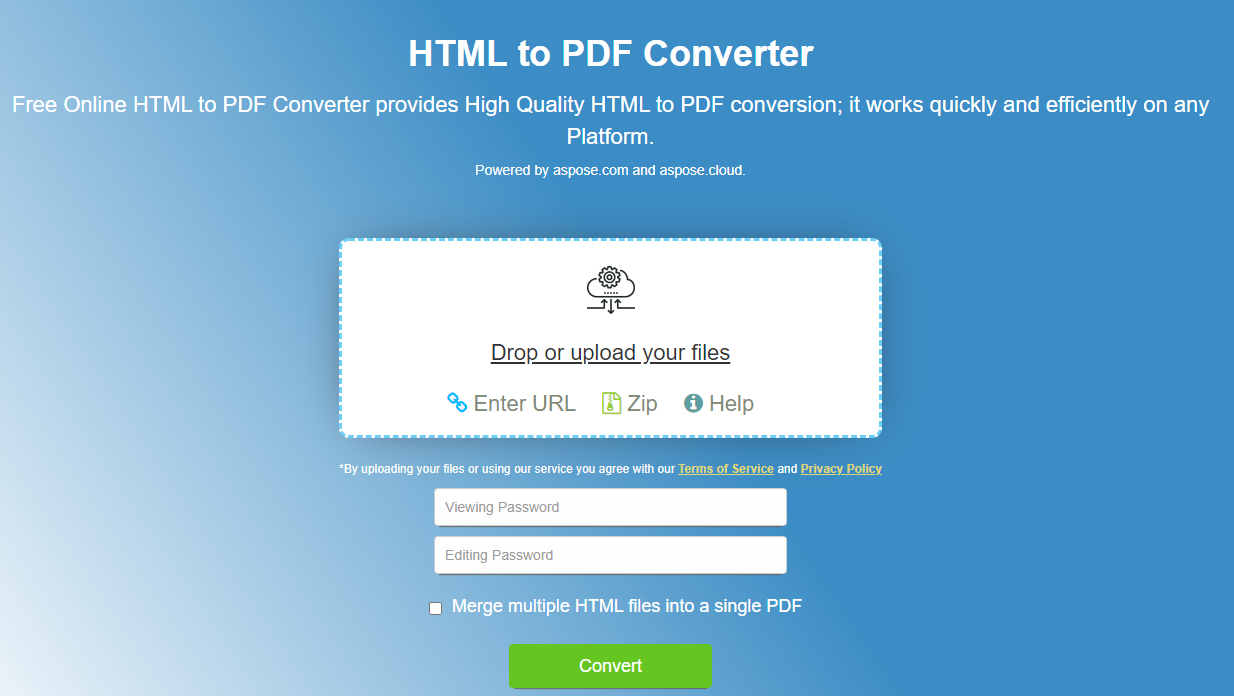
The HTML conversion engine has several options that allow us to control the conversion process.
Media queries are a popular technique for delivering a tailored style sheet to different devices. We can set device type using HtmlMediaType property.
// For complete examples and data files, visit https://github.com/aspose-pdf/Aspose.PDF-for-.NET
private static void ConvertHTMLtoPDFAdvancedMediaType()
{
    // The path to the documents directory
    var dataDir = RunExamples.GetDataDir_AsposePdf();

    // Load the HTML file into a document using HtmlLoadOptions with Print media type
    var options = new HtmlLoadOptions
    {
        // Set Print or Screen mode
        HtmlMediaType = Aspose.Pdf.HtmlMediaType.Print
    };

    // Open HTML document
    using (var document = new Aspose.Pdf.Document(dataDir + "test.html", options))
    {
        // Save PDF document
        document.Save(dataDir + "ConvertHTMLtoPDFAdvancedMediaType_out.pdf");
    }
}
HTML pages often use fonts (i.e., fonts from a local folder, Google Fonts, etc.). We can also control the embedding of fonts in a document using a IsEmbedFonts property.
 // For complete examples and data files, visit https://github.com/aspose-pdf/Aspose.PDF-for-.NET
 private static void ConvertHTMLtoPDFAdvancedEmbedFonts()
 {
     // The path to the documents directory
     var dataDir = RunExamples.GetDataDir_AsposePdf();

     // Load the HTML file into a document using HtmlLoadOptions with the font embedding option set
     var options = new Aspose.Pdf.HtmlLoadOptions
     {
         // Disable font embedding
         IsEmbedFonts = false
     };

     // Open HTML document
     using (var document = new Aspose.Pdf.Document(dataDir + "test_fonts.html", options))
     {
         // Save PDF document
         document.Save(dataDir + "ConvertHTMLtoPDFAdvanced_EmbedFonts_out.pdf");
     }
 }
The Conversion Engine provides a mechanism that allows you to control the loading of certain resources associated with the HTML document.
The HtmlLoadOptions class has the property CustomLoaderOfExternalResources with which we can define the behavior of the resource loader.
Assume we need to replace all PNG images with a single image test.jpg and replace external URLs with internal ones for other resources.
To do this we can define a custom loader SamePictureLoader and point CustomLoaderOfExternalResources to this name.
// For complete examples and data files, visit https://github.com/aspose-pdf/Aspose.PDF-for-.NET
private static void ConvertHTMLtoPDFAdvanced_DummyImage()
{
    // The path to the documents directory
    var dataDir = RunExamples.GetDataDir_AsposePdf();

    // Load the HTML file into a document with a custom resource loader for external images
    var options = new Aspose.Pdf.HtmlLoadOptions
    {
        CustomLoaderOfExternalResources = SamePictureLoader
    };

    // Open HTML document
    using (var document = new Aspose.Pdf.Document(dataDir + "test.html", options))
    {
        // Save PDF document
        document.Save(dataDir + "html_test.pdf");
    }
}

private static Aspose.Pdf.LoadOptions.ResourceLoadingResult SamePictureLoader(string resourceURI)
{
    // The path to the documents directory
    var dataDir = RunExamples.GetDataDir_AsposePdf();
    Aspose.Pdf.LoadOptions.ResourceLoadingResult result;

    if (resourceURI.EndsWith(".png"))
    {
        byte[] resultBytes = File.ReadAllBytes(dataDir + "test.jpg");
        result = new Aspose.Pdf.LoadOptions.ResourceLoadingResult(resultBytes)
        {
            // Set MIME Type
            MIMETypeIfKnown = "image/jpeg"
        };
    }
    else
    {
        result = new Aspose.Pdf.LoadOptions.ResourceLoadingResult(GetContentFromUrl(resourceURI));
    }
    return result;
}

private static byte[] GetContentFromUrl(string url)
{
    var httpClient = new System.Net.Http.HttpClient();
    return httpClient.GetByteArrayAsync(url).GetAwaiter().GetResult();
}
Aspose.PDF for .NET provides the ability to render all content on a single page when converting an HTML file to PDF format. For example, if you have HTML content whose output size is greater than one page, you can use the option to render the output data into a single PDF page. To enable this option, the HtmlLoadOptions class was extended with the IsRenderToSinglePage flag. The code snippet below shows how to use this functionality.
 // For complete examples and data files, visit https://github.com/aspose-pdf/Aspose.PDF-for-.NET
 private static void ConvertHTMLtoPDFAdvancedSinglePageRendering()
 {
     // The path to the documents directory
     var dataDir = RunExamples.GetDataDir_AsposePdf();

     // Initialize HtmlLoadOptions
     var options = new Aspose.Pdf.HtmlLoadOptions
     {
         // Set Render to single page property
         IsRenderToSinglePage = true
     };

     // Open PDF document
     using (var document = new Aspose.Pdf.Document(dataDir + "HTMLToPDF.html", options))
     {
         // Save PDF document
         document.Save(dataDir + "RenderContentToSamePage_out.pdf");
     }
 }
Aspose.PDF for .NET provides the ability to convert an HTML page to a PDF document. Since HTML allows adding SVG graphic elements as tags in the page, Aspose.PDF also supports converting such data into the resultant PDF file. The following code snippet shows how to convert HTML files with SVG graphic tags to tagged PDF documents.
// For complete examples and data files, visit https://github.com/aspose-pdf/Aspose.PDF-for-.NET
private static void ConvertHTMLtoPDFWithSVG()
{
    // The path to the documents directory
    var dataDir = RunExamples.GetDataDir_AsposePdf();

    // Initialize HtmlLoadOptions
    var options = new Aspose.Pdf.HtmlLoadOptions(Path.GetDirectoryName(dataDir + "HTMLSVG.html"));

    // Initialize Document object
    using (var document = new Aspose.Pdf.Document(dataDir + "HTMLSVG.html", options))
    {
        // Save PDF document
        document.Save(dataDir + "RenderHTMLwithSVGData_out.pdf");
    }
}
To meet accessibility requirements, a PDF document should include logical structure elements that define the reading order, provide alternate text for screen readers to describe illustrative parts of the document, and mark up the hierarchy of its contents.
Many HTML documents already contain this type of logical structure. Aspose.PDF can preserve and transfer it to the PDF during HTML‑to‑PDF conversion.
Set the HtmlLoadOptions.CreateLogicalStructure property to true to replicate the structure of the original HTML document using PDF logical structure elements.
Converting a web page is slightly different from converting a local HTML document. In order to convert Web page contents to PDF format, we can first fetch the HTML page contents using an HttpClient instance, create a Stream object, pass the contents to the Document object and render the output in PDF format.
When converting a web page hosted on a web server to PDF:
// For complete examples and data files, visit https://github.com/aspose-pdf/Aspose.PDF-for-.NET
private static void ConvertHTMLtoPDFAdvanced_WebPage()
{
    // The path to the documents directory
    var dataDir = RunExamples.GetDataDir_AsposePdf();

    const string url = "https://en.wikipedia.org/wiki/Aspose_API";

    // Set page size A3 and Landscape orientation;
    var options = new Aspose.Pdf.HtmlLoadOptions(url)
    {
        PageInfo =
        {
            Width = 842,
            Height = 1191,
            IsLandscape = true
        }
    };

    // Load the web page content as a stream and create a PDF document
    using (var document = new Aspose.Pdf.Document(GetContentFromUrlAsStream(url), options))
    {
        // Save PDF document
        document.Save(dataDir + "html_test.pdf");
    }
}

private static Stream GetContentFromUrlAsStream(string url, System.Net.ICredentials credentials = null)
{
    using (var handler = new System.Net.Http.HttpClientHandler { Credentials = credentials })
    using (var httpClient = new System.Net.Http.HttpClient(handler))
    {
        return httpClient.GetStreamAsync(url).GetAwaiter().GetResult();
    }
}
Sometimes we need to perform the conversion of HTML files that require authentication and access privileges, so that only authorized users can fetch the page contents. It also includes the scenario where some resources/data referenced inside HTML are fetched from an external server that requires authentication. To cater to this requirement, the ExternalResourcesCredentials property is added to the HtmlLoadOptions class. The following code snippet shows the steps to pass credentials to request HTML and its respective resources while converting an HTML file to PDF.
 // For complete examples and data files, visit https://github.com/aspose-pdf/Aspose.PDF-for-.NET
 private static void ConvertHTMLtoPDFAdvancedAuthorized()
 {
     // The path to the documents directory
     var dataDir = RunExamples.GetDataDir_AsposePdf();

     const string url = "http://httpbin.org/basic-auth/user1/password1";
     var credentials = new System.Net.NetworkCredential("user1", "password1");

     var options = new Aspose.Pdf.HtmlLoadOptions(url)
     {
         ExternalResourcesCredentials = credentials
     };

     using (var document = new Aspose.Pdf.Document(GetContentFromUrlAsStream(url, credentials), options))
     {
         // Save PDF document
         document.Save(dataDir + "HtmlTest_out.pdf");
     }
 }

private static Stream GetContentFromUrlAsStream(string url, System.Net.ICredentials credentials = null)
{
    using (var handler = new System.Net.Http.HttpClientHandler { Credentials = credentials })
    using (var httpClient = new System.Net.Http.HttpClient(handler))
    {
        return httpClient.GetStreamAsync(url).GetAwaiter().GetResult();
    }
}
Try to convert MHTML to PDF online
Aspose.PDF for .NET provides an online free application “MHTML to PDF”, where you can try the functionality and see how well it works.
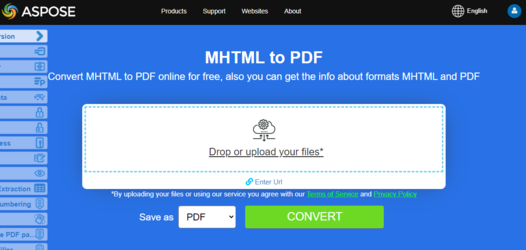
MHTML, short for MIME HTML, is a web page archive format used to combine resources that are typically represented by external links (such as images, Flash animations, Java applets, and audio files) with HTML code into a single file. The content of an MHTML file is encoded as if it were an HTML email message, using the MIME type multipart/related. Aspose.PDF for .NET can convert HTML files to PDF format and, with the release of Aspose.PDF for .NET 9.0.0, we have introduced a new feature that lets you convert MHTML files to PDF format. The next code snippet shows how to convert MHTML files to PDF format with C#:
// For complete examples and data files, visit https://github.com/aspose-pdf/Aspose.PDF-for-.NET
private static void ConvertMHTtoPDF()
{
    // The path to the documents directory
    var dataDir = RunExamples.GetDataDir_AsposePdf();

    // Initialize MhtLoadOptions with page setup
    var options = new Aspose.Pdf.MhtLoadOptions()
    {
        PageInfo = { Width = 842, Height = 1191, IsLandscape = true }
    };

    // Initialize Document object using the MHT file and options
    using (var document = new Aspose.Pdf.Document(dataDir + "fileformatinfo.mht", options))
    {
        // Save PDF document
        document.Save(dataDir + "MhtmlTest_out.pdf");
    }
}

Analyzing your prompt, please hold on...
An error occurred while retrieving the results. Please refresh the page and try again.