
在 Python 中裁剪 PDF 页面
Contents
[
Hide
]
获取页面属性
PDF 文件中的每页都有多个属性,例如宽度、高度、bleed、crop 和 trimbox。Aspose.PDF for Python 允许您访问这些属性。
当您需要缩小可见页面区域、为印刷工作流准备文件或检查 PDF 文档中的页面框几何形状时,请使用此页面。
- media_box:媒体框是最大的页面框。它对应于文档打印成 PostScript 或 PDF 时所选的页面尺寸(例如 A4、A5、US Letter 等)。换句话说,媒体框决定了呈现或打印 PDF 文档的介质的物理尺寸。
- bleed_box:如果文档有出血,PDF 也会包含出血框。出血是指超出页面边缘的颜色(或艺术作品)的范围。它用于确保在文档打印并裁剪至尺寸(“trimmed”)时,墨水能够延伸至页面的边缘。即使页面裁剪不准确——略微偏离裁剪标记——页面上也不会出现白边。
- trim_box:修整框指示文档在打印和裁剪后的最终尺寸。
- art_box:艺术框是围绕文档页面实际内容绘制的框。在将 PDF 文档导入其他应用程序时会使用此页面框。
- crop_box:裁剪框是 Adobe Acrobat 中显示 PDF 文档的 “页” 大小。在普通视图中,Adobe Acrobat 只显示裁剪框的内容。有关这些属性的详细说明,请阅读 Adobe.Pdf 规范,特别是 10.10.1 页面边界。
裁剪第一个 Page 使用 Aspose.PDF for Python 将 PDF 的内容定位到特定的矩形区域。该函数调整多个页面框—crop_box, trim_box, art_box,和 bleed_box—以确保视觉效果一致。裁剪对于去除不需要的边距或聚焦于页面的特定区域非常有用。
- 将 PDF 加载为
Document(使用ap.Document()). - 使用以下方式定义裁剪矩形
Rectangle使用所需的坐标(单位为点)。 - 设置
Page的crop_box,trim_box,art_box,和bleed_box到定义的矩形。 - 保存已修改的
Document到一个新的输出文件。
import sys
import aspose.pdf as ap
from os import path

def crop_page(input_file_name, output_file_name):
    document = ap.Document(input_file_name)

    new_box = ap.Rectangle(200, 220, 2170, 1520, True)
    document.pages[1].crop_box = new_box
    document.pages[1].trim_box = new_box
    document.pages[1].art_box = new_box
    document.pages[1].bleed_box = new_box

    document.save(output_file_name)
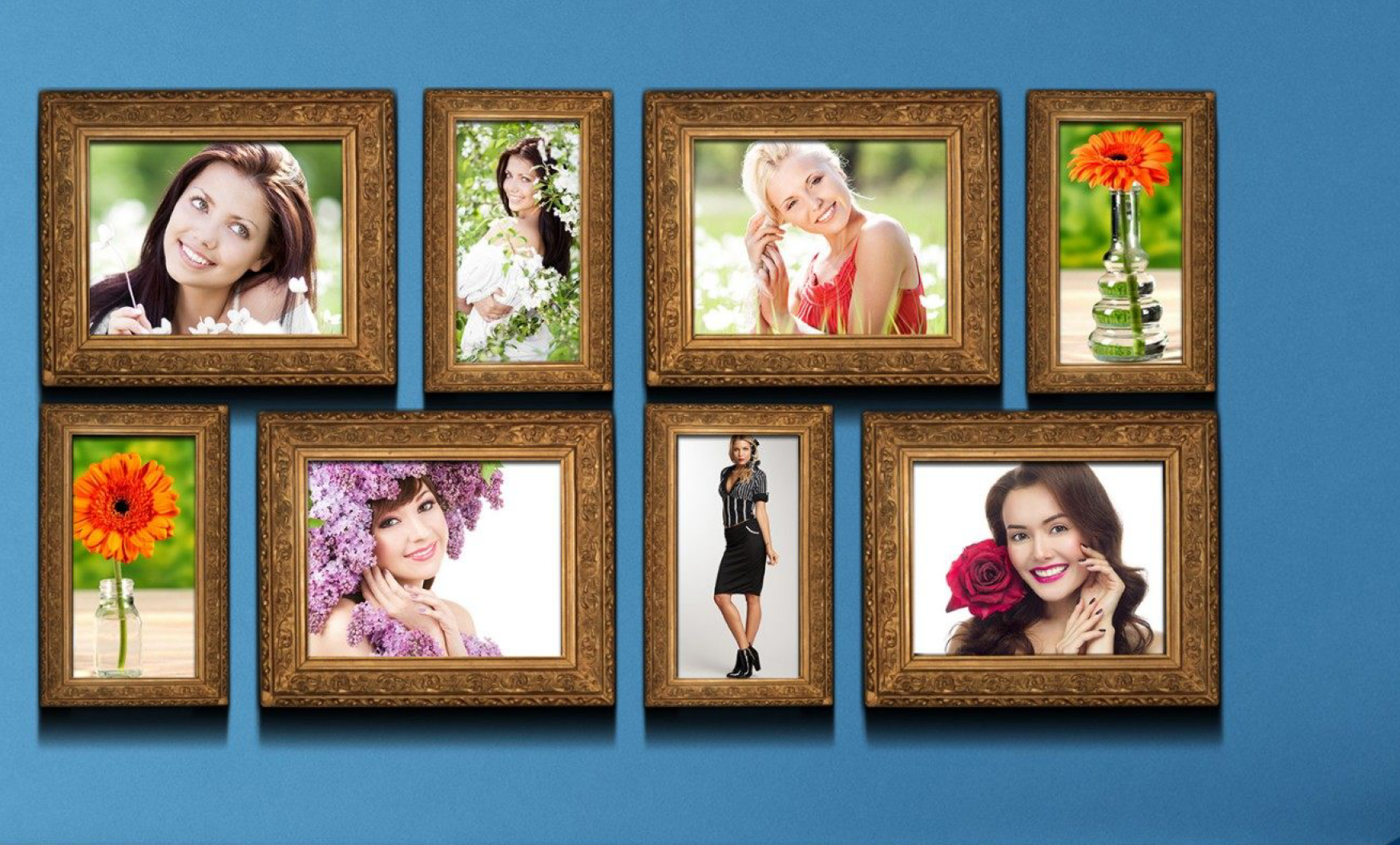
在此示例中我们使用了一个示例文件 这里. 最初我们的页面如图 1 所示。
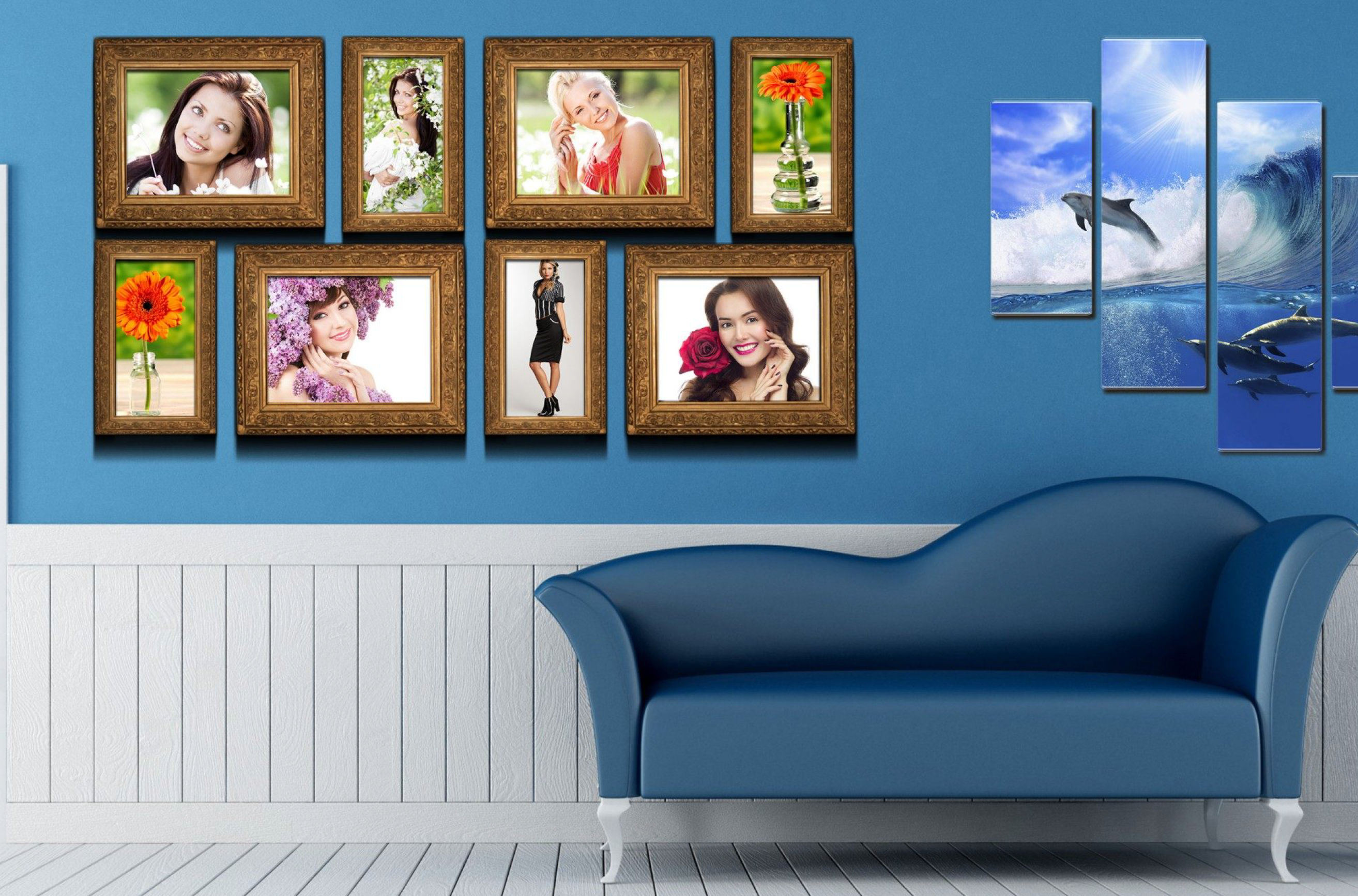
更改后,页面将如图 2 所示。
基于首个图像内容裁剪 PDF 页面
裁剪第一个 Page 动态地基于页面上找到的第一个图像的边界。通过使用 ImagePlacementAbsorber,脚本识别第一张图像并调整页面的 crop_box 以匹配图像的尺寸。当您想专注于特定的视觉内容而不是预先定义的坐标时,这种方法很有用。
- 将 PDF 加载为
Document. - 使用以下方法定位第一页上的图像
ImagePlacementAbsorber. - 检查是否存在图像:
- 保存已修改的
Document到指定的输出文件。
import sys
import aspose.pdf as ap
from os import path

def crop_page_by_content(input_file_name, output_file_name):
    document = ap.Document(input_file_name)
    # Find first image on first page using ImagePlacementAbsorber
    absorber = ap.ImagePlacementAbsorber()
    document.pages[1].accept(absorber)

    if len(absorber.image_placements) > 0:
        first_image = absorber.image_placements[1]
        document.pages[1].crop_box = first_image.rectangle
    else:
        print("No images found on the first page")
    document.save(output_file_name)