
Javaでプレゼンテーションのスライドマスタを管理する
概要
スライドマスタ は、スライドのグループに対する共有デザイン設定を定義します。共通の図形、ロゴ、背景、テキストスタイル、テーマ設定、フッター設定を含めることができます。PowerPoint では、スライドマスタを編集することで、各スライドで同じ書式を繰り返すことなくプレゼンテーションの一貫性を保つのが一般的な方法です。
Aspose.Slides for Java は同じモデルをサポートしています。プレゼンテーションは 1 つ以上のマスタースライドを含めることができ、各マスタースライドは複数のレイアウトスライドを含みます。通常のスライドはマスタースライドを直接参照することはなく、代わりにレイアウトスライドを使用し、そのレイアウトスライドはマスタースライドに所属しています。
階層は:
- スライドマスタ - 共有デザインとテーマを定義します。
- レイアウトスライド - プレースホルダーとレイアウトレベルの書式設定の具体的な配置を定義します。
- 標準スライド - 実際のプレゼンテーションコンテンツを含み、1 つのレイアウトスライドを使用します。

Aspose.Slides では、スライドマスタは IMasterSlide インターフェイスで表されます。プレゼンテーション内のすべてのマスタースライドは、Presentation.getMasters コレクションを通して利用でき、これは IMasterSlideCollection を実装しています。
Inheritance
同じプロパティが複数のレベルで定義されている場合、より具体的なレベルが優先されます。例えば、マスタースライドとレイアウトスライドの両方が背景を定義している場合、そのレイアウトに基づくスライドはレイアウトの背景を使用します。レイアウトスライドの詳細については、スライドレイアウトの適用または変更 を参照してください。スライドマスタへのアクセス
PowerPoint では、表示 > スライドマスタ からスライドマスタビューを開くことができます。
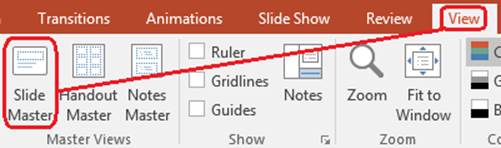
Aspose.Slides では、getMasters() コレクションを使用してマスタースライドにアクセスします:
import com.aspose.slides.*;

Presentation presentation = new Presentation("presentation.pptx");
try {
    IMasterSlide firstMasterSlide = presentation.getMasters().get_Item(0);
    int masterSlideCount = presentation.getMasters().size();
    int firstMasterLayoutSlideCount = firstMasterSlide.getLayoutSlides().size();

    System.out.println("Master slides: " + masterSlideCount);
    System.out.println("Layouts in the first master: " + firstMasterLayoutSlideCount);
} finally {
    presentation.dispose();
}
レイアウトを介して、標準スライドが使用しているマスタースライドを取得することもできます:
import com.aspose.slides.*;

Presentation presentation = new Presentation("presentation.pptx");
try {
    ISlide slide = presentation.getSlides().get_Item(0);
    ILayoutSlide layoutSlide = slide.getLayoutSlide();
    IMasterSlide masterSlide = layoutSlide.getMasterSlide();
    String masterSlideName = masterSlide.getName();

    System.out.println(masterSlideName);
} finally {
    presentation.dispose();
}
スライドマスタに含まれるもの
マスタースライドはスライドに似たオブジェクトです。IBaseSlide を実装しているため、標準スライドやレイアウトスライドと同じスライドプロパティの多くを公開します。マスター固有のメンバーは IMasterSlide API ページに一覧されています。
一般的に使用されるマスタースライドのメンバーは以下のとおりです:
| メンバー | 用途 |
|---|---|
getBackground() |
マスターレベルのスライド背景を設定します。 |
getShapes() |
ロゴ、画像フレーム、共有テキストなど、マスター上に配置された図形を保持します。 |
getLayoutSlides() |
マスターに属するレイアウトスライドを保持します。 |
getThemeManager() |
マスターのテーマ API へのアクセスを提供します。 |
getHeaderFooterManager() |
マスターとその子レイアウトのヘッダー、フッター、日付、スライド番号を制御します。 |
getDependingSlides() |
レイアウトを介してマスターに依存する標準スライドを返します。 |
スライドマスタに画像を追加する
マスタースライドに画像を追加すると、そのマスターのレイアウトを使用するスライドすべてに画像が表示されます。ロゴや透かし、装飾バンド、その他繰り返し使用するビジュアル要素に便利です。
次の例は最初のマスタースライドにロゴを追加します:
import com.aspose.slides.*;

Presentation presentation = new Presentation("presentation.pptx");
try {
    IMasterSlide masterSlide = presentation.getMasters().get_Item(0);
    IImage logo = Images.fromFile("logo.png");

    try {
        IPPImage logoImage = presentation.getImages().addImage(logo);

        masterSlide.getShapes().addPictureFrame(
                ShapeType.Rectangle,
                20,
                20,
                80,
                80,
                logoImage);
    } finally {
        logo.dispose();
    }

    presentation.save("presentation-with-logo.pptx", SaveFormat.Pptx);
} finally {
    presentation.dispose();
}
画像フレームの詳細については、画像フレーム を参照してください。
マスターグラフィックの表示制御
IBaseSlide.setShowMasterShapes を使用して、ロゴや装飾形状などの継承されたマスターグラフィックを削除せずに非表示にします。対象のスライドで Slide.setShowMasterShapes に false を渡し、表示させたいスライドでは true のままにします。
次の自己完結型例は、マスター上に青い装飾バンドを作成し、同じ空白レイアウトを使用する 2 枚のスライドを生成します。バンドは最初のスライドで表示され、2 番目では非表示になります。入力プレゼンテーションや画像は不要です。
import com.aspose.slides.*;
import java.awt.Color;

Presentation presentation = new Presentation();
try {
    IMasterSlide masterSlide = presentation.getMasters().get_Item(0);
    ILayoutSlide layoutSlide = masterSlide.getLayoutSlides().getByType(SlideLayoutType.Blank);
    layoutSlide.setShowMasterShapes(true);

    float slideHeight = (float) presentation.getSlideSize().getSize().getHeight();
    IAutoShape band = masterSlide.getShapes().addAutoShape(ShapeType.Rectangle, 0, 0, 60, slideHeight);
    Color bandColor = new Color(70, 130, 180);
    band.getFillFormat().setFillType(FillType.Solid);
    band.getFillFormat().getSolidFillColor().setColor(bandColor);
    band.getLineFormat().getFillFormat().setFillType(FillType.NoFill);

    ISlide visibleSlide = presentation.getSlides().get_Item(0);
    visibleSlide.setLayoutSlide(layoutSlide);
    visibleSlide.getShapes().clear();

    ISlide hiddenSlide = presentation.getSlides().addEmptySlide(layoutSlide);

    visibleSlide.setShowMasterShapes(true);
    hiddenSlide.setShowMasterShapes(false);

    presentation.save("master-graphics.pptx", SaveFormat.Pptx);
} finally {
    presentation.dispose();
}
この例は新しいプレゼンテーションに付属する Blank レイアウトを使用し、最初のスライドの独自プレースホルダーを削除します。
設定の適用範囲を選択する
標準スライドは ISlide.getLayoutSlide と ILayoutSlide.getMasterSlide を介してマスターを使用します。個々のスライドにプロパティを設定するとそのスライドだけに影響します。LayoutSlide.setShowMasterShapes に false を渡すと、その共有レイアウトを使用するすべてのスライドでマスターグラフィックが非表示になります(各スライドの設定が true でも同様)。1 枚のスライドだけでグラフィックを非表示にしたい場合は、スライドのプロパティを変更し、共有レイアウトは変更しないでください。
この設定はマスタースライド自体の可視性制御としてはサポートされていません。マスター上で getShowMasterShapes は常に false を返し、setShowMasterShapes に true を渡すと例外がスローされます。代わりに標準スライドまたはレイアウトに適用してください。
グラフィックと背景を区別する
| 操作 | 効果 |
|---|---|
| マスターグラフィックを非表示にする | マスターから継承された図形を削除したりスライド自身の図形を変更したりせずに表示/非表示を制御します。 |
| スライド背景の塗りを変更する | 背景の色、グラデーション、画像を変更します。マスターグラフィックは別個の形状であり、背景上に引き続き表示できます。詳しくは プレゼンテーションの背景 を参照してください。 |
| マスターから図形を削除する | 共有元の図形を削除し、以降そのマスターを使用するスライドからは利用できなくなります。 |
プレースホルダーの操作
プレースホルダーは通常レイアウトスライド上で定義されます。マスタースライドはそれらのレイアウトが継承する共有スタイルとテーマを提供し、各レイアウトは利用可能なプレースホルダーと配置場所を決定します。
PowerPoint では、スライドマスタビューでプレースホルダーコマンドが利用できます。
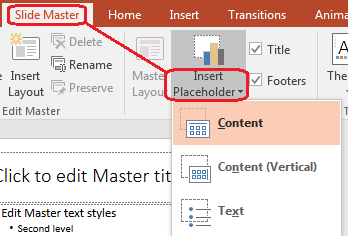
Aspose.Slides で新しいプレースホルダーを追加するには、マスターに属するレイアウトスライドを操作します:
import com.aspose.slides.*;

Presentation presentation = new Presentation("presentation.pptx");
try {
    IMasterSlide masterSlide = presentation.getMasters().get_Item(0);
    ILayoutSlide blankLayoutSlide = masterSlide.getLayoutSlides().getByType(SlideLayoutType.Blank);

    if (blankLayoutSlide == null) {
        blankLayoutSlide = masterSlide.getLayoutSlides().add(SlideLayoutType.Blank, "Blank");
    }

    blankLayoutSlide.getPlaceholderManager().addTextPlaceholder(60, 120, 600, 80);

    presentation.getSlides().addEmptySlide(blankLayoutSlide);
    presentation.save("presentation-with-placeholder.pptx", SaveFormat.Pptx);
} finally {
    presentation.dispose();
}
既にマスタースライドに存在するプレースホルダー図形の書式設定も可能です。次の例はタイトルプレースホルダーを検索し、線形グラデーション塗りを適用します:
import com.aspose.slides.*;
import java.awt.Color;

Presentation presentation = new Presentation("presentation.pptx");
try {
    IMasterSlide masterSlide = presentation.getMasters().get_Item(0);
    IAutoShape titlePlaceholder = null;

    for (IShape shape : masterSlide.getShapes()) {
        if (shape instanceof IAutoShape) {
            IAutoShape autoShape = (IAutoShape) shape;

            if (autoShape.getPlaceholder() != null &&
                    autoShape.getPlaceholder().getType() == PlaceholderType.Title) {
                titlePlaceholder = autoShape;
                break;
            }
        }
    }

    if (titlePlaceholder != null) {
        Color redGradientColor = new Color(255, 0, 0);
        Color purpleGradientColor = new Color(128, 0, 128);

        titlePlaceholder.getFillFormat().setFillType(FillType.Gradient);
        titlePlaceholder.getFillFormat().getGradientFormat().setGradientShape(GradientShape.Linear);
        titlePlaceholder.getFillFormat().getGradientFormat().getGradientStops().add(0.0f, redGradientColor);
        titlePlaceholder.getFillFormat().getGradientFormat().getGradientStops().add(1.0f, purpleGradientColor);
    }

    presentation.save("presentation-title-style.pptx", SaveFormat.Pptx);
} finally {
    presentation.dispose();
}
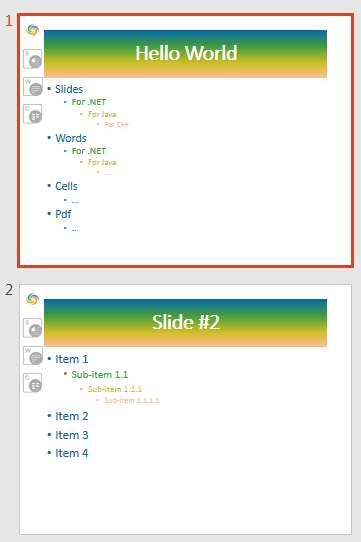
プレースホルダーやテキストの書式設定オプションの詳細については、プレースホルダーでプロンプトテキストを設定する と テキスト書式設定 を参照してください。
スライドマスタの背景を変更する
マスターベースの背景は、レイアウトやそれを上書きしないスライドに継承されます。次の例は最初のマスタースライドに単色の背景色を設定します:
import com.aspose.slides.*;
import java.awt.Color;

Presentation presentation = new Presentation("presentation.pptx");
try {
    IMasterSlide masterSlide = presentation.getMasters().get_Item(0);
    Color masterBackgroundColor = Color.GREEN;

    masterSlide.getBackground().setType(BackgroundType.OwnBackground);
    masterSlide.getBackground().getFillFormat().setFillType(FillType.Solid);
    masterSlide.getBackground().getFillFormat().getSolidFillColor().setColor(masterBackgroundColor);

    presentation.save("presentation-master-background.pptx", SaveFormat.Pptx);
} finally {
    presentation.dispose();
}
関連トピックについては、プレゼンテーションの背景 と プレゼンテーションのテーマ を参照してください。
スライドマスタを別のプレゼンテーションにクローンする
IMasterSlideCollection.addClone を使用して、マスタースライドを別のプレゼンテーションにコピーします。コピーされたマスターは、宛先プレゼンテーションのレイアウトやスライドで使用できます。
import com.aspose.slides.*;

Presentation sourcePresentation = new Presentation("source.pptx");
Presentation destinationPresentation = new Presentation("destination.pptx");
try {
    IMasterSlide sourceMasterSlide = sourcePresentation.getMasters().get_Item(0);
    IMasterSlide clonedMasterSlide = destinationPresentation.getMasters().addClone(sourceMasterSlide);

    destinationPresentation.save("destination-with-master.pptx", SaveFormat.Pptx);
} finally {
    sourcePresentation.dispose();
    destinationPresentation.dispose();
}
標準スライドとそれに付随するマスターも同時にクローンする必要がある場合は、スライドのクローン を参照してください。
複数のスライドマスタを追加する
プレゼンテーションは複数のマスタースライドを含めることができます。異なるセクションで別々のブランディング、ページ構造、テーマ設定が必要な場合に便利です。
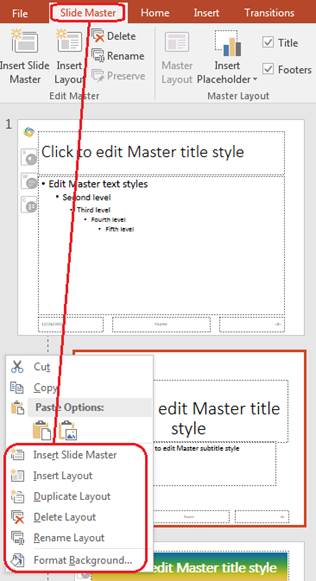
次の例は既定のマスターをクローンし、クローンに異なる背景を設定し、そのクローンされたマスターの下にレイアウトを作成し、最後にそのレイアウトに基づく新しいスライドを追加します:
import com.aspose.slides.*;
import java.awt.Color;

Presentation presentation = new Presentation("presentation.pptx");
try {
    IMasterSlide defaultMasterSlide = presentation.getMasters().get_Item(0);
    IMasterSlide sectionMasterSlide = presentation.getMasters().addClone(defaultMasterSlide);
    Color sectionMasterBackgroundColor = Color.LIGHT_GRAY;

    sectionMasterSlide.getBackground().setType(BackgroundType.OwnBackground);
    sectionMasterSlide.getBackground().getFillFormat().setFillType(FillType.Solid);
    sectionMasterSlide.getBackground().getFillFormat().getSolidFillColor().setColor(sectionMasterBackgroundColor);

    ILayoutSlide sourceBlankLayout = defaultMasterSlide.getLayoutSlides().getByType(SlideLayoutType.Blank);
    if (sourceBlankLayout == null) {
        sourceBlankLayout = defaultMasterSlide.getLayoutSlides().get_Item(0);
    }

    ILayoutSlide sectionBlankLayout = sectionMasterSlide.getLayoutSlides().addClone(sourceBlankLayout);

    presentation.getSlides().addEmptySlide(sectionBlankLayout);
    presentation.save("presentation-with-multiple-masters.pptx", SaveFormat.Pptx);
} finally {
    presentation.dispose();
}
スライドマスタの比較
マスタースライドは IBaseSlide から継承された equals メソッドで比較できます。比較は構造と静的コンテンツ(図形、テキスト、書式設定、アニメーション、その他スライド設定)を対象とし、スライド ID などの一意識別子や現在の日付などの動的プレースホルダー値は比較対象外です。
import com.aspose.slides.*;

Presentation firstPresentation = new Presentation("first.pptx");
Presentation secondPresentation = new Presentation("second.pptx");
try {
    int firstPresentationMasterCount = firstPresentation.getMasters().size();
    int secondPresentationMasterCount = secondPresentation.getMasters().size();

    for (int firstMasterIndex = 0; firstMasterIndex < firstPresentationMasterCount; firstMasterIndex++) {
        for (int secondMasterIndex = 0; secondMasterIndex < secondPresentationMasterCount; secondMasterIndex++) {
            IMasterSlide firstMasterSlide = firstPresentation.getMasters().get_Item(firstMasterIndex);
            IMasterSlide secondMasterSlide = secondPresentation.getMasters().get_Item(secondMasterIndex);
            boolean areMasterSlidesEqual = firstMasterSlide.equals(secondMasterSlide);

            if (areMasterSlidesEqual) {
                System.out.printf(
                        "first.pptx master #%d equals second.pptx master #%d%n",
                        firstMasterIndex,
                        secondMasterIndex);
            }
        }
    }
} finally {
    firstPresentation.dispose();
    secondPresentation.dispose();
}
詳細については、プレゼンテーションスライドの比較 を参照してください。
スライドマスタビューをデフォルトビューとして設定する
ViewProperties の setLastView メソッドを使用して、PowerPoint が最初に開くビューを制御できます。次の例はプレゼンテーションをスライドマスタビューで開きます:
import com.aspose.slides.*;

Presentation presentation = new Presentation("presentation.pptx");
try {
    presentation.getViewProperties().setLastView(ViewType.SlideMasterView);
    presentation.save("presentation-master-view.pptx", SaveFormat.Pptx);
} finally {
    presentation.dispose();
}
その他のビュー設定については、プレゼンテーションの保存 を参照してください。
未使用のマスタースライドの削除
プレゼンテーションには、もはや標準スライドで使用されていないマスタースライドが含まれることがあります。未使用のマスターを削除すると、ファイルサイズの削減やテンプレート管理の簡素化につながります。
removeUnused を使用して getMasters() コレクションから未使用のマスターを削除します:
import com.aspose.slides.*;

Presentation presentation = new Presentation("presentation.pptx");
try {
    presentation.getMasters().removeUnused(true);
    presentation.save("presentation-clean.pptx", SaveFormat.Pptx);
} finally {
    presentation.dispose();
}
また、低コードの Compress.removeUnusedMasterSlides メソッドも利用できます:
import com.aspose.slides.*;

Presentation presentation = new Presentation("presentation.pptx");
try {
    Compress.removeUnusedMasterSlides(presentation);
    presentation.save("presentation-clean.pptx", SaveFormat.Pptx);
} finally {
    presentation.dispose();
}
よくある質問
スライドマスタとレイアウトスライドの違いは何ですか?
スライドマスタはテーマ、背景、共通図形、テキストスタイルなどの共有デザイン設定を定義します。レイアウトスライドはマスタースライドに属し、プレースホルダーの具体的な配置を定義します。標準スライドはレイアウトスライドを使用するため、レイアウトとマスターの両方から設定を継承します。
1 つのプレゼンテーションに複数のスライドマスタを含めることはできますか?
はい。プレゼンテーションは複数のスライドマスタを含めることができます。異なるセクションで異なるビジュアル体系やブランディングが必要な場合は、複数のマスターを使用してください。
プレースホルダーはマスタースライドに追加すべきですか、レイアウトスライドに追加すべきですか?
ほとんどの場合、プレースホルダーはレイアウトスライドに追加します。共有ビジュアル要素や共有書式はマスタースライドに配置し、コンテンツ用のプレースホルダーは標準スライドが使用するレイアウトに配置します。
まだ使用されているマスタースライドを削除できますか?
いいえ。依存スライドがあるマスタースライドは直接削除できません。まずそのスライドを別のマスターのレイアウトに移動するか、未使用のマスターのみを削除するクリーンアップ手段を使用してください。