# Aspose.Slides for JasperReports
> Complete English documentation. Each page retains its canonical source URL.
# Aspose.Slides for JasperReports
> Start here: install Aspose.Slides for JasperReports, export a first report to PowerPoint, and find the guides for export, JasperReports Server integration and support.
Source: https://docs.aspose.com/slides/jasperreports/
Updated: 2026-10-27
 Aspose.Slides for JasperReports adds PowerPoint exporters to JasperReports Library and JasperReports Server, so that Java applications and report servers can save filled reports as presentations without Microsoft PowerPoint.
It exports a filled report to PPT and PPTX, one slide per report page, and also to PDF and HTML.
Explore features and support — browse the library features and open their guides.
------
Get Started
GETTING STARTED
EVALUATE
Build with Slides
EXPORT
EXAMPLES
Reference & Support
REFERENCE
SUPPORT
------
## **Your first export**
These steps compile a one-line report, fill it, and export it to PPTX with JasperReports 6.16.0 from Maven Central. You need JDK 11 or later and Apache Maven.
1. Download the ZIP from the [download page](https://releases.aspose.com/slides/jasperreport/) and unpack it. Its *lib* folder has one subfolder per range of JasperReports versions, and each holds the jar for that range. For JasperReports 6.16.0, copy *lib/JasperReports 6.5.0 - 6.16.0 (JDK 1.6)/aspose.slides.jasperreports.library-26.6.jar* into an empty project folder.
2. The jar comes in the ZIP rather than from a Maven repository, so install it into your local Maven repository. Run this command in the project folder:
```bash
mvn install:install-file "-Dfile=aspose.slides.jasperreports.library-26.6.jar" "-DgroupId=com.aspose" "-DartifactId=aspose-slides-jasperreports" "-Dversion=26.6" "-Dpackaging=jar"
```
3. Save this *pom.xml* in the project folder. It adds JasperReports 6.16.0 and the jar you installed, and names the class to run. JasperReports 6.16.0 declares a patched iText build that is not on Maven Central, so the file excludes it; the Aspose exporters do not need it.
```xml
4.0.0
com.example
hello-jasper-export
1.0
11
UTF-8
HelloExport
net.sf.jasperreports
jasperreports
6.16.0
com.lowagie
itext
com.aspose
aspose-slides-jasperreports
26.6
org.apache.maven.plugins
maven-compiler-plugin
3.15.0
```
4. Save this report design as *hello.jrxml* in the project folder. It prints one line of text in the title band:
```xml
<band height="50">
<staticText>
<reportElement x="0" y="0" width="555" height="40"/>
<textElement>
<font size="24"/>
</textElement>
<text><![CDATA[Hello from JasperReports!]]></text>
</staticText>
</band>
```
5. Save this code as *src/main/java/HelloExport.java*. It compiles the design, fills it with one empty record, and exports the result with `ASPptxExporter`:
```java
import java.util.HashMap;
import com.aspose.slides.jasperreports.ASPptxExporter;
import net.sf.jasperreports.engine.JREmptyDataSource;
import net.sf.jasperreports.engine.JRExporterParameter;
import net.sf.jasperreports.engine.JasperCompileManager;
import net.sf.jasperreports.engine.JasperFillManager;
import net.sf.jasperreports.engine.JasperPrint;
import net.sf.jasperreports.engine.JasperReport;
public class HelloExport {
public static void main(String[] args) throws Exception {
// Compile the report design and fill it with one empty record.
JasperReport report = JasperCompileManager.compileReport("hello.jrxml");
JasperPrint jasperPrint = JasperFillManager.fillReport(report, new HashMap(), new JREmptyDataSource());
// Export the filled report to PPTX.
ASPptxExporter exporter = new ASPptxExporter();
exporter.setParameter(JRExporterParameter.JASPER_PRINT, jasperPrint);
exporter.setParameter(JRExporterParameter.OUTPUT_FILE_NAME, "hello.pptx");
exporter.exportReport();
}
}
```
6. Run this command in the project folder:
```bash
mvn compile exec:java
```
The program saves *hello.pptx* in the project folder, with one slide that holds the report's text. The compiler notes that the code uses a deprecated API: the exporters take their input and output through `JRExporterParameter`, and they do not accept the newer `setExporterInput` and `setExporterOutput` configuration. On Linux, fontconfig and at least one font must be installed, or filling the report fails. Without a license, each slide carries an evaluation watermark at its center — see [Licensing](https://docs.aspose.com/slides/jasperreports/licensing/). To export to PPT, PDF or HTML, see [PPT, PPTX, PDF and HTML Export](https://docs.aspose.com/slides/jasperreports/ppt-pptx-pdf-and-html-export/).
## Related articles
- [Product Overview](https://docs.aspose.com/slides/jasperreports/product-overview/)
- [PPT, PPTX, PDF and HTML Export](https://docs.aspose.com/slides/jasperreports/ppt-pptx-pdf-and-html-export/)
- [Important Features](https://docs.aspose.com/slides/jasperreports/important-features/)
# Demos Setup
> Set up the demo projects from the Aspose.Slides for JasperReports download, change the exporter class they use, and build them with Ant.
Source: https://docs.aspose.com/slides/jasperreports/demos-setup/
Updated: 2026-09-28
## **What the demos are**
The *samples* folder of the Aspose.Slides for JasperReports download has eight demo projects: *charts*, *fonts*, *images*, *landscape*, *shapes*, *subreport*, *text* and *xmldatasource*. They are standard JasperReports demos, changed to add a `ppt` build target that exports the filled report to PPT. The download contains no exported presentations; you create them by building a demo.
## **Change the exporter class before you build**
As shipped, the demos' Java code uses `com.aspose.slides.jasperreports.JRPptExporter`, a class that the current jars do not contain, so the demos do not compile. In the demo's application class (for example, *ShapesApp.java* in the *shapes* demo), replace `JRPptExporter` with `ASPptExporter`, the PPT exporter in the same package. The *fonts* demo imports the whole package, so only the class name in its code changes.
The demos also use JasperReports classes that later JasperReports versions removed, such as `JExcelApiExporter` and `JRExporterParameter.FONT_MAP`. With the change above, the demos compile as follows:
| JasperReports version | Demos that compile |
| :- | :- |
| 5.5.1 | all eight |
| 5.5.2 and 6.4.0 | *charts*, *images*, *landscape*, *shapes* and *xmldatasource* |
| 6.16.0 | *charts* |
## **Build a demo**
Each demo's *build.xml* expects the folder layout of a JasperReports project: it compiles against *../../../build/classes* and the jars in *../../../lib*, relative to the demo folder.
1. Copy the demo folder to *demo/samples* in your JasperReports project folder.
2. Copy *aspose.slides.jasperreports.library-xx.x.jar* from the download's *lib* subfolder that covers your JasperReports version to the *lib* folder of the JasperReports project. See [Installing Aspose.Slides for JasperReports](https://docs.aspose.com/slides/jasperreports/installing-aspose-slides-for-jasperreports/).
3. Put the jar of your JasperReports version and the jars it depends on in the same *lib* folder. Besides the demo files, *build.xml* puts only *build/classes* and the jars under *lib* on the classpath, and *build/classes* holds JasperReports classes only after you compile JasperReports from source.
4. The *charts*, *subreport* and *text* demos read the HSQLDB sample database of JasperReports (`jdbc:hsqldb:hsql://localhost`), so start its server first, as described in *samples/Readme.txt* of the download. The other demos need no database.
5. In the demo folder, compile the application, compile the report design, fill it, and export it to PPT:
```bash
ant javac
ant compile
ant fill
ant ppt
```
The `ppt` target writes the presentation next to the filled report, named after the report (for example, *LandscapeReport.ppt*).
Two demos need more than the steps above:
- The *images* demo loads one picture from `http://jasperreports.sourceforge.net/jasperreports.png` when it exports. That address now redirects to HTTPS, so the `ppt` step writes no presentation until you change the address to `https://` in *ImagesReport.jrxml*. With JasperReports 6.4.0, exporting that picture fails even over HTTPS.
- The *xmldatasource* report uses the Arial font. On a system without Arial, `ant fill` prints that the font "is not available to the JVM" and writes no filled report, so `ant ppt` has nothing to export. The build still reports success, so check the output of each step.
## Related articles
- [Product Overview](https://docs.aspose.com/slides/jasperreports/product-overview/)
# Evaluate Aspose.Slides
> See what the evaluation version of Aspose.Slides for JasperReports adds to exported files, and how to export without it.
Source: https://docs.aspose.com/slides/jasperreports/evaluate-aspose-slides/
Updated: 2026-09-28
You can download Aspose.Slides for JasperReports for evaluation from the [download page](https://releases.aspose.com/slides/jasperreport/). The evaluation download is the same as the licensed one: it becomes licensed when you apply a license, as described in [Licensing](https://docs.aspose.com/slides/jasperreports/licensing/).
Without a license, the exporters still export every page of the report, but they place an evaluation watermark at the center of each slide or page. The watermark reads "Evaluation only.", "Created with Aspose.Slides for JasperReports" followed by the product version, and a copyright line. It appears in all four output formats: PPT, PPTX, PDF and HTML.

To test Aspose.Slides for JasperReports without the evaluation watermark, request a 30-day [temporary license](https://purchase.aspose.com/temporary-license).
## Related articles
- [Licensing](https://docs.aspose.com/slides/jasperreports/licensing/)
# Features
>
Source: https://docs.aspose.com/slides/jasperreports/features/
Updated: 2024-10-02
---
lastmod: 2024-10-02T16:07:48+04:00
title: Features
type: docs
weight: 30
url: /jasperreports/features/
---
# Getting Started
> Find the pages that introduce Aspose.Slides for JasperReports: what it exports, how to install it, what it requires, and how to evaluate and license it.
Source: https://docs.aspose.com/slides/jasperreports/getting-started/
Updated: 2026-09-28
---
lastmod: 2026-09-28T15:55:50+04:00
title: Getting Started
type: docs
weight: 10
url: /jasperreports/getting-started/
description: "Find the pages that introduce Aspose.Slides for JasperReports: what it exports, how to install it, what it requires, and how to evaluate and license it."
---
# Important Features
> See the main features of Aspose.Slides for JasperReports: PPT, PPTX, PDF and HTML export, fidelity to the report design, deployment, licensing and support.
Source: https://docs.aspose.com/slides/jasperreports/important-features/
Updated: 2026-09-28
This section provides detailed description of Aspose.Slides for JasperReports's features. Click the links in the table to learn more about the features.
|**Feature** |**Description** |
| :- | :- |
|[PPT, PPTX, PDF and HTML Export](https://docs.aspose.com/slides/jasperreports/ppt-pptx-pdf-and-html-export/)|Export reports as PPT and PPTX presentations, PDF documents and HTML files from your application without using Microsoft PowerPoint. |
|High Fidelity to the Report Design|PPT and PPTX reports have the same layout and appearance as PDF and other formats. |
|Easy and Lightweight Deployment|Aspose.Slides for JasperReports is a JasperReports and JasperServer exporter to Microsoft PowerPoint format. |
|[Simple and Affordable Licensing](https://docs.aspose.com/slides/jasperreports/licensing/)|One license per server or one license for all of your servers. |
|[World Class Free Technical Support](https://docs.aspose.com/slides/jasperreports/technical-support/)|Unlimited technical support is provided directly by the developers who work on the product |
## Related articles
- [Product Overview](https://docs.aspose.com/slides/jasperreports/product-overview/)
- [Aspose.Slides for JasperReports](https://docs.aspose.com/slides/jasperreports/)
- [Licensing](https://docs.aspose.com/slides/jasperreports/licensing/)
# Installation
>
Source: https://docs.aspose.com/slides/jasperreports/installation/
Updated: 2024-10-02
---
lastmod: 2024-10-02T16:07:48+04:00
title: Installation
type: docs
weight: 40
url: /jasperreports/installation/
---
# Installing Aspose.Slides for JasperReports
> Choose the Aspose.Slides for JasperReports jars that match your JasperReports version, and add them to JasperReports, a Maven project or JasperReports Server.
Source: https://docs.aspose.com/slides/jasperreports/installing-aspose-slides-for-jasperreports/
Updated: 2026-09-28
## **Choose the jars for your JasperReports version**
Aspose.Slides for JasperReports is distributed as a ZIP file on the [download page](https://releases.aspose.com/slides/jasperreport/). Its *lib* folder has one subfolder per range of JasperReports versions. Take the jars from the subfolder that covers the JasperReports version you use:
| JasperReports version | Subfolder of *lib* |
| :- | :- |
| 3.7.2 to 5.5.1 | *JasperReports 3.7.2 - 5.5.1 (JDK 1.6)* |
| 5.5.2 to 6.4.0 | *JasperReports 5.5.2 - 6.4.0 (JDK 1.6)* |
| 6.5.0 to 6.16.0 | *JasperReports 6.5.0 - 6.16.0 (JDK 1.6)* |
There is no subfolder for JasperReports 6.17.0 or later, including JasperReports 7. The *JasperReports 2.0.3 - 3.7.1 (JDK 1.4)* subfolder holds no jars, only a note that support for those versions ended in Aspose.Slides for JasperReports 17.6.
Each subfolder holds two jars; *xx.x* in their names is the product version:
- *aspose.slides.jasperreports.library-xx.x.jar* contains the exporters for JasperReports Library (`ASPptExporter`, `ASPptxExporter`, `ASPdfExporter` and `ASHtmlExporter`) and the `License` class.
- *aspose.slides.jasperreports.server-xx.x.jar* contains the export actions for JasperReports Server. It builds on the library jar, so the server always needs both jars from the same subfolder.
## **Add the library jar to JasperReports or your application**
Copy *aspose.slides.jasperreports.library-xx.x.jar* from the matching subfolder to the *lib* folder of JasperReports or to your application's classpath. Your application can then create the exporters in code.
On Linux, JasperReports needs fontconfig and at least one installed font to fill a report. Without fonts, filling fails with the error "Error initializing graphic environment".
## **Add the library jar to a Maven project**
The jar comes in the ZIP rather than from a Maven repository. To use it in a Maven build, install it into your local Maven repository. For version 26.6, run this command in the folder that holds the jar:
```bash
mvn install:install-file "-Dfile=aspose.slides.jasperreports.library-26.6.jar" "-DgroupId=com.aspose" "-DartifactId=aspose-slides-jasperreports" "-Dversion=26.6" "-Dpackaging=jar"
```
Then add it to the dependencies in *pom.xml*, together with a JasperReports version that the jar's subfolder covers:
```xml
com.aspose
aspose-slides-jasperreports
26.6
```
The group and artifact IDs are the ones you choose in the install command; they only have to match. A complete project that uses JasperReports 6.16.0 is in [Your first export](https://docs.aspose.com/slides/jasperreports/#your-first-export).
## **Add the jars to JasperReports Server**
Copy both jars from the matching subfolder to the *WEB-INF/lib* folder of the JasperReports Server web application, then register the exporters as described in [Integration with JasperServer](https://docs.aspose.com/slides/jasperreports/integration-with-jasperserver/).
# Integration with JasperServer
> Add the Aspose.Slides for JasperReports exporters to JasperReports Server: copy the jars, register the PowerPoint exporter, and set font mapping and the license.
Source: https://docs.aspose.com/slides/jasperreports/integration-with-jasperserver/
Updated: 2026-09-28
## **Copy the jars**
Copy both jars — *aspose.slides.jasperreports.library-xx.x.jar* and *aspose.slides.jasperreports.server-xx.x.jar* — to **%INSTALL_DIR%\apache-tomcat\webapps\jasperserver\WEB-INF\lib**. Take them from the same subfolder of the download's *lib* folder: the one that covers the JasperReports version your server runs. See [Installing Aspose.Slides for JasperReports](https://docs.aspose.com/slides/jasperreports/installing-aspose-slides-for-jasperreports/) for the version ranges.
## **Register the exporter**
Add the new exporter beans to the **%INSTALL_DIR%\apache-tomcat\webapps\jasperserver\WEB-INF\flows\viewReportBeans.xml** config file. The `ASPptReportExporter` class is in the server jar; the same jar also has `ASPptxReportExporter`, `ASPdfReportExporter` and `ASHtmlReportExporter`.
``` xml
```
## **Set font mapping and the license**
Define the `pptExportParameters` bean that the exporter refers to in **%INSTALL_DIR%\apache-tomcat\webapps\jasperserver\WEB-INF\applicationContext.xml**. Its `fontMap` property maps the font names used in reports to the fonts written to the presentation, and its `licenseFile` property sets the path to your license file.
``` xml
```
Write each `fontMap` key exactly as the report names the font, including case: a `sansserif` key does not replace JasperReports' default font, `SansSerif`. Each value must be a font that Java finds on the server, or the exporters ignore the entry. On Windows, for example, Java finds `Courier New` but not `Courier`. See [Map fonts](https://docs.aspose.com/slides/jasperreports/ppt-pptx-pdf-and-html-export/#map-fonts).
## Related articles
- [PPT, PPTX, PDF and HTML Export](https://docs.aspose.com/slides/jasperreports/ppt-pptx-pdf-and-html-export/)
- [Licensing](https://docs.aspose.com/slides/jasperreports/licensing/)
# Licensing
> Learn what the evaluation version of Aspose.Slides for JasperReports adds to exported files, and how to apply a license in JasperReports and JasperReports Server.
Source: https://docs.aspose.com/slides/jasperreports/licensing/
Updated: 2026-09-28
Aspose.Slides for JasperReports is available as a free, time-unlimited evaluation from the [download page](https://releases.aspose.com/slides/jasperreport/). The evaluation and licensed versions of the product are the same download.
When you are happy with the evaluation, [buy a license](https://purchase.aspose.com/pricing/slides/jasperreports/). Make sure you understand and agree to the subscription terms.
The license is available for download from the order page after the order has been paid for. The license is a clear text, digitally signed XML file which contains information such as the client name, the purchased product and the license type. Do not modify the content of the license file in any way: doing so invalidates the license.
Download the license to your computer and copy it to the appropriate folder (for example your application folder or **JasperReports\lib**).
## **Evaluation Version Limitation**
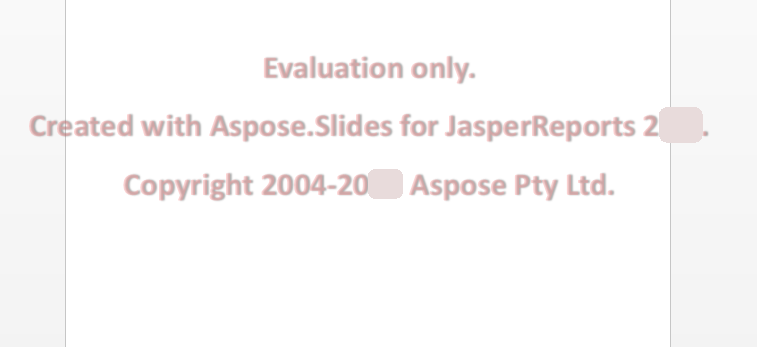
The evaluation version of Aspose.Slides for JasperReports (without a license specified) exports every page of the report, but it places an evaluation watermark at the center of each slide or page, in all four output formats (PPT, PPTX, PDF and HTML), as shown in the figure below. See [Evaluate Aspose.Slides](https://docs.aspose.com/slides/jasperreports/evaluate-aspose-slides/) for details.
## **Applying a License**
There are several ways to apply a license, depending on whether you're working on JasperReports, or JasperServer.
### **Applying a License for JasperReports**
Call the `setLicense` method of the `License` class with a stream that reads the license file, as in Aspose.Slides for Java:
```java
import java.io.FileInputStream;
import com.aspose.slides.jasperreports.License;
public class ApplyLicense {
public static void main(String[] args) {
try {
// Create a stream object containing the license file.
FileInputStream fstream = new FileInputStream("Aspose.Slides.JasperReports.Developer.lic");
// Instantiate the License class.
License license = new License();
// Set the license through the stream object.
license.setLicense(fstream);
} catch (Exception ex) {
System.out.println(ex.toString());
}
}
}
```
Or, pass the path of the license file to the exporter in the `ASExporterParameters.PPT_LICENSE` parameter. In this fragment, `jasperPrint` is a filled report, as in [Your first export](https://docs.aspose.com/slides/jasperreports/#your-first-export):
```java
ASPptExporter exporter = new ASPptExporter();
exporter.setParameter(JRExporterParameter.JASPER_PRINT, jasperPrint);
exporter.setParameter(JRExporterParameter.OUTPUT_FILE_NAME, "report.ppt");
exporter.setParameter(ASExporterParameters.PPT_LICENSE, "Aspose.Slides.JasperReports.Developer.lic");
exporter.exportReport();
```
### **Applying a License on JasperServer**
Set the `licenseFile` property of the `pptExportParameters` bean in *applicationContext.xml* to the path of the license file, as shown in [Integration with JasperServer](https://docs.aspose.com/slides/jasperreports/integration-with-jasperserver/#set-font-mapping-and-the-license).
## Related articles
- [Evaluate Aspose.Slides](https://docs.aspose.com/slides/jasperreports/evaluate-aspose-slides/)
- [Integration with JasperServer](https://docs.aspose.com/slides/jasperreports/integration-with-jasperserver/)
- [Important Features](https://docs.aspose.com/slides/jasperreports/important-features/)
# PPT, PPTX, PDF and HTML Export
> Choose the Aspose.Slides for JasperReports exporter for PPT, PPTX, PDF or HTML output, export a filled report with it, and map report fonts to presentation fonts.
Source: https://docs.aspose.com/slides/jasperreports/ppt-pptx-pdf-and-html-export/
Updated: 2026-09-28
## **Exporters**
Aspose.Slides for JasperReports adds four exporters to JasperReports. Each one takes a filled report (`JasperPrint`) and exports every report page: as a slide in PPT and PPTX, as a page in PDF, and as an SVG image in a single HTML file.
| Output format | Exporter class |
| :- | :- |
| PPT (PowerPoint 97–2003) | `ASPptExporter` |
| PPTX | `ASPptxExporter` |
| PDF | `ASPdfExporter` |
| HTML | `ASHtmlExporter` |
The classes are in the `com.aspose.slides.jasperreports` package of the library jar, and they do not use Microsoft PowerPoint. Pass the report and the output file to an exporter with `setParameter` and `JRExporterParameter`, which JasperReports marks as deprecated: the exporters do not accept the newer `setExporterInput` and `setExporterOutput` configuration.
## **Export a report to all four formats**
The program below builds on the project from [Your first export](https://docs.aspose.com/slides/jasperreports/#your-first-export). It compiles and fills *hello.jrxml* once, then passes the filled report to each exporter in turn. Save it as *src/main/java/ExportAllFormats.java* in that project:
```java
import java.util.HashMap;
import com.aspose.slides.jasperreports.ASAbstractExporter;
import com.aspose.slides.jasperreports.ASHtmlExporter;
import com.aspose.slides.jasperreports.ASPdfExporter;
import com.aspose.slides.jasperreports.ASPptExporter;
import com.aspose.slides.jasperreports.ASPptxExporter;
import net.sf.jasperreports.engine.JREmptyDataSource;
import net.sf.jasperreports.engine.JRException;
import net.sf.jasperreports.engine.JRExporterParameter;
import net.sf.jasperreports.engine.JasperCompileManager;
import net.sf.jasperreports.engine.JasperFillManager;
import net.sf.jasperreports.engine.JasperPrint;
import net.sf.jasperreports.engine.JasperReport;
public class ExportAllFormats {
public static void main(String[] args) throws Exception {
// Compile and fill the report once.
JasperReport report = JasperCompileManager.compileReport("hello.jrxml");
JasperPrint jasperPrint = JasperFillManager.fillReport(report, new HashMap(), new JREmptyDataSource());
// Export the same filled report with each exporter.
export(new ASPptExporter(), jasperPrint, "hello.ppt");
export(new ASPptxExporter(), jasperPrint, "hello.pptx");
export(new ASPdfExporter(), jasperPrint, "hello.pdf");
export(new ASHtmlExporter(), jasperPrint, "hello.html");
}
private static void export(ASAbstractExporter exporter, JasperPrint jasperPrint, String outputFileName) throws JRException {
exporter.setParameter(JRExporterParameter.JASPER_PRINT, jasperPrint);
exporter.setParameter(JRExporterParameter.OUTPUT_FILE_NAME, outputFileName);
exporter.exportReport();
}
}
```
Run it from the project folder:
```bash
mvn compile exec:java "-Dexec.mainClass=ExportAllFormats"
```
The program saves *hello.ppt*, *hello.pptx*, *hello.pdf* and *hello.html* in the project folder. The helper method takes `ASAbstractExporter`, the base class of all four exporters. Without a license, every output file carries the evaluation watermark — see [Evaluate Aspose.Slides](https://docs.aspose.com/slides/jasperreports/evaluate-aspose-slides/).

## **Map fonts**
The PPT and PPTX exporters write the font names of the report design into the presentation unchanged. When a text element names no font, JasperReports uses its default font, `SansSerif`, which is a Java logical font name rather than an installed font. To replace such names, pass a map from report font names to the font names you want in the presentation in the `ASExporterParameters.PPT_FONT_MAP` parameter. The keys must match the font names in the report exactly, including case. Each value must be a font that Java finds on the machine that runs the export; the exporters ignore an entry whose font Java cannot find.
Save this program as *src/main/java/MapFonts.java* in the same project. It exports *hello.jrxml* to PPTX with `SansSerif` replaced by Arial:
```java
import java.util.HashMap;
import java.util.Map;
import com.aspose.slides.jasperreports.ASExporterParameters;
import com.aspose.slides.jasperreports.ASPptxExporter;
import net.sf.jasperreports.engine.JREmptyDataSource;
import net.sf.jasperreports.engine.JRExporterParameter;
import net.sf.jasperreports.engine.JasperCompileManager;
import net.sf.jasperreports.engine.JasperFillManager;
import net.sf.jasperreports.engine.JasperPrint;
import net.sf.jasperreports.engine.JasperReport;
public class MapFonts {
public static void main(String[] args) throws Exception {
JasperReport report = JasperCompileManager.compileReport("hello.jrxml");
JasperPrint jasperPrint = JasperFillManager.fillReport(report, new HashMap(), new JREmptyDataSource());
// Map the report font name to the font name to write to the presentation.
Map fontMap = new HashMap();
fontMap.put("SansSerif", "Arial");
ASPptxExporter exporter = new ASPptxExporter();
exporter.setParameter(JRExporterParameter.JASPER_PRINT, jasperPrint);
exporter.setParameter(JRExporterParameter.OUTPUT_FILE_NAME, "hello-arial.pptx");
exporter.setParameter(ASExporterParameters.PPT_FONT_MAP, fontMap);
exporter.exportReport();
}
}
```
Run it from the project folder:
```bash
mvn compile exec:java "-Dexec.mainClass=MapFonts"
```
In the saved *hello-arial.pptx*, the report's text uses Arial instead of `SansSerif`. On a machine where Java does not find Arial, such as a Linux system without it, the text keeps `SansSerif`. On JasperReports Server, set the same map through the `fontMap` property of the export parameters bean — see [Integration with JasperServer](https://docs.aspose.com/slides/jasperreports/integration-with-jasperserver/#set-font-mapping-and-the-license).
## Related articles
- [Product Overview](https://docs.aspose.com/slides/jasperreports/product-overview/)
- [Aspose.Slides for JasperReports](https://docs.aspose.com/slides/jasperreports/)
- [Integration with JasperServer](https://docs.aspose.com/slides/jasperreports/integration-with-jasperserver/)
# Product Overview
> Learn what Aspose.Slides for JasperReports does, which JasperReports versions and output formats it supports, and what its two jars are for.
Source: https://docs.aspose.com/slides/jasperreports/product-overview/
Updated: 2026-09-28

## **Product Description**
Aspose.Slides for JasperReports exports reports from JasperReports to PowerPoint presentations, in Java applications and in JasperReports Server, without Microsoft PowerPoint. It supports JasperReports 3.7.2 to 6.16.0, with a separate jar for each range of versions — see [Installing Aspose.Slides for JasperReports](https://docs.aspose.com/slides/jasperreports/installing-aspose-slides-for-jasperreports/).
It exports a filled report to four formats, one slide or page per report page:
- PPT – PowerPoint 97–2003 presentation
- PPTX – PowerPoint presentation (Office Open XML)
- PDF
- HTML
The product has two parts:
- The library jar adds the exporters `ASPptExporter`, `ASPptxExporter`, `ASPdfExporter` and `ASHtmlExporter` to JasperReports Library.
- The server jar provides export actions for the same four formats, which you register in JasperReports Server — see [Integration with JasperServer](https://docs.aspose.com/slides/jasperreports/integration-with-jasperserver/).
### **Output Example**
The exporters extend JasperReports' own exporter classes and are used the same way: pass them the filled report and the output file, then call `exportReport`. For a complete program that fills a report and exports it to PPTX, see [Your first export](https://docs.aspose.com/slides/jasperreports/#your-first-export); for all four formats, see [PPT, PPTX, PDF and HTML Export](https://docs.aspose.com/slides/jasperreports/ppt-pptx-pdf-and-html-export/).

## Related articles
- [Aspose.Slides for JasperReports](https://docs.aspose.com/slides/jasperreports/)
- [PPT, PPTX, PDF and HTML Export](https://docs.aspose.com/slides/jasperreports/ppt-pptx-pdf-and-html-export/)
- [Important Features](https://docs.aspose.com/slides/jasperreports/important-features/)
# Product Support
>
Source: https://docs.aspose.com/slides/jasperreports/product-support/
Updated: 2024-10-02
# Resources
>
Source: https://docs.aspose.com/slides/jasperreports/resources/
Updated: 2026-08-13
This table lists important Aspose.Slides for Java technical resources.
|**Resource**|**Description**|
| :- | :- |
|[Aspose.Slides for Java home page](https://products.aspose.com/slides/jasperreports/)|Product home page.|
|[Aspose.Slides blog](https://blog.aspose.com/category/slides/)|Check this often for information about new releases and useful tips about Aspose.Slides.|
|[Aspose.Slides for Java download](https://downloads.aspose.com/slides/jasperreport)|Download the latest version of Aspose.Slides from here. We release often.|
|[Aspose.Slides support forum](https://forum.aspose.com/c/slides/11)|Post your questions and issues here for a speedy resolution.|
# Supported File Formats
> See what Aspose.Slides for JasperReports takes as input and which file formats it exports reports to.
Source: https://docs.aspose.com/slides/jasperreports/supported-file-formats/
Updated: 2026-09-28
## **Input**
Aspose.Slides for JasperReports exports reports; it does not convert existing presentations. Its exporters take a filled JasperReports report (`JasperPrint`), such as the result of `JasperFillManager` or a filled report loaded from a *.jrprint* file.
## **Output Formats**
The following table lists the formats that Aspose.Slides for JasperReports exports a report to, and the exporter class that writes each one.
|**Format**|**Description**|**Exporter**|
| :- | :- | :- |
|[PPT](https://docs.fileformat.com/presentation/ppt/)|PowerPoint 97–2003 presentation; one slide per report page|`ASPptExporter`|
|[PPTX](https://docs.fileformat.com/presentation/pptx/)|PowerPoint presentation (Office Open XML); one slide per report page|`ASPptxExporter`|
|[PDF](https://docs.fileformat.com/pdf/)|Portable Document Format; one PDF page per report page|`ASPdfExporter`|
|[HTML](https://docs.fileformat.com/web/html/)|A single HTML file with one SVG image per report page|`ASHtmlExporter`|
There is no exporter for the PPS and PPSX slide show formats. Giving a PPTX export a *.ppsx* file name still produces a PPTX presentation, not a slide show. To see how each exporter is used, see [PPT, PPTX, PDF and HTML Export](https://docs.aspose.com/slides/jasperreports/ppt-pptx-pdf-and-html-export/).
## Related articles
- [PPT, PPTX, PDF and HTML Export](https://docs.aspose.com/slides/jasperreports/ppt-pptx-pdf-and-html-export/)
- [Product Overview](https://docs.aspose.com/slides/jasperreports/product-overview/)
- [Aspose.Slides for JasperReports](https://docs.aspose.com/slides/jasperreports/)
# System Requirements
> Check which JasperReports and Java versions Aspose.Slides for JasperReports works with, and what it needs on Linux.
Source: https://docs.aspose.com/slides/jasperreports/system-requirements/
Updated: 2026-09-28
## **JasperReports**
Aspose.Slides for JasperReports works with JasperReports 3.7.2 to 6.16.0. The download has a separate jar for each of three version ranges — see [Installing Aspose.Slides for JasperReports](https://docs.aspose.com/slides/jasperreports/installing-aspose-slides-for-jasperreports/) for which one to use. It has no jar for JasperReports 6.17.0 or later, including JasperReports 7.
Support for JasperReports 2.0.3 to 3.7.1 ended in Aspose.Slides for JasperReports 17.6. Version 17.5 and earlier also supported those versions.
## **Java**
The jars are compiled for Java 6 or later, as the *JDK 1.6* in their folder names says, so the Java version you need is the one that your JasperReports version needs. With JasperReports 6.16.0, exports run on Java 11, 17, 21 and 25.
## **Operating system**
The jars contain only Java classes and resources, with no native libraries, and they do not use Microsoft PowerPoint. On Linux, JasperReports needs fontconfig and at least one installed font to fill a report.
## **JasperReports Server**
For JasperReports Server, use both jars from the folder that matches the JasperReports version your server runs — see [Integration with JasperServer](https://docs.aspose.com/slides/jasperreports/integration-with-jasperserver/).
# Technical Support
>
Source: https://docs.aspose.com/slides/jasperreports/technical-support/
Updated: 2026-08-13
Aspose provides unlimited free technical support for all its products. The support is available to all users, including evaluation.
If you need help with Aspose.Slides for JasperReports, consider the following:
- The main avenue for support is the [**Aspose.Forum**](https://forum.aspose.com/c/slides/11). Post your question in the Aspose.Slides forum and it will be answered within a few hours. The questions are answered directly by the Aspose.Slides support team.
- Please note, Aspose does not provide technical support over the phone. Phone support is only available for sales and purchase questions.
- When expecting a reply in the forums, please allow for time zone differences.
If you have an issue with Aspose.Slides for JasperReports, follow these simple steps to make sure it is resolved in the most efficient way:
- Make sure you use the latest Aspose.Slides for JasperReports version before reporting the issue, see Aspose.Slides download to find out about the latest version.
- Have a look through the forums, this documentation and API Reference before reporting the issue; maybe your question was already answered.
- When reporting an issue, please include the original document and possibly a fragment of your code that causes the problem. If you need to attach multiple files, zip them into one. It is safe to attach your documents in Aspose.Forums since only you and Aspose developers will have access to the attached files.
- Please try to report one issue per thread. If you have another issue, report it in a separate thread.