
Android에서 프레젠테이션 테마 관리
소개
프레젠테이션 테마는 색상, 글꼴, 배경 스타일, 채우기, 선, 효과 등으로 구성된 조정된 세트를 정의합니다. 테마 인식 객체는 모든 시각 속성을 고정값으로 저장하는 대신 이러한 공유 정의를 참조하므로 테마를 변경하면 여러 객체를 한 번에 업데이트할 수 있습니다.
Aspose.Slides에서 프레젠테이션 수준 테마는 Presentation.getMasterTheme를 통해 사용할 수 있습니다. 프레젠테이션에는 하위 수준에서 테마 오버라이드가 포함될 수도 있습니다. 마스터는 MasterThemeManager.getOverrideTheme를 통해 프레젠테이션 테마를 오버라이드할 수 있으며, 레이아웃 또는 개별 슬라이드는 BaseOverrideThemeManager.getOverrideTheme를 통해 상속된 테마를 오버라이드할 수 있습니다. 실제로 슬라이드의 유효 테마는 다음 상속 체인을 통해 해결됩니다: 프레젠테이션 테마 → 마스터 오버라이드 → 레이아웃 오버라이드 → 슬라이드 오버라이드.
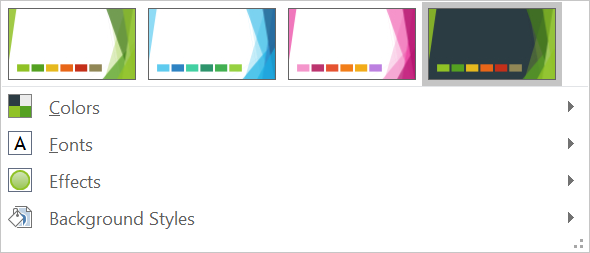
아래 섹션에서는 가장 일반적인 테마 작업 흐름을 보여줍니다: 테마 검사, 색상 및 글꼴 변경, 테마 복사 또는 적용, 배경 및 효과 스타일 업데이트, 그리고 상속 및 오버라이드가 해결된 후 유효 값을 읽는 방법.
테마 검사
MasterTheme 객체는 MasterTheme.getColorScheme, MasterTheme.getFontScheme, MasterTheme.getFormatScheme를 통해 테마의 색상 스키마, 글꼴 스키마, 포맷 스키마를 노출합니다. 변경하기 전에 이러한 컬렉션을 검사하면 외부 소스에서 가져온 프레젠테이션의 경우 스타일 항목 수와 내용이 달라질 수 있기 때문에 특히 유용합니다.
다음 예제는 기본 테마 속성을 읽고 테마에 저장된 배경, 채우기, 선, 효과 스타일 수를 보고합니다:
import com.aspose.slides.*;
import android.graphics.Color;

Presentation presentation = new Presentation("input.pptx");
try {
    IMasterTheme theme = presentation.getMasterTheme();
    int accent1 = theme.getColorScheme().getAccent1().getColor();
    System.out.println("Theme name: " + theme.getName());
    System.out.println(String.format("Accent 1: Color [A=%d, R=%d, G=%d, B=%d]", Color.alpha(accent1), Color.red(accent1), Color.green(accent1), Color.blue(accent1)));
    System.out.println("Major Latin font: " + theme.getFontScheme().getMajor().getLatinFont().getFontName());
    System.out.println("Minor Latin font: " + theme.getFontScheme().getMinor().getLatinFont().getFontName());
    System.out.println("Background fill styles: " + theme.getFormatScheme().getBackgroundFillStyles().size());
    System.out.println("Fill styles: " + theme.getFormatScheme().getFillStyles().size());
    System.out.println("Line styles: " + theme.getFormatScheme().getLineStyles().size());
    System.out.println("Effect styles: " + theme.getFormatScheme().getEffectStyles().size());
} finally {
    presentation.dispose();
}
파일에 여러 마스터가 사용되는 경우 모든 슬라이드가 동일한 유효 테마를 갖는다고 가정하지 마세요. 슬라이드와 연결된 마스터를 검사하고, 레이아웃이나 슬라이드 오버라이드가 있을 수 있는 경우 이 문서 아래에 표시된 유효 테마 작업 흐름을 사용하세요.
테마 색상 변경
테마 인식 채우기, 선, 텍스트는 SchemeColor 열거형의 논리 색상을 참조할 수 있습니다. IColorScheme에서 해당 항목을 변경하면 해당 테마 색상을 여전히 참조하는 모든 객체가 새 값으로 해결됩니다. 직접 RGB 색상을 사용하는 객체는 테마 색상 업데이트의 영향을 받지 않습니다.
다음 엔드‑투‑엔드 예제는 Accent4를 사용하는 도형을 만들고, 테마의 Accent4 색상을 빨강으로 변경한 뒤 프레젠테이션을 저장하고 다시 열어 유효 채우기 색상을 출력합니다:
import com.aspose.slides.*;
import android.graphics.Color;

Presentation presentation = new Presentation();
try {
    ISlide slide = presentation.getSlides().get_Item(0);
    IAutoShape shape = slide.getShapes().addAutoShape(ShapeType.Rectangle, 10, 10, 100, 100);
    shape.getFillFormat().setFillType(FillType.Solid);
    shape.getFillFormat().getSolidFillColor().setSchemeColor(SchemeColor.Accent4);
    presentation.getMasterTheme().getColorScheme().getAccent4().setColor(Color.RED);
    presentation.save("theme-color.pptx", SaveFormat.Pptx);
} finally {
    presentation.dispose();
}

Presentation savedPresentation = new Presentation("theme-color.pptx");
try {
    ISlide savedSlide = savedPresentation.getSlides().get_Item(0);
    IShape savedShape = savedSlide.getShapes().get_Item(0);
    IFillFormatEffectiveData effectiveFill = savedShape.getFillFormat().getEffective();
    int effectiveColor = effectiveFill.getSolidFillColor();
    System.out.println(String.format("Effective fill color: Color [A=%d, R=%d, G=%d, B=%d]", Color.alpha(effectiveColor), Color.red(effectiveColor), Color.green(effectiveColor), Color.blue(effectiveColor)));
} finally {
    savedPresentation.dispose();
}
사각형이 Accent4에 연결된 상태이므로 테마가 변경된 후 표시 색상이 빨강으로 바뀝니다. 도형에서 스키마 색상을 직접 색으로 교체하면 이후 Accent4 변경이 해당 채우기에 영향을 주지 않습니다.
추가 팔레트의 색상 사용
PowerPoint는 테마 색상에 색상 변환을 적용하여 더 밝거나 어두운 변형을 생성합니다. Aspose.Slides는 이러한 변환을 ColorTransformOperation 열거형을 통해 노출합니다.
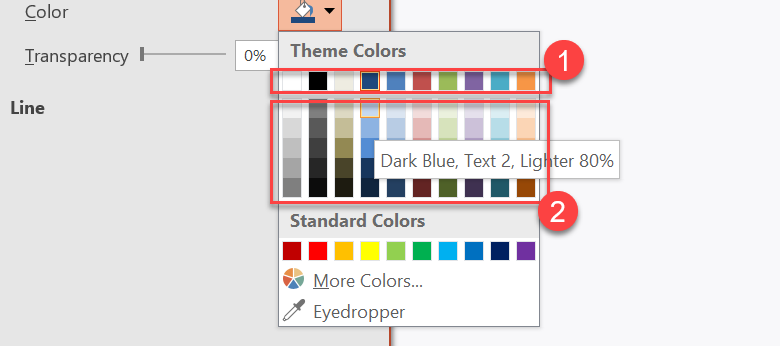
1 - 기본 테마 색상.
2 - 기본 테마 색상에서 생성된 밝고 어두운 변형.
다음 예제는 Accent4를 기반으로 한 여섯 개 사각형을 만들고, 그 중 다섯 개에 밝기 변환을 적용한 뒤 결과를 저장합니다:
import com.aspose.slides.*;

Presentation presentation = new Presentation();
try {
    ISlide slide = presentation.getSlides().get_Item(0);

    IShape shape1 = slide.getShapes().addAutoShape(ShapeType.Rectangle, 10, 10, 50, 50);
    shape1.getFillFormat().setFillType(FillType.Solid);
    shape1.getFillFormat().getSolidFillColor().setSchemeColor(SchemeColor.Accent4);

    IShape shape2 = slide.getShapes().addAutoShape(ShapeType.Rectangle, 10, 70, 50, 50);
    shape2.getFillFormat().setFillType(FillType.Solid);
    shape2.getFillFormat().getSolidFillColor().setSchemeColor(SchemeColor.Accent4);
    shape2.getFillFormat().getSolidFillColor().getColorTransform().add(ColorTransformOperation.MultiplyLuminance, 0.2f);
    shape2.getFillFormat().getSolidFillColor().getColorTransform().add(ColorTransformOperation.AddLuminance, 0.8f);

    IShape shape3 = slide.getShapes().addAutoShape(ShapeType.Rectangle, 10, 130, 50, 50);
    shape3.getFillFormat().setFillType(FillType.Solid);
    shape3.getFillFormat().getSolidFillColor().setSchemeColor(SchemeColor.Accent4);
    shape3.getFillFormat().getSolidFillColor().getColorTransform().add(ColorTransformOperation.MultiplyLuminance, 0.4f);
    shape3.getFillFormat().getSolidFillColor().getColorTransform().add(ColorTransformOperation.AddLuminance, 0.6f);

    IShape shape4 = slide.getShapes().addAutoShape(ShapeType.Rectangle, 10, 190, 50, 50);
    shape4.getFillFormat().setFillType(FillType.Solid);
    shape4.getFillFormat().getSolidFillColor().setSchemeColor(SchemeColor.Accent4);
    shape4.getFillFormat().getSolidFillColor().getColorTransform().add(ColorTransformOperation.MultiplyLuminance, 0.6f);
    shape4.getFillFormat().getSolidFillColor().getColorTransform().add(ColorTransformOperation.AddLuminance, 0.4f);

    IShape shape5 = slide.getShapes().addAutoShape(ShapeType.Rectangle, 10, 250, 50, 50);
    shape5.getFillFormat().setFillType(FillType.Solid);
    shape5.getFillFormat().getSolidFillColor().setSchemeColor(SchemeColor.Accent4);
    shape5.getFillFormat().getSolidFillColor().getColorTransform().add(ColorTransformOperation.MultiplyLuminance, 0.75f);

    IShape shape6 = slide.getShapes().addAutoShape(ShapeType.Rectangle, 10, 310, 50, 50);
    shape6.getFillFormat().setFillType(FillType.Solid);
    shape6.getFillFormat().getSolidFillColor().setSchemeColor(SchemeColor.Accent4);
    shape6.getFillFormat().getSolidFillColor().getColorTransform().add(ColorTransformOperation.MultiplyLuminance, 0.5f);

    presentation.save("theme-color-palette.pptx", SaveFormat.Pptx);
} finally {
    presentation.dispose();
}
이 변형들은 테마 색상을 기반으로 유지됩니다. Accent4가 이후에 변경되면 변환된 색상은 새로운 Accent4 값으로 다시 계산됩니다.
SchemeColor 값을 IColorScheme 슬롯에 매핑
SchemeColor 열거형은 Text1, Background1, Text2, Background2를 사용하고, IColorScheme은 동일한 테마 슬롯을 Dark1, Light1, Dark2, Light2로 노출합니다. 매핑은 고정됩니다:
Text1=Dark1Background1=Light1Text2=Dark2Background2=Light2
이는 동일한 테마 슬롯에 대한 다른 이름일 뿐이며, 한 형태에서 다른 형태로 동적으로 변환되는 값이 아닙니다.
테마 글꼴 변경
테마 글꼴 스키마에는 제목용 메이저 글꼴 세트와 본문용 마이너 글꼴 세트가 포함됩니다. IFontScheme.getMajor와 IFontScheme.getMinor 메서드가 해당 세트를 노출합니다.
PowerPoint 호환 테마 글꼴 식별자는 텍스트 서식에 사용할 수 있습니다:
+mn-lt- 본문 글꼴 라틴 (Minor Latin Font)+mj-lt- 제목 글꼴 라틴 (Major Latin Font)+mn-ea- 본문 글꼴 동아시아 (Minor East Asian Font)+mj-ea- 제목 글꼴 동아시아 (Major East Asian Font)
다음 예제는 메이저 라틴 테마 글꼴을 사용하는 제목 하나와 마이너 라틴 테마 글꼴을 사용하는 본문 라인 하나를 만든 뒤 테마 글꼴을 변경하고 결과를 저장합니다:
import com.aspose.slides.*;

Presentation presentation = new Presentation();
try {
    ISlide slide = presentation.getSlides().get_Item(0);

    IAutoShape heading = slide.getShapes().addAutoShape(ShapeType.Rectangle, 40, 40, 500, 60);
    heading.getTextFrame().setText("Theme heading");
    heading.getTextFrame().getParagraphs().get_Item(0).getPortions().get_Item(0).getPortionFormat().setLatinFont(new FontData("+mj-lt"));

    IAutoShape body = slide.getShapes().addAutoShape(ShapeType.Rectangle, 40, 120, 500, 60);
    body.getTextFrame().setText("Theme body text");
    body.getTextFrame().getParagraphs().get_Item(0).getPortions().get_Item(0).getPortionFormat().setLatinFont(new FontData("+mn-lt"));

    presentation.getMasterTheme().getFontScheme().getMajor().setLatinFont(new FontData("Aptos Display"));
    presentation.getMasterTheme().getFontScheme().getMinor().setLatinFont(new FontData("Arial"));
    presentation.save("theme-fonts.pptx", SaveFormat.Pptx);
} finally {
    presentation.dispose();
}
제목은 메이저 글꼴을 따르고 본문은 마이너 글꼴을 따릅니다. 명시적으로 글꼴 이름을 지정한 텍스트는 테마 글꼴 스키마가 변경되어도 자동으로 전환되지 않습니다.
메이저와 마이너 글꼴 컬렉션에는 키릴 문자, 아라비아 문자, 일본어, 조지아어, 타아나 등 개별 쓰기 시스템에 대한 글꼴 매핑도 포함될 수 있습니다. 이러한 매핑을 검사, 추가, 교체 또는 제거하려면 Script‑Specific Theme Fonts를 참조하세요.
Tip
프레젠테이션 글꼴에 대한 자세한 내용은 PowerPoint Fonts를 확인하세요.테마 복사 또는 적용
아래 작업 흐름은 다양한 테마 관련 문제를 해결합니다.
외부 테마를 마스터 의존 슬라이드에 적용
PowerPoint 테마 파일(.thmx)이 있고 특정 마스터에 의존하는 모든 슬라이드의 스타일을 재설정하려면 IMasterSlide.applyExternalThemeToDependingSlides를 사용합니다. Presentation.getMasters 컬렉션에서 마스터를 선택하고, 해당 마스터는 IMasterSlideCollection을 구현하므로 메서드에 테마 파일 경로를 전달합니다.
메서드는 다음 작업을 수행합니다:
- 선택한 마스터를 기반으로 새 마스터 슬라이드를 생성합니다.
- 외부 테마를 새 마스터에 적용합니다.
- 이전에 선택한 마스터에 의존하던 모든 슬라이드에 새 마스터를 할당합니다.
- 새로 만든 IMasterSlide를 반환합니다.
다음 예제는 첫 번째 마스터에 의존하는 슬라이드에 외부 테마를 적용하고 프레젠테이션을 저장합니다:
import com.aspose.slides.*;

Presentation presentation = new Presentation("presentation.pptx");
try {
    IMasterSlide selectedMaster = presentation.getMasters().get_Item(0);
    IMasterSlide themedMaster = selectedMaster.applyExternalThemeToDependingSlides("corporate-theme.thmx");

    System.out.println("Created master: " + themedMaster.getName());
    presentation.save("presentation-with-external-theme.pptx", SaveFormat.Pptx);
} finally {
    presentation.dispose();
}
잘못되었거나 손상되었거나 지원되지 않는 테마는 PptxReadException을 발생시킬 수 있습니다. 사용자가 제공한 경로를 검증하고, 파일 시스템 접근 오류를 처리하며, 테마가 성공적으로 적용된 후에만 프레젠테이션을 저장하세요.
선택한 마스터에 의존하던 슬라이드만 재배정됩니다. 다른 마스터에 연결된 슬라이드는 기존 마스터와 테마를 유지합니다. 테마 인식 색상, 글꼴, 채우기, 선, 배경 및 효과는 외부 테마에 맞춰 해결됩니다. 직접 지정된 색상, 글꼴, 채우기 등 명시적 서식은 변경되지 않을 수 있습니다. 레이아웃‑ 수준 및 슬라이드‑ 수준 오버라이드가 새 마스터에서 상속된 값보다 우선할 수도 있습니다.
테마는 런타임 환경에 없는 글꼴을 참조할 수 있습니다. 일관된 렌더링 및 내보내기를 위해 필요한 글꼴을 설치하거나 custom font sources를 통해 제공하고, font substitution을 구성하세요.
이 방법은 직접 마스터‑ 수준 워크플로이며, .thmx 파일 경로만 전달하면 되므로 슬라이드‑ 수준이나 레이아웃‑ 수준 테마 오버라이드를 수동으로 만들 필요가 없습니다.
다중 마스터 프레젠테이션에서 서로 다른 외부 테마 적용
관련 마스터를 사전에 알 수 없을 때는 ISlide.getLayoutSlide와 ILayoutSlide.getMasterSlide를 통해 대표 슬라이드에서 마스터를 얻습니다. 테마를 적용하기 전에 원본 마스터 참조를 저장하세요. 호출마다 프레젠테이션에 새 마스터가 생성됩니다.
다음 예제는 두 개 섹션의 슬라이드를 사용해 각 마스터를 찾고, 각 그룹에 서로 다른 외부 테마를 적용합니다:
import com.aspose.slides.*;

Presentation presentation = new Presentation("multi-master-presentation.pptx");
try {
    if (presentation.getSlides().size() < 5) {
        System.out.println("The presentation does not contain the expected representative slides.");
    } else {
        IMasterSlide firstGroupMaster = presentation.getSlides().get_Item(0).getLayoutSlide().getMasterSlide();
        IMasterSlide secondGroupMaster = presentation.getSlides().get_Item(4).getLayoutSlide().getMasterSlide();

        if (firstGroupMaster.getSlideId() == secondGroupMaster.getSlideId()) {
            System.out.println("The representative slides use the same master.");
        } else {
            IMasterSlide firstThemedMaster = firstGroupMaster.applyExternalThemeToDependingSlides("blue-theme.thmx");
            IMasterSlide secondThemedMaster = secondGroupMaster.applyExternalThemeToDependingSlides("green-theme.thmx");

            System.out.println("First themed master: " + firstThemedMaster.getName());
            System.out.println("Second themed master: " + secondThemedMaster.getName());
            presentation.save("multi-master-with-external-themes.pptx", SaveFormat.Pptx);
        }
    }
} finally {
    presentation.dispose();
}
첫 번째 호출은 firstGroupMaster에 의존하는 슬라이드에만 영향을 주고, 두 번째 호출은 secondGroupMaster에 의존하는 슬라이드에만 영향을 줍니다. 다른 마스터에 속한 슬라이드는 재스타일링되지 않습니다.
슬라이드 이동 시 원본 테마 보존
슬라이드를 다른 프레젠테이션으로 이동하면서 원본 디자인을 유지하려면 IMasterSlideCollection.addClone로 소스 마스터를 대상 프레젠테이션에 복제한 뒤, ISlideCollection.addClone와 복제된 마스터를 사용해 슬라이드를 복제합니다. 이렇게 하면 마스터와 레이아웃, 연관된 테마가 함께 복제됩니다.
import com.aspose.slides.*;

Presentation source = new Presentation("source-theme.pptx");
try {
    Presentation target = new Presentation("target.pptx");
    try {
        ISlide sourceSlide = source.getSlides().get_Item(0);
        IMasterSlide sourceMaster = sourceSlide.getLayoutSlide().getMasterSlide();
        IMasterSlide clonedMaster = target.getMasters().addClone(sourceMaster);
        target.getSlides().addClone(sourceSlide, clonedMaster, true);
        target.save("theme-preserved.pptx", SaveFormat.Pptx);
    } finally {
        target.dispose();
    }
} finally {
    source.dispose();
}
이 방법은 소스 슬라이드가 대상에서도 동일하게 보이도록 하는 권장 워크플로입니다. 내용만 복제하고 목적지 마스터와 연결하면 테마 기반 색상, 글꼴, 배경, 효과가 변경될 수 있습니다.
기존 슬라이드에 테마 값 적용
대상 슬라이드가 현재 마스터와 레이아웃을 유지해야 할 경우, 소스 테마에서 슬라이드‑ 수준 오버라이드를 초기화합니다. OverrideTheme.initColorSchemeFrom, OverrideTheme.initFontSchemeFrom, OverrideTheme.initFormatSchemeFrom 메서드가 세 가지 주요 테마 구성 요소를 오버라이드에 복사합니다.
import com.aspose.slides.*;

Presentation source = new Presentation("source-theme.pptx");
try {
    Presentation target = new Presentation("target.pptx");
    try {
        ISlide targetSlide = target.getSlides().get_Item(0);
        IOverrideTheme overrideTheme = targetSlide.getThemeManager().getOverrideTheme();
        overrideTheme.initColorSchemeFrom(source.getMasterTheme().getColorScheme());
        overrideTheme.initFontSchemeFrom(source.getMasterTheme().getFontScheme());
        overrideTheme.initFormatSchemeFrom(source.getMasterTheme().getFormatScheme());
        target.save("theme-applied-to-slide.pptx", SaveFormat.Pptx);
    } finally {
        target.dispose();
    }
} finally {
    source.dispose();
}
이렇게 하면 해당 슬라이드에만 테마가 변경되고 다른 슬라이드가 상속하는 테마는 그대로 유지됩니다. 로컬 오버라이드를 제거하고 상속값으로 돌아가려면 OverrideTheme.clear를 호출하세요.
레이아웃에 테마 오버라이드 적용
레이아웃‑ 수준 오버라이드는 해당 레이아웃을 사용하는 슬라이드에 적용되며, 개별 슬라이드에 자체 오버라이드가 있는 경우는 제외됩니다. 동일한 초기화 메서드는 LayoutSlideThemeManager를 통해 사용할 수 있습니다:
import com.aspose.slides.*;

Presentation source = new Presentation("source-theme.pptx");
try {
    Presentation target = new Presentation("target.pptx");
    try {
        ISlide targetSlide = target.getSlides().get_Item(0);
        ILayoutSlide targetLayout = targetSlide.getLayoutSlide();
        IOverrideTheme overrideTheme = targetLayout.getThemeManager().getOverrideTheme();
        overrideTheme.initColorSchemeFrom(source.getMasterTheme().getColorScheme());
        overrideTheme.initFontSchemeFrom(source.getMasterTheme().getFontScheme());
        overrideTheme.initFormatSchemeFrom(source.getMasterTheme().getFormatScheme());
        target.save("theme-applied-to-layout.pptx", SaveFormat.Pptx);
    } finally {
        target.dispose();
    }
} finally {
    source.dispose();
}
많은 레이아웃과 슬라이드가 동일한 기본 디자인을 공유해야 할 때는 마스터 또는 프레젠테이션 수준 테마를 사용하고, 특정 레이아웃 패밀리만 다른 스타일이 필요하면 레이아웃 오버라이드를, 실제 예외에만 슬라이드 오버라이드를 적용하세요. 과도한 슬라이드‑ 수준 오버라이드는 이후 전역 테마 변경을 예측하기 어렵게 만듭니다.
테마 배경 스타일 업데이트
테마의 배경 채우기는 IFormatScheme.getBackgroundFillStyles에 저장됩니다. PowerPoint UI에서는 실제 컬렉션에 저장된 채우기 정의 수보다 더 많은 배경 옵션을 표시할 수 있습니다. UI는 테마 채우기에 테마 색상 및 기타 스타일 참조를 결합할 수 있기 때문입니다.
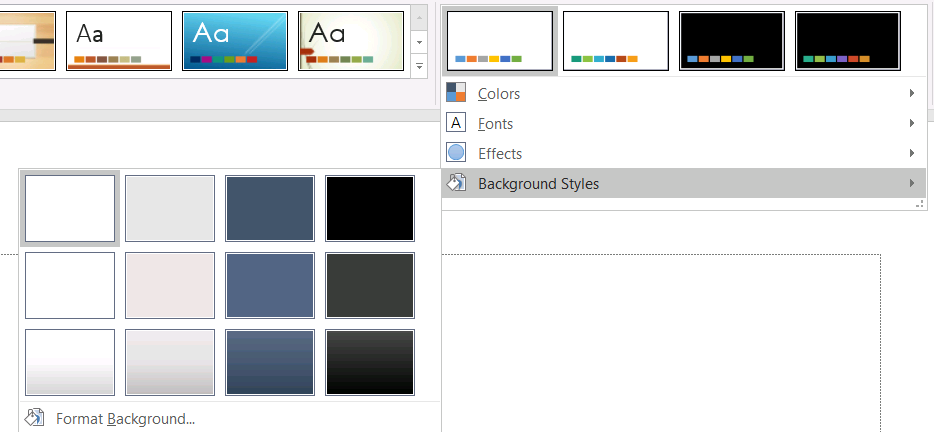
배경 스타일을 사용하기 전에 저장된 컬렉션과 현재 Background.getStyleIndex를 검사하세요. 스타일 인덱스 0은 테마 채우기가 없음을 의미하고, 양수 값은 테마 배경‑스타일 참조입니다. 이는 Java 컬렉션을 직접 인덱싱하는 get_Item(0)(첫 번째 저장 항목)과 다릅니다. 모든 프레젠테이션이 동일한 수의 배경 채우기 스타일을 가진다고 가정하지 마세요.
다음 예제는 사용 가능한 배경 채우기 개수를 보고하고, 첫 번째 마스터에 테마 배경 참조를 할당한 뒤 프레젠테이션을 저장합니다:
import com.aspose.slides.*;

Presentation presentation = new Presentation("input.pptx");
try {
    IFillFormatCollection backgroundStyles = presentation.getMasterTheme().getFormatScheme().getBackgroundFillStyles();
    System.out.println("Background fill styles: " + backgroundStyles.size());
    if (backgroundStyles.size() == 0) {
        throw new IllegalStateException("The presentation theme does not contain background fill styles.");
    }

    IMasterSlide masterSlide = presentation.getMasters().get_Item(0);
    masterSlide.getBackground().setType(BackgroundType.Themed);
    masterSlide.getBackground().setStyleIndex(1);
    presentation.save("theme-background.pptx", SaveFormat.Pptx);
} finally {
    presentation.dispose();
}
보이는 결과는 마스터가 참조하는 테마 항목 및 레이아웃이나 슬라이드 수준의 배경 오버라이드에 따라 달라집니다. 슬라이드가 자체 배경을 사용하면 마스터 배경만 변경해도 해당 슬라이드에는 영향을 주지 않을 수 있습니다. 최종 배경을 확인하려면 Background.getEffective를 사용하세요.
Warning
스타일 인덱스를 0부터 시작하는 컬렉션 인덱스로 오해하지 마세요. 또한 한 파일에서 사용한 스타일 번호를 다른 파일에 그대로 적용한다고 가정하지 말아야 합니다. 테마 스타일 정의는 프레젠테이션마다 다릅니다.Tip
직접 배경 서식 및 배경 상속에 대해서는 Presentation Background를 참조하세요.테마 효과 업데이트
테마 포맷 스키마는 IFormatScheme.getFillStyles, IFormatScheme.getLineStyles, IFormatScheme.getEffectStyles를 통해 별도의 채우기, 선, 효과 스타일 컬렉션을 노출합니다. 일반적인 Office 테마는 시각적으로 미묘, 보통, 강렬한 서식을 나타내는 세 개의 주요 스타일 항목을 포함하지만, 코드에서는 고정 개수를 가정하지 말고 각 컬렉션을 검사하세요.

Java에서 이러한 컬렉션에 접근할 때 컬렉션 인덱스는 0부터 시작합니다: get_Item(0)은 첫 번째 저장 스타일이고 get_Item(2)는 세 번째 스타일입니다. 도형의 스타일‑참조 인덱스는 별개의 개념으로, IShapeStyle을 통해 노출됩니다. 테마 스타일을 수정하면 해당 테마 스타일을 참조하는 도형에 영향을 주며, 직접 서식이 적용된 도형은 변경되지 않을 수 있습니다.
다음 예제는 필요한 스타일 항목이 존재하는지 확인하고, 첫 번째 선 스타일을 변경하고, 세 번째 채우기 스타일을 변경하며, 세 번째 효과 스타일에 외곽 그림자를 활성화한 뒤 결과를 저장합니다:
import com.aspose.slides.*;
import android.graphics.Color;

Presentation presentation = new Presentation("Subtle_Moderate_Intense.pptx");
try {
    IFormatScheme formatScheme = presentation.getMasterTheme().getFormatScheme();
    if (formatScheme.getLineStyles().size() < 1 || formatScheme.getFillStyles().size() < 3 || formatScheme.getEffectStyles().size() < 3) {
        throw new IllegalStateException("The theme does not contain the style entries required by this example.");
    }
    formatScheme.getLineStyles().get_Item(0).getFillFormat().setFillType(FillType.Solid);
    formatScheme.getLineStyles().get_Item(0).getFillFormat().getSolidFillColor().setColor(Color.RED);
    formatScheme.getFillStyles().get_Item(2).setFillType(FillType.Solid);
    formatScheme.getFillStyles().get_Item(2).getSolidFillColor().setColor(Color.rgb(34, 139, 34));
    IEffectFormat effectFormat = formatScheme.getEffectStyles().get_Item(2).getEffectFormat();
    effectFormat.enableOuterShadowEffect();
    effectFormat.getOuterShadowEffect().setDistance(10f);
    presentation.save("theme-effects.pptx", SaveFormat.Pptx);
} finally {
    presentation.dispose();
}
이 슬롯을 참조하는 도형의 경우 첫 번째 테마 선 스타일이 빨강으로, 세 번째 테마 채우기 스타일이 솔리드 포레스트 그린으로, 세 번째 효과 스타일에 거리 10포인트의 외곽 그림자가 추가됩니다. 정확한 시각 결과는 각 도형이 어떤 슬롯을 참조하고 직접 서식이 테마를 덮어쓰는지에 따라 달라집니다.

유효 솔리드 채우기가 테마 색상을 사용하는지 판단
채우기는 객체에 직접 저장될 수도 있고, 단락, 레이아웃, 마스터, 테마 스타일 또는 다른 서식 수준에서 상속될 수도 있습니다. IFillFormat.getEffective를 호출해 계층을 불변의 IFillFormatEffectiveData로 해결합니다. 먼저 IFillFormatEffectiveData.getFillType를 확인하세요. FillType.Solid인 경우에만 솔리드‑채우기 속성을 읽어야 합니다.
솔리드 채우기에 대해 IFillFormatEffectiveData.getSolidFillColor는 상속, 테마 조회 및 색상 변환이 적용된 최종 RGB 값을 반환합니다. IFillFormatEffectiveData.getSolidFillSchemeColor는 해당 논리 SchemeColor 슬롯(Text1, Accent6 등)을 반환합니다. SchemeColor.NotDefined이면 유효 솔리드 채우기가 스키마 색상에 기반하지 않음을 의미합니다. 테마 색상 또는 직접 RGB 색상만 사용하는 워크플로에서는 이 값이 직접 RGB 채우기를 식별합니다.
로컬 IColorFormat.getSchemeColor 값만으로 채우기를 분류하지 마세요. 예를 들어 텍스트 일부는 로컬에 스키마 색상이 정의되지 않아 NotDefined이지만, 유효 채우기는 테마 색상을 상속받아 Text1이나 Accent6이 될 수 있습니다. 반대로 getSolidFillSchemeColor는 어떤 논리 테마 슬롯이 최종 색상을 만든 것인지를 알려주지만, 해당 슬롯이 객체, 단락, 레이아웃, 마스터 등 어느 수준에서 왔는지는 알려주지 않습니다.
다음 예제는 프레젠테이션을 로드하고, 도형 채우기와 텍스트 부분 채우기를 감사하여 각 최종 RGB 값과 연관된 스키마 색상을 출력하고, 테마 색상 변경에 반응하지 않는 솔리드 채우기를 표시합니다:
import com.aspose.slides.*;
import android.graphics.Color;
import java.util.function.BiConsumer;

BiConsumer<String, IFillFormat> auditFill = (objectName, localFill) -> {
    IFillFormatEffectiveData effectiveFill = localFill.getEffective();

    if (effectiveFill.getFillType() != FillType.Solid) {
        System.out.println(objectName + ": fill type = " + effectiveFill.getFillType() + "; not a solid fill.");
        return;
    }

    int rgb = effectiveFill.getSolidFillColor();
    int effectiveSchemeColor = effectiveFill.getSolidFillSchemeColor();
    int localSchemeColor = localFill.getSolidFillColor().getSchemeColor();

    System.out.printf("%s: RGB = #%02X%02X%02X%n", objectName, Color.red(rgb), Color.green(rgb), Color.blue(rgb));
    System.out.println(objectName + ": local scheme = " + localSchemeColor + ", effective scheme = " + effectiveSchemeColor);

    if (effectiveSchemeColor == SchemeColor.NotDefined) {
        System.out.println(objectName + ": direct RGB or another non-scheme fill; audit as theme-independent.");
    } else {
        System.out.println(objectName + ": theme-dependent through " + effectiveSchemeColor + ".");
    }
};

Presentation presentation = new Presentation("input.pptx");
try {
    int slideCount = presentation.getSlides().size();
    for (int slideIndex = 0; slideIndex < slideCount; slideIndex++) {
        ISlide slide = presentation.getSlides().get_Item(slideIndex);

        int shapeCount = slide.getShapes().size();
        for (int shapeIndex = 0; shapeIndex < shapeCount; shapeIndex++) {
            IShape shape = slide.getShapes().get_Item(shapeIndex);
            String shapeName = "Slide " + (slideIndex + 1) + ", shape " + (shapeIndex + 1);
            auditFill.accept(shapeName, shape.getFillFormat());

            if (shape instanceof IAutoShape) {
                IAutoShape autoShape = (IAutoShape) shape;
                int paragraphCount = autoShape.getTextFrame().getParagraphs().getCount();
                for (int paragraphIndex = 0; paragraphIndex < paragraphCount; paragraphIndex++) {
                    IParagraph paragraph = autoShape.getTextFrame().getParagraphs().get_Item(paragraphIndex);

                    int portionCount = paragraph.getPortions().getCount();
                    for (int portionIndex = 0; portionIndex < portionCount; portionIndex++) {
                        IPortion portion = paragraph.getPortions().get_Item(portionIndex);
                        String portionName = shapeName + ", paragraph " + (paragraphIndex + 1) + ", portion " + (portionIndex + 1);
                        auditFill.accept(portionName, portion.getPortionFormat().getFillFormat());
                    }
                }
            }
        }
    }
} finally {
    presentation.dispose();
}
NotDefined 분기는 테마 색상 슬롯 변화에 반응하지 않는 솔리드 채우기의 감사 목록을 제공합니다. 새 브랜드 팔레트를 적용해야 할 때 이러한 객체를 검토하세요. 보고된 RGB 값은 현재 모습을 보여주며, 스키마 값은 그 모습이 테마와 연결되어 있는지 여부를 설명합니다.
유효 포맷 객체는 스냅샷입니다. 프레젠테이션 테마, 테마 오버라이드 또는 상속된 서식을 변경한 후에는 다시 getEffective을 호출하고 새로운 IFillFormatEffectiveData 객체를 읽은 뒤 색상을 비교하거나 보고하세요.
유효 테마 값 읽기
원시 테마 객체는 특정 수준에서 정의된 내용을 알려주지만, 유효 값은 상속 및 로컬 오버라이드가 해결된 후 슬라이드나 도형이 실제로 사용하는 값을 알려줍니다. 슬라이드의 경우 BaseOverrideThemeManager.createThemeEffective를 호출합니다. 배경은 Background.getEffective를, 채우기는 FillFormat.getEffective를 사용하세요.
다음 예제는 슬라이드에서 유효 테마, 배경 및 첫 번째 도형 채우기를 읽습니다:
import com.aspose.slides.*;
import android.graphics.Color;

Presentation presentation = new Presentation("input.pptx");
try {
    ISlide slide = presentation.getSlides().get_Item(0);
    IThemeEffectiveData effectiveTheme = slide.getThemeManager().createThemeEffective();
    IBackgroundEffectiveData effectiveBackground = slide.getBackground().getEffective();
    System.out.println("Effective major Latin font: " + effectiveTheme.getFontScheme().getMajor().getLatinFont().getFontName());
    System.out.println("Effective minor Latin font: " + effectiveTheme.getFontScheme().getMinor().getLatinFont().getFontName());
    System.out.println("Effective background fill type: " + effectiveBackground.getFillFormat().getFillType());
    if (slide.getShapes().size() > 0) {
        IFillFormatEffectiveData effectiveFill = slide.getShapes().get_Item(0).getFillFormat().getEffective();
        System.out.println("First shape effective fill type: " + effectiveFill.getFillType());
        if (effectiveFill.getFillType() == FillType.Solid) {
            int effectiveColor = effectiveFill.getSolidFillColor();
            System.out.println(String.format("First shape effective fill color: Color [A=%d, R=%d, G=%d, B=%d]", Color.alpha(effectiveColor), Color.red(effectiveColor), Color.green(effectiveColor), Color.blue(effectiveColor)));
        }
    }
} finally {
    presentation.dispose();
}
렌더링 진단, 검증, 비교에 유효 데이터를 사용하세요. Presentation.getMasterTheme만 검사하면 마스터, 레이아웃, 슬라이드 또는 도형 오버라이드가 최종 모습을 바꾸는 경우를 놓칠 수 있습니다.
FAQ
외부 테마를 적용하면 프레젠테이션의 모든 슬라이드가 영향을 받나요?
아니요. IMasterSlide.applyExternalThemeToDependingSlides는 선택한 마스터에 의존하는 슬라이드만 재할당합니다. 다른 마스터를 사용하는 슬라이드는 기존 테마를 유지합니다.
마스터를 변경하지 않고 단일 슬라이드에만 테마를 적용할 수 있나요?
예. 슬라이드의 SlideThemeManager를 사용해 오버라이드 테마를 초기화하면 변경이 해당 슬라이드에만 적용되고 다른 슬라이드는 기존 테마를 계속 상속합니다.
한 프레젠테이션에서 다른 프레젠테이션으로 테마를 전달하는 가장 안전한 방법은?
슬라이드를 이동하면서 원본 모양을 보존하려면 IMasterSlideCollection.addClone로 소스 마스터를 대상에 복제하고, ISlideCollection.addClone로 해당 마스터와 함께 슬라이드를 복제하세요. 이렇게 하면 마스터, 레이아웃, 테마가 함께 유지됩니다.
상속 및 오버라이드 후 유효 값을 어떻게 확인할 수 있나요?
슬라이드 또는 레이아웃 테마의 경우 BaseOverrideThemeManager.createThemeEffective를 사용하고, 포맷 객체의 경우 Background.getEffective와 FillFormat.getEffective 같은 유효‑데이터 메서드를 사용하세요. 이러한 API는 상속 및 오버라이드가 적용된 후 해결된 값을 반환합니다.