Create Tagged PDF using Python
Creating a Tagged PDF means adding (or creating) certain elements to the document that will enable the document to be validated in accordance with PDF/UA requirements. These elements are called often Structure Elements.
Creating Tagged PDF (Simple Scenario)
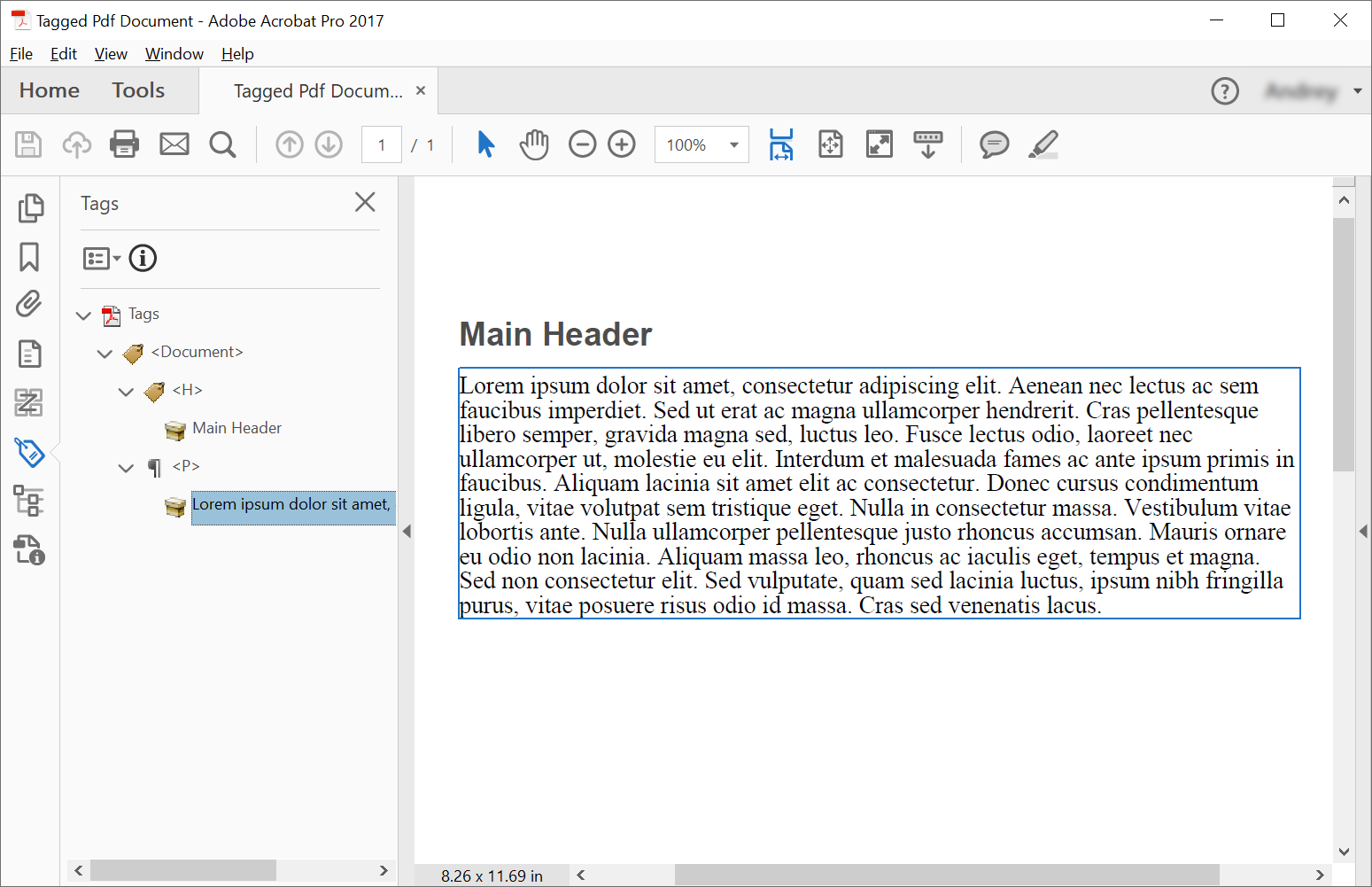
In order to create structure elements in a Tagged PDF Document, Aspose.PDF offers methods to create structure elements using the ITaggedContent interface. This example creates a Tagged PDF document — a PDF with semantic structure, making it more accessible and compliant with standards like PDF/UA. Following code snippet shows how to create Tagged PDF which contains 2 elements: header and paragraph.
    import aspose.pdf as ap

    def create_tagged_pdf_document_simple(outfile):

        # Create PDF Document
        with ap.Document() as document:

            # Get Content for working with TaggedPdf
            tagged_content = document.tagged_content
            root_element = tagged_content.root_element

            # Set Title and Language for Document
            tagged_content.set_title("Tagged Pdf Document")
            tagged_content.set_language("en-US")
            main_header = tagged_content.create_header_element()
            main_header.set_text("Main Header")
            paragraph_element = tagged_content.create_paragraph_element()
            paragraph_element.set_text(
                "Lorem ipsum dolor sit amet, consectetur adipiscing elit. "
                + "Aenean nec lectus ac sem faucibus imperdiet. Sed ut erat ac magna ullamcorper hendrerit. "
                + "Cras pellentesque libero semper, gravida magna sed, luctus leo. Fusce lectus odio, laoreet "
                + "nec ullamcorper ut, molestie eu elit. Interdum et malesuada fames ac ante ipsum primis in faucibus. "
                + "Aliquam lacinia sit amet elit ac consectetur. Donec cursus condimentum ligula, vitae volutpat "
                + "sem tristique eget. Nulla in consectetur massa. Vestibulum vitae lobortis ante. Nulla ullamcorper "
                + "pellentesque justo rhoncus accumsan. Mauris ornare eu odio non lacinia. Aliquam massa leo, rhoncus "
                + "ac iaculis eget, tempus et magna. Sed non consectetur elit. Sed vulputate, quam sed lacinia luctus, "
                + "ipsum nibh fringilla purus, vitae posuere risus odio id massa. Cras sed venenatis lacus."
            )
            root_element.append_child(main_header, True)
            root_element.append_child(paragraph_element, True)

            # Save Tagged PDF Document
            document.save(outfile)
Creating Tagged PDF (Advanced)
    import aspose.pdf as ap

    def create_tagged_pdf_document_adv(outfile):

        # Create PDF Document
        with ap.Document() as document:
            # Get Content for working with TaggedPdf
            tagged_content = document.tagged_content
            root_element = tagged_content.root_element

            # Set Title and Language for Document
            tagged_content.set_title("Tagged Pdf Document")
            tagged_content.set_language("en-US")

            # Create Header Level 1
            header1 = tagged_content.create_header_element(1)
            header1.set_text("Header Level 1")

            # Create Paragraph with Quotes
            paragraph_with_quotes = tagged_content.create_paragraph_element()
            paragraph_with_quotes.structure_text_state.font = ap.text.FontRepository.find_font(
                "Arial"
            )
            position_settings = ap.tagged.PositionSettings()
            position_settings.margin = ap.MarginInfo(10, 5, 10, 5)
            paragraph_with_quotes.adjust_position(position_settings)

            # Create Span Element
            span_element1 = tagged_content.create_span_element()
            span_element1.set_text(
                "Lorem ipsum dolor sit amet, consectetur adipiscing elit. Aenean nec lectus ac sem faucibus imperdiet. "
                "Sed ut erat ac magna ullamcorper hendrerit. Cras pellentesque libero semper, gravida magna sed, "
                "luctus leo. Fusce lectus odio, laoreet nec ullamcorper ut, molestie eu elit. Interdum et malesuada "
                "fames ac ante ipsum primis in faucibus. Aliquam lacinia sit amet elit ac consectetur. Donec cursus "
                "condimentum ligula, vitae volutpat sem tristique eget. Nulla in consectetur massa. Vestibulum vitae "
                "lobortis ante. Nulla ullamcorper pellentesque justo rhoncus accumsan. Mauris ornare eu odio non "
                "lacinia. Aliquam massa leo, rhoncus ac iaculis eget, tempus et magna. Sed non consectetur elit."
            )

            # Create Quote Element
            quote_element = tagged_content.create_quote_element()
            quote_element.set_text(
                "Sed vulputate, quam sed lacinia luctus, ipsum nibh fringilla purus, vitae posuere risus odio id massa."
            )
            quote_element.structure_text_state.font_style = (
                ap.text.FontStyles.BOLD | ap.text.FontStyles.ITALIC
            )

            # Create Another Span Element
            span_element2 = tagged_content.create_span_element()
            span_element2.set_text(" Sed non consectetur elit.")

            # Append Children to Paragraph
            paragraph_with_quotes.append_child(span_element1, True)
            paragraph_with_quotes.append_child(quote_element, True)
            paragraph_with_quotes.append_child(span_element2, True)

            # Append Header and Paragraph to Root Element
            root_element.append_child(header1, True)
            root_element.append_child(paragraph_with_quotes, True)

            # Save Tagged PDF Document
            document.save(outfile)
We will get the following document after creation:
Styling Text Structure
Tagged PDFs are structured documents that provide accessibility features and semantic meaning to the content.
The example creates a PDF document with accessibility features by using a tagged content structure. It demonstrates how to make a paragraph element with custom styling and proper document metadata.
    import aspose.pdf as ap

    def add_style(outfile):

        # Create PDF Document
        with ap.Document() as document:
            # Get Content for work with TaggedPdf
            tagged_content = document.tagged_content

            # Set Title and Language for Document
            tagged_content.set_title("Tagged Pdf Document")
            tagged_content.set_language("en-US")

            paragraph_element = tagged_content.create_paragraph_element()
            tagged_content.root_element.append_child(paragraph_element, True)

            paragraph_element.structure_text_state.font_size = 18.0
            paragraph_element.structure_text_state.foreground_color = ap.Color.red
            paragraph_element.structure_text_state.font_style = ap.text.FontStyles.ITALIC

            paragraph_element.set_text("Red italic text.")

            # Save Tagged PDF Document
            document.save(outfile)
Illustrating Structure Elements
Tagged PDFs are essential for accessibility compliance and provide structured content that can be properly interpreted by screen readers and other assistive technologies. Following code snippet shows how to create a tagged PDF document with an embedded image:
- Create tagged PDF with image.
- Configure document.
- Create and configure figure.
- Set positioning.
- Save document.
    import aspose.pdf as ap

    def illustrate_structure_elements(imagefile, outfile):

        # Create PDF Document
        with ap.Document() as document:
            # Get Content for work with TaggedPdf
            tagged_content = document.tagged_content

            # Set Title and Language for Document
            tagged_content.set_title("Tagged Pdf Document")
            tagged_content.set_language("en-US")
            figure1 = tagged_content.create_figure_element()
            tagged_content.root_element.append_child(figure1, True)
            figure1.alternative_text = "Figure One"
            figure1.title = "Image 1"
            figure1.set_tag("Fig1")
            figure1.set_image(imagefile, 300)
            # Adjust position
            position_settings = ap.tagged.PositionSettings()
            margin_info = ap.MarginInfo()
            margin_info.left = 50
            margin_info.top = 20
            position_settings.margin = margin_info
            figure1.adjust_position(position_settings)

            # Save Tagged PDF Document
            document.save(outfile)
Validate Tagged PDF
Aspose.PDF for Python via .NET provides the ability to validate a PDF/UA Tagged PDF Document. The ‘validate_tagged_pdf’ method validates PDF documents against the PDF/UA-1 standard, which is part of the ISO 14289 specification for accessible PDF documents. This ensures that PDFs are accessible to users with disabilities and assistive technologies.
- Document Structure. Proper semantic tagging and logical structure.
- Alternative Text. Alt text for images and non-text elements.
- Reading Order. Logical sequence for screen readers.
- Color and Contrast. Sufficient contrast ratios.
- Forms. Accessible form fields and labels.
- Navigation. Proper bookmarks and navigation structure.
    import aspose.pdf as ap

    def validate_tagged_pdf(infile, logfile):

        # Open PDF document
        with ap.Document(infile) as document:
            is_valid = document.validate(logfile, ap.PdfFormat.PDF_UA_1)
        print(f"Is Valid: {is_valid}")
Adjust position of Text Structure
The following code snippet shows how to adjust Text Structure position in the Tagged PDF document:
    import aspose.pdf as ap

    def adjust_position(outfile):

        # Create PDF Document
        with ap.Document() as document:
            # Get Content for work with TaggedPdf
            tagged_content = document.tagged_content

            # Set Title and Language for Document
            tagged_content.set_title("Tagged Pdf Document")
            tagged_content.set_language("en-US")

            # Create paragraph
            paragraph = tagged_content.create_paragraph_element()
            tagged_content.root_element.append_child(paragraph, True)
            paragraph.set_text("Text.")

            # Adjust position
            position_settings = ap.tagged.PositionSettings()
            margin_info = ap.MarginInfo()
            margin_info.left = 300
            margin_info.top = 20
            margin_info.right = 0
            margin_info.bottom = 0
            position_settings.margin = margin_info
            position_settings.horizontal_alignment = ap.HorizontalAlignment.NONE
            position_settings.vertical_alignment = ap.VerticalAlignment.NONE
            position_settings.is_first_paragraph_in_column = False
            position_settings.is_kept_with_next = False
            position_settings.is_in_new_page = False
            position_settings.is_in_line_paragraph = False
            paragraph.adjust_position(position_settings)

            # Save Tagged PDF Document
            document.save(outfile)
Convert PDF to PDF/UA-1 with Automatic Tagging
This code snippet explains how to convert a standard PDF into a PDF/UA-1 (Universal Accessibility) compliant file using Aspose.PDF for Python via .NET.
PDF/UA ensures that documents are accessible to users with disabilities and compatible with assistive technologies such as screen readers. During conversion, the library can automatically generate the logical structure tree and apply semantic tags using built-in auto-tagging and heading recognition.
By configuring PdfFormatConversionOptions and enabling AutoTaggingSettings, you can efficiently transform existing PDFs into accessible documents without manually editing the structure.
- Load the source document.
- Create PDF/UA Conversion Options.
- Enable Automatic Tagging.
- Configure Heading Recognition.
- Attach the tagging configuration to conversion options.
- Run the conversion process.
- Save the Accessible PDF.
    import aspose.pdf as ap

    def convert_to_pdf_ua_with_automatic_tagging(infile, outfile, logfile):

        # Create PDF Document
        with ap.Document(infile) as document:
            # Create conversion options
            options = ap.PdfFormatConversionOptions(
                logfile, ap.PdfFormat.PDF_UA_1, ap.ConvertErrorAction.DELETE
            )
            # Create auto-tagging settings
            # aspose.pdf.AutoTaggingSettings.default may be used to set the same settings as given below
            auto_tagging_settings = ap.AutoTaggingSettings()
            # Enable auto-tagging during the conversion process
            auto_tagging_settings.enable_auto_tagging = True
            # Use the heading recognition strategy that's optimal for the given document structure
            auto_tagging_settings.heading_recognition_strategy = (
                ap.HeadingRecognitionStrategy.AUTO
            )
            # Assign auto-tagging settings to be used during the conversion process
            options.auto_tagging_settings = auto_tagging_settings
            # During the conversion, the document logical structure will be automatically created
            document.convert(options)
            # Save PDF document
            document.save(outfile)
Create a Tagged PDF with an Accessible Signature Form Field
- Create a new PDF document.
- Access tagged content.
- Create a signature Form field.
- Add the field to AcroForm.
- Create a form element in the tag structure.
- Link the Structure element to the Form field.
- Append the Form element to the logical structure tree.
- Save the document.
    import aspose.pdf as ap

    def create_pdf_with_tagged_form_field(outfile):

        # Create PDF document
        with ap.Document() as document:
            document.pages.add()
            # Get Content for work with TaggedPdf
            tagged_content = document.tagged_content
            root_element = tagged_content.root_element
            # Create a visible signature form field (AcroForm)
            signature_field = ap.forms.SignatureField(document.pages[1], ap.Rectangle(50, 50, 100, 100, True))
            signature_field.partial_name = "Signature1"
            signature_field.alternate_name = "signature 1"

            # Add the signature field to the document's AcroForm
            document.form.add(signature_field)

            # Create a /Form structure element in the tag tree
            form = tagged_content.create_form_element()
            form.alternative_text = "form 1"

            # Link the /Form tag to the signature field via an /OBJR reference
            form.tag(signature_field)

            # Add the /Form structure element to the document’s logical structure tree
            root_element.append_child(form, True)

            # Save PDF document
            document.save(outfile)
Create a Tagged PDF with a Table of Contents (TOC) Page
This example shows how to create a tagged PDF document with a structured Table of Contents (TOC) page using Aspose.PDF for Python via .NET.
- Create a new PDF document.
- Create a dedicated table of contents page.
- Create and register the TOC element in the logical structure tree.
- Add a content page.
- Create a header element.
- Create a /TOCI element.
- Link the header to the TOC.
- Save the document.
    import aspose.pdf as ap

    def create_pdf_with_toc_page(outfile):

        # Create PDF document
        with ap.Document() as document:
            # Get tagged content for the PDF structure
            content = document.tagged_content
            root_element = content.root_element
            content.set_language("en-US")
            # Add the table of contents (TOC) page
            toc_page = document.pages.add()
            toc_page.toc_info = ap.TocInfo()
            # Create a TOC structure element
            toc_element = content.create_toc_element()
            # Add the TOC element to the document structure tree
            root_element.append_child(toc_element, True)
            # Add a content page
            document.pages.add()
            # Create a header element and set its text
            header = content.create_header_element(1)
            header.set_text("1. Header")
            # Add the header to the document structure
            root_element.append_child(header, True)
            # Create a TOC item (TOCI) element
            toci = content.create_toci_element()
            # Add the TOCI element to the TOC element
            toc_element.append_child(toci, True)
            # Add an entry to the TOC page and link it to the TOCI element
            header.add_entry_to_toc_page(toc_page, toci)
            # Add a logical reference to the header within the TOCI element
            toci.add_ref(header)
            # Save PDF document
            document.save(outfile)
Create an Advanced Tagged PDF with Hierarchical Table of Contents (TOC)
Using Aspose.PDF for Python via .NET, you can create an advanced, fully tagged PDF document with a structured and hierarchical Table of Contents (TOC).
- Create the document and enable Tagged content.
- Add and configure the TOC page.
- Create the /TOC structure element.
- Link the TOC page title to a header element.
- Add main content page and first header.
- Create a TOC entry for the header.
- Create nested subsections with list structure.
- Add a second Top-Level section.
- Save the document.
    import aspose.pdf as ap

    def create_pdf_with_toc_page_advanced(outfile):

        # Create PDF document
        with ap.Document() as document:
            # Get tagged content for the PDF structure
            content = document.tagged_content
            root_element = content.root_element
            content.set_language("en-US")
            # Add the table of contents (TOC) page
            toc_page = document.pages.add()
            toc_page.toc_info = ap.TocInfo()
            toc_page.toc_info.title = ap.text.TextFragment("Table of Contents")
            # Create a TOC structure element
            toc_element = content.create_toc_element()
            # Create a header element for the TOC page title
            header_for_toc_page_title = content.create_header_element(1)
            toc_element.link_toc_page_title_to_header_element(toc_page, header_for_toc_page_title)
            # Add the TOC page title header and TOC element to the document structure tree
            root_element.append_child(header_for_toc_page_title, True)
            root_element.append_child(toc_element, True)
            # Add a content page
            document.pages.add()
            # Create a header element and set its text
            header = content.create_header_element(1)
            header.set_text("1. Header")
            # Add the header to the document structure
            root_element.append_child(header, True)
            # Create a TOC item (TOCI) element
            toci = content.create_toci_element()
            # Add the TOCI element to the TOC element
            toc_element.append_child(toci, True)
            # Add an entry to the TOC page and link it to the TOCI element
            header.add_entry_to_toc_page(toc_page, toci)
            # Add a logical reference to the header within the TOCI element
            toci.add_ref(header)
            # Create a list element for TOCI subitems
            list_element = content.create_list_element()
            for i in range(1, 4):
                # Create a list item (LI) element
                li = content.create_list_li_element()
                # Add the list item to the list element
                list_element.append_child(li, True)
                # Create a sub-header element and set its properties
                sub_header = content.create_header_element(2)
                sub_header.structure_text_state.font_size = 14
                sub_header.language = "en-US"
                sub_header.set_text(f"1.{i} subheader ")
                # Add an entry to the TOC page and link it to the LI element
                sub_header.add_entry_to_toc_page(toc_page, li)
                # Add a logical reference to the subheader element
                li.add_ref(sub_header)
                # Create a paragraph element and set its text and language
                p = content.create_paragraph_element()
                p.set_text(
                    "Lorem ipsum dolor sit amet, consectetur adipiscing elit, sed do eiusmod tempor incididunt ut labore et dolore magna aliqua. Ut enim ad minim veniam, quis nostrud exercitation ullamco laboris nisi ut aliquip ex ea commodo consequat. Duis aute irure dolor in reprehenderit in voluptate velit esse cillum dolore eu fugiat nulla pariatur. Excepteur sint occaecat cupidatat non proident, sunt in culpa qui officia deserunt mollit anim id est laborum.")
                p.language = "en-US"
                # Add the sub-header and paragraph to the document structure
                root_element.append_child(sub_header, True)
                root_element.append_child(p, True)
            # Add the list element as a child to the TOCI element
            toci.append_child(list_element, True)
            # --- Additional TOC header example ---
            # Create a second header element (see comments above for header 1)
            header2 = content.create_header_element(1)
            header2.set_text("2. Header")
            root_element.append_child(header2, True)

            toci2 = content.create_toci_element()
            toc_element.append_child(toci2, True)

            header2.add_entry_to_toc_page(toc_page, toci2)
            toci2.add_ref(header2)
            # Save the PDF document
            document.save(outfile)