
在 Python 中将 PDF 转换为 HTML
将 PDF 转换为 HTML
Aspose.PDF for Python via .NET 提供了许多将各种文件格式转换为 PDF 文档以及将 PDF 文件转换为各种输出格式的功能。本文讨论如何将 PDF 文件转换为 HTML。 您可以只使用几行 Python 代码来将 PDF 转换为 HTML。如果您想创建网站或向在线论坛添加内容,可能需要将 PDF 转换为 HTML。将 PDF 转换为 HTML 的一种方法是以编程方式使用 Python。
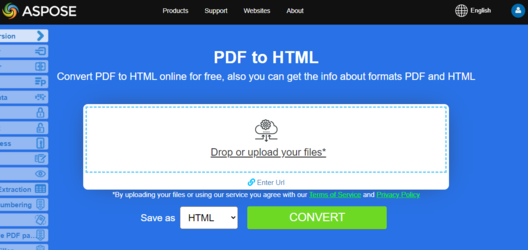
步骤:在 Python 中将 PDF 转换为 HTML
- 创建实例 文档 包含源 PDF 文档的对象。
- 保存到 HtmlSaveOptions 通过调用 save() 方法。
import aspose.pdf as ap
from os import path
import sys

def convert_PDF_to_HTML(infile, outfile):
    document = ap.Document(infile)
    save_options = ap.HtmlSaveOptions()
    document.save(outfile, save_options)

    print(infile + " converted into " + outfile)
相关转换
- 将HTML转换为PDF 当您需要反向的网页到文档工作流时。
- 转换 PDF 为 Word 如果可编辑文档输出比HTML更有用。
- 将 PDF 转换为图像格式 用于光栅导出场景。
将 PDF 转换为 HTML,并将图像保存到指定文件夹
此函数使用 Aspose.PDF for Python via .NET 将 PDF 文件转换为 HTML 格式。所有提取的图像都会存储在指定文件夹中,而不是嵌入到 HTML 文件中。
- 配置 HTML 保存选项。
- 另存为带外部图像的HTML。
import aspose.pdf as ap
from os import path
import sys

def convert_PDF_to_HTML_storing_images(infile, outfile):
    document = ap.Document(infile)
    save_options = ap.HtmlSaveOptions()
    images_path = path.join(path.dirname(infile), "images")
    save_options.special_folder_for_all_images = images_path
    document.save(outfile, save_options)

    print(infile + " converted into " + outfile)
将 PDF 转换为多页 HTML
此函数将 PDF 文件转换为多页 HTML,其中每个 PDF 页面导出为单独的 HTML 文件。这使得输出更易于浏览,并减少大型 PDF 的加载时间。
- 使用 ‘ap.Document’ 加载源 PDF。
- 创建 ‘HtmlSaveOptions’ 并设置
split_into_pages。 - 将文档保存为HTML,并将页面拆分为单独的文件。
- 打印确认消息。
import aspose.pdf as ap
from os import path
import sys

def convert_PDF_to_HTML_multi_page(infile, outfile):
    document = ap.Document(infile)
    save_options = ap.HtmlSaveOptions()
    save_options.split_into_pages = True
    document.save(outfile, save_options)

    print(infile + " converted into " + outfile)
将 PDF 转换为 HTML,并将 SVG 图像保存到指定文件夹
此函数将 PDF 转换为 HTML 格式,同时将所有图像存储为 SVG 文件在指定文件夹中,而不是直接嵌入到 HTML 中。
- 使用 ‘ap.Document’ 加载源 PDF。
- 创建 ‘HtmlSaveOptions’ 并将
special_folder_for_svg_images设置为目标文件夹。 - 将文档保存为带有外部 SVG 图像的 HTML。
- 打印确认消息。
import aspose.pdf as ap
from os import path
import sys

def convert_PDF_to_HTML_storing_svg(infile, outfile):
    document = ap.Document(infile)
    save_options = ap.HtmlSaveOptions()
    images_path = path.join(path.dirname(infile), "svg_images")
    save_options.special_folder_for_svg_images = images_path
    document.save(outfile, save_options)

    print(infile + " converted into " + outfile)
将 PDF 转换为 HTML 并保存压缩的 SVG 图像
此代码片段将 PDF 转换为 HTML 格式,将所有图像存储为指定文件夹中的 SVG 文件,并对其进行压缩以减小文件大小。
- 使用 ‘ap.Document’ 加载 PDF 文档。
- 创建 ‘HtmlSaveOptions’ 并:
- 将 ‘special_folder_for_svg_images’ 设置为在外部存储 SVG 图像。
- 启用 ‘compress_svg_graphics_if_any’ 以压缩 SVG 图像。
- 将文档保存为 HTML,并使用压缩的外部 SVG 图像。
- 打印确认消息。
import aspose.pdf as ap
from os import path
import sys

def convert_PDF_to_HTML_compress_svg(infile, outfile):
    document = ap.Document(infile)
    save_options = ap.HtmlSaveOptions()
    images_path = path.join(path.dirname(infile), "svg_images")
    save_options.special_folder_for_svg_images = images_path
    save_options.compress_svg_graphics_if_any = True
    document.save(outfile, save_options)

    print(infile + " converted into " + outfile)
将 PDF 转换为 HTML,同时控制嵌入的光栅图像
此代码片段将 PDF 转换为 HTML 格式,并将光栅图像嵌入为 PNG 页面背景。此方法在 HTML 中保留了图像质量和页面布局。
- 使用 ‘ap.Document’ 加载 PDF 文档。
- 创建 ‘HtmlSaveOptions’ 并将 ‘set raster_images_saving_mode’ 设置为 ‘AS_EMBEDDED_PARTS_OF_PNG_PAGE_BACKGROUND’。
- 将文档另存为包含嵌入栅格图像的 HTML。
- 打印确认消息。
import aspose.pdf as ap
from os import path
import sys

def convert_PDF_to_HTML_PNG_background(infile, outfile):
    document = ap.Document(infile)
    save_options = ap.HtmlSaveOptions()
    save_options.raster_images_saving_mode = ap.HtmlSaveOptions.RasterImagesSavingModes.AS_EMBEDDED_PARTS_OF_PNG_PAGE_BACKGROUND
    document.save(outfile, save_options)

    print(infile + " converted into " + outfile)
将 PDF 转换为仅正文内容的 HTML 页面
此函数将 PDF 转换为 HTML 格式,生成仅包含 ‘body-only’ 内容而不包含额外的 ‘html’ 或 ‘head’ 标签,并将输出拆分为单独的页面。
- 使用 ‘ap.Document’ 加载 PDF 文档。
- 创建 ‘HtmlSaveOptions’ 并配置:
- ‘html_markup_generation_mode = WRITE_ONLY_BODY_CONTENT’ 仅生成 ‘body’ 内容。
- ‘split_into_pages’ 用于为每个 PDF 页面创建单独的 HTML 文件。
- 将文档保存为 HTML,并使用指定的选项。
- 打印确认消息。
import aspose.pdf as ap
from os import path
import sys

def convert_PDF_to_HTML_body_content(infile, outfile):
    document = ap.Document(infile)
    save_options = ap.HtmlSaveOptions()
    save_options.html_markup_generation_mode = (
        ap.HtmlSaveOptions.HtmlMarkupGenerationModes.WRITE_ONLY_BODY_CONTENT
    )
    save_options.split_into_pages = True
    document.save(outfile, save_options)

    print(infile + " converted into " + outfile)
将 PDF 转换为带透明文本渲染的 HTML
此函数将 PDF 转换为 HTML 格式,将所有文本渲染为透明,包括带阴影的文本,从而在保持视觉保真度的同时,允许在输出的 HTML 中进行灵活的样式设置。
- 使用 ‘ap.Document’ 加载 PDF 文档。
- 创建 ‘HtmlSaveOptions’ 并配置:
- ‘save_transparent_texts’ 将普通文本渲染为透明。
- ‘save_shadowed_texts_as_transparent_texts’ 将阴影文本渲染为透明。
- 将文档保存为带有透明文本渲染的 HTML。
- 打印确认消息。
import aspose.pdf as ap
from os import path
import sys

def convert_PDF_to_HTML_transparent_text_rendering(infile, outfile):
    document = ap.Document(infile)
    save_options = ap.HtmlSaveOptions()
    save_options.save_transparent_texts = True
    save_options.save_shadowed_texts_as_transparent_texts = True
    document.save(outfile, save_options)

    print(infile + " converted into " + outfile)
将 PDF 转换为 HTML,使用文档层渲染
此函数将 PDF 转换为 HTML 格式,通过将标记内容转换为输出 HTML 中的独立层来保留文档层。这样可以准确渲染分层元素(如注释、背景和叠加层)。
- 使用 ‘ap.Document’ 加载 PDF 文档。
- 创建 ‘HtmlSaveOptions’ 并启用 ‘convert_marked_content_to_layers’ 以保留图层。
- 将文档保存为带有分层内容的HTML。
- 打印确认消息。
import aspose.pdf as ap
from os import path
import sys

def convert_PDF_to_HTML_document_layers_rendering(infile, outfile):
    document = ap.Document(infile)
    save_options = ap.HtmlSaveOptions()
    save_options.convert_marked_content_to_layers = True
    document.save(outfile, save_options)

    print(infile + " converted into " + outfile)