
Android のプレゼンテーションでチャート ワークブックを管理する
概要
この記事では、Aspose.Slides でチャート ワークブックを操作する方法を説明します。ワークブック ストリームを介したチャート データの読み取りと書き込み、ワークブック セルをチャート データ ラベルとして使用、ワークシート コレクションへのアクセス、チャート 値のデータ ソース タイプの指定方法を示します。
また、外部ワークブックをチャート データ ソースとして使用する方法も解説します。例では、外部ワークブックの作成と割り当て、チャートにリンクされた外部ワークブックのパス取得、ワークブックが利用可能な場合のチャート データ編集を示します。
欠損データを表すワークブック セルについては、空セルの表示制御 を参照し、空セルと 0 の違い、および利用可能な表示モードの折れ線グラフ比較をご確認ください。
非表示の行と列からデータを含める
IChart.setPlotVisibleCellsOnly を使用して、チャートが非表示のワークシート行や列のデータをプロットするかどうかを制御します。true に設定すると表示されているセルのみをプロットし、false に設定すると表示セルと非表示セルの両方を含めます。この設定はチャートのプロットにのみ影響し、ワークシートの行や列を非表示にしたり表示にしたりするものではありません。
サンプル プレゼンテーション には、最初のスライドの最初の図形として列グラフが含まれています。埋め込みワークシート Sheet1 には、ソース範囲 A1:C4 があり、3 行目と C 列は非表示ですが、セルには値が保持されています。
| ワークシート 行 | A: 月 | B: 小売 | C: 卸売(非表示列) |
|---|---|---|---|
| 2 | 1月 | 10 | 30 |
| 3 (非表示行) | 2月 | 40 | 60 |
| 4 | 3月 | 20 | 50 |
IChartData.getChartDataWorkbook でソース セルにアクセスし、IChartDataCell.isHidden で非表示ステータスを確認します。このメソッドはステータスを変更せずに取得します。このファイルでは、B2 は表示、B3 は非表示行、C2 は非表示列に属しており、例ではそれぞれ false、true、true が出力されます。
この例では、プロット設定を変更した後にチャート データを更新します。埋め込みワークブックは readWorkbookStream で取得し、writeWorkbookStream で再ロードします。すべてのセルを含める場合は、setRange を使用して非表示の 2 月カテゴリを含む完全な範囲を復元します。フラグだけを変更しても、このサンプルのキャッシュされたチャート データとカテゴリ ラベルは更新されません。
import com.aspose.slides.*;

Presentation presentation = new Presentation("hidden-source-data.pptx");
try {
    ISlide slide = presentation.getSlides().get_Item(0);

    int shapeCount = slide.getShapes().size();
    if (shapeCount > 0 && slide.getShapes().get_Item(0) instanceof IChart) {
        IChart chart = (IChart) slide.getShapes().get_Item(0);
        IChartDataWorkbook workbook = chart.getChartData().getChartDataWorkbook();
        System.out.println("B2 hidden: " + workbook.getCell(0, "B2").isHidden());
        System.out.println("B3 hidden: " + workbook.getCell(0, "B3").isHidden());
        System.out.println("C2 hidden: " + workbook.getCell(0, "C2").isHidden());

        byte[] workbookData = chart.getChartData().readWorkbookStream();
        for (boolean visibleOnly : new boolean[] { true, false }) {
            chart.setPlotVisibleCellsOnly(visibleOnly);

            // 埋め込みワークブックからチャート データを更新します。
            chart.getChartData().writeWorkbookStream(workbookData);
            if (!visibleOnly) {
                // 隠しカテゴリを含む完全なソース範囲を復元します。
                chart.getChartData().setRange("Sheet1!$A$1:$C$4");
            }

            presentation.save("hidden_cells_" + visibleOnly + ".pptx", SaveFormat.Pptx);
        }
    } else {
        System.out.println("The first shape is not a chart.");
    }
} finally {
    presentation.dispose();
}
例では、表示されている小売値(10 と 20)のみを含むバージョンと、すべての 6 つの値を含むバージョンの 2 つのプレゼンテーションを保存します。下の画像は 2 つのプロット モードを示しています。行 3 と列 C は両方の埋め込みワークブックで非表示のままです。
表示セルのみ (true) |
すべてのセル (false) |
|---|---|
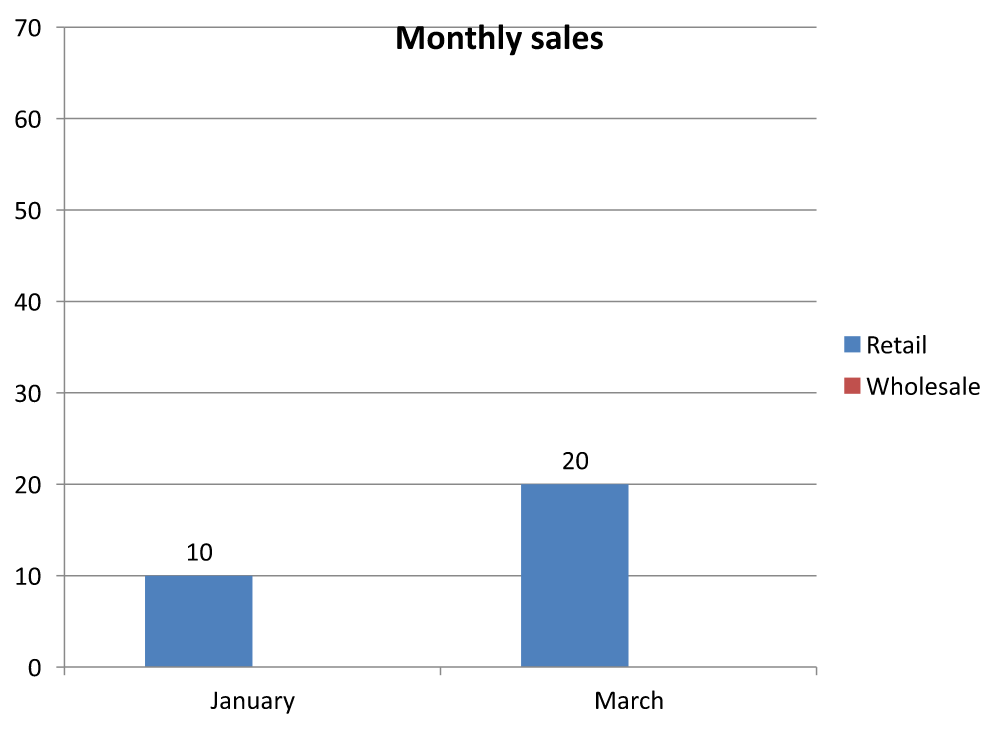 |
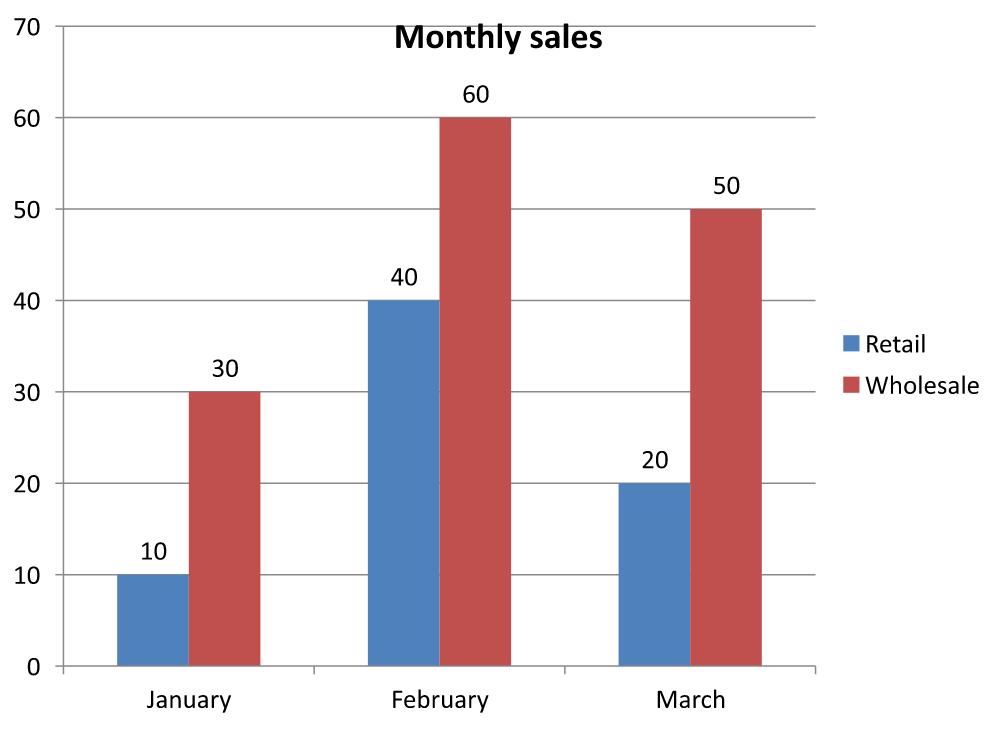 |
値を保持する非表示セルは空セルとは異なります。IChart.setDisplayBlanksAs は欠損値の表示方法を制御しますが、非表示のソース データを含めたり除外したりはしません。空セルの表示制御 で例をご確認ください。
チャートのデータ範囲を取得する
既存のプレゼンテーションでワークブック データを更新する前に、各チャートが使用しているワークシート セルを特定するためにソース範囲を確認します。IChartData.getRange メソッドは、現在のデータ範囲をワークシート限定の数式(例: Sheet1!$A$1:$D$5)として返します。ここで Sheet1 がシート名、! がシート名とセル範囲の区切り、$A$1:$D$5 が絶対参照のセル範囲を示します。
このメソッドはチャートやワークブックを変更せずに現在の範囲を取得します。チャートがワークブックをデータ ソースとして使用していない場合は InvalidOperationException がスローされます。詳しくは ChartData API リファレンス を参照してください。
この例ではプレゼンテーションを開き、各スライドの図形を直接走査してチャートを検索します。チャート名とソース範囲を出力し、ワークブックを使用していないチャートはメッセージを出力して次のチャートへ進みます。
import com.aspose.slides.*;
import com.aspose.slides.exceptions.InvalidOperationException;

Presentation presentation = new Presentation("presentation.pptx");
try {
    for (ISlide slide : presentation.getSlides()) {
        for (IShape shape : slide.getShapes()) {
            if (shape instanceof IChart) {
                IChart chart = (IChart) shape;
                try {
                    String range = chart.getChartData().getRange();
                    System.out.println(chart.getName() + ": " + range);
                } catch (InvalidOperationException exception) {
                    System.out.println(chart.getName() + ": The chart does not use a workbook as its data source.");
                }
            }
        }
    }
} finally {
    presentation.dispose();
}
ワークブックからチャート データを読み書きする
Aspose.Slides for Android via Java は、readWorkbookStream および writeWorkbookStream メソッドを提供し、チャート データ ワークブック(Aspose.Cells で編集されたデータを含む)の読み取りと書き込みが可能です。注: チャート データは同じ構造、またはソースと類似した構造で整理されている必要があります。
この例は、最初のスライドの最初の図形としてチャートを持つプレゼンテーションを使用します。埋め込みワークブックをバイト配列として読み取り、既存の系列とカテゴリをクリアし、同じワークブックを再度書き戻します。変更はメモリ上に残り、プレゼンテーションは保存されません。
import com.aspose.slides.*;

Presentation presentation = new Presentation("chart.pptx");
try {
    ISlide slide = presentation.getSlides().get_Item(0);

    int shapeCount = slide.getShapes().size();
    if (shapeCount > 0 && slide.getShapes().get_Item(0) instanceof IChart) {
        IChart chart = (IChart) slide.getShapes().get_Item(0);
        IChartData chartData = chart.getChartData();
        byte[] workbookData = chartData.readWorkbookStream();

        chartData.getSeries().clear();
        chartData.getCategories().clear();

        chartData.writeWorkbookStream(workbookData);
    } else {
        System.out.println("The first shape is not a chart.");
    }
} finally {
    presentation.dispose();
}
ワークブック変更後のチャート レイアウトを検証する
埋め込みワークブックを変更されたものに置き換えると、チャートは元の系列とカテゴリのコレクションを保持します。この不整合により IChart.validateChartLayout がインデックス範囲外エラーで失敗することがあります。更新されたワークブックを書き戻す前に既存の系列とカテゴリをクリアしてください。この例では、最初のスライドの最初の図形としてチャートを使用します。コメントでワークブック編集箇所を示し、実行可能な例では元のワークブックを書き戻し、メモリ上でレイアウトを検証します。
import com.aspose.slides.*;

Presentation presentation = new Presentation("chart.pptx");
try {
    ISlide slide = presentation.getSlides().get_Item(0);

    int shapeCount = slide.getShapes().size();
    if (shapeCount > 0 && slide.getShapes().get_Item(0) instanceof IChart) {
        IChart chart = (IChart) slide.getShapes().get_Item(0);
        IChartData chartData = chart.getChartData();
        byte[] workbookData = chartData.readWorkbookStream();

        // ここでワークブック バイトを変更します。たとえば、Aspose.Cells を使用します。

        chartData.getSeries().clear();
        chartData.getCategories().clear();

        chartData.writeWorkbookStream(workbookData);
        chart.validateChartLayout();
    } else {
        System.out.println("The first shape is not a chart.");
    }
} finally {
    presentation.dispose();
}
コレクションをクリアすることで、ワークブックを書き戻す前に古いデータ参照が削除されます。更新されたワークブックに合わせて必要な系列とカテゴリのマッピングを再構築してください。
ワークブック セルをチャート データ ラベルとして設定する
ワークブック セルのテキストをチャート データ ラベルとして使用できます。
この例は、既存のプレゼンテーションの最初のスライドにデフォルト データのバブル チャートを追加し、ワークシート 0 のセル A10:A12 を最初の系列の最初の 3 つのラベルとして使用し、セル ラベルを有効にして更新されたプレゼンテーションを保存します。
import com.aspose.slides.*;

Presentation presentation = new Presentation("chart2.pptx");
try {
    ISlide slide = presentation.getSlides().get_Item(0);

    IChart chart = slide.getShapes().addChart(ChartType.Bubble, 50, 50, 600, 400, true);
    IChartSeries series = chart.getChartData().getSeries().get_Item(0);
    IChartDataWorkbook workbook = chart.getChartData().getChartDataWorkbook();

    series.getLabels().getDefaultDataLabelFormat().setShowLabelValueFromCell(true);
    series.getLabels().get_Item(0).setValueFromCell(workbook.getCell(0, "A10", "Label 0 cell value"));
    series.getLabels().get_Item(1).setValueFromCell(workbook.getCell(0, "A11", "Label 1 cell value"));
    series.getLabels().get_Item(2).setValueFromCell(workbook.getCell(0, "A12", "Label 2 cell value"));

    presentation.save("resultchart.pptx", SaveFormat.Pptx);
} finally {
    presentation.dispose();
}
ワークシートの管理
IChartDataWorkbook.getWorksheets メソッドは、チャート ワークブック内のワークシートへのアクセスを提供します。この例では、デフォルト データの円グラフを作成し、各ワークシート名をコンソールに出力します。
import com.aspose.slides.*;

Presentation presentation = new Presentation();
try {
    ISlide slide = presentation.getSlides().get_Item(0);

    IChart chart = slide.getShapes().addChart(ChartType.Pie, 50, 50, 400, 500);
    IChartDataWorkbook workbook = chart.getChartData().getChartDataWorkbook();

    for (int i = 0; i < workbook.getWorksheets().size(); i++) {
        System.out.println(workbook.getWorksheets().get_Item(i).getName());
    }
} finally {
    presentation.dispose();
}
データ ソース タイプを指定する
この例では、デフォルト データの 3D 列グラフを作成し、異なるデータ ソースを使用して 2 つの系列名を設定します。最初の名前は文字列リテラル、2 番目の名前はワークシート 0 のセル C1 を使用します。DataSourceType 列挙型で各名前のソースを選択します。例は更新された系列名でプレゼンテーションを保存します。
import com.aspose.slides.*;

Presentation presentation = new Presentation();
try {
    ISlide slide = presentation.getSlides().get_Item(0);

    IChart chart = slide.getShapes().addChart(ChartType.Column3D, 50, 50, 600, 400, true);
    IStringChartValue literalName = chart.getChartData().getSeries().get_Item(0).getName();

    literalName.setDataSourceType(DataSourceType.StringLiterals);
    literalName.setData("LiteralString");

    IStringChartValue cellName = chart.getChartData().getSeries().get_Item(1).getName();
    IChartDataCell nameCell = chart.getChartData().getChartDataWorkbook().getCell(0, "C1", "NewCell");
    cellName.setDataSourceType(DataSourceType.Worksheet);
    cellName.setData(nameCell);

    presentation.save("pres.pptx", SaveFormat.Pptx);
} finally {
    presentation.dispose();
}
サポートされていない埋め込みワークブック形式の検出
Aspose.Slides は、一部のチャートに埋め込むことができる Excel バイナリ ワークブック(.xlsb)形式をサポートしていません。IChartData の getEmbeddedWorkbookType メソッドと WorkbookType 列挙型を組み合わせて、サポートされていない形式を検出し、該当チャートをスキップできます。この例は既存のプレゼンテーションの最初のスライドの図形を走査し、非チャート図形をスキップし、埋め込み .xlsb ワークブックを持つ各チャートに診断メッセージを出力します。
import com.aspose.slides.*;

Presentation presentation = new Presentation("sample.pptx");
try {
    ISlide slide = presentation.getSlides().get_Item(0);

    for (IShape shape : slide.getShapes()) {
        if (!(shape instanceof IChart)) {
            continue;
        }

        IChart chart = (IChart) shape;
        IChartData chartData = chart.getChartData();
        boolean isInternalWorkbook = chartData.getDataSourceType() == ChartDataSourceType.InternalWorkbook;
        boolean isBinaryMacro = chartData.getEmbeddedWorkbookType() == WorkbookType.WorkbookBinaryMacro;

        if (isInternalWorkbook && isBinaryMacro) {
            System.out.println("Skipping a chart with an unsupported .xlsb workbook.");
            continue;
        }

        // サポートされているチャート ワークブック データをここで読み取りまたは変更します。
    }
} finally {
    presentation.dispose();
}
外部ワークブック
Aspose.Slides は、外部ワークブックをチャートのデータ ソースとして使用することをサポートします。
外部ワークブックの作成
readWorkbookStream と setExternalWorkbook を使用して、埋め込みチャート ワークブックをファイルにエクスポートし、その外部ワークブックにチャートをリンクします。
この例はデフォルト データの円グラフを作成し、ワークブックをエクスポートします。ファイル書き込みが完了した後に外部ワークブックをチャート データ ソースとして割り当て、リンクされたプレゼンテーションを保存します。
import com.aspose.slides.*;
import java.io.IOException;
import java.io.File;
import java.io.FileOutputStream;

Presentation presentation = new Presentation();
try {
    ISlide slide = presentation.getSlides().get_Item(0);

    IChart chart = slide.getShapes().addChart(ChartType.Pie, 50, 50, 400, 600);
    File workbookFile = new File("externalWorkbook1.xlsx").getAbsoluteFile();
    byte[] workbookData = chart.getChartData().readWorkbookStream();
    try {
        try (FileOutputStream workbookStream = new FileOutputStream(workbookFile)) {
            workbookStream.write(workbookData);
        }
        chart.getChartData().setExternalWorkbook(workbookFile.getAbsolutePath());
        presentation.save("externalWorkbook.pptx", SaveFormat.Pptx);
    } catch (IOException exception) {
        System.out.println("Could not write the external workbook: " + exception.getMessage());
    }
} finally {
    presentation.dispose();
}
外部ワークブックの設定
setExternalWorkbook メソッドを使用すると、外部ワークブックをチャートのデータ ソースとして割り当てることができます。また、外部ワークブックのパスが変更された場合(移動された場合)に更新することも可能です。
リモート場所やリソースに保存されたワークブックのデータを直接編集することはできませんが、外部データ ソースとしては使用できます。相対パスが指定された場合は、自動的にフルパスに変換されます。
この例では、Sheet1 という名前のワークシートに B1 に系列名、A2:A4 にカテゴリ名、B2:B4 に数値がある外部ワークブックを使用します。円グラフを作成し、ワークブックをリンクし、setRange で A1:B4 を 1 系列と 3 カテゴリにマッピングします。リンクされたチャートを含むプレゼンテーションを保存します。
import com.aspose.slides.*;
import java.io.File;

Presentation presentation = new Presentation();
try {
    ISlide slide = presentation.getSlides().get_Item(0);

    IChart chart = slide.getShapes().addChart(ChartType.Pie, 50, 50, 400, 600, true);
    IChartData chartData = chart.getChartData();
    File workbookFile = new File("externalWorkbook.xlsx");
    String workbookPath = workbookFile.getAbsolutePath();

    chartData.setExternalWorkbook(workbookPath);
    chartData.setRange("Sheet1!$A$1:$B$4");

    presentation.save("Presentation_with_externalWorkbook.pptx", SaveFormat.Pptx);
} finally {
    presentation.dispose();
}
setExternalWorkbook の updateChartData パラメータは、ワークブックをロードするかどうかを制御します。
updateChartDataがfalseの場合、ワークブック パスのみが更新されます。チャート データは対象ワークブックからロードまたは更新されないため、ワークブックが利用できなくても問題ありません。updateChartDataがtrueの場合、チャート データは対象ワークブックから更新されます。
以下の例では、updateChartData を false に設定したプレースホルダー URL を割り当てます。円グラフのデフォルト データはそのままで、利用できないワークブックをロードせずにプレゼンテーションを保存します。
import com.aspose.slides.*;

Presentation presentation = new Presentation();
try {
    ISlide slide = presentation.getSlides().get_Item(0);

    IChart chart = slide.getShapes().addChart(ChartType.Pie, 50, 50, 400, 600, true);
    chart.getChartData().setExternalWorkbook("https://example.com/unavailable-workbook.xlsx", false);

    presentation.save("SetExternalWorkbookWithUpdateChartData.pptx", SaveFormat.Pptx);
} finally {
    presentation.dispose();
}
チャートの外部データ ソース ワークブック パスを取得する
チャートにリンクされているワークブックを特定するには、チャートが外部データ ソースを使用しているか確認し、ワークブック パスを取得します。
この例は、外部ワークブックにリンクされたプレゼンテーションの最初のスライドの最初の図形を調べます。対象が外部ワークブックにリンクされたチャートである場合、getExternalWorkbookPath をコンソールに出力し、プレゼンテーションのコピーを保存します。
import com.aspose.slides.*;

Presentation presentation = new Presentation("externalWorkbook.pptx");
try {
    ISlide slide = presentation.getSlides().get_Item(0);

    if (slide.getShapes().size() > 0 && slide.getShapes().get_Item(0) instanceof IChart) {
        IChart chart = (IChart) slide.getShapes().get_Item(0);
        IChartData chartData = chart.getChartData();
        if (chartData.getDataSourceType() == ChartDataSourceType.ExternalWorkbook) {
            System.out.println(chartData.getExternalWorkbookPath());
        } else {
            System.out.println("The chart does not use an external workbook.");
        }
    } else {
        System.out.println("The first shape is not a chart.");
    }

    presentation.save("Result.pptx", SaveFormat.Pptx);
} finally {
    presentation.dispose();
}
チャート データの編集
外部ワークブックのデータは、内部ワークブックのデータを変更するのと同様に編集できます。外部ワークブックがロードできない場合は例外がスローされます。
この例は、最初のスライドの最初の図形としてチャートを持ち、アクセス可能な外部ワークブックにリンクされているケースです。最初の系列の最初のデータ ポイントのセル バックされた値を 100 に設定し、更新されたプレゼンテーションを保存します。セルの値を編集するとリンクされた外部 XLSX ファイルが更新されるため、元のワークブックを保持したい場合はコピーを使用してください。
import com.aspose.slides.*;

Presentation presentation = new Presentation("presentation.pptx");
try {
    ISlide slide = presentation.getSlides().get_Item(0);

    int shapeCount = slide.getShapes().size();
    if (shapeCount > 0 && slide.getShapes().get_Item(0) instanceof IChart) {
        IChart chart = (IChart) slide.getShapes().get_Item(0);
        IChartSeriesCollection series = chart.getChartData().getSeries();
        if (series.size() > 0 && series.get_Item(0).getDataPoints().size() > 0) {
            IChartDataCell valueCell = series.get_Item(0).getDataPoints().get_Item(0).getValue().getAsCell();
            if (valueCell != null) {
                valueCell.setValue(100);
                presentation.save("presentation_out.pptx", SaveFormat.Pptx);
            } else {
                System.out.println("The first data point is not linked to a workbook cell.");
            }
        } else {
            System.out.println("The chart has no data points to edit.");
        }
    } else {
        System.out.println("The first shape is not a chart.");
    }
} finally {
    presentation.dispose();
}
チャート キャッシュからワークブックを復元する
チャートが存在しないまたは利用できない外部ワークブックを使用している場合、Aspose.Slides はプレゼンテーションにキャッシュされているデータからチャート ワークブックを再構築できます。LoadOptions を作成し、LoadOptions.setSpreadsheetOptions を呼び出し、ISpreadsheetOptions.setRecoverWorkbookFromChartCache を true に設定してプレゼンテーションを開きます。
以下の Java 例は、最初のスライドの最初の図形としてチャートを持ち、利用できない外部ワークブックを参照しているケースのワークブック データを復元します。復元されたデータは IChart.getChartData と IChartData.getChartDataWorkbook を通じてアクセスできます。
import com.aspose.slides.*;

SpreadsheetOptions spreadsheetOptions = new SpreadsheetOptions();
spreadsheetOptions.setRecoverWorkbookFromChartCache(true);

LoadOptions loadOptions = new LoadOptions();
loadOptions.setSpreadsheetOptions(spreadsheetOptions);

Presentation presentation = new Presentation("presentation.pptx", loadOptions);
try {
    ISlide slide = presentation.getSlides().get_Item(0);

    int shapeCount = slide.getShapes().size();
    if (shapeCount > 0 && slide.getShapes().get_Item(0) instanceof IChart) {
        IChart chart = (IChart) slide.getShapes().get_Item(0);
        IChartDataWorkbook recoveredWorkbook = chart.getChartData().getChartDataWorkbook();

        // ここで復元されたワークブック データを読み取りまたは変更します。
    } else {
        System.out.println("The first shape is not a chart.");
    }
} finally {
    presentation.dispose();
}
外部ワークブックが利用できず、復元が無効になっている場合、Aspose.Slides は例外をスローします。キャッシュされたチャート データの使用が許容できるフォールバックである場合にのみ復元を有効にしてください。キャッシュには外部ワークブックが最後に更新された後の変更が含まれていない可能性があります。
FAQ
特定のチャートが外部ワークブックにリンクされているか、埋め込みワークブックにリンクされているかを判断できますか?
はい。チャートには data source type と external workbook のパス があり、外部ワークブックがソースである場合はフルパスを読み取って外部ファイルが使用されていることを確認できます。
外部ワークブックへの相対パスはサポートされていますか?また、どのように保存されますか?
はい。相対パスを指定すると自動的に絶対パスに変換されます。プレゼンテーションは PPTX ファイル内に絶対パスを保存するため、ワークブックを移動した場合はリンクの更新が必要になることがあります。
ネットワークリソース/共有上のワークブックを使用できますか?
はい。そのようなワークブックは外部データ ソースとして使用できます。ただし、Aspose.Slides からリモートワークブックを直接編集することはサポートされていません。ソースとしてのみ使用可能です。
プレゼンテーションを保存すると外部 XLSX が上書きされますか?
プレゼンテーションは external file へのリンク を保存します。セル バックされたチャート データを編集すると、リンクされたローカル XLSX ファイルも更新されます。元のファイルを変更したくない場合は、ワークブックのコピーを使用してください。
外部ファイルがパスワードで保護されている場合はどうすればよいですか?
Aspose.Slides はリンク時にパスワードを受け付けません。一般的な対策として、事前に保護を解除するか、Aspose.Cells 等で復号化したコピーを作成してリンクします。
複数のチャートが同じ外部ワークブックを参照できますか?
はい。各チャートは独自のリンクを保持します。すべてが同じファイルを指している場合、そのファイルを更新すると次回データがロードされる際にすべてのチャートに反映されます。