
JavaScript에서 프레젠테이션을 HTML5로 변환
개요
이 문서는 Aspose.Slides for Node.js via Java를 사용하여 PowerPoint 프레젠테이션을 HTML5로 변환하는 방법을 설명합니다. 기본 내보내기, 도형 애니메이션 및 슬라이드 전환 제어, 주석 레이아웃을 다룹니다. 또한 표준 HTML 내보내기의 SVG 기반 출력과 HTML5 출력을 비교합니다.
PowerPoint를 HTML5로 내보내기
다음 예제는 작업 디렉터리에서 프레젠테이션을 로드하고 HTML5 형식으로 저장합니다. 기본 내보내기 설정을 사용합니다; 다음 예제는 애니메이션 재생을 명시적으로 제어하는 방법을 보여줍니다. 입력 경로를 프레젠테이션 경로로 바꾸세요.
const aspose = { slides: require("aspose.slides.via.java") };

const presentation = new aspose.slides.Presentation("pres.pptx");
try {
    presentation.save("pres.html", aspose.slides.SaveFormat.Html5);
} finally {
    presentation.dispose();
}
Note
HTML 문서 외에도 내보내기는 슬라이드 스타일, 애니메이션, 효과 및 탐색을 위한 지원 CSS 및 JavaScript 파일을 작성합니다. 이러한 파일을 HTML 문서와 함께 이동하거나 게시할 때 보관하십시오. 생성된 페이지는 또한 공개 CDN에서 jQuery와 Anime.js를 로드합니다; 이들이 없으면 슬라이드 탐색과 애니메이션이 실행되지 않습니다.형태 애니메이션이나 슬라이드 전환을 재생하지 않고 내보내려면 Html5Options의 setAnimateShapes 및 setAnimateTransitions에 false를 전달합니다. 이러한 설정은 독립적이므로 하나를 활성화하고 다른 하나를 비활성화할 수 있습니다. 예제에서는 생성된 페이지에서 두 종류의 애니메이션이 모두 비활성화된 상태로 프레젠테이션을 내보냅니다.
const aspose = { slides: require("aspose.slides.via.java") };

const html5Options = new aspose.slides.Html5Options();
html5Options.setAnimateShapes(false);
html5Options.setAnimateTransitions(false);

const presentation = new aspose.slides.Presentation("pres.pptx");
try {
    presentation.save("pres5.html", aspose.slides.SaveFormat.Html5, html5Options);
} finally {
    presentation.dispose();
}
PowerPoint를 HTML로 내보내기
표준 HTML 내보내기는 다른 렌더링 방식을 사용합니다: 슬라이드 내용이 HTML 페이지 내부의 SVG로 표현됩니다. 다음 예제는 이 렌더링 방식을 사용하여 프레젠테이션을 HTML 문서로 변환합니다.
const aspose = { slides: require("aspose.slides.via.java") };

const presentation = new aspose.slides.Presentation("pres.pptx");
try {
    presentation.save("pres.html", aspose.slides.SaveFormat.Html);
} finally {
    presentation.dispose();
}
아래 단순화된 마크업은 생성된 페이지의 구조를 보여줍니다. SVG 요소에는 렌더링된 슬라이드 내용이 포함되며, 플레이스홀더 텍스트는 해당 내용을 나타내지만 실제 내보내기 결과는 아닙니다.
<body>
<div class="slide" name="slide" id="slideslideIface1">
     <svg version="1.1">
         <g> THE SLIDE CONTENT GOES HERE </g>
     </svg>
</div>
</body>
Warning
SVG 기반 내보내기는 PowerPoint 도형을 개별 HTML 요소로 노출하지 않습니다. 이 문서에서 시연한 도형 애니메이션 및 슬라이드 전환 옵션이 필요하면 HTML5 내보내기를 사용하십시오.PowerPoint를 HTML5 슬라이드 보기로 내보내기
HTML5 내보내기는 브라우저에서 프레젠테이션 슬라이드를 보고 탐색할 수 있는 페이지를 생성합니다. 이 예제는 setAnimateShapes와 setAnimateTransitions를 모두 활성화하여 내보낸 슬라이드 보기가 원본 프레젠테이션의 효과를 재생하도록 합니다.
이미 형태 애니메이션 및 슬라이드 전환이 포함된 프레젠테이션을 사용하면 이러한 설정의 효과를 확인할 수 있습니다. 이를 활성화해도 슬라이드에 효과가 없을 경우 새로운 효과가 추가되지 않습니다. 내보낸 후 지원 파일이 있는 브라우저에서 생성된 HTML5 문서를 엽니다.
const aspose = { slides: require("aspose.slides.via.java") };

const html5Options = new aspose.slides.Html5Options();
html5Options.setAnimateShapes(true);
html5Options.setAnimateTransitions(true);

const presentation = new aspose.slides.Presentation("pres.pptx");
try {
    presentation.save("HTML5-slide-view.html", aspose.slides.SaveFormat.Html5, html5Options);
} finally {
    presentation.dispose();
}
주석이 있는 HTML5 문서로 프레젠테이션 변환
기존 슬라이드 주석을 HTML5 출력에 포함시켜 독자가 슬라이드 내용 옆에서 피드백을 볼 수 있습니다. 이 섹션의 예제는 아래와 같이 주석이 포함된 소스 프레젠테이션을 기대합니다. 주석을 내보내지만 새 주석은 생성하지 않습니다.
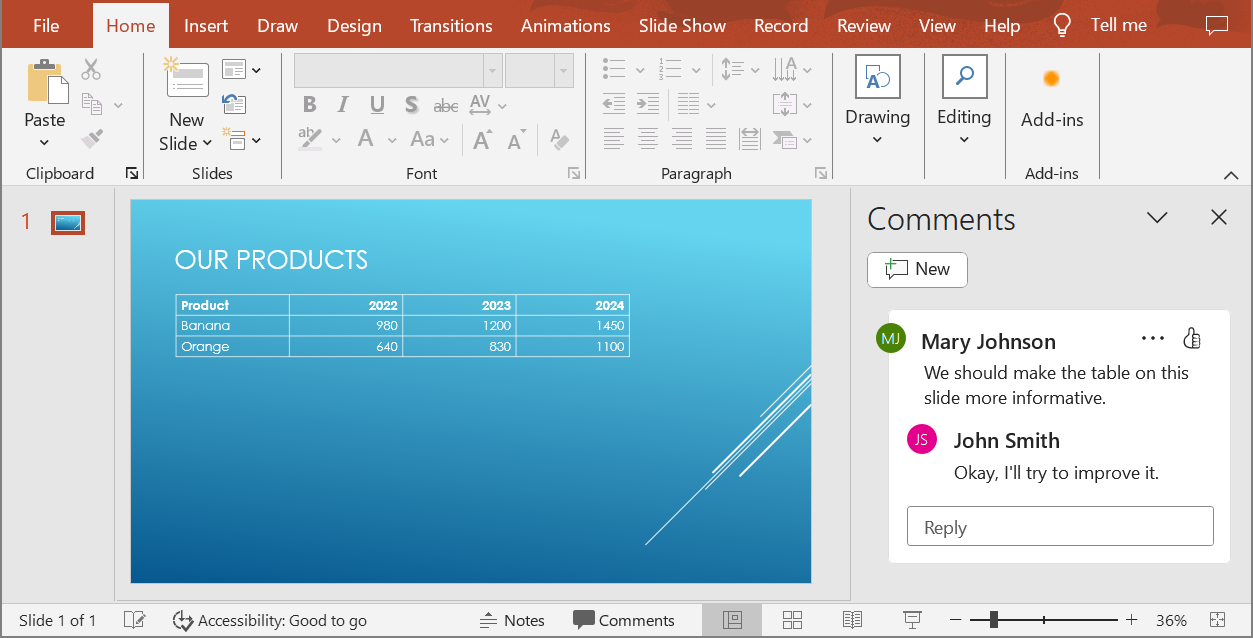
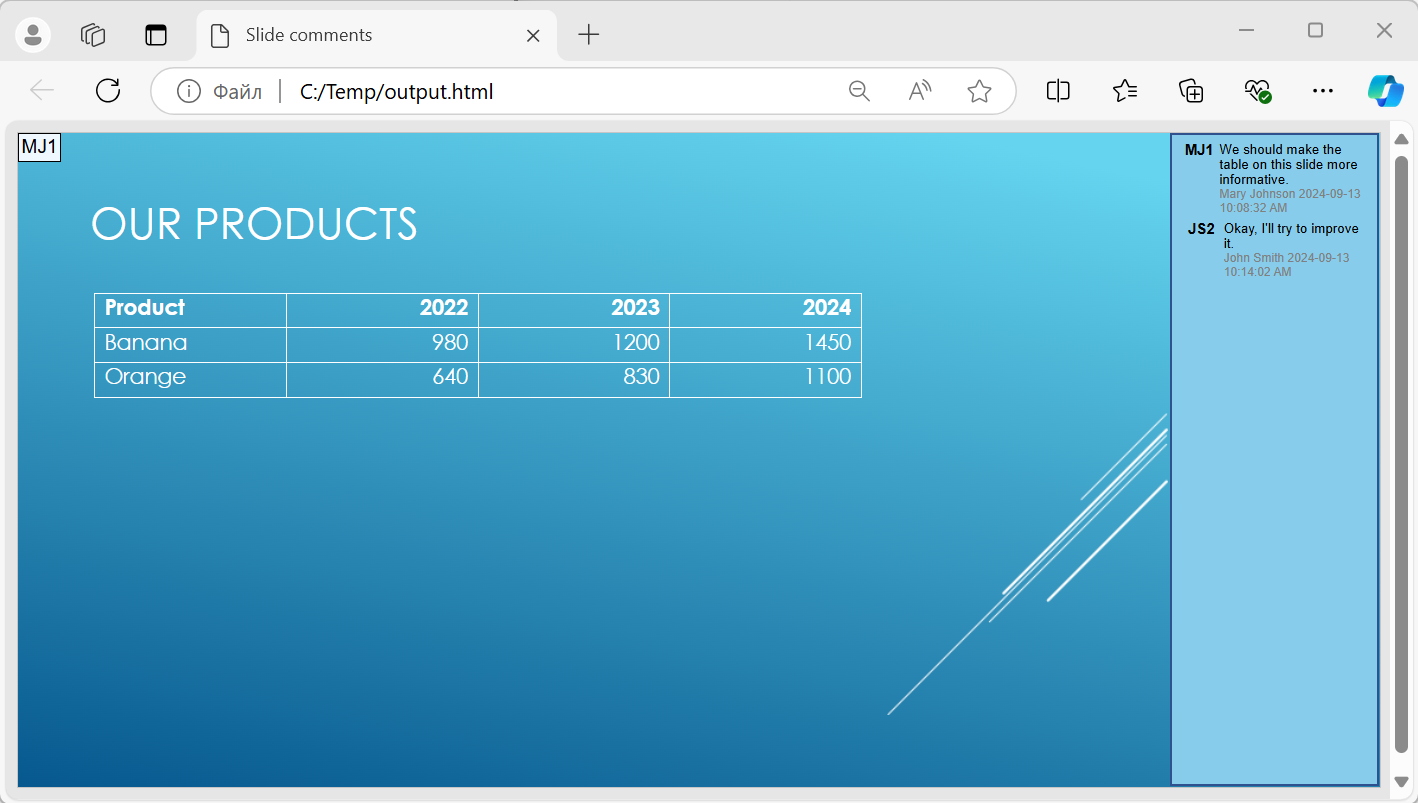
NotesCommentsLayoutingOptions 객체를 Html5Options의 setSlidesLayoutOptions 메서드에 전달합니다. CommentsPositions 열거형에서 Right를 선택하도록 setCommentsPosition을 사용해 각 슬라이드 오른쪽에 주석을 배치합니다.
다음 예제는 이 주석 레이아웃을 적용하여 프레젠테이션을 HTML5로 내보냅니다. 주석이 없는 프레젠테이션은 표시할 주석 텍스트가 없습니다.
const aspose = { slides: require("aspose.slides.via.java") };

const layoutOptions = new aspose.slides.NotesCommentsLayoutingOptions();
layoutOptions.setCommentsPosition(aspose.slides.CommentsPositions.Right);

const html5Options = new aspose.slides.Html5Options();
html5Options.setSlidesLayoutOptions(layoutOptions);

const presentation = new aspose.slides.Presentation("sample.pptx");
try {
    presentation.save("output.html", aspose.slides.SaveFormat.Html5, html5Options);
} finally {
    presentation.dispose();
}
내보내기 중 JavaScript 하이퍼링크 제외
hyperlinks.pptx에 javascript:alert('Hello') 대상이 있는 링크 텍스트와 일반 https://example.com/ 링크가 포함되어 있다고 가정합니다. 내보내기 중 JavaScript 하이퍼링크를 제외하려면 SaveOptions.setSkipJavaScriptLinks에 true를 전달합니다. 기본값은 false이므로 옵션을 활성화하지 않으면 이러한 링크가 필터링되지 않습니다.
다음 예제는 작업 디렉터리에서 프레젠테이션을 로드하고 Html5Options를 사용해 내보냅니다:
const aspose = { slides: require("aspose.slides.via.java") };

const html5Options = new aspose.slides.Html5Options();
html5Options.setSkipJavaScriptLinks(true);

const presentation = new aspose.slides.Presentation("hyperlinks.pptx");
try {
    presentation.save("filtered-html5.html", aspose.slides.SaveFormat.Html5, html5Options);
} finally {
    presentation.dispose();
}
내보낸 파일은 JavaScript 하이퍼링크를 제외하면서 텍스트와 일반 HTTPS 링크는 그대로 유지합니다. 소스 프레젠테이션은 변경되지 않습니다.
이 옵션은 JavaScript 하이퍼링크만 필터링하며, 모든 스크립트나 기타 활성 콘텐츠를 제거하지도 않으며 CSP 준수를 보장하지도 않습니다. 예를 들어, HTML5 출력에는 여전히 슬라이드 탐색 및 애니메이션을 위한 스크립트가 포함됩니다.
FAQ
HTML5에서 개체 애니메이션 및 슬라이드 전환이 재생되는지 제어할 수 있나요?
예, HTML5 내보내기는 shape animations 및 slide transitions을 별도로 활성화하거나 비활성화할 수 있는 옵션을 제공합니다.
주석이 지원되며, 슬라이드와 관련하여 어디에 배치할 수 있나요?
예, 기존 주석을 HTML5 출력에 포함시킬 수 있으며, 메모와 주석에 대한 layout settings을 통해 예를 들어 슬라이드 오른쪽에 배치할 수 있습니다.
보안 또는 CSP 이유로 JavaScript를 호출하는 링크를 건너뛸 수 있나요?
예, setSkipJavaScriptLinks 설정을 사용하면 저장 중 JavaScript 호출이 포함된 하이퍼링크를 건너뛸 수 있습니다. 기본값은 false입니다. 자세한 예제와 필터 범위는 Exclude JavaScript Hyperlinks During Export 페이지를 참조하십시오. 이 설정은 HTML5 뷰어가 탐색 및 애니메이션에 사용하는 JavaScript를 제거하지는 않습니다.