
Convert PPT and PPTX to PDF in PHP [Advanced Features Included]
Overview
Converting PowerPoint presentations (PPT, PPTX, ODP, etc.) into PDF format in PHP offers several advantages, including compatibility across different devices and preserving the layout and formatting of your presentation. This guide demonstrates how to convert presentations to PDF documents, use various options to control image quality, include hidden slides, password-protect PDF files, detect font substitutions, select specific slides for conversion, and apply compliance standards to output documents.
PowerPoint to PDF Conversions
Using Aspose.Slides, you can convert presentations in the following formats to PDF:
- PPT
- PPTX
- ODP
To convert a presentation to PDF, pass the file name as an argument to the Presentation class and then save the presentation as a PDF using a save method. The Presentation class exposes the save method that is typically used to convert a presentation to PDF.
Note
Aspose.Slides for PHP via Java inserts its API information and version number into output documents. For example, when converting a presentation to PDF, Aspose.Slides populates the Application field with “Aspose.Slides” and the PDF Producer field with a value in “Aspose.Slides v XX.XX” form. Note that you cannot instruct Aspose.Slides to change or remove this information from output documents.Aspose.Slides allows you to convert:
- Entire presentations to PDF
- Specific slides from a presentation to PDF
Aspose.Slides exports presentations to PDF, ensuring the resulting PDFs closely match the original presentations. Elements and attributes are rendered accurately in the conversion, including:
- Images
- Text boxes and shapes
- Text formatting
- Paragraph formatting
- Hyperlinks
- Headers and footers
- Bullets
- Tables
Convert PowerPoint to PDF
The standard PowerPoint-to-PDF conversion process uses default options. In this case, Aspose.Slides tries to convert the provided presentation to PDF using optimal settings at the maximum quality levels.
The following example loads a presentation and saves all visible slides to PDF using the default export settings.
use aspose\slides\Presentation;
use aspose\slides\SaveFormat;

$presentation = new Presentation("PowerPoint.pptx");
try {
    $presentation->save("PPT-to-PDF.pdf", SaveFormat::Pdf);
} finally {
    $presentation->dispose();
}
Note
Aspose offers a free online PowerPoint to PDF converter that demonstrates the presentation-to-PDF conversion process. You can run a test with this converter for a live implementation of the procedure described here.Convert PowerPoint to PDF with Options
Aspose.Slides provides custom options—properties under the PdfOptions class—that allow you to customize the resulting PDF, lock the PDF with a password, or specify how the conversion process should proceed.
Convert PowerPoint to PDF with Custom Options
Using custom conversion options, you can define your preferred quality setting for raster images, specify how metafiles should be handled, set a compression level for text, configure DPI for images, and more.
The following example exports a presentation to PDF 1.5 with JPEG quality set to 90, image resolution set to 300 DPI, metafiles saved as PNG, and Flate text compression.
use aspose\slides\PdfCompliance;
use aspose\slides\PdfOptions;
use aspose\slides\PdfTextCompression;
use aspose\slides\Presentation;
use aspose\slides\SaveFormat;

$pdfOptions = new PdfOptions();
$pdfOptions->setJpegQuality(90);
$pdfOptions->setSufficientResolution(300);
$pdfOptions->setSaveMetafilesAsPng(true);
$pdfOptions->setTextCompression(PdfTextCompression::Flate);
$pdfOptions->setCompliance(PdfCompliance::Pdf15);

$presentation = new Presentation("PowerPoint.pptx");
try {
    $presentation->save("PowerPoint-to-PDF.pdf", SaveFormat::Pdf, $pdfOptions);
} finally {
    $presentation->dispose();
}
Automatically Select Image Compression
When a presentation contains many photographs or screenshots, reducing the size of the exported PDF can make it easier to email or download. Call PdfOptions::setBestImagesCompressionRatio with true to automatically select the most appropriate compression algorithm for each image during PDF export.
The following example loads an existing presentation, enables automatic image compression selection, and saves it as a PDF document. All other PDF export settings retain their default values.
use aspose\slides\PdfOptions;
use aspose\slides\Presentation;
use aspose\slides\SaveFormat;

$pdfOptions = new PdfOptions();
$pdfOptions->setBestImagesCompressionRatio(true);

$presentation = new Presentation("image-heavy.pptx");
try {
    $presentation->save("image-heavy.pdf", SaveFormat::Pdf, $pdfOptions);
} finally {
    $presentation->dispose();
}
This option selects a compression algorithm for each image. Lowering the value passed to setJpegQuality instead reduces JPEG image quality, while lowering the value passed to setSufficientResolution allows images to be downsampled to a lower resolution, which can reduce detail. Enabling automatic compression selection does not itself lower either of these settings.
Selecting image compression algorithms requires additional processing time and memory. The size reduction depends on the presentation’s images and export settings; a fixed reduction is not guaranteed for every presentation.
Preserve Embedded OLE Files as PDF Attachments
If a presentation contains an embedded Excel workbook, you may want PDF recipients to access the workbook’s data as well as view the slides. Call setIncludeOleData with true to preserve embedded OLE files as attachments in the resulting PDF.
The default value is false: the OLE object’s preview image or icon is rendered on the PDF page, but its embedded file is not included as an attachment. Setting the option to true additionally includes the file data. The preview remains a visual representation; the attachment lets recipients open or save the embedded file separately. The OLE object does not become an interactive Excel worksheet on the PDF page.
The following example loads a presentation that already contains an embedded Excel workbook and exports it to PDF with the workbook attached.
use aspose\slides\PdfOptions;
use aspose\slides\Presentation;
use aspose\slides\SaveFormat;

$pdfOptions = new PdfOptions();
$pdfOptions->setIncludeOleData(true);

$presentation = new Presentation("presentation.pptx");
try {
    $presentation->save("presentation.pdf", SaveFormat::Pdf, $pdfOptions);
} finally {
    $presentation->dispose();
}
To check the result:
- Open the exported PDF in a viewer that supports file attachments, such as Adobe Acrobat Reader.
- Open the viewer’s Attachments panel and locate the embedded workbook.
- Save the attachment and open it in Excel to inspect its data, or open it directly if the viewer permits it. The preview on the PDF page is separate from the attachment.
Note
The PDF/A standards impose restrictions on attachments: PDF/A-1 prohibits embedded files, PDF/A-2 permits only PDF/A attachments, and PDF/A-3 permits other file types, including Excel workbooks. These are requirements of the standards, not restrictions specific to Aspose.Slides. This example uses the default PDF compliance setting and does not demonstrate PDF/A export.Convert PowerPoint to PDF with Hidden Slides
If a presentation contains hidden slides, you can use the setShowHiddenSlides method from the PdfOptions class to include the hidden slides as pages in the resulting PDF.
The following example exports a presentation to PDF, including any hidden slides.
use aspose\slides\PdfOptions;
use aspose\slides\Presentation;
use aspose\slides\SaveFormat;

$pdfOptions = new PdfOptions();
$pdfOptions->setShowHiddenSlides(true);

$presentation = new Presentation("PowerPoint.pptx");
try {
    $presentation->save("PowerPoint-to-PDF.pdf", SaveFormat::Pdf, $pdfOptions);
} finally {
    $presentation->dispose();
}
Convert PowerPoint to a Password-Protected PDF
The following example exports a presentation to a PDF that requires the password password to open. The access permissions allow printing, including high-quality printing.
use aspose\slides\PdfAccessPermissions;
use aspose\slides\PdfOptions;
use aspose\slides\Presentation;
use aspose\slides\SaveFormat;

$pdfOptions = new PdfOptions();
$pdfOptions->setPassword("password");
$pdfOptions->setAccessPermissions(PdfAccessPermissions::PrintDocument | PdfAccessPermissions::HighQualityPrint);

$presentation = new Presentation("PowerPoint.pptx");
try {
    $presentation->save("PPTX-to-PDF.pdf", SaveFormat::Pdf, $pdfOptions);
} finally {
    $presentation->dispose();
}
Detect Font Substitutions
Aspose.Slides provides the setWarningCallback method under the PdfOptions class, enabling you to detect font substitutions during the presentation-to-PDF conversion process.
The following example exports a presentation to PDF and prints font substitution warnings to the console. A warning is printed only when an unavailable font is substituted during export.
use aspose\slides\PdfOptions;
use aspose\slides\Presentation;
use aspose\slides\ReturnAction;
use aspose\slides\SaveFormat;
use aspose\slides\WarningType;

class FontSubstitutionHandler {
    function warning($warning)
    {
        if (java_values($warning->getWarningType()) == WarningType::DataLoss && $warning->getDescription()->startsWith("Font will be substituted")) {
            echo("Font substitution warning: " . $warning->getDescription());
        }

        return ReturnAction::Continue;
    }
}

$warningCallback = java_closure(new FontSubstitutionHandler(), null, java("com.aspose.slides.IWarningCallback"));

$pdfOptions = new PdfOptions();
$pdfOptions->setWarningCallback($warningCallback);

$presentation = new Presentation("sample.pptx");
try {
    $presentation->save("output.pdf", SaveFormat::Pdf, $pdfOptions);
} finally {
    $presentation->dispose();
}
Note
For more information on font substitution, see the Font Substitution article.Handle Fonts Without a Dedicated Bold Typeface
A presentation can apply bold formatting to text even when its font has no dedicated bold typeface. The text can still appear bold through synthetic bolding, which artificially thickens the regular glyphs. When that text looks too heavy or otherwise differs from the intended appearance in PDF, try calling PdfOptions::setRasterizeUnsupportedFontStyles with true. This option renders the affected text as a bitmap during PDF export and can improve its appearance for certain fonts. Its default value is false.
The sample presentation contains two text boxes: one with regular text and one with bold formatting applied to the same font, which has no dedicated bold typeface. The following example loads the presentation, enables rasterization of unsupported font styles, and exports it to PDF:
use aspose\slides\PdfOptions;
use aspose\slides\Presentation;
use aspose\slides\SaveFormat;

$pdfOptions = new PdfOptions();
$pdfOptions->setRasterizeUnsupportedFontStyles(true);

$presentation = new Presentation("unsupported-bold.pptx");
try {
    $presentation->save("rasterized.pdf", SaveFormat::Pdf, $pdfOptions);
} finally {
    $presentation->dispose();
}
The following previews show the disabled output and the enabled output. In this example, the bold text has heavier strokes with the option disabled. With the option enabled, its strokes are lighter; the regular text is unchanged. Compare the results before choosing the setting for your presentation.
Option disabled (false, the default) |
Option enabled (true) |
|---|---|
 |
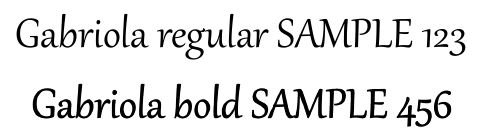 |
In this example, enabling the option turns only the bold text into a bitmap: it cannot be selected, copied, or searched as text without OCR, and its edges appear softer at 800% zoom. The regular text remains searchable. With the option disabled, both strings remain text.
This option rasterizes text formatted as bold when its font has no dedicated bold typeface. Font substitution instead selects another font when the original is unavailable.
Convert Selected Slides from PowerPoint to PDF
The following example exports slides 1 and 3 from a presentation to PDF. Slide numbers in this array are one-based, and the input presentation must contain at least three slides.
use aspose\slides\Presentation;
use aspose\slides\SaveFormat;

$presentation = new Presentation("PowerPoint.pptx");
try {
    $slides = array(1, 3);
    $presentation->save("PPTX-to-PDF.pdf", $slides, SaveFormat::Pdf);
} finally {
    $presentation->dispose();
}
Convert PowerPoint to PDF with Custom Slide Size
The following example copies the first slide from a presentation into a new presentation with a slide size of 612 × 792 points (8.5 × 11 inches). It scales the slide content to fit and exports the single slide to PDF.
use aspose\slides\Presentation;
use aspose\slides\SaveFormat;
use aspose\slides\SlideSizeScaleType;

$slideWidth = 612.0;
$slideHeight = 792.0;

$presentation = new Presentation("SelectedSlides.pptx");
$resizedPresentation = new Presentation();

try {
    $resizedPresentation->getSlideSize()->setSize($slideWidth, $slideHeight, SlideSizeScaleType::EnsureFit);
    $slide = $presentation->getSlides()->get_Item(0);
    $resizedPresentation->getSlides()->insertClone(0, $slide);

    // Remove the empty slide the new presentation was created with.
    $resizedPresentation->getSlides()->removeAt(1);

    $resizedPresentation->save("PDF_with_custom_slide_size.pdf", SaveFormat::Pdf);
} finally {
    $resizedPresentation->dispose();
    $presentation->dispose();
}
Convert PowerPoint to PDF in Notes Slide View
The following example exports a presentation to PDF, placing each slide’s speaker notes below the slide. Use a presentation containing speaker notes to see the result.
use aspose\slides\NotesCommentsLayoutingOptions;
use aspose\slides\NotesPositions;
use aspose\slides\PdfOptions;
use aspose\slides\Presentation;
use aspose\slides\SaveFormat;

$notesOptions = new NotesCommentsLayoutingOptions();
$notesOptions->setNotesPosition(NotesPositions::BottomFull);

$pdfOptions = new PdfOptions();
$pdfOptions->setSlidesLayoutOptions($notesOptions);

$presentation = new Presentation("SelectedSlides.pptx");
try {
    $presentation->save("PDF_with_notes.pdf", SaveFormat::Pdf, $pdfOptions);
} finally {
    $presentation->dispose();
}
Accessibility and Compliance Standards for PDF
Aspose.Slides allows you to use a conversion procedure that complies with Web Content Accessibility Guidelines (WCAG). You can export a PowerPoint document to PDF using any of these compliance standards: PDF/A1a, PDF/A1b, and PDF/UA.
This code demonstrates a PowerPoint-to-PDF conversion process that produces multiple PDFs based on different compliance standards:
$presentation = new Presentation("pres.pptx");
try {
    $pdfOptions = new PdfOptions();

    $pdfOptions->setCompliance(PdfCompliance::PdfA1a);
    $presentation->save("pres-a1a-compliance.pdf", SaveFormat::Pdf, $pdfOptions);

    $pdfOptions->setCompliance(PdfCompliance::PdfA1b);
    $presentation->save("pres-a1b-compliance.pdf", SaveFormat::Pdf, $pdfOptions);

    $pdfOptions->setCompliance(PdfCompliance::PdfUa);
    $presentation->save("pres-ua-compliance.pdf", SaveFormat::Pdf, $pdfOptions);
} finally {
    $presentation->dispose();
}
Note
Aspose.Slides supports PDF conversion operations, allowing you to convert PDF files to popular file formats. You can perform PDF to HTML, PDF to image, PDF to JPG, and PDF to PNG conversions. Other PDF conversion operations to specialized formats—PDF to SVG, PDF to TIFF, and PDF to XML—are also supported.Note: When exporting to PDF/UA, Aspose.Slides treats complex graphics such as SmartArt, charts, and formulas as a single figure. Individual path elements are not preserved as separate content and may be marked as artifacts; alternative text is provided only for the whole figure.
FAQ
Can I convert multiple PowerPoint files to PDF in bulk?
Yes, Aspose.Slides supports batch conversion of multiple PPT or PPTX files to PDF. You can iterate through your files and apply the conversion process programmatically.
Is it possible to password-protect the converted PDF?
Yes. Use the PdfOptions class to set a password and define access permissions during the conversion process.
How do I include hidden slides in the PDF?
Call setShowHiddenSlides with true in the PdfOptions class to include hidden slides in the resulting PDF.
Can Aspose.Slides maintain high image quality in the PDF?
Yes, you can control image quality by using methods such as setJpegQuality and setSufficientResolution in the PdfOptions class to ensure high-quality images in your PDF.
Does Aspose.Slides support PDF/A compliance standards?
Yes, Aspose.Slides allows you to export PDFs that comply with various standards, including PDF/A1a, PDF/A1b, and PDF/UA, ensuring your documents meet accessibility and archival requirements.