# Aspose.Slides for Reporting Services
> Complete English documentation. Each page retains its canonical source URL.
# Aspose.Slides for Reporting Services
> Start here: install Aspose.Slides for Reporting Services, export a first report to PowerPoint, and find the export formats, system requirements and support.
Source: https://docs.aspose.com/slides/reportingservices/
Updated: 2026-10-27
 Aspose.Slides for Reporting Services is a rendering extension for Microsoft SQL Server Reporting Services and Power BI Report Server that adds presentation formats to the export list of paginated (RDL) reports, without Microsoft PowerPoint on the server.
It exports reports to PPT, PPTX, PPS and PPSX presentations and slide shows, to ODP, and to XPS.
Explore features and support — browse the library features and open their guides.
------
Get Started
GETTING STARTED
EVALUATE
Build with Slides
EXPORT
EXAMPLES
Reference & Support
REFERENCE
SUPPORT
------
## **Your first export**
There is no code to write: you install the extension on the report server, and its formats appear in the export list of every paginated report on that server.
1. Check that the report server meets the [system requirements](https://docs.aspose.com/slides/reportingservices/system-requirements/), including .NET Framework 3.5.
1. From the [download page](https://releases.aspose.com/slides/reportingservices/), download the MSI installer, *Aspose.Slides for Reporting Services*. To install by hand instead, download the ZIP package, *Aspose.Slides for Reporting Services (DLLs Only)*.
1. Install the extension on the report server: run the MSI as an administrator, as described in [Install with the MSI installer](https://docs.aspose.com/slides/reportingservices/install-with-msi-installer/), or follow [Install manually](https://docs.aspose.com/slides/reportingservices/install-manually/) for the ZIP package.
1. In a browser, open the report server's web portal (Report Manager on SQL Server 2014 and earlier). By default, its address is `https:///reports`.
1. Open a paginated report. On the report toolbar, open the **Export** list and select **PPTX - PowerPoint 2007 Presentation via Aspose.Slides**. If the toolbar has a separate **Export** button, as Report Manager does, select it.
1. Open or save the PPTX file that the browser downloads.
Without a license, the exported presentation carries an evaluation watermark — see [Licensing](https://docs.aspose.com/slides/reportingservices/license-aspose-slides-for-reporting-services/). For the other formats in the export list, see [Supported File Formats](https://docs.aspose.com/slides/reportingservices/supported-file-formats/).
## Related articles
- [Product Overview](https://docs.aspose.com/slides/reportingservices/product-overview/)
- [PPT, PPS, PPTX and PPSX Export](https://docs.aspose.com/slides/reportingservices/ppt-pps-pptx-and-ppsx-export/)
- [High Fidelity to the Report Design](https://docs.aspose.com/slides/reportingservices/high-fidelity-to-the-report-design/)
# Company Sales
>
Source: https://docs.aspose.com/slides/reportingservices/company-sales/
Updated: 2024-11-01
## **Features:**
PPT, matrix (grows vertically and horizontally), background image.

# Comprehensive RDL Support
>
Source: https://docs.aspose.com/slides/reportingservices/comprehensive-rdl-support/
Updated: 2026-08-13
Aspose.Slides for Reporting Services fully supports all of the RDL specifications. This means two great things:
- No need to redesign existing reports. You can export any existing RDL report as a Microsoft PowerPoint presentation and it will appear exactly according to the RDL design.
- No need to use a specific report designer. You can use any RDL report designer and the report will be exported exactly the way you designed it.
Aspose.Slides for Reporting Services supports the following RDL elements:
- Page, headers, footers
- Textboxes
- Images
- Sub-reports
- Charts
- Lists
- Tables
- Matrices
- Styles
- Rectangles
**An example of a report with headers, footers, images, subreports, tables, textboxes and rectangles exported as a Microsoft PowerPoint (PPT) presentation.**


For more sample reports, see the [Report Samples Gallery](https://docs.aspose.com/slides/reportingservices/sample-reports-gallery/) section.
## Related articles
- [Product Overview](https://docs.aspose.com/slides/reportingservices/product-overview/)
- [Important Features](https://docs.aspose.com/slides/reportingservices/important-features/)
- [Supported File Formats](https://docs.aspose.com/slides/reportingservices/supported-file-formats/)
# Customization of Rendering Results by Extending Aspose.Slides for RS
>
Source: https://docs.aspose.com/slides/reportingservices/customization-of-rendering-results-by-extending-aspose-slides-for-rs/
Updated: 2026-08-13
This page describes how to create extension for Aspose.Slides for RS.
- [Create an Extension Assembly](https://docs.aspose.com/slides/reportingservices/customization-of-rendering-results-by-extending-aspose-slides-for-rs/).
- [Integrating the Extension](https://docs.aspose.com/slides/reportingservices/customization-of-rendering-results-by-extending-aspose-slides-for-rs/).
The Custom Extension feature gives you the option to add extra elements or update existing elements during report export.
## **How to Create an Extension Assembly**
1. Create a .NET project and add areference to Aspose.Slides.ReportingServices.dll.
1. Add a class and inherit it from Aspose.Slides.ReportingServices.Extension.RenderingExtensionBase.
1. Override the class' virtual methods to add custom functionality.
### **Example**
Suppose we want to add a note with some text, a logo and update the company name for every report exported with Aspose.Slides for RS.
For that purpose we add the following class:
``` xml
public class DemoRenderingExtension : Aspose.Slides.ReportingServices.Extension.RenderingExtensionBase
{
public override void PostProcessSlide(Aspose.Slides.ReportingServices.Extension.Slide slide)
{
//Add note to the first slide
if (this.CurrentSlideIndex == 0)
{
TextFormat textFormat = new TextFormat("Arial", 25);
textFormat.Bold = true;
slide.AddNote("This is the demo of Rendering Extension for Aspose.Slides for ReportingServices",
textFormat);
}
//Show logo on every slide in bottom right corner
using (Stream imageStream = Assembly.GetExecutingAssembly().GetManifestResourceStream("TestSlidesRenderingExtension.aspose.slides-for-ssrs-logo.jpg"))
{
slide.AddImage(imageStream, new RectangleF(slide.Size.Width - 20, slide.Size.Height - 20, 15, 15));
}
base.PostProcessSlide(slide);
}
public override void PostProcessTextBox(Aspose.Slides.ReportingServices.Extension.TextBox textBox)
{
//Add (TM) to any mention of company name in report
string companyName = "Adventure Works";
if (textBox.Text.Contains(companyName))
{
textBox.Text = textBox.Text.Replace(companyName, companyName + "™");
}
base.PostProcessTextBox(textBox);
}
}
```
Build it and you will get extension assembly. We are ready to integrate the extension.
[Visual studio project of RenderingExtensionDemo.zip](https://docs.aspose.com/slides/reportingservices/customization-of-rendering-results-by-extending-aspose-slides-for-rs/attachments/10289195/10452998.zip)
### **Integrating the Extension**
Suppose that your assembly is called **TestSlidesRenderingExtension.dll**:
- Copy the assembly to the ReportingService **bin** directory next to the Aspose.Slides.ReportingServices.dll. (For example: c:\Program Files\Microsoft SQL Server\MSRS10_50\Reporting Services\ReportServer\bin)
- Grant FullTrust permission to your assembly by adding the following CodeGroup to **rssrvpolicy.config**:
``` xml
...
...
```
Update the Aspose.Slides rendering extension config sections of **rsreportserver.config** to include your extension.
``` xml
TestSlidesRenderingExtension.DemoRenderingExtension, TestSlidesRenderingExtension
```
If you want to use the extension for every output type supported by Aspose.Slides, add the same config to extensions with the names ASPPTX, ASPPT, ASPPS, ASPPSX.
The content of the Extension tag is an assembly-qualified name of the type. (See )
Now restart Reporting Services and export the report. You get something like [this presentation](https://docs.aspose.com/slides/reportingservices/customization-of-rendering-results-by-extending-aspose-slides-for-rs/attachments/10289195/10452997.pptx) from the Company Sales SQL2008R2 report of the Adventureworks samples.
## Related articles
- [Exporting Reports to RPL format](https://docs.aspose.com/slides/reportingservices/exporting-reports-to-rpl-format/)
- [Install Manually](https://docs.aspose.com/slides/reportingservices/install-manually/)
- [Re Installing Aspose.Slides for Reporting Services](https://docs.aspose.com/slides/reportingservices/re-installing-aspose-slides-for-reporting-services/)
# Customization using Aspose.Slides for Reporting Services
>
Source: https://docs.aspose.com/slides/reportingservices/customization-using-aspose-slides-for-reporting-services/
Updated: 2024-11-01
---
lastmod: 2024-11-01T16:01:00+05:00
title: Customization using Aspose.Slides for Reporting Services
type: docs
weight: 70
url: /reportingservices/customization-using-aspose-slides-for-reporting-services/
---
# Customizing PowerPoint Rendering Extension Caption
>
Source: https://docs.aspose.com/slides/reportingservices/customizing-powerpoint-rendering-extension-caption/
Updated: 2026-08-13
This article shows you how to customize Aspose.Slides for Reporting Services rendering options captions.
## **Example**
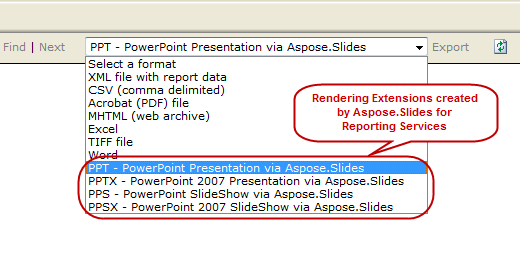
When installing Aspose.Slides for Reporting Services, 4 additional export options are added in the drop-down menu of the export options:
## **How to modify the captions text**
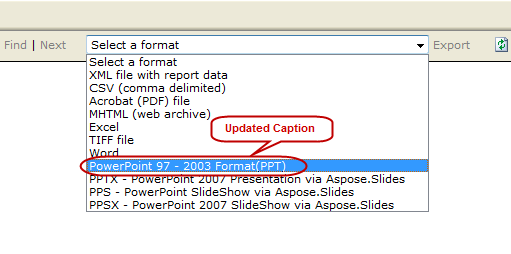
The default captions of these extensions can be changed by overriding the default names. These steps show you how to change the caption from “ **PPT – PowerPoint** **Presentation via** **Aspose.Slides** ” to “ **PowerPoint 97 – 2003 format(PPT)** ”.
**Step 1:** Locate the **rsreportserver.config** file that is usually in this directory:
**OS Root Drive\Program Files\Microsoft SQL Server\MSRS10.MSSQLSERVER\Reporting Services\ReportServer**
**Step** **2:** Find these lines in rsreportserver.config file:
``` xml
```
**Step** **3:** Replace the extension parameter with this:
****
``` xml
PowerPoint 97 - 2003 Format(PPT)
```
The export options will now appear like this:
## Related articles
- [Re Installing Aspose.Slides for Reporting Services](https://docs.aspose.com/slides/reportingservices/re-installing-aspose-slides-for-reporting-services/)
- [Password Protecting the Exported Presentation](https://docs.aspose.com/slides/reportingservices/password-protecting-the-exported-presentation/)
- [Install Manually](https://docs.aspose.com/slides/reportingservices/install-manually/)
# Easy and Lightweight Deployment
> Learn how Aspose.Slides for Reporting Services is deployed: one assembly in the report server's bin folder, registered in the report server configuration.
Source: https://docs.aspose.com/slides/reportingservices/easy-and-lightweight-deployment/
Updated: 2026-09-28
Aspose.Slides for Reporting Services is a [rendering extension](https://learn.microsoft.com/en-us/sql/reporting-services/extensions/rendering-extension/rendering-extensions-overview) for Microsoft SQL Server Reporting Services and Power BI Report Server.
Aspose.Slides for Reporting Services is provided as a single MSI installer that can install on computers running a supported report server, 32-bit or 64-bit; see [System Requirements](https://docs.aspose.com/slides/reportingservices/system-requirements/).
It is also easy to deploy and manage Aspose.Slides for Reporting Services manually, as it is comprised of only one .NET assembly *Aspose.Slides* *.ReportingServices.dll* , written completely in C#, CLS compliant and containing only safe managed code.
The ZIP download includes two builds of Aspose.Slides.ReportingServices.dll for report servers:
- Bin\SSRS2005\Aspose.Slides.ReportingServices.dll – built for Microsoft SQL Server 2005 and .NET Framework 2.0 (use for x86 and x64)
- Bin\Universal\Aspose.Slides.ReportingServices.dll – built for Microsoft SQL Server 2008 and later, Power BI Report Server and .NET Framework 2.0 (use for x86 and x64)
The MSI installer installs the same two builds and picks the right one for each report server instance. [Install Manually](https://docs.aspose.com/slides/reportingservices/install-manually/) lists every file in the ZIP download.
When installing, Aspose.Slides.ReportingServices.dll is copied to the ReportServer\bin directory and the configuration file is updated so Reporting Services is aware of the new rendering extension. These steps are performed by the Aspose.Slides for Reporting Services installer, but you could also perform them manually as described further in this documentation.

**Figure**: Aspose.Slides.ReportingServices.dll is copied into the **ReportServer\bin** directory.
## Related articles
- [Install Manually](https://docs.aspose.com/slides/reportingservices/install-manually/)
- [Re Installing Aspose.Slides for Reporting Services](https://docs.aspose.com/slides/reportingservices/re-installing-aspose-slides-for-reporting-services/)
- [Installing Aspose.Slides for Reporting Services](https://docs.aspose.com/slides/reportingservices/installing-aspose-slides-for-reporting-services/)
# Employee Sales Summary
>
Source: https://docs.aspose.com/slides/reportingservices/employee-sales-summary/
Updated: 2024-11-01
## **Features:**
PPT, charts, images, textboxes, tables.


# Evaluate Aspose.Slides
> Find out how the evaluation version of Aspose.Slides for Reporting Services behaves, how it marks exported presentations, and how to evaluate it without that mark.
Source: https://docs.aspose.com/slides/reportingservices/evaluate-aspose-slides/
Updated: 2026-09-28
## **Evaluation Version**
You can download Aspose.Slides for Reporting Services for evaluation from [its download page](https://releases.aspose.com/slides/reportingservices/). The evaluation download is the same as the purchased download. It becomes licensed when you copy a license file to the report server — no code is involved; see [Licensing](https://docs.aspose.com/slides/reportingservices/license-aspose-slides-for-reporting-services/).
The evaluation version (without a license) provides full product functionality, but it inserts an evaluation watermark into exported presentations.

## **Evaluate Without the Watermark**
If you want to test Aspose.Slides for Reporting Services without the evaluation watermark, you can request a 30-day temporary license. Please refer to [How to get a Temporary License?](https://purchase.aspose.com/temporary-license)
## Related articles
- [License Aspose.Slides for Reporting Services](https://docs.aspose.com/slides/reportingservices/license-aspose-slides-for-reporting-services/)
# Export report to Powerpoint without installation of Aspose.Slides.ReportingService on server
>
Source: https://docs.aspose.com/slides/reportingservices/export-report-to-powerpoint-without-installation-of-aspose-slides-reportingservice-on-server/
Updated: 2026-11-08
Aspose.Slides for Reporting Service can be used without installation on a server. This approach is suitable when you need to integrate export to Powerpoint in your application but access to the service is restricted.
Visual Studio solution that illustrates the approach can be found [here](https://docs.aspose.com/slides/reportingservices/export-report-to-powerpoint-without-installation-of-aspose-slides-reportingservice-on-server/attachments/10289165/10453062.zip).
The rendering process comprises two parts:
1. Render report to RPL using Reporting Service Web Service. See more information on Reporting Service Web Service [here](http://technet.microsoft.com/en-us/library/ms152787.aspx).
1. Render RPL to Powerpoint using Aspose.Slides for Reporting service for ReportViewer. The assembly is located in {Aspose.Slides for Reporting Services home directory}\bin\RV2010
## **How to Implement Export to PowerPoint:**
1) Create the web service proxy (see the details [here](http://technet.microsoft.com/en-us/library/ms155134.aspx)) and add it to your solution.
2) Add a reference to Aspose.Slides.ReportingServices.dll for ReportViewer 2010.
3) Use this class to integrate web service proxy and Apose.Slides for Reporting Service
``` xml
class PowerpointRenderer
{
///
/// Gets or sets the base URL of the XML Web service the client is requesting.
///
///
/// The base URL of the XML Web service the client is requesting. The default is a System.String.Empty.
///
public string ReportingServiceUrl { get; set; }
///
/// Gets or sets the username for Reporting Service.
///
///
/// The username.
///
public string Username { get; set; }
///
/// Gets or sets the password for Reporting Service.
///
///
/// The password.
///
public string Password { get; set; }
///
/// Renders the specified report to file.
///
/// Name of the output file.
/// The report path.
/// The output presentation format.
public void Render(string outputFileName, string reportPath, Aspose.Slides.ReportingServices.OutputPresentationFormat format)
{
using (FileStream pptSteam = new FileStream(outputFileName, FileMode.Create))
{
Aspose.Slides.ReportingServices.RplRenderer renderer = new Aspose.Slides.ReportingServices.RplRenderer();
//start rendering process
//here we are choosing to export in PPT format and providing outputStream
renderer.StartRendering(format, false);
int page = 1;
//this cycle iterates through all pages of report
while (true)
{
using (MemoryStream rplStream = CreateRplStream(page, reportPath))
{
//if rplStream is empty then we reached end of report
if (rplStream.Length == 0)
break;
//add report page as slide to the document
renderer.RenderPage(rplStream);
}
page++;
}
//call finish method to flush our newly created presentation to output stream
renderer.FinishRendering(pptSteam);
}
}
private MemoryStream CreateRplStream(int page, string reportPath)
{
ReportExecutionService _executionService = new ReportExecutionService();
_executionService.Url = ReportingServiceUrl + "/ReportExecution2005.asmx";
_executionService.Credentials = new System.Net.NetworkCredential(Username, Password, string.Empty);
string extension;
Warning[] warnings;
string[] streamIds;
string mimeType;
string encoding;
var executionInfo = _executionService.LoadReport(reportPath, null);
string deviceInfo = String.Format(
@"
{0}
{0}
Embedded
", page);
byte[] result = _executionService.Render("RPL", deviceInfo, out extension, out mimeType, out encoding, out warnings, out streamIds);
return new MemoryStream(result);
}
```
4) Now you can export the report through this code:
``` xml
PowerpointRenderer powerpointRenderer = new PowerpointRenderer();
powerpointRenderer.ReportingServiceUrl = "http:///Reportserver";
powerpointRenderer.Username = "Username";
powerpointRenderer.Password = "password";
powerpointRenderer.Render("test.ppt, "/AdventureWorks Sample Reports/Sales Order Detail SQL2008R2", Aspose.Slides.ReportingServices.OutputPresentationFormat.Ppt);
```
The export process here uses soft page breaks similar to Word or Excel, so its result may differ from the Presentation that was exported using the standard approach.
[](https://docs.aspose.com/slides/reportingservices/export-report-to-powerpoint-without-installation-of-aspose-slides-reportingservice-on-server/visual-export-report-to-powerpoint-without-installation-of-aspose-slides-reportingservice-on-server-aac950f3dcfa.svg)
*The server renders an RPL stream; the separate application converts it to PowerPoint. This route uses soft page breaks, so pagination may differ from the server extension export.*
## Related articles
- [Exporting Reports to RPL format](https://docs.aspose.com/slides/reportingservices/exporting-reports-to-rpl-format/)
- [Password Protecting the Exported Presentation](https://docs.aspose.com/slides/reportingservices/password-protecting-the-exported-presentation/)
- [Install Manually](https://docs.aspose.com/slides/reportingservices/install-manually/)
# Exporting Reports to RPL format
>
Source: https://docs.aspose.com/slides/reportingservices/exporting-reports-to-rpl-format/
Updated: 2026-08-13
Aspose.Slides uses reports in RPL (Report Processing Language) format for rendering. This page demonstrates how to export reports to the RPL Format.
In many scenarios, customers have to share the reports containing issues for resolution with Aspose staff. When the shared reports are in RDL form, the data set or schema is also shared to allow us to reproduce the problem. Sometimes, even the sharing of the RDL report along with the data set is not sufficient to resolve the issue completely. In such cases, we recommend that you export the reports in RPL format and share the RPL file for reporting with us. The RPL file includes the data set used in it as well. This way, it gets easier to export to RPL and it can be shared instantly with us.
Perform these steps:
1. Copy to Aspose.ReportingServices.Debug.Rpl.dll to Reporting services bin directory (usually at c:\Program Files\Microsoft SQL Server\MSRS10_50.SQL2008R2\Reporting Services\ReportServer\bin).
Aspose.ReportingServices.Debug.Rpl.dll is available in the latest versions of Aspose.Slides for Reporting Services, which can be downloaded from the [Releases page](https://releases.aspose.com/slides/reportingservices/).
2. Add this extension to **** tag of **rsreportserver.config** file (usually at c:\Program Files\Microsoft SQL Server\MSRS10_50.SQL2008R2\Reporting Services\ReportServer\rsreportserver.config)
``` xml
//Add this tag to element
```
3. Specify the path to resulting RPL files by modifying the path element.
4. Give Aspose.ReportingServices.Debug.Rpl.dll permissions to execute this way: open C:\Program Files\Microsoft SQL Server\\Reporting Services\ReportServer\rssrvpolicy.config and add this as the last item in the second to outer **** element ( which should be **** ) :
``` xml
...
...
```
5. Restart Reporting services. You should find Aspose.Rpl option in Export menu.
The "Rpl export" option should appear on the export panel. You need to export the report to RPL and share the RPL file.
## Related articles
- [Install Manually](https://docs.aspose.com/slides/reportingservices/install-manually/)
- [Re Installing Aspose.Slides for Reporting Services](https://docs.aspose.com/slides/reportingservices/re-installing-aspose-slides-for-reporting-services/)
- [High Fidelity to the Report Design](https://docs.aspose.com/slides/reportingservices/high-fidelity-to-the-report-design/)
# Features
>
Source: https://docs.aspose.com/slides/reportingservices/features/
Updated: 2024-11-01
---
lastmod: 2024-11-01T16:01:00+05:00
title: Features
type: docs
weight: 30
url: /reportingservices/features/
---
# Frequently Asked Questions
>
Source: https://docs.aspose.com/slides/reportingservices/frequently-asked-questions/
Updated: 2026-08-13
This page collects a number of frequently asked questions about:
- [Supported file formats](https://docs.aspose.com/slides/reportingservices/frequently-asked-questions/#Supported-File-Formats).
- [Support for Power BI Reporting services](https://docs.aspose.com/slides/reportingservices/frequently-asked-questions/#Support-for-Power-BI-Reporting-services).
- [Installation](https://docs.aspose.com/slides/reportingservices/frequently-asked-questions/#Installation).
- [Export Configuration](https://docs.aspose.com/slides/reportingservices/frequently-asked-questions/#Export-Configuration).
### **Supported File Formats**
#### **Q: What formats can you export reports to using Aspose.Slides for Reporting Services?**
**A**: Aspose.Slides for Reporting Services makes it possible to export any report in PPT, PPS, PPTX, PPSX, XPS, or RPL format.
### **Support for Power BI Reporting services**
#### **Q: Does Aspose.Slides for Reporting Services support Power BI?**
**A**: Yes. Aspose.Slides for Reporting Services supports exporting paginated reports (RDL) in Power BI.
### **Installation**
#### **Q: The installation program does not start. Manual installation does not lead to the desired result.**
**A** : Make sure that .NET Framework 3.5 is installed on your system.
#### **Q: Export options missing after installation of Aspose.Slides for Reporting Services.**
**A**: If any CodeGroup in rssrvpolicy.config does not work correctly, the configuration file parser may skip the last sections of the group. So move all the CodeGroups associated with Aspose.Slides for Reporting Services to the top of the block that contains the Aspose.Slides for Reporting Services CodeGroups.
#### **Q: Could not load file or assembly Aspose.Slides.ReportingServices (Execution permission cannot be acquired \ Exception from HRESULT: 0x80131418).**
**A**: The error code (0x80131418) indicates that the dll module does not have enough rights. This may be due to a security feature that blocked full access to the .dll file if it was obtained from another computer. This can be fixed by opening the properties window of the dll file and clicking the "Unblock" button in the "Security" panel.
#### **Q: Cannot find license 'Aspose.Slides.Reporting.Services.lic'.**
**A**: The license file must be located next to the dll or in the Program Files(x86)\Aspose\Slides\ directory.
### **Export Configuration**
#### **Q: How can I change the color of hyperlinks in an exported report?**
**A**: Each Aspose.Slides for Reporting Services rendering extension in rsreportserver.config has its own configuration. To change the hyperlink color, set the required value in the section.
#### **Q: In exported presentations, text in tables is stretched vertically.**
**A**: This is done to make the document easier to read. To display text in the table as it appears in the report, set the required Aspose.Slides for Reporting Services extension to "Normal" in the rsreportserver.config configuration file.
## Related articles
- [Install Aspose.Slides for Reporting Services in Power BI](https://docs.aspose.com/slides/reportingservices/power-bi/)
- [Installing Aspose.Slides for Reporting Services](https://docs.aspose.com/slides/reportingservices/installing-aspose-slides-for-reporting-services/)
- [Exporting Reports to RPL format](https://docs.aspose.com/slides/reportingservices/exporting-reports-to-rpl-format/)
# Getting Started
>
Source: https://docs.aspose.com/slides/reportingservices/getting-started/
Updated: 2024-11-01
---
lastmod: 2024-11-01T16:01:00+05:00
title: Getting Started
type: docs
weight: 10
url: /reportingservices/getting-started/
---
# High Fidelity to the Report Design
>
Source: https://docs.aspose.com/slides/reportingservices/high-fidelity-to-the-report-design/
Updated: 2026-08-13
Aspose.Slides for Reporting Services exports reports as Microsoft PowerPoint presentations in such a way that they appear identical to reports exported by the built-in renderers of Microsoft SQL Server Reporting Services.
|**HTML, exported by Microsoft SQL Server Reporting Services built-in renderer** |**PPT, exported by Aspose.Slides for Reporting Services** |
| :- | :- |
|||
|**HTML, exported by Microsoft SQL Server Reporting Services built-in renderer** |**PPT, exported by Aspose.Slides for Reporting Services** |
|||
## Related articles
- [Support for Embedding Audio in Presentation](https://docs.aspose.com/slides/reportingservices/support-for-embedding-audio-in-presentation/)
- [Support for Embedding Video in Presentation](https://docs.aspose.com/slides/reportingservices/support-for-embedding-video-in-presentation/)
- [Product Overview](https://docs.aspose.com/slides/reportingservices/product-overview/)
# Important Features
> Browse the main features of Aspose.Slides for Reporting Services, with a link to the article on each one.
Source: https://docs.aspose.com/slides/reportingservices/important-features/
Updated: 2026-09-28
This section provides detailed description of Aspose.Slides for Reporting Services features. Click on the links in the table below to learn more about the features.
|**Feature** |**Description** |
| :- | :- |
|[PPT, PPS, PPTX and PPSX Export](https://docs.aspose.com/slides/reportingservices/ppt-pps-pptx-and-ppsx-export/)|Export reports as Microsoft PowerPoint presentations from Microsoft SQL Server Reporting Services without utilizing Microsoft PowerPoint. |
|[Comprehensive RDL Support](https://docs.aspose.com/slides/reportingservices/comprehensive-rdl-support/)|No need to redesign your reports as all of the RDL specifications are fully supported. |
|[High Fidelity to the Report Design](https://docs.aspose.com/slides/reportingservices/high-fidelity-to-the-report-design/)|PPT and PPS reports have same layout and appearance as PDF and other formats. |
|[Easy and Lightweight Deployment](https://docs.aspose.com/slides/reportingservices/easy-and-lightweight-deployment/)|Aspose.Slides for Reporting Services is a rendering extension for Microsoft SQL Server Reporting Services and Power BI Report Server (x86 and x64). See [System Requirements](https://docs.aspose.com/slides/reportingservices/system-requirements/) for the supported versions. |
|[Simple and Affordable Licensing](https://docs.aspose.com/slides/reportingservices/simple-and-affordable-licensing/)|One license per server or one license for all of your servers. Unlimited developers. |
|[World Class Free Technical Support](https://docs.aspose.com/slides/reportingservices/world-class-free-technical-support/)|Unlimited technical support is provided directly by developers of the product. |
## Related articles
- [Product Overview](https://docs.aspose.com/slides/reportingservices/product-overview/)
- [High Fidelity to the Report Design](https://docs.aspose.com/slides/reportingservices/high-fidelity-to-the-report-design/)
- [Aspose.Slides for Reporting Services](https://docs.aspose.com/slides/reportingservices/)
# Install Manually
> Install Aspose.Slides for Reporting Services by hand from the DLLs-only ZIP package: which assembly to copy, and what to add to rsreportserver.config and rssrvpolicy.config.
Source: https://docs.aspose.com/slides/reportingservices/install-manually/
Updated: 2026-11-08
## **Overview**
Follow these steps to install Aspose.Slides for Reporting Services without the MSI installer, from the ZIP package *Aspose.Slides for Reporting Services XX.XX (DLLs Only)* on the [download page](https://releases.aspose.com/slides/reportingservices/). They register the same extensions as the [MSI installer](https://docs.aspose.com/slides/reportingservices/install-with-msi-installer/). Repeat them for each report server instance.
Before you start, check the [system requirements](https://docs.aspose.com/slides/reportingservices/system-requirements/). You need local administrator rights on the report server.
## **Choose the Assembly**
The ZIP package contains several builds. Copy exactly one *Aspose.Slides.ReportingServices.dll* to the report server:
| File in the ZIP package | Use it for |
| :- | :- |
| *Bin\Universal\Aspose.Slides.ReportingServices.dll* | SQL Server 2008 and later Reporting Services, and Power BI Report Server |
| *Bin\SSRS2005\Aspose.Slides.ReportingServices.dll* | SQL Server 2005 Reporting Services |
| *Bin\ReportViewer2010\Aspose.Slides.ReportingServices.dll* | Not for a report server: applications that export from the ReportViewer 2010 or 2012 control, see [Using Aspose.Slides with ReportViewer 2010 and 2012](https://docs.aspose.com/slides/reportingservices/using-aspose-slides-with-reportviewer-2010-and-2012/) |
| *Bin\RplExport\Aspose.ReportingServices.Debug.Rpl.dll* | Optional: saves reports in RPL format for problem reports, see [Exporting Reports to RPL Format](https://docs.aspose.com/slides/reportingservices/exporting-reports-to-rpl-format/) |
## **Find the Report Server Folder**
The steps below refer to the report server's *ReportServer* folder, which holds *rsreportserver.config* and *rssrvpolicy.config*. In a default installation, it is:
| Report server | Default *ReportServer* folder |
| :- | :- |
| SQL Server 2017 and later Reporting Services | `C:\Program Files\Microsoft SQL Server Reporting Services\SSRS\ReportServer` |
| Power BI Report Server | `C:\Program Files\Microsoft Power BI Report Server\PBIRS\ReportServer` |
| SQL Server 2016 and earlier Reporting Services | `C:\Program Files\Microsoft SQL Server\\Reporting Services\ReportServer`, where the instance folder is, for example, `MSRS13.MSSQLSERVER` for SQL Server 2016 or `MSSQL.x` for SQL Server 2005 |
For more locations, see Microsoft's [RsReportServer.config configuration file](https://learn.microsoft.com/en-us/sql/reporting-services/report-server/rsreportserver-config-configuration-file) article.
## **Install the Extension**
1. Copy the assembly you chose to the *bin* subfolder of the *ReportServer* folder.
The copied file must not carry explicitly assigned NTFS permissions, or the report server is denied access when it loads the assembly and the new export formats do not appear. Right-click the file, select **Properties**, and on the **Security** tab remove any explicitly assigned permissions, leaving only inherited ones. If the **General** tab shows an **Unblock** option, select it.
1. Save a copy of *rsreportserver.config*, and then open the file in a text editor. Add these entries inside the `` element:
```xml
```
Each entry registers one export format; `Name` must be unique among the rendering extensions. The MSI installer registers the same six names and types. Omit an entry if you do not want its format in the export list.
1. Save a copy of *rssrvpolicy.config*, and then open the file in a text editor. Find the code group whose `Description` is "This code group grants MyComputer code Execution permission." and add this code group as its last child:
```xml
```
`PublicKeyBlob` is the public key of the Aspose.Slides.ReportingServices assembly. Keep it on one line.
1. Save both files. The report server reads its configuration files again whenever they are saved. If a file contains malformed XML, the report server ignores it or does not start, so restore your copy if something goes wrong.
[](https://docs.aspose.com/slides/reportingservices/install-manually/visual-install-manually-5a4aac9cee81.svg)
*Install the extension for each report-server instance. The server rereads saved configuration; check the portal for the formats you registered. This is a configuration diagram, not a screenshot of file permissions or the portal.*
## **Check the Installation**
Open a paginated report in the web portal (Report Manager on SQL Server 2014 and earlier) and open the **Export** list. It now includes these formats:
- PPT - PowerPoint Presentation via Aspose.Slides
- PPS - PowerPoint SlideShow via Aspose.Slides
- PPTX - PowerPoint 2007 Presentation via Aspose.Slides
- PPSX - PowerPoint 2007 SlideShow via Aspose.Slides
- ODP - OpenDocument Presentation via Aspose.Slides
- XPS - via Aspose.Slides
Select one of them to export the report. The file opens in the application associated with its format.
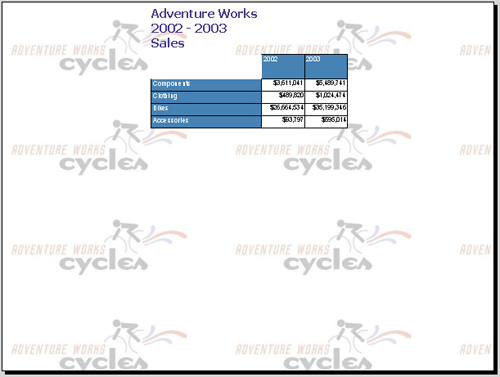
If the formats do not appear, check the NTFS permissions of the copied assembly. Without a license, exported files carry an evaluation watermark; see [Licensing](https://docs.aspose.com/slides/reportingservices/license-aspose-slides-for-reporting-services/).
## Related articles
- [Re Installing Aspose.Slides for Reporting Services](https://docs.aspose.com/slides/reportingservices/re-installing-aspose-slides-for-reporting-services/)
- [Easy and Lightweight Deployment](https://docs.aspose.com/slides/reportingservices/easy-and-lightweight-deployment/)
- [Exporting Reports to RPL format](https://docs.aspose.com/slides/reportingservices/exporting-reports-to-rpl-format/)
# Install with MSI Installer
> Install Aspose.Slides for Reporting Services with its MSI installer: what the installer needs, what it changes on each report server instance, and how to check the result.
Source: https://docs.aspose.com/slides/reportingservices/install-with-msi-installer/
Updated: 2026-11-08
## **Installation**
The MSI installer is the simplest way to install Aspose.Slides for Reporting Services. It needs .NET Framework 3.5 and administrator rights on the report server; see [System Requirements](https://docs.aspose.com/slides/reportingservices/system-requirements/).
1. Download the MSI installer, *Aspose.Slides for Reporting Services XX.XX*, from the [download page](https://releases.aspose.com/slides/reportingservices/) and copy it to the report server.
1. Run it as an administrator. If .NET Framework 3.5 is missing, the installer stops with a message; install the .NET Framework 3.5 features and run it again.
1. Accept the license agreement.
1. On the **Custom Setup** page, the feature tree lists each SQL Server Reporting Services and Power BI Report Server instance the installer detects on the machine. To leave an instance unchanged, click its icon and select **Entire feature will be unavailable**. Express editions do not support rendering extensions, so do not select an Express instance. The installer hides Express instances of SQL Server 2016 and earlier.
1. Select **Next**, and then **Install**.
The optional **Rpl Export** feature is not selected by default. It adds a hidden extension that saves reports in RPL format, which is useful when you send a problem report to Aspose; see [Exporting Reports to RPL Format](https://docs.aspose.com/slides/reportingservices/exporting-reports-to-rpl-format/).
[](https://docs.aspose.com/slides/reportingservices/install-with-msi-installer/visual-install-with-msi-installer-715ad8f91cfe.svg)
*Select only supported report-server instances. Excluded instances stay unchanged, and the optional diagnostic RPL extension is off by default. The diagram explains the choices without reproducing the installer interface.*
## **What the Installer Changes**
The installer keeps its files in *Aspose\Aspose.Slides for Reporting Services* under the Program Files folder — *Program Files (x86)* on 64-bit Windows, because the installer is a 32-bit package. Then, for each selected instance, it:
- copies *Aspose.Slides.ReportingServices.dll* to the instance's *ReportServer\bin* folder — the build for SQL Server 2005, or the build for SQL Server 2008 and later and Power BI Report Server;
- adds six rendering extensions — ASPPT, ASPPS, ASPPTX, ASPPSX, ASXPSS and ASODP — to the `` element of *rsreportserver.config*;
- adds a code group that grants the assembly full trust to *rssrvpolicy.config*;
- saves a copy of each configuration file it changes, with *.bak* appended to the file name.
[Install Manually](https://docs.aspose.com/slides/reportingservices/install-manually/) shows these changes step by step.
If an instance cannot be configured, the installer names it in a message and writes the details to *rserrors<date>.log* in the installation folder. Install the extension on that instance manually.
## **Check the Installation**
Open a paginated report in the web portal (Report Manager on SQL Server 2014 and earlier) and open the **Export** list. It now includes these formats:
- PPT - PowerPoint Presentation via Aspose.Slides
- PPS - PowerPoint SlideShow via Aspose.Slides
- PPTX - PowerPoint 2007 Presentation via Aspose.Slides
- PPSX - PowerPoint 2007 SlideShow via Aspose.Slides
- ODP - OpenDocument Presentation via Aspose.Slides
- XPS - via Aspose.Slides
Without a license, the exported files carry an evaluation watermark; see [Licensing](https://docs.aspose.com/slides/reportingservices/license-aspose-slides-for-reporting-services/).
## **When to Install Manually**
Install the extension [manually](https://docs.aspose.com/slides/reportingservices/install-manually/) instead when:
- the installer cannot configure an instance, for example because of security settings on the server;
- after an upgrade, you want to replace only the assembly instead of uninstalling the old version and running the new installer.
Uninstalling the product removes the assembly and the configuration entries from each instance.
## Related articles
- [Installing Aspose.Slides for Reporting Services](https://docs.aspose.com/slides/reportingservices/installing-aspose-slides-for-reporting-services/)
- [Install Aspose.Slides for Reporting Services in Power BI](https://docs.aspose.com/slides/reportingservices/power-bi/)
- [Re Installing Aspose.Slides for Reporting Services](https://docs.aspose.com/slides/reportingservices/re-installing-aspose-slides-for-reporting-services/)
# Installation Prerequisites
>
Source: https://docs.aspose.com/slides/reportingservices/installation-prerequisites/
Updated: 2026-08-13
Following perquisites are needed to be met before we proceed with installation.
## **Reporting Services Add-In for SharePoint**
The **Reporting Services Add-In for SharePoint** is one of the key components to getting Integration wo rking properly. The Add-In has to be installed on any of the **Web Front Ends (WFE)** that is in your SharePoint farm along with the Central Admin server. One of the new changes with SQL 2008 R2 & SharePoint 2010 is that the 2008 R2 Add-In is now a pre-req for the SharePoint Install. This means that the RS Add-In will be laid down when you go to install SharePoint. It has bee n shown and highlighted in figure below. This actually avoids many issues we saw with SP 2007 and RS 2008 when installing the Add-In.
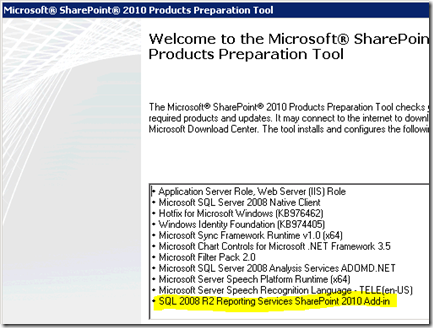
**Figure 1**: Reporting Services Add-In for SharePoint
## **SharePoint Authentication**
Before jumping into the RS Integration pieces, one thing is important and is to be taken care of is that how you setup your **Site** in SharePoint Farm. More specifically how you configure authentication for the Site; whether it will be **Classic** or **Claims** . This choice is important in the beginning. I do not believe that you can change this option once it is done. If you can change it, it would not be a simple process.
Reporting Services 2008 R2 is NOT Claims aware
Even if you choose your SharePoint site to use **Claims** , Reporting Services itself is not Claims aware. It does affect how authentication works with Reporting Services. So, what is the difference from a Reporting Services perspective? It comes down to whether you want to forward User Credentials to the datasource.
***Classic*** - Can use Kerberos and forward the user's credentials to your back end datasource (will need to use Kerberos for that.
***Claims*** ** - A Claims token is used and not a windows token. RS will always use Trusted Authentication in this scenario and will only have access to the SPUser token. You will need to store your credentials within your data source.
For now, we just want to focus on setup of RS. At this point SharePoint is installed on SharePoint Box and setup with a **Classic Auth Site** on **port 80** . Moreover, on the RS Server I have **just installed Reporting Services** and that's it.
## Related articles
- [Reporting Services SharePoint Configuration](https://docs.aspose.com/slides/reportingservices/reporting-services-sharepoint-configuration/)
- [Introduction and Environment Setup](https://docs.aspose.com/slides/reportingservices/introduction-and-environment-setup/)
- [Setting up SharePoint on the RS Server](https://docs.aspose.com/slides/reportingservices/setting-up-sharepoint-on-the-rs-server/)
# Installation
>
Source: https://docs.aspose.com/slides/reportingservices/installation/
Updated: 2024-11-01
---
lastmod: 2024-11-01T16:01:00+05:00
title: Installation
type: docs
weight: 40
url: /reportingservices/installation/
---
# Installing Aspose.Slides for Reporting Services
> Choose how to install Aspose.Slides for Reporting Services on a report server — with the MSI installer or from the DLLs-only ZIP package — and find the related setup articles.
Source: https://docs.aspose.com/slides/reportingservices/installing-aspose-slides-for-reporting-services/
Updated: 2026-09-28
## **Installation Options**
Aspose.Slides for Reporting Services is installed on the report server itself. Before you start, check the [system requirements](https://docs.aspose.com/slides/reportingservices/system-requirements/).
The [download page](https://releases.aspose.com/slides/reportingservices/) offers two packages for each release:
- **Aspose.Slides for Reporting Services XX.XX** — an MSI installer. It detects the report server instances on the machine, copies the extension into the ones you select, and updates their configuration files. See [Install with the MSI Installer](https://docs.aspose.com/slides/reportingservices/install-with-msi-installer/).
- **Aspose.Slides for Reporting Services XX.XX (DLLs Only)** — a ZIP package for installing by hand: you copy one assembly and edit two configuration files. See [Install Manually](https://docs.aspose.com/slides/reportingservices/install-manually/).
The same packages install Aspose.Slides for Reporting Services on [Power BI Report Server](https://docs.aspose.com/slides/reportingservices/power-bi/).
## **Related Articles**
- [Licensing Aspose.Slides for Reporting Services](https://docs.aspose.com/slides/reportingservices/license-aspose-slides-for-reporting-services/)
- [Re-installing Aspose.Slides for Reporting Services](https://docs.aspose.com/slides/reportingservices/re-installing-aspose-slides-for-reporting-services/)
- [Integrating manually with Visual Studio 2005 or 2008 Report Designer](https://docs.aspose.com/slides/reportingservices/integrating-manually-with-visual-studio-2005-or-2008-report-designer/)
- [Customizing Microsoft PowerPoint rendering extension caption](https://docs.aspose.com/slides/reportingservices/customizing-powerpoint-rendering-extension-caption/)
## Related articles
- [Install with MSI Installer](https://docs.aspose.com/slides/reportingservices/install-with-msi-installer/)
- [Install Aspose.Slides for Reporting Services in Power BI](https://docs.aspose.com/slides/reportingservices/power-bi/)
- [Re Installing Aspose.Slides for Reporting Services](https://docs.aspose.com/slides/reportingservices/re-installing-aspose-slides-for-reporting-services/)
# Integrating Manually with Visual Studio 2005 or 2008 Report Designer
>
Source: https://docs.aspose.com/slides/reportingservices/integrating-manually-with-visual-studio-2005-or-2008-report-designer/
Updated: 2026-08-13
This article teaches you how to integrate Aspose.Slides for Reporting Services manually with Visual Studio.
**Aspose.Slides for Reporting Services** requires the installation of **.NET Framework 3.5** on the host machine.
## **Integrating Aspose.Slides for Reporting Services with Visual Studio**
We recommend you use the MSI installer to install Aspose.Slides for Reporting Services because it performs all necessary installation tasks and configuration processes automatically. However, if the installation with MSI installer fails, then use the guide here.
This article also shows you how to install Aspose.Slides for Reporting Services on a computer with Business Intelligence Development Studio. This will enable you to export reports to Microsoft PowerPoint formats at design time from the Microsoft Visual Studio 2005 or 2008 Report Designer.
1. Copy Aspose.Slides.ReportingServices.dll to the Visual Studio directory.
- To integrate with Visual Studio 2005 Report Designer, copy **Aspose.Slides.ReportingServices.dll** to the **C:\Program Files\Microsoft Visual Studio 8\Common7\IDE\PrivateAssemblies** directory.
- To integrate with Visual Studio 2008 Report Designer, copy **Aspose.Slides.ReportingServices.dll** to the **C:\Program Files\Microsoft Visual Studio 9.0\Common7\IDE\PrivateAssemblies** directory.
2. Register Aspose.Slides for Reporting Services as a rendering extension.
3. Open **C:\Program Files\Microsoft Visual Studio \Common7\IDE\PrivateAssemblies\ RSReportDesigner.config** (where is “8” for Visual Studio 2005 or “9.0” for Visual Studio 2008) and add these lines into the element:
``` xml
```
4. Give Aspose.Slides for Reporting Services permissions to execute.
1. Open **C:\Program Files\Microsoft Visual Studio \Common7\IDE\PrivateAssemblies\RSPreviewPolicy.config** (where is “8” for Visual Studio 2005 or “9.0” for Visual Studio 2008).
1. Add this line as the last item in the second to outer element (which should be )
****
``` xml
...
...
```
5. Verify that Aspose.Slides for Reporting Services was installed successfully.
6. Run or restart Microsoft Visual Studio 2005 or 2008 Report Designer. You should notice new formats in the list of export formats.
**New export formats appear in Report Designer.**

## Related articles
- [Password Protecting the Exported Presentation](https://docs.aspose.com/slides/reportingservices/password-protecting-the-exported-presentation/)
- [Re Installing Aspose.Slides for Reporting Services](https://docs.aspose.com/slides/reportingservices/re-installing-aspose-slides-for-reporting-services/)
- [Installing Aspose.Slides for Reporting Services](https://docs.aspose.com/slides/reportingservices/installing-aspose-slides-for-reporting-services/)
# Introduction & Environment Setup
>
Source: https://docs.aspose.com/slides/reportingservices/introduction-amp-environment-setup/
Updated: 2026-08-13
There have been inquires in past regarding Aspose.Slides for Reporting Services Integration with SharePoint. In this article, we will be focusing on SharePoint 2010. It is assumed that one already have a SharePoint Farm environment setup. The examples that we will be following in this article will be a full SharePoint Cloud, but the steps will be similar for a SharePoint Foundation Server. Before we proceed, let start with some key documentation that you can use for reference when you do this:
- [Overview of Reporting Services and SharePoint Technology Integration](https://docs.microsoft.com/en-us/previous-versions/sql/sql-server-2008-r2/bb326358(v=sql.105))
- [Configuring Reporting Services for SharePoint 2010 Integration ](https://docs.microsoft.com/en-us/previous-versions/sql/)
#### **Environment Setup**
The setup that we will be having consists of **4 servers**. That includes a **Domain Controller**, a **SQL Server**, a **SharePoint Server** and a server for **Reporting Services**. You may opt to have SharePoint and Reporting Services on the same box.
# Introduction and Environment Setup
>
Source: https://docs.aspose.com/slides/reportingservices/introduction-and-environment-setup/
Updated: 2026-08-13
There have been inquires in past regarding Aspose.Slides for Reporting Services Integration with SharePoint. In this article, we will be focusing on SharePoint 2010. It is assumed that one already have a SharePoint Farm environment setup. The examples that we will be following in this article will be a full SharePoint Cloud, but the steps will be similar for a SharePoint Foundation Server. Before we proceed, let start with some key documentation that you can use for reference when you do this:
- [Overview of Reporting Services and SharePoint Technology Integration](https://docs.microsoft.com/en-us/previous-versions/sql/sql-server-2008-r2/bb326358(v=sql.105))
- [Configuring Reporting Services for SharePoint 2010 Integration ](https://docs.microsoft.com/en-us/previous-versions/sql/)
#### **Environment Setup**
The setup that we will be having consists of **4 servers**. That includes a **Domain Controller**, a **SQL Server**, a **SharePoint Server** and a server for **Reporting Services**. You may opt to have SharePoint and Reporting Services on the same box.
## Related articles
- [Installation Prerequisites](https://docs.aspose.com/slides/reportingservices/installation-prerequisites/)
- [Reporting Services SharePoint Configuration](https://docs.aspose.com/slides/reportingservices/reporting-services-sharepoint-configuration/)
- [Setting up SharePoint on the RS Server](https://docs.aspose.com/slides/reportingservices/setting-up-sharepoint-on-the-rs-server/)
# License Aspose.Slides for Reporting Services
> Apply a license to Aspose.Slides for Reporting Services by copying the license file to the report server, and check that exported presentations no longer carry the evaluation watermark.
Source: https://docs.aspose.com/slides/reportingservices/license-aspose-slides-for-reporting-services/
Updated: 2026-09-28
## **License Support**
The evaluation version of Aspose.Slides for Reporting Services is the same package as the purchased one, from [its download page](https://releases.aspose.com/slides/reportingservices/), and provides the same functionality. Without a license, it works in evaluation mode and inserts an evaluation watermark into exported presentations.
The evaluation version becomes licensed when you copy a license file to the report server. No code is involved.
When you are happy with your evaluation, you can [purchase a license](https://purchase.aspose.com/pricing/slides/reporting-services/). We recommend you go through the different subscription types. If you have questions, contact the Aspose sales team.
## **Licensing in Aspose.Slides for Reporting Services**
* The license is a plain-text XML file that contains details such as the product name, the number of developers it is licensed to, the subscription expiry date, and so on.
* The license file is digitally signed, so you must not modify it. Even an inadvertent addition of an extra line break to the contents of the file will invalidate it.
To apply the license:
1. Copy the license file to the *ReportServer\bin* folder of each report server instance, where *Aspose.Slides.ReportingServices.dll* is installed — for example, *C:\Program Files\Microsoft SQL Server Reporting Services\SSRS\ReportServer\bin*. [Install Manually](https://docs.aspose.com/slides/reportingservices/install-manually/#find-the-report-server-folder) lists the default folders.
1. Make sure the file has one of the names the extension looks for: *Aspose.Slides.ReportingServices.lic*, *Aspose.Slides.Reporting.Services.lic*, *Aspose.Slides.Product.Family.lic*, *Aspose.Total.ReportingServices.lic*, *Aspose.Total.Reporting.Services.lic*, *Aspose.Total.Product.Family.lic* or *Aspose.Total.lic*.
1. Export any report as a presentation. If it does not contain a watermark, the license is active.
The extension also looks for the license file in *%ProgramData%\Aspose\Slides* (usually *C:\ProgramData\Aspose\Slides*), so one copy there serves every instance on the machine.
**Licensed Mode**
When a valid license file is found, exported presentations carry no evaluation watermark.

**Evaluation Mode**
Without a license, Aspose.Slides for Reporting Services inserts an evaluation watermark into exported presentations.

To test Aspose.Slides for Reporting Services without limitations, you can ask for a **30-Day Temporary License**. See the [How to Get a Temporary License](https://purchase.aspose.com/temporary-license) page for more information.
## Related articles
- [Evaluate Aspose.Slides](https://docs.aspose.com/slides/reportingservices/evaluate-aspose-slides/)
- [Simple and Affordable Licensing](https://docs.aspose.com/slides/reportingservices/simple-and-affordable-licensing/)
- [Install Manually](https://docs.aspose.com/slides/reportingservices/install-manually/)
# Manual integration of Aspose.Slides in SSRS 2012 SharePoint Integration Mode
>
Source: https://docs.aspose.com/slides/reportingservices/manual-integration-of-aspose-slides-in-ssrs-2012-sharepoint-integration-mode/
Updated: 2026-08-13
This article teaches you how to integrate Aspose.Slides for Reporting Services manually in SSRS 2012 SharePoint integration concept.
## **Integrating Aspose.Slides with SSRS 2012 in SharePoint Integration Mode**
The manual installation here uses the DLL in place of the MSI installer.
We recommend you install the product using the MSI installer because it performs all necessary installation processes and configuration tasks automatically. However, if the automatic installation with MSI installer fails, these are steps you must follow:
1. Copy the **Aspose.Slides.ReportingServices.dll** from the **Universal** directory to the **SharePonit RS** bin directory.
In our case, it's *C:\Program Files\Common Files\Microsoft Shared\Web Server Extensions\14\WebServices\Reporting\bin*
1. Update Sharepoint's **rssrvpolicy.config** file (from the *C:\Program Files\Common Files\Microsoft Shared\Web Server Extensions\14\WebServices\Reporting* directory) in the same way described in the [Aspose.Slides for Reporting Services manual installation](https://docs.aspose.com/slides/reportingservices/manual-integration-of-aspose-slides-in-ssrs-2012-sharepoint-integration-mode/) article.
1. Run this script in Powershell but replace rs_test with the name of your Reporting Services app name.
**rs_test**
``` xml
Write-Host "Adding Aspose.Slides rendering extensions"
Add-PSSnapIn Microsoft.SharePoint.PowerShell
Write-Host "Get ReportinService Application Service"
$app = get-sprsserviceapplication
if ($app) {
$app | ForEach-Object {
$aspps = Get-SPRSExtension -Identity $_ -Name "ASPPS" -ExtensionType "Render"
$aspptx = Get-SPRSExtension -Identity $_ -Name "ASPPTX" -ExtensionType "Render"
$asppsx = Get-SPRSExtension -Identity $_ -Name "ASPPSX" -ExtensionType "Render"
$asppt = Get-SPRSExtension -Identity $_ -Name "ASPPT" -ExtensionType "Render"
if (-not $aspps ) { New-SPRSExtension -ExtensionType "Render" -Identity $_ -Name "ASPPS" -TypeName "Aspose.Slides.ReportingServices.PpsRenderer,Aspose.Slides.ReportingServices" }
if (-not $aspptx) { New-SPRSExtension -ExtensionType "Render" -Identity $_ -Name "ASPPTX" -TypeName "Aspose.Slides.ReportingServices.PptxRenderer,Aspose.Slides.ReportingServices"}
if (-not $asppsx ) { New-SPRSExtension -ExtensionType "Render" -Identity $_ -Name "ASPPSX" -TypeName "Aspose.Slides.ReportingServices.PpsxRenderer,Aspose.Slides.ReportingServices"}
if (-not $asppt ) { New-SPRSExtension -ExtensionType "Render" -Identity $_ -Name "ASPPT" -TypeName "Aspose.Slides.ReportingServices.PptRenderer,Aspose.Slides.ReportingServices"}
}
}
```
For more information on Reporting Service cmdlets for SharePoint, read [this Microsoft article](http://technet.microsoft.com/en-us/library/gg492249?ppud=4).
## Related articles
- [Re Installing Aspose.Slides for Reporting Services](https://docs.aspose.com/slides/reportingservices/re-installing-aspose-slides-for-reporting-services/)
- [Install with MSI Installer](https://docs.aspose.com/slides/reportingservices/install-with-msi-installer/)
- [Installing Aspose.Slides for Reporting Services](https://docs.aspose.com/slides/reportingservices/installing-aspose-slides-for-reporting-services/)
# Create Paginated Reports
> Create Paginated Reports
Source: https://docs.aspose.com/slides/reportingservices/paginated-reports/
Updated: 2026-11-08
Aspose.Slides for Reporting Services implemented support for Power BI.
Paginated reports are reports formatted to fit well on a page. Such reports are ideal for export operations and printing. Paginated reports are designed such that they provide as many pages as necessary to print or export every row of data in your table.
[](https://docs.aspose.com/slides/reportingservices/paginated-reports/visual-paginated-reports-4693268055da.svg)
*Conceptual example: the report creates enough pages to include all table rows. The report design and export route determine the actual pagination and slide output.*
For example, if you are looking to create a report so that owners of that report can view the quantity of product, price at sale, and profit for every item sold in the last 12 months, then a paginated report is what you need.
To allow you to create paginated reports, Microsoft provides Power BI Report Builder in Power BI. After you create a paginated report and save it to your machine, the resulting file gets the .rdl extension.
## Related articles
- [Install Aspose.Slides for Reporting Services in Power BI](https://docs.aspose.com/slides/reportingservices/power-bi/)
- [Frequently Asked Questions](https://docs.aspose.com/slides/reportingservices/frequently-asked-questions/)
- [Product Overview](https://docs.aspose.com/slides/reportingservices/product-overview/)
# Password Protecting the Exported Presentation
>
Source: https://docs.aspose.com/slides/reportingservices/password-protecting-the-exported-presentation/
Updated: 2026-08-13
Password protecting a presentation prevents unauthorized use and access. Password protection is useful if you are creating reports that contain sensitive data or details that only some people in your organization should see.
This article shows you how to update your Reporting Services or Visual Studio environment to allow you to save presentations with password protection.
## **Adding Password Protection on Exported Presentations in a Reporting Services Environment**
To apply the changes here, you need to modify files in the directory where Microsoft SQL Server Reporting Services is installed.
### **Step 1. Locate the Reporting Server installation directory.**
The root directory for Microsoft SQL Server is usually C:\Program Files\Microsoft SQL Server.
For x64 bit System the x86 instance of SQL Server is installed at C:\Program Files (x86)\Microsoft SQL Server\
Microsoft SQL Server 2005 and 2008: There could be several instances of Microsoft SQL Server configured on the machine. Each occupies a different MSSQL.x subdirectory, for example MSSQL.1, MSSQL.2 and so on. Find the correct C:\Program Files\Microsoft SQL Server\MSSQL.x\Reporting Services\ReportServer directory before proceeding with the following steps.
All paths used below refer to the Microsoft SQL Server Reporting Services installation directory as .
### **Step 2. Add the code for adding passwords to exported presentations**
Replace the existing Aspose.Slides for Reporting Services rendering extensions in the **rsreportserver.config** file. To do this, open the C:\Program Files\Microsoft SQL Server\\Reporting Services\ReportServer\rsreportserver.config file.
Find the rendering options listed immediately below and replace them with the code in the segment that follows after that.
#### **Find Aspose.Slides for Reporting Service Rendering Options**
****
``` xml
...
```
#### **Replacement Code**
****
``` xml
...
111
111
111
111
```
### **Adding Password Protection for Exported Presentations in Visual Studio**
To apply the changes here, you need to modify the file where the Microsoft Visual Studio Report Designer is installed.
### **Step 1. Open the Visual Studio directory.**
- To integrate with Visual Studio 2005 Report Designer, open the C:\Program Files\Microsoft Visual Studio 8\Common7\IDE\PrivateAssemblies directory.
- To integrate with Visual Studio 2008 Report Designer, open the C:\Program Files\Microsoft Visual Studio 9.0\Common7\IDE\PrivateAssemblies directory.
### **Step 2. Add the code for adding password to exported presentations.**
Replace the existing Aspose.Slides for Reporting Services rendering extensions in the **rsreportserver.config** file. To do this, open the C:\Program Files\Microsoft Visual Studio \Common7\IDE\PrivateAssemblies\ RSReportDesigner.config file (where **** is “8” for Visual Studio 2005 or “9.0” for Visual Studio 2008) and add these lines in the **** element. Then replace them with the code in the next code segment.
#### **Find Aspose.Slides for Reporting Service Rendering Options**
****
``` xml
...
```
#### **Replacement Code**
****
``` xml
...
111
111
111
111
```
## Related articles
- [Integrating Manually with Visual Studio 2005 or 2008 Report Designer](https://docs.aspose.com/slides/reportingservices/integrating-manually-with-visual-studio-2005-or-2008-report-designer/)
- [Re Installing Aspose.Slides for Reporting Services](https://docs.aspose.com/slides/reportingservices/re-installing-aspose-slides-for-reporting-services/)
- [Install Manually](https://docs.aspose.com/slides/reportingservices/install-manually/)
# Install Aspose.Slides for Reporting Services in Power BI
> Install Aspose.Slides for Reporting Services on Power BI Report Server to export paginated (RDL) reports to PowerPoint formats.
Source: https://docs.aspose.com/slides/reportingservices/power-bi/
Updated: 2026-09-28
## **Power BI**
You can install Aspose.Slides for Reporting Services on Power BI Report Server through the same installation processes:
* [Install with MSI Installer](https://docs.aspose.com/slides/reportingservices/install-with-msi-installer/). The installation program automatically detects the installed Power BI Report Server, installs the product, and then configures it for your work environment.
* [Install Manually](https://docs.aspose.com/slides/reportingservices/install-manually/). Use the assembly from the *Bin\Universal* folder of the ZIP package.
Aspose.Slides for Reporting Services exports paginated reports (RDL) from Power BI Report Server. For the requirements, including .NET Framework 3.5 on the host machine, see [System Requirements](https://docs.aspose.com/slides/reportingservices/system-requirements/).
## Related articles
- [Installing Aspose.Slides for Reporting Services](https://docs.aspose.com/slides/reportingservices/installing-aspose-slides-for-reporting-services/)
- [Create Paginated Reports](https://docs.aspose.com/slides/reportingservices/paginated-reports/)
- [Install with MSI Installer](https://docs.aspose.com/slides/reportingservices/install-with-msi-installer/)
# PPT, PPS, PPTX and PPSX Export
>
Source: https://docs.aspose.com/slides/reportingservices/ppt-pps-pptx-and-ppsx-export/
Updated: 2026-08-13
Microsoft SQL Server Reporting Services does not have built-in abilities to export reports as Microsoft PowerPoint presentations, but after installing Aspose.Slides for Reporting Services on your server, you will get access to two additional export formats:
- Microsoft PowerPoint Presentation (PPT)
- Microsoft PowerPoint SlideShow (PPS)
- Microsoft PowerPoint 2007 Presentation (PPTX)
- Microsoft PowerPoint 2007 SlideShow (PPSX)
To create documents in these formats, Aspose.Slides for Reporting Services relies on a built-in version of [Aspose.Slides for .NET](http://www.aspose.com/Products/Aspose.Slides/), the market leading presentation-processing component from Aspose. Microsoft PowerPoint is not used to generate the documents.
PPT and PPS copies of the same report will appear identical to each other, thanks to the high degree of support for the underlying file formats, provided by Aspose.Slides.

**Figure**: A sample report exported as a Microsoft PowerPoint (PPT) Presentation
## Related articles
- [Product Overview](https://docs.aspose.com/slides/reportingservices/product-overview/)
- [Aspose.Slides for Reporting Services](https://docs.aspose.com/slides/reportingservices/)
- [High Fidelity to the Report Design](https://docs.aspose.com/slides/reportingservices/high-fidelity-to-the-report-design/)
# Product Line Sales
>
Source: https://docs.aspose.com/slides/reportingservices/product-line-sales/
Updated: 2024-11-01
## **Features:**
PPT, ch arts, subreports, images, lists.


# Product Overview
>
Source: https://docs.aspose.com/slides/reportingservices/product-overview/
Updated: 2026-06-03

## **Welcome to the Aspose.Slides for Reporting Services!**
Aspose.Slides for Reporting Services is the only solution on the market that makes it possible to generate true PPT and PPS reports in Microsoft SQL Server 2005, 2008, 2012, 2016 and 2017 Reporting Services (32-bit and 64-bit). All RDL report features, including tables, matrices, charts and images are converted with the highest degree of precision to Microsoft PowerPoint presentations.
## **Product Overview**
Microsoft SQL Server Reporting Services does not have built-in abilities to export reports as Microsoft PowerPoint presentations, but after installing Aspose.Slides for Reporting Services on your server, you get access to additional export formats:
- PPT - PowerPoint Presentation via Aspose.Slides
- PPS - PowerPoint SlideShow via Aspose.Slides
- PPTX - PowerPoint 2007 Presentation via Aspose.Slides
- PPSX - PowerPoint 2007 SlideShow via Aspose.Slides
Aspose.Slides for Reporting Services creates presentations on the server without using Microsoft PowerPoint. Aspose.Slides for Reporting Services internally uses Aspose.Slides for .NET – the world-class component for server-side presentations processing.
**Aspose.Slides for Reporting Services makes it possible to export any report in PPT, PPS, PPTX or PPSX format.**

**Aspose.Slides for Reporting Services exported a report as a PPT file.**

## Related articles
- [Aspose.Slides for Reporting Services](https://docs.aspose.com/slides/reportingservices/)
- [PPT, PPS, PPTX and PPSX Export](https://docs.aspose.com/slides/reportingservices/ppt-pps-pptx-and-ppsx-export/)
- [High Fidelity to the Report Design](https://docs.aspose.com/slides/reportingservices/high-fidelity-to-the-report-design/)
# Re Installing Aspose.Slides for Reporting Services
>
Source: https://docs.aspose.com/slides/reportingservices/re-installing-aspose-slides-for-reporting-services/
Updated: 2026-08-13
This article describes the fix for a situation in which Aspose.Slides for Reporting Services is already installed, but for whatever reason, it has to be reinstalled.
**Aspose.Slides for Reporting Services** requires the installation of **.NET Framework 3.5** on the host machine.
## **Steps of Re-installing Aspose.Slides for Reporting Services**
The most important thing is the removal of the previous Aspose.Slides for Reporting Services installations completely. While the MSI installer can successfully perform the necessary actions required to uninstall and, hence, reinstall Aspose.Slides for Reporting Services automatically, these steps must be followed:
1. Uninstall Aspose.Slides for Reporting Services using MSI installer.
2. Locate Aspose.Slides for Reporting Services installation directory that is typically at:
**OS Root Drive\Program Files\Aspose\Aspose.Slides for Reporting Services**
3. If the MSI installer has not removed the “Aspose.Slides for Reporting Services” directory when it uninstalled Aspose.Slides for Reporting Services, delete the folder.
4. Locate **Aspose.Slides.ReportingServices.dll** binary in “bin” directory of each SQL Server Reporting Service instance. For example, if there is a Microsoft SQL Server 2008 instance “MSSQLSERVER”, the corresponding Reporting Service “bin” directory is likely to be at:
**OS Root Drive\Program Files\Microsoft SQL Server\MSRS10.MSSQLSERVER\Reporting Services\ReportServer\bin**
5. If the MSI installer has not removed Aspose.Slides.ReportingServices.dll binary file from the directory above when it uninstalled Aspose.Slides for Reporting Services, delete the file now.
6. Locate **rsreportserver.config** file for each SSRS instance. For example, if there is a Reporting Service instance “ **MSRS10.MSSQLSERVER** ”, the **rsreportserver.config** file will be in this directory:
**MSRS10.MSSQLSERVER\Reporting Services\ReportServer**
7. Open the **rsreportserver.config** file in any editor and find the lines that were created to add PowerPoint Format Extensions during the installation of Aspose.Slides for Reporting Services.
``` xml
```
**Step** **8:** If MSI installer has not removed those lines when it uninstalled Aspose.Slides for Reporting Services, delete the lines from **rsreportserver.config** file now.
**Step** **9:** Locate the **rssrvpolicy.config** file for each SSRS instance. For example, if there is a Reporting Ser vice instance “ MSRS10.MSSQLSERVER ”, the **rssrvpolicy.config** file will be in this directory:
**MSRS10.MSSQLSERVER\Reporting Services\ReportServer**
**Step** **10:** Open the **rssrvpolicy.config** file in any editor and find the the lines that were created to grant execution permissions to Aspose.Slides for Reporting Services during the installation of Aspose.Slides for Reporting Services.
****
``` xml
...
...
```
**Step** **11:** If the MSI installer has not removed the lines above when it uninstalled the product, remove those lines from the **rssrvpolicy.config** file now.
**Step** **12:** If Aspose.Slides for Reporting Services was also installed with Microsoft Visual Studio for RDL report development and export to PowerPoint Formats within Microsoft Visual Studio environment, the binary file Aspose.Slides.ReportingServices.dll and configuration files ( **rsreportserver.config** and **rssrvpolicy.config** ) in case of Microsoft Visual Studio 2008 should be:
**OS Root Drive\Program Files\Microsoft Visual Studio 9.0\Common7\IDE\PrivateAssemblies**
**Step** **13:** If the MSI installer has not removed the **Aspose.Slides.ReportingServices.dll** binary, delete it. Moreover, if it has not updated the **rsreportserver.config** and **rssrvpolicy.config** files to remove PowerPoint Format Extensions and code execution permissions respectively, you have to remove them manually the same way you did with files in previous steps.
**Step** **14:** It is time to reinstall Aspose.Slides for Reporting Services. Use the MSI installer for automatic installation or do it manually.
## Related articles
- [Install Manually](https://docs.aspose.com/slides/reportingservices/install-manually/)
- [Password Protecting the Exported Presentation](https://docs.aspose.com/slides/reportingservices/password-protecting-the-exported-presentation/)
- [Manual integration of Aspose.Slides in SSRS 2012 SharePoint Integration Mode](https://docs.aspose.com/slides/reportingservices/manual-integration-of-aspose-slides-in-ssrs-2012-sharepoint-integration-mode/)
# Reporting Services SharePoint Configuration
>
Source: https://docs.aspose.com/slides/reportingservices/reporting-services-sharepoint-configuration/
Updated: 2026-08-13
Now that SharePoint is installed and configured on the RS server and RS is setup and setup through the Reporting Services Configuration Manager, we can move onto the configuration within Central Admin. RS 2008 R2 has really simplified this process. We use to have a 3 step process that you had to perform to get this to work. Now we just have one step.
We want to go to the Central Administrator Web site and then into General Application Settings. Towards the bottom we will see Reporting Services.

**Figure 17**: SharePoint Configuration
Click on " **Reporting Services Integration** .
## **Web Service URL**
We will provide the URL for the Report Server that we found in the Reporting Services Configuration Manager.
## **Authentication Mode**
We will also select an Authentication Mode. The following MSDN link goes through in detail what these are.
[Security Overview for Reporting Services in SharePoint Integrated Mode](https://docs.microsoft.com/en-us/previous-versions/sql/sql-server-2008-r2/bb283324(v=sql.105))
In short, if your site is using **Claims Authentication** , you will always be using Trusted Authentication regardless of what you choose here. If you want to pass windows credentials, you will want to choose Windows Authentication. For Trusted Authentication, we will pass the SPUser token and not rely on the Windows credential.
You will also want to use Trusted Authentication if you have configured your Classic Mode sites for NTLM and RS is setup for NTLM. Kerberos would be needed to use Windows Authentication and to pass that through for your data source.
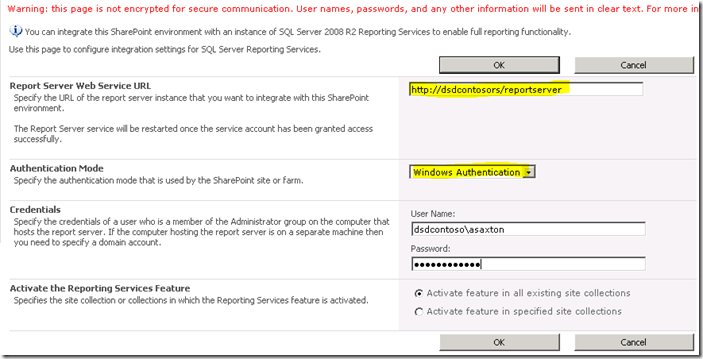
**Figure 18**: Setting Reporting Services Integration credentials
## **Activate Feature**
This gives you an option of activating the Reporting Services on all Site collections, or you can choose which ones you want to activate it on. This just really means which sites will be able to use Reporting Services.
When it is done, you should see the following figure.
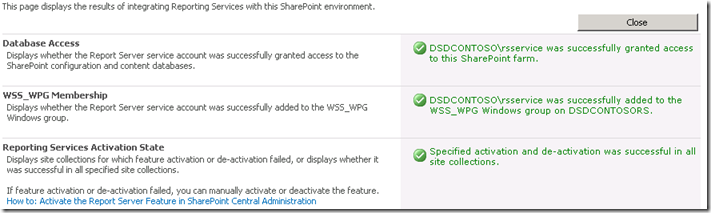
**Figure 19**: Successful Integration of Reporting Services with the SharePoint environment
Going back to the Report Server URL as given in Figure 14, we should see something similar to the following figure.
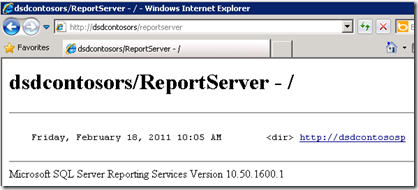
**Figure 20**: Successful Verification of Reporting Services with the SharePoint environment
If your SharePoint site is configured for SSL, it won't show up in this list. It is a known issue and doesn't mean there is a problem. Your reports should still work.
Now, we are ready to use Reporting Services in SharePoint 2010. As the previous version we have a feature (activated when we configure Reporting Services Integration) in the “Site Collection Feature”. Also the installation added 3 content types to add to our site. In Figure 21 we can see 2 of them content types added in a document library to create a custom report using the, as we can see in Figure 21 .
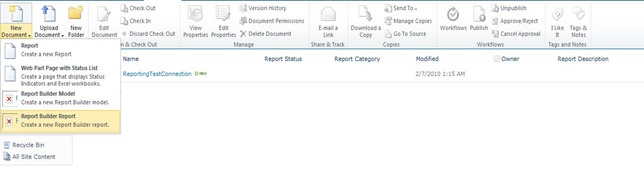
**Figure 21**: Report Builder
The “ **Reporter Builder”** is an ActiveX that we need download on the se rver, as we can see in Figure 22 .
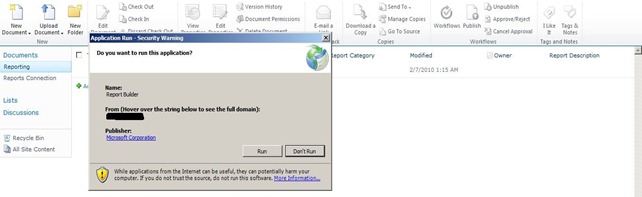
**Figure 22**: Download and Install Report Builder
When download finishes run the **“Report Builder”** . Now, we are ready to design our first re port, as we can see in Figure 23 .
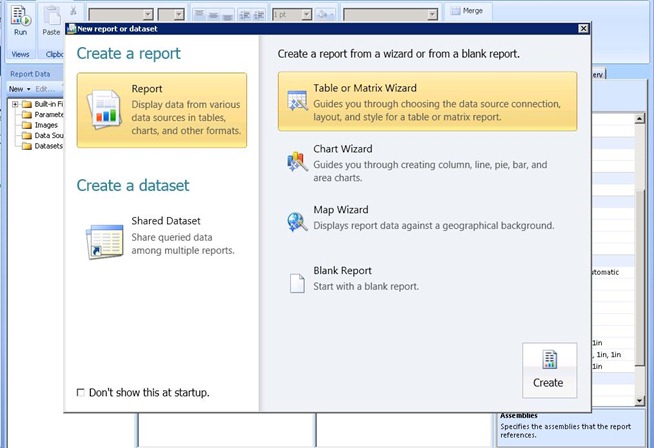
**Figure 23**: Report Builder New Report Generation Wizard
After create our report we could save it in the document library created to put the reports in our SharePoint 2010.
The other content type must be used to create shared connection as data source and save them in a document library in SharePoint. We can create a document library, add this content type and after we can have our connections available to change the data source of the reports.
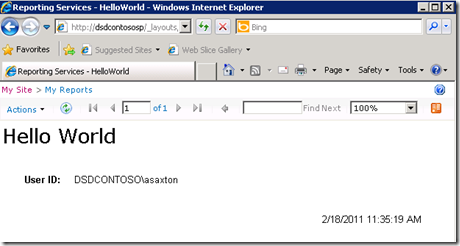
**Figure 24**: Successful export of report to Report Server
## Related articles
- [Installation Prerequisites](https://docs.aspose.com/slides/reportingservices/installation-prerequisites/)
- [Setting up Reporting Services](https://docs.aspose.com/slides/reportingservices/setting-up-reporting-services/)
- [Setting up SharePoint on the RS Server](https://docs.aspose.com/slides/reportingservices/setting-up-sharepoint-on-the-rs-server/)
# Sales Order Detail
>
Source: https://docs.aspose.com/slides/reportingservices/sales-order-detail/
Updated: 2024-11-01
## **Features:**
PPT , tables, styles, rectangles, textboxes, images.

# Sample Examples
>
Source: https://docs.aspose.com/slides/reportingservices/sample-examples/
Updated: 2026-08-13
This gallery demonstrates PPT reports exported by Aspose.Slides for Reporting Services.
## **Reports Examples**
Most of the reports shown here come from the **AdventureWorks** database. AdventureWorks is a sample database for Microsoft SQL Server, available for download from Microsoft [here](http://www.microsoft.com/downloads/details.aspx?familyid=E719ECF7-9F46-4312-AF89-6AD8702E4E6E&displaylang=en).
- [Company Sales](https://docs.aspose.com/slides/reportingservices/company-sales/)
- [Employee Sales Summary](https://docs.aspose.com/slides/reportingservices/employee-sales-summary/)
- [Product Line Sales](https://docs.aspose.com/slides/reportingservices/product-line-sales/)
- [Sales Order Detail](https://docs.aspose.com/slides/reportingservices/sales-order-detail/)
## Related articles
- [High Fidelity to the Report Design](https://docs.aspose.com/slides/reportingservices/high-fidelity-to-the-report-design/)
# Sample Reports Gallery
>
Source: https://docs.aspose.com/slides/reportingservices/sample-reports-gallery/
Updated: 2024-11-01
---
lastmod: 2024-11-01T16:01:00+05:00
title: Sample Reports Gallery
type: docs
weight: 60
url: /reportingservices/sample-reports-gallery/
---
# Setting up Reporting Services
>
Source: https://docs.aspose.com/slides/reportingservices/setting-up-reporting-services/
Updated: 2026-08-13
Our first stop on the RS Server is the Reporting Services Configuration Manager.
## **Service Account**
Be sure to understand what service account you are using for Reporting Services. If we run into issues, it may be related to the service account you are using. The default is Network Service. Whenever I deploy new builds, I always use Domain Accounts, because that is where I am likely to hit issues. For this configuration on my server, I have used a Domain Account called **RSService**.
## **Web Service URL**
We will need to configure the Web Service URL. This is the **ReportServer** virtual directory (vdir) that hosts the Web Services Reporting Services uses, and what SharePoint will communicate with. Unless you want to customize the properties of the vdir (i.e. SSL, ports, host headers, etc…), you should just be able to click Apply here and be good to go.


**Figure 3**: Setting up Web Service URL
When that is done you should see the following figure.

**Figure 4**: Successful set up of Web Service URL
## **Database**
We need to create the Reporting Services Catalog Database. This can be placed on any SQL 2008 or SQL 2008 R2 Database Engine. SQL11 would work ok as well, but that is still in BETA. This action will create two databases, **ReportServer** and **ReportServerTempDB** , by default.
The other important step with this is to make sure that you choose SharePoint Integrated for the database type. Once this choice is made, it cannot be changed. Please observe the Figures 5, 6 and 7 for reference.

**Figure 5**: Creating Report Server Database

**Figure 6**: Setting up Database Server and Authentication Type

**Figure 7**: Setting up Database Name and Mode
For the credentials, this is how the Report Server will communicate with the SQL Server. Whatever account you select, will be given certain rights within the Catalog database as well as a few of the system databases via the RSExecRole. MSDB is one of these databases for Subscription usage as we make use of SQL Agent.

**Figure 8**: Setting up Report Server Database Credentials
Once that is done, it should look like the following figure.

**Figure 9**: Progress to Finish the Report Server Database setup
## **Report Manager URL**
We can skip the Report Manager URL, as it is not used when we are in SharePoint Integrated mode. SharePoint is our frontend. Report Manager does not work.
## **Encryption Keys**
Backup your Encryption Keys and make sure you know where you keep them. If you get into a situation where you need to migrate the Database or restore it, you will need these.

That is it for the Reporting Services Configuration Manager. If you browse to the URL on the Web Service URL tab, it should show something similar to the following figure.

**Figure 12**: Report Server access after installation
What happened? SharePoint is installed on my WFE and I finished setting up Reporting Services. In this example, Reporting Services and SharePoint are on different machines. Had they been on the same machine, you wouldn't have seen this error. We technically need to install SharePoint on the RS Box. That means IIS will be enabled as well.
## Related articles
- [Reporting Services SharePoint Configuration](https://docs.aspose.com/slides/reportingservices/reporting-services-sharepoint-configuration/)
- [Setting up SharePoint on the RS Server](https://docs.aspose.com/slides/reportingservices/setting-up-sharepoint-on-the-rs-server/)
- [Installation Prerequisites](https://docs.aspose.com/slides/reportingservices/installation-prerequisites/)
# Setting up SharePoint on the RS Server
>
Source: https://docs.aspose.com/slides/reportingservices/setting-up-sharepoint-on-the-rs-server/
Updated: 2026-08-13
So, we need to do what we did for the SharePoint WFE. First thing is to go through the prerequisites installation and after that startup the SharePoint setup.
For the setup, we choose Server Farm and a complete install to match my SharePoint Box, as we do not want a standalone install for SharePoint.
### **SharePoint Configuration**
In the SharePoint Configuration Wizard, we want to connect to an existing farm.

**Figure 13**: SharePoint Configuration Wizard
We will then point it to the **SharePoint_Config** database that our farm is using. If you do not know where this is, you can find out through Central Admin through **System Settings -> Manager Servers in this farm.**

**Figure 14**: SharePoint Configuration Wizard

**Figure 15**: SharePoint Configuration Wizard
Once the wizard is done, that is all we need to do on the Report Server Box for now. Going back to the ReportServer URL, we will see another error, but that is because we have not configured it through Central Administrator.

**Figure 16**: Report Server Error
## Related articles
- [Reporting Services SharePoint Configuration](https://docs.aspose.com/slides/reportingservices/reporting-services-sharepoint-configuration/)
- [Installation Prerequisites](https://docs.aspose.com/slides/reportingservices/installation-prerequisites/)
- [Setting up Reporting Services](https://docs.aspose.com/slides/reportingservices/setting-up-reporting-services/)
# SharePoint Adventures Setting up Reporting Services with SharePoint Integration
>
Source: https://docs.aspose.com/slides/reportingservices/sharepoint-adventures-setting-up-reporting-services-with-sharepoint-integration/
Updated: 2024-11-01
# Simple and Affordable Licensing
>
Source: https://docs.aspose.com/slides/reportingservices/simple-and-affordable-licensing/
Updated: 2026-08-13
## Types of Licenses
There are two types of licenses currently offered: Server Subscription Site Subscription
Every license comes with 1 year worth of free upgrades to any new version of the product that comes out and 1 year of unlimited free technical support.
Aspose.Slides for Reporting Services evaluation and paid versions is the same download. Simply download Aspose.Slides for Reporting Services and install it on the server, it will work in the evaluation mode.
Make sure to take advantage of the Aspose.Slides for Reporting Services evaluation as it does not have a time limit and free technical support for evaluation users is provided.
Evaluation mode injects watermarks into exported reports. When you [purchase a license](https://purchase.aspose.com/buy), simply copy the license to the appropriate folder and Aspose.Slides for Reporting Services will start to work in the licensed mode.
## **Server Subscription**
Server subscription provides following features:
- One license is required for each physical or virtual server.
- Unlimited number of processors or cores.
- Unlimited number of Microsoft SQL Server instances.
- Unlimited number of developers.
- Free new releases and hot fixes for 1 year.
- Free technical support for 1 year.
- Discount applies to multiple purchases.
## **Site Subscription**
Site subscription provides following features:
- One license is required per one physical site (campus).
- Unlimited number of physical or virtual servers.
- Unlimited number of processors or cores.
- Unlimited number of Microsoft SQL Server instances.
- Unlimited number of developers.
- Free new releases and hot fixes for 1 year.
- Free technical support for 1 year.
- Discount applies to multiple purchases.
## Related articles
- [Important Features](https://docs.aspose.com/slides/reportingservices/important-features/)
- [License Aspose.Slides for Reporting Services](https://docs.aspose.com/slides/reportingservices/license-aspose-slides-for-reporting-services/)
# Support for Embedding Audio in Presentation
>
Source: https://docs.aspose.com/slides/reportingservices/support-for-embedding-audio-in-presentation/
Updated: 2026-08-13
Microsoft SQL Server Reporting Services does not have built-in abilities to export reports with embedded audio to PowerPoint presentations. Aspose.Slides for Reporting Services 4.10 and onward versions support embedding audio inside exported presentation.
In order to embed audio to slides please put to the report a text box with text:
``` xml
```
It works for SQL Server version 2008 and more. The feature is supported only for PPTX export.
## Related articles
- [Support for Embedding Video in Presentation](https://docs.aspose.com/slides/reportingservices/support-for-embedding-video-in-presentation/)
- [High Fidelity to the Report Design](https://docs.aspose.com/slides/reportingservices/high-fidelity-to-the-report-design/)
- [Product Overview](https://docs.aspose.com/slides/reportingservices/product-overview/)
# Support for Embedding Video in Presentation
>
Source: https://docs.aspose.com/slides/reportingservices/support-for-embedding-video-in-presentation/
Updated: 2026-08-13
Microsoft SQL Server Reporting Services does not have built-in abilities to export reports with embedded video to PowerPoint presentations. Aspose.Slides for Reporting Services 4.10 and onward versions support embedding video inside presentation.
In order to embed video to slides please put to the report a text box with text:
``` xml
```
It works for SQL Server version 2008 and more. The feature is supported only for PPTX export.
## Related articles
- [Support for Embedding Audio in Presentation](https://docs.aspose.com/slides/reportingservices/support-for-embedding-audio-in-presentation/)
- [High Fidelity to the Report Design](https://docs.aspose.com/slides/reportingservices/high-fidelity-to-the-report-design/)
- [Product Overview](https://docs.aspose.com/slides/reportingservices/product-overview/)
# Supported File Formats
> See which formats Aspose.Slides for Reporting Services reads (RDL, RPL) and which presentation and document formats it exports reports to.
Source: https://docs.aspose.com/slides/reportingservices/supported-file-formats/
Updated: 2026-09-28
## **Supported Microsoft PowerPoint Versions**
- Microsoft PowerPoint 97
- Microsoft PowerPoint 2000
- Microsoft PowerPoint XP
- Microsoft PowerPoint 2003
- Microsoft PowerPoint 2007
- Microsoft PowerPoint 2010
- Microsoft PowerPoint 2013
- Microsoft PowerPoint 2016
- Microsoft PowerPoint 2019
- Microsoft PowerPoint for MAC
## **Supported File Formats**
The following table indicates the file formats that Aspose.Slides for Reporting Services can load and save.
|**Format**|**Description**|**Load**|**Save**|**Remarks**|
| :- | :- | :- | :- | :- |
|[PPT](https://docs.fileformat.com/presentation/ppt/)|PowerPoint presentation 97 - 2003| |✓| |
|[PPS](https://docs.fileformat.com/presentation/pps/)|PowerPoint slideShow 97 - 2003| |✓| |
|[PPTX](https://docs.fileformat.com/presentation/pptx/)|PowerPoint presentation 2007 - 2019| |✓| |
|[PPSX ](https://docs.fileformat.com/presentation/ppsx/)|PowerPoint slideShow 2007 - 2019| |✓| |
|[ODP](https://docs.fileformat.com/presentation/odp/)|OpenDocument presentation| |✓| |
|[XPS](https://docs.fileformat.com/page-description-language/xps/)|XPS Documents| |✓| |
|RPL|Report Page Layout|✓| | |
|RDL|Report Definition Language|✓| | |
## Related articles
- [PPT, PPS, PPTX and PPSX Export](https://docs.aspose.com/slides/reportingservices/ppt-pps-pptx-and-ppsx-export/)
- [Product Overview](https://docs.aspose.com/slides/reportingservices/product-overview/)
- [Exporting Reports to RPL format](https://docs.aspose.com/slides/reportingservices/exporting-reports-to-rpl-format/)
# System Requirements
> Check which report servers, editions and .NET Framework version Aspose.Slides for Reporting Services needs before you install it.
Source: https://docs.aspose.com/slides/reportingservices/system-requirements/
Updated: 2026-09-28
## **Overview**
Aspose.Slides for Reporting Services runs inside the report server as a rendering extension. This page lists what the report server machine needs before you [install](https://docs.aspose.com/slides/reportingservices/installing-aspose-slides-for-reporting-services/) it. Microsoft PowerPoint and Microsoft Office are not required.
## **Supported Report Servers**
- Microsoft SQL Server 2005 Reporting Services
- Microsoft SQL Server 2008 and 2008 R2 Reporting Services
- Microsoft SQL Server 2012 Reporting Services
- Microsoft SQL Server 2014 Reporting Services
- Microsoft SQL Server 2016 Reporting Services
- Microsoft SQL Server 2017 Reporting Services
- Microsoft SQL Server 2019 Reporting Services
- Power BI Report Server, for paginated (RDL) reports
Both 32-bit and 64-bit report servers are supported. SQL Server 2005 uses its own build of the extension; all later versions and Power BI Report Server use the same build. [Install Manually](https://docs.aspose.com/slides/reportingservices/install-manually/) shows which file to copy.
If your report server version is not in this list, ask on the [free support forum](https://forum.aspose.com/c/slides/11) before you deploy.
## **Report Server Editions**
For SQL Server 2016 Reporting Services and later and for Power BI Report Server, Microsoft supports rendering extensions in the Enterprise, Standard, Developer and Evaluation editions; the Web and Express editions do not support them. See [Reporting Services features supported by editions](https://learn.microsoft.com/en-us/sql/reporting-services/reporting-services-features-supported-by-the-editions-of-sql-server). The MSI installer skips Express edition instances of SQL Server 2016 and earlier.
## **.NET Framework**
.NET Framework 3.5 must be installed on the report server machine. The extension's assemblies are built for the .NET Framework 2.0 runtime, and the MSI installer stops with a message if .NET Framework 3.5 is missing. On Windows Server, add **.NET Framework 3.5 Features** in the Add Roles and Features Wizard; see [Install .NET Framework 3.5 on Windows](https://learn.microsoft.com/en-us/dotnet/framework/install/dotnet-35-windows).
## **Permissions**
Installing the extension changes files in the report server folder, so both installation routes need local administrator rights. If you start the MSI installer without them, it offers to restart itself with administrator privileges.
## **FAQ**
**Do I need Microsoft PowerPoint on the report server?**
No. The extension creates the presentations itself; neither PowerPoint nor Microsoft Office has to be installed.
**Can I install the extension on an Express edition?**
No. Express editions do not support rendering extensions. The MSI installer hides Express instances of SQL Server 2016 and earlier; on later versions, do not select an Express instance.
**Which formats does the extension add to the export list?**
PPT, PPS, PPTX, PPSX, ODP and XPS. See [Supported File Formats](https://docs.aspose.com/slides/reportingservices/supported-file-formats/).
# Using Aspose.Slides with ReportViewer 2010 and 2012
>
Source: https://docs.aspose.com/slides/reportingservices/using-aspose-slides-with-reportviewer-2010-and-2012/
Updated: 2026-08-13
This article teaches you how to export reports from ReportViewer 2010/2012 to a PowerPoint presentation.
RplRenderer class renders [Report Page Layout (RPL) Binary Stream Format](https://docs.microsoft.com/en-us/openspecs/sql_server_protocols/ms-rpl/9c4ff7ba-f6da-4092-9670-aa0e54e73887) to PowerPoint presentation.
RplRenderer uses [soft page breaks](https://docs.microsoft.com/en-us/sql/reporting-services/report-design/rendering-behaviors-report-builder-and-ssrs) to control page size use InteractiveHeight and InteractiveWidth RDL tags.
## **Sample Code**
This code will show how to export a report from ReportViewer 2010/2012 to PPT/PPTX using RplRenderer. Execute the RenderToPpt method to render a current report to PPT.
[**C#**]()
``` xml
using System;
using System.Collections;
using System.IO;
using System.Reflection;
using Microsoft.Reporting.WinForms;
namespace Slides.ReportViewer2010
{
class SlidesExportHelper
{ ///
/// Renders current report to Powerpoint presentation
///
/// The report viewer object.
/// The output presentation format.
/// The output filename.
public static void RenderWithAsposeSlides(ReportViewer reportViewer, Aspose.Slides.ReportingServices.OutputPresentationFormat format, string filename)
{
//Enable Export to RPL feature
EnableRplRenderExtension(reportViewer);
//create file for our presentation
using (FileStream pptSteam = new FileStream(filename, FileMode.Create))
{
Aspose.Slides.ReportingServices.RplRenderer renderer = new Aspose.Slides.ReportingServices.RplRenderer();
//start rendering process
//here we are choosing to export in PPT format and providing outputStream
renderer.StartRendering(format);
int page = 1;
//this cycle iterates through all pages of report
while (true)
{
using (MemoryStream rplStream = CreateRplStream(reportViewer, page))
{
//if rplStream is empty then we reached end of report
if (rplStream.Length == 0)
break;
//add report page as slide to the document
renderer.RenderPage(rplStream);
}
page++;
}
//call finish method to flush our newly created presentation to output stream
renderer.FinishRendering(pptSteam);
}
}
///
/// Enables the RPL rendering extension.
/// Be careful because this method alters internal state of ReportViewer class instance
/// and there is no guarantee that this method will work with future version of ReportViewer
///
/// The report viewer.
public static void EnableRplRenderExtension(ReportViewer reportViewer)
{
object service = null;
if (reportViewer.ProductVersion.StartsWith("11"))
service = reportViewer.LocalReport.GetType().GetField("m_processingHost", BindingFlags.NonPublic | BindingFlags.Instance).GetValue(reportViewer.LocalReport);
else
service = reportViewer.LocalReport.GetType().GetField("m_previewService", BindingFlags.NonPublic | BindingFlags.Instance).GetValue(reportViewer.LocalReport);
var extensions = service
.GetType()
.GetMethod("ListRenderingExtensions")
.Invoke(service, null);
IList RenderingExtensions = (IList)extensions;
bool rplExportEnabled = false;
foreach (var extension in RenderingExtensions)
{
var name = extension
.GetType()
.GetProperty("Name")
.GetValue(extension, null)
.ToString();
if (name == "RPL")
{
extension
.GetType()
.GetField("m_isExposedExternally",
BindingFlags.NonPublic | BindingFlags.Instance)
.SetValue(extension, true);
rplExportEnabled = true;
break;
}
}
if (!rplExportEnabled)
throw new Exception("Can't enable RPL export. Please, make sure that you are using ReportViewer 2010 or ReportViewer 2012.");
}
///
/// Renders specific page to RPL
///
/// The report viewer.
/// The page.
static MemoryStream CreateRplStream(ReportViewer reportViewer, int page)
{
Warning[] warnings;
var stream = new MemoryStream();
reportViewer.LocalReport.Render("RPL",
String.Format(
@"
{0}
{0}
Embedded
", page),
(CreateStreamCallback)delegate { return stream; },
out warnings);
return stream;
}
}
}
```
## **Using from Windows Forms**
You may want to add Export buttons to TollStripPanel of ReportViewer by adding this code to the Form's constructor:
[**C#**]()
``` xml
ToolStrip toolStrip = (ToolStrip) reportViewer.Controls.Find("toolStrip1", true)[0];
ToolStripItem exportButton = toolStrip.Items.Add("Export to Pptx");
exportButton.Click += new EventHandler((s,e) =>
{
SlidesExportHelper.RenderWithAsposeSlides(this.reportViewer,
OutputPresentationFormat.Pptx,
"SalesReport.pptx");
});
exportButton = toolStrip.Items.Add("Export to Ppt");
exportButton.Click += new EventHandler((s,e)=>
{
SlidesExportHelper.RenderWithAsposeSlides(this.reportViewer,
OutputPresentationFormat.Ppt,
"SalesReport.ppt");
});
```
- The sample project can be downloaded from [this link ](http://www.aspose.com/docs/download/attachments/24150112/Slides.ReportViewer2010.zip)
- The sample webform project can be downloaded from [this link](http://www.aspose.com/docs/download/attachments/24150112/Report+Viewer+WebForm.zip)
## Related articles
- [Exporting Reports to RPL format](https://docs.aspose.com/slides/reportingservices/exporting-reports-to-rpl-format/)
# World Class Free Technical Support
>
Source: https://docs.aspose.com/slides/reportingservices/world-class-free-technical-support/
Updated: 2026-08-13
Aspose is renowned for its free and unlimited technical support provided directly by the developers of the products. If a new version of a product is available, or if resolving a question results in a fix, all new releases are free if you have an active subscription.
## **Getting Support**
### **Forums**
[Aspose's Support Forums](https://forum.aspose.com/) is the place not only to resolve technical issues, but to participate in discussions with the vibrant and growing community of Aspose users. Currently there are over 190,000 users registered at the Aspose website.
### **Blogs**
[Aspose.Blogs](https://blog.aspose.com/) is the place to look for information about the latest releases and about what Aspose developers have to say.
### **Need more support?**
Aspose offers free support to all users. For companies want that their issue will get prioritized, or who want to influence our product development road map, there are [advanced support options](https://helpdesk.aspose.com/kb/faq/2-Developer-Business-Support-Key-Benefits-Conditions) like Priority Support and Enterprise Support.