# Aspose.Slides for SharePoint
> Complete English documentation. Each page retains its canonical source URL.
# Aspose.Slides for SharePoint
> Start here: install Aspose.Slides for SharePoint on a SharePoint farm, convert a first presentation to PDF in a document library, and find the pages on formats, licensing, activation and support.
Source: https://docs.aspose.com/slides/sharepoint/
Updated: 2026-10-27
 Aspose.Slides for SharePoint is a farm solution for SharePoint 2007 to 2019 that converts PowerPoint presentations stored in document libraries on the server, without Microsoft PowerPoint and without writing code.
It converts PPT and PPTX files to PDF, TIFF, XPS, HTML, SWF and ODP, and to the PPS, PPSX, PPTM, PPSM, POTX and POTM PowerPoint formats, and saves the result in a document library.
Explore features and support — browse the library features and open their guides.
------
Get Started
GETTING STARTED
EVALUATE
Build with Slides
CONVERT
Reference & Support
REFERENCE
SUPPORT
------
## **Your first export**
Aspose.Slides for SharePoint is installed once on the farm and then used from any document library where it is activated:
1. Download the ZIP archive from the [download page](https://releases.aspose.com/slides/sharepoint/) and unpack it on a server in your SharePoint farm.
2. Run the setup program that matches your SharePoint version: *Setup2007.exe*, *Setup2010.exe*, *Setup2013.exe*, *Setup2016.exe* or *Setup2019.exe*. Use an account that can install and deploy SharePoint solutions. Accept the license agreement, select the site collections to activate the feature on, and let the setup deploy the solution. Each screen is described in [Installation](https://docs.aspose.com/slides/sharepoint/installing-aspose-slides-for-sharepoint/).
3. Open a document library in one of those site collections, open the menu of a PPT or PPTX file, and select **Convert via Aspose.Slides**. On SharePoint 2007, the menu item is named **Convert with Aspose.Slides**.
4. Under **Convert to**, select **PDF - Adobe Portable Document**. Change the destination file name and folder if you need to, and click **Convert**.
5. When the conversion is complete, click **Destination Library** to open the folder that holds the new PDF file.
Without a license, the converted file carries an evaluation watermark — see [Licensing](https://docs.aspose.com/slides/sharepoint/installing-aspose-slides-for-sharepoint-license/). For the same steps with screenshots, see [Converting Microsoft PowerPoint Documents into Other Formats](https://docs.aspose.com/slides/sharepoint/converting-microsoft-powerpoint-documents-into-other-formats/).
## Related articles
- [Product Overview](https://docs.aspose.com/slides/sharepoint/product-overview/)
- [Introduction](https://docs.aspose.com/slides/sharepoint/introduction/)
- [SharePoint Document Library](https://docs.aspose.com/slides/sharepoint/sharepoint-document-library/)
# Benefits of using Aspose.Slides for SharePoint
>
Source: https://docs.aspose.com/slides/sharepoint/benefits-of-using-aspose-slides-for-sharepoint/
Updated: 2024-11-01
The following are a few of the benefits Aspose.Slides for SharePoint offers:
- The SharePoint site server cannot convert Mircrosoft PowerPoint files to other formats on the server. Aspose.Slides for SharePoint adds this feature.
- There is no need to install Microsoft PowerPoint on local system as Aspose.Slides for SharePoint does not require it for conversions.
- There is no pre-requisites except those required for creating a SharePoint site.
- Aspose.Slides for SharePoint can be easily [deployed on the SharePoint site server](https://docs.aspose.com/slides/sharepoint/installing-aspose-slides-for-sharepoint/).
- Aspose.Slides for SharePoint supports a number of [input and output formats](https://docs.aspose.com/slides/sharepoint/multiple-format-support/).
- Aspose.Slides for SharePoint exposes a public API so that developers can develop their own SharePoint solutions.
## Related articles
- [Summary](https://docs.aspose.com/slides/sharepoint/summary/)
- [SharePoint Document Library](https://docs.aspose.com/slides/sharepoint/sharepoint-document-library/)
- [System Requirements](https://docs.aspose.com/slides/sharepoint/system-requirements/)
# Convert One File
> Convert one PowerPoint file in a SharePoint document library with Aspose.Slides for SharePoint, from its menu to the converted file.
Source: https://docs.aspose.com/slides/sharepoint/convert-one-file/
Updated: 2026-09-28
To convert a presentation in a document library:
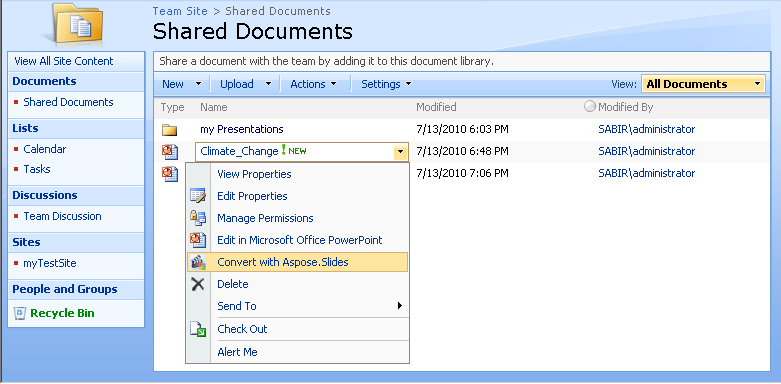
1. Open the menu of the PPT or PPTX file (its Edit Control Block) and select **Convert via Aspose.Slides**. On SharePoint 2007, the menu item is named **Convert with Aspose.Slides**.
**Selecting Convert with Aspose.Slides in the menu of a document on SharePoint 2007**
2. On the conversion page, select the output format under **Convert to**. If you wish, change the destination file name and the destination folder.
3. Click **Convert**.
4. When the conversion is complete, click **Source Library** or **Destination Library** to return to a document library. The converted file is in the destination folder.
The same steps, with screenshots of each page, are in [Converting Microsoft PowerPoint Documents into Other Formats](https://docs.aspose.com/slides/sharepoint/converting-microsoft-powerpoint-documents-into-other-formats/).
# Converting Microsoft PowerPoint Documents into Other Formats
> Convert a PowerPoint presentation in a SharePoint document library to PDF or another format with the Convert via Aspose.Slides menu item, step by step.
Source: https://docs.aspose.com/slides/sharepoint/converting-microsoft-powerpoint-documents-into-other-formats/
Updated: 2026-09-28
When Aspose.Slides for SharePoint is installed on the SharePoint server and activated for a site collection, it adds the **Convert via Aspose.Slides** item to the menu of documents in its document libraries, as shown below. On SharePoint 2007, the item is named **Convert with Aspose.Slides**.
**Installing Aspose.Slides for SharePoint adds the Convert via Aspose.Slides item to document menus**

## **Converting a Presentation**
To convert a Microsoft PowerPoint presentation (PPT or PPTX) from a SharePoint document library:
1. Select a Microsoft PowerPoint presentation in a document library.
2. Open its menu and click **Convert via Aspose.Slides**.
**The menu of the Presentation 2 file, showing the Convert via Aspose.Slides item**

3. Select the output format under **Convert to**. If you wish, change the output file name and the destination folder.
4. Click **Convert** to convert the file.
**The conversion page lets you select the output format, file name and destination**

5. When the conversion is complete, a success message is displayed.
**The conversion was successful**

6. Click **Source Library** (to go to the source folder) or **Destination Library** (to go to the folder the file was saved to).
The converted document appears in the document library.
**The converted document shown in the library it was saved to**

The screenshots were taken with an earlier version, which offered only the PDF, TIFF and XPS formats. The current conversion page offers more output formats; see [Multiple Format Support](https://docs.aspose.com/slides/sharepoint/multiple-format-support/).
On SharePoint 2010 and later, you can also select one or more presentations in the library and click **Convert Slides** on the **Aspose Tools** ribbon tab. It opens the same conversion page.
## Related articles
- [SharePoint Document Library](https://docs.aspose.com/slides/sharepoint/sharepoint-document-library/)
- [Multiple Format Support](https://docs.aspose.com/slides/sharepoint/multiple-format-support/)
- [Introduction](https://docs.aspose.com/slides/sharepoint/introduction/)
# Deployment and Activation
> What the Aspose.Slides for SharePoint solution installs on the farm when it is deployed, and what its site collection feature adds when it is activated.
Source: https://docs.aspose.com/slides/sharepoint/deployment-and-activation/
Updated: 2026-11-08
## **Deployment**
During deployment, the Aspose.Slides for SharePoint solution:
- Installs its assembly into the Global Assembly Cache and adds SafeControl entries for it to the **web.config** file. On SharePoint 2010 and later, this is *Aspose.Slides.SharePoint2010.dll*, *Aspose.Slides.SharePoint2013.dll* or *Aspose.Slides.SharePoint2016.dll* (the SharePoint 2019 package also installs *Aspose.Slides.SharePoint2016.dll*). On SharePoint 2007, it is *Aspose.Slides.SharePointUI.dll*, together with *Aspose.Slides.SharePoint.Deployment.dll*.
- Copies the conversion page and its images and other supporting files to the SharePoint installation folders.
- Installs the feature and makes it available for activation on site collections.
## **Activation**
Aspose.Slides for SharePoint is packaged as a site collection feature and can be activated or deactivated on site collections. When it is activated on a site collection, the feature adds:
- On SharePoint 2010 and later:
- the **Convert via Aspose.Slides** item to the menu of documents in document libraries;
- the **Aspose Tools** ribbon tab with the **Convert Slides** button, which converts the selected documents;
- the **View Slides** item to the menu of PPT, PPTX, PPS and PPSX files.
- On SharePoint 2007:
- the **Convert with Aspose.Slides** item to the menu of documents in document libraries;
- the **Convert All with Aspose.Slides** item to the **Actions** menu of document libraries.
On SharePoint 2007, activation also makes changes to the virtual directory of the parent web application of the site collection. It:
- Adds the conversion settings page to the sitemap file.
- Copies the necessary resource files to the App_GlobalResources folder in the virtual directory.
The setup program activates the feature on the site collections you select during [installation](https://docs.aspose.com/slides/sharepoint/installing-aspose-slides-for-sharepoint/).
[](https://docs.aspose.com/slides/sharepoint/deployment-and-activation/visual-deployment-and-activation-17345ab5b6d5.svg)
*Activation applies to the selected site collection. This diagram lists the documented commands by SharePoint version; their appearance depends on the installed interface.*
## Related articles
- [Installing Aspose.Slides for SharePoint](https://docs.aspose.com/slides/sharepoint/installing-aspose-slides-for-sharepoint/)
- [Benefits of using Aspose.Slides for SharePoint](https://docs.aspose.com/slides/sharepoint/benefits-of-using-aspose-slides-for-sharepoint/)
# Evaluate Aspose.Slides for SharePoint
> Evaluate Aspose.Slides for SharePoint with the regular download: install it, convert presentations in evaluation mode, and switch to licensed mode by installing the license solution.
Source: https://docs.aspose.com/slides/sharepoint/evaluate-aspose-slides-for-sharepoint/
Updated: 2026-09-28
Take advantage of the free Aspose.Slides for SharePoint evaluation: it has no time limit and comes with free technical support. We encourage you to evaluate the product before buying, so that you know it does what you need.
The evaluation and the paid version of Aspose.Slides for SharePoint are the same download. [Download Aspose.Slides for SharePoint](https://releases.aspose.com/slides/sharepoint/), [install it](https://docs.aspose.com/slides/sharepoint/installing-aspose-slides-for-sharepoint/), and it works in evaluation mode by default.
In evaluation mode, the converted document carries an evaluation watermark. When you have purchased a license, install the license solution over the installed evaluation copy, as described in [Installing Aspose.Slides for SharePoint License](https://docs.aspose.com/slides/sharepoint/installing-aspose-slides-for-sharepoint-license/), and Aspose.Slides for SharePoint works in licensed mode.
**Evaluation watermark on a slide**

## Related articles
- [Evaluate Aspose.Slides](https://docs.aspose.com/slides/sharepoint/evaluate-aspose-slides/)
- [Aspose.Slides for SharePoint](https://docs.aspose.com/slides/sharepoint/)
- [Product Overview](https://docs.aspose.com/slides/sharepoint/product-overview/)
# Evaluate Aspose.Slides
> What the evaluation version of Aspose.Slides for SharePoint does, how its output is marked, and how to turn it into the licensed version.
Source: https://docs.aspose.com/slides/sharepoint/evaluate-aspose-slides/
Updated: 2026-09-28
The evaluation download of Aspose.Slides for SharePoint is the same as the purchased download. It becomes the licensed version when you install the license solution package on the farm; see [Installing Aspose.Slides for SharePoint License](https://docs.aspose.com/slides/sharepoint/installing-aspose-slides-for-sharepoint-license/). No code is involved.
Without a license, Aspose.Slides for SharePoint converts to every supported format, but the converted files carry an evaluation watermark, and the conversion page shows an evaluation notice.
**Evaluation watermark in a converted PDF file**

If you want to test Aspose.Slides without the evaluation limitations, you can also request a 30-day temporary license. See [How to get a Temporary License?](https://purchase.aspose.com/temporary-license)
## Related articles
- [Evaluate Aspose.Slides for SharePoint](https://docs.aspose.com/slides/sharepoint/evaluate-aspose-slides-for-sharepoint/)
# Features
>
Source: https://docs.aspose.com/slides/sharepoint/features/
Updated: 2024-11-01
---
lastmod: 2024-11-01T16:01:00+05:00
title: Features
type: docs
weight: 30
url: /sharepoint/features/
---
# Getting Started
>
Source: https://docs.aspose.com/slides/sharepoint/getting-started/
Updated: 2024-11-01
---
lastmod: 2024-11-01T16:01:00+05:00
title: Getting Started
type: docs
weight: 10
url: /sharepoint/getting-started/
---
# Installation
>
Source: https://docs.aspose.com/slides/sharepoint/installation/
Updated: 2024-11-01
# Installing Aspose.Slides for SharePoint License
> Install the Aspose.Slides for SharePoint license on a SharePoint farm: add the license solution to the solution store, deploy it, and check that converted files no longer carry the evaluation watermark.
Source: https://docs.aspose.com/slides/sharepoint/installing-aspose-slides-for-sharepoint-license/
Updated: 2026-09-28
Once you are happy with your evaluation, you can [purchase a license](https://purchase.aspose.com/pricing/slides/sharepoint/). Before purchasing, make sure you understand and agree to the license subscription terms. The license is emailed to you when the order has been paid.
The license is a ZIP archive containing a regular SharePoint solution package. The archive contains:
- Aspose.Slides.SharePoint.License.wsp – the SharePoint solution package file. The license is packaged as a SharePoint solution to make deployment and retraction across a server farm easy.
- readme.txt – License installation instructions.
## **Deploying the License**
License installation is performed from the server console via **stsadm.exe**.
The paths are omitted in the following section for clarity.
Perform the following steps to deploy the Aspose.Slides for SharePoint license:
1. Run stsadm to add the solution to the SharePoint solution store:
```bat
Stsadm.exe -o addsolution -filename Aspose.Slides.SharePoint.License.wsp
```
2. Deploy the solution to all servers in the farm:
```bat
Stsadm.exe -o deploysolution -name Aspose.Slides.SharePoint.License.wsp -immediate -force
```
3. Execute administrative timer jobs to complete the deployment immediately:
```bat
Stsadm.exe -o execadmsvcjobs
```
The `addsolution` operation takes the path of the solution file in `-filename`; the `deploysolution` operation takes the name of the solution that is already in the solution store in `-name`.
You get a warning when running the deployment step if the SharePoint Administration service is not running. **stsadm.exe** relies on this service and the SharePoint Timer service to replicate solution data across the farm. If these services are not running on your server farm, you may need to deploy the license on each server.
On SharePoint 2010 and later, the SharePoint Management Shell cmdlets `Add-SPSolution`, `Install-SPSolution` and `Start-SPAdminJob` correspond to the `addsolution`, `deploysolution` and `execadmsvcjobs` operations. See [Stsadm to Microsoft PowerShell mapping in SharePoint Server](https://learn.microsoft.com/en-us/sharepoint/technical-reference/stsadm-to-microsoft-powershell-mapping).
## **Test the License**
To test that the license has been installed correctly, convert any presentation into a new format. If there is no evaluation watermark in the converted file, the license is active.
## Related articles
- [Uninstalling Aspose.Slides for SharePoint License](https://docs.aspose.com/slides/sharepoint/uninstalling-aspose-slides-for-sharepoint-license/)
- [Installing Aspose.Slides for SharePoint](https://docs.aspose.com/slides/sharepoint/installing-aspose-slides-for-sharepoint/)
- [System Requirements](https://docs.aspose.com/slides/sharepoint/system-requirements/)
# Installing Aspose.Slides for SharePoint
> Install Aspose.Slides for SharePoint on a SharePoint farm: pick the setup program for your SharePoint version, run the system check, and deploy and activate the solution.
Source: https://docs.aspose.com/slides/sharepoint/installing-aspose-slides-for-sharepoint/
Updated: 2026-09-28
## **Package Contents**
Aspose.Slides for SharePoint is downloaded from the [download page](https://releases.aspose.com/slides/sharepoint/) as a ZIP archive. The archive holds one SharePoint solution package (WSP) and one setup program for each supported SharePoint version:
| SharePoint version | Setup program | Solution package |
| :- | :- | :- |
| SharePoint 2007 | Setup2007.exe | Aspose.Slides.SharePoint2007.wsp |
| SharePoint 2010 | Setup2010.exe | Aspose.Slides.SharePoint2010.wsp |
| SharePoint Server 2013 | Setup2013.exe | Aspose.Slides.SharePoint2013.wsp |
| SharePoint Server 2016 | Setup2016.exe | Aspose.Slides.SharePoint2016.wsp |
| SharePoint Server 2019 | Setup2019.exe | Aspose.Slides.SharePoint2019.wsp |
Each setup program has a configuration file next to it (for example, *Setup2019.exe.config*) that names the solution package it installs. The *License* folder holds a link to the end-user license agreement and the third-party license notices.
Aspose.Slides for SharePoint is packaged as a SharePoint solution, which SharePoint deploys across the server farm. Its feature is then activated or deactivated per site collection.
## **Installation Process**
Before installing, the setup program runs a system check. It verifies that:
- SharePoint is installed on the server.
- The current user has permission to install and deploy SharePoint solutions.
- The SharePoint Administration service is started.
- The SharePoint Timer service is started.
- The solution package named in the configuration file is present.
The Administration and Timer services are needed because some setup actions run as timer jobs that propagate the solution to all servers in the farm.
### **Running the Installation**
To install Aspose.Slides for SharePoint:
1. Unpack the ZIP archive to a local drive on a server in the SharePoint farm.
2. Run the setup program that matches your SharePoint version (see the table above) and follow the instructions on the screen. The setup program:
1. Runs the system check. Setup does not continue if any check fails.
**Running a system check**

2. Displays the end-user license agreement. You must accept it to continue.
**The license agreement**

3. Displays the deployment targets. Select the web applications and site collections to activate the feature for.
**Selecting deployment targets**

4. Deploys the solution to the farm.
**The installation progress**

5. Activates Aspose.Slides for SharePoint on the selected site collections.
6. Lists the web applications and site collections where the solution has been deployed and activated.
**Successful installation**

The screenshots were taken on SharePoint 2007. The setup programs for later versions go through the same screens.
If the same version of Aspose.Slides for SharePoint is already installed, the setup program offers to repair or remove it. If another version is installed, it offers to upgrade or remove it.
After installation, a **Convert via Aspose.Slides** item appears in the menu of files in document libraries of the selected site collections (on SharePoint 2007, **Convert with Aspose.Slides**). To convert a first presentation, see [Converting Microsoft PowerPoint Documents into Other Formats](https://docs.aspose.com/slides/sharepoint/converting-microsoft-powerpoint-documents-into-other-formats/). What the solution adds to the farm is described in [Deployment and Activation](https://docs.aspose.com/slides/sharepoint/deployment-and-activation/).
## **FAQ**
**Which setup program do I run?**
The one whose name matches your SharePoint version. For example, run *Setup2016.exe* on a SharePoint Server 2016 farm. Each setup program installs only its own solution package.
**Do I need a separate download for the licensed version?**
No. The same package works in evaluation mode until you install the license solution; see [Installing Aspose.Slides for SharePoint License](https://docs.aspose.com/slides/sharepoint/installing-aspose-slides-for-sharepoint-license/).
**How do I remove the product?**
Run the same setup program again and select **Remove**; see [Uninstalling Aspose.Slides for SharePoint](https://docs.aspose.com/slides/sharepoint/uninstalling-aspose-slides-for-sharepoint/).
## Related articles
- [Installing Aspose.Slides for SharePoint License](https://docs.aspose.com/slides/sharepoint/installing-aspose-slides-for-sharepoint-license/)
- [Uninstalling Aspose.Slides for SharePoint License](https://docs.aspose.com/slides/sharepoint/uninstalling-aspose-slides-for-sharepoint-license/)
- [Benefits of using Aspose.Slides for SharePoint](https://docs.aspose.com/slides/sharepoint/benefits-of-using-aspose-slides-for-sharepoint/)
# Introduction
> An introduction to the Aspose.Slides for SharePoint user's guide: what the product does in a SharePoint site and which articles cover document libraries, benefits and conversion.
Source: https://docs.aspose.com/slides/sharepoint/introduction/
Updated: 2026-09-28
SharePoint sites are meant for collaboration, communication and content storage in order to fulfill particular business needs. They enable a group of individuals to achieve a common goal by facilitating information sharing and communication. The information is most often available as a website and is accessed via a web browser.
## **What is SharePoint and Aspose.Slides?**
Aspose.Slides for SharePoint is a solution for converting Microsoft PowerPoint presentations (PPT and PPTX) to other formats: PDF, TIFF, XPS, HTML, SWF, ODP, PPS, PPSX, PPTM, PPSM, POTX and POTM. It allows you to convert PowerPoint files in a SharePoint site without using Microsoft PowerPoint. The full list of formats is in [Supported File Formats](https://docs.aspose.com/slides/sharepoint/supported-file-formats/).
This article covers the following:
- [A note on the SharePoint document library](https://docs.aspose.com/slides/sharepoint/sharepoint-document-library/).
- [The benefits of using Aspose.Slides for SharePoint](https://docs.aspose.com/slides/sharepoint/benefits-of-using-aspose-slides-for-sharepoint/).
- [How to convert Microsoft PowerPoint documents into other formats](https://docs.aspose.com/slides/sharepoint/converting-microsoft-powerpoint-documents-into-other-formats/).
- [Summary](https://docs.aspose.com/slides/sharepoint/summary/)
## Related articles
- [Product Overview](https://docs.aspose.com/slides/sharepoint/product-overview/)
- [Aspose.Slides for SharePoint](https://docs.aspose.com/slides/sharepoint/)
- [System Requirements](https://docs.aspose.com/slides/sharepoint/system-requirements/)
# License Aspose.Slides for SharePoint
>
Source: https://docs.aspose.com/slides/sharepoint/license-aspose-slides-for-sharepoint/
Updated: 2024-11-01
---
lastmod: 2024-11-01T16:01:00+05:00
title: License Aspose.Slides for SharePoint
type: docs
weight: 60
url: /sharepoint/license-aspose-slides-for-sharepoint/
---
# Multiple Format Support
> The input formats Aspose.Slides for SharePoint accepts and the output formats offered on its conversion page.
Source: https://docs.aspose.com/slides/sharepoint/multiple-format-support/
Updated: 2026-09-28
With Aspose.Slides for SharePoint, you can convert PowerPoint presentations to many popular document formats from within a SharePoint document library.
## **Supported Input Formats**
Aspose.Slides for SharePoint converts the following input formats:
- PPT – Microsoft PowerPoint Presentation 97 - 2003
- PPTX – Office Open XML Presentation
To convert documents, Aspose.Slides for SharePoint relies on a built-in version of [Aspose.Slides for .NET](https://products.aspose.com/slides/net/).
## **Supported Output Formats**
The **Convert to** list on the conversion page offers the following output formats, in this order:
- PDF – Adobe Portable Document
- TIFF – Pictures package
- XPS – XML Paper Specification
- PPS – Slide show presentation
- PPSX – Microsoft PowerPoint Open XML Slide Show
- ODP – OpenDocument presentation
- PPTM – Microsoft PowerPoint Open XML Macro-Enabled Presentation
- PPSM – Microsoft PowerPoint Open XML Macro-Enabled Slide Show
- POTX – Microsoft PowerPoint Template
- POTM – PowerPoint Open XML Macro-Enabled Presentation Template
- PDFNotes – Presentation notes view in PDF format
- HTML – Presentation in HTML format
- TIFFNotes – Presentation notes view as multi-page TIFF image
- SWF – Shockwave Flash Movie
- SWFNotes – Presentation notes view as multi-page SWF
**Selecting the output format on the Conversion Settings page**
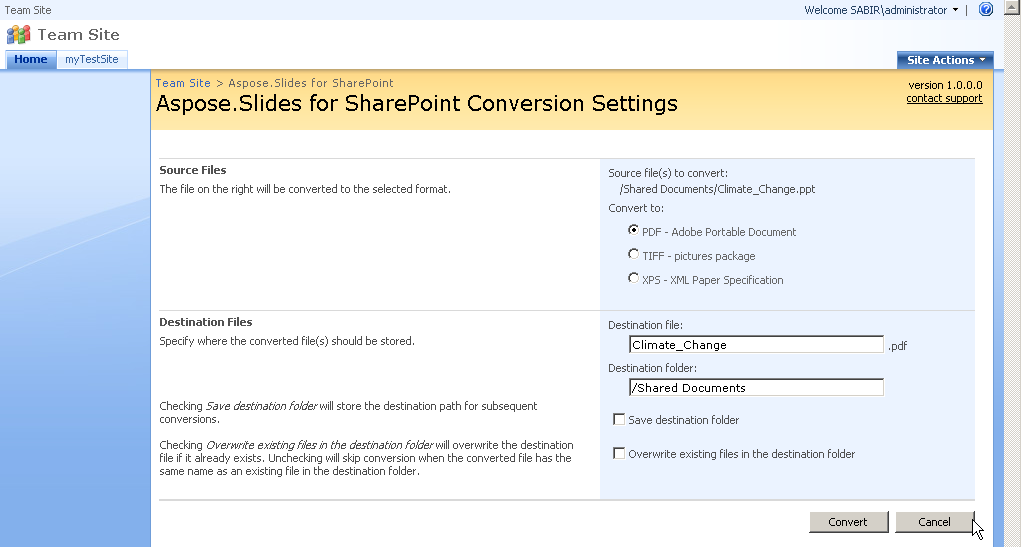
The screenshot was taken with an earlier version, which offered only the PDF, TIFF and XPS formats.
## Related articles
- [Product Overview](https://docs.aspose.com/slides/sharepoint/product-overview/)
- [Supported File Formats](https://docs.aspose.com/slides/sharepoint/supported-file-formats/)
- [Introduction](https://docs.aspose.com/slides/sharepoint/introduction/)
# Product Overview
> An overview of Aspose.Slides for SharePoint: the presentation formats it converts and the SharePoint versions it installs on.
Source: https://docs.aspose.com/slides/sharepoint/product-overview/
Updated: 2026-09-28

## **Product Overview**
Aspose.Slides for SharePoint converts PowerPoint presentations stored in SharePoint document libraries to other formats, on the server.
It converts the following PowerPoint formats:
- PPT – Microsoft PowerPoint presentation 97 - 2003
- PPTX – Office Open XML presentation
It converts them to PDF, TIFF, XPS, HTML, SWF, ODP, PPS, PPSX, PPTM, PPSM, POTX and POTM. See [Supported File Formats](https://docs.aspose.com/slides/sharepoint/supported-file-formats/) for details.
The download contains a separate setup program and solution package for each of the following products:
- SharePoint 2007
- SharePoint 2010
- SharePoint Server 2013
- SharePoint Server 2016
- SharePoint Server 2019
**Use Aspose.Slides for SharePoint to convert documents from SharePoint's document library**

## Related articles
- [Aspose.Slides for SharePoint](https://docs.aspose.com/slides/sharepoint/)
- [Multiple Format Support](https://docs.aspose.com/slides/sharepoint/multiple-format-support/)
- [System Requirements](https://docs.aspose.com/slides/sharepoint/system-requirements/)
# SharePoint Document Library
>
Source: https://docs.aspose.com/slides/sharepoint/sharepoint-document-library/
Updated: 2024-11-01
A library is a content structure that contains files. A library may contain only one type of file or many different types, including documents, spreadsheets and presentations. A SharePoint library creates a single location where people can upload and access documents. Documents are stored in binary format in the SQL Server database used by the SharePoint site. The documents are available to other SharePoint users as a list of hyperlinks.
**A SharePoint document library**

## Related articles
- [Benefits of using Aspose.Slides for SharePoint](https://docs.aspose.com/slides/sharepoint/benefits-of-using-aspose-slides-for-sharepoint/)
- [Product Overview](https://docs.aspose.com/slides/sharepoint/product-overview/)
- [Aspose.Slides for SharePoint](https://docs.aspose.com/slides/sharepoint/)
# Summary
>
Source: https://docs.aspose.com/slides/sharepoint/summary/
Updated: 2026-08-13
Installing and using Aspose.Slides for SharePoint is easy. It not only adds the ability to convert Microsoft PowerPoint files directly on the server, but also eliminates the need for users to have Microsoft PowerPoint installed.
Moreover, developers can use Aspose.Slides for SharePoint's public API to develop their own SharePoint solutions.
In other words, Aspose.Slides for SharePoint benefits SharePoint site administrators, developers and end users.
## Related articles
- [Benefits of using Aspose.Slides for SharePoint](https://docs.aspose.com/slides/sharepoint/benefits-of-using-aspose-slides-for-sharepoint/)
- [Introduction](https://docs.aspose.com/slides/sharepoint/introduction/)
- [System Requirements](https://docs.aspose.com/slides/sharepoint/system-requirements/)
# Supported File Formats
> The presentation formats Aspose.Slides for SharePoint converts from, and the formats it converts them to.
Source: https://docs.aspose.com/slides/sharepoint/supported-file-formats/
Updated: 2026-09-28
## **Supported Microsoft PowerPoint Versions**
- Microsoft PowerPoint 97
- Microsoft PowerPoint 2000
- Microsoft PowerPoint XP
- Microsoft PowerPoint 2003
- Microsoft PowerPoint 2007
- Microsoft PowerPoint 2010
- Microsoft PowerPoint 2013
- Microsoft PowerPoint 2016
- Microsoft PowerPoint 2019
- Microsoft PowerPoint for Mac
## **Supported File Formats**
Aspose.Slides for SharePoint converts PPT and PPTX presentations stored in a SharePoint document library. Files of other types are not converted.
|**Format**|**Description**|**Convert from**|**Convert to**|
| :- | :- | :- | :- |
|[PPT](https://docs.fileformat.com/presentation/ppt/)|PowerPoint presentation 97 - 2003|✓| |
|[PPTX](https://docs.fileformat.com/presentation/pptx/)|PowerPoint presentation 2007 and later|✓| |
|[PDF](https://docs.fileformat.com/pdf/)|Portable Document Format, with the slides or with the notes view| |✓|
|[TIFF](https://docs.fileformat.com/image/tiff/)|TIFF image, with the slides or with the notes view| |✓|
|[XPS](https://docs.fileformat.com/page-description-language/xps/)|XML Paper Specification| |✓|
|[HTML](https://docs.fileformat.com/web/html/)|Presentation in HTML format| |✓|
|[SWF](https://docs.fileformat.com/page-description-language/swf/)|Shockwave Flash movie, with the slides or with the notes view| |✓|
|[ODP](https://docs.fileformat.com/presentation/odp/)|OpenDocument presentation| |✓|
|[PPS](https://docs.fileformat.com/presentation/pps/)|PowerPoint slide show 97 - 2003| |✓|
|[PPSX](https://docs.fileformat.com/presentation/ppsx/)|PowerPoint slide show 2007 and later| |✓|
|[PPTM](https://docs.fileformat.com/presentation/pptm/)|PowerPoint macro-enabled presentation| |✓|
|[PPSM](https://docs.fileformat.com/presentation/ppsm/)|PowerPoint macro-enabled slide show| |✓|
|[POTX](https://docs.fileformat.com/presentation/potx/)|PowerPoint template| |✓|
|[POTM](https://docs.fileformat.com/presentation/potm/)|PowerPoint macro-enabled template| |✓|
The output format is selected under **Convert to** on the conversion page; see [Multiple Format Support](https://docs.aspose.com/slides/sharepoint/multiple-format-support/) for the exact list of options.
## Related articles
- [Multiple Format Support](https://docs.aspose.com/slides/sharepoint/multiple-format-support/)
- [Product Overview](https://docs.aspose.com/slides/sharepoint/product-overview/)
# System Requirements
>
Source: https://docs.aspose.com/slides/sharepoint/system-requirements/
Updated: 2026-08-13
## **Server Requirements**
To install Aspose.Slides for SharePoint, a system running one of the followings is required:
- Windows SharePoint Services 3.0
- Microsoft Office SharePoint Server 2007
- Microsoft Office SharePoint Server 2010
- Microsoft Office SharePoint Server 2013
- Microsoft Office SharePoint Server 2016
- Microsoft Office SharePoint Server 2019
Installing Service Pack 2 or later for these products is recommended.
## **Client Requirements**
SharePoint sites are accessed through a web browser. Aspose.Slides for SharePoint has been tested with the following browsers:
- Microsoft Internet Explorer 6, 7, 8
- Mozilla FireFox 3.5
## Related articles
- [Product Overview](https://docs.aspose.com/slides/sharepoint/product-overview/)
- [Benefits of using Aspose.Slides for SharePoint](https://docs.aspose.com/slides/sharepoint/benefits-of-using-aspose-slides-for-sharepoint/)
- [Introduction](https://docs.aspose.com/slides/sharepoint/introduction/)
# Uninstalling Aspose.Slides for SharePoint License
>
Source: https://docs.aspose.com/slides/sharepoint/uninstalling-aspose-slides-for-sharepoint-license/
Updated: 2024-11-01
To uninstall the license, please use the steps below from the server console.
1. Retract the license solution from the farm:
``` xml
stsadm.exe -o retractsolution -name Aspose.Slides.SharePoint.License.wsp -immediate
```
2. Execute administrative timer jobs to complete the retraction immediately:
``` xml
stsadm.exe -o execadmsvcjobs
```
3. Wait for the retraction to complete. You can use Central Administration to check if the retraction completed under **Central Administration**, then **Operations** and **Solution Management**.
4. Remove the solution from the SharePoint solution store:
``` xml
stsadm.exe -o deletesolution -name Aspose.Slides.SharePoint.License.wsp
```
## Related articles
- [Installing Aspose.Slides for SharePoint License](https://docs.aspose.com/slides/sharepoint/installing-aspose-slides-for-sharepoint-license/)
- [Installing Aspose.Slides for SharePoint](https://docs.aspose.com/slides/sharepoint/installing-aspose-slides-for-sharepoint/)
- [Aspose.Slides for SharePoint](https://docs.aspose.com/slides/sharepoint/)
# Uninstalling Aspose.Slides for SharePoint
> Remove Aspose.Slides for SharePoint from a SharePoint farm with the same setup program that installed it.
Source: https://docs.aspose.com/slides/sharepoint/uninstalling-aspose-slides-for-sharepoint/
Updated: 2026-09-28
To uninstall Aspose.Slides for SharePoint:
1. Run the setup program that you used to install it, for example *Setup2019.exe* on SharePoint Server 2019.
When it finds the same version installed, the setup program offers to repair or remove it. When it finds a different version, it offers to upgrade or remove it.
2. Select **Remove** and click **Next** to uninstall Aspose.Slides for SharePoint.
**Uninstalling Aspose.Slides for SharePoint**

# Usage and Benefits
>
Source: https://docs.aspose.com/slides/sharepoint/usage-and-benefits/
Updated: 2024-11-01
---
lastmod: 2024-11-01T16:01:00+05:00
title: Usage and Benefits
type: docs
weight: 20
url: /sharepoint/usage-and-benefits/
---
# User's Guide
>
Source: https://docs.aspose.com/slides/sharepoint/user-s-guide/
Updated: 2024-11-01
---
lastmod: 2024-11-01T16:01:00+05:00
title: User's Guide
type: docs
weight: 20
url: /sharepoint/user-s-guide/
---
# World Class Free Technical Support
>
Source: https://docs.aspose.com/slides/sharepoint/world-class-free-technical-support/
Updated: 2026-08-13
Aspose is renowned for its free and unlimited technical support provided directly by the developers of the products. If a new version of a product is available, or if resolving a question results in a fix, all new releases are free if you have an active subscription.
## **Getting Support**
### **Forums**
[Aspose's Support Forums](https://forum.aspose.com/) is the place not only to resolve technical issues, but to participate in discussions with the vibrant and growing community of Aspose users. Currently there are over 190,000 users registered at the Aspose website.
### **Blogs**
[Aspose.Blogs](https://blog.aspose.com/) is the place to look for information about the latest releases and about what Aspose developers have to say.
### **Need more support?**
Aspose offers free support to all users. For companies want that their issue will get prioritized, or who want to influence our product development road map, there are [advanced support options](https://helpdesk.aspose.com/kb/faq/2-Developer-Business-Support-Key-Benefits-Conditions) like Priority Support and Enterprise Support.