
Automatisering av PowerPoint‑generering i PHP: Skapa dynamiska presentationer enkelt
Introduction
Att skapa PowerPoint‑presentationer manuellt kan vara en tidskrävande och repetitiv uppgift—särskilt när innehållet baseras på dynamiska data som ofta förändras. Oavsett om det handlar om att generera veckovisa affärsrapporter, sammanställa undervisningsmaterial eller producera kundklara säljpresentationer, kan automatisering spara otaliga timmar och säkerställa konsistens över team.
För PHP‑utvecklare öppnar automatisering av skapandet av PowerPoint‑presentationer upp kraftfulla möjligheter. Du kan integrera bildgenerering i webbportaler, skrivbordsverktyg, backend‑tjänster eller molnplattformar för att dynamiskt konvertera data till professionella, varumärkesbetonade presentationer—on‑demand.
I den här artikeln kommer vi att utforska vanliga användningsfall för automatiserad PowerPoint‑generering i PHP‑appar (inklusive distribution på molnplattformar) och varför det blir en viktig funktion i moderna lösningar. Från att hämta realtidsaffärsdata till att konvertera text eller bilder till bilder, är målet att omvandla råt innehåll till strukturerade, visuella format som din publik kan förstå omedelbart.
Common Use Cases for PowerPoint Automation in PHP
Automating PowerPoint generation is especially useful in scenarios where presentation content needs to be dynamically assembled, personalized, or frequently updated. Some of the most common real-world use cases include:
-
Business Reports & Dashboards Generate sales summaries, KPIs, or financial performance reports by pulling live data from databases or APIs.
-
Personalized Sales & Marketing Decks Automatically create client-specific pitch decks using CRM or form data, ensuring quick turnaround and brand consistency.
-
Educational Content Convert learning material, quizzes, or course summaries into structured slide decks for e-learning platforms.
-
Data & AI-Powered Insights Use natural language processing or analytics engines to transform raw data or long-form text into summarized presentations.
-
Media-Based Slides Assemble presentations from uploaded images, annotated screenshots, or video keyframes with supporting descriptions.
-
Document Conversion Automatically convert Word documents, PDFs, or form inputs into visual presentations with minimal manual effort.
-
Developer and Technical Tools Create tech demos, documentation overviews, or changelogs in slide format directly from code or markdown content.
By automating these workflows, organizations can scale their content creation, maintain consistency, and free up time for more strategic work.
Let’s Code
For this example, we’ve chosen Aspose.Slides for PHP to demonstrate PowerPoint automation due to its comprehensive feature set and ease of use when working with presentations programmatically.
Unlike lower-level libraries, which require developers to work directly with the Open XML structure (often resulting in verbose and less readable code), Aspose.Slides provides a higher-level API. It abstracts away the complexity, allowing developers to focus on presentation logic—such as layout, formatting, and data binding—without needing to understand the PowerPoint file format in detail.
Although Aspose.Slides is a commercial library, it offers a free trial version that is fully capable of running the examples provided in this article. For the purpose of demonstrating ideas, testing features, or building a proof of concept like the one we’re covering here, the trial is more than sufficient. This makes it a convenient option for experimenting with automated PowerPoint generation without needing to commit to a license upfront.
Ok, let’s walk through building a sample presentation using real-world content.
Create a Title Slide
We’ll begin by creating a new presentation and adding a title slide with a main heading and subtitle.
$presentation = new Presentation();

$slide0 = $presentation->getSlides()->get_Item(0);

$layoutSlide = $presentation->getLayoutSlides()->getByType(SlideLayoutType::Title);
$slide0->setLayoutSlide($layoutSlide);

$titleShape = $slide0->getShapes()->get_Item(0);
$subtitleShape = $slide0->getShapes()->get_Item(1);

$titleShape->getTextFrame()->setText("Quarterly Business Review – Q1 2025");
$subtitleShape->getTextFrame()->setText("Prepared for Executive Team");

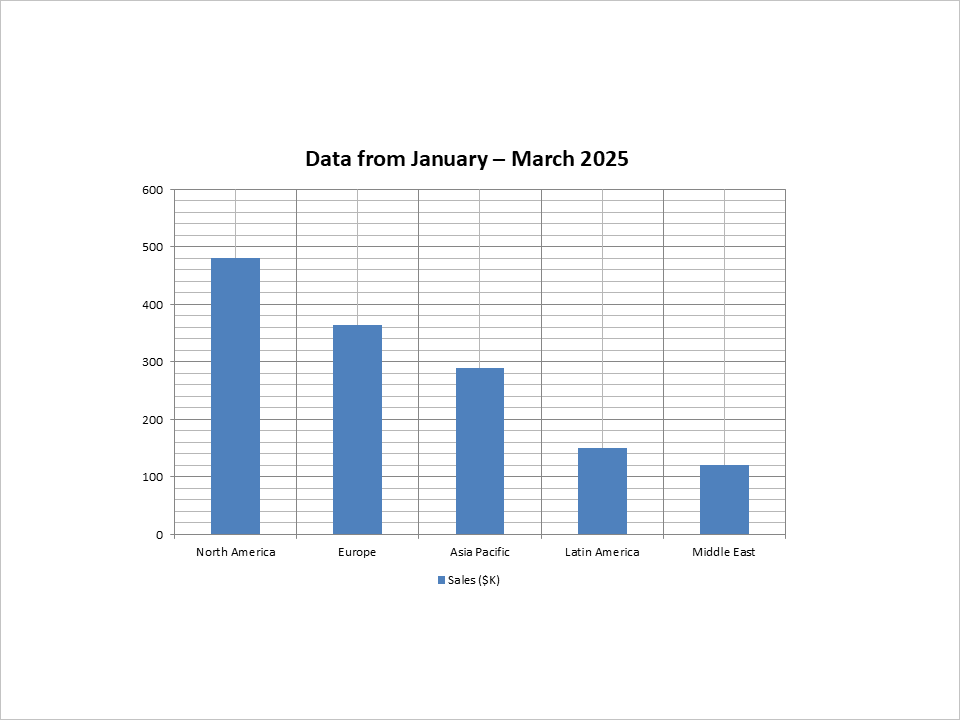
Add a Slide with a Column Chart
Next, we’ll create a slide showing regional sales performance as a column chart.
$layoutSlide1 = $presentation->getLayoutSlides()->getByType(SlideLayoutType::Blank);
$slide1 = $presentation->getSlides()->addEmptySlide($layoutSlide1);

$chart = $slide1->getShapes()->addChart(ChartType::ClusteredColumn, 100, 100, 500, 350, false);
$chart->getLegend()->setPosition(LegendPositionType::Bottom);
$chart->setTitle(true);
$chart->getChartTitle()->addTextFrameForOverriding("Data from January – March 2025");
$chart->getChartTitle()->setOverlay(false);

$workbook = $chart->getChartData()->getChartDataWorkbook();
$worksheetIndex = 0;

$chart->getChartData()->getCategories()->add($workbook->getCell($worksheetIndex, 1, 0, "North America"));
$chart->getChartData()->getCategories()->add($workbook->getCell($worksheetIndex, 2, 0, "Europe"));
$chart->getChartData()->getCategories()->add($workbook->getCell($worksheetIndex, 3, 0, "Asia Pacific"));
$chart->getChartData()->getCategories()->add($workbook->getCell($worksheetIndex, 4, 0, "Latin America"));
$chart->getChartData()->getCategories()->add($workbook->getCell($worksheetIndex, 5, 0, "Middle East"));

$series = $chart->getChartData()->getSeries()->add($workbook->getCell($worksheetIndex, 0, 1, "Sales (\$K)"), $chart->getType());
$series->getDataPoints()->addDataPointForBarSeries($workbook->getCell($worksheetIndex, 1, 1, 480));
$series->getDataPoints()->addDataPointForBarSeries($workbook->getCell($worksheetIndex, 2, 1, 365));
$series->getDataPoints()->addDataPointForBarSeries($workbook->getCell($worksheetIndex, 3, 1, 290));
$series->getDataPoints()->addDataPointForBarSeries($workbook->getCell($worksheetIndex, 4, 1, 150));
$series->getDataPoints()->addDataPointForBarSeries($workbook->getCell($worksheetIndex, 5, 1, 120));
Add a Slide with a Table
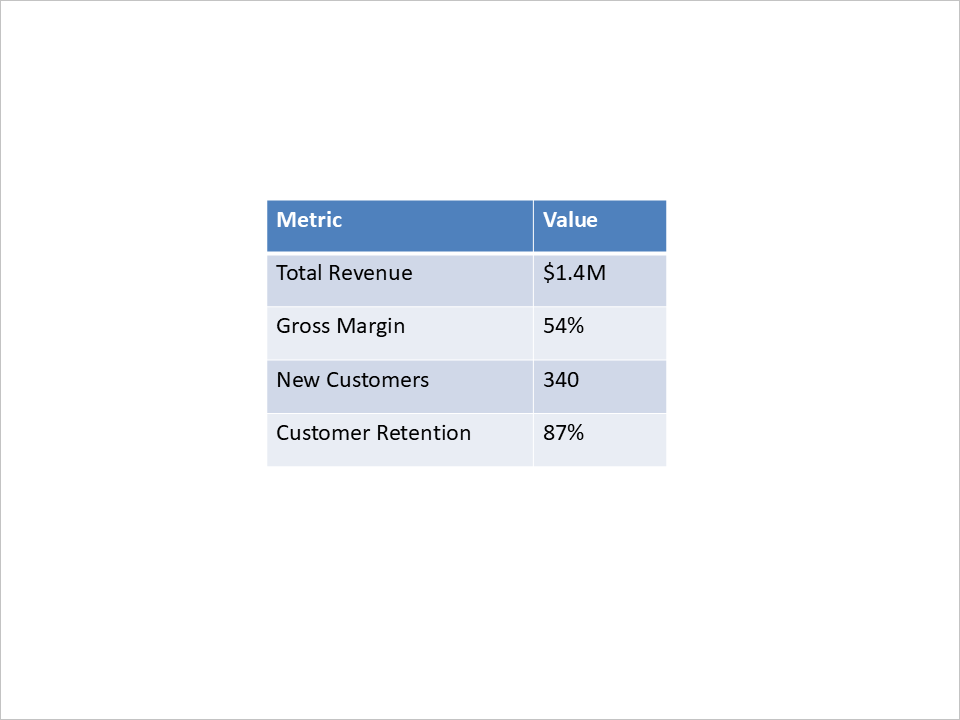
We’ll now add a slide that presents key performance metrics in table format.
$layoutSlide2 = $presentation->getLayoutSlides()->getByType(SlideLayoutType::Blank);
$slide2 = $presentation->getSlides()->addEmptySlide($layoutSlide2);

$columnWidths = [200, 100];
$rowHeights = [40, 40, 40, 40, 40];

$table = $slide2->getShapes()->addTable(200, 200, $columnWidths, $rowHeights);
$table->getColumns()->get_Item(0)->get_Item(0)->getTextFrame()->setText("Metric");
$table->getColumns()->get_Item(1)->get_Item(0)->getTextFrame()->setText("Value");
$table->getColumns()->get_Item(0)->get_Item(1)->getTextFrame()->setText("Total Revenue");
$table->getColumns()->get_Item(1)->get_Item(1)->getTextFrame()->setText("\$1.4M");
$table->getColumns()->get_Item(0)->get_Item(2)->getTextFrame()->setText("Gross Margin");
$table->getColumns()->get_Item(1)->get_Item(2)->getTextFrame()->setText("54%");
$table->getColumns()->get_Item(0)->get_Item(3)->getTextFrame()->setText("New Customers");
$table->getColumns()->get_Item(1)->get_Item(3)->getTextFrame()->setText("340");
$table->getColumns()->get_Item(0)->get_Item(4)->getTextFrame()->setText("Customer Retention");
$table->getColumns()->get_Item(1)->get_Item(4)->getTextFrame()->setText("87%");
Add a Summary Slide with Bullet Points
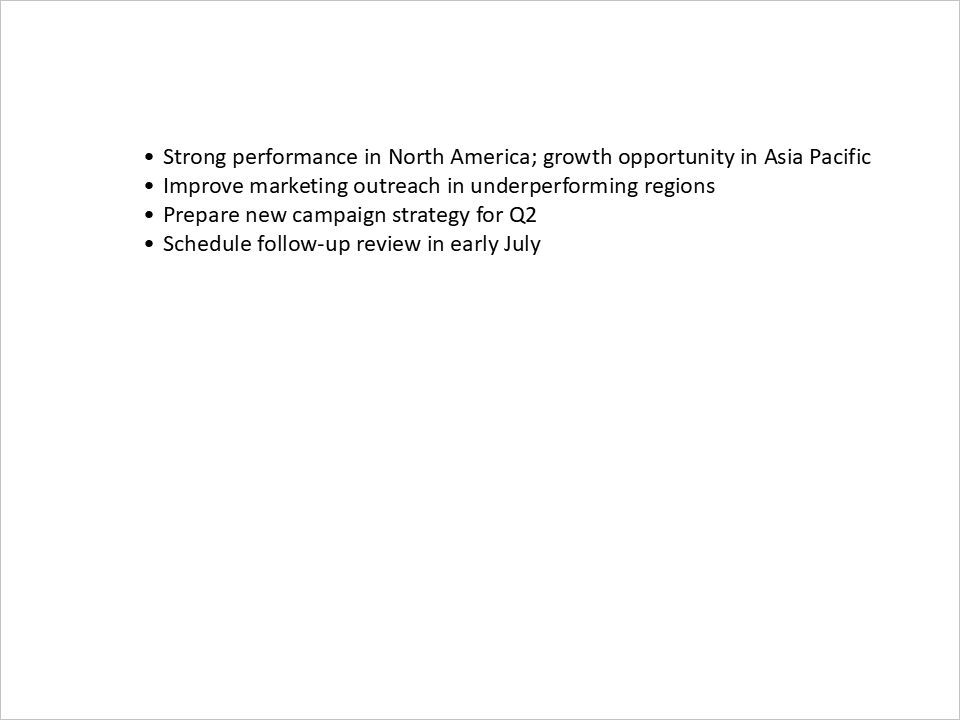
Lastly, we’ll include a summary and action plan using a simple bullet list.
function createBulletParagraph($text) {
    $paragraph = new Paragraph();
    $paragraph->getParagraphFormat()->getBullet()->setType(BulletType::Symbol);
    $paragraph->getParagraphFormat()->setIndent(15);
    $paragraph->getParagraphFormat()->getDefaultPortionFormat()->getFillFormat()->setFillType(FillType::Solid);
    $paragraph->getParagraphFormat()->getDefaultPortionFormat()->getFillFormat()->getSolidFillColor()->setColor(java("java.awt.Color")->BLACK);
    $paragraph->setText($text);
    return $paragraph;
}
$layoutSlide3 = $presentation->getLayoutSlides()->getByType(SlideLayoutType::Blank);
$slide3 = $presentation->getSlides()->addEmptySlide($layoutSlide3);

$bulletList = $slide3->getShapes()->addAutoShape(ShapeType::Rectangle, 100, 50, 600, 200);
$bulletList->getFillFormat()->setFillType(FillType::NoFill);
$bulletList->getLineFormat()->getFillFormat()->setFillType(FillType::NoFill);

$bulletList->getTextFrame()->getParagraphs()->clear();
$bulletList->getTextFrame()->getParagraphs()->add(createBulletParagraph("Strong performance in North America; growth opportunity in Asia Pacific"));
$bulletList->getTextFrame()->getParagraphs()->add(createBulletParagraph("Improve marketing outreach in underperforming regions"));
$bulletList->getTextFrame()->getParagraphs()->add(createBulletParagraph("Prepare new campaign strategy for Q2"));
$bulletList->getTextFrame()->getParagraphs()->add(createBulletParagraph("Schedule follow-up review in early July"));
Save the Presentation
Finally, we save the presentation to disk:
$presentation->save("presentation.pptx", SaveFormat::Pptx);
Conclusion
Automating PowerPoint generation in PHP applications offers clear benefits in saving time and reducing manual effort. By integrating dynamic content such as charts, tables, and text, developers can quickly produce consistent, professional presentations—ideal for business reports, client meetings, or educational content.
In this article, we’ve demonstrated how to automate the creation of a presentation from scratch, including adding a title slide, charts, and tables. This approach can be applied across various use cases where automated, data-driven presentations are needed.
By leveraging the right tools, PHP developers can efficiently automate PowerPoint creation, enhancing productivity and ensuring consistency across presentations.