
在 JavaScript 中套用或變更投影片版面配置
概覽
投影片版面配置定義了標題、文字、圖片、圖表和表格等占位符的位置與格式。套用版面配置可為投影片提供一致的結構,同時允許每張投影片包含各自的內容。
最常見的版面配置包括:
- Title Slide:包含標題與副標題占位符。
- Title and Content:包含標題占位符和一般內容占位符。
- Blank:不包含任何內容占位符,適合手動定位所有圖形時使用。
了解版面繼承
簡報具有三個相關層級:
- A master slide 定義主題、共用格式、背景與共同物件。
- A layout slide 屬於主投影片,定義特定的占位符配置。
- A normal slide 使用一個版面配置,並儲存該投影片的內容。
普通投影片會從其版面繼承主題與格式,版面則繼承自其母片。直接在普通投影片上設定的值會覆蓋該層級的繼承值。建立普通投影片時,其占位符圖形會根據所選版面產生,而填入這些占位符的內容則屬於普通投影片。
在建立投影片之前,請先在版面上加入必要的占位符。之後再向版面新增占位符並不會自動在已有的普通投影片上加入對應的占位符圖形。
此關係有兩個重要的結果:
- 變更版面上繼承的格式或現有占位符的幾何形狀會更新所有依賴該版面的投影片。編輯已在使用的版面前,請先檢查其相依投影片並審視最終簡報。
- 仍被投影片使用的版面無法移除。請先將其相依投影片重新指派至其他版面,或僅移除未使用的版面。
欲了解此階層的最高層級,請參閱Slide Master。
如需在單一投影片或共用版面上隱藏繼承的標誌或裝飾性母片圖形,請參閱Control the Visibility of Master Graphics。範例比較了兩張使用相同母片的投影片。
選取並套用投影片版面配置
當簡報遵循標準 PowerPoint 版面定義時,請使用 SlideLayoutType 值。版面名稱可由使用者編輯並支援本地化,因此除非您掌控來源範本,否則基於名稱的選取可靠性較低。
以下範例在第一個母片上尋找 Title and Content。如果該版面不存在,會明確回退到 Blank。第二個 null 檢查是必須的,因為簡報可能只包含自訂版面。選取的版面接著透過 Slide.setLayoutSlide 方法套用至第一張普通投影片。
var aspose = aspose || {};
aspose.slides = require("aspose.slides.via.java");
const java = require("java");

let presentation = new aspose.slides.Presentation("input.pptx");
try {
    let layoutSlides = presentation.getMasters().get_Item(0).getLayoutSlides();
    let titleAndObjectLayoutType = java.newByte(aspose.slides.SlideLayoutType.TitleAndObject);
    let blankLayoutType = java.newByte(aspose.slides.SlideLayoutType.Blank);
    let targetLayout = layoutSlides.getByType(titleAndObjectLayoutType);

    if (targetLayout === null) {
        targetLayout = layoutSlides.getByType(blankLayoutType);
    }

    if (targetLayout === null) {
        throw new Error("The first master does not contain a suitable layout slide.");
    }

    presentation.getSlides().get_Item(0).setLayoutSlide(targetLayout);
    presentation.save("output-with-new-layout.pptx", aspose.slides.SaveFormat.Pptx);
} finally {
    presentation.dispose();
}
變更投影片的版面不會移除直接加入投影片的普通圖形。然而,占位符位置、繼承格式以及現有占位符與新版面之間的對應關係可能會改變,切換差異較大的版面時請檢查輸出結果。
新增版面投影片
選取與建立是分開的操作。前一個範例只是選取既有版面,並未建立新的。若要建立版面,請於目標母片的版面集合呼叫 MasterLayoutSlideCollection.add 方法。
以下範例始終新增一個名為 Report Title and Content 的 Title and Content 版面,然後基於它新增一張普通投影片。版面名稱在集合中必須唯一。
var aspose = aspose || {};
aspose.slides = require("aspose.slides.via.java");
const java = require("java");

let presentation = new aspose.slides.Presentation("input.pptx");
try {
    let masterSlide = presentation.getMasters().get_Item(0);
    let titleAndObjectLayoutType = java.newByte(aspose.slides.SlideLayoutType.TitleAndObject);
    let reportLayout = masterSlide.getLayoutSlides().add(titleAndObjectLayoutType, "Report Title and Content");
    presentation.getSlides().addEmptySlide(reportLayout);

    presentation.save("output-with-report-layout.pptx", aspose.slides.SaveFormat.Pptx);
} finally {
    presentation.dispose();
}
僅在範本真正需要另一個可重複使用的結構時才新增版面。若已存在符合需求的版面,請選取並重複使用,而非建立重複的版面。
向版面投影片新增占位符
LayoutSlide.getPlaceholderManager 方法會提供一個 LayoutPlaceholderManager 用於向版面新增占位符圖形。








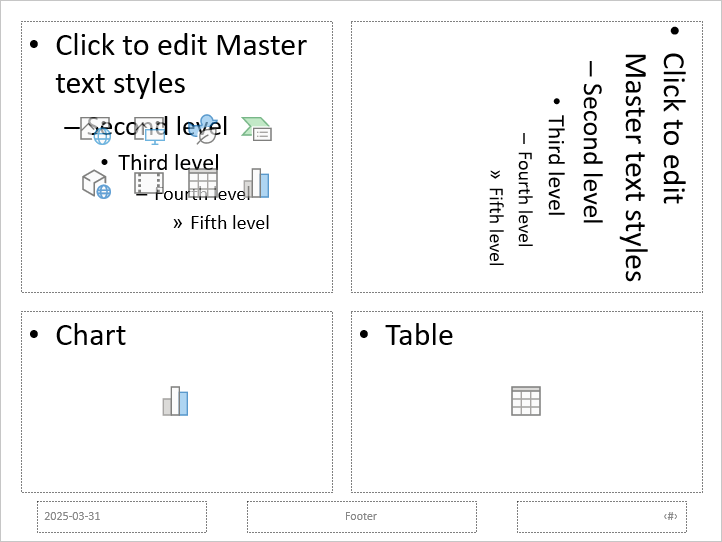
以下範例會先驗證 Blank 版面是否存在,向其新增四個占位符,然後建立使用此修改後版面的普通投影片。順序刻意設計為先新增占位符再建立普通投影片,以便 Aspose.Slides 能在該投影片上產生相應的占位符圖形。
var aspose = aspose || {};
aspose.slides = require("aspose.slides.via.java");
const java = require("java");

let presentation = new aspose.slides.Presentation();
try {
    let blankLayoutType = java.newByte(aspose.slides.SlideLayoutType.Blank);
    let blankLayout = presentation.getLayoutSlides().getByType(blankLayoutType);

    if (blankLayout === null) {
        throw new Error("The presentation does not contain a Blank layout slide.");
    }

    let placeholderManager = blankLayout.getPlaceholderManager();
    placeholderManager.addContentPlaceholder(20, 20, 310, 270);
    placeholderManager.addVerticalTextPlaceholder(350, 20, 350, 270);
    placeholderManager.addChartPlaceholder(20, 310, 310, 180);
    placeholderManager.addTablePlaceholder(350, 310, 350, 180);

    presentation.getSlides().addEmptySlide(blankLayout);
    presentation.save("output-with-placeholders.pptx", aspose.slides.SaveFormat.Pptx);
} finally {
    presentation.dispose();
}
結果:
Warning
變更繼承的格式或現有版面占位符的幾何形狀可能會影響相依投影片。新加入的版面占位符不會自動填入既有的普通投影片。請在簡報的副本上測試版面變更,並檢查每張相依投影片。移除未使用的版面投影片
使用 Compress.removeUnusedLayoutSlides 方法移除沒有任何普通投影片參照的版面。該方法會保留仍在使用中的版面。
var aspose = aspose || {};
aspose.slides = require("aspose.slides.via.java");

let presentation = new aspose.slides.Presentation("input.pptx");
try {
    aspose.slides.Compress.removeUnusedLayoutSlides(presentation);
    presentation.save("output-without-unused-layouts.pptx", aspose.slides.SaveFormat.Pptx);
} finally {
    presentation.dispose();
}
若要移除特定版面,請先使用其 hasDependingSlides 或 getDependingSlides 方法。於呼叫 LayoutSlide.remove 前,先重新指派所有相依投影片。嘗試移除仍被使用的版面會拋出 PptxEditException。
控制版面投影片的頁腳可見性
版面擁有自己的頁腳、投影片編號與日期時間占位符。使用 LayoutSlide.getHeaderFooterManager 方法可針對單一版面控制這些占位符。這在例如內容版面需要顯示頁腳而標題版面不需要時相當實用。
以下範例安全地選取一個版面,並使其頁腳元素可見:
var aspose = aspose || {};
aspose.slides = require("aspose.slides.via.java");
const java = require("java");

let presentation = new aspose.slides.Presentation("input.pptx");
try {
    let titleAndObjectLayoutType = java.newByte(aspose.slides.SlideLayoutType.TitleAndObject);
    let blankLayoutType = java.newByte(aspose.slides.SlideLayoutType.Blank);
    let layoutSlide = presentation.getLayoutSlides().getByType(titleAndObjectLayoutType);

    if (layoutSlide === null) {
        layoutSlide = presentation.getLayoutSlides().getByType(blankLayoutType);
    }

    if (layoutSlide === null) {
        throw new Error("The presentation does not contain a suitable layout slide.");
    }

    let headerFooterManager = layoutSlide.getHeaderFooterManager();
    headerFooterManager.setFooterVisibility(true);
    headerFooterManager.setSlideNumberVisibility(true);
    headerFooterManager.setDateTimeVisibility(true);
    headerFooterManager.setFooterText("Footer text");
    headerFooterManager.setDateTimeText("Date and time text");

    presentation.save("output-with-layout-footers.pptx", aspose.slides.SaveFormat.Pptx);
} finally {
    presentation.dispose();
}
控制母片及其子版面的頁腳可見性
若要在母片層級上套用一致的頁腳設定,請使用 MasterSlide.getHeaderFooterManager 方法。MasterSlideHeaderFooterManager 的傳播方法會同時作用於母片、其相依的版面投影片以及普通投影片;不會只針對單一普通投影片。
var aspose = aspose || {};
aspose.slides = require("aspose.slides.via.java");

let presentation = new aspose.slides.Presentation("input.pptx");
try {
    let headerFooterManager = presentation.getMasters().get_Item(0).getHeaderFooterManager();
    headerFooterManager.setFooterAndChildFootersVisibility(true);
    headerFooterManager.setSlideNumberAndChildSlideNumbersVisibility(true);
    headerFooterManager.setDateTimeAndChildDateTimesVisibility(true);
    headerFooterManager.setFooterAndChildFootersText("Footer text");
    headerFooterManager.setDateTimeAndChildDateTimesText("Date and time text");

    presentation.save("output-with-master-footers.pptx", aspose.slides.SaveFormat.Pptx);
} finally {
    presentation.dispose();
}
FAQ
母片與版面投影片有何不同?
母片定義簡報的主題與共用格式。版面投影片屬於母片,定義一組可重複使用的占位符排列。普通投影片使用這些版面,並儲存投影片特有的內容。
我可以將版面投影片從一個簡報複製到另一個嗎?
可以。使用 addClone 方法將副本加入目標集合。跨簡報複製時,亦需確認來源版面使用的字型、主題、圖片與其他資源。
當我修改已在使用的版面時會發生什麼?
相依的投影片會繼承版面變更,除非它們在本地覆寫了受影響的格式或物件。占位符的幾何形狀與繼承樣式因此可能同時在多張投影片上改變。使用 getDependingSlides 在編輯版面前先識別受影響的投影片。
如果我移除仍在使用的版面會發生什麼?
Aspose.Slides 會拋出 PptxEditException。請先重新指派相依的投影片,或使用 removeUnusedLayoutSlides 只移除未被參照的版面。