How to increase and decrease font size
Introduction
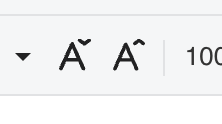
GridJs provides two toolbar buttons for changing the font size step by step: Increase font size and Decrease font size. The toolbar creates these buttons with FontSizeIncrease and FontSizeDecrease.
When a user clicks one of these buttons, GridJs reads the current selected cell font size, finds the next larger or smaller value in the fontSizes list, and writes that value back to the selected cells as font-size.
How to use
-
Select the cell or range whose font size you want to change.
GridJs applies the command to the current selected range through
data.setSelectedCellAttr. -
Click the Increase font size toolbar button.
The button uses the
increase-font-sizeicon and emits thefont-size-increasecommand. -
Click the Decrease font size toolbar button.
The button uses the
decrease-font-sizeicon and emits thefont-size-decreasecommand.
-
Review the updated font size on the selected cells.
The sheet handler gets the current selected font size, calls
getSteppedFontSize, and applies the returned point size throughdata.setSelectedCellAttr('font-size', nextSize). -
Use the font size dropdown when you need to choose an exact listed size.
The
FontSizedropdown uses the samefontSizeslist and sends a directfont-sizevalue, while the increase and decrease buttons move one step at a time through that list.
JavaScript API
The inspected code implements font size increase and decrease through internal toolbar commands. It does not expose a separate public JavaScript method dedicated only to increasing or decreasing font size.
Relevant functions
| Function / Location | Description | Parameters | Returns |
|---|---|---|---|
FontSizeIncrease (component/toolbar/font_size_increase.js) |
Creates the toolbar item with tag increase-font-size and emits font-size-increase when clicked. |
None | FontSizeIncrease instance |
FontSizeDecrease (component/toolbar/font_size_decrease.js) |
Creates the toolbar item with tag decrease-font-size and emits font-size-decrease when clicked. |
None | FontSizeDecrease instance |
Toolbar constructor (component/toolbar/index.js) |
Adds FontSize, FontSizeDecrease, and FontSizeIncrease to the toolbar font group. |
data, widthFn, isHide, showPartToolbar |
Toolbar instance |
Toolbar change handler (component/sheet.js) |
Handles font-size-increase and font-size-decrease, calculates the next size, applies font-size, and resets the sheet. |
type, value, optional callback |
void |
getCurrentFontSizeFromSelection(data) (component/sheet.js) |
Reads the selected cell font size, falls back to the default style font size, then falls back to the first fontSizes point value or 10. |
data |
number |
getSteppedFontSize(currentSize, isIncrease) (component/sheet.js) |
Returns the next larger point size when increasing, the next smaller point size when decreasing, and clamps to the first or last listed size. | currentSize, isIncrease |
number |
setSelectedCellAttr(property, value) (core/data_proxy.js) |
Applies font-size by setting cstyle.font.size to the provided value for each selected cell. |
property, value |
void |
fontSizes (core/font.js) |
Provides the point-size steps used by the dropdown and by the increase/decrease logic. | None | Array of { pt, px } |
DropdownFontSize (component/dropdown_fontsize.js) |
Builds the font size dropdown from fontSizes and emits the selected item. |
None | DropdownFontSize instance |
Common Questions
Q: Which size values do the increase and decrease buttons use?
A: They use the pt values from the fontSizes array in core/font.js.
Q: What happens when the selected cell does not have a font size?
A: GridJs falls back to the default style font size. If that is not a positive number, it falls back to the first fontSizes point value or 10.
Q: What happens at the smallest or largest listed font size?
A: getSteppedFontSize clamps the result to the first listed size when decreasing below the minimum and to the last listed size when increasing above the maximum.
Q: Is the dropdown the same as the increase and decrease buttons? A: No. The dropdown chooses a specific listed size, while the increase and decrease buttons move to the next larger or smaller listed size.