
Crear Tagged PDF en Python
Crear un Tagged PDF implica agregar (o crear) ciertos elementos al documento que permitirán que el documento sea validado de acuerdo con los requisitos de PDF/UA. Estos elementos a menudo se denominan Structure Elements.
Creando PDF etiquetado (Escenario simple)
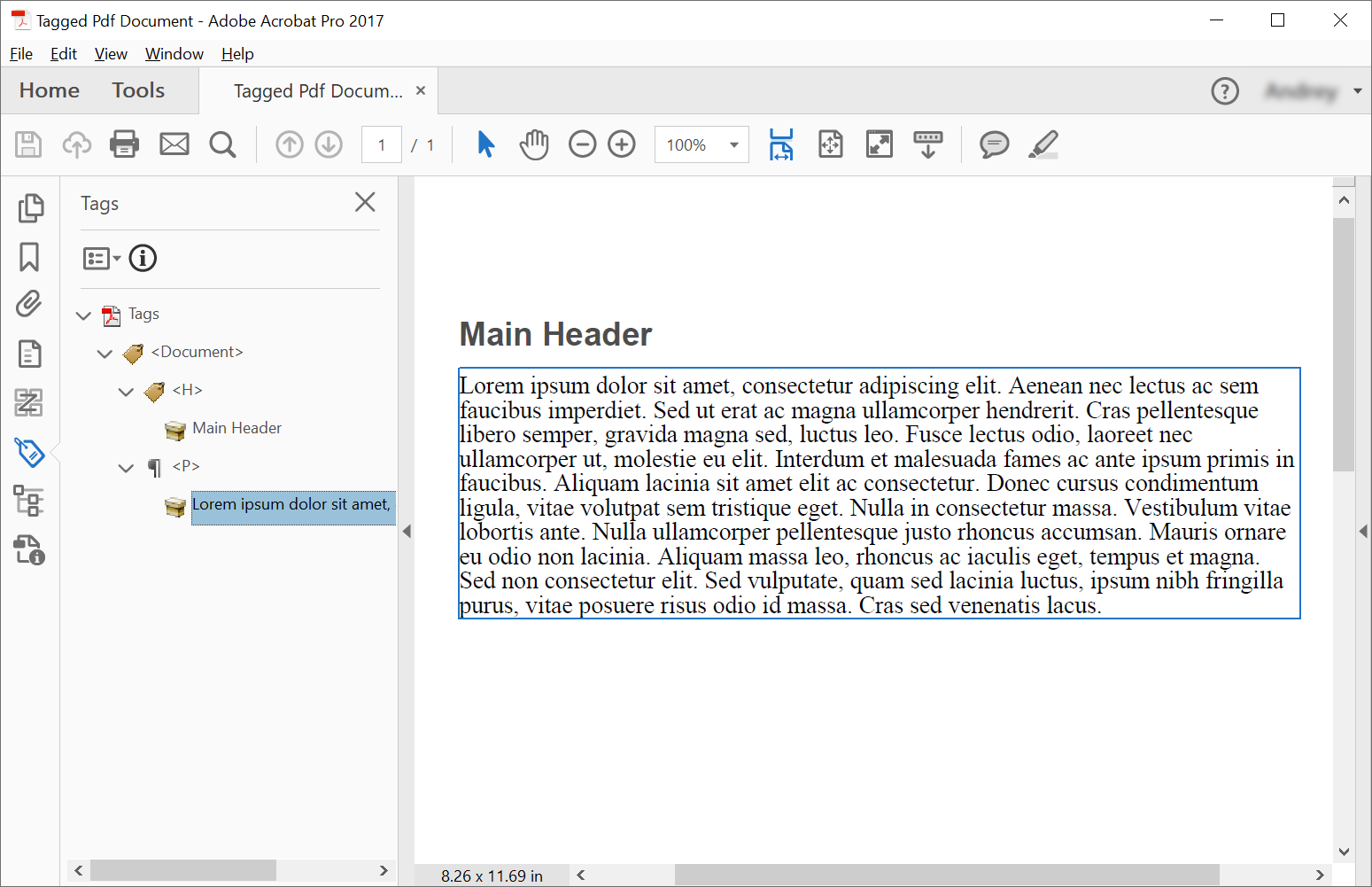
Para crear elementos de estructura en un documento Tagged PDF, Aspose.PDF ofrece métodos para crear elementos de estructura usando el ITaggedContent interfaz. Este ejemplo crea un documento Tagged PDF — un PDF con estructura semántica, lo que lo hace más accesible y compatible con normas como PDF/UA. El siguiente fragmento de código muestra cómo crear Tagged PDF que contiene 2 elementos: encabezado y párrafo.
import aspose.pdf as ap
import sys
from os import path

def create_tagged_pdf_document_simple(outfile):

    # Create PDF Document
    with ap.Document() as document:
        # Get Content for working with TaggedPdf
        tagged_content = document.tagged_content
        root_element = tagged_content.root_element

        # Set Title and Language for Document
        tagged_content.set_title("Tagged Pdf Document")
        tagged_content.set_language("en-US")
        main_header = tagged_content.create_header_element()
        main_header.set_text("Main Header")
        paragraph_element = tagged_content.create_paragraph_element()
        paragraph_element.set_text(
            "Lorem ipsum dolor sit amet, consectetur adipiscing elit. "
            + "Aenean nec lectus ac sem faucibus imperdiet. Sed ut erat ac magna ullamcorper hendrerit. "
            + "Cras pellentesque libero semper, gravida magna sed, luctus leo. Fusce lectus odio, laoreet "
            + "nec ullamcorper ut, molestie eu elit. Interdum et malesuada fames ac ante ipsum primis in faucibus. "
            + "Aliquam lacinia sit amet elit ac consectetur. Donec cursus condimentum ligula, vitae volutpat "
            + "sem tristique eget. Nulla in consectetur massa. Vestibulum vitae lobortis ante. Nulla ullamcorper "
            + "pellentesque justo rhoncus accumsan. Mauris ornare eu odio non lacinia. Aliquam massa leo, rhoncus "
            + "ac iaculis eget, tempus et magna. Sed non consectetur elit. Sed vulputate, quam sed lacinia luctus, "
            + "ipsum nibh fringilla purus, vitae posuere risus odio id massa. Cras sed venenatis lacus."
        )
        root_element.append_child(main_header, True)
        root_element.append_child(paragraph_element, True)

        # Save Tagged PDF Document
        document.save(outfile)
Creando Tagged PDF (Avanzado)
import aspose.pdf as ap
import sys
from os import path

def create_tagged_pdf_document_adv(outfile):
    # Create PDF Document
    with ap.Document() as document:
        # Get Content for working with TaggedPdf
        tagged_content = document.tagged_content
        root_element = tagged_content.root_element

        # Set Title and Language for Document
        tagged_content.set_title("Tagged Pdf Document")
        tagged_content.set_language("en-US")

        # Create Header Level 1
        header1 = tagged_content.create_header_element(1)
        header1.set_text("Header Level 1")

        # Create Paragraph with Quotes
        paragraph_with_quotes = tagged_content.create_paragraph_element()
        paragraph_with_quotes.structure_text_state.font = (
            ap.text.FontRepository.find_font("Arial")
        )
        position_settings = ap.tagged.PositionSettings()
        position_settings.margin = ap.MarginInfo(10, 5, 10, 5)
        paragraph_with_quotes.adjust_position(position_settings)

        # Create Span Element
        span_element1 = tagged_content.create_span_element()
        span_element1.set_text(
            "Lorem ipsum dolor sit amet, consectetur adipiscing elit. Aenean nec lectus ac sem faucibus imperdiet. "
            "Sed ut erat ac magna ullamcorper hendrerit. Cras pellentesque libero semper, gravida magna sed, "
            "luctus leo. Fusce lectus odio, laoreet nec ullamcorper ut, molestie eu elit. Interdum et malesuada "
            "fames ac ante ipsum primis in faucibus. Aliquam lacinia sit amet elit ac consectetur. Donec cursus "
            "condimentum ligula, vitae volutpat sem tristique eget. Nulla in consectetur massa. Vestibulum vitae "
            "lobortis ante. Nulla ullamcorper pellentesque justo rhoncus accumsan. Mauris ornare eu odio non "
            "lacinia. Aliquam massa leo, rhoncus ac iaculis eget, tempus et magna. Sed non consectetur elit."
        )

        # Create Quote Element
        quote_element = tagged_content.create_quote_element()
        quote_element.set_text(
            "Sed vulputate, quam sed lacinia luctus, ipsum nibh fringilla purus, vitae posuere risus odio id massa."
        )
        quote_element.structure_text_state.font_style = (
            ap.text.FontStyles.BOLD | ap.text.FontStyles.ITALIC
        )

        # Create Another Span Element
        span_element2 = tagged_content.create_span_element()
        span_element2.set_text(" Sed non consectetur elit.")

        # Append Children to Paragraph
        paragraph_with_quotes.append_child(span_element1, True)
        paragraph_with_quotes.append_child(quote_element, True)
        paragraph_with_quotes.append_child(span_element2, True)

        # Append Header and Paragraph to Root Element
        root_element.append_child(header1, True)
        root_element.append_child(paragraph_with_quotes, True)

        # Save Tagged PDF Document
        document.save(outfile)
Obtendremos el siguiente documento después de la creación:
Estilizando la estructura del texto
Los PDF etiquetados son documentos estructurados que proporcionan características de accesibilidad y significado semántico al contenido.
El ejemplo crea un documento PDF con características de accesibilidad utilizando una estructura de contenido etiquetado. Demuestra cómo crear un elemento de párrafo con estilo personalizado y metadatos de documento adecuados.
import aspose.pdf as ap
import sys
from os import path

def add_style(outfile):

    # Create PDF Document
    with ap.Document() as document:
        # Get Content for work with TaggedPdf
        tagged_content = document.tagged_content

        # Set Title and Language for Document
        tagged_content.set_title("Tagged Pdf Document")
        tagged_content.set_language("en-US")

        paragraph_element = tagged_content.create_paragraph_element()
        tagged_content.root_element.append_child(paragraph_element, True)

        paragraph_element.structure_text_state.font_size = 18.0
        paragraph_element.structure_text_state.foreground_color = ap.Color.red
        paragraph_element.structure_text_state.font_style = ap.text.FontStyles.ITALIC

        paragraph_element.set_text("Red italic text.")

        # Save Tagged PDF Document
        document.save(outfile)
Ilustrando Structure Elements
Los PDFs etiquetados son esenciales para el cumplimiento de accesibilidad y proporcionan contenido estructurado que puede ser interpretado correctamente por lectores de pantalla y otras tecnologías de asistencia. El siguiente fragmento de código muestra cómo crear un documento PDF etiquetado con una imagen incrustada:
- Crear PDF etiquetado con imagen.
- Configurar documento.
- Crear y configurar la figura.
- Establecer posicionamiento.
- Guardar documento.
import aspose.pdf as ap
import sys
from os import path

def illustrate_structure_elements(imagefile, outfile):
    # Create PDF Document
    with ap.Document() as document:
        # Get Content for work with TaggedPdf
        tagged_content = document.tagged_content

        # Set Title and Language for Document
        tagged_content.set_title("Tagged Pdf Document")
        tagged_content.set_language("en-US")
        figure1 = tagged_content.create_figure_element()
        tagged_content.root_element.append_child(figure1, True)
        figure1.alternative_text = "Figure One"
        figure1.title = "Image 1"
        figure1.set_tag("Fig1")
        figure1.set_image(imagefile, 300)
        # Adjust position
        position_settings = ap.tagged.PositionSettings()
        margin_info = ap.MarginInfo()
        margin_info.left = 50
        margin_info.top = 20
        position_settings.margin = margin_info
        figure1.adjust_position(position_settings)

        # Save Tagged PDF Document
        document.save(outfile)
Validar Tagged PDF
Aspose.PDF for Python via .NET brinda la capacidad de validar un Documento PDF/UA Tagged PDF. El método ‘validate_tagged_pdf’ valida documentos PDF contra la norma PDF/UA-1, que forma parte de la especificación ISO 14289 para documentos PDF accesibles. Esto asegura que los PDF sean accesibles para usuarios con discapacidades y tecnologías de asistencia.
- Estructura del documento. Etiquetado semántico adecuado y estructura lógica.
- Texto alternativo. Texto alternativo para imágenes y elementos que no son texto.
- Orden de lectura. Secuencia lógica para lectores de pantalla.
- Color y contraste. Ratios de contraste suficientes.
- Formularios. Campos y etiquetas de formulario accesibles.
- Navegación. Marcadores adecuados y estructura de navegación.
import aspose.pdf as ap
import sys
from os import path

def validate_tagged_pdf(infile, logfile):
    # Open PDF document
    with ap.Document(infile) as document:
        is_valid = document.validate(logfile, ap.PdfFormat.PDF_UA_1)
    print(f"Is Valid: {is_valid}")
Ajustar posición de Estructura de Texto
El siguiente fragmento de código muestra cómo ajustar la posición de Text Structure en el documento Tagged PDF:
import aspose.pdf as ap
import sys
from os import path

def adjust_position(outfile):
    # Create PDF Document
    with ap.Document() as document:
        # Get Content for work with TaggedPdf
        tagged_content = document.tagged_content

        # Set Title and Language for Document
        tagged_content.set_title("Tagged Pdf Document")
        tagged_content.set_language("en-US")

        # Create paragraph
        paragraph = tagged_content.create_paragraph_element()
        tagged_content.root_element.append_child(paragraph, True)
        paragraph.set_text("Text.")

        # Adjust position
        position_settings = ap.tagged.PositionSettings()
        margin_info = ap.MarginInfo()
        margin_info.left = 300
        margin_info.top = 20
        margin_info.right = 0
        margin_info.bottom = 0
        position_settings.margin = margin_info
        position_settings.horizontal_alignment = ap.HorizontalAlignment.NONE
        position_settings.vertical_alignment = ap.VerticalAlignment.NONE
        position_settings.is_first_paragraph_in_column = False
        position_settings.is_kept_with_next = False
        position_settings.is_in_new_page = False
        position_settings.is_in_line_paragraph = False
        paragraph.adjust_position(position_settings)

        # Save Tagged PDF Document
        document.save(outfile)
Convertir PDF a PDF/UA-1 con etiquetado automático
Este fragmento de código explica cómo convertir un PDF estándar en un archivo compatible con PDF/UA-1 (Accesibilidad Universal) utilizando Aspose.PDF for Python via .NET.
PDF/UA garantiza que los documentos sean accesibles para usuarios con discapacidades y compatibles con tecnologías de asistencia como los lectores de pantalla. Durante la conversión, la biblioteca puede generar automáticamente el árbol de estructura lógica y aplicar etiquetas semánticas mediante el autoetiquetado incorporado y el reconocimiento de encabezados.
Al configurar PdfFormatConversionOptions y habilitar AutoTaggingSettings, puedes transformar de manera eficiente los PDFs existentes en documentos accesibles sin editar manualmente la estructura.
- Cargar el documento fuente.
- Crear opciones de conversión PDF/UA.
- Habilitar el etiquetado automático.
- Configurar reconocimiento de encabezados.
- Adjunte la configuración de etiquetado a las opciones de conversión.
- Ejecute el proceso de conversión.
- Guarda el PDF accesible.
import aspose.pdf as ap
import sys
from os import path

def convert_to_pdf_ua_with_automatic_tagging(infile, outfile, logfile):
    # Create PDF Document
    with ap.Document(infile) as document:
        # Create conversion options
        options = ap.PdfFormatConversionOptions(
            logfile, ap.PdfFormat.PDF_UA_1, ap.ConvertErrorAction.DELETE
        )
        # Create auto-tagging settings
        # aspose.pdf.AutoTaggingSettings.default may be used to set the same settings as given below
        auto_tagging_settings = ap.AutoTaggingSettings()
        # Enable auto-tagging during the conversion process
        auto_tagging_settings.enable_auto_tagging = True
        # Use the heading recognition strategy that's optimal for the given document structure
        auto_tagging_settings.heading_recognition_strategy = (
            ap.HeadingRecognitionStrategy.AUTO
        )
        # Assign auto-tagging settings to be used during the conversion process
        options.auto_tagging_settings = auto_tagging_settings
        # During the conversion, the document logical structure will be automatically created
        document.convert(options)
        # Save PDF document
        document.save(outfile)
Crear un Tagged PDF con un Signature FormField accesible
- Crear un nuevo documento PDF.
- Acceder al contenido etiquetado.
- Crear un campo Form de firma.
- Añade el campo al AcroForm.
- Crear un elemento de formulario en la estructura de etiquetas.
- Vincular el elemento Structure al campo Form.
- Añade el elemento Form al árbol de estructura lógica.
- Guardar el documento.
import aspose.pdf as ap
import sys
from os import path

def create_pdf_with_tagged_form_field(outfile):
    # Create PDF document
    with ap.Document() as document:
        document.pages.add()
        # Get Content for work with TaggedPdf
        tagged_content = document.tagged_content
        root_element = tagged_content.root_element
        # Create a visible signature form field (AcroForm)
        signature_field = ap.forms.SignatureField(
            document.pages[1], ap.Rectangle(50, 50, 100, 100, True)
        )
        signature_field.partial_name = "Signature1"
        signature_field.alternate_name = "signature 1"

        # Add the signature field to the document's AcroForm
        document.form.add(signature_field)

        # Create a /Form structure element in the tag tree
        form = tagged_content.create_form_element()
        form.alternative_text = "form 1"

        # Link the /Form tag to the signature field via an /OBJR reference
        form.tag(signature_field)

        # Add the /Form structure element to the document’s logical structure tree
        root_element.append_child(form, True)

        # Save PDF document
        document.save(outfile)
Crear un Tagged PDF con una página de Tabla de contenido (TOC)
Este ejemplo muestra cómo crear un documento PDF etiquetado con una página de Tabla de Contenidos (TOC) estructurada usando Aspose.PDF for Python via .NET.
- Crear un nuevo documento PDF.
- Crear una página de tabla de contenidos dedicada.
- Crear y registrar el elemento TOC en el árbol de estructura lógica.
- Agregar una página de contenido.
- Crear un elemento de encabezado.
- Crear un elemento /TOCI.
- Enlazar el encabezado al TOC.
- Guardar el documento.
import aspose.pdf as ap
import sys
from os import path

def create_pdf_with_toc_page(outfile):
    # Create PDF document
    with ap.Document() as document:
        # Get tagged content for the PDF structure
        content = document.tagged_content
        root_element = content.root_element
        content.set_language("en-US")
        # Add the table of contents (TOC) page
        toc_page = document.pages.add()
        toc_page.toc_info = ap.TocInfo()
        # Create a TOC structure element
        toc_element = content.create_toc_element()
        # Add the TOC element to the document structure tree
        root_element.append_child(toc_element, True)
        # Add a content page
        document.pages.add()
        # Create a header element and set its text
        header = content.create_header_element(1)
        header.set_text("1. Header")
        # Add the header to the document structure
        root_element.append_child(header, True)
        # Create a TOC item (TOCI) element
        toci = content.create_toci_element()
        # Add the TOCI element to the TOC element
        toc_element.append_child(toci, True)
        # Add an entry to the TOC page and link it to the TOCI element
        header.add_entry_to_toc_page(toc_page, toci)
        # Add a logical reference to the header within the TOCI element
        toci.add_ref(header)
        # Save PDF document
        document.save(outfile)
Crear un PDF etiquetado avanzado con tabla de contenido jerárquica (TOC)
Utilizando Aspose.PDF for Python via .NET, puede crear un documento PDF avanzado y totalmente etiquetado con una Tabla de Contenidos estructurada y jerárquica (TOC).
- Cree el documento y habilite el contenido etiquetado.
- Agregar y configurar la página del TOC.
- Cree el elemento de estructura /TOC.
- Vincula el título de la página del TOC a un elemento de encabezado.
- Agregar página de contenido principal y primer encabezado.
- Crear una entrada de TOC para el encabezado.
- Crear subsecciones anidadas con estructura de lista.
- Agregar una segunda sección de nivel superior.
- Guardar el documento.
import aspose.pdf as ap
import sys
from os import path

def create_pdf_with_toc_page_advanced(outfile):
    # Create PDF document
    with ap.Document() as document:
        # Get tagged content for the PDF structure
        content = document.tagged_content
        root_element = content.root_element
        content.set_language("en-US")
        # Add the table of contents (TOC) page
        toc_page = document.pages.add()
        toc_page.toc_info = ap.TocInfo()
        toc_page.toc_info.title = ap.text.TextFragment("Table of Contents")
        # Create a TOC structure element
        toc_element = content.create_toc_element()
        # Create a header element for the TOC page title
        header_for_toc_page_title = content.create_header_element(1)
        toc_element.link_toc_page_title_to_header_element(
            toc_page, header_for_toc_page_title
        )
        # Add the TOC page title header and TOC element to the document structure tree
        root_element.append_child(header_for_toc_page_title, True)
        root_element.append_child(toc_element, True)
        # Add a content page
        document.pages.add()
        # Create a header element and set its text
        header = content.create_header_element(1)
        header.set_text("1. Header")
        # Add the header to the document structure
        root_element.append_child(header, True)
        # Create a TOC item (TOCI) element
        toci = content.create_toci_element()
        # Add the TOCI element to the TOC element
        toc_element.append_child(toci, True)
        # Add an entry to the TOC page and link it to the TOCI element
        header.add_entry_to_toc_page(toc_page, toci)
        # Add a logical reference to the header within the TOCI element
        toci.add_ref(header)
        # Create a list element for TOCI subitems
        list_element = content.create_list_element()
        for i in range(1, 4):
            # Create a list item (LI) element
            li = content.create_list_li_element()
            # Add the list item to the list element
            list_element.append_child(li, True)
            # Create a sub-header element and set its properties
            sub_header = content.create_header_element(2)
            sub_header.structure_text_state.font_size = 14
            sub_header.language = "en-US"
            sub_header.set_text(f"1.{i} subheader ")
            # Add an entry to the TOC page and link it to the LI element
            sub_header.add_entry_to_toc_page(toc_page, li)
            # Add a logical reference to the subheader element
            li.add_ref(sub_header)
            # Create a paragraph element and set its text and language
            p = content.create_paragraph_element()
            p.set_text(
                "Lorem ipsum dolor sit amet, consectetur adipiscing elit, sed do eiusmod tempor incididunt ut labore et dolore magna aliqua. Ut enim ad minim veniam, quis nostrud exercitation ullamco laboris nisi ut aliquip ex ea commodo consequat. Duis aute irure dolor in reprehenderit in voluptate velit esse cillum dolore eu fugiat nulla pariatur. Excepteur sint occaecat cupidatat non proident, sunt in culpa qui officia deserunt mollit anim id est laborum."
            )
            p.language = "en-US"
            # Add the sub-header and paragraph to the document structure
            root_element.append_child(sub_header, True)
            root_element.append_child(p, True)
        # Add the list element as a child to the TOCI element
        toci.append_child(list_element, True)
        # --- Additional TOC header example ---
        # Create a second header element (see comments above for header 1)
        header2 = content.create_header_element(1)
        header2.set_text("2. Header")
        root_element.append_child(header2, True)

        toci2 = content.create_toci_element()
        toc_element.append_child(toci2, True)

        header2.add_entry_to_toc_page(toc_page, toci2)
        toci2.add_ref(header2)
        # Save the PDF document
        document.save(outfile)
Temas relacionados de Tagged PDF
- Extraer contenido etiquetado de PDFs etiquetados para inspeccionar el árbol de estructura lógica después de la creación.
- Configuración de propiedades de Structure Elements para refinar títulos, lenguaje, texto alternativo y texto de expansión.
- Trabajando con tablas en PDF etiquetados cuando su documento accesible incluye tablas estructuradas.